Best Read Aloud Chrome Extensions in 2026 (Tested)

Reading fatigue is real. If you're grinding through long articles, research papers, or dense documentation every day, your eyes will give out before your brain does. Listening to the same content while walking, cooking, or just resting your eyes is a completely different experience — and Chrome extensions make it almost frictionless.
I tested seven of the most popular read aloud extensions over three weeks, across web articles, PDFs, Google Docs, and email. This isn't a spec-sheet dump. Here's what actually holds up.
What to Look For (Before You Install Anything)
The Chrome Web Store has dozens of TTS extensions, but most of them are thin wrappers around the same browser speech API — which sounds like a slightly drunk robot. Here's what actually separates good from mediocre:

Voice quality is where most of them fall apart. A natural-sounding voice you can actually tolerate for 30 minutes beats a faster, robotic one. The gap between good and bad AI voices is obvious within the first sentence — you'll know immediately.
Supported content types — Web pages should be a given, but a lot of extensions fail on PDFs or Google Docs. Some choke on JavaScript-heavy pages and just read whatever's in the raw DOM, which is useless.
Offline support. Cloud TTS requires a connection. Most extensions don't advertise this limitation — you find out when you're on a flight.
Customization — Speed control is the one you can't live without. Word-by-word highlighting is genuinely useful for staying on track; pitch and voice selection are nice but secondary.
Privacy — If the extension is shipping your text to a third-party server, that matters for anything work-related. Worth checking the privacy policy before you start reading confidential docs through it. The same principle applies to dictation tools — our offline dictation software guide covers tools that keep everything on-device.
Price — Free tiers vary wildly. Some are fully functional forever; others cripple the voice quality until you pay.
The Best Read Aloud Chrome Extensions in 2026
 1. Speak It Fast — Best Overall for AI Voice Quality
Speak It Fast is the strongest option for anyone who actually wants to enjoy listening, not just tolerate it. The AI-generated voices are a clear cut above standard browser TTS — they handle punctuation naturally, don't robot-stumble on compound words, and sound like a real person rather than a GPS unit.
What makes it different from pure browser extensions: Speak It Fast works system-wide, not just inside Chrome. You can listen to a web article, then switch to your email client or a PDF viewer without losing the read-aloud capability. That's a significant workflow advantage over Chrome-only tools.
The free tier is functional — you get AI voices with no artificial character limits on shorter content. On-device processing means it works offline and nothing you read gets shipped to a remote server.
Best for: Anyone who reads long-form content regularly and cares about voice quality. Power users who want TTS outside the browser too. Limitations: System-wide features require the desktop app alongside the extension. Price: Free tier available; try Speak It Fast free.
 2. Natural Reader — Best Brand-Name Option
Natural Reader has been around long enough that most people in the TTS space have heard of it, and that reputation is mostly earned. The voices are solid, the interface is clean, and it handles web pages reliably. There's also a desktop app and a dedicated PDF reader.
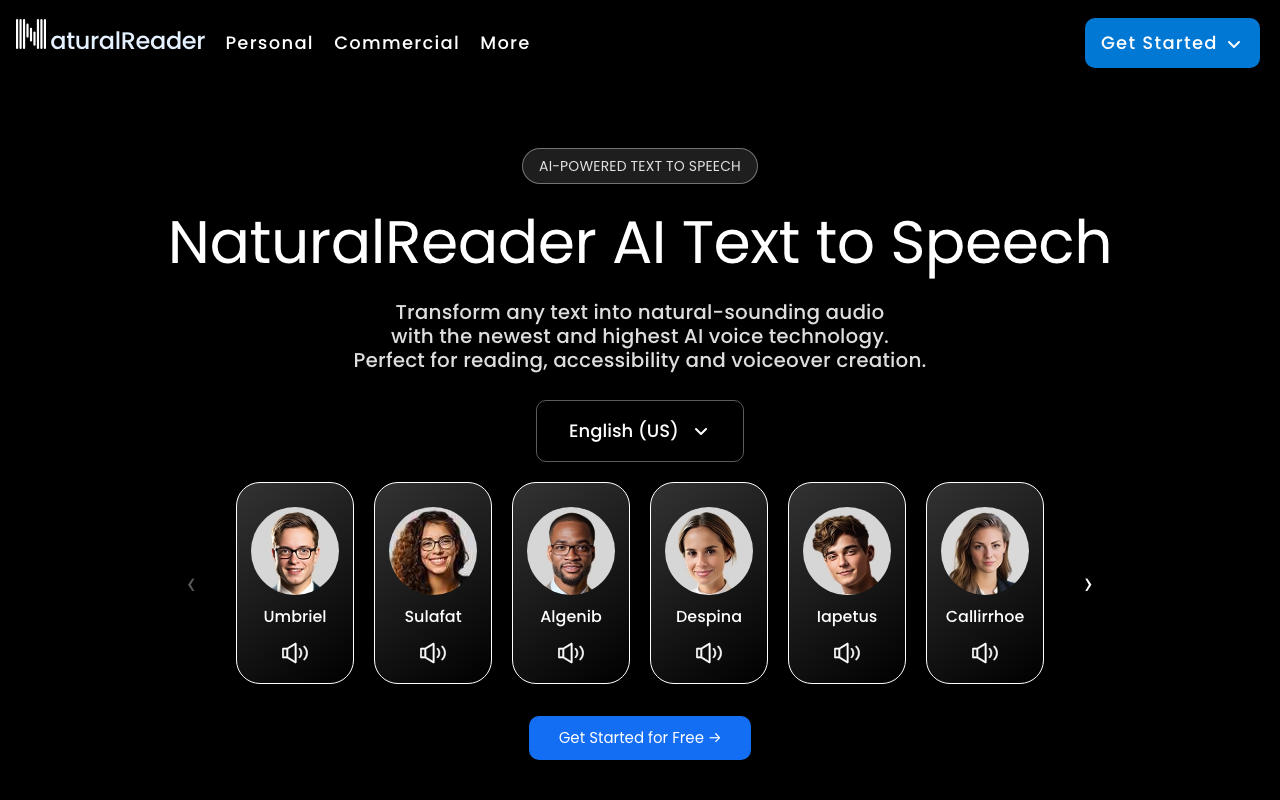
The Chrome extension works on most pages, though I noticed it occasionally fumbles on heavy JavaScript-rendered pages — it reads the raw text rather than what's visually displayed. Not a dealbreaker, but worth knowing.
Best for: General web reading, users who want a well-known, established tool. Limitations: Free tier shows ads and limits access to better voices. No real offline support. Price: Free with limitations; premium plans from ~$9.99/month.
Weighing NaturalReader against everything else? Our NaturalReader alternatives guide covers the full field — desktop apps, mobile tools, and system-wide options.
3. Read Aloud: A Text to Speech Voice Reader — Best Completely Free Option
This is the most-installed free read aloud extension in the Chrome Web Store, and it earns that position. Open-source, no account required, works immediately on installation. The interface is minimal — click the toolbar icon, it reads the page. That's it.
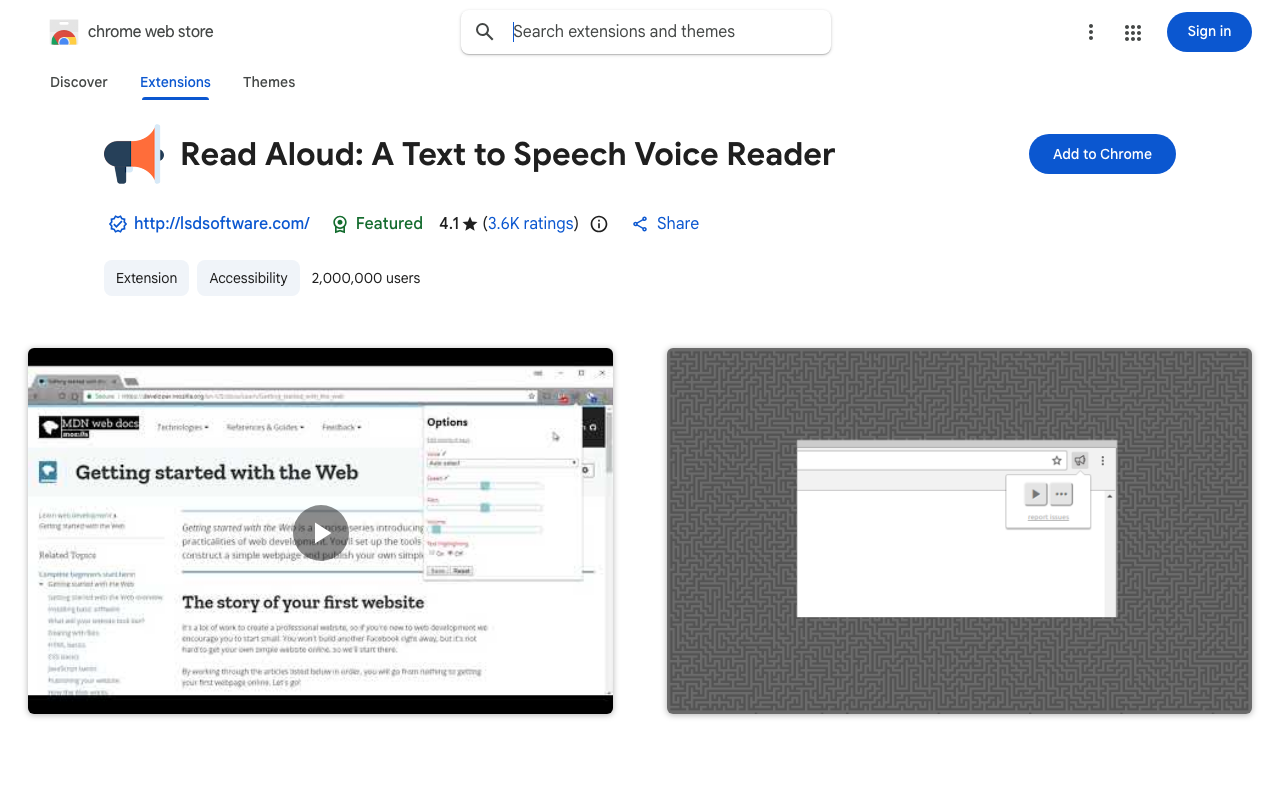
Voice quality is the obvious weakness. It defaults to the browser's built-in speech synthesis, which sounds dated compared to AI voices. You can point it at third-party TTS APIs (Google, Amazon Polly, IBM Watson), but that requires API keys and setup most users won't bother with.
For students or casual readers who just need something functional right now and don't want to spend anything, it's the right call.
Best for: Budget users, students, anyone who wants zero-friction installation. Limitations: Robotic default voice unless you configure external APIs. No offline, no PDF-specific support. Price: Free (open-source).
 4. Speechify — Best for Audiobook-Style Listening
Speechify has positioned itself hard as the "speed reading" tool — the voice quality is excellent, and the speed controls go high enough that experienced users can consume content at 2–3x without losing comprehension. If you're a heavy reader who's already adjusted to audiobooks at 1.5x, Speechify feels familiar.
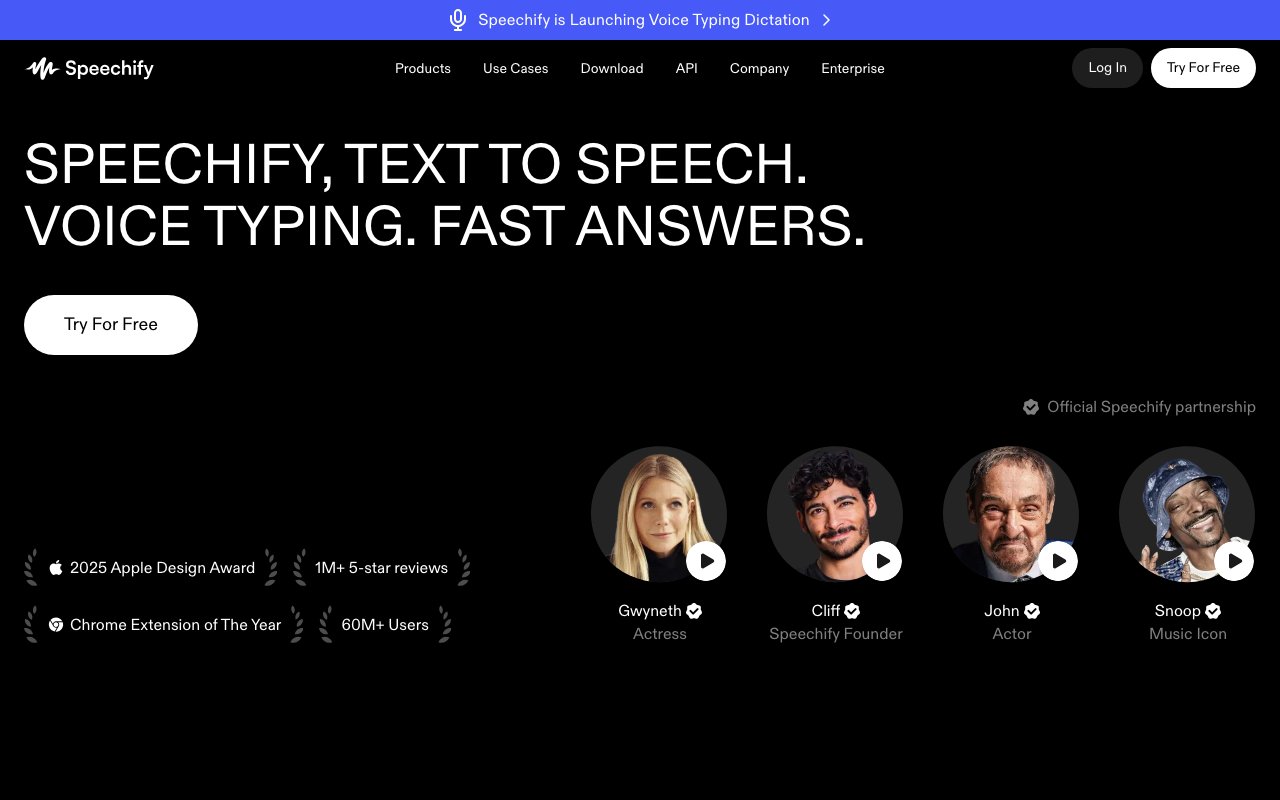
The Chrome extension is well-built and handles article text extraction better than most. It strips nav menus and footers cleanly, so you're actually listening to the article, not the entire page DOM.
The catch: the free tier is genuinely limited. You get decent voices for a trial period, then face a paywall for the AI voices that make Speechify worth using. The premium pricing is on the higher end.
Best for: Users who already consume a lot of audio content and want a polished speed-reading experience. Limitations: Expensive without a subscription. Some features require the mobile app. Price: Free trial; premium from ~$11.58/month (annual).
 5. Snap&Read — Best for Accessibility and Education
Snap&Read is built specifically for students and people with reading disabilities like dyslexia. It integrates with Google Classroom, handles complex academic text well, and includes features like vocabulary support and simplified reading levels alongside TTS.
For a general user just wanting to listen to articles, it's overkill and the licensing model is designed for schools rather than individuals. But if accessibility is the core use case — whether for yourself or students you're supporting — it's purpose-built in a way the others aren't.
Best for: Students, educators, users with dyslexia or reading disabilities. Limitations: School-oriented licensing; overkill for general browsing. Price: School/district licensing; individual pricing available.
 6. TTSReader — Best Lightweight Option
TTSReader is a no-frills option that does one thing: reads text. Paste text into the web app or activate the extension on a page, and it reads. No account, no installation required for the web version.
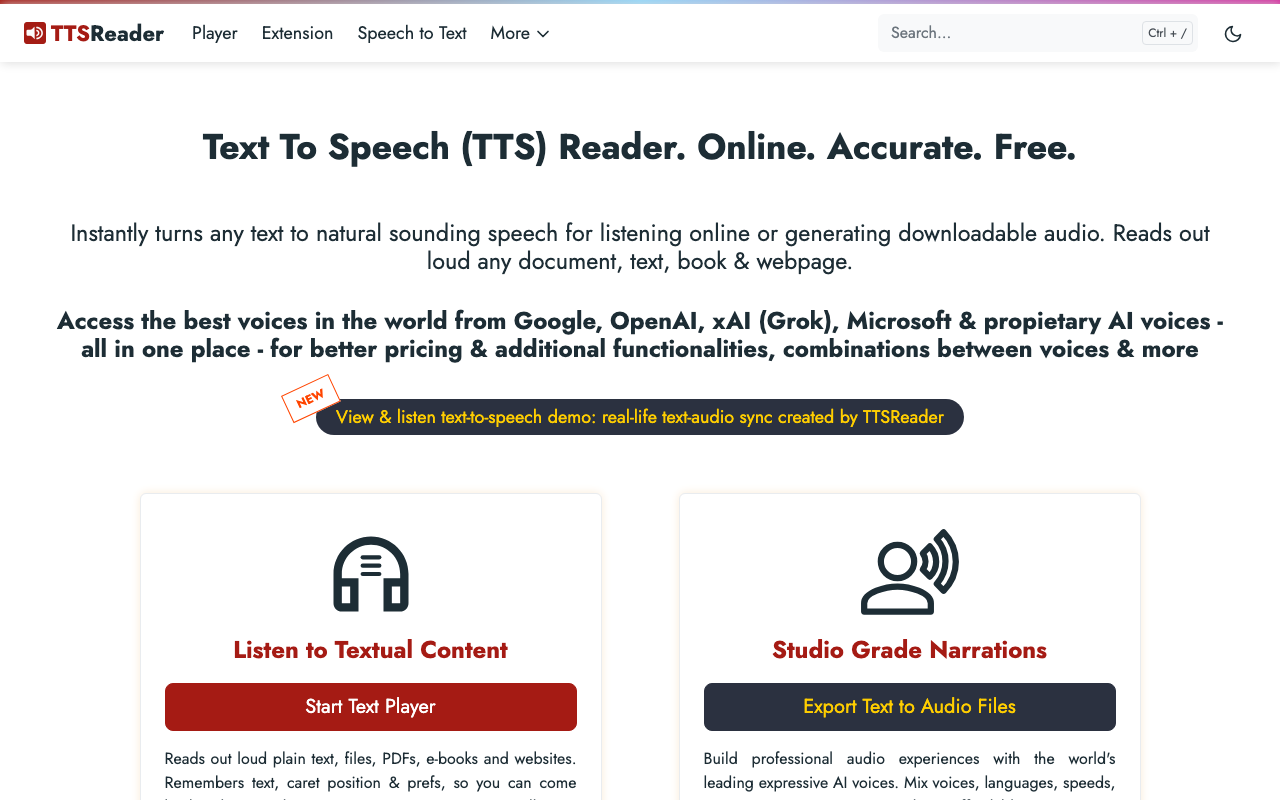
Voice quality is firmly in the "functional but not enjoyable" category. Good for quickly checking how something sounds, not for 45-minute listening sessions.
Best for: Occasional use, quick checks, users who don't want any commitment. Limitations: Basic voice quality, limited customization. Price: Free.
Quick Comparison
| Extension | Best For | Voice Quality | Free Tier | Offline |
|---|---|---|---|---|
| Speak It Fast | AI voice quality, system-wide | ★★★★★ | Yes | Yes |
| Natural Reader | General web reading | ★★★★ | Limited | No |
| Read Aloud | Zero-cost simplicity | ★★★ | Yes (fully) | Partial |
| Speechify | Speed reading, audiobook feel | ★★★★★ | Trial only | Premium |
| Snap&Read | Accessibility, education | ★★★★ | School licenses | No |
| TTSReader | Lightweight, no-commitment | ★★★ | Yes | No |
How to Read PDFs Aloud in Chrome
Opening a PDF in Chrome and reading it aloud is straightforward — as long as the PDF is text-based (not a scanned image).
- Open the PDF in Chrome by dragging it into a tab or navigating to the file URL
- Activate your read aloud extension from the toolbar
- Most extensions will detect the text content and start reading
A few things that trip people up:
Scanned PDFs won't work. If the PDF is just an image of text (common with older scanned documents), the extension has no text to process. You'd need OCR software first.
Complex layouts cause skipping. Multi-column academic papers or heavily formatted PDFs sometimes read in a weird order. Copying the text into a plain document and reading that is usually cleaner.
Chrome's PDF viewer vs. third-party viewers — extensions work better with Chrome's built-in PDF viewer than with embedded third-party viewers like Adobe's web reader.
For serious PDF reading, a system-wide tool like Speak It Fast handles it more reliably than a browser extension — you're not fighting Chrome's rendering pipeline. If PDF listening is your main use case, the read a PDF aloud guide covers Mac, browser, and mobile options together — including how to handle scanned documents that extensions can't read.
Read Aloud Chrome Extension vs. System-Wide TTS

Chrome extensions are the easy path — install, click, it reads. If you only read web content, that might be all you need.
But if you read across multiple apps — PDF viewers, email clients, Slack, notes, writing tools — a browser extension gets annoying fast. You switch contexts, lose the extension, end up copying text around. A system-wide tool like Speak It Fast works in every app, so you're not constantly context-switching back to the browser.
If you want the fuller picture on where voice synthesis quality is actually headed, the AI voice-over tools post goes into the technology side. For Mac-specific options including Apple's built-in stuff, text to speech on Mac has that covered. And if you're on mobile or want a native read-aloud app rather than a browser extension, the text to voice app guide is the full cross-platform comparison.
People using TTS for accessibility reasons tend to prefer the system-wide approach — it works regardless of which app you're in, which matters when you're depending on it.
Frequently Asked Questions
What is the best free read aloud extension for Chrome?
Read Aloud: A Text to Speech Voice Reader is the best completely free option — open-source, no account, works immediately. For better voice quality without paying, Speak It Fast offers a free tier with AI voices that sound noticeably more natural than the default browser TTS.
Can Chrome extensions read PDFs aloud?
Yes, with caveats. Chrome-based read aloud extensions can read PDFs opened directly in the browser tab, but scanned PDFs (image-based) won't work — the extension needs actual text to process. If your PDF is text-based, open it in Chrome and activate your extension normally. Complex layouts may cause the reading order to jump around.
Which read aloud extension has the most natural voice?
Speak It Fast uses AI voice synthesis that actually sounds like a person, not the usual GPS-robot monotone. Speechify is close behind, especially on the premium tier. Both are well ahead of anything relying on browser-native speech synthesis.
Is there a Chrome extension that reads web pages aloud offline?
Most Chrome read aloud extensions rely on cloud APIs for their better voices. Speak It Fast supports offline processing through on-device AI — no internet required for core functionality, which is genuinely rare among TTS tools.
Bottom Line
If you're installing one extension today: Speak It Fast for voice quality and versatility, or Read Aloud if you need something free with zero setup. Speechify is the right pick if you're an audiobook listener who wants that same experience on web content.
For workflows that go beyond Chrome — reading in mail clients, docs, Slack, everything else — a system-wide tool makes more sense than any browser extension. The best voice to text software roundup covers how voice tools fit into broader productivity setups if you want to go deeper.
Want to try system-wide AI voice without the browser limitation? Download Speak It Fast free and see how it handles everything on your screen.
Frequently Asked Questions
What is the best free read aloud extension for Chrome?
Read Aloud: A Text to Speech Voice Reader is the best free option — it's open-source, works on most web pages, and requires zero account setup. For better voice quality, Speak It Fast offers a free tier with AI-powered voices that sound noticeably more natural.
Can Chrome extensions read PDFs aloud?
Yes, with some caveats. Chrome-based read aloud extensions can read PDFs opened directly in the browser tab, but scanned PDFs (image-based) won't work — the extension needs actual text to process. If your PDF is text-based, open it in Chrome and activate your extension normally.
Which read aloud extension has the most natural voice?
Speak It Fast uses AI-powered voice synthesis that's noticeably more natural than the standard browser TTS voices. Speechify also ranks highly on voice quality, especially in its premium tier. Both are well ahead of older options like the stock Google TTS voices.
Is there a Chrome extension that reads web pages aloud offline?
Most Chrome read aloud extensions rely on cloud APIs for their better voices, but fall back to the browser's built-in speech synthesis when offline. Speak It Fast supports offline processing through on-device AI — no internet required for core functionality.
Ready to try AI Dictation?
Experience fast voice-to-text on your device. Free to download.
Download FreeRelated Posts
Knowledge Worker Productivity: A Practical Playbook
Boost knowledge worker productivity with a practical playbook covering measurement, frameworks, async workflows, and tools that actually move the needle.
Action Item Tracking: Drive Results from Meetings
Master action item tracking to ensure every meeting commitment leads to results. Improve productivity & achieve your goals with effective follow-through.
Content Structure Done Right: A Practical Guide
Master content structure. Learn core principles, see templates for docs and notes, and discover how to create structured text instantly from speech.