Text to Speech on Mac: Tools, Apps & AI Alternatives (2026)

Your Mac can read text out loud. Not in a stilted, robotic way like it's 2005 — the built-in voices on macOS Sequoia actually sound decent. And if "decent" isn't enough, a handful of third-party apps push the quality way beyond what you'd expect.
Whether you want to proofread by ear, listen to articles during a commute, or generate voiceover audio for a video project, macOS has you covered. I spent a week testing every option — from the free stuff baked into System Settings to paid apps with AI-generated voices — and here's what's actually worth your time.
macOS Spoken Content: The Free Option You Already Have
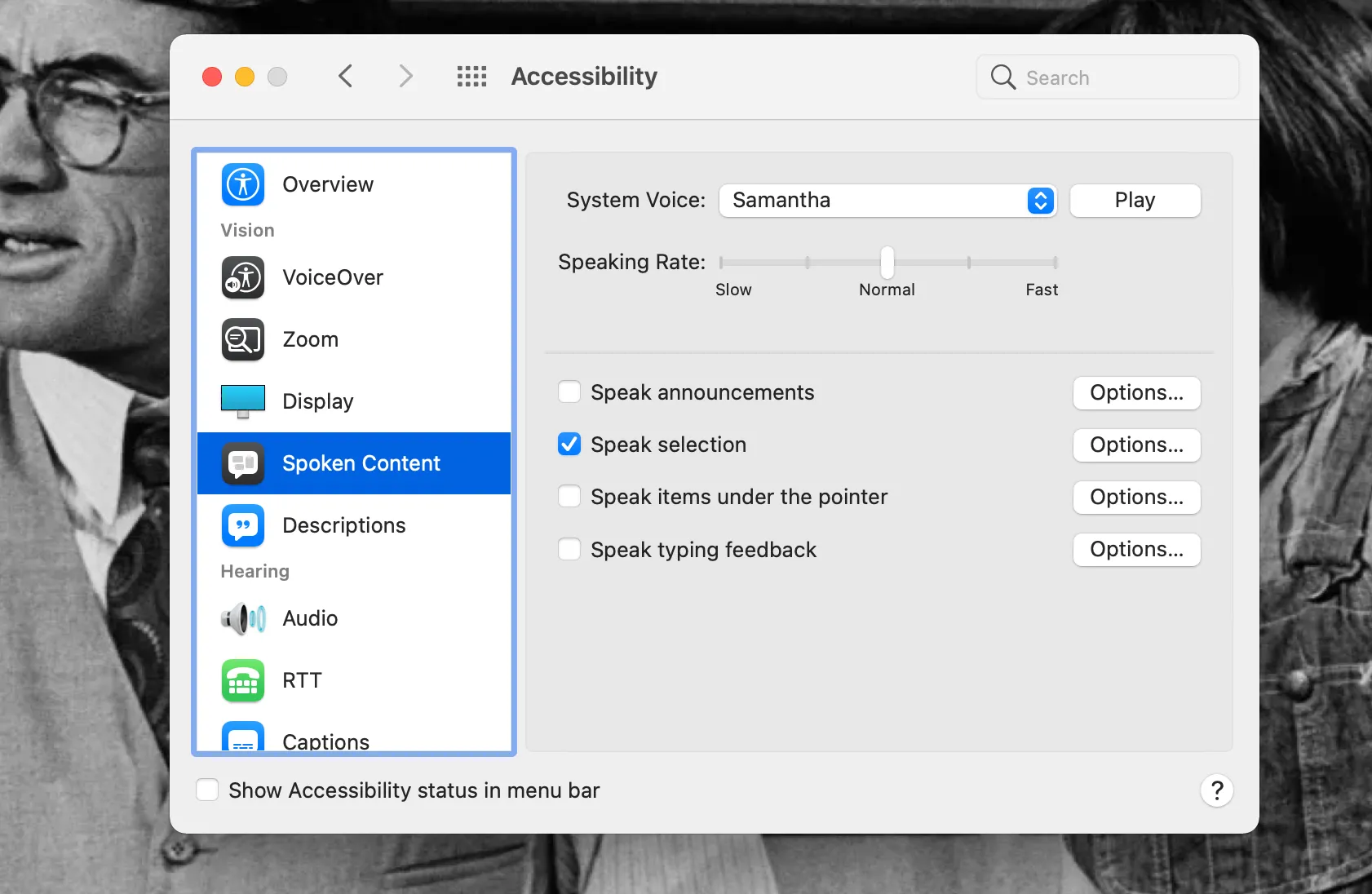
Apple ships a text-to-speech engine with every Mac. It's been there for years, but most people have never turned it on. Buried under System Settings > Accessibility > Spoken Content, it's one of the most underrated features on macOS.
Here's how to set it up:
- Open System Settings > Accessibility > Spoken Content
- Toggle Speak Selection on
- Pick a keyboard shortcut (Option+Esc is the default)
- Choose a voice — I'd recommend downloading one of the "Premium" voices like Zoe or Evan
Now highlight any text anywhere on your Mac — Safari, Notes, Mail, a PDF — and hit the shortcut. Your Mac reads it aloud. Simple as that.
What's Actually Good About It
The premium voices (the ones you download, about 300-600MB each) are surprisingly natural. Apple added neural TTS voices in macOS Ventura, and they've kept improving. Zoe and Samantha Premium both handle conversational text without that uncanny-valley cadence that plagued older TTS systems.
You also get Speak Screen (reads the entire visible screen), typing feedback (speaks each word as you type), and Hover Text (enlarges and speaks text when you hover with a modifier key). For accessibility, these features matter a lot more than most people realize.
Where It Falls Short
No export. You can't save the audio to a file — it just plays through your speakers. That kills it for voiceovers, podcast intros, or anything where you need an actual audio file.
Voice selection tops out at about 20 English options. They're fine, but thin compared to dedicated apps. And the speed control is just a single slider — no pitch, emphasis, or pause adjustments. You get what you get.
For listening to articles or proofreading your own writing, it works great. For anything production-grade, you'll need a third-party app. If you want a quick refresher on how TTS engines actually work — why some voices sound robotic and others don't — see what text to speech is and how it works.
Third-Party Text to Speech Apps for Mac
 NaturalReader
Price: Free tier / $10-20/month Pro | Voices: 200+ AI voices | Export: MP3, WAV
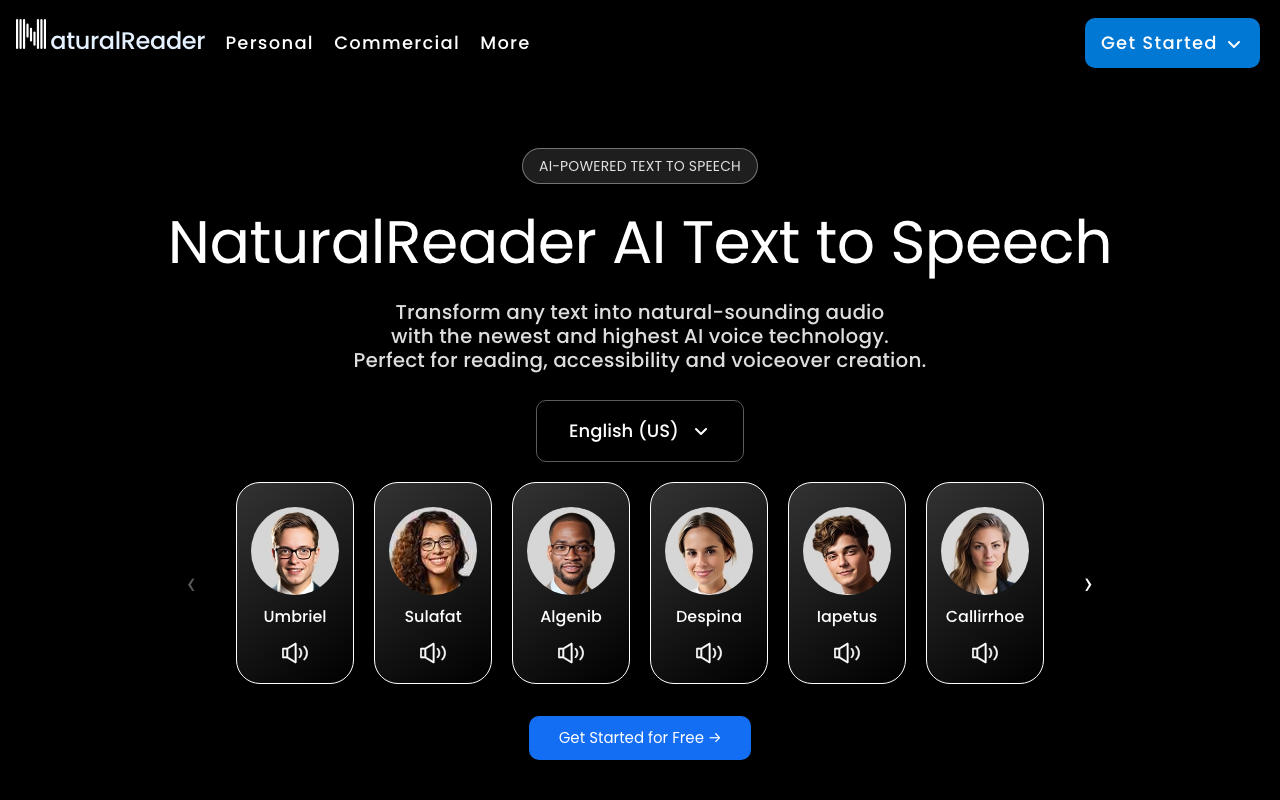
NaturalReader has been around forever, but the current version barely resembles the old one. The AI voices are good — not "good for a computer" good, but actually pleasant to listen to for 30+ minutes without wanting to turn it off.
The Mac app reads PDFs, Word docs, and ebooks natively. Drag a file onto the app and it starts reading. The browser extension works on any webpage, which is my preferred way to use it — highlight a section of an article, right-click, and listen.
What I like most: the pronunciation editor. When it mispronounces a name or technical term, you teach it once and it remembers. That sounds small but it's maddening when TTS keeps butchering "Kubernetes" or your CEO's last name.
Best for: Reading long documents, web articles, and ebooks aloud.
If NaturalReader isn't meeting your needs, see our NaturalReader alternatives roundup — we compare every major option including ElevenLabs, Speechify, and Murf.
 Speechify
Price: Free tier / $12/month Premium | Voices: 30+ premium voices | Export: MP3 (Premium)
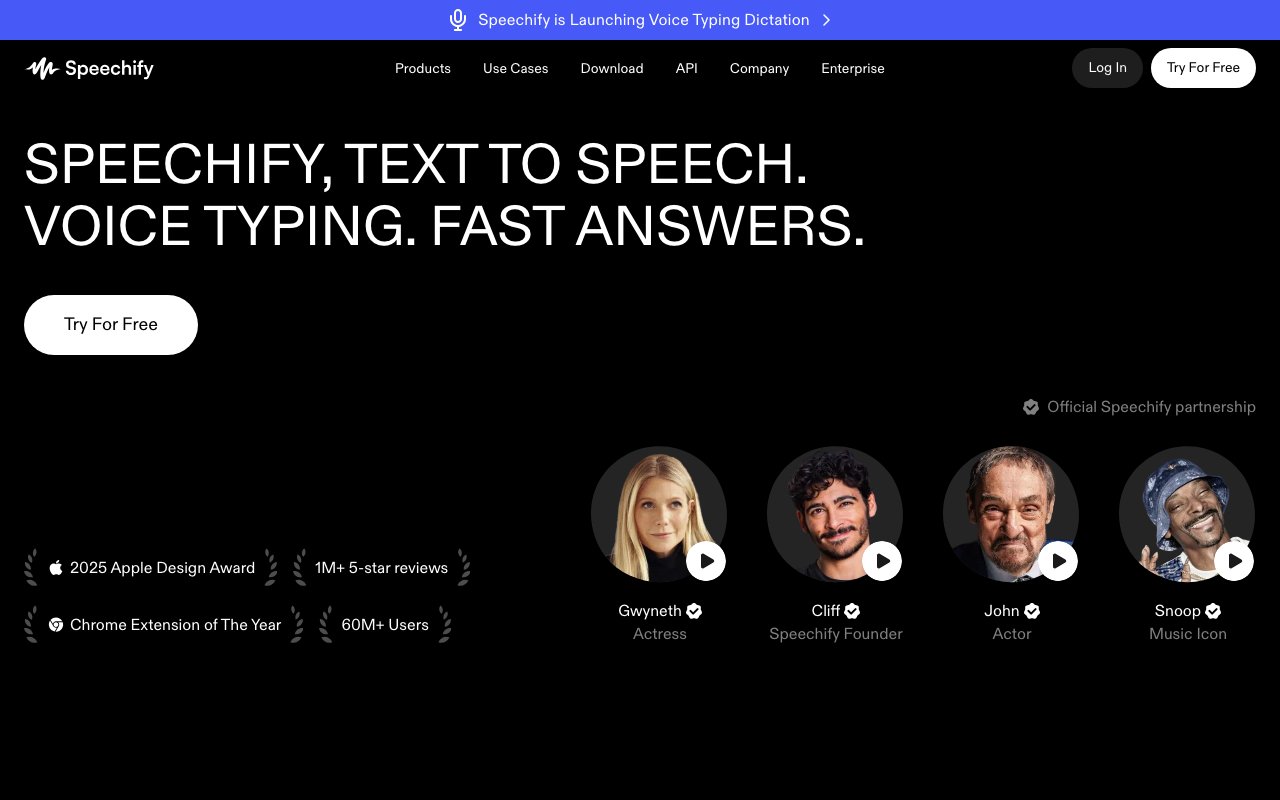
Speechify leans hard into the "listen to everything" angle. It has a Mac app, iOS app, Chrome extension, and they all sync. Start listening to an article on your MacBook and pick it up on your iPhone during a walk. That cross-device sync is the killer feature here.
The speed controls go up to 4.5x, which sounds insane but speed-listening people swear by it. At 2-2.5x, the AI voices remain intelligible and natural. Past 3x, things get robotic but still understandable if you've trained your ear.
One annoyance: Speechify pushes the premium subscription aggressively. The free tier is limited, and the app constantly nudges you to upgrade. The premium voices are noticeably better than the free ones — feels like they sandbagged the free tier on purpose.
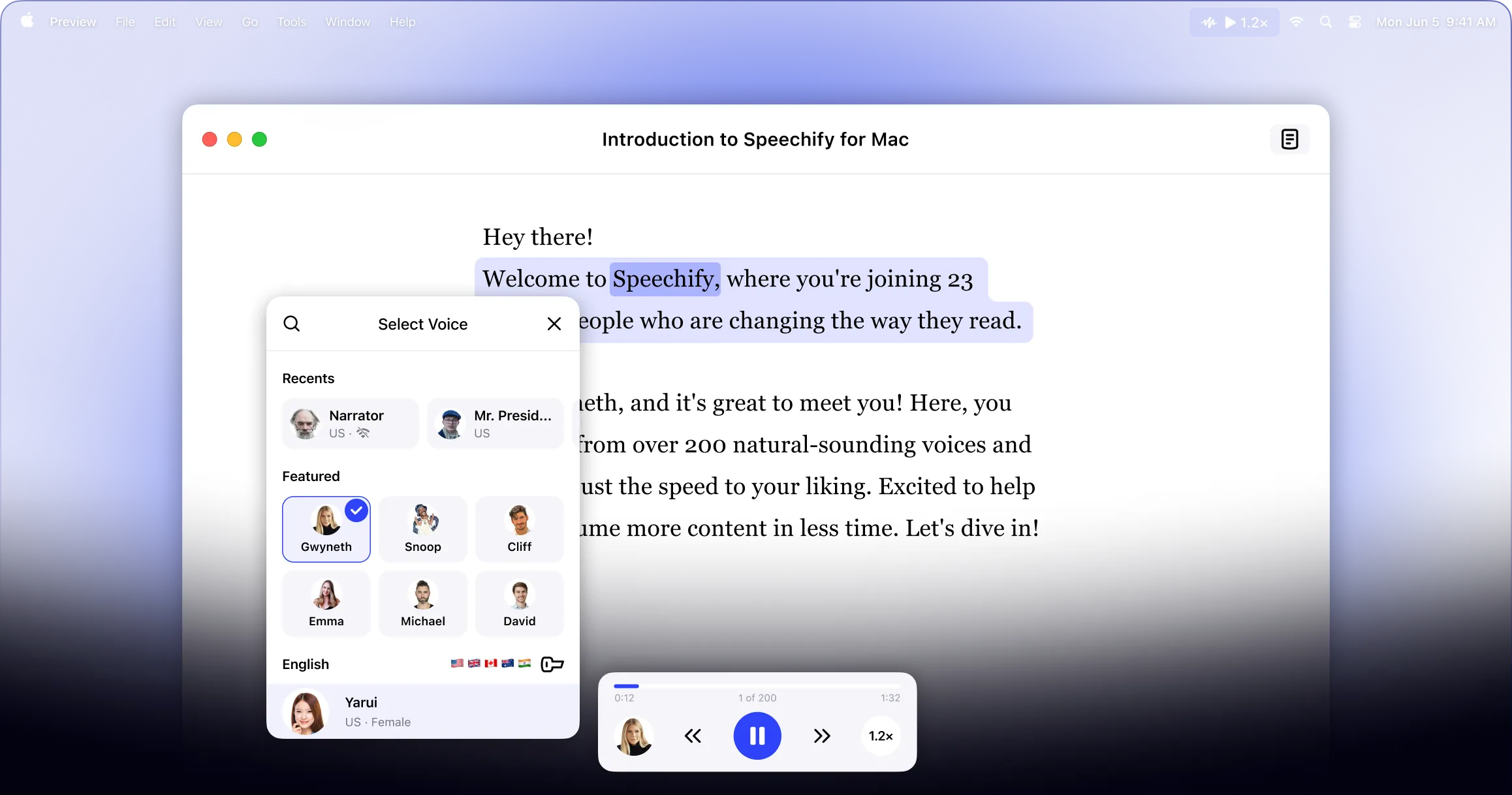
Best for: People who consume a lot of written content by listening.
 ElevenLabs
Price: Free tier (10k chars/month) / $5-22/month | Voices: 1000+ community voices + cloning | Export: MP3, WAV, FLAC
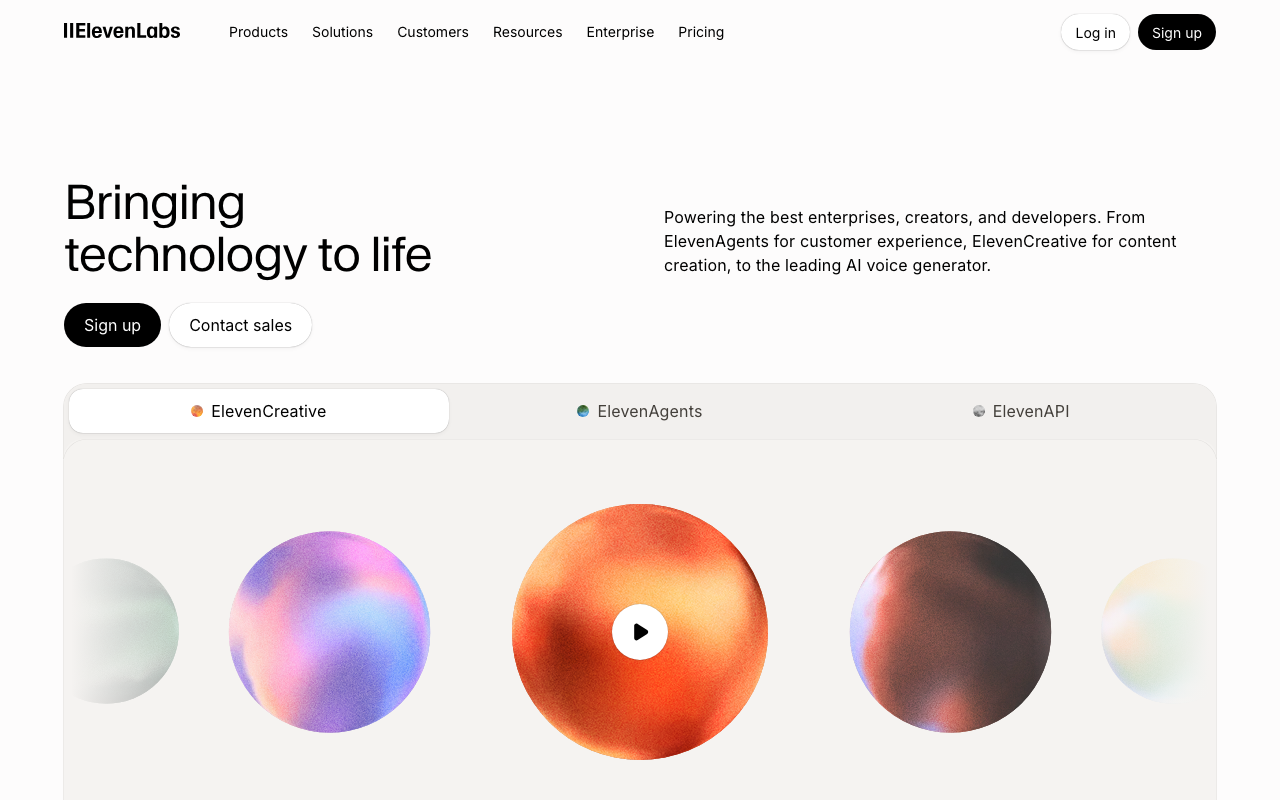
ElevenLabs is in a different league. Their voices don't just read text — they perform it. Feed it an excited paragraph and the voice actually sounds excited. Give it something dry and technical, and it dials back. I kept doing A/B comparisons with NaturalReader and the gap was obvious every time.
The voice cloning feature lets you create a custom voice from a few minutes of recorded audio. I cloned my own voice and used it to generate a voiceover — honestly creepy how close it was. My wife couldn't tell the difference in a blind test.
No native Mac app, but the web app is solid and the API is easy to plug into your own scripts. The free tier gives you 10,000 characters monthly — enough for a few short articles or one long blog post.
Best for: Content creators who need professional voiceover audio. Check out our full guide to AI voice-over tools for a deeper comparison.
The Other Direction: Voice to Text on Mac
Most TTS articles stop here. But there's an opposite workflow that's just as useful.
Text to speech makes the computer talk for you. Voice dictation does the reverse — you talk, the computer types. Simple concept, but it changes how you work more than you'd think.
If you're exploring TTS because you want to be more productive with how you consume or create text, dictation deserves a hard look. Instead of typing a 2,000-word email, you speak it in 8 minutes. Instead of hunting and pecking through a long report, you dictate your notes while walking around. Our guide on how to dictate covers the technique from scratch if you've never tried it.
macOS has built-in dictation too (press the Fn key twice), but it's rough — limited to 30-second bursts on the free version, frequent misrecognitions, and zero formatting intelligence. If Apple's dictation isn't cutting it, we've compared the best Apple Dictation alternatives that actually work for serious writing.
AI Dictation takes the opposite approach. It uses Whisper and GPT-based post-processing to transcribe continuously with 99%+ accuracy, automatically handles punctuation, and formats your text intelligently. Where Apple's built-in dictation gives you a wall of lowercase text, AI Dictation gives you properly formatted paragraphs.
Here's a workflow I actually use daily: dictate your first draft with AI Dictation, then use text-to-speech to proofread it by ear. Hearing your own words read back catches errors that your eyes skip over — awkward phrasing, repeated words, sentences that run too long.
If you're on a Mac and care about the speech-to-text side of things, we've done a detailed comparison of every dictation app available for macOS.
Picking the Right Tool for Your Use Case
Different tools for different jobs. Here's how I'd break it down:
Just want to listen to articles and docs? Start with Apple's built-in Spoken Content. It's free, works everywhere on your Mac, and the premium voices are decent. If you outgrow it, NaturalReader or Speechify add more features. If you'd rather stay in the browser without installing a desktop app, our read aloud Chrome extension guide covers the best lightweight options. For PDFs specifically — including scanned documents and what works on iPhone — our guide to reading PDFs aloud has those covered.
Need to create audio files for content? ElevenLabs or a cloud TTS API (Google Cloud, Amazon Polly) are your best bet. Apple's built-in option can't export audio. See our AI voice-over guide for a full breakdown of professional tools. If you're a content creator looking at voice-first workflows, our voice typing for content creators guide pairs well with TTS.
On an iPhone or iPad too? The setup carries over almost exactly. Our text to speech on iPhone & iPad guide walks through Spoken Content, Speak Screen, and the best mobile apps.
On Android? The idea is the same but the menus differ — Google calls it Select to Speak. Our text to speech on Android guide covers turning it on and the better neural voices worth downloading.
Want privacy and offline use? Apple's Spoken Content runs entirely on-device. For dictation tools that also work offline, check out our offline dictation roundup.
Looking for both directions — TTS and dictation? Pair any TTS tool with AI Dictation for a complete voice workflow. Dictate your drafts, then proofread them by ear.
Tips for Getting Better Results from Mac TTS
Stuff I figured out after a few weeks of daily TTS use:
Download the premium voices. The defaults are mediocre. Go to System Settings > Accessibility > Spoken Content, click the voice dropdown, and grab the enhanced versions. They're 300-600MB each but the difference is night and day.
Use it for proofreading. When you read your own writing silently, your brain fills in gaps and skips errors. Hearing it out loud breaks that spell. I catch way more mistakes this way — awkward phrasing especially.
Ramp up speed slowly. Start at 1x, bump to 1.25x after a week, then 1.5x. Your brain adjusts faster than you'd expect. I'm at 1.75x now and anything slower sounds weirdly sluggish.
Switch voices by content type. I use a male voice for technical stuff and a female voice for casual reading. No logic behind it — just helps my brain shift gears between "learning mode" and "leisure mode."
Frequently Asked Questions
Does Mac have built-in text to speech?
Yes. Every Mac ships with Spoken Content, a free text-to-speech feature found in System Settings > Accessibility > Spoken Content. It can read selected text, full screens, or type-and-speak — no downloads required. Apple includes about 20 English voices, and the premium neural voices (free to download) sound surprisingly natural for everyday use.
How do I enable text to speech on MacBook?
Open System Settings, go to Accessibility > Spoken Content, and toggle on Speak Selection. Set a keyboard shortcut (default is Option+Esc) and pick a voice. Highlight any text and press the shortcut to hear it read aloud. For full-screen reading, also enable Speak Screen — then swipe down with two fingers from the top of the screen to start.
What is the best text to speech app for Mac?
For casual listening, Apple's built-in voices are solid and completely free. For professional narration, NaturalReader and Speechify offer higher-quality AI voices with speed controls, export options, and browser extensions. ElevenLabs leads the pack on voice cloning and emotional range — if you need to generate audio files for content, that's where I'd start.
Can I use AI text to speech on Mac for free?
Apple's built-in Spoken Content is completely free with no usage limits. NaturalReader offers a free tier with basic voices. Google Cloud Text-to-Speech gives you 1 million free characters per month (about 150,000 words). ElevenLabs offers 10,000 free characters monthly. For premium AI voices with export and cloning features, expect to pay $5-30/month.
What's the difference between text to speech and voice dictation?
Text to speech reads written text aloud — the computer speaks for you. Voice dictation does the opposite — it listens to your voice and types what you say. Opposite directions, same idea. TTS tools like NaturalReader and Speechify handle the output side. Dictation tools like AI Dictation handle the input side — turning speech into text at up to 3x your typing speed. Pair them and you've got a full voice-first workflow.
Ready to try the other direction? Download AI Dictation free and turn your voice into text at 3x your typing speed.
Frequently Asked Questions
Does Mac have built-in text to speech?
Yes. Every Mac ships with Spoken Content, a free text-to-speech feature found in System Settings > Accessibility > Spoken Content. It can read selected text, full screens, or type-and-speak — no downloads required.
How do I enable text to speech on MacBook?
Open System Settings, go to Accessibility > Spoken Content, and toggle on Speak Selection. Set a keyboard shortcut (default is Option+Esc) and pick a voice. Highlight any text and press the shortcut to hear it read aloud.
What is the best text to speech app for Mac?
For casual listening, Apple's built-in voices are solid. For professional narration, NaturalReader and Speechify offer higher-quality AI voices with speed controls, export options, and browser extensions. ElevenLabs leads on voice cloning and emotional range.
Can I use AI text to speech on Mac for free?
Apple's built-in Spoken Content is completely free with no limits. NaturalReader offers a free tier with basic voices. Google Cloud TTS gives you 1 million free characters per month. For premium AI voices, expect to pay $5-30/month.
What's the difference between text to speech and voice dictation?
Text to speech reads written text aloud — the computer speaks for you. Voice dictation does the opposite — it listens to your voice and types what you say. Tools like AI Dictation handle the dictation side, turning speech into text at up to 3x your typing speed.
Ready to try AI Dictation?
Experience fast voice-to-text on your device. Free to download.
Download FreeRelated Posts
Voice to Text on Mac: Built-in Dictation vs the Best Apps (2026)
How to use voice to text on a Mac or MacBook: turn on built-in dictation, see where it falls short, and compare the best Mac voice to text apps for 2026.
7 Dyslexia Examples of Writing You Need to See
Explore 7 common dyslexia examples of writing, from letter reversals to phonetic spelling. Understand the signs and discover helpful accommodations.
Bullet Point Formatting: Master Your Lists
Master bullet point formatting. Learn parallel structure, punctuation, and accessibility for Markdown, HTML, and Word. Create clear, effective lists.