Voice to Text for Accessibility in 2026
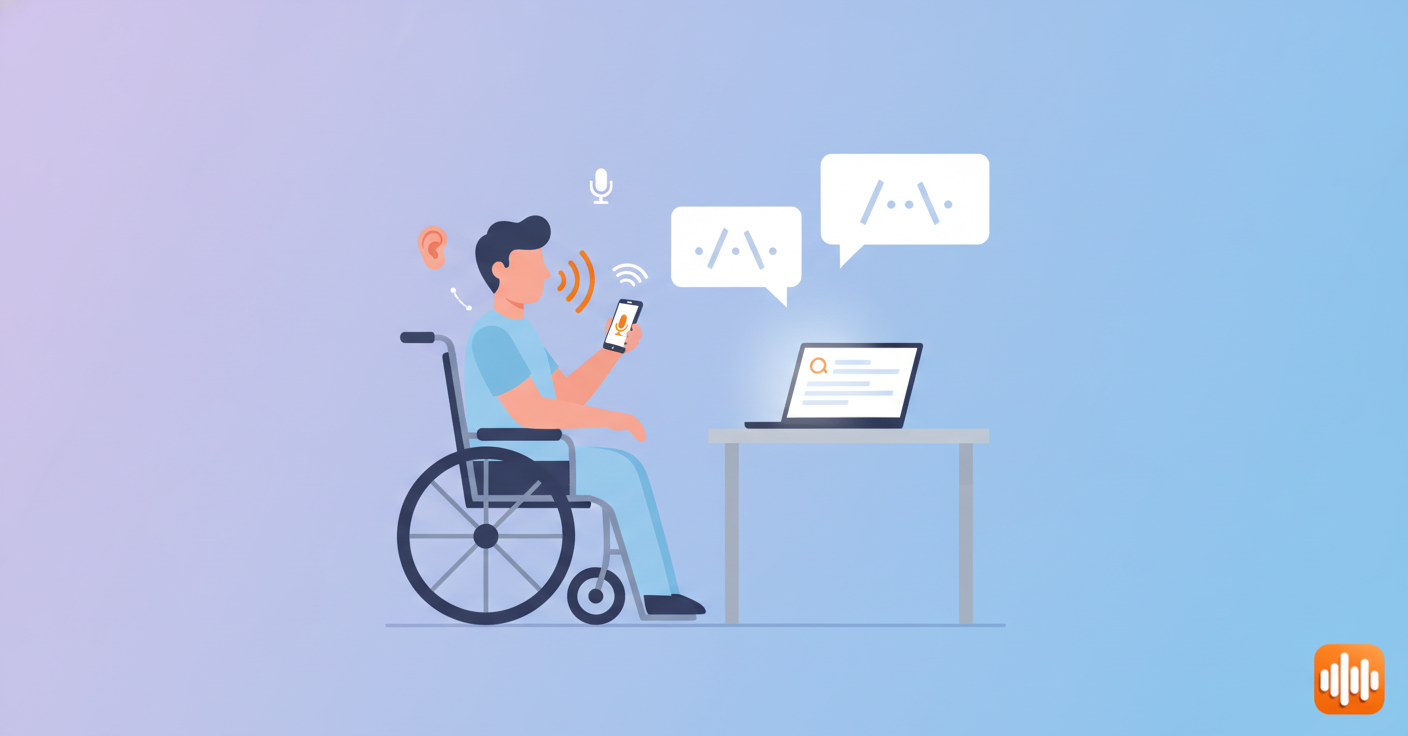
If you've been struggling with typing because of a disability, voice-to-text might be the biggest productivity shift you've never tried. This isn't some gimmicky accessibility feature—it's real technology that changes what you can actually do.
Over 1 billion people globally have some form of disability. Yet most productivity tools are still built around the keyboard. Voice-to-text solves that. No keyboard required, just speaking and your words appear on screen.
Why Voice-to-Text Matters for Accessibility
Traditional typing creates barriers for people with:
Motor disabilities. If you have carpal tunnel, arthritis, cerebral palsy, Parkinson's disease, repetitive strain injury (RSI), or any condition that makes typing painful or impossible, voice-to-text removes that barrier entirely. You're no longer fighting your body to get words on screen. The right dictation software makes all the difference.
Visual impairments. Blind and low-vision users can create text without relying on complex keyboard navigation. You speak, the software writes. Combined with screen readers, this creates a genuinely accessible workflow that doesn't require sighted assistance.
Learning disabilities. People with dyslexia or dysgraphia often find speaking is faster and more natural than writing. Your thoughts flow directly into text without the spelling and motor coordination battles that make typing exhausting.
Chronic fatigue and pain conditions. Whether it's ME/CFS, fibromyalgia, or other chronic conditions that make sustained typing impossible, voice-to-text lets you work within your actual capacity instead of pushing through pain.
The key insight: you don't need to ask for permission or special accommodations. This is mainstream technology that works right now, on devices you probably already own. Our voice-to-text overview covers how the technology works across platforms. For the reverse direction — having text read aloud to you — browser-based tools in our read aloud Chrome extension guide offer an equally accessible solution for consuming written content.
The Accessibility Advantage Over Manual Typing
Here's what most people don't realize: voice-to-text isn't just a workaround for disabled users. It's often better than typing for everyone, and especially valuable for accessibility because it preserves both your physical health and your mental energy.
Speed and efficiency. You speak 150+ words per minute but type 40-60. That's not just faster—it's the difference between feeling productive and feeling stuck. See our how to dictate guide for techniques that maximize your speed. For people with disabilities, that speed difference can be the gap between working full-time and being unable to work at all.
Reduced physical strain. No carpal tunnel flare-ups. No hand pain. No neck tension from hunching over a keyboard. Your body is moving less, which means less fatigue and less post-activity pain crashes.
Better first drafts. Speaking naturally produces more human, conversational writing. Your thoughts come out faster than your fingers can type them, which means the quality of your first draft often improves. You're not censoring your ideas due to the friction of typing—you just speak.
Mental energy preservation. For people managing chronic pain or fatigue, every calorie of energy matters. Voice-to-text reduces the cognitive load of managing the input mechanism. You can focus on the actual work, not the struggle of physically typing.
Getting Started: Technical Setup for Accessibility
You don't need to buy expensive specialized equipment. Most of what you need is already on your devices. Let's break down what works best depending on your situation.
For people with limited hand/arm mobility
A hands-free headset with boom microphone is your best friend. Look for:
- Adjustable boom arms you can position without hand strength
- Wireless options to avoid cable management
- Voice-activated controls if possible
- Lightweight design to avoid neck strain
Mounting options matter too. Some people use articulating arms that attach to desks, wheelchairs, or beds—these eliminate the need to hold anything.
For blind or low-vision users
Built-in microphones work, but external microphones capture cleaner audio, which improves accuracy. Pair dictation with your existing screen reader setup. Most modern screen readers (JAWS, NVDA, Windows Narrator, Mac VoiceOver) work perfectly with voice-to-text software.
For people with tremors or shaking
Stability matters. A mounted microphone on a desk arm works better than handheld options. Wireless headsets with lightweight booms reduce hand strain.
Universal recommendations
- Microphone placement: 6-12 inches from your mouth, slightly off to the side (not directly in front)
- Noise-canceling features: Look for software with background noise filtering
- Quiet environment: Even 5-10 minutes to find a quieter spot improves accuracy dramatically
- Regular breaks: Voice-to-text reduces hand strain but adds vocal strain. Give your voice rest periods
Software Options Optimized for Accessibility
Not all voice-to-text software treats accessibility equally. Here's what works best:
AI Dictation (Mac)
The best option for accessibility because it's specifically designed for this workflow. Features include:
- Local processing (no cloud, no privacy concerns)
- Works offline
- Accessible keyboard shortcuts
- Removes filler words automatically
- Works across all Mac applications
- No subscription required
This is what many accessibility advocates recommend because it respects your privacy while delivering accuracy.
Google Docs Voice Typing
Completely free. Built into Google Docs with zero learning curve. Works in any web browser on any device. The accessibility features are strong—it integrates with Google's accessibility features and screen readers. See our full Google Docs voice typing tutorial for setup details.
Limitations: Requires internet, sends audio to Google servers (privacy consideration), best for document creation rather than real-time communication.
Microsoft Dictate
Available for Windows, Mac, and online. Integrates with Word and Outlook. Works with screen readers. Completely free. Good accuracy for clear speech.
Similar trade-off to Google Docs: cloud-based, which some accessibility users avoid for privacy.
Dragon NaturallySpeaking
The professional standard for specialized accessibility. Incredible accuracy, extensive customization, voice commands for navigation. This is what medical professionals, lawyers, and accessibility specialists use when accuracy is non-negotiable. If you're comparing options, see our Dragon dictation alternative guide.
Cost: ~$300-400 upfront, but worth it if you're relying on this for your primary work.
Apple's Built-in Dictation
Available on Mac, iPhone, iPad. Free. Works with VoiceOver and other accessibility features. Good accuracy. Simple setup. For more Mac-specific options, see our speech-to-text for Mac guide.
Limitation: Not as powerful as other options, but perfectly adequate for basic needs.
Real-World Workflows: How People Actually Use This
Let me walk you through actual accessibility scenarios that voice-to-text solves:
Scenario 1: Data entry worker with RSI
Jessica has severe carpal tunnel from years of data entry. She can't type for more than 15 minutes without pain. Using voice-to-text with Dragon, she now:
- Speaks information into forms instead of typing
- Uses voice commands to navigate between fields
- Takes frequent voice breaks instead of fighting through pain
- Works full days without post-work pain flare-ups
- Increased productivity by 40% in her first month
Scenario 2: Student with dysgraphia
Marcus struggles with spelling and written expression. His hands shake slightly, making keyboard work slower and frustrating. With AI Dictation:
- He speaks his essay ideas, letting the AI handle spelling
- He focuses on organizing thoughts instead of fighting mechanics
- His writing quality improved because he wasn't constrained by typing friction
- Teachers report his work shows his actual knowledge rather than being limited by motor skills
- He's less exhausted after homework sessions
Scenario 3: Blind professional writer
Aisha is a journalist who went blind three years ago. She uses:
- Voice-to-text with her screen reader for actual writing
- Voice commands to navigate her computer
- The combination lets her work independently without sighted assistance
- She writes as fast as she did before, with zero loss of productivity
These aren't edge cases. These are just normal people using technology that removes barriers.
Customization and Advanced Features for Accessibility
Once you've got the basics working, these features make things even better:
Custom commands
Many tools let you create voice commands for common phrases or corrections. If you have tremors that cause you to lisp or mumble, you can train the software to recognize your specific speech patterns.
Voice navigation
Some tools let you navigate entire applications with voice commands. You can open files, click buttons, and navigate menus without touching a mouse or keyboard. This is game-changing for people with mobility disabilities.
Dictation profiles
Create different profiles for different contexts—formal writing mode, casual messaging mode, coding mode. Switch between them when you change tasks.
Macros and shortcuts
Combine voice input with keyboard macros to create powerful workflows. Speak a phrase that triggers a complex action. This is especially useful for repetitive tasks.
Customizable punctuation and formatting
Most tools let you adjust how aggressively they format. If you prefer minimal punctuation, you can adjust that. If you want full formatting, it can do that too.
Privacy and Security for Sensitive Situations
This matters a lot for accessibility users who may be entering medical information, financial data, or personal details.
Cloud-based tools (Google Docs, Dragon Cloud) send your audio to servers. The audio is typically encrypted, and these companies have privacy policies, but your voice data leaves your device.
Local-only tools (AI Dictation, self-hosted Whisper) keep everything on your device. Your voice never travels to the internet. This is better for medical dictation, legal work, or anything sensitive. Our free voice-to-text guide lists options with local processing.
For healthcare workers, lawyers, and people handling confidential information, local-only processing is the right choice. For casual work and learning, cloud-based tools are fine.
Stop Treating It Like a Workaround
Voice-to-text isn't a special accommodation or a sad consolation prize. It's just the right tool for the job. Someone wearing glasses isn't getting a disability accommodation—they're using the tool that works for their eyes. Same thing.
If a keyboard doesn't work for your hands, voice-to-text does. That's not compensation. That's just being smart about which tool to use. Your disability isn't the problem. A productivity setup that forces you to use a tool that hurts you—that's the problem.
Voice-to-text solves that mismatch. Done. If you want to learn the basics, our getting started with voice dictation guide walks you through everything step by step.
Making the Switch: Your First Week
Day 1: Download or enable voice-to-text on one device. Spend 10 minutes just playing with it. Notice how it works, what surprises you. Android users can follow our speech-to-text Android setup guide. Windows users should check our voice-to-text Windows walkthrough.
Day 2-3: Use it for low-stakes writing—emails, messages, casual notes. Don't expect perfection. Just get comfortable speaking.
Day 4-5: Try it for something slightly more important. A document. A forum post. Something where accuracy matters but stakes aren't high.
Week 2: Start using it for real work. You'll still catch yourself reaching for the keyboard. That's normal. It takes two weeks before speaking feels automatic.
Week 3+: You'll wonder how you ever typed as much as you did. Your hands will thank you.
The adjustment period is surprisingly short. Your brain is remarkably good at learning new input methods when the payoff is obvious (like pain reduction or better functionality).
Frequently Asked Questions
How does voice-to-text help people with disabilities?
Voice-to-text eliminates the need for typing, benefiting people with carpal tunnel, arthritis, cerebral palsy, tremors, and other motor disabilities. For blind and low-vision users, it provides hands-free text input. For people with dyslexia, speaking often produces better writing than struggling with spelling. It's a transformative accessibility tool.
What disabilities benefit most from voice-to-text?
Motor disabilities (carpal tunnel, RSI, cerebral palsy, paralysis), visual impairments (blindness, low vision), neurological conditions (Parkinson's, MS), chronic fatigue conditions, and learning disabilities (dyslexia, dysgraphia) all see major benefits. Anyone who finds typing painful or difficult benefits significantly.
Can I use voice-to-text with screen readers?
Yes, absolutely. Voice-to-text and screen readers work together seamlessly. You dictate text while your screen reader provides audio feedback. Many accessibility tools like JAWS, NVDA, and built-in screen readers work perfectly with modern dictation software like AI Dictation, Dragon, and Google Docs voice typing.
Is voice-to-text available for free to people with disabilities?
Many free and accessible options exist. Google Docs voice typing is free. Microsoft Word includes dictation. Apple's built-in dictation is free for Mac and iPhone users. Some operating systems offer free accessibility dictation. Specialized tools sometimes offer disability discounts or free plans. Always check accessibility pricing.
What microphone works best for people with disabilities?
The best microphone depends on your situation. For people with limited arm mobility, hands-free headsets or mounted boom microphones are ideal. Background noise cancellation is crucial. Many people find that wireless or Bluetooth options reduce setup complexity. Standard USB microphones work, but accessibility-specific mic options often have better ergonomics.
How long does it take to learn voice-to-text?
Most people adjust within a few hours to days. The learning curve is shorter for people who are motivated by pain reduction or mobility gains. Your brain adapts quickly to speaking instead of typing. The main adjustment is separating speaking (output) from editing (cleanup)—speak first, edit later.
Next Steps: Try Voice-to-Text Today
If you have a disability that makes typing difficult, you owe it to yourself to spend 15 minutes trying voice-to-text. You might just discover it changes what's possible for you.
Start with free options:
- Google Docs voice typing (web-based, free)
- Apple's built-in dictation (Mac/iPhone, free)
- Microsoft Dictate (Windows/Mac, free)
Then consider paying alternatives if you need more power:
- AI Dictation (Mac, local processing, $49 one-time)
- Dragon NaturallySpeaking (Windows/Mac, $300-400, professional accuracy)
Don't settle for struggling with accessibility when better tools exist. Your productivity, your comfort, and your health matter. Compare your options in our best voice-to-text software 2026 roundup.
Ready to experience hands-free productivity? Download AI Dictation free today and join thousands of accessibility users who've ditched the keyboard.
Frequently Asked Questions
How does voice-to-text help people with disabilities?
Voice-to-text eliminates the need for typing, benefiting people with carpal tunnel, arthritis, cerebral palsy, tremors, and other motor disabilities. For blind and low-vision users, it provides hands-free text input. For people with dyslexia, speaking often produces better writing than struggling with spelling. It's a transformative accessibility tool.
What disabilities benefit most from voice-to-text?
Motor disabilities (carpal tunnel, RSI, cerebral palsy, paralysis), visual impairments (blindness, low vision), neurological conditions (Parkinson's, MS), chronic fatigue conditions, and learning disabilities (dyslexia, dysgraphia) all see major benefits. Anyone who finds typing painful or difficult benefits significantly.
Can I use voice-to-text with screen readers?
Yes, absolutely. Voice-to-text and screen readers work together seamlessly. You dictate text while your screen reader provides audio feedback. Many accessibility tools like JAWS, NVDA, and built-in screen readers work perfectly with modern dictation software like AI Dictation, Dragon, and Google Docs voice typing.
Is voice-to-text available for free to people with disabilities?
Many free and accessible options exist. Google Docs voice typing is free. Microsoft Word includes dictation. Apple's built-in dictation is free for Mac and iPhone users. Some operating systems offer free accessibility dictation. Specialized tools sometimes offer disability discounts or free plans. Always check accessibility pricing.
What microphone works best for people with disabilities?
The best microphone depends on your situation. For people with limited arm mobility, hands-free headsets or mounted boom microphones are ideal. Background noise cancellation is crucial. Many people find that wireless or Bluetooth options reduce setup complexity. Standard USB microphones work, but accessibility-specific mic options often have better ergonomics.
How long does it take to learn voice-to-text?
Most people adjust within a few hours to days. The learning curve is shorter for people who are motivated by pain reduction or mobility gains. Your brain adapts quickly to speaking instead of typing. The main adjustment is separating speaking (output) from editing (cleanup)—speak first, edit later.
Ready to try AI Dictation?
Experience fast voice-to-text on your device. Free to download.
Download FreeRelated Posts
Free Audio to Text Tools: 10 Options Compared for 2026
Compare 10 free audio to text tools: built-in recorders, free apps, offline models, and cloud APIs, with privacy and accuracy trade-offs.
Apple Voice Recognition Software: Key Pros and Cons
Learn how Apple voice recognition software turns speech into text on your device, where it excels, and what tasks still challenge it in 2026.
8 Best Bilingual Dictation Apps: 5 Tested + 3 Baselines
We tested five bilingual dictation apps on Russian-English code-switching, plus three common baselines. Compare WER, language recall, script, and workflow.