How to Read a PDF Aloud: Best Methods for Mac, Browser & Mobile
You've got a 40-page legal brief due tomorrow and absolutely no appetite for staring at a screen for two more hours. Or maybe it's a research paper you need to absorb on a commute. Whatever the document, there's a faster way: make your computer read it to you.
Here's a ranked breakdown of every method that actually works — from the 10-second built-in option to the best AI-powered app for long documents.
The Quickest Option: macOS Built-in TTS
If you're on a Mac, you already have text-to-speech installed. You've just probably never turned it on.
How to set it up:
- Go to System Settings → Accessibility → Spoken Content
- Toggle on Speak Selection
- Set a keyboard shortcut (Option+Esc is the default)
- Open your PDF in Preview, select the text you want, hit the shortcut
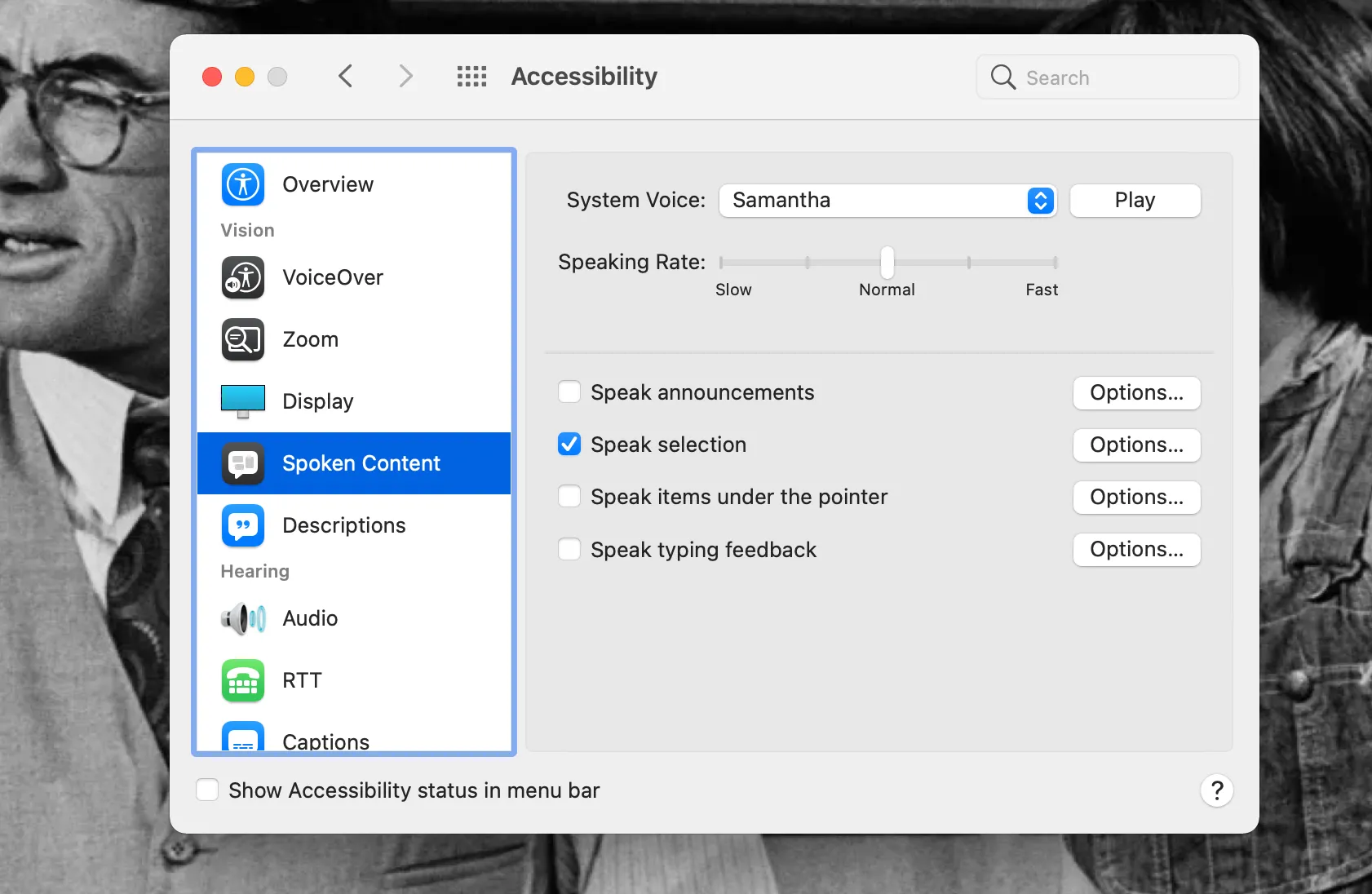
Takes about 90 seconds to configure. After that, it's a two-step process: select, shortcut.
Honest assessment: The default system voices are functional but noticeably robotic — especially on any document longer than a few paragraphs. Short snippets are fine. Trying to listen to a 20-page report with the default Samantha voice gets old fast. Apple does offer better quality voices as free downloads — go to System Settings → Accessibility → Spoken Content → System Voice → Customize, and download the Enhanced or Premium versions. The Premium voices (Ava, Tom, Nathan) are meaningfully better and still work offline.
If you want to dig deeper into all the Mac TTS options and which voices are worth downloading, the text to speech Mac guide covers everything.
Best for: Quick reads, spotting something specific in a document, or when you're on a plane with no internet.
Chrome / Browser: Read Aloud Extension
If your PDF lives on the web — a research paper, a government form, something from Google Drive — the fastest approach is opening it in Chrome and using the Read Aloud Chrome extension.
How it works:
- Open your PDF in Chrome (drag the file to a Chrome tab, or right-click → Open With → Chrome)
- Install the Read Aloud extension from the Chrome Web Store
- Click the extension icon in your toolbar
- It starts reading from the top, highlighting words as it goes
The free voices are the same browser/OS voices you get with macOS built-in — decent, nothing special. The paid upgrade unlocks higher-quality neural voices from services like Amazon Polly, which is a real improvement if you use the extension frequently.
One limitation worth knowing: Read Aloud works on text-layer PDFs, not scanned documents. If your PDF is a scan (no selectable text), the extension can't read it. Same goes for macOS built-in TTS. For scanned PDFs, you need a tool with OCR built in.
Best for: Web PDFs you encounter in the browser — academic papers, reports, articles — where you don't want to download anything extra.
AI Dictation: Best for Long-Form Listening
For a 40-page document you actually need to understand and retain, the built-in tools start to feel thin. The pacing feels unnatural, the voice gets fatiguing, and there's no way to pick up where you left off across sessions.
That gap is where AI Dictation earns its place — natural-sounding voice output, clean pacing that doesn't feel like a robotic lecture, and audio that doesn't cause listener fatigue after 10 minutes.
How to use it for PDF listening:
- Drag your PDF into the AI Dictation window
- Select the text range you want (or let it run the full document)
- Hit play
The voice quality is the most obvious difference. Neural voice models have gotten to the point where, at normal listening speed, you genuinely stop noticing you're listening to a synthesized voice. That matters a lot for 45-minute document sessions. Technical vocabulary gets better treatment too — specialized jargon is pronounced correctly instead of tripping the way system TTS often does.
Best for: Long documents you need to actually absorb — research, contracts, lengthy reports — especially when you'll be listening for 20+ minutes at a stretch.
iPhone & iPad: Listening to a PDF on Mobile
The iOS approach is similar to macOS but with a different set of steps. A few options (and if you want the full rundown of every TTS feature on your phone, the text to speech on iPhone & iPad guide goes deeper than PDFs alone):
The quick way (no app needed):
- Open your PDF in the Files app or Safari
- Long-press to select text, or tap Select All
- Tap the arrow at the end of the popup menu → Speak
iOS will read the selected passage in its system voice. It's fine for a paragraph or two. For a full document, it gets tedious — you have to keep selecting and triggering Speak manually.
Better approach: Enable Speak Screen on iOS — go to Settings → Accessibility → Spoken Content → Speak Screen. Once it's on, swipe down with two fingers from the top of the screen while viewing your PDF. It reads the entire visible screen, page by page. A floating control lets you pause, adjust speed, and skip.
It's not perfect — page breaks can interrupt mid-sentence — but it's a big improvement over the manual selection method.
For serious PDF listening on iPhone: A dedicated app gives you real document navigation, bookmarks, and voice quality control. Look for apps that explicitly support PDF import with a built-in TTS engine rather than relying on the system voice. The text to voice app comparison covers which mobile apps handle PDFs best — including offline-capable options for commuters.
If you already use a screen reader: VoiceOver on iPhone reads PDFs quite well — but it's a different tool with a steeper learning curve. The FAQ below covers that distinction. For the broader accessibility picture beyond audio playback, see the voice-to-text accessibility guide.
When to Use Which Method
| Your situation | Best method |
|---|---|
| Quick snippet on Mac, need audio now | macOS Spoken Content (Option+Esc) |
| Web-based PDF in Chrome | Read Aloud Chrome extension |
| Long document, 20+ minutes | AI Dictation |
| iPhone, quick paragraph | iOS Speak (long-press → Speak) |
| iPhone, full document | Settings → Spoken Content → Speak Screen |
| Scanned PDF (no text layer) | App with OCR + TTS |
| Sensitive document, need offline | macOS Premium voice (downloaded) or AI Dictation offline mode |
The what is text to speech explainer covers why modern neural voices sound so different from the robotic TTS of five years ago. For the broader landscape of AI voice tools, the AI voice over guide is the right starting point.
A Note on Scanned PDFs
Most of the methods above require a text layer in your PDF. If you've got a scanned document — a photocopy, a form that was printed and then scanned, anything that's just an image — none of the TTS tools above can read it directly.
For those, you need OCR (optical character recognition) to convert the image to actual text first. Adobe Acrobat's built-in OCR is the most reliable option for this. Once Acrobat processes the file, you have a proper text layer and any of the methods above will work.
Frequently Asked Questions
Can I read a PDF aloud for free on Mac?
Yes. macOS has built-in text-to-speech: go to System Settings → Accessibility → Spoken Content, enable Speak Selection, then highlight any text in Preview and press your shortcut. It's free and works completely offline. If you want better voice quality without paying, download a Premium voice from the same settings panel — they're free downloads and noticeably better than the defaults.
What is the best app to read PDFs aloud?
For long documents, AI Dictation offers the most natural-sounding voice output on Mac. The neural voice quality holds up over extended listening sessions in a way that system TTS doesn't. For quick browser PDFs, the Read Aloud Chrome extension is the fastest no-install option.
Can Chrome read a PDF aloud?
Yes — open the PDF in Chrome (either drag a local file to a tab or open a web PDF directly), install the Read Aloud extension, and click the toolbar icon. It reads the visible text with word highlighting and adjustable speed. The free version uses system voices; the paid tier unlocks higher-quality neural voices.
How do I listen to a PDF on my iPhone?
For a quick read: open the PDF in Files or Safari, select the text, and tap Speak in the popup menu. For full-document listening, enable Speak Screen (Settings → Accessibility → Spoken Content → Speak Screen) and swipe down from the top with two fingers. A dedicated TTS app gives better pacing and voice quality for longer documents.
Is there a difference between text-to-speech and a screen reader?
Yes, and it's worth knowing. Text-to-speech reads selected content aloud — you choose what gets read. A screen reader like VoiceOver or NVDA narrates the entire interface: buttons, menus, alerts, and content, for users who can't interact with a display at all. Screen readers actually use TTS as one component, but they do significantly more. If you're looking specifically at audio as an optional way to consume documents, TTS is what you want.
Frequently Asked Questions
Can I read a PDF aloud for free on Mac?
Yes. macOS has built-in text-to-speech: go to System Settings > Accessibility > Spoken Content, enable Speak Selection, then highlight any text in Preview and press your shortcut. It's free and works offline.
What is the best app to read PDFs aloud?
For long documents, AI Dictation offers the most natural-sounding voice output on Mac. For quick browser PDFs, the Read Aloud Chrome extension is the fastest no-install option.
Can Chrome read a PDF aloud?
Yes—open the PDF in Chrome, install the Read Aloud extension, and click the toolbar icon. It reads the visible text with customizable speed and voice.
How do I listen to a PDF on my iPhone?
Open the PDF in Files or Safari, select all text (or a passage), tap Speak in the share menu. For full-document listening, a dedicated TTS app gives better pacing and voice quality.
Is there a difference between text-to-speech and a screen reader?
Yes. Text-to-speech reads selected content aloud; a screen reader (like VoiceOver) narrates the entire interface for accessibility users who can't use a display at all.
Ready to try AI Dictation?
Experience fast voice-to-text on your device. Free to download.
Download FreeRelated Posts
Voice to Text on Mac: Built-in Dictation vs the Best Apps (2026)
How to use voice to text on a Mac or MacBook: turn on built-in dictation, see where it falls short, and compare the best Mac voice to text apps for 2026.
7 Dyslexia Examples of Writing You Need to See
Explore 7 common dyslexia examples of writing, from letter reversals to phonetic spelling. Understand the signs and discover helpful accommodations.
Bullet Point Formatting: Master Your Lists
Master bullet point formatting. Learn parallel structure, punctuation, and accessibility for Markdown, HTML, and Word. Create clear, effective lists.