macOS Speech to Text: A Pro's Guide to 2026 Dictation
You’re probably here because typing has become the slowest part of your work. You have a Mac, you know it already includes dictation, and you’ve tested it just enough to see both sides of it. Sometimes it feels great for quick replies, notes, or rough drafts. Other times it mangles a product spec, drops a technical term, or turns a clinical note into cleanup work.
That gap is where most advice on macos speech to text falls short. Basic guides stop at “turn Dictation on.” Power-user guides jump straight to advanced tools without helping you squeeze the most out of what your Mac already does well. The practical path is to master the native feature first, then recognize the exact point where professional work needs something more specialized.
New here? Start with our complete guide to voice to text on Mac. It covers turning on built-in Dictation with screenshots, where it falls short, and the best Mac voice to text apps for 2026.
Table of Contents
- Activating and Configuring macOS Dictation
- Mastering Built-in Dictation for Everyday Use
- When Native Dictation Hits a Wall
- Supercharge Your Workflow with AIDictation
- Real-World Scenarios with AIDictation
- Conclusion From Dictation to Seamless Transcription
Activating and Configuring macOS Dictation
Turn it on the right way
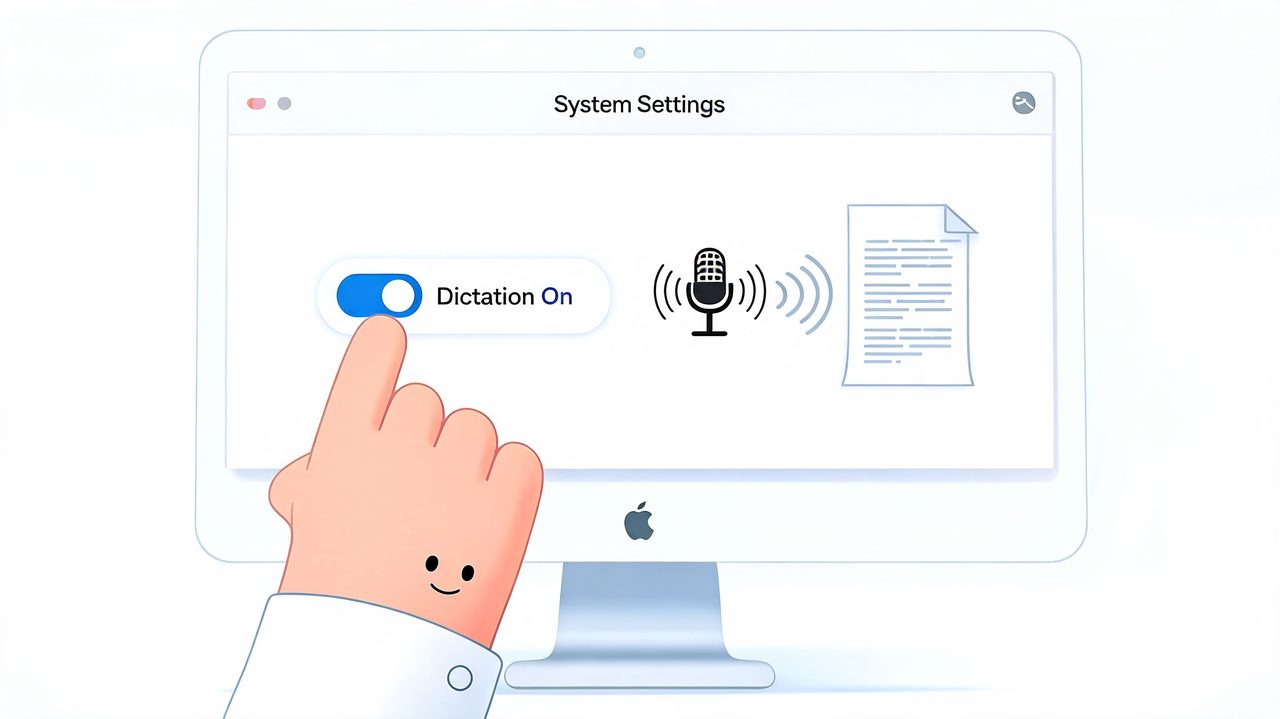
The built-in feature is easy to miss because Apple hides it in a sensible but not obvious place. Open System Settings, go to Keyboard, then find Dictation and switch it on.
If you’re on an Apple Silicon Mac, this step matters more than it used to. Since macOS 13 Ventura (2022), standard dictation on Apple Silicon Macs processes speech locally on the Neural Engine by default, which means audio doesn’t leave your device and latency can drop to sub-100ms, compared with the 200-500ms delays common with cloud services, according to Voibe’s Apple dictation privacy analysis.
That local behavior is one of the biggest reasons native macos speech to text is worth setting up even if you eventually move to a dedicated app. For quick messages, private notes, and short bursts of writing, it feels immediate.
Choose settings that actually matter
Don’t stop at the toggle. The useful setup happens in the surrounding options.
Start with these checks:
-
Language selection Pick the language you dictate in most often. Built-in dictation supports a wide set of languages, but switching manually matters because mixed-language use is where native dictation often gets messy.
-
Offline language files
If your Mac offers downloadable offline language support, install it. That gives you a more dependable local workflow and fewer surprises when your network is unstable. -
Shortcut choice
The default trigger is often Fn twice. That works, but heavy users should test whether a custom shortcut feels faster. The best shortcut is one you can hit without looking down. -
Microphone input Don’t leave this to chance. If you use AirPods, a USB mic, or an external headset, confirm your Mac is listening to the right device before you blame the speech engine.
Practical rule: Most dictation problems blamed on macOS are really input problems. Wrong mic, weak mic placement, or a noisy room will wreck accuracy before the model even gets a chance.
A dedicated microphone isn’t mandatory, but stable input helps more than people expect. If dictation keeps failing to start or behaves inconsistently, use a focused troubleshooting checklist like this guide on fixing dictation not working on Mac.
Choose settings that actually matter
There’s also a privacy choice hidden in plain sight. Apple’s local-first approach is a strong fit for confidential drafting because the default experience on supported Macs keeps standard dictation on-device for most requests. That’s a very different posture from tools that immediately push audio to the cloud.
For everyday work, the strongest native setup looks like this:
| Setting | Best default choice | Why |
|---|---|---|
| Dictation | On | Enables system-wide voice input |
| Language | Your main working language | Reduces recognition confusion |
| Shortcut | Easy one-hand trigger | Lowers activation friction |
| Microphone | Best available input | Improves transcript quality before processing |
| Offline support | Installed when available | Keeps dictation dependable and private |
Once this is configured, you’re ready to move from “it works” to “it’s reliable enough to use daily.”
Mastering Built-in Dictation for Everyday Use
Native dictation gets dismissed too quickly by people who never learn how to speak to it properly. Used well, it’s fast for emails, notes, task capture, and short-form drafting. Used casually, it turns every paragraph into an editing session.
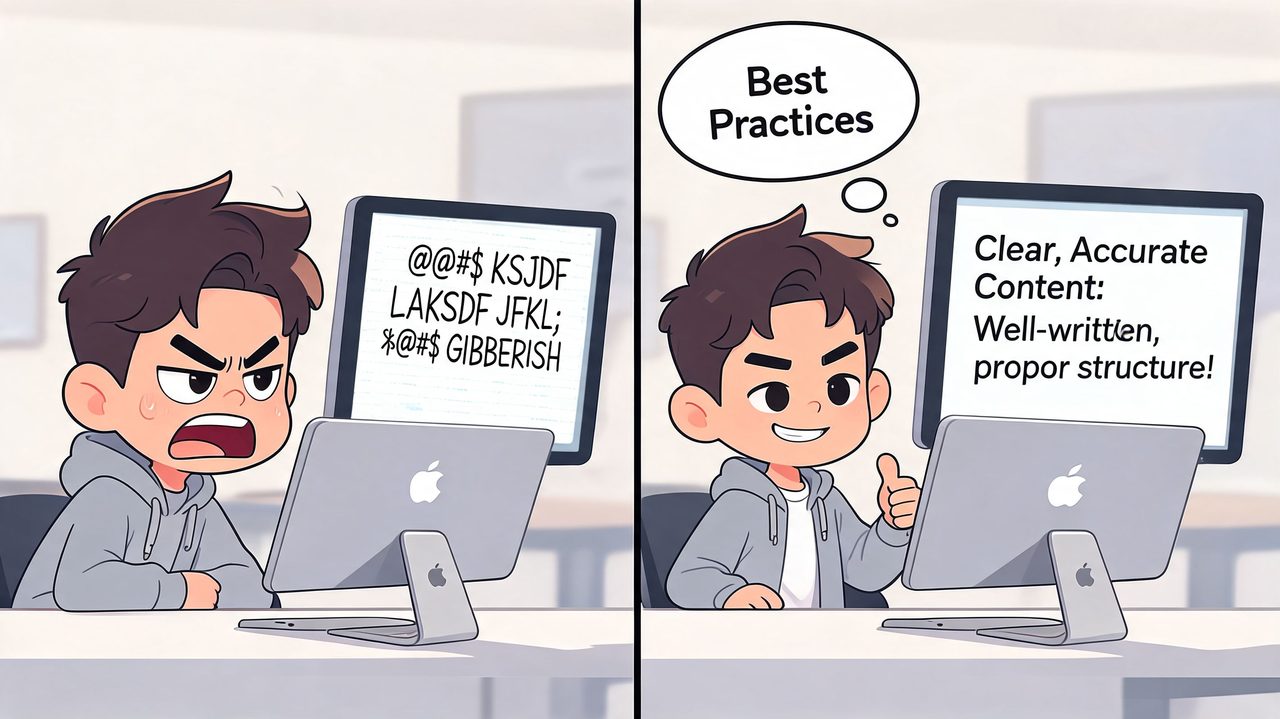
Apple’s built-in macOS Dictation can reach 97% accuracy in quiet environments, but that can drop to 75-85% with heavy accents or background noise, and technical or medical jargon can see a 20-30% error rate without custom vocabulary, according to TopVox’s review of speech to text on Mac.
Build a clean dictation environment
Accuracy starts before you say the first word. The native tool rewards clean audio and punishes lazy setup.
A few habits matter immediately:
- Place the mic correctly. Keep it about 6-12 inches from your mouth. Too far away and room noise takes over. Too close and breath noise starts to interfere.
- Use the quietest space available. Native dictation is much better in a controlled room than in a kitchen, hallway, or open office.
- Pick one reliable mic. Switching between your MacBook mic, AirPods, and a desk mic creates inconsistent results.
- Watch your speaking pace. A cadence around 100-150 words per minute gives the engine enough room to segment phrases naturally.
Those numbers aren’t abstract. They map directly to how often you’ll need to fix missing words, merged phrases, and bad punctuation.
Good dictation feels slower than talking and faster than typing. That’s the balance.
Speak for the engine you have
Users commonly try to dictate the way they speak in conversation. That doesn’t work well. Native dictation handles deliberate spoken writing better than casual speech.
Use these adjustments:
-
Chunk your thoughts
Speak in clean phrases, not long rambling bursts. One sentence at a time works better than trying to improvise a whole paragraph without structure. -
Pause on purpose
A short pause often helps punctuation and sentence boundaries. If you rush through every clause, the transcript tends to flatten into run-on text. -
Say punctuation when it matters
For anything client-facing, it’s worth saying “comma,” “period,” or “new paragraph” instead of hoping the system guesses correctly. -
Correct by voice when possible
Commands like selecting or deleting recent text can save you from breaking flow.
If you work with names, acronyms, or domain terms, a custom vocabulary matters. A practical starting point is to maintain your own list of recurring terms such as product names, API terms, customer names, and medical shorthand. This walkthrough on how to set up a dictionary for dictation is useful if you want to reduce repeat mistakes.
A short visual walkthrough can help if you want to see voice typing behavior in action before refining your own workflow:
Use voice commands instead of cleanup passes
The biggest jump in productivity comes when you stop treating dictation as raw capture. Use it as live composition.
Try this pattern for daily work:
| Task | Better spoken approach |
|---|---|
| Quick email | Speak the subject mentally first, then dictate in full sentences |
| Meeting note | Use “new paragraph” between topics |
| Slack update | Dictate a short draft, then trim manually |
| Personal notes | Capture thoughts fast and worry less about formatting |
For native macos speech to text, the sweet spot is simple and repeatable. Short emails. Task updates. Rough notes. Personal knowledge capture. Anything that benefits from speed more than polish.
That’s the right standard for built-in dictation. Problems start when you expect it to behave like a professional writing assistant.
For a side-by-side of the built-in option against third-party apps, see our voice to text on Mac comparison.
When Native Dictation Hits a Wall
For casual work, Apple’s built-in tool is solid. For high-stakes work, it runs into predictable limits.
The weak spot isn’t basic recognition. It’s the combination of specialized language, imperfect environments, and professional stakes. That’s exactly where knowledge workers spend most of their day.
Where professionals lose time
A product manager dictating “API dependency,” “rollout criteria,” and stakeholder names doesn’t need a mostly correct transcript. A developer dictating comments and technical documentation can’t waste time fixing repeated terminology misses. A clinician can’t accept vague substitutions in a note that needs to stay clear and private.
That gap shows up especially with professional accents, technical jargon, and noisy environments. UseVoicy notes that this is a key underserved area in macOS speech-to-text, and cites a 40% rise in professional dictation use since 2020 driven by remote work in its discussion of speech to text on macOS.
Native Dictation and Voice Control aren’t broken in those moments. They’re just not built sufficiently for them.
Why the friction compounds
The true cost isn’t one bad transcript. It’s what repeated cleanup does to your workflow.
You start hesitating before speaking a technical term. You simplify language to fit the tool. You stop trusting dictation for the messages that matter most. Eventually, you reserve it for low-value tasks and go back to typing for serious work.
The failure mode of native dictation isn’t total collapse. It’s partial trust, which is worse for productivity because you still spend energy deciding when not to use it.
There are also customization limits that advanced users feel quickly:
- Terminology control stays shallow for specialized workflows.
- Formatting intelligence is basic when you need output shaped for email, docs, or structured notes.
- Noisy-room resilience is limited compared with tools designed for messy real-world input.
- Professional cleanup still falls on you after the transcript lands.
That’s the point where upgrading stops being about novelty. It becomes a workflow decision.
Supercharge Your Workflow with AIDictation
Once native dictation stops being dependable, the next step isn’t just “better transcription.” It’s better output.
That distinction matters. Professionals rarely want raw speech converted into text exactly as spoken. They want the final result to sound like something they would’ve typed on a focused day. Clean sentences. Better punctuation. Fewer filler words. Correct technical terms. Formatting that fits the app they’re using.
A big reason dedicated apps can now do this locally is that modern on-device transcription APIs introduced with macOS Tahoe in 2025 can process a 34-minute video file in 45 seconds, which is 55% faster than leading local models like MacWhisper, according to MacRumors’ report on Apple’s transcription API benchmarks. That speed opens the door for private, near real-time transcription without the lag of cloud-first pipelines.
What changes when the tool is built for work
A dedicated tool like AIDictation solves a different problem than native Dictation.
Native Dictation is a system feature. It’s there to let you speak text into your Mac. AIDictation is built around the workflow that comes after recognition.
That difference shows up in three areas:
-
Engine choice
Instead of forcing one mode, AIDictation can work locally when privacy and speed matter most, then use cloud-assisted cleanup when you want more polished output. -
Language shaping
Raw transcript quality matters, but so does restructuring spoken language into readable written language. That includes punctuation, cleanup, and handling self-corrections naturally. -
Context awareness
A professional email, a support reply, a code note, and a clinical draft shouldn’t all be formatted the same way.
Working rule: If you spend more time fixing dictation than typing, you don’t have a recognition problem alone. You have a workflow problem.
Native macOS Dictation vs AIDictation
Here’s the practical comparison.
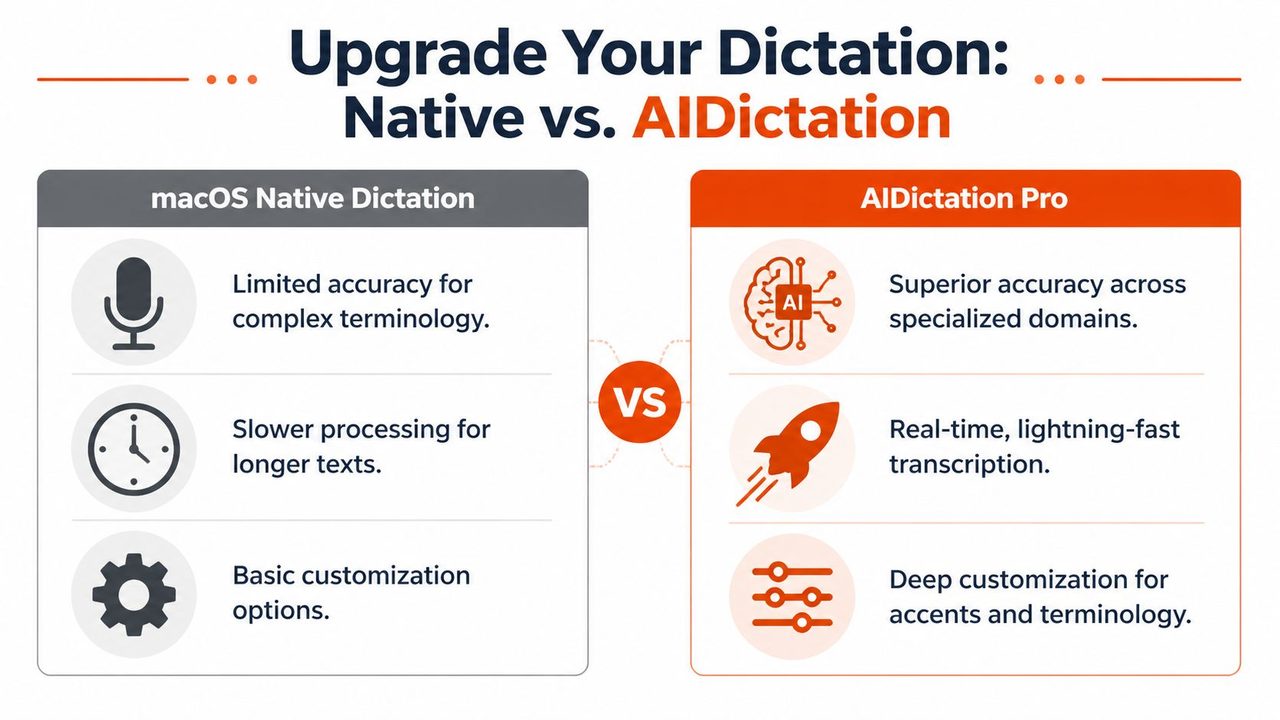
| Feature | Native macOS Dictation | AIDictation |
|---|---|---|
| Core use case | Quick system-wide voice input | Professional dictation and polished writing |
| Processing style | Built-in recognition | Local, cloud, or automatic engine selection |
| Privacy option | Strong on supported Apple Silicon Macs | Local Mode keeps speech on-device |
| Technical vocabulary | Limited for specialized work | Custom dictionary for names and domain terms |
| Output cleanup | Basic | AI cleanup, filler-word removal, stronger punctuation |
| App-specific behavior | Minimal | Context rules for email, chat, docs, and editors |
| Long-form workflow | Usable, but more manual correction | Better suited for sustained drafting and transcription |
| Meeting transcription | Basic path through native ecosystem | Built for recording and transcript workflows |
The value isn’t that one replaces the other completely. Many people should keep both. Native dictation stays excellent for fast, low-friction input anywhere on the Mac. AIDictation handles the tasks where accuracy, polish, and workflow control affect the quality of your work.
Who should upgrade
AIDictation makes the most sense when one of these is true:
-
You work with specialized terms every day
Product names, developer jargon, medical language, legal references, or customer names keep getting mangled. -
You need clean text immediately
You don’t want to dictate first and edit later. You want the output close to ready when it lands. -
Your environment isn’t ideal
Home offices, shared spaces, and meetings aren’t studio conditions. You need better resilience. -
You switch between privacy-first and polish-first tasks
Some work needs local handling. Some work benefits from stronger cleanup. Both modes matter.
If that sounds like your setup, it’s worth installing AIDictation for macOS and testing it against the exact jobs where native dictation keeps slowing you down.
Real-World Scenarios with AIDictation
The easiest way to judge a dictation tool is to watch how it behaves in real work, not demo prompts.
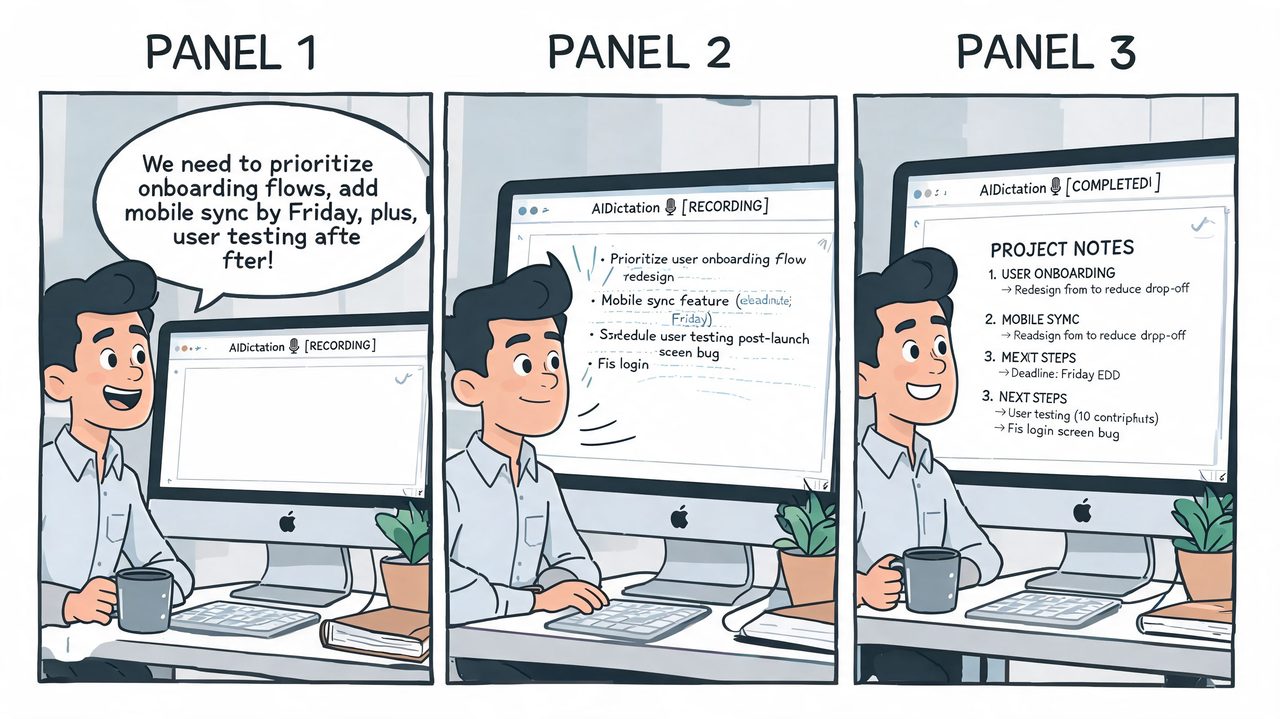
Advanced on-device speech APIs can process a one-hour audio file in 16 minutes on an M4 Max chip, while maintaining 85% accuracy in meetings with background noise up to 50dB, according to MacStories’ hands-on review of Apple’s new speech APIs. That matters because professional dictation rarely happens in ideal silence.
Product manager workflow
A product manager finishes a planning meeting with a rough audio capture and a page of half-formed notes. Native Dictation can help draft a follow-up, but it won’t reshape a messy spoken recap into something clean enough for stakeholders without extra editing.
AIDictation fits better here because the job isn’t just transcription. It’s turning spoken summary into usable writing.
A strong workflow looks like this:
- Record the meeting or dictate the recap right away.
- Use a mode that cleans filler words and self-corrections.
- Apply formatting that produces readable paragraphs or bullet-ready structure.
- Paste the result into Notion, Slack, or email with lighter cleanup.
The gain is qualitative but obvious. You spend less time converting speech into business writing.
Developer workflow
Developers usually hit the wall with native dictation faster than other users because technical vocabulary is unforgiving. Terms like endpoint names, class names, acronyms, and mixed casing don’t survive generic voice input very well.
AIDictation works better for this use case because local processing and custom vocabulary can live in the same workflow. That matters when you’re dictating internal docs, pull request summaries, code comments, or architecture notes that shouldn’t leave your machine.
A developer workflow often looks like this:
| Task | Why AIDictation fits |
|---|---|
| Code comments | Better handling of recurring technical terms |
| PR descriptions | Cleaner paragraph structure from spoken drafts |
| Internal docs | Local Mode is better for proprietary material |
| Slack updates | Context rules can keep tone concise |
Use local dictation for confidential content. Use cleanup features when readability matters more than verbatim capture.
Healthcare workflow
Healthcare is the clearest example of why “speech to text” and “usable output” aren’t the same thing.
A clinician dictating notes needs privacy, but also needs text that lands in a readable, structured form. Native dictation gives you an on-device starting point on Apple Silicon Macs, which is valuable. But professionals often need more control over terminology, note style, and post-processing.
AIDictation’s appeal in this setting is that it supports privacy-conscious local use while also giving teams a path to cleaner documentation workflows. That’s especially useful for clinical notes, reports, and repeat templates where consistency matters as much as raw recognition.
In practice, the best setup is usually role-based:
- Clinicians use local workflows for sensitive note capture.
- Admins and support staff use cleanup and formatting to speed routine communication.
- Mixed teams choose between local and cloud-enhanced modes depending on the task.
That flexibility is what native tools usually lack. They give you one broad speech input layer. Professional tools let you tune the workflow to the job.
Conclusion From Dictation to Seamless Transcription
macos speech to text is no longer a novelty feature. On current Macs, it’s a legitimate productivity tool. But its usefulness depends on whether you’re asking it to capture casual text or handle professional writing under real-world conditions.
For everyday work, Apple’s built-in Dictation deserves more credit than it gets. It’s fast, private on supported Apple Silicon Macs, and good enough for short emails, notes, and quick replies when you configure it properly and dictate with intention.
That said, serious users eventually hit the same wall. The built-in tool starts to struggle when terminology gets specialized, the room gets noisy, or the text needs to be polished enough to send without a cleanup pass. That’s where workflow matters more than raw speech recognition.
The practical upgrade path is simple. Start with the native feature. Learn the microphone, pacing, commands, and environmental habits that make it work well. Then pay attention to where it breaks down. If your daily work includes specs, technical documentation, clinical notes, support replies, or meeting summaries, a dedicated dictation tool isn’t overkill. It’s the difference between capturing words and producing finished writing.
A better dictation workflow gives you back more than typing speed. It preserves momentum. You stay in your train of thought longer, switch contexts less often, and spend less time repairing text that should’ve been usable from the start.
If you’re ready to move from basic voice input to clean, professional writing, try AIDictation. It gives Mac users a practical upgrade path with private local dictation, cloud-assisted cleanup when needed, custom vocabulary, and context-aware formatting that fits real work.
Frequently Asked Questions
What does macOS Speech to Text: A Pro's Guide to 2026 Dictation cover?
You’re probably here because typing has become the slowest part of your work. You have a Mac, you know it already includes dictation, and you’ve tested it just enough to see both sides of it.
Who should read macOS Speech to Text: A Pro's Guide to 2026 Dictation?
macOS Speech to Text: A Pro's Guide to 2026 Dictation is most useful for readers who want clear, practical guidance and a faster path to the main takeaways without guessing what matters most.
What are the main takeaways from macOS Speech to Text: A Pro's Guide to 2026 Dictation?
Key topics include Table of Contents, Activating and Configuring macOS Dictation, Turn it on the right way.
Ready to try AI Dictation?
Experience fast voice-to-text on your device. Free to download.
Download FreeRelated Posts
Email Dictation Software: What It Is and How to Choose
Learn what email dictation software is, how it works, and how to pick the right one. Covers accuracy, privacy, HIPAA, accents, and real buyer checklists.
Verbal Ink Transcription Workflows Today
Explore verbal ink transcription workflows, accuracy benchmarks, and how modern AI dictation tools compare to traditional human transcription services.
Apple Voice Recognition Software: Key Pros and Cons
Learn how Apple voice recognition software turns speech into text on your device, where it excels, and what tasks still challenge it in 2026.