Voice Typer for Mac Guide to Smarter Dictation
You're halfway through a product brief, your email is waiting for a reply, and Slack keeps pulling your attention away from the keyboard. You know what you want to say, but typing every sentence feels slower than thinking it. A voice typer for Mac can remove that bottleneck, but only if it produces usable writing instead of a rough transcript that creates a new editing job.
The right choice depends on your work. Apple Dictation is often sufficient for quick notes and short messages. Cloud-assisted tools can be worth considering when you need punctuation, structure, and cleanup. Local processing becomes the sensible option when dictated content is confidential, connectivity is unreliable, or your organization needs tighter control over where speech is handled.
New here? Start with our complete guide to voice to text on Mac. It covers turning on built-in Dictation with screenshots, where it falls short, and the best Mac voice to text apps for 2026.
Table of Contents
- What a Voice Typer for Mac Can Do
- How Voice-to-Text Works on a Mac
- Comparing Built-In and Third-Party Dictation
- Choosing a Workflow for Your Job
- Setting Up and Improving Mac Dictation
- When AIDictation Is a Good Fit
- Your Next Steps for Better Dictation
What a Voice Typer for Mac Can Do
A product manager reviewing customer feedback can place the cursor in a brief and explain the problem, proposed solution, user impact, and next steps aloud. Basic transcription captures those words. A useful voice typer for Mac must turn that spoken thinking into text you can use with limited editing.
Speech rarely arrives as polished writing. Speakers repeat points, change direction, pause to choose a term, and say “let me rephrase that.” A professional workflow therefore depends on how well the tool handles corrections and unfinished phrases, not only on its word-recognition rate.
Transcription is only the starting point
Evaluate four capabilities before choosing a tool:
- Long-form drafting: It should remain practical for a memo, specification, report, or detailed email, not just a short note.
- Professional vocabulary: Product names, technical terms, medical language, acronyms, and unusual names require suitable language models or a custom dictionary.
- Punctuation and structure: Spoken commands for commas and paragraphs help. Better cleanup can identify sentence boundaries and organize rough speech.
- Reliable text placement: Dictated text should appear in the active field in Notes, Pages, Slack, Jira, email, or a browser editor, without repeated copying and pasting.
Apple Dictation handles text placement well because it is integrated into macOS fields. For occasional notes and short messages, that integration can matter more than advanced cleanup. If delivery is uneven, this guide on how to sound more articulate offers practical ways to improve pacing and reduce unfinished phrases.
Judge the cleanup burden
Test dictation with the document you write, not with a sentence designed for a product demo. Dictate a real paragraph, then count the corrections needed before you can send or share it. If every paragraph demands repair, the tool has shifted the work from typing to editing.
Apple Dictation can support everyday drafting, but results vary with the speaker, microphone, vocabulary, and room. Independent accent testing reported average Apple Dictation accuracy of 85.3% across 12 accents, with results between 82.6% and 87.2% (Research Nester's speech recognition market report). The same benchmark found that background noise had a stronger effect than accent, with accuracy falling into roughly the 75% to 85% range in very loud environments above 80 dB.
That performance is sufficient for many messages and working drafts. It does not remove review from clinical notes, technical specifications, or client-ready reports. Choose native dictation when speed and direct placement are enough. Consider cloud cleanup when structure and editing time matter more. Offline processing becomes the practical requirement for confidential content, unreliable connectivity, or strict control over speech data.
How Voice-to-Text Works on a Mac
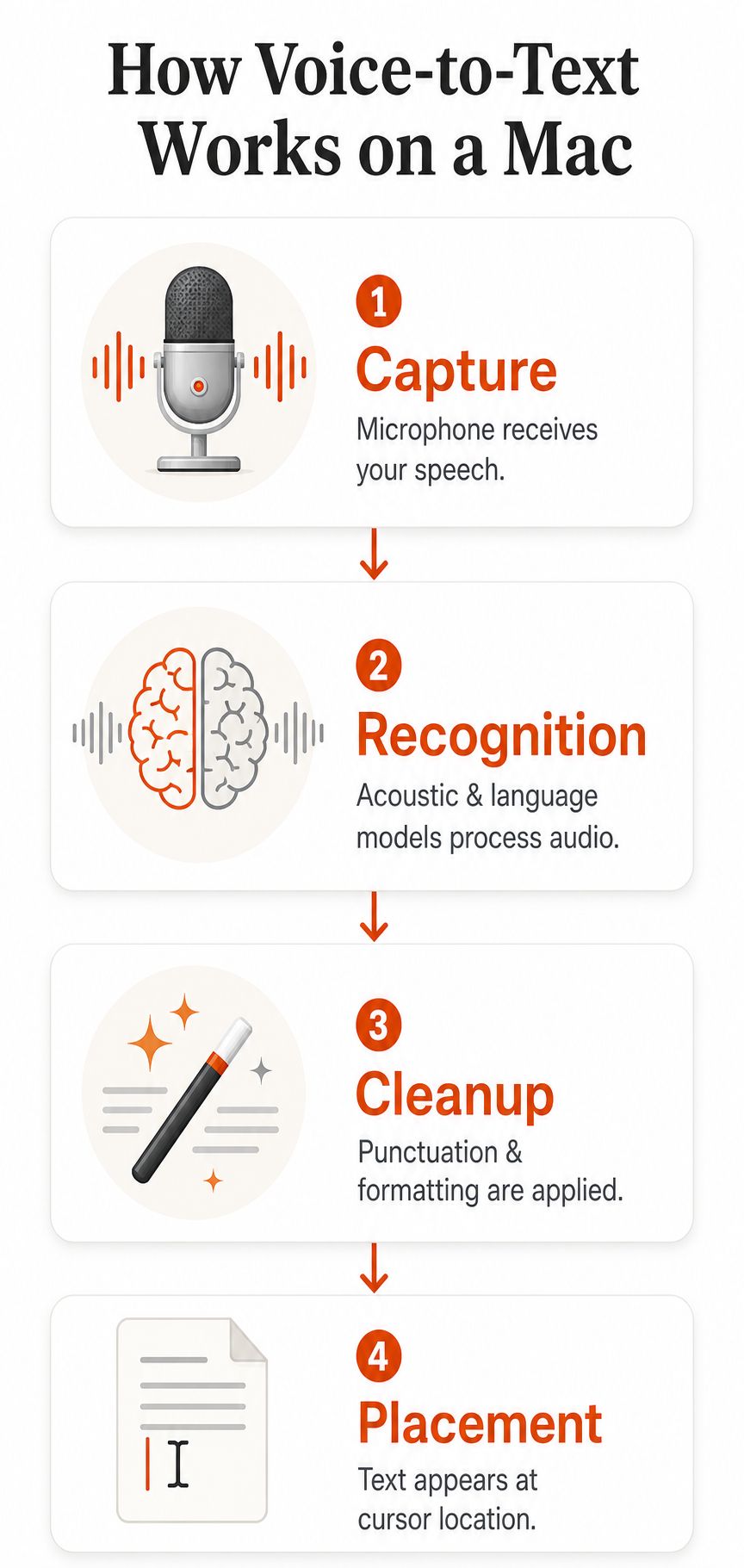
What happens between your first word and the text at the cursor? A Mac voice typing workflow moves through four stages: capture, recognition, cleanup, and placement. Understanding each stage helps you decide whether native dictation can handle your work or whether cloud cleanup or offline processing is required.

Capture starts with the microphone
Your Mac receives speech through a built-in microphone, headset, USB microphone, or another selected input, then converts the sound into an audio signal. Mic distance, room echo, keyboard noise, and nearby conversations all affect what reaches the recognition engine.
Start with microphone placement before buying new hardware. Keep a headset mic close to your mouth in a noisy workspace. A USB microphone can produce a clearer signal in a quiet office, but distance and direction still matter. Test the setup in the document and application you use every day.
Recognition turns sound into language
The recognition engine compares audio patterns with acoustic and language models. The acoustic model evaluates the sound itself. The language model uses surrounding words to determine which interpretation fits the sentence.
On-device processing keeps recognition on the Mac and can continue without a network connection. Cloud processing sends audio or related requests to remote systems, which can support more demanding analysis but introduces connectivity and data-handling considerations. Apple says its newer dictation stack uses on-device processing on Mac, with Private Cloud Compute reserved for more complex requests through Apple Intelligence (Apple's Apple Intelligence overview).
For a clearer technical explanation, how voice recognition software works describes the connection between audio capture, recognition models, and text output. The RenderIO transcription blog is relevant when the workflow includes recorded audio or video rather than live dictation.
Cleanup and placement complete the workflow
After recognition, a cleanup layer may add punctuation, remove filler words, resolve self-corrections, and apply formatting. Native Dictation handles spoken commands such as “comma,” “period,” “new line,” and “new paragraph.” AI-assisted systems can go further by turning rough speech into a structured email or note.
The result then appears at the active cursor. That placement determines whether the tool works across your professional workflow. Dictation that succeeds in Notes but fails in a ticketing system, browser editor, or client portal creates more friction than it removes.
Latency shapes the choice as well. Local processing can feel immediate when the model runs on the Mac. Cloud processing depends on connection quality and the time needed to send, analyze, and return audio or text. Use native dictation for quick messages and first drafts when direct placement is enough. Choose cloud cleanup for polished paragraphs and lower editing effort. Require offline processing for confidential material, unreliable connectivity, or strict control over speech data.
Comparing Built-In and Third-Party Dictation
Apple Dictation should be your baseline, not your automatic final choice. It's already available, works inside many normal text fields, and avoids the friction of installing another application. Third-party tools become relevant when your work depends on cleanup, custom vocabulary, local file transcription, or predictable behavior across a wide range of apps.
| Tool | Offline | Privacy | Accuracy | Cleanup | Cost |
|---|---|---|---|---|---|
| Apple Dictation | Depends on macOS configuration and language | Can use on-device processing, with some requests handled through Apple services | Strong for everyday speech, but affected by noise and vocabulary | Basic punctuation and dictation commands | Built into macOS |
| Voice Control | Can work offline after required setup | Speech commands can remain on the Mac during use | Designed for spoken control as well as text | Strong command and editing control | Built into macOS |
| Gboard | Primarily cloud-dependent | Audio handling follows Google's service model | Useful for general language input | Basic to moderate | Free |
| Wispr Flow | Service-dependent | Review its cloud and account policies before use | Designed for fast conversational input | Stronger AI cleanup and formatting | Subscription or plan-dependent |
| Otter | Cloud-oriented | Audio and transcripts are stored according to service settings | Suited to meetings and recorded speech | Meeting-focused organization and summaries | Free tier and paid plans |
| MacWhisper | Local and cloud options vary by model | Local models offer stronger data control | Depends on the selected model and audio quality | Useful for files and transcripts | Free and paid options |
| AIDictation | Local and cloud modes | Local Mode keeps processing on the Mac; Cloud Mode adds remote cleanup | Mode and audio conditions affect results | Designed for clean text, punctuation, and formatting | Free allowance and paid options |
The table shows why “most accurate” is an incomplete buying question. A tool can recognize words well but still be a poor fit if it mishandles formatting, requires a network connection, or stores sensitive recordings in a cloud account.
Native tools suit simple writing
Choose Apple Dictation for quick notes, routine emails, short Slack messages, and low-sensitivity drafting. Choose Voice Control when you need to operate the Mac, select text, move the cursor, or issue spoken commands. These are different jobs. Dictation enters speech, while Voice Control treats speech as a control layer.
Apple's built-in approach also has a privacy advantage when processing stays on the device. It avoids adding another vendor to the workflow and reduces setup overhead. The trade-off is that native dictation may leave more correction and formatting to you, particularly with specialist vocabulary or long, unstructured speech.
Third-party tools earn their place through workflow depth
A cloud cleanup layer makes sense when you want to speak naturally and receive a more finished paragraph. That's useful for executives drafting updates, product managers writing requirements, and professionals who lose momentum when they stop to dictate punctuation.
Local tools make more sense for confidential documents, disconnected work, or teams that can't casually send audio to an external service. MacWhisper-style applications are particularly relevant when you transcribe recordings rather than dictate directly into the active field. If you're comparing adjacent voice and audio tools, a separate guide to compare ElevenLabs vs Audition can clarify why voice generation and transcription solve different problems.
Choosing a Workflow for Your Job
Choose a voice typer for Mac by examining the work it must support, not by counting features. Four pressures determine whether a workflow is sufficient: vocabulary density, formatting demands, privacy constraints, and turnaround speed.
A clinician dictating patient notes needs a different setup from a product manager drafting a roadmap. The clinician should prioritize local processing and a strict review process. The product manager may accept cloud cleanup when it turns rough speech into structured text quickly.
| Role | Primary Need | Recommended Approach | Key Trade-off |
|---|---|---|---|
| Clinician | Confidential notes and dependable terminology | Use local dictation, with a headset and a controlled review process | Privacy and offline control may mean less automated cloud cleanup |
| Developer | Technical vocabulary and code-safe prose | Dictate comments, documentation, and commit messages into a configured text field, then inspect syntax manually | Voice input shouldn't be trusted to generate executable code without review |
| Product manager | Fast PRDs, user stories, and stakeholder updates | Start with native Dictation, then add AI cleanup if rough speech needs structure | Cloud processing can improve flow but requires policy approval for sensitive material |
| Support agent | Speed, consistent tone, and predictable insertion | Use a low-latency workflow with templates or context rules | More automation can introduce wording that needs agent review |
| Multilingual professional | Language switching and polished English | Test language support with real terminology before committing | A tool may recognize one language well but handle switching or accents poorly |
Healthcare needs a privacy-first default
For patient notes, offline processing is a practical control over where speech travels. Start with local dictation and confirm that the output fits the approved documentation process. Add cloud cleanup only after your organization reviews data handling, retention, and access requirements.
Developers need boundaries, not blind automation
Dictating a code comment or commit message is straightforward. Syntax-heavy code is riskier because recognition can alter symbols, capitalization, or identifiers. Use voice typing for explanations, TODO items, documentation prose, and commit summaries. Review every technical token before it reaches a repository.
Product and support teams benefit from cleanup
Product managers often speak in fragments while moving between customer evidence and internal priorities. A cleanup layer can convert that material into headings, bullets, and readable requirements, but the speaker must provide the intended structure.
Support agents need a short loop that preserves tone and does not delay the next ticket. Use a lightweight native workflow for routine replies. Consider cloud assistance only when it improves consistency without noticeable waiting or exposing restricted content.
Match the workflow to the document
Native Mac Dictation is enough for quick notes, routine emails, short Slack messages, and low-sensitivity drafting. Choose it when your main requirement is reliable text entry and you are willing to correct formatting yourself.
Cloud cleanup earns its place for long-form drafts, PRDs, stakeholder updates, and other work where stopping to dictate punctuation breaks concentration. It is useful when the document needs structure, but approval rules must determine which material can leave the Mac.
Offline processing becomes a practical requirement for confidential records, disconnected work, and teams that cannot send audio to an external service. It also suits professionals who transcribe recordings rather than dictate directly into an active field. MacWhisper-style applications fit that job better than a basic text-entry tool.
Test dictation with the document you write, not with a sentence designed for a product demo. Use real names, technical terms, formatting, and language switches. Review the correction time, privacy implications, and final editing burden before choosing a workflow.
Setting Up and Improving Mac Dictation
Most dictation problems begin before the software interprets a single word. Fix the audio path first, then adjust macOS, then change your speaking habits. A better microphone won't repair a workflow that has the wrong input device selected, and a powerful model won't overcome constant echo.
Start with the microphone and room
Use the built-in microphone for casual work, a headset when your environment is noisy, and a USB microphone when you want a stable desk setup. Keep the microphone in a consistent position. Sudden changes in distance force the recognition system to handle changing volume and room sound.
Reduce competing audio, close the door if possible, and avoid speaking toward a reflective wall. The benchmark context matters here: Apple Dictation performed in the mid-80% range across accent tests, but background noise produced a much larger decline than accent differences in the same testing (Research Nester's benchmark discussion). Treat room control as an accuracy setting.
Configure macOS deliberately
Open System Settings, choose Keyboard, and enable Dictation. Select the language, confirm the input device, and choose a shortcut you can activate without interrupting your posture. If your Mac offers Enhanced Dictation, enable it when offline use is important, then test the setup with the applications you use daily.

Speak for the transcript you want
Speak in complete thoughts, pause naturally at sentence boundaries, and say punctuation when you need exact control. Start with “period,” “comma,” “new line,” and “new paragraph.” Avoid filling silence with repeated phrases while you think, because those words become cleanup work.
Build a Personal Dictionary for names, product terms, acronyms, and technical vocabulary. Text replacements can handle boilerplate such as greetings, ticket responses, and common headings. These small adjustments often improve daily usability more than constantly switching engines.
Practical rule: Test dictation with the document you actually write, not with a sentence designed for a product demo.
Match the app to the task
Notes is ideal for quick capture. Pages and document editors work well for longer drafts. Slack benefits from short spoken bursts followed by a quick read-through. Terminal requires caution because dictated commands can be unsafe or malformed, so use voice typing for explanations and comments rather than unreviewed commands.
If you add a third-party cleanup tool, keep the native shortcut available. Dictate rough text with the built-in system when you need speed or offline behavior, then send selected passages through cleanup only when the text justifies it. For more targeted accuracy work, use this Mac dictation accuracy guide.
Use the setup walkthrough below after selecting your microphone and shortcut.
When AIDictation Is a Good Fit
AIDictation fits professionals who want more control than native Dictation provides without abandoning the convenience of typing into the active Mac text field. Its workflow combines live voice capture with local and cloud modes, so the relevant decision is not just whether it transcribes speech. It's whether you want to choose how that speech is processed.
Local Mode runs Parakeet v3 on Apple Silicon without an internet connection. That makes it suitable for confidential drafts, travel, restricted environments, and situations where audio shouldn't leave the Mac. Cloud Mode adds cleanup such as punctuation, filler-word removal, context-aware formatting, and handling for self-corrections when the content can be processed remotely.
Control matters more than model size
AIDictation also supports file-level transcription, customizable shortcuts, a custom dictionary, and context rules that can adapt output for different applications. That combination is relevant when one person moves between medical notes, technical documentation, email, and chat, because the desired output isn't identical in each setting.
It doesn't eliminate the fundamentals. A poor microphone, echo, interruptions, and overlapping speakers can still damage the source audio. You'll also need to decide whether the convenience of cloud cleanup justifies sending permitted content to a remote service. For regulated or confidential work, keep the default local unless your organization has approved another path.
AIDictation is therefore best treated as a complement to native Mac dictation. Keep Apple's built-in option for simple, low-sensitivity text. Use a dedicated workflow when you need explicit local processing, richer cleanup, file transcription, or more control over how text lands in your applications. Its Mac voice typing app overview explains the product workflow in practical terms.
Your Next Steps for Better Dictation
Choose the tool based on the work, not the feature count. If you dictate occasional notes, short messages, and ordinary drafts, stay with built-in Mac Dictation. If you produce professional writing and spend too much time removing filler, repairing punctuation, or restructuring paragraphs, test a cloud-assisted voice typer. If your material is clinical, regulated, confidential, or frequently created without reliable internet, make offline processing the starting requirement.

Run a simple evaluation before changing your whole system:
- Accuracy: How many corrections does a real document require?
- Sensitivity: Can the audio leave your Mac, or must processing remain local?
- Language: Does the tool handle your accent, terminology, and language switching?
- Workflow: Does text appear where you work, with the formatting you need?
- Budget: Is the time saved worth a paid cleanup layer?
For one working week, dictate one genuine document each day. Record the words or phrases that fail, the formatting you had to repair, and whether latency interrupted your thinking. That evidence will tell you more than a polished feature page.
The right voice typer for Mac is the one that matches your privacy rules, writing style, and professional workload. Start with native Dictation, improve the microphone and environment, then add cloud or local assistance only when a specific bottleneck remains.
If you need a Mac workflow that combines local dictation with optional cloud cleanup, AIDictation offers mode switching, custom vocabulary, application-aware formatting, and transcription for spoken or recorded content. Try it alongside native Dictation on one real professional document, then keep the setup that gives you cleaner text with the least privacy and review friction.
Frequently Asked Questions
What does Voice Typer for Mac Guide to Smarter Dictation cover?
You're halfway through a product brief, your email is waiting for a reply, and Slack keeps pulling your attention away from the keyboard. You know what you want to say, but typing every sentence feels slower than thinking it.
Who should read Voice Typer for Mac Guide to Smarter Dictation?
Voice Typer for Mac Guide to Smarter Dictation is most useful for readers who want clear, practical guidance and a faster path to the main takeaways without guessing what matters most.
What are the main takeaways from Voice Typer for Mac Guide to Smarter Dictation?
Key topics include Table of Contents, What a Voice Typer for Mac Can Do, Transcription is only the starting point.
Ready to try AI Dictation?
Experience fast voice-to-text on your device. Free to download.
Download FreeRelated Posts
Free Audio to Text Tools: 10 Options Compared for 2026
Compare 10 free audio to text tools: built-in recorders, free apps, offline models, and cloud APIs, with privacy and accuracy trade-offs.
How to Use Voice Dictation on Mac
Use Voice Dictation on Mac. Master voice dictation on your Mac — from built-in Apple features to third-party tools like AIDictation
8 Best Bilingual Dictation Apps: 5 Tested + 3 Baselines
We tested five bilingual dictation apps on Russian-English code-switching, plus three common baselines. Compare WER, language recall, script, and workflow.