Voice Type App for Mac: The Guide to AIDictation
You’re probably here because “voice type app” sounded like the thing you need, then the search results sent you into a maze of singer tools, pitch analyzers, and vocal range tests. Meanwhile, your actual problem is simpler and more urgent. You need to turn spoken thoughts into usable text for emails, specs, notes, and reports without spending half your day rewriting the output.
That gap is real. Existing “voice type app” content overwhelmingly targets singers for pitch detection but misses professional dictation workflows for non-singers who need support for accented speech, technical jargon, and contextual formatting, as noted in this overview of current app search patterns. For product managers, developers, clinicians, and support teams, the useful meaning of a voice type app is not “What voice category am I?” It’s “Can I speak naturally and get clean text I can send?”
Table of Contents
- What a Professional 'Voice Type App' Really Is
- Installation and Your First Dictation
- Mastering the Three Dictation Modes
- Pro Tips for Flawless Transcription Accuracy
- Advanced Customization for Your Workflow
- Real-World Workflows for Professionals
- Frequently Asked Questions About AIDictation
What a Professional 'Voice Type App' Really Is
At 8:47 a.m., a product manager is closing a customer call and needs three things out the door before the next meeting: notes in the CRM, a follow-up email, and a short internal update. In that moment, a professional voice type app is not a singing tool or a vocal range checker. It is dictation software that turns spoken work into usable business text with minimal cleanup.
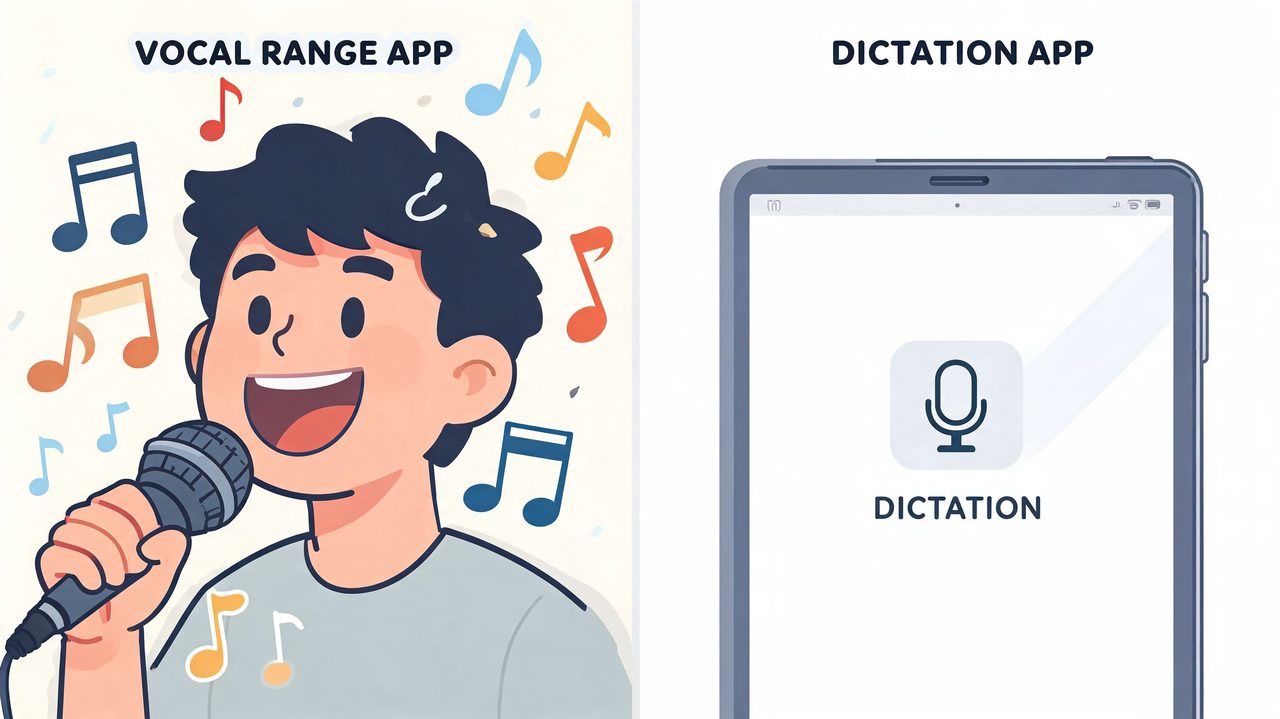
Search results still blur these categories. Many pages treat "voice type app" as a singer-focused query, and some results point to vocal analysis apps rather than dictation tools for work. For professionals, that framing misses the actual job to be done.
A work-focused voice type app needs to handle four practical requirements:
- Accurate speech capture in normal conditions: accents, rushed phrasing, self-corrections, and imperfect audio still need to produce readable text.
- Cleanup during transcription: filler words, repeated starts, and spoken punctuation habits should not create a messy draft.
- Formatting that matches the destination: a status update, support summary, and executive email need different structure.
- Control over privacy and processing: some teams want cloud features for richer formatting. Others need offline transcription for sensitive material.
That last point matters more than many reviews admit. My team uses AIDictation because it is built for this professional use case on macOS, not for voice scoring. We can optimize for speed when we are drafting routine updates, then switch to more privacy-conscious settings for internal summaries that should stay local. The trade-off is straightforward. Cloud-assisted features can be more flexible with formatting and rewriting, while offline modes give tighter control over where speech data is processed.
The broader category is better described as voice writing than basic dictation. This explanation of what voice writing means in practice gets the distinction right. Professionals are usually not trying to capture every spoken stumble exactly as said. They want a draft that already looks close to something they can send.
Adjacent tools can also matter. Teams that create narrated demos or training content often pair dictation with lifelike voice generation for a separate output workflow. That does not replace transcription. It sits next to it.
A basic built-in dictation tool can be enough for a one-line reply. A professional voice type app should produce text you can drop into docs, reports, tickets, and emails without spending the next ten minutes fixing it.
Installation and Your First Dictation
The setup should take a few minutes, not an afternoon. On Mac, the main things you’re doing are installing the app, granting microphone access, and choosing the default mode that matches how you work.
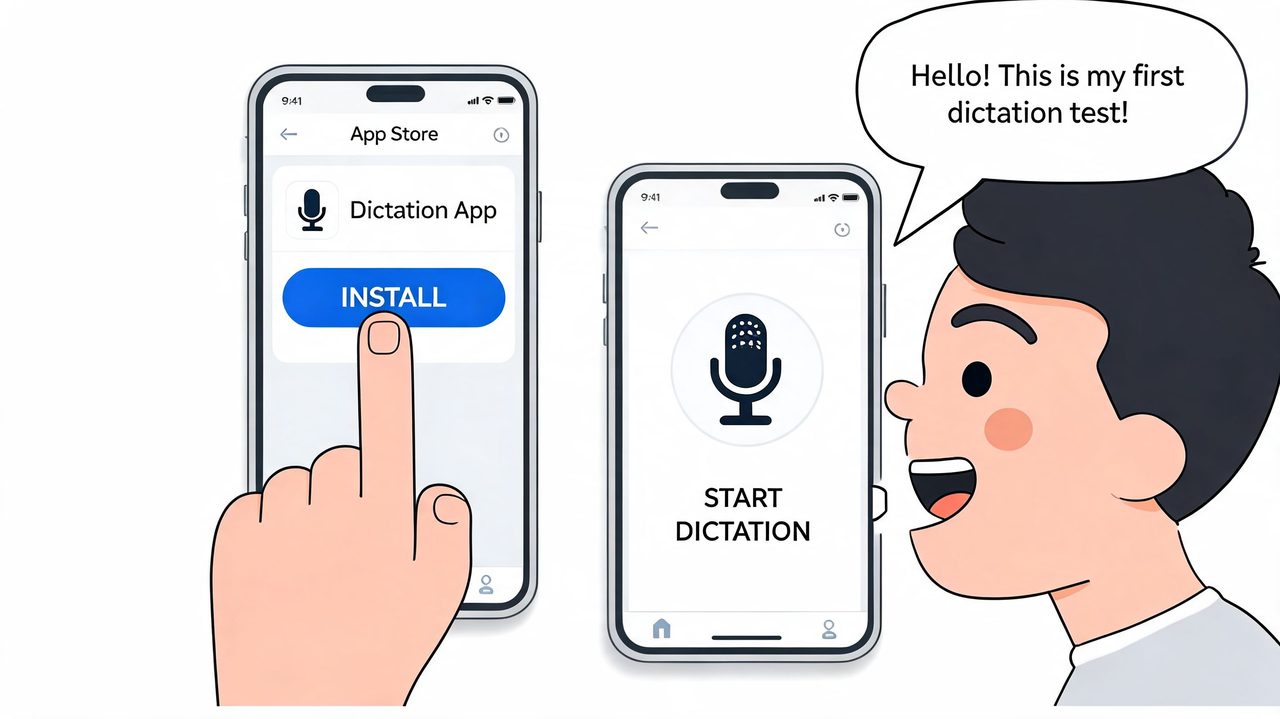
Start with the official AIDictation download for macOS. After installation, macOS will ask for microphone permission. Grant it, or the app can’t hear anything. If you want dictation to work smoothly across email, docs, and chat apps, accessibility permissions may also be needed so the text can land in the active field.
A first-run setup that avoids friction
The cleanest way to begin is to leave advanced settings alone and use Auto Mode first. That gives you a working baseline before you start tuning dictionaries, formatting rules, or mode preferences.
Use this quick sequence:
-
Open the app and check the input device
If you use an external mic, confirm it’s selected. If not, the built-in microphone is fine for a first pass.
-
Pick a familiar target
Don’t start with a mission-critical document. Open Notes, a draft email, or a blank document where mistakes won’t matter.
-
Speak one short paragraph
Introduce yourself, summarize your day, or dictate a short update. Keep it conversational.
-
Pause and inspect the output
Look for three things: missing words, punctuation behavior, and whether the text lands in the right place.
-
Repeat with a real task
A meeting summary or a follow-up email is ideal because you already know roughly what you want to say.
A short product walkthrough helps if you prefer to see the flow before clicking around:
What to expect from the first session
The first dictation usually teaches people one important lesson. The tool is listening to how you speak, not how you write. If you ramble, restart, or bury the point, the transcript will reflect that unless cleanup features are enabled.
That’s why I tell teams to test with something small but real. Dictate a stakeholder update. Then dictate the same update again, a bit slower, with clearer sentence endings. The second pass usually shows you how much quality depends on input habits, not just software.
Practical rule: Your first goal isn’t perfection. It’s proving that spoken drafts are faster to refine than typed drafts are to create.
Mastering the Three Dictation Modes
A professional voice type app isn’t one setting. It’s a set of trade-offs. The biggest one is deciding how much you care about privacy, speed, and output polish for the task in front of you.
That’s where mode selection matters. Voice AI agent success rates average 42% full task completion, with outcomes swinging from easy cases over 90% to noisy or accented cases under 10%, which is why a multi-engine setup matters in practice, according to this analysis of voice AI performance. One engine won’t handle every environment equally well.
What each mode is for
Here’s the simple mental model.
- Local Mode is for privacy-sensitive work, low-connectivity situations, or moments when you want speech processed on-device.
- Cloud Mode is for cleanup-heavy writing where formatting, filler removal, and polished output matter more than strict local processing.
- Auto Mode is for everyday use when you don’t want to think about engine choice every time you speak.
AIDictation Mode Comparison
| Feature | Local Mode | Cloud Mode | Auto Mode |
|---|---|---|---|
| Privacy | Strongest privacy posture because processing stays on-device | Requires sending audio for cloud processing | Balances privacy and convenience based on conditions |
| Speed | Feels immediate on supported hardware | Depends on connection quality and processing load | Usually the least fussy for day-to-day work |
| Internet requirement | No internet required | Internet required | Can adapt depending on availability |
| Output cleanup | More raw transcription behavior | Better for cleanup, formatting, and restructuring spoken input | Uses the most suitable path for the task |
| Best fit | Clinical notes, proprietary docs, private brainstorming | Emails, polished summaries, shareable drafts | General-purpose dictation across apps |
When Local Mode wins
Local Mode is the right choice when the content itself is sensitive. Healthcare teams, legal staff, and developers working on internal systems usually care less about cosmetic cleanup and more about keeping processing on the device.
It also works well for fast capture. If you’re collecting rough notes during a meeting break or speaking ideas into a document while offline, you want responsiveness and predictable behavior more than stylistic refinement.
When Cloud Mode earns the extra step
Cloud Mode is where dictation starts feeling like writing assistance instead of transcription. It’s better suited for spoken drafts that need to come out as readable paragraphs, cleaner lists, or messages that don’t sound like dictated notes.
Use it when the destination matters:
- Email drafts: Better when tone needs to sound professional instead of verbatim
- Meeting summaries: Better when spoken digressions need to be trimmed
- Support responses: Better when empathy and structure matter
- Longer reports: Better when self-corrections and filler words would otherwise clutter the draft
Why Auto Mode becomes the default
Teams typically don’t want to think about engine selection all day. Auto Mode is the practical compromise because it removes one decision from the workflow. That matters more than people expect. If switching modes feels like overhead, users stop dictating and go back to typing.
The best dictation setup is the one people keep using when they’re busy.
My recommendation is simple. Treat Local Mode as your “sensitive work” setting, Cloud Mode as your “ready-to-send draft” setting, and Auto Mode as the daily default.
Pro Tips for Flawless Transcription Accuracy
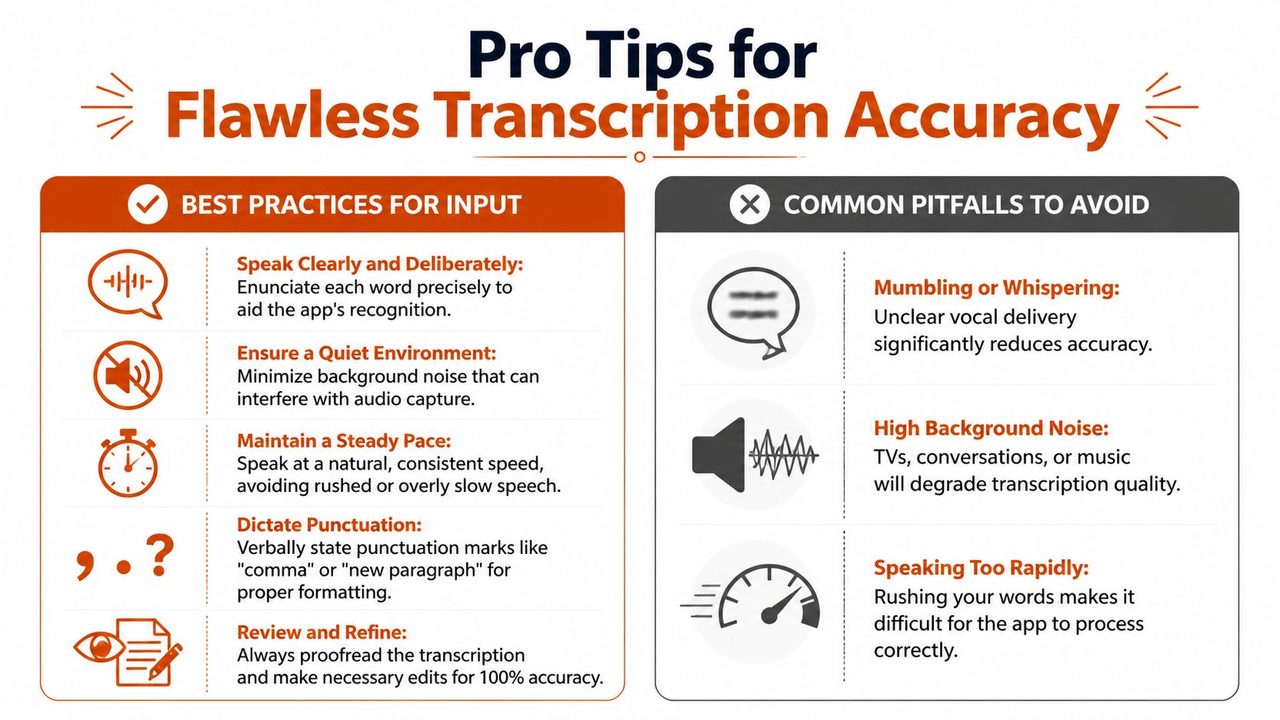
Most accuracy problems start before the software does any processing. The microphone is wrong, the room is noisy, or the speaker talks like they’re in a hurry to beat the app. Fix those first.
Professional-grade transcription means 95%+ accuracy, and hardware is one of the clearest levers. A $50 USB mic can improve accuracy by 15%+ over laptop microphones by improving signal-to-noise ratio to 34 dB+, where ASR confidence reaches 96%, according to this speech-to-text accuracy breakdown.
Fix the input before you blame the output
If someone on your team says dictation “doesn’t work,” I usually check these first:
- Microphone choice: Built-in laptop mics are convenient, not ideal. An external USB mic usually gives the biggest immediate improvement.
- Room noise: HVAC hum, keyboard clatter, hallway chatter, and speakers playing music all hurt recognition.
- Mic placement: Too far away and you lose clarity. Too close and plosives get ugly.
- Speaking pace: Fast speech with swallowed endings forces the model to guess.
- Punctuation habits: If you never pause between thoughts, the transcript won’t know where one sentence ends.
Small behavior changes that matter
You don’t need a broadcaster’s voice. You do need cleaner input.
Try this checklist:
- Speak in complete thoughts: Short clauses with natural pauses are easier to format.
- Correct yourself cleanly: If you restart, pause and say the new phrase clearly instead of layering over the old one.
- Dictate structure out loud: Say “new paragraph” or “bullet point” when formatting matters.
- Use a stable environment: A consistent desk setup beats walking around on speakerphone.
- Proofread at the end: Even strong dictation still benefits from a fast review pass.
If you’re also transcribing webinars, recorded calls, or long-form media, these automatic video transcription methods offer useful adjacent workflow ideas, especially for handling pre-recorded content rather than live dictation.
Teach the system your vocabulary
Accuracy drops fast when product names, client names, acronyms, or technical terms aren’t recognized. That’s why domain vocabulary matters as much as acoustics. Add recurring names, brand terms, internal shorthand, and specialist language to a custom dictionary setup so the app stops guessing at words you use every day.
Clear audio beats clever prompts. Most teams get bigger gains from a better mic and a quieter room than from tweaking every software setting.
Advanced Customization for Your Workflow
A generic transcript creates generic cleanup work. The gains show up when the app starts matching how your team writes in email, chat, notes, and technical docs.
For professional dictation, customization matters more than novelty. Singing and pitch tools get a lot of attention in search results for "voice type app," but that is a different job. A professional setup on macOS needs vocabulary control, app-specific formatting, and privacy settings you can choose based on the sensitivity of the draft.
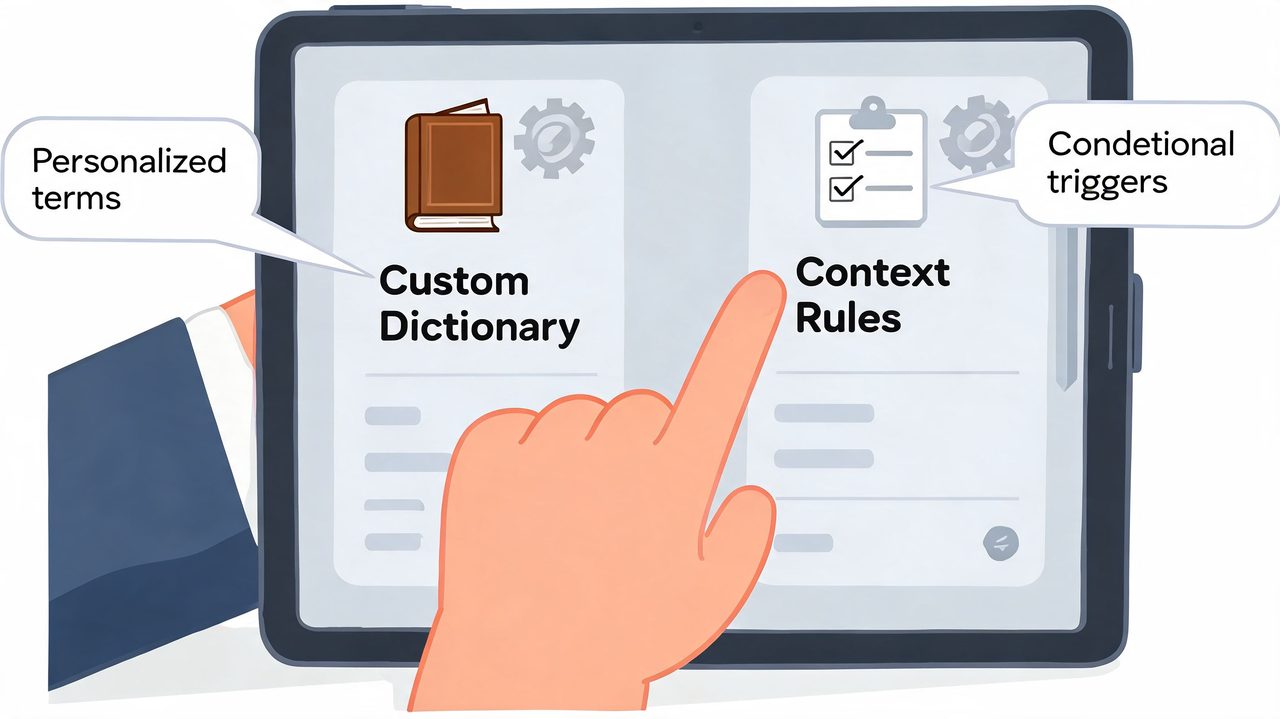
Build a custom dictionary that reflects real work
The fastest way to cut review time is to teach the app the words your team says every day. In practice, that means adding the terms that create repeated correction work, not every possible noun in the company.
For a product team, the first pass usually includes:
- People names: teammates, customers, executives, and partner contacts
- Product terms: feature names, internal codenames, roadmap labels
- Acronyms: PRD, API, SSO, QA, SOC, and internal shorthand
- Domain language: terms that appear in specs, tickets, reports, and postmortems
I usually tell teams to start small. Add the twenty or thirty terms that keep breaking. Then review misses for a week and expand from there. A bloated dictionary can introduce its own problems, especially if similar terms compete with each other.
Set app-specific output rules
Spoken words should not turn into the same writing style everywhere. An email draft needs sentence polish. A Slack update usually needs speed and brevity. Notes need structure that is easy to edit later.
A practical setup looks like this:
| App context | Suggested output style |
|---|---|
| Mail or Outlook | Complete sentences, professional tone, clean paragraphs |
| Slack or chat | Shorter lines, lighter tone, less formal structure |
| Docs or Notes | Plain paragraphs, headings when spoken, easy-to-edit drafts |
| Code editor | Technical wording, concise comments, structured explanations |
The trade-off is control versus consistency. More rules reduce cleanup in the target app, but they also require testing. If the formatting is too aggressive, a quick chat message can come out sounding like a memo.
Choose privacy settings based on the document
This part gets skipped in a lot of voice app roundups. For professional use, privacy is a workflow setting, not a legal footnote.
In AIDictation, teams can choose setups that fit the task. For sensitive material such as customer summaries, hiring notes, or internal planning docs, offline or privacy-first processing is usually the safer choice even if it limits some cloud features. For low-risk drafting, broader feature access may be worth it if the goal is maximum speed.
That trade-off is real. More processing options can improve convenience and formatting behavior. Tighter privacy controls can reduce exposure and make procurement easier for teams handling confidential material.
One tool, different behaviors
AIDictation on macOS combines custom dictionaries with app-based context rules, so dictated text can shift between polished email formatting, cleaner document structure, and shorter chat-style output depending on where you are typing. That fits professional work better than a single universal transcript.
The practical result is straightforward. Less repetitive editing, fewer terminology fixes, and fewer moments where you have to rewrite a usable draft just because it landed in the wrong tone.
Real-World Workflows for Professionals
Features are abstract until they remove a task you hate. The teams I’ve seen stick with dictation all use it in narrow, repeatable moments first. They don’t try to “speak everything.” They pick the parts of the day where typing is slowest.
Privacy and offline capability matter most in high-stakes contexts. For healthcare and software teams, the market still talks too little about on-device processing and security expectations around sensitive content, as noted in this discussion of privacy gaps in voice apps.
Product management
For PM work, dictation is strongest during synthesis. After a stakeholder call, I’ll speak a rough summary while the discussion is still fresh. That usually includes decisions made, unresolved risks, and what needs follow-up.
The key is not to dictate the final PRD in one shot. It works better to dictate the messy thinking first, then refine. Good targets include:
- Meeting recaps: Fast summaries while context is still fresh
- Spec sections: Problem statement, goals, assumptions, open questions
- Status updates: A spoken first draft is often faster than typing from scratch
Software development
Developers usually adopt dictation for prose, not code. It’s useful for explaining intent around code comments, writing technical documentation, or summarizing implementation trade-offs after a spike.
A practical pattern is to speak the explanation in plain language, then tighten it inside the editor. This is especially useful when the alternative is postponing documentation until nobody remembers why a decision was made.
Clinical and healthcare work
Clinicians have a different threshold. Privacy comes first. If the workflow involves sensitive notes, on-device processing and offline capability matter because the content itself is the risk.
In that environment, the right use is structured note capture, not creative drafting. Speak clearly, keep the format consistent, and review immediately after dictation while the patient interaction is still fresh.
Support and operations
Support teams benefit from dictation when they need empathy plus detail. A spoken first draft can capture the explanation quickly, then a formatting pass makes it suitable for email or a help desk response.
This works especially well for:
- Long replies: Cases that need context, not a canned macro
- Escalation summaries: Clear handoffs to engineering or ops
- Internal notes: Fast descriptions of what happened and what changed
The common theme across all four roles is simple. Dictation wins where thinking is faster than typing.
Frequently Asked Questions About AIDictation
Is this different from built-in Mac dictation
Yes. Built-in dictation is fine for short, literal text entry. A dedicated voice type app for professional work usually adds engine choice, cleanup, formatting, custom vocabulary, and app-aware behavior. That matters when you need more than raw transcription.
Should I use local or cloud processing
Use local processing when privacy, offline use, or sensitive material matter most. Use cloud processing when you want stronger cleanup and more polished output. If you don’t want to think about it often, Auto Mode is the practical default.
Can it handle technical jargon and names
Yes, if you set it up properly. The difference usually comes from the custom dictionary. Without that, any dictation tool will struggle with internal acronyms, product names, and uncommon terminology.
Does it work for existing audio or video files
Yes, for workflows that include recorded material as well as live dictation. That’s useful for meetings, interviews, and spoken notes captured earlier.
What about privacy concerns
This depends on the mode you choose and the type of work you’re doing. For sensitive workflows, local processing is the safer fit because the audio stays on-device. For cloud workflows, teams should still review the app’s security posture and decide based on their own compliance requirements.
Is it only useful for long documents
No. Some of the best use cases are short. A quick follow-up email, a decision log after a meeting, or a support reply can benefit just as much as a longer report. The value comes from reducing friction, not just from handling long-form writing.
If you spend more time rewriting your thoughts than thinking them, AIDictation is worth testing in one narrow workflow first. Try it on meeting recaps, stakeholder emails, or documentation notes for a week. You’ll know quickly whether speaking a rough draft is faster than typing from a blank page.
Frequently Asked Questions
What does Voice Type App for Mac: The Guide to AIDictation cover?
You’re probably here because “voice type app” sounded like the thing you need, then the search results sent you into a maze of singer tools, pitch analyzers, and vocal range tests. Meanwhile, your actual problem is simpler and more urgent.
Who should read Voice Type App for Mac: The Guide to AIDictation?
Voice Type App for Mac: The Guide to AIDictation is most useful for readers who want clear, practical guidance and a faster path to the main takeaways without guessing what matters most.
What are the main takeaways from Voice Type App for Mac: The Guide to AIDictation?
Key topics include Table of Contents, What a Professional 'Voice Type App' Really Is, Installation and Your First Dictation.
Ready to try AI Dictation?
Experience fast voice-to-text on your device. Free to download.
Download FreeRelated Posts
Voice to Text on Mac: Built-in Dictation vs the Best Apps (2026)
How to use voice to text on a Mac or MacBook: turn on built-in dictation, see where it falls short, and compare the best Mac voice to text apps for 2026.
How to Take Better Lecture Notes with Voice Dictation
Learn how to capture, clean, and study lecture notes faster using AI voice dictation. Practical workflow tips for students, researchers, and journalists.
Meeting Notes Transcription App: What to Look for in 2026
Find the best meeting notes transcription app in 2026. Learn key features, privacy trade-offs, real use cases, and why AIDictation stands out.