How to Use Voice Dictation on Mac
You're in the middle of a task, your hands are on the keyboard, and the sentence is already forming faster than you can type it. That's exactly when voice dictation on Mac starts to feel less like an accessibility feature and more like a practical writing tool. If you mainly want to get words onto the screen quickly, Apple's built-in dictation can help. If you need cleaner output for technical, medical, or accuracy-sensitive work, the gap shows up fast.
Table of Contents
- Getting Started with Voice Dictation on Mac
- Setting Up Apple's Built-In Dictation
- Built-In Dictation Versus Third-Party Options
- Accuracy Benchmarks and Real-World Performance
- Optimizing Your Dictation Setup for Best Results
- Making the Right Choice for Your Workflow
Getting Started with Voice Dictation on Mac
The fastest way to test dictation is simple, open any text field, then use Apple's dictation shortcut or the Edit > Start Dictation menu path. On current Macs, you can also activate dictation with the microphone key or a keyboard shortcut, and Apple still treats it as a standard Mac input method in its support docs. That means you don't need a separate app just to see whether speaking feels better than typing.
Start with a low-friction test
Use a blank note, an email draft, or a document you can safely delete later. Speak a few sentences at a normal pace, then stop and look at the text before you keep going. The point isn't to sound polished, it's to see how your Mac handles your voice, your pacing, and your punctuation habits.
Practical rule: Start with short, simple phrases before you try long paragraphs. Dictation issues are easier to spot when the sentence structure is obvious.
Apple's built-in tool is good enough for casual notes, quick emails, and short reminders. It's less satisfying when you need precise terminology, repeated jargon, or wording that must be clean on the first pass. If that sounds like your day, keep reading with a clear expectation, built-in dictation is the baseline, not the ceiling.
Setting Up Apple's Built-In Dictation
Apple has shipped system-wide dictation on Mac since Mac OS X Mountain Lion in 2012, and it became even more practical when offline dictation arrived with Mac OS X Mavericks in 2013 Pocket-lint. The setup is still straightforward, but the difference between a decent experience and a frustrating one usually comes down to the settings you choose before you start speaking.
Turn it on and pick your input path
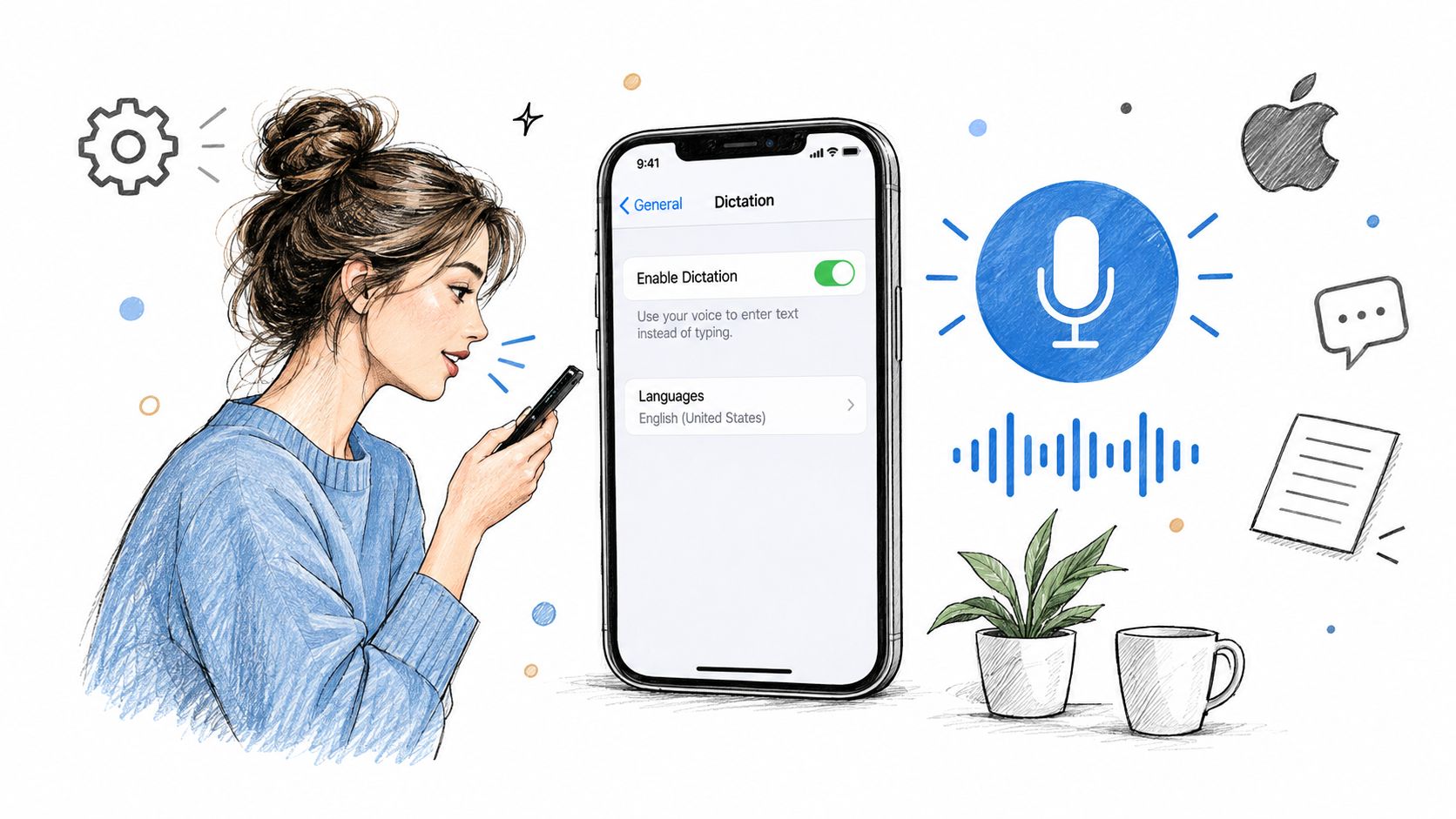
Open System Settings, then look for the keyboard or dictation settings area in macOS. Enable dictation, choose the language you use day to day, and decide whether you want the feature available for occasional use or as part of a regular workflow. Apple's current support docs still treat dictation like a normal input method, so the goal is to make it easy to trigger without breaking your flow.
The three activation paths matter more than they sound. The microphone key is fastest if your keyboard has one, the shortcut is better if you dictate often, and Edit > Start Dictation is the fallback when you're exploring a new app or can't remember the key combo. Pick one method and stick with it until it becomes muscle memory.
Understand offline mode and privacy controls
Offline dictation is the safer choice when you work in a quiet place without reliable internet, or when you want fewer network dependencies. Apple also documents that dictation audio interactions can be deleted, are associated with a random identifier, and are kept for less than six months Apple support. That doesn't make the feature invisible, but it does show Apple's long-running focus on retention and privacy controls.
Dictation gets easier when the setup disappears into the background. If you're still hunting through menus, you haven't made it part of the workflow yet.
For command-heavy users, the vocabulary around punctuation and navigation matters too. Apple's own guidance and command references are worth keeping nearby, especially if you're trying to move beyond basic transcription, Mac dictation commands is a useful reference point for that.
Built-In Dictation Versus Third-Party Options
Apple Dictation suits casual writing because it is free, already integrated into macOS, and quick to use. Its limits appear when a document contains specialized terminology, requires little editing, or carries a high cost for transcription errors. At that point, you either accept more correction work or choose software built for context, formatting, and cleanup. A practical comparison of dictate software for Mac can help match those features to your workflow.
Where each approach fits
Apple's system works well for short messages, rough notes, and drafts you will review immediately. It is a sensible choice when occasional mistakes are easy to fix. Third-party software becomes more useful when dictated text should be close to final form, particularly for technical documentation, medical language, and multilingual drafting.
AIDictation offers Local Mode on Apple Silicon for offline dictation and Cloud Mode for cleanup, formatting, and handling self-corrections. That distinction creates a practical privacy and quality trade-off. Local processing reduces dependence on sending audio or text to a cloud service, while Cloud Mode can produce cleaner structured output. Choose based on whether offline handling or reduced editing matters more for the task. Custom vocabulary and app-specific formatting rules also help when names, terms, and workflow-specific words are common.
| Feature | Apple Built-In | AIDictation |
|---|---|---|
| Basic Mac integration | Built in to macOS | Native macOS app behavior |
| Offline use | Available | Available in Local Mode on Apple Silicon |
| Cleanup and formatting | Limited | Cloud Mode adds AI cleanup and formatting |
| Custom vocabulary | More basic | Built for names, terms, and workflow-specific words |
| Best fit | Casual dictation | Accuracy-sensitive and specialized writing |
For occasional dictation, Apple's built-in option is difficult to beat for convenience. For daily technical, medical, or accuracy-critical work, correction time becomes part of the tool's real cost. The useful question is not which option has more features. It is whether the software produces text that fits your workflow with acceptable privacy trade-offs and editing effort.
Accuracy Benchmarks and Real-World Performance
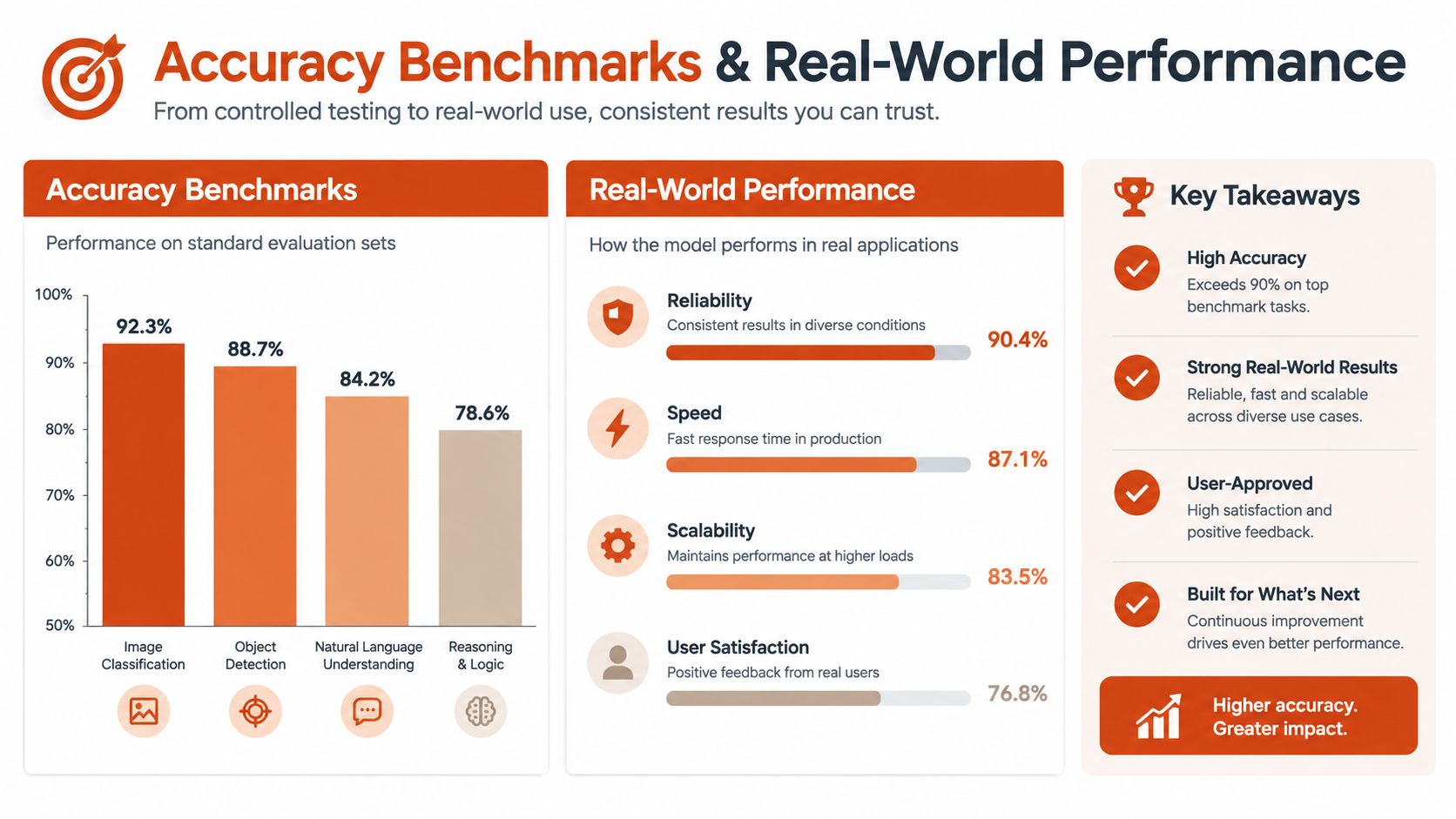
The gap between occasional convenience and reliable daily use appears in both accuracy and editing time. Independent 2026 testing found that Apple Dictation reached about 89.3% general accuracy, but only 76.0% on technical content. Leading local Whisper-based engines reached roughly 94-97% on general English and 91-94% on technical text EmberType. These results explain why Apple's built-in tool can satisfy casual users while falling short for specialist work.
What the benchmark actually means
Everyday sentences give a dictation engine plenty of context. Technical writing removes that margin for error. Code comments, clinical notes, product specifications, proper nouns, and domain terminology expose weaknesses in vocabulary recognition and contextual handling. Apple's native dictation remains practical for ordinary speech, but the benchmark results show how quickly its limitations appear in specialized workflows.
Setup quality also affects the result. An optimized Mac dictation workflow reduced the average time for a 200-word passage from 82.3 seconds to 42.1 seconds. Word error rate fell from 12.7% to 6.1%, while edits per 100 words dropped from 18.4 to 5.3 VibeTyper. Those gains reflect controlled microphone use, repeatable passages, and a consistent workflow, not software accuracy alone.
Why the technical gap matters in daily work
Accuracy is only half the story. Repeated terminology fixes can turn dictation from a time saver into a noisy drafting method.
A useful test includes pauses, self-corrections, revisions, domain terms, and app-specific formatting. A clean paragraph demonstrates basic transcription, but it does not show whether the tool can handle real work without sending you back to the keyboard every few seconds. Specialized engines and app-aware tools such as AIDictation address that practical gap, especially when technical or medical text makes correction time expensive. Privacy remains part of the decision: local processing can limit data exposure, while cloud processing may provide more cleanup and formatting.
Optimizing Your Dictation Setup for Best Results
A good dictation engine cannot compensate for a noisy room or inconsistent microphone technique. Start with the microphone, then keep your speaking distance steady across sessions. Moving between rooms or changing your position makes it difficult to tell whether poor output comes from the software or the setup.
Make the room and mic predictable
Use a stable microphone and keep your mouth at a fixed distance. A quiet room helps, but repeatability matters just as much. Keep the microphone, room, and distance constant, then replay identical passages when comparing tools. This gives you a fairer view of accuracy and editing effort.
A reliable correction habit also improves the workflow. Let dictation capture the rough draft instead of stopping after every imperfect sentence. Clean up the text in one focused pass, so composition stays separate from editing.
Build around your vocabulary, not someone else's
Technical names, client names, and niche terminology expose the limits of generic dictation quickly. If your work contains recurring jargon, use a custom dictionary or choose software that supports one. Repeatedly fixing the same terms consumes the time that voice input should save, which is why specialized tools such as AIDictation can make more sense for accuracy-sensitive work than basic Mac dictation.
Microphone placement still matters more than many users expect. Apply the practical recommendations in speech recognition microphone tips before blaming the transcription engine. The most dependable setup is deliberately consistent: the same microphone, room, speaking distance, and correction routine. That consistency makes comparisons clearer and the final text more predictable.
Making the Right Choice for Your Workflow
If you mostly dictate casual emails, quick reminders, and rough notes, Apple's built-in dictation is probably enough. It's already on your Mac, it's easy to turn on, and it doesn't ask you to adopt a new tool before you've proven you need one. For many users, that's the right starting point.
If you work with technical documentation, medical terminology, code comments, multilingual English, or anything that needs fewer corrections, a specialized tool is easier to justify. AIDictation sits in that category, with Local Mode for offline use, Cloud Mode for cleanup, and a free tier of 2,000 words per month with no account required, plus Pro options for heavier use. The point isn't to replace Apple for everyone, it's to cover the cases where Apple's native approach becomes too literal.
A simple decision filter
- Use Apple Dictation if you want something free, built into macOS, and good enough for short, casual dictation.
- Choose a specialized app if you care about terminology, formatting, and fewer post-editing passes.
- Prioritize local processing if privacy, offline work, or spotty connectivity matters in your daily routine.
- Test with real text if your work includes names, jargon, or pauses that are typical of your actual writing.
The right choice is the one that cuts your editing time without adding friction to the act of writing. If you're ready to compare built-in dictation with a cleaner, more workflow-aware alternative, visit AIDictation and see how its Mac dictation options fit the way you already work.
Frequently Asked Questions
What does How to Use Voice Dictation on Mac cover?
You're in the middle of a task, your hands are on the keyboard, and the sentence is already forming faster than you can type it. That's exactly when voice dictation on Mac starts to feel less like an accessibility feature and more like a practical writing tool.
Who should read How to Use Voice Dictation on Mac?
How to Use Voice Dictation on Mac is most useful for readers who want clear, practical guidance and a faster path to the main takeaways without guessing what matters most.
What are the main takeaways from How to Use Voice Dictation on Mac?
Key topics include Table of Contents, Getting Started with Voice Dictation on Mac, Start with a low-friction test.
Ready to try AI Dictation?
Experience fast voice-to-text on your device. Free to download.
Download FreeRelated Posts
10 Best Dictate Software for Mac in 2026
Compare the best dictate software for mac in 2026 by accuracy, privacy, pricing, features, and use case—from Apple Dictation to AIDictation.
AI Dictation vs Soniox App: Bilingual Accuracy and Mac UX
We tested AI Dictation vs Soniox App on Russian-English speech. Compare WER, English-word preservation, product pipelines, and Mac app design.
Mac Dictation Commands: The Complete Reference Guide
Master mac dictation commands with this searchable reference of built-in voice commands, shortcuts, custom dictionary tips, and troubleshooting workflows.