How to Improve Accuracy: A 2026 Guide for macOS
You know the feeling. You finish a long dictation into Slack, Notes, or a clinical template, then open the transcript and see mangled names, missing punctuation, and a few stray filler words that force a full cleanup pass. Accuracy usually doesn't fail in one dramatic way, it leaks out through the room, the mic, the way you speak, and the engine you picked before you started.
For how to improve accuracy on macOS, the right move is to treat dictation like a system, not a toggle. The strongest workflows I've tested across writing, coding, and clinical notes all follow the same pattern, clean input first, then choose the right recognition mode, then tune vocabulary and context, then measure what's broken. AIDictation's Auto, Local, and Cloud modes map cleanly to those decisions, which makes the fixes practical instead of abstract.
Table of Contents
- Why Dictation Accuracy Breaks Down in Real Use
- Setting Up Your Room and Microphone
- Speaking for the Machine Without Sounding Robotic
- Choosing Between Local, Cloud, and Auto Modes
- Tuning App Settings, Custom Dictionary, and Context Rules
- Measuring Your Accuracy and Fixing What Is Actually Broken
- Your Accuracy Playbook for the Next Ten Minutes
Why Dictation Accuracy Breaks Down in Real Use
The failure usually shows up after a decent recording, not a bad one. A product manager dictates a 20-minute spec into a chat window, then finds that names are off, punctuation is uneven, and a few corrections got folded into the wrong sentence. The transcript isn't unusable, but it's just messy enough to cost time, and that's where most dictation frustration lives.
Three places the workflow leaks
The first leak is the acoustic environment. A laptop mic sitting next to fan noise, HVAC hum, or a keyboard will always force the engine to work harder than it should. The second leak is speaker behavior, especially rushed corrections, inconsistent punctuation habits, and speaking too far from the mic. The third leak is engine selection, because a lightweight on-device model, a cloud cleanup pass, and an auto-switching workflow do not behave the same way on the same input.
Practical rule: if the transcript keeps missing the same type of detail, assume the problem is upstream before you assume the model is weak.
That order matters. The best accuracy workflow I've seen starts with a clean signal, then uses validation and audit loops to catch drift over time, rather than hoping the transcript improves by force. The same logic applies whether you're drafting a memo, dictating code comments, or writing a patient note. You're not just choosing a microphone or an app, you're shaping the entire path from voice to text.
The useful mental model is simple. Room, speech habits, and engine choice each affect the next step. If the room is noisy, every model struggles more. If the speaker keeps self-correcting mid-phrase, even a strong engine can misread intent. If the mode is mismatched to the task, cleanup gets pushed onto you after the fact.
Setting Up Your Room and Microphone
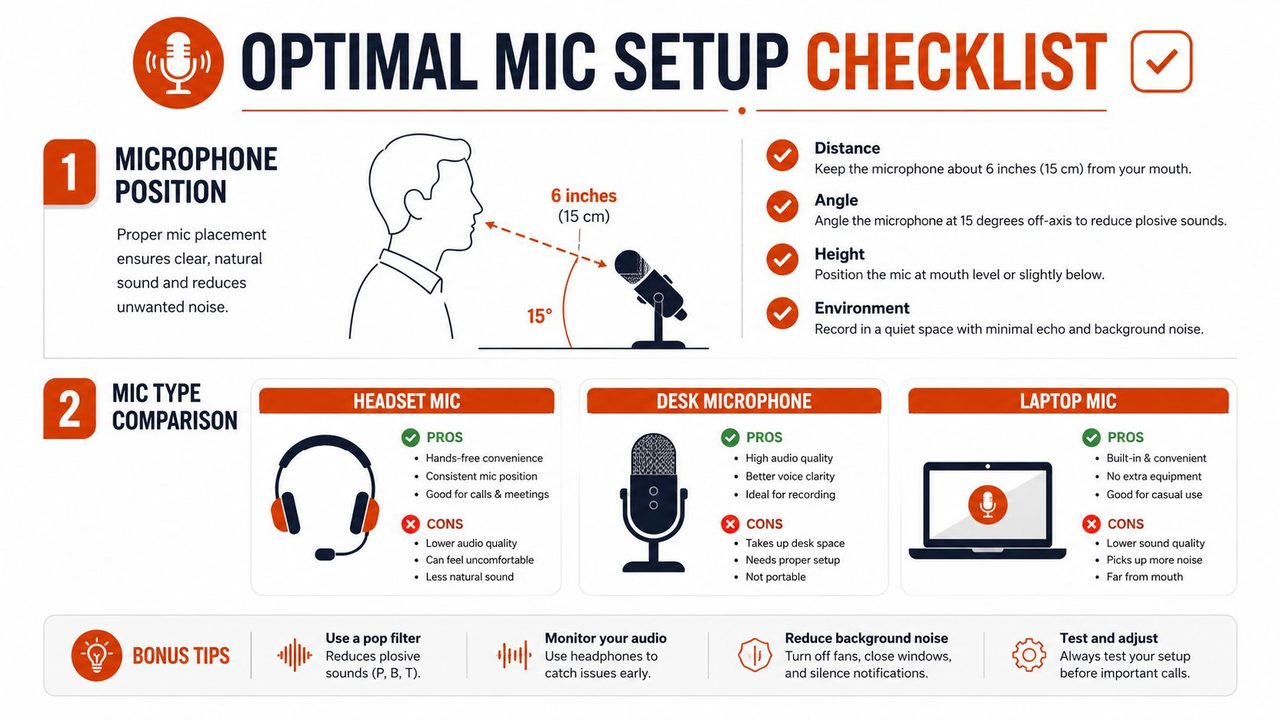
A good mic setup does more for accuracy than most software tweaks. If you're dictating all day, the goal isn't studio sound, it's a stable, repeatable input signal. Keep the mic at a consistent distance, slightly off-axis, and away from obvious noise sources like fans, vents, and a noisy keyboard.
What to fix before you buy anything
Start with the room. Soft surfaces matter because they reduce harsh reflections that can smear consonants. If you can, move away from a hard wall and avoid placing the mic directly in front of the laptop exhaust. In practice, the easiest win is often just turning down background noise and keeping the setup unchanged from session to session.
Then check the placement. A headset or boom mic usually beats a laptop mic because the distance stays constant, which means the engine doesn't keep relearning your voice every time you lean back. A desk mic can work well if you keep the speaking position fixed. Built-in laptop mics are the most fragile option because they pick up more room noise and more variations in posture.
For a deeper walkthrough of room treatment and recording basics, the guide to improve audio quality is a useful reference if you want to compare your setup against a more audio-focused checklist. It's especially helpful if you record in the same space you dictate from.
| Microphone Types for Speech-to-Text | Best For | Main Trade-off |
|---|---|---|
| Headset mic | Long dictation sessions, stable voice distance | Less comfortable for some users |
| Desk mic | Fixed workstation setups | More sensitive to room noise and placement |
| Built-in laptop mic | Casual use, no extra gear | Least consistent, most room noise |
AIDictation's own microphone guidance fits the same pattern. Use the mic that keeps your distance stable and your noise floor low, not the one that sounds best in theory.
For a quick reference on positioning, the embedded setup video is worth a look.
Upgrade trigger: if you constantly have to repeat names or technical terms even after cleaning up the room, that's usually the point where a better headset or desk mic starts to pay off.
Speaking for the Machine Without Sounding Robotic
The biggest speech mistake is trying to sound “clear” in a way that breaks natural rhythm. Engines generally handle normal cadence better than forced enunciation. What they need is clean phrase boundaries, especially when you're switching between a sentence, a correction, and a command.

The correction habit that helps most
When you catch a mistake, pause first. Don't rush the correction into the same breath as the original phrase, because that often creates a new parsing error instead of fixing the old one. A clean pause gives the engine a better chance to treat the correction as a separate utterance.
That same rule applies to punctuation commands. Say “period”, “new line”, or “comma” consistently when the destination needs them, then keep moving. If you invent punctuation habits from session to session, the transcript becomes less predictable and cleanup gets slower.
For teams that want a neutral way to turn recorded speech into text later, MP3 to Transcript is a straightforward reference point. It's useful when you want to compare a live dictation workflow against a recorded-pass workflow and see where the errors start.
A few field-tested habits matter more than people expect:
- Pause before self-corrections. A brief break keeps the fix from colliding with the original phrase.
- Keep sentence endings consistent. If you want punctuation, say it the same way every time.
- Don't narrate filler words on purpose. Saying “um” or “like” because it feels natural often degrades the output without helping the reader.
- Match your pace to the task. Code comments tolerate a different cadence than a discharge note or a stakeholder update.
A developer dictating code comments usually needs short, bounded phrases and explicit identifier handling. A clinician dictating notes often benefits more from stable pacing and predictable section breaks. The speech pattern is different, but the same principle holds, give the engine one clean unit of meaning at a time.
Choosing Between Local, Cloud, and Auto Modes
The mode you choose should reflect the task, not habit. Local Mode runs Parakeet v3 on Apple Silicon for immediate, private dictation with no internet and no data leaving the Mac. Cloud Mode adds AI cleanup, filler-word removal, context-aware formatting, and better handling of self-corrections. Auto Mode switches between them for you.
A quick decision matrix
| AIDictation Modes Compared | Best For | Accuracy Lever | Limitation |
|---|---|---|---|
| Auto | Mixed daily use | Chooses the engine without you guessing | Depends on the app's mode logic |
| Local | Private, low-latency dictation | Fast on-device recognition | Less cleanup and polish than cloud-assisted output |
| Cloud | Polished writing, structured notes, cleanup-heavy sessions | AI cleanup and context handling | Requires connectivity |
The practical choice is simple. Use Local when privacy or offline reliability matters most, especially if you're capturing rough notes and don't want data leaving the Mac. Use Cloud when you want the transcript to arrive closer to final form, which is useful for emails, polished summaries, and content that benefits from cleanup. Use Auto when you want the app to make that call based on the environment.
Rule of thumb: if you're about to send the text directly, favor the mode that handles cleanup. If you're just capturing raw thoughts, favor the mode that minimizes friction.
This is also where context matters more than raw recognition. AIDictation's on-device speech recognition is a good fit when the session is private and the words mostly need to be captured faithfully. Cloud-assisted output makes more sense when the goal is not just transcription, but readable writing.
For a practitioner, the key trade-off isn't speed versus accuracy in the abstract. It's whether you want the engine to preserve your exact phrasing or clean it into something more usable. If you keep switching tasks in the same day, Auto Mode reduces the chances of using the wrong tool for the wrong moment.
Tuning App Settings, Custom Dictionary, and Context Rules
Once the room and speech habits are stable, the next gains come from making the app understand your world. That means AI cleanup where it helps, custom dictionary entries for domain language, and context rules that change behavior depending on the destination app. The transcript should sound like it belongs in Outlook, Messages, VS Code, or a note-taking app without you manually rewriting it each time.

Settings that reduce cleanup
Turn on cleanup where the destination needs it, especially for email and polished notes. Turn off unnecessary cleanup where precision matters more than prose, such as code identifiers or clinical shorthand. The point is to let the transcript match the job, not to force every output through the same style pass.
Custom vocabulary is the fastest way to stop repeated name errors. Add product names, customer names, medications, technical terms, and unusual surnames before you test a new workflow. The earlier you do that, the less you'll train yourself to accept bad output as normal.
Context rules are the part many teams skip. A rule that keeps tone professional in Outlook but casual in Messages is more useful than one global style preference. In developer workflows, a context rule that protects code identifiers keeps the app from “helping” in the wrong place. In clinical workflows, a HIPAA-aware template keeps formatting consistent while reducing post-dictation edits.
The set up dictionary guidance is useful if you want a clean starting point for those vocabulary entries. It's especially relevant when you're onboarding a new team member who keeps hitting the same proper nouns or acronyms.
You can think about the setup like this:
- Emails and summaries: favor cleanup, punctuation, and readable formatting.
- Chat and quick replies: favor speed and lighter cleanup.
- Code and technical docs: favor dictionary protection for symbols, identifiers, and product terms.
- Clinical notes: favor stable templates and conservative wording changes.
This is one of the few places where I'd explicitly use AIDictation as a practical option rather than a concept. Its context rules and custom dictionary make the same engine behave differently in Outlook, Messages, and editors, which cuts down on manual cleanup when the destination changes.
Measuring Your Accuracy and Fixing What Is Actually Broken
Accuracy gets easier to improve once you measure it like a workflow problem instead of a feeling. One simple way is to calculate error rate as the number of inaccuracies divided by total data points, multiplied by 100, then use sample checks and regular audits to see whether the same mistakes keep returning. That's the same basic logic used in broader data-quality work, where thresholds like completeness, consistency, validity, and uniqueness are monitored continuously to keep drift from sneaking in.
A better way to hunt errors
Start by bucketing the failures. Names, punctuation, code identifiers, numbers, and accents usually behave differently, so lumping them together hides the bottleneck. If the same bucket keeps dominating, fix that first rather than trying to improve everything at once.
A practical loop looks like this:
- Record a representative sample from your real app, not a perfect demo.
- Count the errors and calculate the error rate.
- Group mistakes by cause.
- Fix the biggest bucket, then retest the same kind of sample.
That mirrors the accuracy workflow used in model tuning, where you clean the data, split evaluation from tuning, and avoid judging progress on the same sample you used to make changes. It also matches the advice to focus on representative failure modes instead of assuming more data automatically helps. If your main problem is misread names, adding generic text won't move the needle much.
For a compact reference on documentation-style iteration, how to guides are handy because they show how to keep procedural steps repeatable. That mindset helps with dictation too, since the fix should be something you can run every week instead of a one-time cleanup.
A good ten-minute self-test is enough to expose most problems. Dictate one paragraph with names, one with punctuation, one with a technical term, and one with a correction. Compare the result against what you said, then decide whether the failure came from room noise, speech rhythm, mode choice, or vocabulary coverage.
If the same error survives three clean sessions, treat it as a configuration problem, not a random miss.
Your Accuracy Playbook for the Next Ten Minutes
Fix one thing in each layer. Move the mic to a steadier position, slow down your corrections, switch to the right mode for the task, add one custom dictionary term, and run one sample test against a real app. Accuracy is a loop, not a setting, and the more repeatable your loop, the less cleanup you'll do later.
A CTA for AIDictation.
Frequently Asked Questions
What does How to Improve Accuracy: A 2026 Guide for macOS cover?
You know the feeling. You finish a long dictation into Slack, Notes, or a clinical template, then open the transcript and see mangled names, missing punctuation, and a few stray filler words that force a full cleanup pass.
Who should read How to Improve Accuracy: A 2026 Guide for macOS?
How to Improve Accuracy: A 2026 Guide for macOS is most useful for readers who want clear, practical guidance and a faster path to the main takeaways without guessing what matters most.
What are the main takeaways from How to Improve Accuracy: A 2026 Guide for macOS?
Key topics include Table of Contents, Why Dictation Accuracy Breaks Down in Real Use, Three places the workflow leaks.
Ready to try AI Dictation?
Experience fast voice-to-text on your device. Free to download.
Download FreeRelated Posts
Email Dictation Software: What It Is and How to Choose
Learn what email dictation software is, how it works, and how to pick the right one. Covers accuracy, privacy, HIPAA, accents, and real buyer checklists.
Choosing a Medical Dictation App for Clinical Work
Compare medical dictation apps on HIPAA compliance, on-device vs cloud, medical vocabulary accuracy, EHR integration, and pricing to find the right fit.
Free Audio to Text Tools: 10 Options Compared for 2026
Compare 10 free audio to text tools: built-in recorders, free apps, offline models, and cloud APIs, with privacy and accuracy trade-offs.