Voice to Text on Mac: Built-in Dictation vs the Best Apps (2026)
Updated September 2026
Voice to text on a Mac is a two-step decision. First, turn on the dictation Apple already built into macOS and see if it covers what you write. Second, if you spend real time in docs, email, tickets, or code, pick an app that turns your speech into text you can actually send without editing.
This guide does both. It starts with the 30-second setup for built-in Mac voice to text, shows where it breaks down, and then compares the best Mac voice to text apps for 2026 by output quality, privacy, price, and device coverage.
TL;DR
Quick answer: Mac voice to text is built in. Turn on Dictation under System Settings, then Keyboard, and press Fn twice in any text field. If the raw transcript needs too much editing, install a dictation app that cleans up and formats what you say.
- Built-in Mac Dictation is free, works offline on Apple Silicon, and is fine for short messages. It gives you a literal transcript with filler words and weak punctuation.
- AI Dictation is the best voice to text app for Mac if you write for work. It removes filler, formats per app, has a local mode, and runs on Windows, iPhone, iPad, and Android as well.
- Superwhisper is the pick for power users who want to choose local models and build custom modes.
- Wispr Flow and Willow Voice are strong cloud-first options with generous free weekly allowances.
- OpenWhispr is free and open source if you want to configure everything yourself.
How to Turn On Voice to Text on a Mac
Every Mac and MacBook has dictation built in. To enable it:
- Open System Settings.
- Click Keyboard in the sidebar.
- Scroll to Dictation and switch it on.
- Pick your language and a shortcut. The default is pressing Fn twice. Newer MacBook keyboards have a dedicated microphone key.
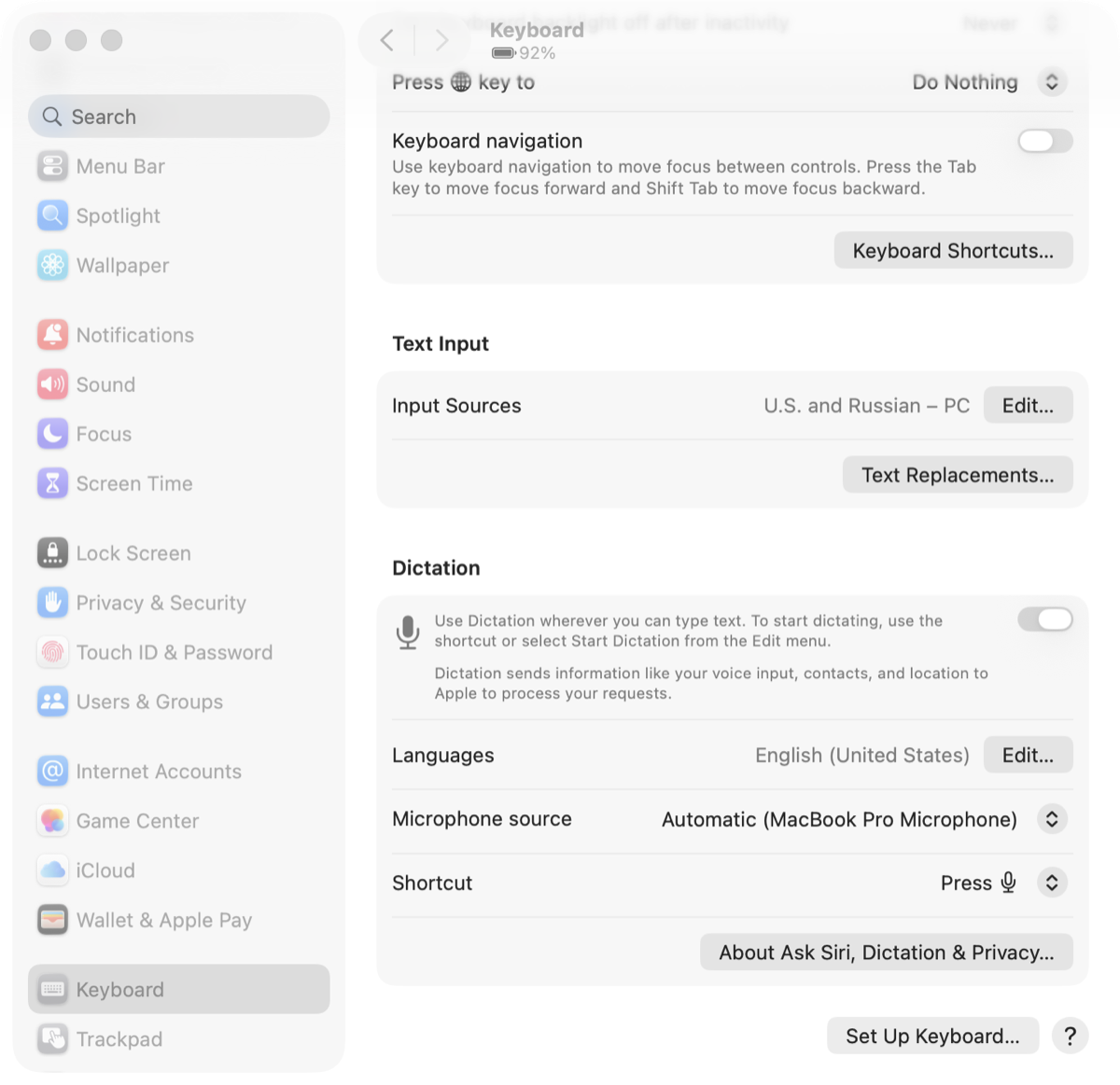
The Dictation card is at the bottom of the Keyboard pane. It holds the on/off switch, the language list, the microphone source, and the shortcut key.
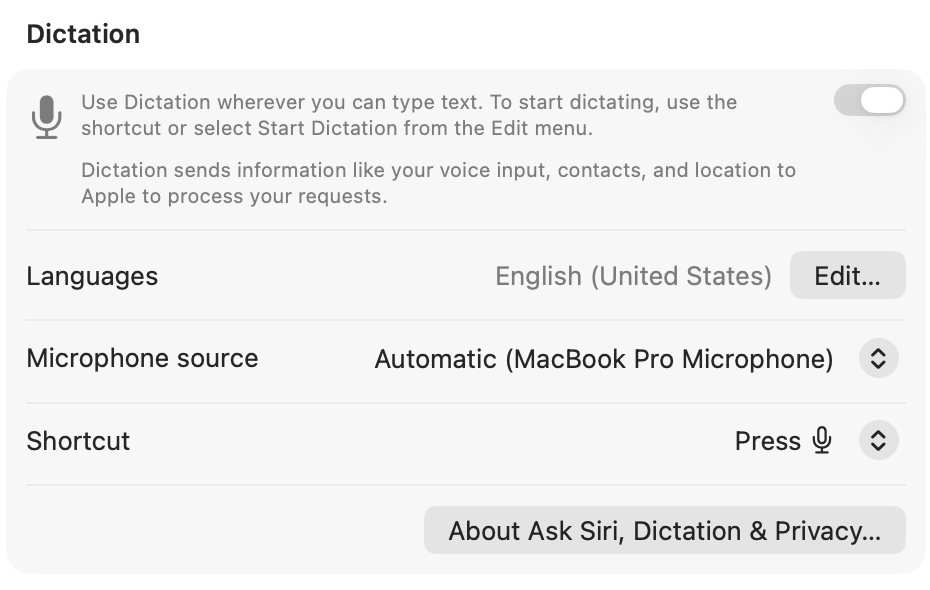
Now click into any text field, press the shortcut, and speak. Press it again or hit Escape to stop.
Two settings are worth checking right away:
- Language. If you speak more than one language, add each one here. Dictation guesses badly if the language list is wrong.
- Microphone. On a MacBook, the built-in mic is usually fine at a desk. In a noisy room, switch to a headset or AirPods under the Dictation microphone setting.
For a deeper walkthrough of commands and troubleshooting, see how to use dictation on Mac.
Where Built-in Mac Voice to Text Falls Short
Apple Dictation has improved a lot. On Apple Silicon it runs on-device for major languages, so it is private and works offline. The problem is what it produces.
- Literal transcripts. You get every "um," every false start, and every repeated word. The text is accurate to what you said, not to what you meant.
- Punctuation you have to speak. It adds some automatic punctuation, but long paragraphs still need "period" and "new paragraph" spoken out loud.
- No awareness of the app. A Slack message, a Jira ticket, and an email get the same flat output.
- Technical vocabulary. Product names, code identifiers, and medical terms are frequently wrong, and there is no proper custom dictionary to fix them.
- Session limits. Dictation can stop after a stretch of silence or a long monologue, which interrupts real writing.
If you mostly dictate texts and search queries, none of this matters. If you dictate documents, it is the reason people go looking for a Mac voice to text app.
What Actually Matters in a Mac Voice to Text App
Before the list, here are the five things that separate a good Mac voice to text app from a bad one.
1. Output you can send
The transcript is the first draft. The best apps remove filler words, fix self-corrections, add punctuation, and structure lists and paragraphs so the text is usable immediately.
2. Local or cloud processing
Local processing keeps audio on your Mac and works offline. Cloud processing is often faster to improve and easier on older Intel Macs. The best setups give you both: local mode by default, cloud cleanup when you want a polished draft.
3. Per-app behavior
Voice to text in a terminal should not look like voice to text in Gmail. Apps with context rules or modes adjust tone, formatting, and vocabulary based on where your cursor is.
4. Custom vocabulary
If you say "Kubernetes," a client's surname, or a drug name more than once a week, you need a dictionary that learns it.
5. Devices beyond the Mac
Many people write on a MacBook, then continue on a phone. Check whether the app covers iPhone, iPad, Windows, and Android, or whether it is Mac-only.
The Best Voice to Text Apps for Mac in 2026
| App | Best for | Local mode | Free tier | Beyond Mac |
|---|---|---|---|---|
| AI Dictation | Work writing that is ready to send | Yes | 2,000 words/month | Windows, iPhone, iPad, Android |
| Apple Dictation | Short messages, zero cost | Yes (Apple Silicon) | Unlimited | iPhone, iPad |
| Superwhisper | Power users who want model control | Yes | Trial | Windows, iPhone, iPad |
| Wispr Flow | General cloud dictation across devices | No | 2,000 words/week | Windows, iPhone, Android |
| Willow Voice | Cloud dictation with auto-editing | No | Weekly allowance | Windows, iPhone |
| OpenWhispr | Free, open-source tinkering | Yes | Unlimited local | Windows, Linux, iPhone (Pro) |
| MacWhisper | Transcribing audio files | Yes | Limited | iPhone (files only) |
1. AI Dictation
AI Dictation is built for the second half of the job: turning speech into text you do not have to edit. Hold a key, speak naturally, release, and formatted text appears at your cursor.
- Cleanup that respects meaning. Filler words and false starts are removed, but your phrasing stays yours.
- Context rules. Different formatting for email, docs, chat, and code, set once per app.
- Local mode. Offline dictation on your Mac, with optional cloud cleanup when you want a more polished draft.
- Custom dictionary for names, product terms, and technical vocabulary.
- Intel and Apple Silicon Macs are both supported.
- Same workflow on every device. Windows, iPhone, iPad, and a public Android keyboard.
Pricing starts with 2,000 free words a month. Pro is $8.49 a month.
2. Apple Dictation
The right answer if you want free voice to text on a Mac and mostly write short things. It is private on Apple Silicon and needs no install. Its weaknesses are the ones listed above: literal transcripts, weak punctuation, and no app awareness.
3. Superwhisper
Superwhisper is the enthusiast's Mac voice to text app. You choose between local Whisper models and cloud models, build custom modes with your own instructions, and transcribe files as well as live dictation. It is excellent if you enjoy configuring tools. It is more than most people need for daily writing, and there is no Android app. See the full AI Dictation vs Superwhisper comparison.
4. Wispr Flow
Wispr Flow is a polished cloud dictation app with auto-editing and a generous 2,000-words-per-week free tier. It covers Mac, Windows, iPhone, and Android. Choose it if broad general-purpose dictation matters more to you than local processing or structured technical writing. See AI Dictation vs Wispr Flow.
5. Willow Voice
Willow Voice is a Y Combinator-backed cloud dictation app with context-aware auto-editing and a weekly free allowance. It runs on Mac, Windows, and iPhone, with no Android app. Good if you want a modern cloud tool and are fine without offline mode. See AI Dictation vs Willow Voice.
6. OpenWhispr
OpenWhispr is a free, MIT-licensed voice to text app for Mac, Windows, and Linux. Local dictation with Whisper or NVIDIA Parakeet is unlimited at no cost. AI cleanup works through your own API keys and prompts. It is the best option if you want to own the whole pipeline, and the wrong one if you want it to just work. See AI Dictation vs OpenWhispr.
7. MacWhisper
MacWhisper is a Mac app for transcribing recordings: meetings, interviews, voice memos. It does live dictation too, but its strength is files. If your main need is turning audio files into text, start here. If it is daily voice to text at the cursor, pick one of the apps above. See AI Dictation vs MacWhisper.
Voice to Text on a MacBook: Practical Tips
MacBooks introduce a few problems that desktop Macs do not.
- Fan noise under load. If you dictate while a build or export runs, the microphone picks up fan noise and accuracy drops. Pause heavy tasks or use AirPods.
- Lid angle. The built-in mics sit near the keyboard. Sit upright and keep the screen roughly perpendicular for the cleanest pickup.
- Battery. Local speech models use the Neural Engine on Apple Silicon and cost little battery. Cloud apps keep the radio active, which costs more.
- Keyboard shortcut conflicts. The Fn-twice default collides with some apps. Pick a dedicated key or a hold-to-talk shortcut in your dictation app so you never trigger it by accident.
Offline and Private Voice to Text on Mac
If your writing is confidential, choose processing that stays on the Mac:
- Apple Dictation on Apple Silicon, for supported languages.
- AI Dictation local mode, which runs speech recognition on-device and only uses the cloud when you opt into cleanup.
- Superwhisper, VoiceInk, and SpeakMac, which are local-first by design.
- OpenWhispr with a local Whisper or Parakeet model and no API keys.
Wispr Flow and Willow Voice are cloud-first. They offer privacy modes and data retention controls, but audio still leaves the machine. See offline voice to text for a deeper look.
Which Mac Voice to Text Setup Should You Choose?
- You send short messages and want zero cost. Turn on Apple Dictation and stop reading.
- You write docs, email, tickets, or code for work. Install AI Dictation. The free tier is enough to test it on a real day of writing.
- You want to pick your own models and build custom modes. Superwhisper.
- You want free unlimited local dictation and do not mind setup. OpenWhispr.
- You mostly need to transcribe recordings. MacWhisper.
For a wider ranking across every platform, see our best voice to text software in 2026 roundup. For Mac dictation tools specifically, see the best dictation software for Mac and our Mac voice to text app buyer's guide.
FAQ
Does Mac have built-in voice to text?
Yes. Every Mac ships with Dictation. Open System Settings, go to Keyboard, turn on Dictation, and press the shortcut (Fn twice, or the microphone key on newer MacBooks) in any text field. On Apple Silicon Macs it processes speech on-device for supported languages.
What is the best voice to text app for Mac?
For everyday writing, AI Dictation is the best pick because it cleans up filler words, formats the text for the app you are in, has a local mode for offline use, and runs on Windows, iPhone, iPad, and Android too. Superwhisper is the best fit for power users who want to choose their own local models. Apple Dictation is the best free option for short messages.
Can I use voice to text on a Mac offline?
Yes. Built-in Dictation works offline on Apple Silicon for supported languages. AI Dictation's local mode, Superwhisper, VoiceInk, and SpeakMac all run speech recognition on your Mac without an internet connection.
Why does voice to text on my MacBook keep missing words?
The usual causes are the built-in microphone picking up fan or room noise, a language mismatch in Dictation settings, or technical vocabulary Apple's model does not know. Move closer to the mic, set the correct language, and use a dictation app with a custom dictionary if you dictate names, code, or medical terms.
Is voice to text on Mac free?
Apple Dictation is free and unlimited. Most third-party Mac voice to text apps have a free tier: AI Dictation includes 2,000 words a month free, and OpenWhispr offers unlimited local dictation at no cost if you are comfortable configuring models yourself.
Frequently Asked Questions
Does Mac have built-in voice to text?
Yes. Every Mac ships with Dictation. Open System Settings, go to Keyboard, turn on Dictation, and press the shortcut (Fn twice, or the microphone key on newer MacBooks) in any text field. On Apple Silicon Macs it processes speech on-device for supported languages.
What is the best voice to text app for Mac?
For everyday writing, AI Dictation is the best pick because it cleans up filler words, formats the text for the app you are in, has a local mode for offline use, and runs on Windows, iPhone, iPad, and Android too. Superwhisper is the best fit for power users who want to choose their own local models. Apple Dictation is the best free option for short messages.
Can I use voice to text on a Mac offline?
Yes. Built-in Dictation works offline on Apple Silicon for supported languages. AI Dictation's local mode, Superwhisper, VoiceInk, and SpeakMac all run speech recognition on your Mac without an internet connection.
Why does voice to text on my MacBook keep missing words?
The usual causes are the built-in microphone picking up fan or room noise, a language mismatch in Dictation settings, or technical vocabulary Apple's model does not know. Move closer to the mic, set the correct language, and use a dictation app with a custom dictionary if you dictate names, code, or medical terms.
Is voice to text on Mac free?
Apple Dictation is free and unlimited. Most third-party Mac voice to text apps have a free tier: AI Dictation includes 2,000 words a month free, and OpenWhispr offers unlimited local dictation at no cost if you are comfortable configuring models yourself.
Ready to try AI Dictation?
Experience fast voice-to-text on your device. Free to download.
Download FreeRelated Posts
Free Audio to Text Tools: 10 Options Compared for 2026
Compare 10 free audio to text tools: built-in recorders, free apps, offline models, and cloud APIs, with privacy and accuracy trade-offs.
Dictation on macOS: Setup, Apps, and Pro Tips
Master dictation on macOS with clear setup steps, app comparisons, privacy settings, and accuracy tips to turn your voice into clean text fast.
Is There a Speech to Text App for Mac? a Practical Guide
Is There a Speech to Text App for Mac. Wondering if there is a speech to text app for Mac? Compare built-in Dictation, on-device engines, and AI tools like