Voice to Text App Mac: A Practical Buyer's Guide
You've just dictated a quick Slack reply on your Mac. The sentence sounded clear in your head, but the finished message contains three filler words, a mangled product name, and the abandoned correction you made halfway through. You now have to edit the transcript before sending it, which defeats the point of speaking instead of typing.
That's the problem with choosing a voice to text app for Mac. Raw recognition matters, but it isn't the whole writing experience. The useful question is whether an app can turn natural speech into text that's accurate, properly formatted, and ready for the destination app.
New here? Start with our complete guide to voice to text on Mac. It covers turning on built-in Dictation with screenshots, where it falls short, and the best Mac voice to text apps for 2026.
Table of Contents
- Why Raw Mac Dictation Rarely Feels Ready to Send
- How Voice to Text Works on a Mac
- Five Criteria That Matter When Choosing
- On-Device vs Cloud Dictation on Apple Silicon
- Setup and Workflow Habits That Compound Over Time
- Best Mac Voice to Text Apps by Role
- AIDictation and the Case for an Adaptive Engine
- Choosing Your Setup and Where Mac Dictation Goes Next
If you have not turned on Apple's built-in dictation yet, start with our voice to text on Mac guide, which covers setup and the free option before you buy anything.
Why Raw Mac Dictation Rarely Feels Ready to Send
Built-in Dictation, local Whisper tools, and premium cloud engines can all produce a transcript. They don't all produce usable writing. A literal transcript preserves the way people speak, including “um,” “you know,” repeated phrases, unfinished sentences, and corrections that were spoken but never meant to remain in the final message.
That difference becomes obvious in professional writing. A product manager might say, “Move the launch date to, keep the original date and update the rollout plan.” A basic recognizer may retain both versions or present the correction awkwardly. A cleanup-aware app should understand that the second phrase replaces the first.
Accents and specialist vocabulary create another layer of friction. A person's name, a software library, a medical term, or a product identifier can be converted into plausible nonsense. The text looks grammatical, so errors can survive a quick scan. The problem isn't only word accuracy. It's whether the system understands what kind of text you're creating.
Practical rule: Judge a dictation tool by the number of edits left after capture, not by how impressive its transcript looks in a short demo.
The transcript is only the first draft
A clean writing pipeline needs more than recognition. It should handle punctuation, paragraph breaks, filler removal, self-correction, custom vocabulary, and formatting for the app receiving the text. A message for Slack shouldn't look like a clinical note, and a code comment shouldn't be rewritten like an email.
That's why advice on improving voice-to-text accuracy is useful, but microphone technique alone won't solve the problem. Even excellent audio can produce text that needs structural cleanup.
The benchmarks support a nuanced view. In an independent test using a deterministic 40-speaker LibriSpeech test-clean snapshot, Apple's SpeechAnalyzer recorded a 1.98% word error rate, while whisper.cpp 1.8.4 with ggml-small.en recorded 4.28%. Median post-speech latency was 125–132 ms for Apple and 122–125 ms for whisper.cpp, showing that higher recognition accuracy doesn't necessarily require a major latency sacrifice on Apple Silicon systems. The benchmark brief measures recognition, though, not whether the final prose is ready to send.
The rest of the decision should therefore focus on the complete pipeline. A fast, accurate transcript is valuable. A fast, accurate transcript that still needs rewriting is only half a solution.
How Voice to Text Works on a Mac
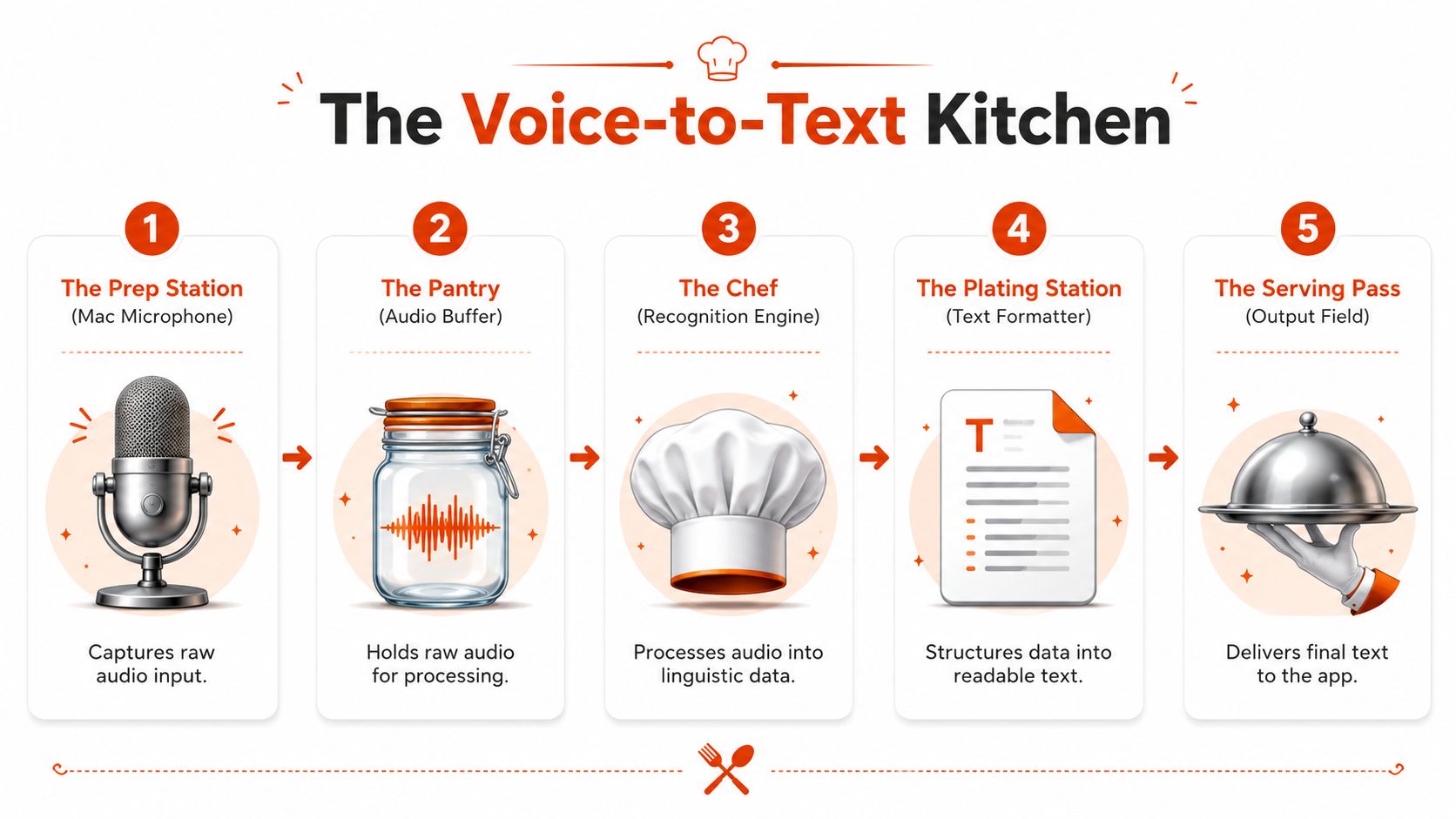
A Mac voice-to-text workflow has five stages: capture, buffering, recognition, cleanup, and insertion. The microphone records speech along with pauses, room noise, and overlapping sounds. A short audio buffer holds that input while the recognition engine maps sounds to words.
The recognition engine usually takes one of three forms:
- Apple's built-in Dictation, which prioritizes convenience and system integration.
- An on-device neural model, such as Parakeet V3 or a local Whisper implementation through Whisper.cpp.
- A cloud engine, where audio is sent to a remote service for processing by larger models.
Recognition produces a transcript, but the writing pipeline determines whether that transcript is usable. The final layer adds punctuation, creates paragraph breaks, removes filler words, handles self-corrections, applies custom vocabulary, and formats text for the active app. A basic dictation tool may stop after recognition. A writing-focused tool continues processing before inserting text into the field.

The three processing options make different trade-offs
Built-in Dictation is the simplest starting point. It is available in macOS and works in many text fields, but it provides limited control over cleanup, corrections, and app-specific formatting. Apple's privacy behavior varies with hardware, macOS version, and settings. Apple says Dictation requests on a Mac may use a random identifier instead of an Apple Account, and users can delete Siri and Dictation history that is less than six months old. Apple's Mac guidance shows that Dictation is connected to macOS privacy controls, not guaranteed to be local-only.
On-device models process speech on the Mac. They reduce dependence on an internet connection and fit sensitive workflows, but results depend on the selected model, Apple Silicon hardware, language support, vocabulary, and local cleanup.
Cloud engines can apply larger models and more advanced post-processing. They often handle unusual terminology, mixed accents, noisy recordings, and multilingual speech more effectively. The trade-off is required connectivity and a separate decision about data handling.
The distinction between recognition and formatting is explained in how voice recognition software works. For wider search and conversational context, beyond featured snippets voice is relevant, but dictation has a stricter output requirement. It must place clean, correctly structured text into the app you are using, rather than return an answer to a spoken query.
Five Criteria That Matter When Choosing
A Mac dictation app can produce accurate words and still create extra editing work. Judge the full writing pipeline, from recognition through filler removal, self-correction, accents, and formatting inside the app where you write. I evaluate five criteria in this order: recognition quality, cleanup, privacy, app-aware formatting, and operational reliability.
| Criterion | Weight | What to test on your Mac | Benchmark or signal |
|---|---|---|---|
| Raw recognition | Highest | Dictate a technical paragraph with names and an accent | Word error rate on a controlled test, plus real vocabulary errors |
| Cleanup layer | High | Speak fillers, repeat a phrase, and correct yourself mid-sentence | Whether the final text removes discarded speech and fixes structure |
| Privacy posture | High | Check local processing, server use, retention, and account settings | Hardware and OS behavior, documented privacy controls |
| App-aware formatting | Medium | Dictate an email, a Jira-style task, and a code comment | Output structure, tone, symbols, and paragraph handling |
| Latency and reliability | Medium | Use the same microphone in several apps and network conditions | Response delay, interruption behavior, permissions, and stability |
Run five short tests before you commit
Start with recognition. Dictate the same paragraph with a proper name, technical term, naturally spoken number, accent, and mid-sentence correction. Use your normal voice, not a careful demo voice. A controlled comparison can provide context, but your vocabulary and microphone matter more than a polished headline score.
Test the cleanup layer separately. Say, “The report is, um, the report is ready for review,” then inspect the text. A literal recognizer may preserve the repetition and filler. A writing-focused engine should keep the intended version and remove speech you discarded while talking.
Privacy requires inspection, not a badge. Review permissions, processing choices, retention, and account settings. If the app claims local operation, disable networking and test it. Apple Dictation coverage shows why hardware, processing location, and broader Siri and Dictation controls need separate checks. This privacy review provides useful context for that distinction.
Formatting exposes whether the product understands your destination app. Dictate the same idea as an email, a project ticket, and a code comment. Check paragraph breaks, punctuation, symbols, tone, and command handling. Identical output across all three formats means you are using transcription, not app-aware writing support.
Reliability determines whether the tool survives ordinary Mac work. Run a real session and check the global shortcut, microphone permissions, pause recovery, response delay, and behavior during network interruptions. A strong demo is irrelevant if the app drops input or requires repeated setup.
Use the same microphone and repeat these tests across the apps you use. The winner is the engine that leaves the cleanest text with the fewest corrections, not the one with the most impressive isolated accuracy claim. For a broader shortlist, consult this 2026 guide to voice-to-text software, then verify each candidate against your own writing pipeline.
On-Device vs Cloud Dictation on Apple Silicon
This isn't a question of which technology is universally better. It's a question of what you're willing to trade for the task in front of you.
On-device dictation is the right default when confidentiality, offline access, and predictable responsiveness matter most. A local engine can process sensitive notes without sending audio to a remote service, and it continues to work when connectivity is unavailable. That makes it a strong fit for legal drafting, clinical notes, source-code comments, and private journaling.
Cloud dictation is the better choice when input is varied and the output needs heavier transformation. Larger remote models can be more capable with rare terminology, noisy microphones, multilingual switching, and instructions such as “turn this into action items” or “rewrite this as a formal email.” The cost is network dependence and a more complicated privacy posture.
A benchmark of Apple SpeechAnalyzer on iOS and macOS 26 illustrates why noise deserves its own test. It measured 2.12% word error rate on clean speech and 4.56% on noisy speech, while Whisper Small measured 3.74% and 7.95%. The legacy Apple recognizer measured 9.02% and 16.25% in the same comparison. See the benchmark methodology and results. Clean-room accuracy doesn't tell you how an app will behave beside a busy office, a fan, or a poor microphone.
| Criterion | On-device | Cloud |
|---|---|---|
| Privacy | Audio can remain on the Mac | Audio may be sent to a remote service |
| Connectivity | Works without a network connection | Requires a reliable connection |
| Latency | Consistent local response | Depends on upload, processing, and download |
| Vocabulary | Strong for supported languages and trained terms | Often broader for unusual or multilingual input |
| Cleanup | Depends on the local app layer | Larger models can support richer transformations |
| Best fit | Sensitive, offline, low-latency work | Complex drafts, noisy speech, and formatting |
Many professionals should use both modes rather than forcing one engine into every task. Keep local processing for confidential material and switch to cloud processing when the work benefits from deeper cleanup. That's a workflow decision, not a loyalty test.
Setup and Workflow Habits That Compound Over Time
A good engine still needs a disciplined Mac setup. Start in System Settings, and grant microphone access to the dictation app you use. If you want a global shortcut, review Input Monitoring permissions as well. A shortcut that fails intermittently is worse than a visible button because it undermines trust at the moment you need to capture an idea.
Choose one activation pattern and keep it consistent. An F-key, a Globe combination, or another physical shortcut is easier to remember than several app-specific triggers. A toggle usually works better for longer dictation than holding a key down, because it lets you speak naturally without hand strain.
Build the vocabulary before the mistakes spread
Create a small custom dictionary for recurring names, product terms, medical language, library names, and internal project codes. Don't add every unusual word immediately. Review your transcripts after real work, identify repeated mistakes, and add only terms that will keep appearing.
Set language and dialect explicitly where the app allows it. If you regularly switch between languages, test whether the tool can change modes cleanly or whether it treats the second language as an error source. Multilingual writers should assess code-switching in complete sentences, not isolated words.

Separate capture from delivery
The most reliable habit is to dictate into a scratch buffer first. Capture the thought quickly, let the cleanup layer process it, scan for names and key facts, then paste the finished text into Slack, Mail, Notion, or your editor. This adds a review step, but it prevents a raw transcript from reaching someone else while preserving the speed advantage of voice capture.
Use punctuation settings that match your speech style. Automatic punctuation is convenient for conversational drafting, while manual commands may be safer for code, structured data, or legal language. Keep a short spoken test paragraph and run it after changing a microphone, language, or model setting. Consistent testing makes errors visible before they enter important work.
Best Mac Voice to Text Apps by Role
The right recommendation changes with the document, the vocabulary, and the privacy requirement. A casual user who wants to dictate a reminder shouldn't configure a professional transcription workflow, while a developer shouldn't accept a tool that “helpfully” changes valid code tokens.
Clinicians and clinical staff
Clinical dictation demands careful handling of names, medications, abbreviations, and sensitive content. I'd start with an on-device engine that supports a custom lexicon, then verify the organization's security and compliance requirements before using any third-party cloud service. Built-in Mac Dictation may be adequate for short, low-risk notes, but it's not a complete clinical workflow by itself.
Developers and engineers
Developers need a tool that preserves identifiers, punctuation, symbols, and technical vocabulary. Test camelCase names, file paths, markup, code comments, and phrases such as “open bracket” or “equals equals.” Generic text cleanup can be actively harmful if it changes syntactically valid tokens or converts a technical phrase into ordinary prose.
A local Whisper or Parakeet-based tool is a sensible starting point for confidential source code. Cloud processing can help with documentation and explanatory prose, where structure and readability matter more than literal symbol preservation.
Product managers and business analysts
Product managers often dictate specifications, stakeholder updates, and meeting follow-ups. Cloud tools can be useful when speakers have different accents or when the input includes noisy meeting audio, but raw transcripts aren't enough. Choose a system that can turn a spoken stream into headings, decisions, open questions, and action items without losing ownership or deadlines.
Multilingual writers and journalists
Built-in Dictation is rarely the strongest choice for frequent language switching. Multilingual professionals should test a complete paragraph that moves between languages, includes names, and ends with a formatting instruction. Journalists also need to separate live writing from recorded interview transcription. A meeting-oriented transcription product may capture speakers well, while a writing-oriented dictation app should place cleaned text directly into the active editor.
For a detailed discussion of the broader gap between raw transcription and ready-to-send writing, this comparison of Mac voice-to-text tools is useful background. The decisive test remains your own output, especially the amount of editing required for your role.
AIDictation and the Case for an Adaptive Engine
AIDictation is one option for Mac users who don't want to choose a single engine for every task. Its modes map directly to the practical criteria above: recognition, cleanup, privacy, formatting, and reliability.
Auto Mode chooses between local and cloud processing according to the task and connection. That reduces manual switching when you move from a private note to a longer draft that needs more transformation. Local Mode uses Parakeet V3 on Apple Silicon, keeping the workflow on the Mac for sensitive notes, source-code comments, and offline work. Cloud Mode adds larger-model processing for complex drafts, multilingual input, and context-aware cleanup.
The important distinction is the formatting layer. A raw recognizer returns words. A layered writing tool can remove filler phrases, resolve self-corrections, apply punctuation, convert spoken ideas into bullets, create action items, or adjust tone for email, chat, or technical documentation. That makes it more useful for people who write in several formats during the same day.
The keyboard-first workflow also matters. A system-wide hotkey lets you start dictation where the cursor already sits, while Snip-to-Transcribe supports turning selected or captured content into a usable result without rebuilding the entire workflow around a separate editor.

AIDictation isn't the simplest possible route. It adds an extra processing step, cloud mode has paid tiers, and prompt-based formatting takes some learning. In return, the user can select privacy for one task and richer cleanup for another instead of accepting the limitations of a single built-in recognizer.
Choosing Your Setup and Where Mac Dictation Goes Next
Choose Apple Dictation if you need occasional notes, short messages, and frictionless voice input. Choose an on-device Parakeet-based tool if privacy, offline operation, and technical vocabulary matter more than maximum cloud processing. Choose an adaptive engine such as AIDictation if writing is part of your job and you regularly switch between email, specifications, chat, code comments, and long-form drafts.
The market is moving toward a blended model. On-device engines are becoming more capable, while cloud services continue to offer richer cleanup and formatting. macOS users should favor tools that support multiple modes, custom vocabulary, system-wide insertion, and reusable formatting instructions. Those features preserve flexibility as models and operating-system integrations evolve.

Test your choice with one real email, one technical paragraph, one self-correction, and one noisy recording. Then measure the edits you still make. The best Mac setup is the one that lets you speak naturally while leaving you with text you can use.
AIDictation gives Mac users Auto, Local, and Cloud modes, plus cleanup for filler words, self-corrections, punctuation, and app-specific formatting. Try AIDictation with your own email, technical note, or multilingual draft and see whether it removes the editing work that basic Mac Dictation leaves behind.
Frequently Asked Questions
What does Voice to Text App Mac: A Practical Buyer's Guide cover?
You've just dictated a quick Slack reply on your Mac. The sentence sounded clear in your head, but the finished message contains three filler words, a mangled product name, and the abandoned correction you made halfway through.
Who should read Voice to Text App Mac: A Practical Buyer's Guide?
Voice to Text App Mac: A Practical Buyer's Guide is most useful for readers who want clear, practical guidance and a faster path to the main takeaways without guessing what matters most.
What are the main takeaways from Voice to Text App Mac: A Practical Buyer's Guide?
Key topics include Table of Contents, Why Raw Mac Dictation Rarely Feels Ready to Send, The transcript is only the first draft.
Ready to try AI Dictation?
Experience fast voice-to-text on your device. Free to download.
Download FreeRelated Posts
Dictation on macOS: Setup, Apps, and Pro Tips
Master dictation on macOS with clear setup steps, app comparisons, privacy settings, and accuracy tips to turn your voice into clean text fast.
Is There a Speech to Text App for Mac? a Practical Guide
Is There a Speech to Text App for Mac. Wondering if there is a speech to text app for Mac? Compare built-in Dictation, on-device engines, and AI tools like
AI Dictation vs Diktuy: Russian-English Accuracy Test
We tested AI Dictation vs Diktuy on the same Russian-English recording. Compare WER, English-word preservation, full transcripts, and errors.