How to Use Dictation on Mac: 2026 Voice Typing Guide
You're probably here because typing has started to feel like the slow part of your job.
Maybe it's the fifth email of the morning. Maybe you're turning meeting notes into a spec, cleaning up support replies, or trying to document code after a long day. The cursor blinks, your hands keep moving, and the work piles up anyway. That's usually the point where Mac dictation stops feeling like an accessibility extra and starts looking like a serious productivity tool.
New here? Start with our complete guide to voice to text on Mac. It covers turning on built-in Dictation with screenshots, where it falls short, and the best Mac voice to text apps for 2026.
Apple has been building toward this for a long time. Dictation arrived on the Mac in macOS Mountain Lion in 2012, then Enhanced Dictation added offline use in macOS Sierra in 2016 with up to 90% accuracy for common English phrases, and by 2019 more than 25% of Mac users in major markets had enabled it, according to TidBITS' coverage of Mac dictation. That matters because modern Mac dictation is no longer a novelty. It's usable. It's built in. And for short bursts, it's often good enough.
But “good enough” isn't the same as smooth.
If you've tried voice typing before, you already know the friction points. The shortcut feels awkward. Punctuation commands are easy to forget. Technical terms get mangled. Email text and engineering notes come out with the same bland formatting. If you're working with sensitive information, privacy adds another decision you can't ignore.
A solid walkthrough helps. If you want another practical reference on the built-in workflow, this RewriteBar guide to Mac voice input is worth keeping open in a tab while you set things up.
Table of Contents
- Tired of Typing? Your Mac Can Listen
- Enabling and Configuring macOS Dictation
- Speaking Your Mind Essential Voice Commands
- Navigating Native Dictation's Limits and Fixes
- Upgrade Your Workflow with AIDictation
- Your Path to Effortless Dictation
Tired of Typing? Your Mac Can Listen
The typical first reaction to dictation is disappointment. You turn it on, say a sentence, watch it get half of it right, then go back to the keyboard. That's understandable. Many individuals test dictation in the least forgiving way possible: with poor setup, no command habits, and a task that already demands precision.
Used well, dictation works differently. It's strongest when you match the method to the task.
For example, voice input is excellent for:
- Rough drafting when you already know what you want to say
- Inbox triage where speed matters more than perfect phrasing
- Meeting notes that can be cleaned up afterward
- Structured writing such as outlines, lists, and first-pass documentation
It's weaker when you try to force it into jobs where every symbol, every line break, and every proper noun has to land perfectly on the first pass.
Practical rule: Start by dictating what you would normally type too slowly, not what you would type too carefully.
That shift matters. If you're learning how to use dictation on Mac, the true win isn't replacing every keystroke. It's taking the repetitive, mentally straightforward writing off your hands. Reply drafts, note capture, and messy first versions are where dictation starts paying off fast.
The other mindset change is to treat dictation as a skill, not a switch. Speaking cleanly, pausing at the right spots, using a small set of commands naturally, and knowing when to stop dictating and edit manually all make a bigger difference than most guides admit.
For casual use, the built-in macOS tool is enough to get moving. For professional workflows, it helps to understand exactly how to configure it, what commands matter, and where native dictation starts to show its limits.
Enabling and Configuring macOS Dictation
Good dictation starts before you speak.
If macOS Dictation feels inconsistent, the problem is often setup, not your voice. Spending two minutes on the right settings removes a lot of the friction people blame on dictation itself. If you want a companion walkthrough for setup across native apps and browser-based tools, the AIDictation guide to macOS speech to text pairs well with Apple's built-in options.
Turn it on the right way
Open System Settings > Keyboard > Dictation and switch Dictation on.
If your Mac offers an on-device model, install it early. That one choice changes the experience more than people expect. Local processing is usually faster to start, keeps speech data on the Mac, and keeps working when your connection is poor. The trade-off is simple. Native on-device dictation gives you better privacy and reliability, but it still lacks the app-aware cleanup, custom vocabulary handling, and workflow rules that heavier voice users often need later.
Three settings deserve attention:
-
Language
Choose the language and regional variant you speak every day. Close is not good enough here. A mismatched language model hurts recognition fast, especially with names, mixed accents, and natural pacing. -
Shortcut
Pick a trigger you can hit without breaking concentration. If starting dictation feels awkward, you will avoid using it. -
On-device processing
Turn it on if privacy matters, if you travel, or if you work on unstable Wi-Fi. It is the safer default for client notes, internal docs, and any environment where sending speech to the cloud deserves a second thought.
One practical test helps right away. Try Dictation in Notes or TextEdit before judging it in Slack, Gmail, or a web app. That isolates whether the issue is macOS Dictation itself or one app's text field behaving badly.
Choose a Shortcut You Will Use
This setting matters more than Apple makes it look.
On newer MacBooks, the microphone key is often the cleanest option. On older keyboards, Fn twice works, but plenty of users never build the reflex. External keyboard setups need extra care because the perfect shortcut on a laptop can feel clumsy at a desk.
A good trigger fits your hardware:
- Laptop-first setups often work best with the microphone key
- External keyboard users usually do better with a remapped shortcut
- Frequent dictation users should avoid any shortcut that needs a reach or finger stretch
The rule is simple. If you have to think about how to start dictation, you will type instead.
Fix the setup problems first
Before blaming accuracy, check permissions and input routing.
Open System Settings > Privacy & Security > Microphone and confirm the apps you plan to use can access the mic. Then verify your input source. Macs are quick to grab the wrong microphone if you switch between AirPods, a USB mic, a dock, and the built-in mic during the day.
If dictation starts but gives weak results, work through this list:
- Confirm the active microphone: Use the mic you are closest to, not just the one macOS selected automatically.
- Test in one simple app: Start with Notes or TextEdit so browser extensions, rich text fields, and chat apps do not muddy the diagnosis.
- Dictate in short phrases: Native Dictation usually performs better with natural phrase-length chunks than with single words spoken one at a time.
- Install offline support before you need it: Planes, client networks, hospitals, and conference Wi-Fi are bad times to discover you skipped the local model.
After that, you can judge native dictation fairly.
For basic drafting and note capture, macOS Dictation is often enough. For professional workflows, its limits show up in familiar places: no app-specific formatting rules, weak handling for specialized vocabulary, and no real context memory between tasks. That gap is why many Mac power users start with the native tool, then add a dedicated option like AIDictation for higher-accuracy work that needs cleanup rules, smarter formatting, or more control over how dictated text lands in different apps.
Speaking Your Mind Essential Voice Commands
Good dictation on a Mac starts sounding faster than typing once you stop treating speech like rough input that needs keyboard cleanup. The shift is simple. Say the punctuation, say the structure, and use a few spoken edits before your hands leave home row.
Punctuation that keeps text readable
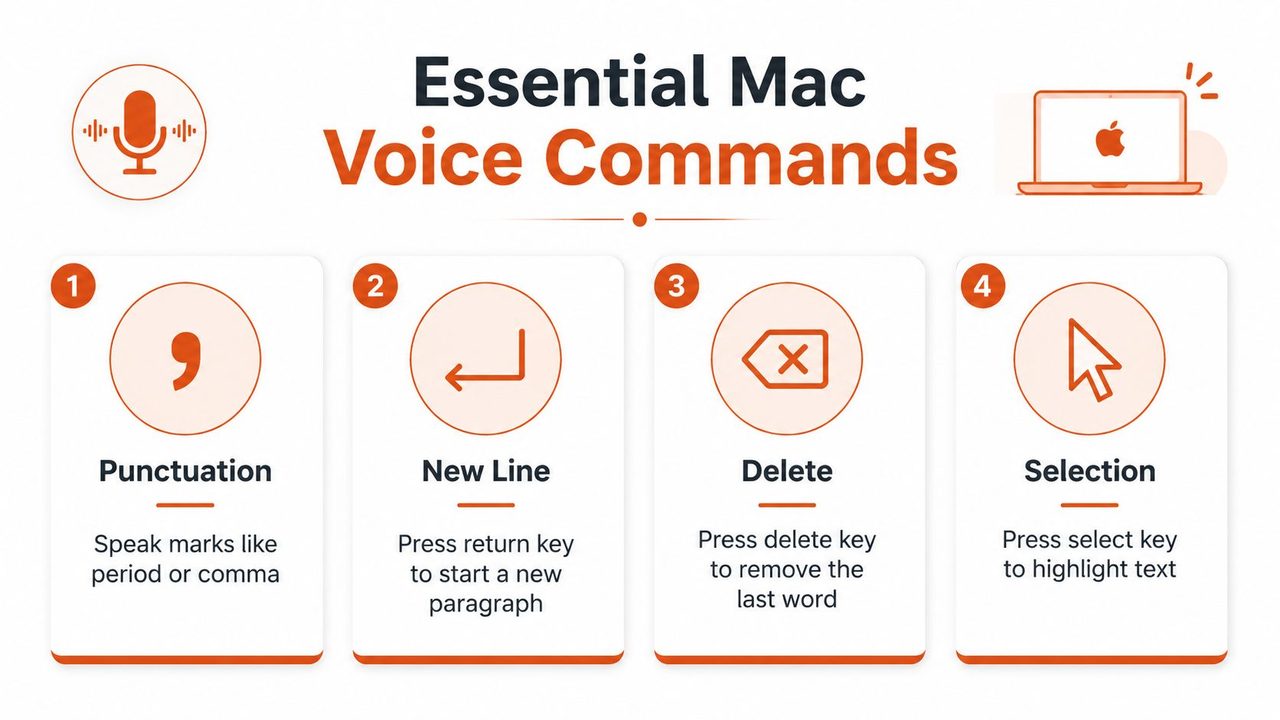
Start with the commands that shape clean text in real time. For most Mac users, that means punctuation and spacing first, not fancy voice navigation.
Try this in Mail or Notes:
Hi Sam comma I reviewed the draft period New paragraph I think the intro is solid comma but the last section needs a clearer recommendation period
That usually produces cleaner copy than speaking naturally and fixing a wall of text afterward. Native dictation does a decent job with obvious sentence flow, but it is more reliable when you give it explicit markers.
Use these constantly:
- “Comma” for clauses and lists
- “Period” to end the sentence cleanly
- “Question mark” for replies and follow-ups
- “New line” or “new paragraph” to break up dense text
If you write email, meeting notes, or CRM updates, those four commands do most of the work.
Editing commands that reduce keyboard reach
The next gain comes from quick corrections. If every mistake sends you back to the trackpad, dictation stays slow.
A practical starter set:
- “Undo that” to reverse the last spoken action
- “Delete that” to remove the last phrase
- “Select previous sentence” to replace a larger chunk
- “Return” to submit a field or move downward in forms
These work best in short bursts. Dictate two or three sentences, correct one thing by voice, then keep going. That rhythm matters. It keeps your train of thought intact and exposes where native dictation starts to strain.
If spoken edits stop responding or dictation behaves inconsistently across apps, work through this Mac dictation troubleshooting checklist before changing your whole setup.
Voice Control is different from Dictation
Dictation enters text. Voice Control operates the Mac itself.
That distinction matters because many guides blur the two. If your goal is drafting an email, capturing notes, or filling in forms, plain dictation is usually the faster tool. If your hands are occupied, you are dealing with strain, or you want to click buttons and move around the interface by voice, Voice Control is the better fit.
Use Voice Control when you need to:
- move through interface elements hands-free
- trigger buttons, menus, and system actions by voice
- stay off the keyboard longer during repetitive tasks
For daily work, mixed input wins. Speak the draft, speak the punctuation, clean up simple mistakes by voice, then use the keyboard for precise edits.
That is also where the gap between native tools and professional workflows starts to show. macOS gives you solid core commands, but it does not adapt much to app-specific writing rules, custom terminology, or context from one task to the next. Tools like AIDictation matter when you need dictated text to come out differently in email, documentation, support replies, and other real work instead of using the same generic behavior everywhere.
Navigating Native Dictation's Limits and Fixes
Native dictation works well enough to earn a place in daily use. It also fails in familiar ways.
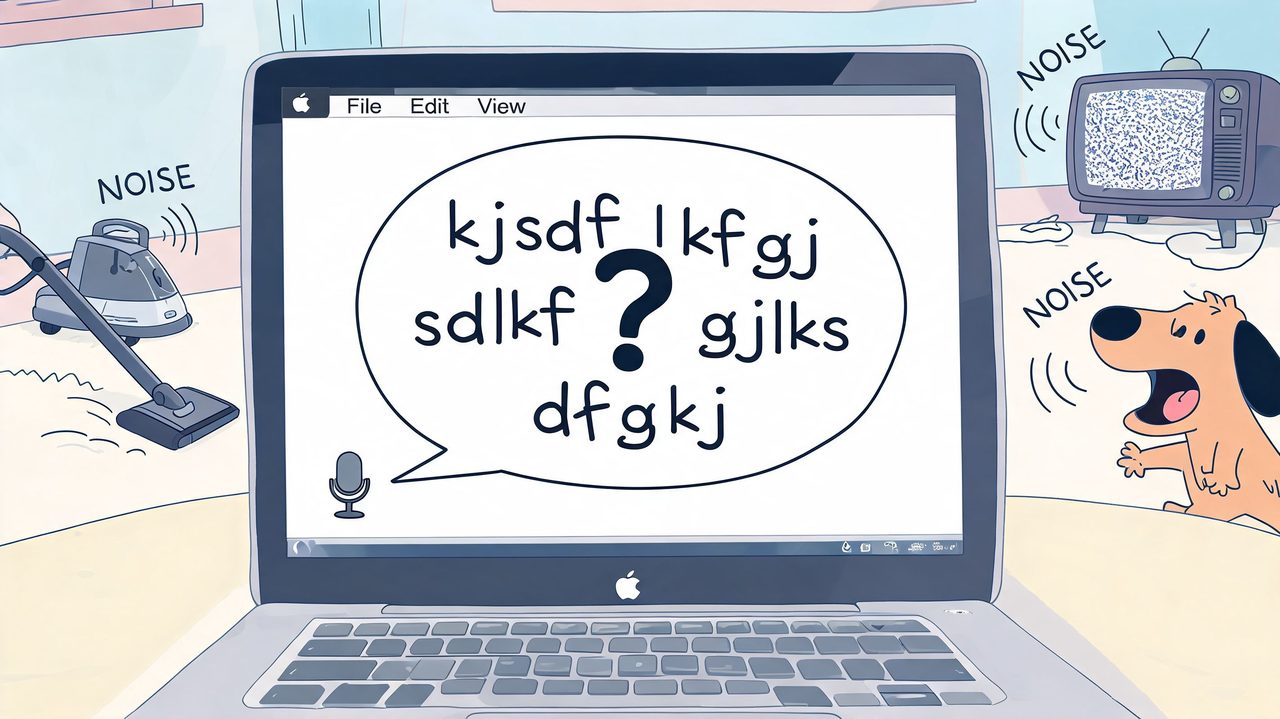
If you've ever watched perfect speech turn into warped product names, random capitalization, or broken sentence flow, you've already found the edge of the built-in system.
Where native dictation usually breaks down
The problems tend to cluster in the same places:
- Background noise: Native dictation gets less dependable when you're near fans, calls, street noise, or a busy office.
- Proper nouns and jargon: Product names, clinical language, developer terms, and people's names often need cleanup.
- Context blindness: An email, a support reply, and a code comment don't want the same output style.
- Long-form hesitation: If you pause too long to think, the rhythm can fall apart.
This last one matters more than beginners expect. Dictation feels smooth when you're saying something you already know. It feels brittle when you're thinking sentence by sentence.
Simple fixes before you blame the microphone
Before writing off the tool, fix the environment and workflow around it.
A short troubleshooting pass usually helps:
- Move closer to the mic: The built-in Mac microphones are good, but distance still matters.
- Lower competing audio: Music, fans, and speaker output all make transcription harder.
- Use shorter bursts: Native dictation handles compact chunks better than sprawling monologues.
- Switch apps for testing: If one app behaves strangely, test the same phrase in Notes.
- Review Mac permissions and settings: If dictation suddenly stops launching or stops inserting text, this AIDictation troubleshooting guide for dictation not working on Mac covers the common checks in one place.
If you're correcting every second sentence, the problem may not be your speaking. It may be that the task has outgrown the tool.
That's the key distinction. Native dictation can still be useful even when it isn't the right fit for everything.
Privacy and polish pull in different directions
Most basic tutorials stop too early.
Guides on native Mac dictation often don't dig into the trade-off between on-device processing for privacy and cloud-based processing for cleaner output, leaving professionals in healthcare, legal work, and other sensitive environments to guess about compliance and quality implications, as discussed in UseVoicy's analysis of Mac dictation guidance gaps.
That trade-off is real:
- On-device dictation keeps speech local and is easier to justify for sensitive material.
- Cloud-enhanced processing can improve cleanup, formatting, and overall readability, but it changes the privacy picture.
For a quick internal note, local processing is often enough. For a polished client update or long-form documentation, many users end up wanting more help with formatting and cleanup than native dictation can provide.
The built-in tool isn't bad. It's just generic. And for professional writing, generic is often where the friction starts.
Upgrade Your Workflow with AIDictation
Native dictation is fine when the goal is getting words onto the page. Professional users usually need more than that. They need the output to match the app, the audience, and the privacy requirements of the moment.
That's the gap most Mac dictation guides ignore.

What professional users need that native dictation misses
Apple's built-in dictation doesn't adapt much by context. As noted in Apple's Dictation documentation and the workflow gap discussed around it, native dictation lacks context-aware formatting, so an email and a code editor are treated the same way. That means users still have to fix tone, capitalization, structure, and formatting by hand.
For professional work, that becomes the true cost.
A product manager doesn't want meeting notes formatted like a chat message. A developer doesn't want dictated comments cleaned up like marketing copy. A clinician may want local processing first, then a different workflow for material that needs heavier cleanup.
An app like AIDictation is one option among more advanced Mac voice tools. It offers:
- Local Mode for on-device dictation on Apple Silicon
- Cloud Mode for AI cleanup and formatting
- Auto Mode to switch between them based on the situation
- Custom dictionary support for names and technical terms
- Context rules so the output can behave differently in email, chat, or technical editors
If you're comparing tools beyond the basics, this voice type app guide from AIDictation is useful because it frames dictation as a workflow choice, not just a transcription toggle.
Mode choice matters more than most guides admit
The biggest upgrade isn't just “better accuracy.” It's choosing the right processing mode for the job.
Use cases tend to split naturally:
| Workflow need | Better fit |
|---|---|
| Sensitive notes that should stay local | On-device processing |
| Long emails that need cleanup | Cloud-enhanced processing |
| Mixed daily work across apps | Automatic switching |
| Repeated names and domain language | Custom dictionary |
| Different writing styles by app | Context-aware rules |
That mode choice matters in real work. If you're transcribing webinar notes into an email sequence or a follow-up summary, cleanup and structure matter almost as much as raw transcription. For teams building those workflows, this piece on high-impact webinar repurposing by Cloud Present is a helpful example of how transcription quality affects what comes next.
Here's the practical difference I see in professional use:
- Native dictation is a capture tool
- Advanced dictation tools become capture plus cleanup
- Context-aware tools become capture, cleanup, and formatting
That third step is what reduces post-dictation editing.
A quick visual comparison helps.
macOS Dictation vs. AIDictation
| Feature | macOS Dictation | AIDictation |
|---|---|---|
| Built into macOS | Yes | No |
| On-device dictation option | Yes | Yes |
| Cloud cleanup mode | Limited by native workflow | Yes |
| Context-aware formatting by app | No | Yes |
| Custom dictionary for names and technical terms | Limited | Yes |
| Mode switching for privacy vs polish | Manual workflow choice | Auto Mode available |
| Best use case | Quick drafts, short notes, simple replies | Professional writing across multiple app contexts |
The point isn't that one replaces the other in every situation. The point is that they solve different layers of the problem.
Where advanced dictation fits best
Here's where context-aware dictation pays off fastest:
- Product managers: meeting notes, briefs, stakeholder updates, backlog explanations
- Developers: code comments, issue summaries, internal documentation
- Healthcare professionals: draft notes where privacy controls matter
- Support teams: repetitive replies that still need a human tone
- Marketing and ops teams: first-pass copy, recap notes, internal updates
If you mostly dictate short bursts into Notes, stick with the built-in tool. If you're trying to make voice your default input across email, docs, chat, and structured writing, native dictation often becomes too blunt.
The same is true for audio already recorded elsewhere. If your workflow includes iPhone recordings, interview clips, or saved voice notes, the transcription side starts to matter too. Dictation and transcription overlap more than most users think, especially once you're turning spoken material into usable written output.
That's usually the moment when voice stops being a backup input method and becomes part of how you work.
Your Path to Effortless Dictation
The built-in Mac feature is still the right starting point. It costs nothing extra, takes only a few minutes to enable, and gives you a clean way to test whether voice input fits your work style. For short replies, rough drafts, and simple note capture, it's often enough.
The bigger shift happens when you stop asking dictation to be perfect and start using it where it is most effective. Draft faster. Capture more while your thoughts are still fresh. Save your hands for precise edits. That alone changes how writing feels on a Mac.
For professional use, the limits become clearer. Privacy can matter more than polish in one task, then the opposite is true ten minutes later. Email wants one tone. Technical notes want another. Names, jargon, and formatting rules start to matter. That's where a more advanced workflow earns its place.
Start small. Dictate one email, one meeting recap, or one page of notes each day. Once that feels natural, expand to the work that drains the most typing time.
If you also work from recorded audio, voice memos, or interviews, this Translate AI transcription guide is a useful companion because it covers the other half of the spoken-to-written workflow.
The best setup is the one you'll keep using. For some people, that's native dictation with a better shortcut and a few memorized commands. For others, it's a voice workflow that adapts to context, privacy needs, and the app in front of them. Either way, learning how to use dictation on Mac is less about a feature and more about reclaiming time and focus from the keyboard.
If you want a Mac-focused voice workflow that can handle on-device dictation, cloud cleanup, and app-specific formatting rules in one place, try AIDictation. It's built for turning spoken drafts into text that's closer to ready-to-send without making you choose one rigid dictation mode for every task.
Frequently Asked Questions
What does How to Use Dictation on Mac: 2026 Voice Typing Guide cover?
You're probably here because typing has started to feel like the slow part of your job. Maybe it's the fifth email of the morning.
Who should read How to Use Dictation on Mac: 2026 Voice Typing Guide?
How to Use Dictation on Mac: 2026 Voice Typing Guide is most useful for readers who want clear, practical guidance and a faster path to the main takeaways without guessing what matters most.
What are the main takeaways from How to Use Dictation on Mac: 2026 Voice Typing Guide?
Key topics include Table of Contents, Tired of Typing? Your Mac Can Listen, Enabling and Configuring macOS Dictation.
Ready to try AI Dictation?
Experience fast voice-to-text on your device. Free to download.
Download FreeRelated Posts
10 Best Dictate Software for Mac in 2026
Compare the best dictate software for mac in 2026 by accuracy, privacy, pricing, features, and use case—from Apple Dictation to AIDictation.
AI Dictation vs Soniox App: Bilingual Accuracy and Mac UX
We tested AI Dictation vs Soniox App on Russian-English speech. Compare WER, English-word preservation, product pipelines, and Mac app design.
Mac Dictation Commands: The Complete Reference Guide
Master mac dictation commands with this searchable reference of built-in voice commands, shortcuts, custom dictionary tips, and troubleshooting workflows.