Is There a Speech to Text App for Mac? a Practical Guide
Yes, macOS has built-in Dictation. In testing, Apple Dictation reached about 89.3% general accuracy, 76.0% accuracy on technical content, and 0.3 seconds of latency.
You've probably already used it without thinking of it as an app. You press the microphone key, speak into Mail, Notes, Slack, or a browser field, and words appear at the cursor. Then the doubts start: why did it miss that technical term, where did the audio go, and why did dictation stop just as you found your train of thought?
The answer to “is there a speech to text app for Mac?” isn't a straightforward yes. Your Mac already has a speech-to-text layer, but the right engine depends on the job. Short private notes, long-form writing, medical vocabulary, noisy rooms, and offline work put different demands on recognition. Treating every use case as “press the mic and hope” is how people end up correcting more text than they saved by speaking.
Table of Contents
- Why the Question Comes Up the Moment You Hit the Mic
- How Speech to Text Actually Works on a Mac
- On-Device vs Cloud Dictation on Apple Silicon
- AIDictation and the Case for Switching Engines Mid-Session
- Matching Mac Dictation Tools to Real Workflows
- How to Choose the Right Speech to Text Setup for You
- What to Remember Next Time You Dictate on Your Mac
Why the Question Comes Up the Moment You Hit the Mic
The familiar scene is a MacBook in a coffee shop. You press the Fn key twice, or the Globe key depending on your keyboard settings, the microphone indicator pulses, and a sentence appears in the active text field. You pause halfway through a thought and wonder whether your Mac is processing the words locally or sending audio elsewhere.
That question matters because speech recognition isn't one uniform Mac feature. Apple combines standard Dictation with accessibility controls and device-side processing, and the active mode changes what your Mac can do. Apple's Dictation guide confirms that Dictation can enter text anywhere you can type, using the Mic key, a keyboard shortcut, or Edit > Start Dictation. Apple also notes that availability varies by language and region.
Start with the job, not the app list.
- Short text in a focused field: Use built-in Dictation for a quick reply, search query, reminder, or paragraph.
- System navigation and hands-free control: Consider Voice Control, but understand that it isn't the same mode as standard Dictation.
- Sensitive or offline writing: Choose a local processing path and confirm that the recognition model has been downloaded.
- Long, polished, domain-heavy writing: Use a dedicated tool that can switch between local and cloud processing, preserve vocabulary, and clean up the result.
Practical rule: Decide where the audio should be processed before you start speaking. Privacy isn't something you can retrofit after a transcript has already been created.
Apple's built-in option remains the sensible starting point because it requires no separate installation. It also exposes the main limitation of system dictation: the feature is convenient, but it isn't designed to make every sustained writing workflow feel like a replacement for the keyboard. If you've seen a message suggesting that dictation may take a while, this explanation of why Mac dictation can pause helps distinguish recognition delay from a microphone or app failure.
A dedicated Mac speech-to-text app earns its place when you need deliberate engine selection, not merely another microphone button. The useful question is whether you need local privacy for one paragraph, cloud assistance for a long draft, or a way to change that choice without leaving the document.
How Speech to Text Actually Works on a Mac
macOS presents speech input through several related controls, which is why the terminology can feel muddled. Think of the system as three layers rather than one app.
Voice Control is the accessibility-oriented layer. It lets you operate parts of macOS with spoken commands and can also support text entry. When Voice Control is enabled, standard Dictation isn't available at the same time, as Apple explains in its Voice Control commands documentation. That is an important operational detail. If you turn it on expecting an extra dictation mode, you may instead replace the standard Dictation workflow.
Standard Dictation is the ordinary text-entry feature in System Settings > Keyboard > Dictation. It works in an active text field, so the target app needs to have a cursor or another text input ready. You can start it through the keyboard shortcut, the Mic key, or the Edit menu. Language and regional support can affect what appears in your settings.
On-device processing is the privacy-focused path. Apple states that on Apple Silicon Macs, dictation can run entirely on the Mac after the relevant language model has been downloaded. That local route matters for offline writing and for people who don't want spoken content to make a cloud round trip.
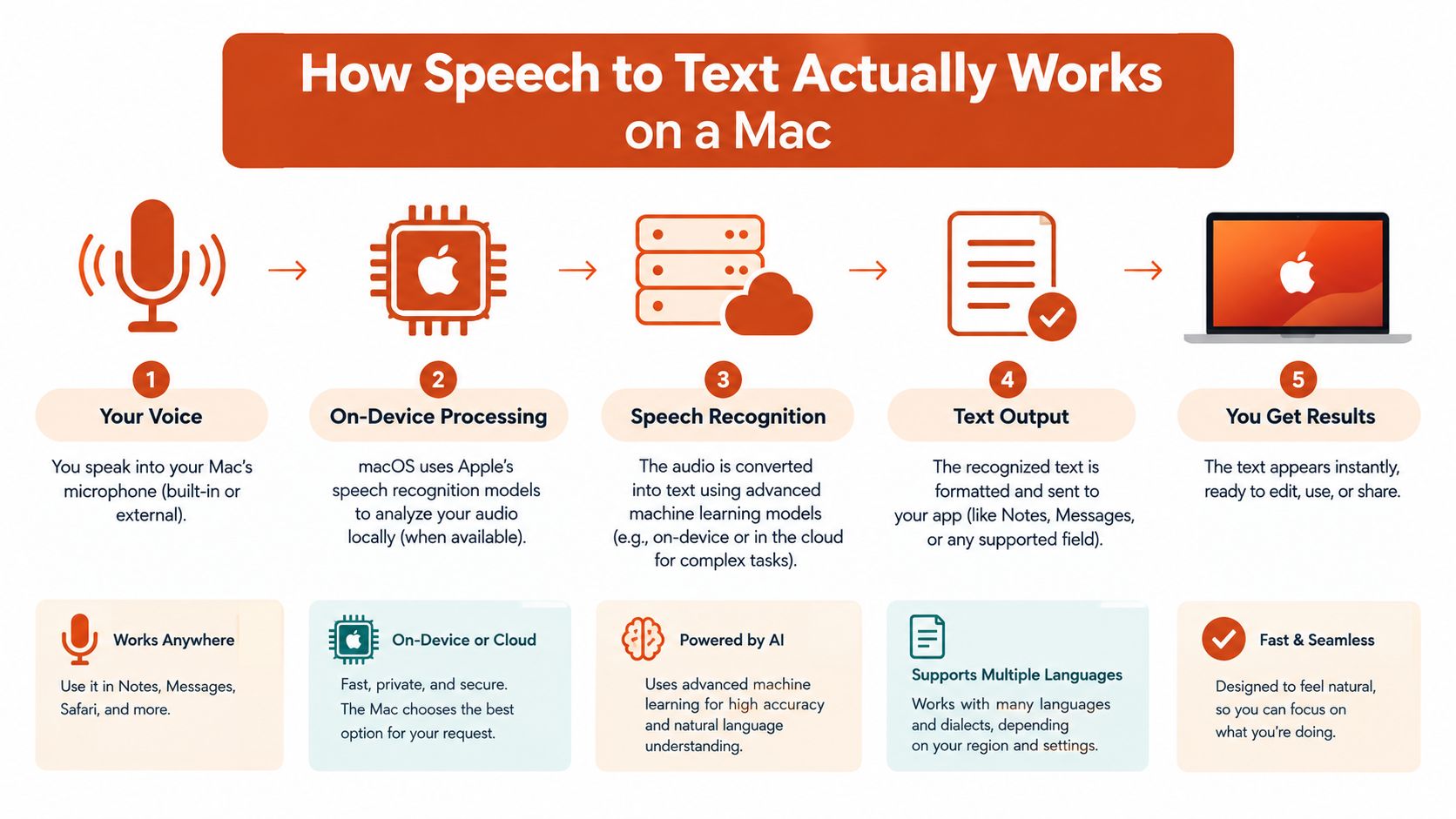
The setting names can vary by macOS release, so don't assume that a label such as “Enhanced Dictation” tells you the entire data flow. Check whether the local language model has been downloaded, whether Voice Control is active, and whether your cursor is in a field that accepts text.
There's another distinction power users should keep straight. Dictation is live speech input. Transcribing an existing recording, meeting file, or video is a separate workflow and may require a tool that accepts audio files or records independently of the active text field. The Globe key is useful for the first job, but it doesn't automatically turn every Mac app into a long-form transcription workspace.
On-Device vs Cloud Dictation on Apple Silicon
The choice between local and cloud recognition comes down to four practical factors: latency, difficult audio, privacy, and session length. No single route wins all four.
Local processing is compelling when the transcript is sensitive or the internet connection is unreliable. Apple says an Apple Silicon Mac can process dictation on-device after downloading the language model, which keeps the speech recognition path on the computer. That makes local use more than a privacy fallback. It can also feel immediate because the audio doesn't need to travel to a remote service and return.
Cloud processing has a different advantage. A remote engine can be more forgiving with sustained speech, accents, background noise, and specialized language, depending on the service and its model. The trade-off is straightforward: audio is sent to a provider's servers, so you need to understand that provider's retention and processing terms before using it for confidential material.
Recent benchmark-style reporting shows why results vary so sharply. One 2026 test summary measured Apple Dictation at about 89.3% general accuracy, 76.0% accuracy on technical content, and 0.3 seconds of latency in that setup, as reported in this Mac dictation performance analysis. The same source says built-in dictation can approach 97% in quiet environments, but may fall to 75% to 85% with heavy accents or background noise. It also reports a 20% to 30% error rate for technical or medical jargon without custom vocabulary.
Those figures aren't a promise for your microphone, room, accent, or Mac. They are a warning against treating one accuracy score as universal. A quiet note to yourself and a technical explanation recorded beside an espresso machine are different tests.
| Attribute | On-Device Enhanced Dictation | Cloud Dictation |
|---|---|---|
| Audio path | Recognition can remain on the Mac after the language model is downloaded | Audio is sent to a remote service for processing |
| Privacy exposure | Lower exposure because speech can stay on the device | Higher exposure because a provider receives the audio or recognition request |
| Latency | Can feel immediate, with Apple Silicon local processing reported below 100 ms in some cases | Depends on the network, service, and response path |
| Difficult content | Can struggle more with noise, accents, and technical vocabulary | Often a stronger choice for difficult or sustained speech, depending on the engine |
| Session behavior | Better suited to short-form dictation, with reports of interruptions after about 60 seconds | Better suited to longer continuous workflows when the service supports them |
| Best fit | Private notes, offline writing, and short entries | Long drafts, polished output, and demanding vocabulary |
The session limit deserves special attention. The reporting above notes that macOS Dictation can stop after about 60 seconds of continuous speech, while Apple Silicon's local path can keep latency below 100 milliseconds in some cases. Those are not interchangeable measurements. One describes how long a session may continue, and the other describes response speed in a particular setup.
The practical solution is to switch engines by task. Use local recognition for a private paragraph, then move to cloud processing when the work becomes long, noisy, or context-heavy. This guide to on-device speech recognition is useful if you want to understand why local processing now competes on responsiveness as well as privacy.
AIDictation and the Case for Switching Engines Mid-Session
A clinician dictating a patient note has a different risk profile from a manager drafting a client email. The first task may require local processing and carefully maintained medical vocabulary. The second may benefit from cloud cleanup, better handling of names, and more natural paragraph structure.
That is the logic behind AIDictation's Local, Cloud, and Auto modes. In Local Mode, the app uses the Mac's Apple Silicon hardware for on-device recognition, so speech can remain on the computer and work without an internet connection. Its custom dictionary is intended for names and specialized terms, which gives a private workflow a way to handle vocabulary the general engine may miss.
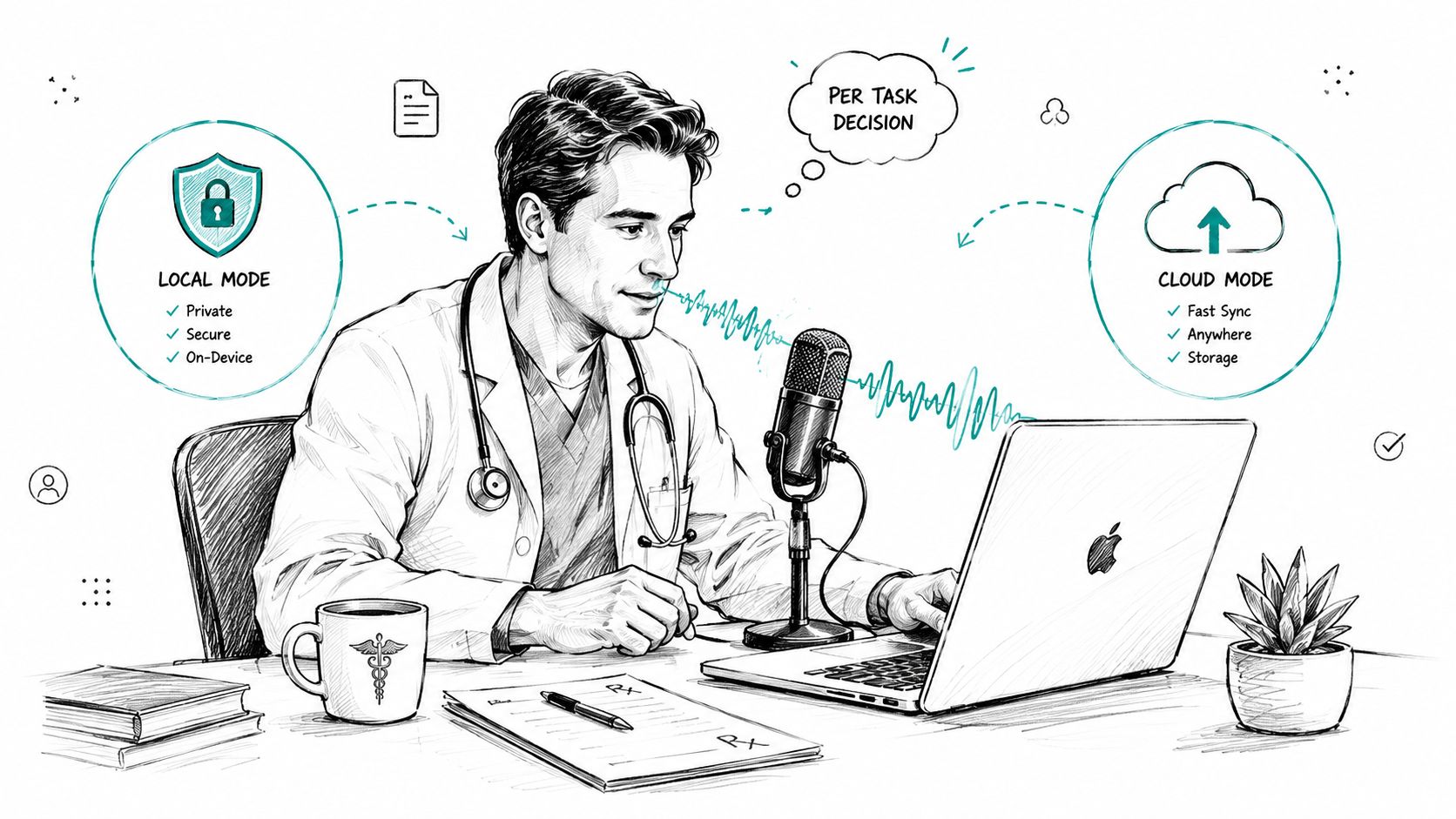
A useful session might look like this:
- Private note: Hold the trigger key, choose Local Mode, and dictate directly into the clinical record or notes field.
- Vocabulary correction: Add recurring medical terms, clinician names, or abbreviations to the custom dictionary rather than correcting the same error repeatedly.
- Client message: Switch to Auto Mode or Cloud Mode when the content needs formatting, punctuation cleanup, and better handling of names or idioms.
- Mid-session override: Change the engine when the sensitivity or complexity of the text changes, instead of committing the entire day to one processing route.
The advantage isn't that one engine magically solves every recognition problem. The advantage is that you can make the privacy decision at the moment it matters. A private note can stay local, while a non-sensitive email can use cloud processing to turn spoken corrections and rough phrasing into a cleaner draft.
The cloud route is also more appropriate for sustained work when local dictation starts to interrupt or lose context. Built-in Mac reporting describes short-form limits and performance degradation under demanding conditions, so a long dictation should be divided into sensible sections or handled by a workflow designed for extended speech.
For a product-focused overview of voice typing across text fields, this guide to using a voice type app shows the difference between merely inserting raw words and producing text that is ready for editing. The same trigger-based approach works well when you move between an email, a document, and a code editor.
Don't make Auto Mode a substitute for judgment. If a transcript contains regulated, confidential, or personally identifiable information, select the local route deliberately. If you're dictating a long public-facing draft and don't want to manage every comma aloud, cloud cleanup may be the more efficient choice.
Matching Mac Dictation Tools to Real Workflows
The best setup becomes obvious once the task is specific. “Speech to text for Mac” is too broad a category to produce a useful recommendation by itself. Identify what you're writing, where the audio may travel, and how much cleanup you're willing to do.
| Workflow | Best Setup | Why It Wins |
|---|---|---|
| Clinical notes | Local Mode with a custom medical vocabulary | Sensitive content stays on the Mac, while recurring terminology has a place in the dictionary |
| Developer documentation | Voice Control for system commands, plus a cloud-capable dictation tool for prose | Voice Control handles hands-free navigation, while cloud cleanup can help with explanatory text and punctuation |
| Meeting transcription | Apple Dictation for live text entry, paired with a separate recorder or transcription workflow | Dictation is designed for text fields, while meetings often require an independent audio record |
| ESL drafting | Auto Mode or Cloud Mode with grammar and punctuation cleanup | The writer can speak naturally and spend less time correcting phrasing after recognition |
| Long-form journalism | Local processing for offline notes, cloud processing for non-sensitive drafts | The writer can capture ideas without connectivity and switch engines when polished copy matters |
Clinical notes need a privacy-first default. Don't send patient information to a cloud engine just because it produces smoother sentences. Local processing is the clear starting point, followed by a review of the custom vocabulary and the destination system's own data handling.
Developer documentation needs two kinds of voice input. Voice Control is useful when you need to operate the Mac without reaching for the keyboard. Dictation is better for explanatory prose, but symbol-heavy code comments still need a careful review because ordinary speech recognition may handle spoken symbol names inaccurately.
Meeting transcription is not the same as typing into a text field. Apple Dictation can help you write a live summary while the cursor sits in a document, but it shouldn't be treated as a complete meeting archive. Use a recording and transcription workflow when you need to revisit the entire conversation.
ESL writers should prioritize cleanup, not just recognition. A transcript that captures every word can still require substantial editing if punctuation, grammar, and sentence boundaries remain rough. A cloud-capable setup is the stronger choice for emails and drafts when the material isn't sensitive.
Journalists and researchers should keep both routes available. Local recognition is useful for private field notes and unreliable connectivity. Cloud processing is useful later, when a long draft needs structure and the content is safe to submit to the chosen service.
How to Choose the Right Speech to Text Setup for You
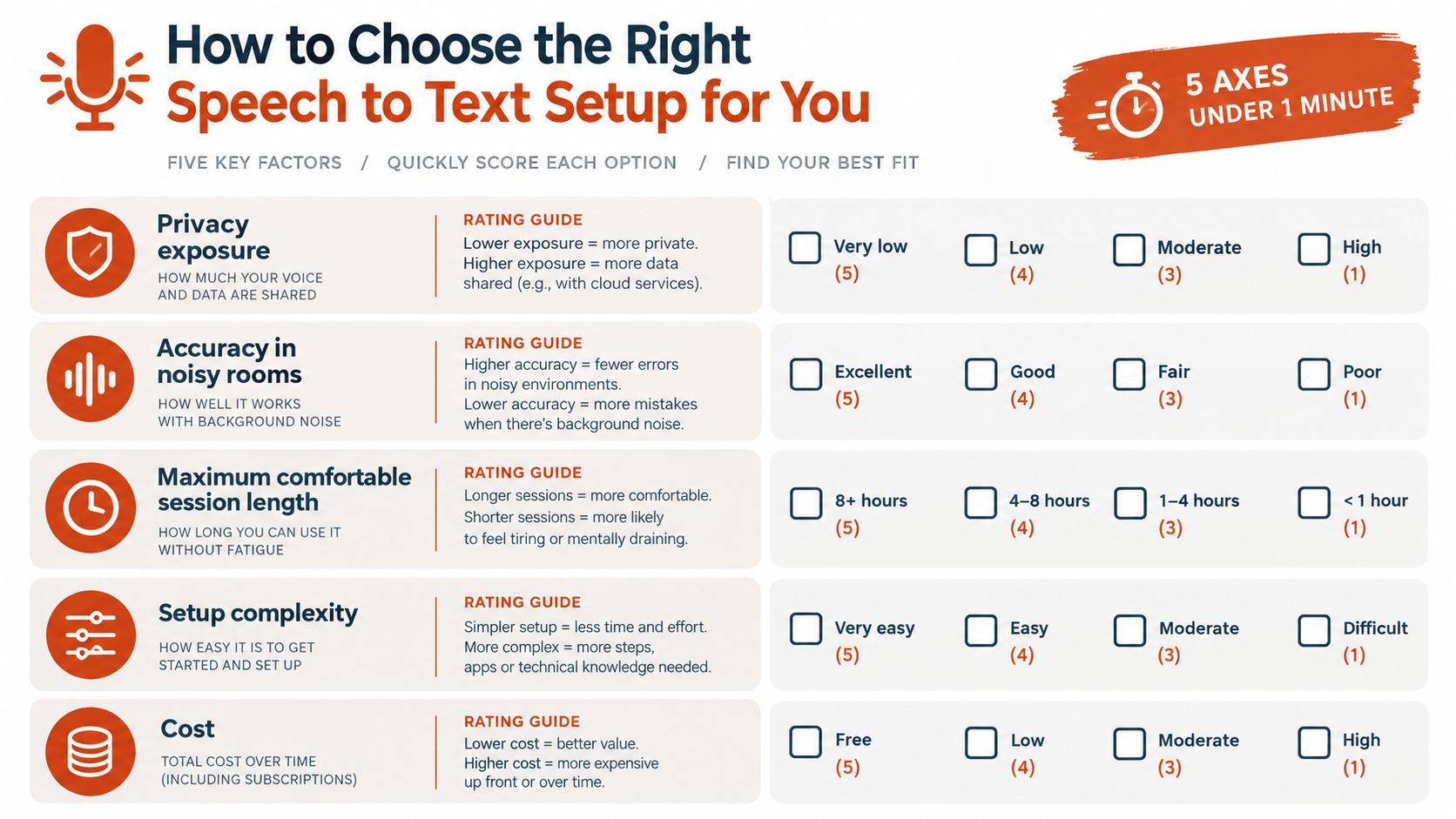
Run this checklist before installing anything. You don't need a feature matrix. You need a decision about privacy exposure, noisy-room accuracy, comfortable session length, vocabulary, and cost.
Start with privacy exposure
If the words contain patient details, unreleased business information, legal material, or personal notes, local processing should be your default. If the content is a low-risk email or a rough public article, cloud processing may be acceptable when the service's terms fit your requirements.
Test the room, not just the engine
Quiet-room results can create false confidence. Background noise and heavy accents can reduce built-in accuracy substantially, and technical or medical terms may need a custom vocabulary. Record a short sample in the actual room where you work, using the microphone you normally use.
Set a realistic session length
Short replies and notes are a natural fit for built-in Dictation. A long uninterrupted monologue is a different problem, particularly when the Mac's built-in workflow may stop after about 60 seconds of continuous speech. For longer work, either split the session into labeled sections or select a tool that supports a sustained workflow.
Decide how much vocabulary control you need
A general dictionary is enough for ordinary messages. Developers, clinicians, researchers, and product teams need names, acronyms, product terms, and technical language to survive recognition. If you correct the same term repeatedly, you need a custom dictionary rather than more patience.
Match the budget to the consequence
Built-in Mac Dictation costs nothing beyond the Mac you already own, so it wins for occasional use. A paid tool is easier to justify when dictation is part of your daily work and correction time has become the main bottleneck. Don't pay for cloud processing if your main requirement is offline privacy.
Three profiles make the decision concrete:
- Privacy-first healthcare worker: Choose local processing, add the relevant vocabulary, and keep sensitive dictation offline whenever possible.
- Budget writer: Start with built-in Dictation for short drafts and messages. Upgrade only after you identify a specific limitation, such as session length or repeated terminology errors.
- Multilingual consultant: Choose a setup that can handle your working languages and use cloud processing for non-sensitive, polished client drafts. Test language availability first because Apple says Dictation isn't available in every language or region.
The recommendation is simple. Healthcare work needs local control, occasional writing needs built-in Dictation, and multilingual long-form work needs a flexible engine choice.
What to Remember Next Time You Dictate on Your Mac
Good dictation depends less on pressing the right key than on making four small decisions before and during the session.
Decide before the microphone opens
Look at the text you're about to speak. If it contains private information, select the local route first. If it's an ordinary draft and you need polished formatting, cloud processing may be appropriate. The mistake is opening the microphone casually and considering the data path only after the transcript is complete.
Check the input before blaming recognition
A poor microphone, a noisy room, or the wrong input device can make any engine look unreliable. Confirm which microphone your Mac is using, move closer to it, and speak naturally rather than forcing an artificial pace. If accuracy falls only in one location, fix the room or input before changing software.
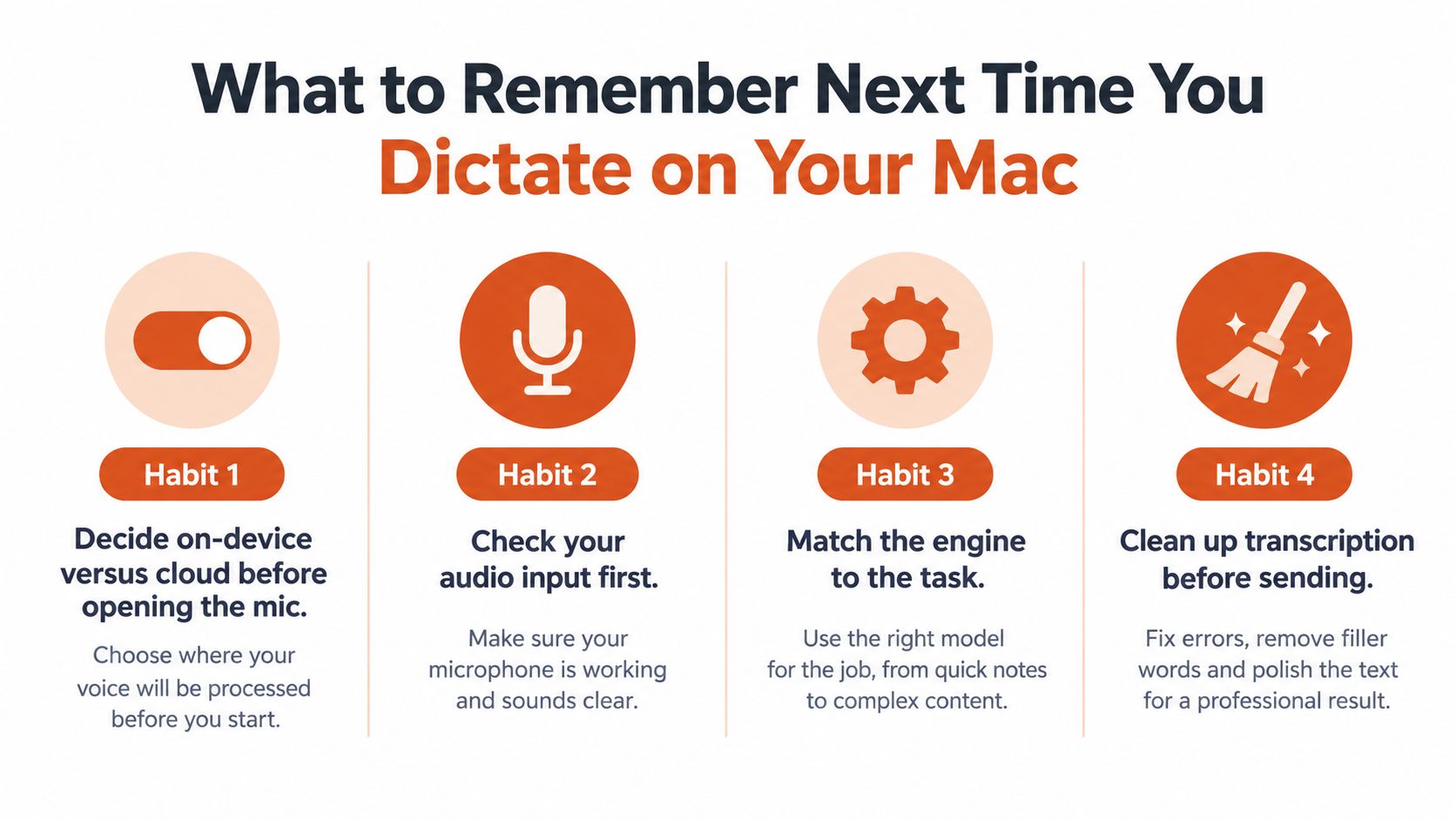
Match the engine to the task
Use local recognition for private notes and offline writing. Use cloud assistance for non-sensitive drafts that need punctuation, structure, or better handling of difficult language. If your work changes halfway through the day, your engine can change with it.
Clean the transcript before sending
Dictation saves your hands, but it doesn't remove the need for review. Check names, numbers, technical terms, punctuation, and any sentence where you corrected yourself aloud. Keep a local copy of sensitive transcripts so the processing choice never becomes the only place the record exists.
Split long work into labeled chunks rather than forcing one marathon session. That makes interruptions easier to recover from and gives you a clear place to verify terminology. The right Mac dictation setup isn't permanently local or permanently cloud-based. It changes with the task.
AIDictation offers Mac voice-to-text with Local Mode for private, offline Apple Silicon dictation and Auto or Cloud Mode for formatted, cleaned-up writing in text fields. Try AIDictation when you want to switch engines according to the privacy, accuracy, and session-length demands of the work in front of you.
Frequently Asked Questions
What does Is There a Speech to Text App for Mac? a Practical Guide cover?
Yes, macOS has built-in Dictation. In testing, Apple Dictation reached about 89.3% general accuracy, 76.0% accuracy on technical content, and 0.3 seconds of latency.
Who should read Is There a Speech to Text App for Mac? a Practical Guide?
Is There a Speech to Text App for Mac? a Practical Guide is most useful for readers who want clear, practical guidance and a faster path to the main takeaways without guessing what matters most.
What are the main takeaways from Is There a Speech to Text App for Mac? a Practical Guide?
Key topics include Table of Contents, Why the Question Comes Up the Moment You Hit the Mic, How Speech to Text Actually Works on a Mac.
Ready to try AI Dictation?
Experience fast voice-to-text on your device. Free to download.
Download FreeRelated Posts
Dictation Software for Medical Professionals Compared
Compare dictation software for medical professionals. Evaluate accuracy, HIPAA privacy, ambient AI tradeoffs, and on-device tools like AIDictation.
How to Use Voice Dictation on Mac
Use Voice Dictation on Mac. Master voice dictation on your Mac — from built-in Apple features to third-party tools like AIDictation
10 Best Dictate Software for Mac in 2026
Compare the best dictate software for mac in 2026 by accuracy, privacy, pricing, features, and use case—from Apple Dictation to AIDictation.