Voice Message to Email: A Practical How-To Guide
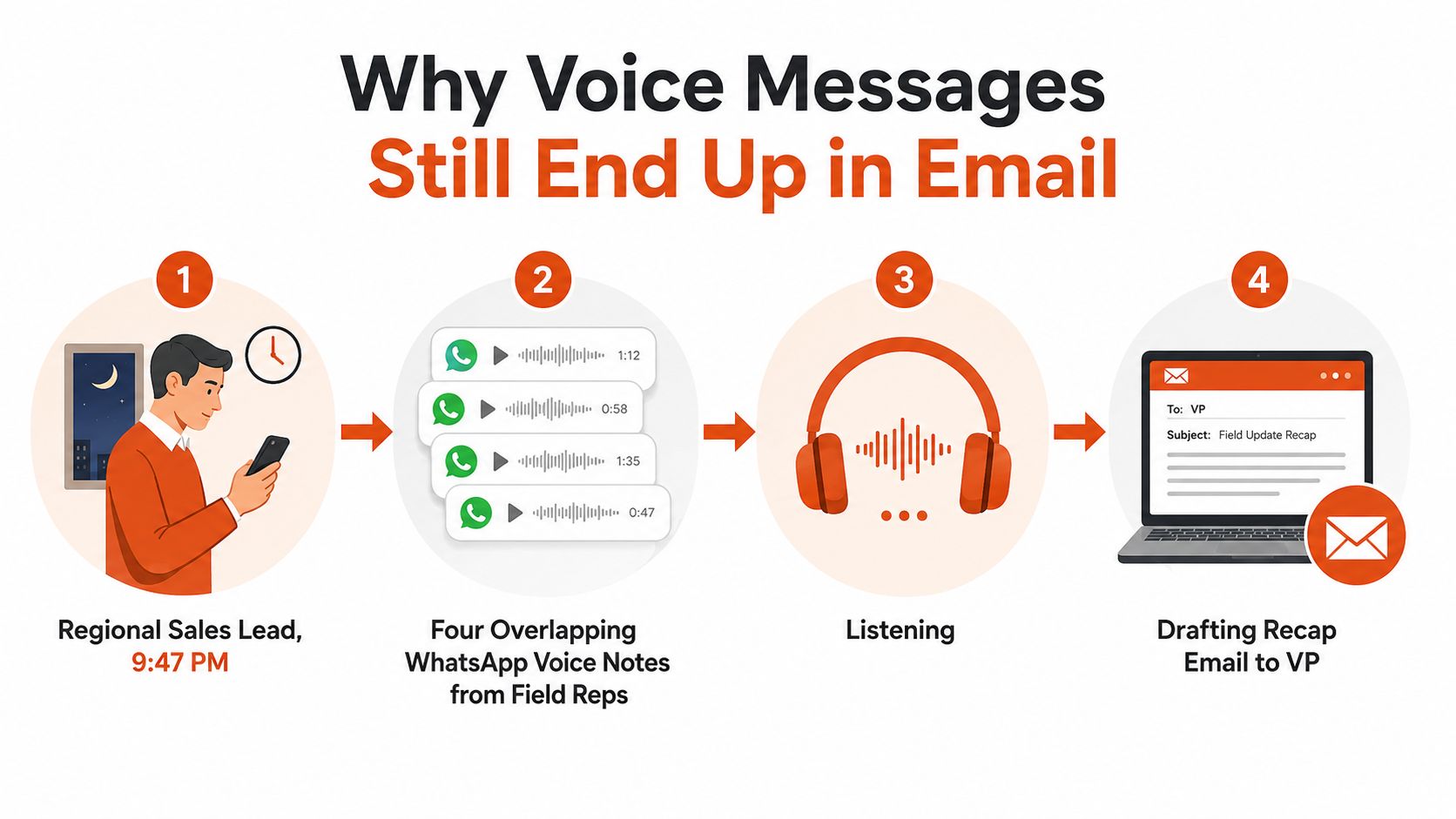
At 9:47 PM, a regional sales lead is listening to four overlapping WhatsApp voice notes from field reps while trying to draft a recap for the VP. The information is useful, but the workflow is slow: play, pause, remember, rewind, type, and repeat. A voice message to email workflow removes much of that playback, but only if you treat it as more than a single app feature.
The reliable model has four layers: capture, transcription, formatting, and dispatch. Capture gets the audio out of WhatsApp, iMessage, Android Messages, or Voice Memos. Transcription turns sound into text. Formatting converts rough text into a readable message. Dispatch sends the finished draft through the correct email account, recipient, and security policy.

Email keeps winning the final handoff because it's searchable, easy to forward within a team, and useful for asynchronous work across time zones. It also creates a durable business record, unlike a voice note that may remain buried in a chat thread or disappear into a handset's audio library. In regulated settings, the distinction matters. Guidance on healthcare secure messaging for Australia is a useful reminder that convenience doesn't replace controlled handling of sensitive communications.
The practical question is where your own bottleneck sits. If the audio is trapped in a chat app, fix capture first. If the transcript is inaccurate, choose a better transcription mode and review process. If the text is technically correct but awkward, improve formatting. If polished drafts keep landing in the wrong mailbox, repair dispatch.
Table of Contents
- Why Voice Messages Still End Up in Email
- Capturing Voice Messages from WhatsApp, iMessage, Android, and Voice Memos
- Choosing the Right Transcription Mode for Your Email Workflow
- Turning Raw Transcripts into Clean, Send-Ready Emails
- Privacy and Security Considerations When Forwarding Voice Content
- Accuracy, Review, and the Limits of Speech Recognition
- Troubleshooting Common Voice-to-Email Failures
Why Voice Messages Still End Up in Email
Voice messages remain popular because speaking is faster and easier than typing when someone is driving between sites, walking through a facility, or reporting from a noisy customer visit. The problem starts after the recording arrives. A manager may need to extract a decision, a customer request, or a deadline from several minutes of audio before that information can enter the team's normal workflow.
Email provides the structure that chat audio lacks. A subject line identifies the matter, the body preserves context, and the thread gives colleagues a place to respond. Search also changes the cost of retrieval. Instead of remembering which conversation contained a detail, a recipient can look for a name, project term, or action phrase in the mailbox.
The four-stage pipeline
Treat each voice message as a small operations pipeline:
- Capture: Export or share the original audio without losing the source file.
- Transcription: Convert speech into editable text using Local, Cloud, or Auto Mode.
- Formatting: Remove filler, correct names and numbers, add structure, and choose a tone.
- Dispatch: Send or save the draft from the right account, with the right recipients and attachments.
Skipping playback can make the workflow feel dramatically faster, especially when several messages cover overlapping ground. It also makes comparison easier because separate recordings can be placed into one working document rather than held in memory one at a time.
Practical rule: A transcript is an input to the email workflow, not automatically the email itself.
There's an important limit to voicemail-based versions of this process. Only about 20% of callers who reach voicemail leave a message, while roughly 80% hang up without leaving one, according to industry commentary on phone calls and email for business. A voicemail-to-email system therefore captures the minority of attempted contacts that produce a recording. It doesn't solve missed calls, live-answer coverage, or callback execution.
That source also notes that voicemail return rates can be below 5%, so a recorded message rarely creates a direct response on its own. The useful operating model is message retrieval plus fast follow-up, routing, and transcript review. Businesses that need a response still need a callback queue or live-answer process.
Capturing Voice Messages from WhatsApp, iMessage, Android, and Voice Memos
The share sheet is the most useful piece of infrastructure in a voice message to email workflow. Don't start by searching for a special importer. First, try to pass the original audio from the app where it arrived to your transcription tool, mail client, or file storage.

On iPhone, press and hold the voice note, choose Share, then select the transcription app from the iOS share sheet. On Android, use the long-press menu and choose Share through the system picker. The exact labels can vary, but the objective is the same, preserve the audio as a file rather than forwarding the chat context.
WhatsApp's forwarding behavior can be confusing. Forwarding a voice note may preserve the audio but not give your transcription tool a clean handoff, and adding a caption doesn't necessarily attach that caption to the exported file. For business teams that use voice routinely, this guide to WhatsApp voice messaging for business offers useful context on how the channel is used before you build an extraction habit around it.
For a dedicated workflow, you can also follow this WhatsApp transcription guide, particularly when the normal share target doesn't appear.
iMessage and Voice Memos
Press and hold the audio bubble in iMessage. Depending on the iOS version and available extensions, choose Save to Voice Memos or share the recording directly with the transcription handler. Saving first is often more reliable when the direct share list doesn't show the destination you need.
Voice Memos follows a simpler path. Select the recording, tap the share icon, and route it to your transcription app or Files. iMessage recordings saved this way can be easier to locate later because they're grouped with other Voice Memos rather than left inside a conversation.
Android Messages
Open the audio attachment, use the three-dot menu, and select Save or Share. Android manufacturers customize the share sheet, so Samsung and Pixel devices may expose different targets. If the transcription app isn't visible, scroll through the available actions or use the system file manager to locate the saved recording.
Here's a short visual walkthrough of the handoff process:
When sharing fails, use the universal fallback: download the audio file first, confirm where the operating system stored it, then import it manually. This adds a step, but it separates capture problems from transcription problems. If manual import works, the audio is valid and the share sheet is the part that needs attention.
Choosing the Right Transcription Mode for Your Email Workflow
The right mode depends on the data in the recording and the quality expected from the email. Privacy, accuracy, and polish often pull in different directions, so choosing one mode for every message creates avoidable compromises.
| Mode | Privacy | Accuracy | Polish for Email |
|---|---|---|---|
| Local Mode | Highest control because processing stays on the device | Can require more correction for names, accents, or difficult audio | Produces a workable draft, usually with more editing |
| Cloud Mode | Audio and text follow the provider's cloud policy | Often handles complex speech and multiple speakers more effectively | Better suited to polished external emails |
| Auto Mode | Routes according to the tool's decision logic | Balances the available engines | Useful for mixed traffic when you want less manual choice |
Local Mode
Use Local Mode for sensitive internal notes, client voicemails containing personal information, or recordings that must not leave the device. It's the clearest choice when the data classification matters more than a perfectly polished first draft. Expect to inspect proper nouns, unfamiliar accents, and specialized vocabulary more closely.
A local workflow can also support disconnected work. A tool such as AIDictation offers on-device recognition alongside connected cloud processing, so the user can choose between privacy-focused capture and cloud-assisted cleanup. Its on-device speech recognition approach is relevant when keeping audio on the Mac is a core requirement.
Cloud Mode
Cloud Mode makes sense for clean recordings that need strong formatting, particularly when the recipient is external and the draft must sound finished. It can be useful when several people speak, when the recording contains varied sentence structures, or when you want automated cleanup before review.
You still need to read the result before sending. Better fluency can hide a wrong name or altered meaning, which makes a polished transcript more dangerous than an obviously rough one.
Auto Mode
Auto Mode suits mixed traffic. It removes the need to decide manually for every clip, but you should understand the tool's routing policy before using it for regulated or confidential content. Set a clear rule: the recipient and data class decide the mode, not convenience alone.
Once the draft is ready, a separate follow-up process can handle reminders and sequences. For example, a follow-up sequence from Mail Merge for may be appropriate after a reviewed email has been dispatched, but automation shouldn't send an unverified transcript.
Turning Raw Transcripts into Clean, Send-Ready Emails
Raw transcription usually preserves the speaker's thinking rather than the recipient's reading experience. Spoken language contains repetitions, false starts, filler words, and context that the listener already knows. Email needs decisions, ownership, and a clear next action.
A fast cleanup routine
Use this order so you don't polish text that you'll later delete:
- Remove verbal clutter. Delete repeated phrases, filler words, and abandoned starts, but keep wording that carries uncertainty or qualification.
- Split the transcript by topic. Create separate paragraphs for the situation, evidence, decision, and request.
- Verify names, numbers, and negations. Correct anything that could change responsibility, timing, or meaning.
- Add email framing. Write a subject line, greeting, and first sentence that match the relationship with the recipient.
- End with an explicit action. State who needs to do what and by when, if a deadline was spoken.
A three-minute monologue often becomes a short digest. Don't preserve every sentence just because the transcript captured it. Keep the context needed to understand the issue, the material facts, and the requested response.
| Cleanup Step | What to Do | Time Saved |
|---|---|---|
| Filler removal | Delete repetition and verbal padding | Less rereading |
| Topic breaks | Separate ideas into short paragraphs | Faster scanning |
| Fact check | Verify names, numbers, and negations | Fewer correction cycles |
| Email framing | Add subject, greeting, and context | Less restructuring |
| Action line | Make the request explicit | Fewer clarification replies |
For detailed editing techniques, use this transcription editing workflow.
A reusable draft pattern
Subject: [Topic] and [requested decision]
Hi [Name],
[One-sentence context summary.]
The key points are:
- [Important fact or update]
- [Relevant risk, dependency, or decision]
- [Next step]
Could you [specific ask] by [deadline, only if confirmed]?
Best, [Your name]
Use first person when the sender owns the observation or request. Use neutral wording when the message records a status update for a wider group. Attach the original audio only when the nuance matters and the recipient has a legitimate reason to review it. Otherwise, the reviewed text should remain the primary record.
Privacy and Security Considerations When Forwarding Voice Content
Forwarding a voice transcript isn't the same as forwarding an ordinary email. The message may expose the original audio, a searchable written record, personal information spoken casually, and metadata about the people involved. A safe workflow checks every layer before the message leaves your control.

Run the four-layer check
First, inspect cloud retention. If Cloud Mode uploads audio, read the provider's privacy and retention policy. Sensitive dictation should use Local Mode where the workflow requires audio to remain on the device.
Second, review the transcript as searchable data. A spoken phone number, patient detail, customer identifier, or legal fact becomes easy to find in email search. Scrub information that the recipient doesn't need, and avoid copying an entire recording when a narrow summary will do.
Third, control distribution. Check every recipient, especially autocomplete suggestions and broad mailing lists. Use approved distribution lists, verify external domains, and apply BCC only when it fits the communication and governance rules.
Finally, locate the original file. Audio may remain in WhatsApp, Voice Memos, Downloads, a transcription app cache, or a shared device backup. Delete temporary copies when policy permits, and confirm that retention obligations haven't been overlooked.
Recent reporting on voice phishing describes voice-based attacks as 11% of observed initial infection vectors in 2025, while traditional email phishing accounted for 6% in the same reporting context, as described by NeuraCybintel's coverage of voice phishing and SaaS identities. The precise lesson for voice-to-email workflows is broader than the percentages: attackers can use trust in a familiar voice channel, and secondary forwarding can widen exposure.
Security check: Before sending, ask where the audio is stored, who can search the transcript, which domains receive it, and whether the recipient needs the original recording.
For healthcare, legal, and international teams, apply the organization's requirements for HIPAA, GDPR, attorney-client privilege, retention, and approved processors. A convenient share action doesn't override those obligations.
Accuracy, Review, and the Limits of Speech Recognition
Speech recognition doesn't need to fail completely to create a bad email. A single wrong name, number, medication term, or negation can change the meaning of an otherwise fluent draft. Background noise, overlapping speakers, jargon, and accents make those small errors more likely.
Evidence from clinical documentation shows why review remains necessary. In a multi-organization review of 217 dictated clinical notes, raw speech-recognition output had a 7.4% error rate, while professional transcriptionist review reduced errors to 0.4% and final physician-signed documents to 0.3%, according to the published clinical note review. Clinical notes aren't identical to business emails, but the workflow lesson transfers directly: automated capture isn't production-safe for high-stakes writing without human inspection.
A separate systematic review of speech recognition for clinical documentation reported accuracy ranging from 88.9% to 96.0% and found that speech recognition produced more errors per report than conventional dictation in the reviewed material. For email drafting, the main risk is distributed error across a long message, not an obviously unusable transcript.
Review the words that can cause damage
Before sending, search visually for:
- Proper names, organizations, product names, and addresses
- Dates, times, quantities, prices, and reference numbers
- Negations such as “not,” “never,” or “can't”
- Medication, legal, technical, or financial terms
- Sentences that sound unusually confident or unusually vague
Dictate in short blocks when accuracy matters. Review the finished email against the audio for any sentence that assigns blame, approves spending, changes a deadline, or describes sensitive information. If the recording is central to a high-stakes decision, escalate it to a qualified human reviewer rather than trusting confidence indicators alone.
Troubleshooting Common Voice-to-Email Failures
Most failures fall into three categories: the text is wrong, the audio is missing, or the draft goes somewhere unexpected. Fix the category first instead of repeatedly re-running the entire workflow.
| Failure | Likely Cause | Targeted Fix |
|---|---|---|
| Proper names or industry terms are garbled | The engine lacks vocabulary or context | Add the term to a custom dictionary, then re-run the clip |
| Audio is lost or truncated | The share action created an incomplete export | Check the source app's download folder and export the original file again |
| Draft reaches the wrong inbox | Mail client account, signature, or rule is misconfigured | Set the default sending account and inspect filters before sending |
If names fail repeatedly, don't upload the same file blindly. Add the sender's name, customer name, product term, or internal alias to the transcription engine's custom vocabulary, then process the original clip again. This is especially useful for field teams whose locations and account names rarely appear in general language models.
When audio disappears, return to the source application. Check whether WhatsApp, Messages, or Voice Memos saved a local copy, and confirm that the exported format can be opened by the transcription tool. Re-sharing from the original app is often more reliable than passing the file through several intermediate share targets.
Misrouted drafts usually come from the mail client rather than the transcription layer. Check the default account, the From field, signature selection, and rules that move forwarded messages into another folder. Send a harmless test draft to yourself before processing sensitive material, then verify the account and recipient line manually.
A voicemail-to-email workflow works when every layer has an owner: the device captures the right file, the transcription mode matches the data, a person reviews the words, and the mail client dispatches only after recipient and privacy checks.
AIDictation turns spoken input into editable writing on macOS, with Local, Cloud, and Auto Modes for different privacy and formatting needs. Use it to move voice messages into reviewed email drafts, then visit AIDictation to try a workflow that fits your device and data requirements.
Frequently Asked Questions
What does Voice Message to Email: A Practical How-To Guide cover?
At 9:47 PM, a regional sales lead is listening to four overlapping WhatsApp voice notes from field reps while trying to draft a recap for the VP. The information is useful, but the workflow is slow: play, pause, remember, rewind, type, and repeat.
Who should read Voice Message to Email: A Practical How-To Guide?
Voice Message to Email: A Practical How-To Guide is most useful for readers who want clear, practical guidance and a faster path to the main takeaways without guessing what matters most.
What are the main takeaways from Voice Message to Email: A Practical How-To Guide?
Key topics include Table of Contents, Why Voice Messages Still End Up in Email, The four-stage pipeline.
Ready to try AI Dictation?
Experience fast voice-to-text on your device. Free to download.
Download FreeRelated Posts
Choosing a Medical Dictation App for Clinical Work
Compare medical dictation apps on HIPAA compliance, on-device vs cloud, medical vocabulary accuracy, EHR integration, and pricing to find the right fit.
Free Audio to Text Tools: 10 Options Compared for 2026
Compare 10 free audio to text tools: built-in recorders, free apps, offline models, and cloud APIs, with privacy and accuracy trade-offs.
Verbal Ink Transcription Workflows Today
Explore verbal ink transcription workflows, accuracy benchmarks, and how modern AI dictation tools compare to traditional human transcription services.