Transcriber for WhatsApp: A Guide to AIDictation on Mac
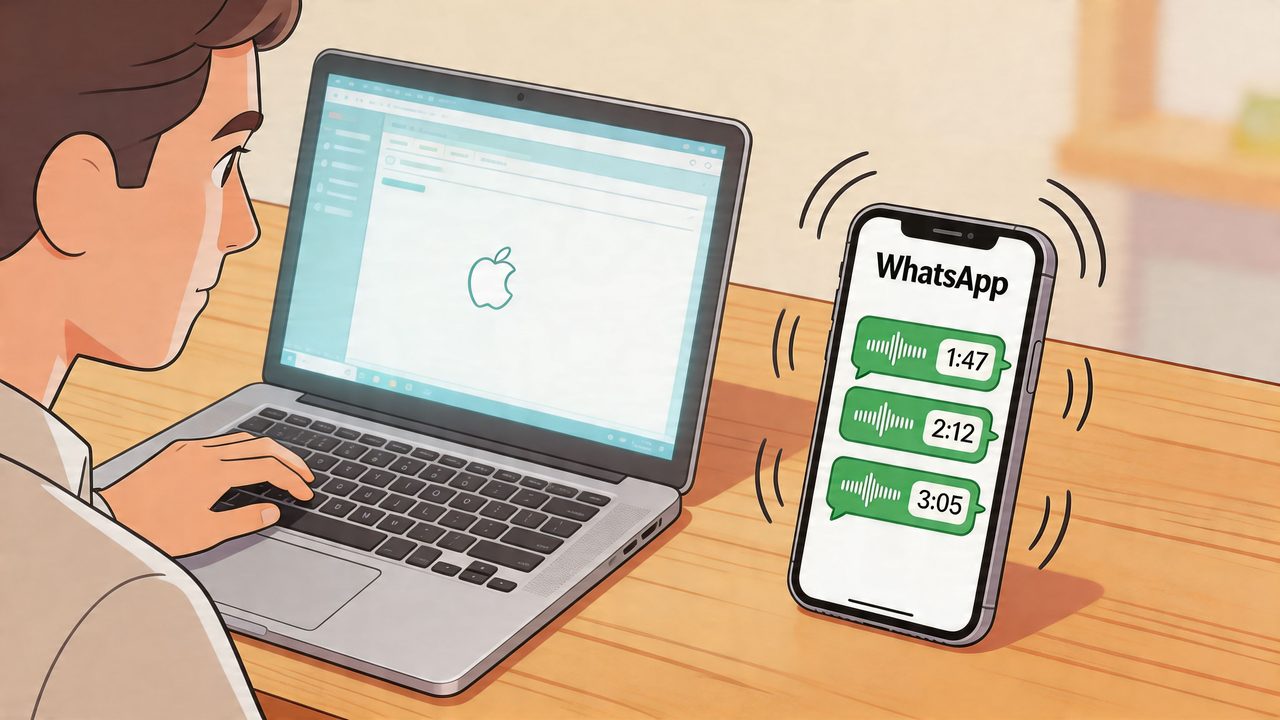
You’re on your Mac, halfway through a spec, a pull request, or a patient note. Then WhatsApp lights up with three voice messages from the one person on your team who never types when they could talk. You can either stop, pick up your phone, replay each note, and scribble the important bits somewhere else, or you can leave them unanswered longer than you should.
That friction is exactly why so many people start looking for a transcriber for whatsapp. The catch is that most options were built around phones first. They work if you’re casually forwarding one note at a time. They’re much less helpful when your real job happens on a Mac and you need text that’s private, editable, and ready to drop into the apps you already use.
Table of Contents
- Why Your Workflow Needs a Desktop WhatsApp Transcriber
- Getting Started with AIDictation on macOS
- Choosing Your Transcription Mode Auto Local or Cloud
- Refining Transcripts with Power Features
- Troubleshooting and Pro Workflow Tips
- Frequently Asked Questions
Why Your Workflow Needs a Desktop WhatsApp Transcriber
If you work from a Mac all day, the usual WhatsApp transcription flow feels backwards. You get a voice note on your phone, forward it to a bot or another app, wait for text, then move the result back to your desktop. That’s tolerable once. It’s a mess when you’re doing it repeatedly between meetings, tickets, and messages.
The gap is real. Most WhatsApp transcribers are still mobile-centric and rely on manual forwarding, which interrupts professional workflows. They also tend to miss features desktop users value, such as on-device processing for privacy, custom dictionaries for technical terms, and output that adapts to context. That’s especially relevant as business use of voice notes has risen, with a reported 20% surge noted in the supporting material for Transcriber for WhatsApp on Google Play.
The desktop problem isn’t just convenience
A product manager doesn’t want a rough transcript that still needs cleanup before it becomes an update for stakeholders. A developer doesn’t want to hand-correct every internal tool name, endpoint, or function reference. A healthcare professional can’t casually push sensitive audio through a workflow that gives them no control over where data goes.
Practical rule: If the transcript has to move into email, docs, tickets, or clinical notes, mobile-first forwarding is the wrong default.
What works better is a desktop-native path where the audio lands on your Mac and becomes usable text immediately. That means less app switching, fewer dropped details, and a lot less re-listening.
If you already use dictation heavily on macOS, it helps to think of WhatsApp audio as just another input stream that should end up as clean text on your desktop. That’s the same mindset behind this guide to speech to text for Mac, and it’s the reason a desktop workflow feels so much faster once it’s set up properly.
Getting Started with AIDictation on macOS
The setup should take minutes, not an afternoon of permissions prompts and format conversions.
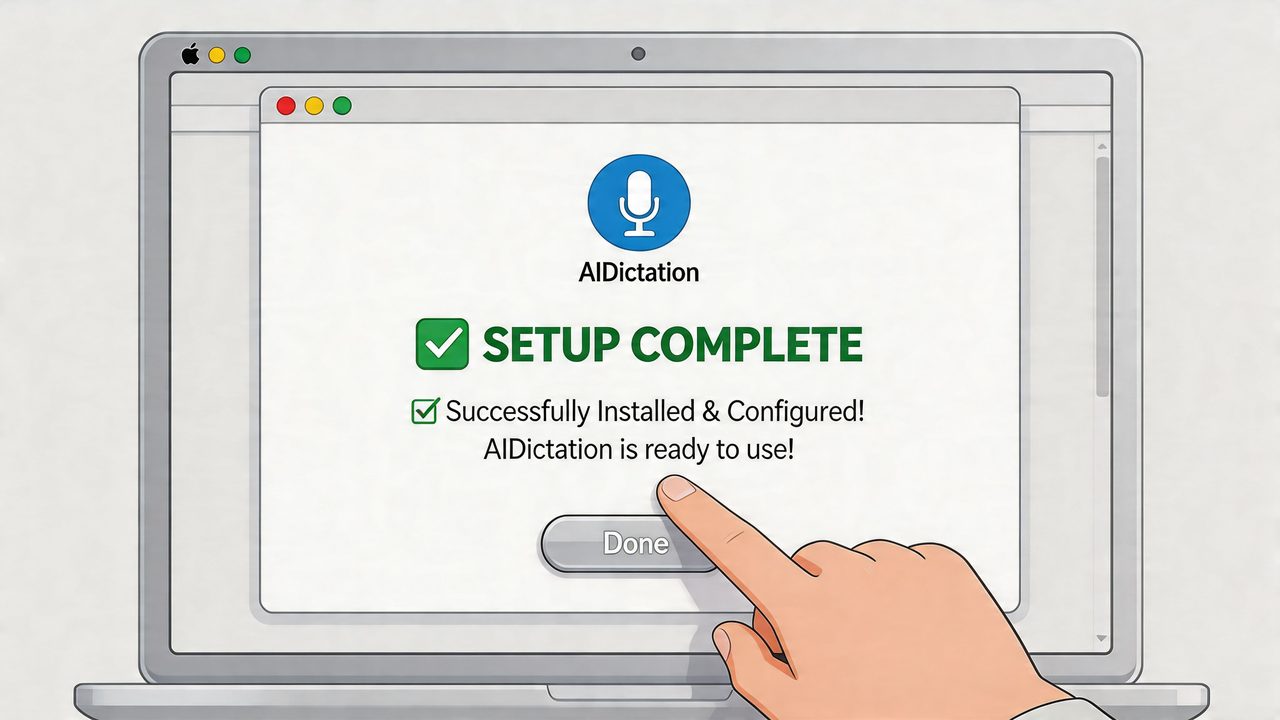
Start by installing the app from the official AIDictation download page. Open it, let macOS confirm the install, and launch it once before you try to process any WhatsApp audio. That first run is where you’ll grant the permissions the app needs and choose your default transcription behavior.
Install it and keep the first run simple
On first launch, don’t over-tune the settings. Pick a default mode, confirm where finished text should go, and make sure the app is easy to reach from the menu bar or Dock. The mistake I see most often is trying to configure every option before running a single file.
Use this short checklist:
- Open Preferences first: Confirm the language setting you expect to use most often.
- Choose a default output style: Plain paragraphs are usually the safest starting point.
- Test with one short file: Don’t start with a long, messy team update.
- Verify your export destination: Clipboard, a text window, or a notes app all work. Pick one and keep it consistent.
Two practical ways to bring in WhatsApp audio
There are two reliable routes, and each suits a different kind of day.
Method one is the fastest. If you use WhatsApp Desktop, save the voice note audio to your Mac and drop it directly into the app. This keeps everything on the desktop and avoids the phone shuffle.
Method two is better for batch work. Export several voice messages from your phone to a folder on your Mac, then process them in one session. That’s useful when you’ve been traveling, coming out of meetings, or catching up on a project thread.
Save exported WhatsApp audio into dated folders by project or sender. Later, the transcript is only useful if you can still find the source clip.
A visual walkthrough helps if you prefer to see the setup before clicking through it yourself:
If the app accepts the file but the result looks rough, resist the urge to blame the model immediately. In most cases, the issue is language selection, punctuation settings, or noisy source audio. The next choice that matters is the transcription mode.
Choosing Your Transcription Mode Auto Local or Cloud
A serious transcriber for whatsapp needs more than one engine because WhatsApp audio varies wildly. One note is a clean update recorded in a quiet office. The next is a rushed explanation sent from a car park with half the sentence swallowed.
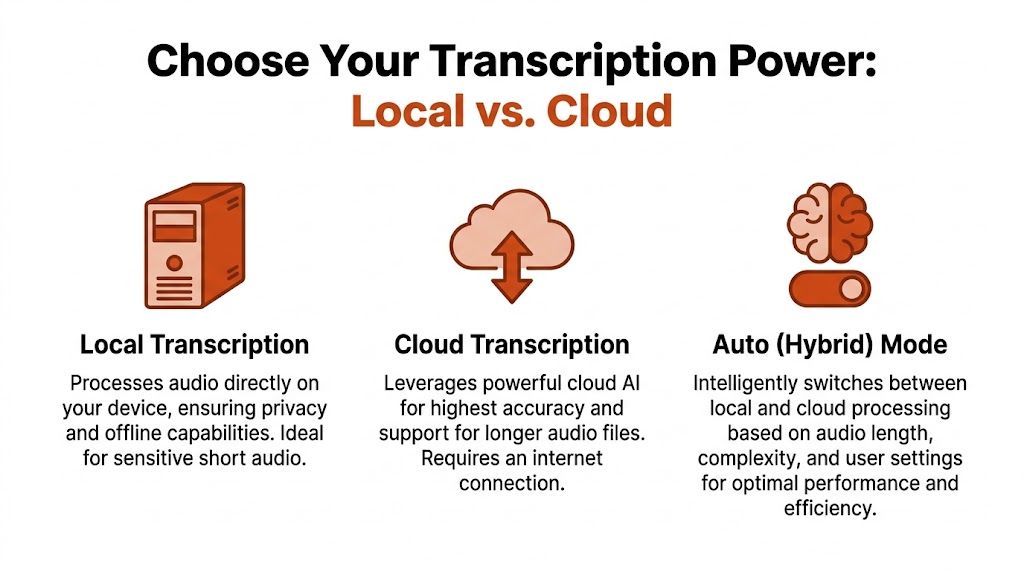
That’s why the most useful setup isn’t “pick one engine forever.” It’s choosing the mode that matches the risk and complexity of the audio in front of you. If you want a deeper primer on private offline workflows, this guide to offline voice to text is worth keeping handy.
What each mode is really for
Here’s the plain-English version.
| Mode | Use it when | Trade-off |
|---|---|---|
| Auto | You want the app to choose for you | Less manual control |
| Local | Privacy matters most and the audio is straightforward | Fewer language options and lower performance on some accents or technical speech |
| Cloud | You need the cleanest result from difficult audio | Requires sending audio for remote processing |
On-device transcription has a real privacy advantage. Architectures that keep processing on the device help preserve end-to-end encryption expectations and can support HIPAA-oriented workflows because data doesn’t leave the user’s machine. The trade-off is accuracy and coverage. The supporting Verbit analysis notes 85-90% accuracy for on-device systems versus 95%+ for cloud systems, especially when accented speech or technical terms are involved, as outlined in Verbit’s discussion of WhatsApp transcription architecture.
A quick decision table
Use Local when the content is sensitive and you can tolerate a little cleanup after. That’s the right choice for internal HR notes, clinical drafts, or anything you don’t want leaving the Mac.
Use Cloud when the speaker rambles, self-corrects, changes pace, or uses niche terminology. Cloud processing is also the better bet when the note needs to come out closer to publishable text.
Use Auto if you don’t want to think about it each time. In practice, that’s the setting users tend to leave on once they trust the defaults.
Privacy-first doesn’t always mean workflow-first. The best mode is the one that protects the content without forcing extra editing every single time.
One desktop option built around that trade-off is AIDictation, which offers Auto, Local, and Cloud modes on macOS, including on-device processing with Parakeet v3 on Apple Silicon and cloud cleanup for formatting, filler words, and self-corrections. That combination is more useful on a Mac than the usual mobile flow because you can decide per transcript whether privacy or polish matters more.
Refining Transcripts with Power Features
Raw text isn’t the finish line. It’s the starting point.
The better AI transcription tools can reach up to 95% accuracy with models such as Whisper, and that matters because WhatsApp voice notes make up an estimated 15-20% of the platform’s 100 billion+ daily messages according to the cited Voiser material at Voiser’s WhatsApp AI transcriber overview. But in professional use, the difference between “accurate” and “useful” is cleanup.
Clean up the output before you edit
A strong desktop workflow removes friction before your hands hit the keyboard. That means automatic punctuation, sentence repair, and filler-word reduction should happen at import, not later after you paste the transcript into another app.
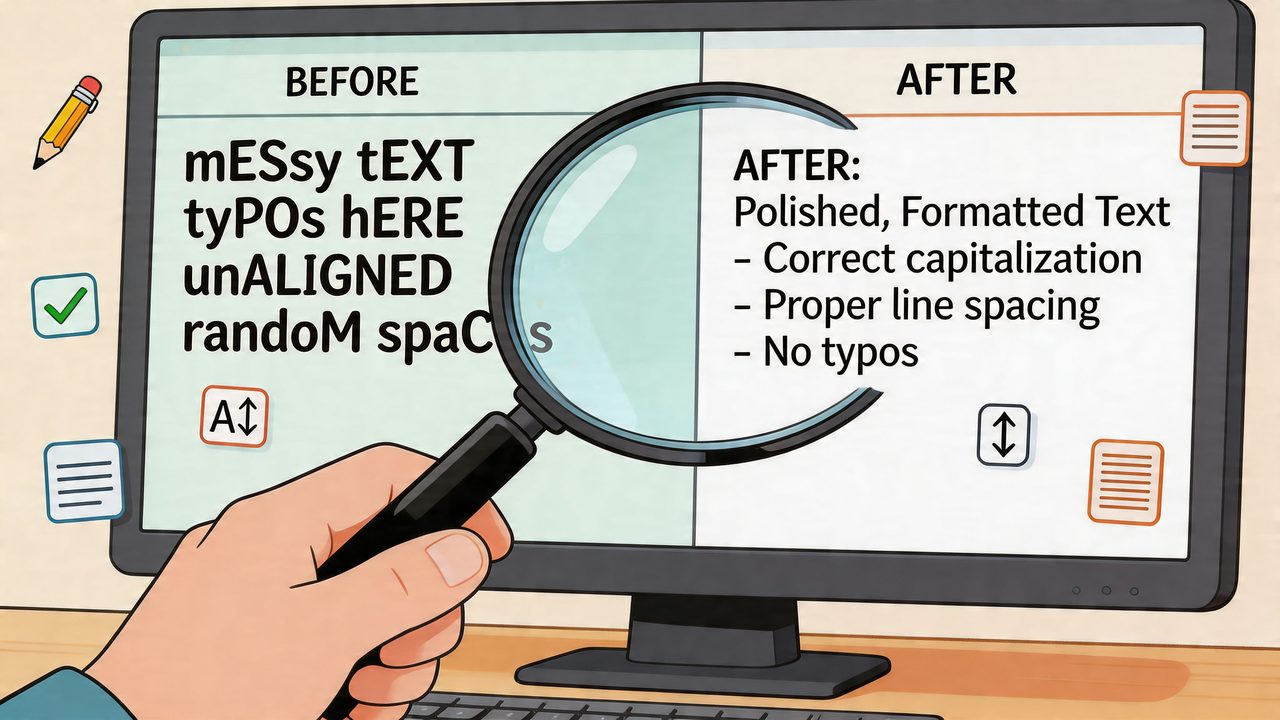
A rough WhatsApp note often sounds like this in text:
“yeah so for the launch um move the onboarding email maybe to tuesday no wait wednesday and ask dev to check the billing edge case”
What you want is something closer to:
- Clean sentence form: Move the onboarding email to Wednesday.
- Action preserved: Ask engineering to review the billing edge case.
- Ready for use: Paste into Slack, Mail, Notion, or your task manager without rewriting the whole thing.
That cleanup is where desktop tools pull ahead. On a Mac, the transcript doesn’t just need to be readable. It needs to become output you can send.
Teach the app your vocabulary
The fastest way to improve transcription quality in real work is a custom dictionary.
If you’re a developer, add product names, function names, repo names, acronyms, and the weird internal shorthand your team uses every day. If you’re in healthcare, add drug names, clinic names, procedures, and provider names. If you’re a PM, add roadmap codenames and stakeholder names.
A practical setup looks like this:
- Add terms that are costly to correct: Internal project names, API names, clinician names.
- Prioritize words that sound similar to common terms: Those are the ones speech systems miss repeatedly.
- Review after a week: Add the corrections you’ve made more than once.
- Separate by context if the app supports rules: Email output should read differently from chat output.
Context rules matter just as much. A transcript meant for an email should come out with full sentences and a formal tone. A note meant for WhatsApp or Slack should be looser and faster to scan. A note for Obsidian might be better as bullets. A draft for a code comment should preserve terms and avoid over-polishing.
The real productivity gain comes when the transcript arrives already shaped for its destination.
Once you’ve done that setup, you stop treating WhatsApp voice notes like audio to “deal with later.” They become text assets that slide directly into the rest of your work.
Troubleshooting and Pro Workflow Tips
When transcription quality drops, the fix is usually boring. That’s good news because boring fixes are repeatable.
Fix accuracy problems first
If a transcript looks unexpectedly wrong, check the settings before you test a different tool. Technical guidance for WhatsApp transcription points to three common failure points: the wrong language parameter, punctuation turned off, and poor audio conditions. A mismatched language parameter can affect accuracy by 15-25%, and source guidance also recommends keeping the speaker within 6 feet and reducing background noise, as shown in this Deepgram and Zapier workflow video.
Run this quick triage:
- Confirm the language setting: A wrong language choice can wreck an otherwise clean file.
- Turn punctuation on: Even when the words are right, unpunctuated output is harder to review and reuse.
- Listen to the file once with headphones: If you struggle to hear it, the model will struggle too.
- Watch for multi-speaker audio: A team note forwarded from a room recording is harder than a single-person message.
Build a workflow that saves time every day
Once the basics are stable, the best gains come from organization, not model hopping.
Try this on macOS:
- Batch by project: Keep a Finder folder for each active project and drop exported voice notes there before processing.
- Use consistent filenames: Date plus sender plus topic is enough to make future search painless.
- Paste into the next destination immediately: Notes app, Notion, Obsidian, Mail, and editors all work better when you finish the handoff while the context is fresh.
- Reserve Local Mode for sensitive material: If the note contains protected, confidential, or internal details, keep it on device and accept that you may do a small manual pass afterward.
A lot of people lose time because they treat transcription as a standalone task. It’s better to treat it as the first step in a short pipeline: receive voice note, transcribe, clean lightly, send onward. On a Mac, that can happen fast enough that voice messages stop feeling like interruptions.
Frequently Asked Questions
Can a transcriber for whatsapp handle multiple languages well?
It can, but results vary with the engine and the recording quality. Some tools support broad language coverage, while privacy-first on-device systems may support fewer languages. If you routinely receive notes in different languages or need translation to English, use a mode designed for broader language handling and test it with your real audio, not a clean demo clip.
What if I need privacy for work?
Choose an on-device workflow when the content is sensitive. That matters for legal, healthcare, HR, and internal business communication. Local processing usually gives you stronger privacy control because the audio stays on the machine, but it may require more cleanup on difficult files, especially when the speaker has a strong regional accent or uses specialized terminology.
How is a Mac workflow different from mobile-only tools?
Desktop workflows are better when the transcript is headed straight into work. You’re already in Mail, Notes, Notion, Slack, Obsidian, your EHR, or an editor. A mobile-first transcriber usually asks you to forward audio, wait, copy text, and move it somewhere else. A desktop-native setup cuts out that relay race.
Is there a free option?
Yes. AIDictation offers a free tier with 2,000 words per month and no account required, plus paid plans for broader access to cloud and local models, translation to English, and audio or video transcription, according to the publisher information provided for this article. That’s enough for many people to test a real WhatsApp workflow before deciding whether they need more.
What’s the biggest mistake people make?
They judge the transcript before fixing the input and settings. Wrong language selection, messy audio, and no punctuation will make almost any tool look worse than it is. Start there, then tune the dictionary and output rules once the basics are solid.
If your work already lives on a Mac, treat WhatsApp voice notes like incoming text that hasn’t been converted yet, not like a separate mobile task. AIDictation is built for that desktop workflow, with local and cloud transcription modes, cleanup features, and formatting controls that turn voice messages into writing you can use.
Frequently Asked Questions
What does Transcriber for WhatsApp: A Guide to AIDictation on Mac cover?
You’re on your Mac, halfway through a spec, a pull request, or a patient note. Then WhatsApp lights up with three voice messages from the one person on your team who never types when they could talk.
Who should read Transcriber for WhatsApp: A Guide to AIDictation on Mac?
Transcriber for WhatsApp: A Guide to AIDictation on Mac is most useful for readers who want clear, practical guidance and a faster path to the main takeaways without guessing what matters most.
What are the main takeaways from Transcriber for WhatsApp: A Guide to AIDictation on Mac?
Key topics include Table of Contents, Why Your Workflow Needs a Desktop WhatsApp Transcriber, The desktop problem isn’t just convenience.
Ready to try AI Dictation?
Experience fast voice-to-text on your device. Free to download.
Download FreeRelated Posts
Dictation on macOS: Setup, Apps, and Pro Tips
Master dictation on macOS with clear setup steps, app comparisons, privacy settings, and accuracy tips to turn your voice into clean text fast.
Is There a Speech to Text App for Mac? a Practical Guide
Is There a Speech to Text App for Mac. Wondering if there is a speech to text app for Mac? Compare built-in Dictation, on-device engines, and AI tools like
Interview Recording App for Mac How to Record and Transcribe
Learn how to choose and use an interview recording app on Mac — from mic setup and recording to transcription, cleanup, and privacy-safe export.