Transcription Audio to Text: A Practical Workflow Guide
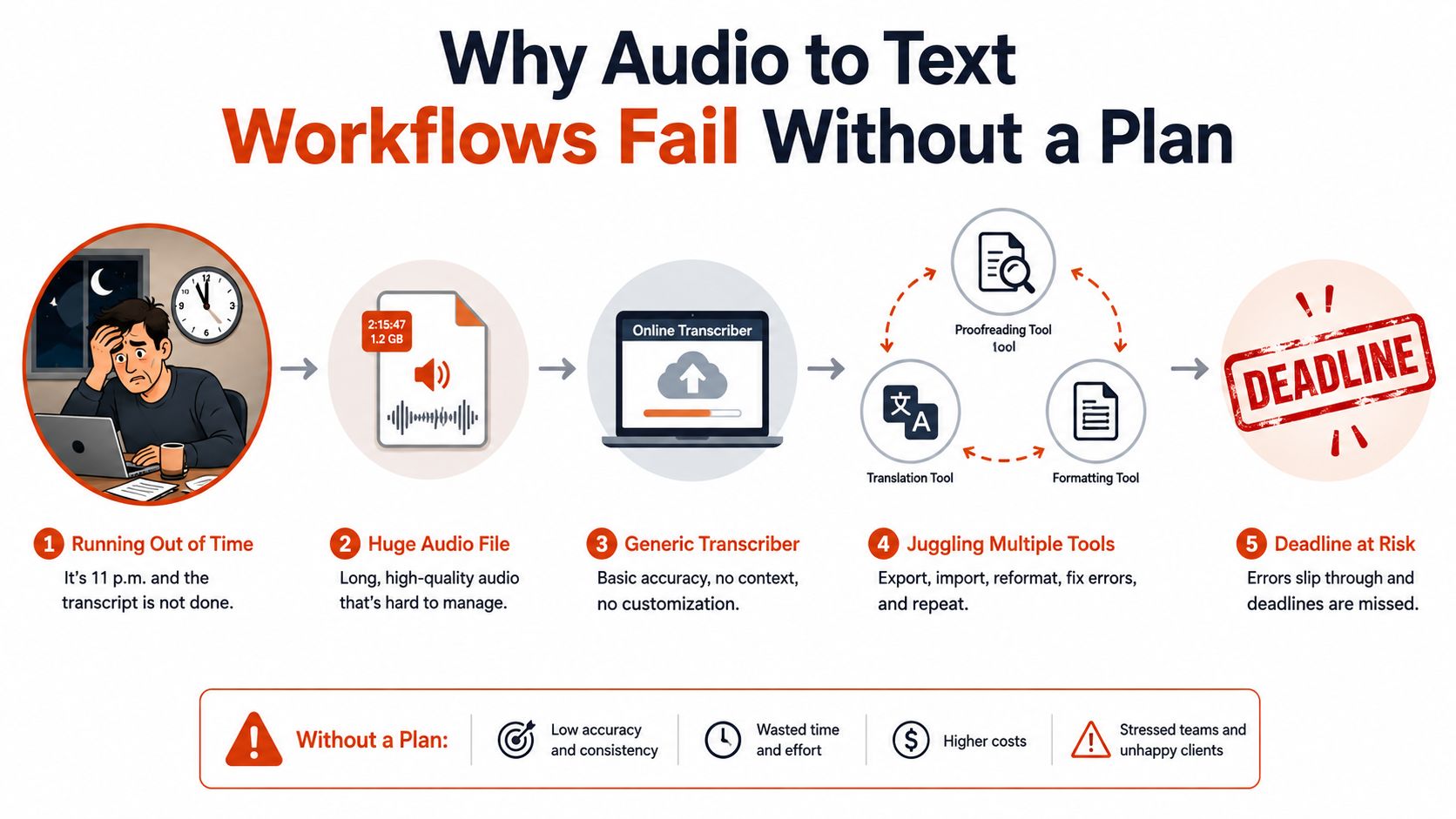
You've got a one-hour client call, an interview, or a clinical note sitting on your Mac, and the deadline is close enough to feel personal. You upload the recording to an online transcriber, wait, discover that the speakers weren't separated, then move the file through several more tools while the clock keeps running. The transcript exists, but it still needs careful listening, correction, formatting, and sometimes a complete rewrite.
Transcription audio to text works reliably when you treat it as a workflow rather than a button. The useful sequence is simple: capture a clear signal, choose an engine that fits the recording, clean the raw output, and verify anything that matters. Modern automatic speech recognition grew from isolated digit recognition to practical dictation and meeting transcription over decades of acoustic modeling, language modeling, and benchmark evaluation, as this overview of speech recognition history and Word Error Rate explains.
Table of Contents
- Why Audio to Text Workflows Fail Without a Plan
- On-Device vs Cloud Transcription Compared
- Setting Up Your macOS Dictation Stack
- Recording Habits That Make Transcription Easier
- Cleaning Up the Transcript With AI
- Troubleshooting Accuracy and Privacy Tradeoffs
Why Audio to Text Workflows Fail Without a Plan
A rushed transcription job usually fails before the file reaches the engine. The microphone may be too far from the speaker, the room may contain air-conditioning noise, and a laptop may record several people from different distances. Uploading that file to a highly rated service won't restore words that were never captured clearly.
The second failure comes from choosing an engine by reputation instead of acoustic conditions. Clean, single-speaker dictation is a friendly test. A spontaneous interview with interruptions, accents, technical vocabulary, and overlapping voices is a different task entirely. Benchmark results show why: one comparison recorded 2.3% WER on LibriSpeech test-clean, rising to 4.6% on test-other and 6.4% on CommonVoice; another realtime system moved from 2.6% on clean speech to 9.4% on CommonVoice in the same speech-to-text benchmark.

Treat the job as four controlled stages
Capture determines how much usable speech reaches the recognizer. Convert turns the waveform into words, but the engine still has to infer punctuation, terminology, timing, and speaker changes. Clean removes noise from the text itself, such as filler words, repeated starts, broken paragraphs, and inconsistent labels. Verify sends you back to the audio for names, figures, medication terms, quotations, and any sentence where an error could change the meaning.
Most beginners plan only the conversion stage. They ask how quickly a system can process an hour of audio, but not how long it takes to check the result. Guidance for research interviews reports that AI can process an hour of audio in under three minutes, while researchers may spend an additional 30 to 40 minutes verifying the transcript, according to this guide to interview transcription and data integrity. That verification isn't a defect in your process. It's part of producing dependable text.
Practical rule: Decide what “finished” means before recording. Searchable notes, readable meeting minutes, publication-ready copy, and a legal or clinical record need different cleanup and verification standards.
A good plan also defines the output format. A researcher may need timestamps and conservative speaker labels. A content editor may want smooth paragraphs without fillers. A clinician may need exact wording and strict privacy controls. Once those requirements are explicit, tool selection becomes a practical decision instead of a late-night experiment.
On-Device vs Cloud Transcription Compared
A recorded clinical note, interview, or internal meeting can produce a transcript quickly and still require substantial editing. The practical choice is control versus convenience. Accent handling, background noise, speaker changes, privacy rules, and the time needed to verify names or technical terms matter as much as raw processing speed.
On-device tools such as Apple Dictation, Whisper.cpp, MacWhisper, and MacGenius keep processing close to the machine. They suit sensitive recordings, repeatable batch jobs, and unreliable internet connections. Cloud services such as a Whisper API, Google Speech-to-Text, Otter, Rev, Sonix, and AssemblyAI can handle difficult audio or managed workflows, but the recording enters a third-party processing environment.
| Engine | Type | Accuracy on Accented Speech | Privacy | Cost | Best For |
|---|---|---|---|---|---|
| Apple Dictation | On-device and system-integrated | Strong for clear dictation, less predictable with overlap and specialized terms | Audio can remain local when relevant offline features are enabled | Often included with the operating system | Live notes and short dictation |
| Whisper.cpp | Local open-source implementation | Results depend on hardware, model, and recording quality | Local processing | No per-minute cloud charge | Private batch transcription |
| MacWhisper | Local desktop application with optional service choices | Useful across varied recordings, with greater processing demand as models grow | Depends on the selected processing mode | Depends on app and model choice | File-based Mac workflows |
| Whisper API | Cloud | Convenient for varied speech, but accents and domain terms require testing | Audio is sent to the provider | Usage-based | Developer workflows and fast processing |
| Google Speech-to-Text | Cloud | Broad service capabilities, with results varying by language and recording | Provider processing and retention policies apply | Usage-based | Integrated business applications |
| Otter | Cloud service | Useful for meeting speech and speaker workflows, but difficult audio still needs review | Check retention and permission settings | Plan or usage dependent | Collaborative meeting notes |
| Rev | Cloud service | Managed transcription can reduce handling work, while names and specialist terms still need checking | Review provider terms and access controls | Plan or usage dependent | Client-facing delivery |
| Sonix | Cloud service | Suits file-based workflows, with accuracy varying by audio conditions | Review retention and account permissions | Plan or usage dependent | Fast transcript editing |
| AssemblyAI | Cloud service | Developer-oriented processing for varied audio, subject to testing on accents and terminology | Audio is processed by the provider | Usage-based | Integrated applications and automation |
The on-device speech recognition guide helps assess local processing when privacy drives the decision. Hardware affects the experience as well. Apple Silicon can run Whisper base and small models in real time in suitable workflows, while medium models require more resources and large models may be impractical on less capable Macs.
Make the decision from the recording, not the sales page
Choose cloud processing when a client-facing transcript is due soon, the room is noisy, or several speakers have distinct accents. Choose local processing when the recording contains protected information, internal strategy, legal material, or content your organization cannot send to an external provider.
The choice can vary by project. A team might send an ordinary podcast interview to a cloud engine while keeping clinical recordings local. Test a representative sample first, including the weakest microphone, strongest accent, most technical vocabulary, and busiest section. Compare the total correction time, not only the first-pass transcript. The suitable engine is the one that produces clean enough text, meets privacy requirements, and leaves fewer errors to fix by hand.
Setting Up Your macOS Dictation Stack
A dependable Mac setup separates live dictation from file transcription. Dictation is ideal when you speak directly into a document or message. A file-based application is better when you need to process a meeting, interview, lecture, or recording after the fact.
Start in System Settings and enable Dictation. Download the available on-device language resources, then enable Enhanced Dictation if your macOS version provides it and you need offline operation. The exact labels can vary by release, so confirm that the language you use is installed rather than assuming the Mac will download it during an important call.

Configure permissions before the first deadline
Open Privacy & Security and review permissions for the apps in your stack. A dictation utility may need Microphone, Speech Recognition, and, depending on how it inserts text, Accessibility access. If an automation watches folders or controls another application, macOS may request additional approval.
Choose the microphone deliberately. In System Settings, open Sound and inspect Input before recording. A Mac can switch automatically to a display microphone, wireless earbuds, or a webcam, and the resulting distance from the speaker can matter more than the transcription model.
For file transcription, install a tool such as MacWhisper and select a model appropriate to your Apple Silicon hardware. A larger model may improve difficult recordings, but it also increases processing demands. Don't install the largest option because its name sounds more accurate. Run the same short sample through two models and compare corrections per minute.
The macOS speech-to-text setup guide covers the broader workflow around dictation and text insertion. For frequent work, assign a global hotkey in Raycast or Alfred that opens your recorder, copies the resulting file to a known location, or triggers the next processing step. The point is to remove mouse-heavy handoffs that encourage inconsistent file naming and forgotten recordings.
Add a smoke test and a simple queue
Create a folder such as ~/Transcripts/Inbox for new audio. A Shortcuts automation or a small local script can watch that folder, move completed files to an archive, and place outputs in a matching transcripts folder. Keep the automation conservative. It should never delete the original audio until you've confirmed the transcript was created and reviewed.
Run a 60-second smoke test before production use. Record ten seconds containing a known phrase, transcribe it, confirm the expected output, check that the file lands in the right folder, and verify that the app can insert or export the text. That tiny test catches permissions, input-device, model, and automation errors before they affect a real meeting.
Recording Habits That Make Transcription Easier
The cheapest accuracy improvement happens before you open a transcription app. Put the microphone close enough to capture the speaker directly, keep it away from keyboard impacts and fan noise, and use a room with soft surfaces when possible. A clean recording gives every later engine more useful signal to interpret.
For a single speaker, a stable microphone position matters more than constantly changing distance. A USB headset can be convenient, but a well-placed standalone condenser may capture dictation more naturally. The device still needs correct input selection, so check System Settings, Sound, Input immediately before an important take.

Give each speaker a usable signal
Multi-mic interviews need spacing and level discipline. The 3:1 rule means each microphone should be roughly three times farther from another microphone than it is from its own speaker. That reduces bleed and makes speaker separation easier, although it can't solve people talking over one another.
Set gain conservatively. Aim for peaks around -12 to -6 dBFS, watching the meter in QuickTime, Voice Memos, or your recording application. If the waveform clips, a transcription engine receives distorted speech. If it sits barely above silence, background noise becomes a larger part of the signal.
A quiet room and a correctly selected input usually save more editing time than switching between several transcription brands.
Record a short spoken marker or clap at the beginning of each take. Say the speaker names, project name, or recording number if that information will help later. Brief silent pauses between topics also make paragraph boundaries and timestamp alignment easier to review.
Use uncompressed WAV when you expect substantial editing, repeated processing, or archival needs. AAC is practical for routine dictation and smaller files, but the best format depends on the recorder, storage policy, and downstream application. Whichever format you choose, preserve the original and avoid repeatedly exporting the same audio through lossy conversions.
Before a meeting begins, record a brief test and listen through headphones. Check that speech is present on both channels when appropriate, the meter responds to normal speech, and no automatic input switch has selected the wrong device. These habits won't make overlapping voices intelligible, but they prevent avoidable failures.
Cleaning Up the Transcript With AI
Raw transcription is a draft, not a finished document. Even a strong engine can leave repeated starts, filler words, uncertain speaker changes, missing punctuation, and incorrect proper nouns. The editing stage should improve readability without changing what the speaker meant.
Start with a copy of the raw output. Ask an LLM to remove fillers and obvious stutters only where they don't carry meaning, then normalize labels such as Speaker 1, Speaker 2, or named participants. After that, format the text for its destination, whether that's a searchable research record, meeting notes, captions, or a publication draft.

Use a constrained cleanup prompt
A reusable prompt should tell the model what it may change and what it must preserve. For example:
Cleanup prompt:
“You are editing a raw transcript. Remove non-meaningful filler words and repeated starts, correct punctuation, and divide the text into readable paragraphs. Preserve the speaker's meaning, uncertainty, numbers, names, technical terms, and order of ideas. Keep speaker labels in the formatName:orSpeaker 1:. Do not summarize, add facts, infer missing words, or silently rewrite unclear passages. Mark uncertain text as[unclear]. Return only the edited transcript.”
Add style notes after the instruction, such as “retain timestamps every paragraph,” “use British spelling,” or “keep every hesitation because this is a linguistic study.” The transcript editing workflow provides a useful reference for separating cleanup from interpretation.
Choose timestamps based on the deliverable. Whisper-timestamped output can help when an editor needs to locate a phrase in the audio. Apple Speech Analyzer-style line breaks may be easier for quick reading, but line breaks aren't a substitute for verified speaker changes. For captions, timing and line length matter. For meeting notes, readable paragraphs and action-item formatting may matter more.
Verify the dangerous words first
A polished sentence can still be wrong. Search the transcript for rare proper nouns, names, figures, medication terms, product names, code identifiers, and words that sound unusual in context. Play the original audio around each result and correct the text manually.
A useful review pass looks for symptoms rather than every word equally:
- Speaker confusion: Listen at each label change and confirm who spoke.
- Terminology errors: Compare specialized words with the recording, notes, or an approved glossary.
- Number mistakes: Replay figures, dates, doses, prices, and measurements instead of trusting visual plausibility.
- Hallucinated text: Treat fluent sentences that aren't audible as errors and mark the passage for review.
- Timestamp drift: Check the beginning, middle, and end of a long file against the audio position.
Keep raw.txt, cleaned.txt, and final.md as separate files. Store the original audio alongside them with a stable filename. Version control is especially valuable when another person reviews the transcript or when a client asks why a phrase changed.
AI cleanup should make the document easier to use, not make uncertainty disappear. If the source is unclear, preserving that uncertainty is more professional than inventing confidence.
Troubleshooting Accuracy and Privacy Tradeoffs
Accuracy failures usually have a traceable cause. Accents may require an engine tested on varied speech. Technical terminology often needs a custom dictionary and a deliberate correction pass. Background noise points to recording technique or preprocessing. Multiple speakers may require better microphone placement, separate channels, diarization, or manual labels. Formatting prompts cannot reliably repair poor microphone input.
Use Word Error Rate, or WER, to compare systems, not to predict the result for a particular file. The formula is (substitutions + insertions + deletions) / total reference words. A 5% WER corresponds to about 95% word accuracy, according to the speech recognition history and evaluation reference. Dataset and model differences can change the outcome. A 2026 leaderboard reported an audio-duration-weighted AA-WER of 1.7% for its top system across roughly eight hours of mixed speech. Another benchmark reported 4.35% normalized WER for prerecorded transcription and 5.53% in realtime mode, according to Speechmatics' accuracy benchmarking documentation.
Benchmark figures do not establish whether a clinical note is safe to sign or a podcast transcript is ready to publish. Clean audio can reach about 95 to 98% accuracy, while noisy or accented speech may fall into the 60 to 80% range or worse. Sports audio remains difficult because it combines noise, spontaneous speech, names, and numbers, according to the 2025 ASR report. Plan for human verification whenever an error could change meaning.
| Engine | Cost | Privacy | Best For |
|---|---|---|---|
| Apple Dictation | Platform-dependent | Local operation is possible when offline features are enabled | Direct dictation and short notes |
| Local Whisper | No per-minute cloud fee | Audio stays on the Mac | Sensitive files and controlled batch work |
| OpenAI Whisper API | Usage-based | Audio is sent to the provider | Programmatic conversion and rapid experiments |
| Rev or AssemblyAI | Plan or usage dependent | Review provider terms and retention | Managed workflows, collaboration, and varied audio |
Match the remedy to the symptom
For clinical, legal, or privileged recordings, define the privacy requirement before choosing an engine. Keep processing on-device when the organization prohibits external transfer. If cloud processing is allowed, confirm contractual protections, retention controls, and a signed BAA where applicable. HIPAA, GDPR, and attorney-client privilege require more than checking a setting after upload. Review the provider's actual terms with the privacy or legal team.
Cloud processing can suit a long-form podcast about a general topic when speed and difficult-accent handling matter more than local control. A clinical conversation containing named individuals usually deserves local routing first, followed by human verification. Accent coverage and noise handling should be tested on representative recordings, not inferred from marketing claims. Local processing reduces exposure, but it may require stronger hardware, model setup, and more manual cleanup.
A concrete troubleshooting checklist helps isolate the next action:
- Dropped words: Recheck microphone distance, clipping, room noise, and model selection.
- Wrong names: Add a custom dictionary, then replay every rare proper noun.
- Poor speaker attribution: Use separate microphones where possible and label overlapping voices manually.
- Timestamp drift: Compare timestamps with the audio at several points, then regenerate them if the source was edited.
- Fluent but false text: Return to the original recording and treat the passage as unverified.
- Privacy uncertainty: Stop processing, identify where the audio was sent, and review the provider agreement before continuing.
AIDictation is one macOS option for this workflow. Its Auto Mode can switch between on-device recognition and a cloud service. Local Mode runs Parakeet v3 on Apple Silicon without sending audio away, while connected cloud processing adds cleanup, formatting, filler removal, and audio or video transcription. Visit AIDictation to test whether its local and cloud modes fit your privacy requirements and daily recording workflow.
Test one representative recording from capture through verification, not only the conversion step. Then standardize the microphone, engine choice, cleanup prompt, file naming, and review checklist. Keep raw audio, the untouched transcript, and the edited version separate so corrections remain traceable. Clean output is useful only when its uncertain words and privacy path are still clear.
Frequently Asked Questions
What does Transcription Audio to Text: A Practical Workflow Guide cover?
You've got a one-hour client call, an interview, or a clinical note sitting on your Mac, and the deadline is close enough to feel personal. You upload the recording to an online transcriber, wait, discover that the speakers weren't separated, then move the file through several more tools while the clock keeps running.
Who should read Transcription Audio to Text: A Practical Workflow Guide?
Transcription Audio to Text: A Practical Workflow Guide is most useful for readers who want clear, practical guidance and a faster path to the main takeaways without guessing what matters most.
What are the main takeaways from Transcription Audio to Text: A Practical Workflow Guide?
Key topics include Table of Contents, Why Audio to Text Workflows Fail Without a Plan, Treat the job as four controlled stages.
Ready to try AI Dictation?
Experience fast voice-to-text on your device. Free to download.
Download FreeRelated Posts
Email Dictation Software: What It Is and How to Choose
Learn what email dictation software is, how it works, and how to pick the right one. Covers accuracy, privacy, HIPAA, accents, and real buyer checklists.
Understanding Paragraph Structure That Actually Works
A practical guide to understanding paragraph structure, with components, examples, editing steps, and dictation tips for cleaner writing.
Choosing a Medical Dictation App for Clinical Work
Compare medical dictation apps on HIPAA compliance, on-device vs cloud, medical vocabulary accuracy, EHR integration, and pricing to find the right fit.