Email Dictation Software: What It Is and How to Choose
You've dictated a complicated email into your phone while walking between meetings. Now it's sitting in a notes file as one long paragraph, so you copy it into Gmail and fix the punctuation, names, and formatting by hand. The words arrived quickly, but turning them into a sendable message still took work.
That gap is where email dictation software can help. The right setup puts spoken words directly into an email draft and makes them easier to review, rather than leaving you to move text between apps and repair every sentence yourself.
Table of Contents
- What Email Dictation Software Actually Does
- How Voice Becomes an Email Behind the Scenes
- From Bell Labs to Your Inbox in Six Decades
- Local Mode vs Cloud Mode and Why the Choice Matters
- Privacy, HIPAA, and the Real Audio Lifecycle
- Accuracy, Word Error Rate, and Testing on Your Own Voice
- A Practical Buyer's Checklist for Email Dictation Software
- Choosing the Right Setup for Your Workflow
What Email Dictation Software Actually Does
Good email dictation software works like a bridge between your voice and the message you want to send. It captures speech, converts it into text, and places that text in an editable email composition window. Depending on the tool, the bridge might be a system-level dictation service, a browser extension, or a dedicated desktop app.
That distinction matters in practice. If you dictate a message into a notes app, you still have to copy it into your inbox and rebuild the paragraph breaks. Dictation that works directly in the email window removes that extra step, but it still needs to produce text you can trust and edit.
The term can be confusing because several kinds of tools use voice in different ways:
- Voice assistants respond to commands, such as opening an app or setting a reminder. They aren't necessarily designed to write a polished email.
- Transcription services turn a recording into text after the audio has been captured. That's useful for interviews or meetings, but it may not help you compose directly in an inbox.
- Typing aids predict or suggest words as you type. They can speed up keyboard writing, but they don't generate a full draft from spoken language.
A dependable email workflow has four jobs: capture continuous speech without making you pause between every word, recognize names and specialized terms, format greetings and paragraphs sensibly, and give you a way to inspect uncertain text before sending. Consider a software engineer dictating an update about an API change. The tool needs to recognize the technical vocabulary, separate the summary from the request, and leave the draft open for a final check.
Practical rule: Judge dictation by the email it leaves you with, not just by how fast it starts transcribing.
If you're comparing ways to build voice input into an existing business workflow, Chimehill's business communication resources offer broader context. Use the four jobs above to assess any tool, then match its setup to your privacy needs, languages, and everyday inbox.
How Voice Becomes an Email Behind the Scenes
Dictation looks simple from the user's side: speak, see text, edit, send. Inside the software, though, several stages have to work together. Think of the process as a translator listening to a sentence, decoding its sounds, choosing words that fit the context, and formatting the result for the destination.
From microphone to recognized words
Audio capture is the first stage. The microphone collects your voice along with whatever else is in the room. A clear signal gives the software more to work with; a distant microphone, keyboard noise, or a busy room can make speech harder to distinguish.
Next comes acoustic recognition. The system analyzes the sound and estimates the speech sounds being spoken. It doesn't just match each sound to a fixed spelling. It needs to work out which sequence of words best fits the audio, which is why unclear pronunciation or overlapping noise can lead to substitutions.
From likely wording to usable formatting
The language model helps choose between words that sound alike or fit different contexts. If you dictate “send the report to Lee,” context helps the software choose the person's name rather than a similar-sounding word. A custom dictionary can help with uncommon surnames, product names, clinical terms, or engineering acronyms.
Finally, output formatting turns recognized words into a usable draft. This stage handles punctuation, paragraph breaks, lists, and rules that may differ between an email client and a chat window. Without enough context, a spoken pause might become a full stop, a paragraph break, or nothing at all.
For buyers, each stage points to a feature worth testing: microphone handling for noisy environments, custom vocabulary for unfamiliar terms, app-aware formatting, and a review layer that makes uncertain words easy to spot. A closer look at speech recognition and its stages can help readers understand why a fluent-looking result isn't necessarily a correct one.
AIDictation's Auto Mode is one approach to the pipeline. It chooses between on-device Parakeet v3 and a cloud engine automatically. That's an architectural choice, not a universal requirement. The useful question is whether a tool's recognition, formatting, and review behavior hold up for your speech and your writing environment.
From Bell Labs to Your Inbox in Six Decades
Modern dictation didn't begin as an office writing tool. Bell Laboratories developed AUDREY in 1952, and it recognized the ten spoken digits. It had strict limits: the system needed calibration to one speaker, and the speaker had to pause between words (IBM's history of voice recognition).
IBM's Shoebox, demonstrated publicly in 1961 and at the 1962 Seattle World's Fair, expanded recognition to 16 words. It could recognize digits and arithmetic commands, then use a connected calculator to carry out a spoken operation and print the result (IBM's account of speech-to-text history).
The important shift was bigger than a longer word list. In the 1970s, researchers increasingly turned from hand-written recognition rules to statistical models that estimated likely sounds and word sequences. IBM's Tangora project in the 1980s showed how far vocabulary had expanded: after training, it could recognize as many as 20,000 English words and was designed for office transcription, as IBM's voice-recognition history documents.
Consumer dictation became commercially available with Dragon Dictate in 1990, but users still had to pause between words. Dragon NaturallySpeaking changed the experience in 1997 by supporting continuous speech, at roughly 100 words per minute, according to IBM's published speech-to-text timeline. That continuous input is part of why dictation can feel like speaking naturally rather than spelling a sentence out loud.
Each milestone addressed a different bottleneck: more vocabulary, better modeling, and speech that flowed without pauses. Modern systems also benefit from larger datasets, faster processors, cloud computing, and neural-network methods. Yet dictation still has to get the words right, punctuate them, and give you an efficient way to correct mistakes.
The useful comparison goes beyond “voice versus typing.” A clinical documentation study found that average production speed increased from 173 to 217 characters per minute with web-based automatic speech recognition, approximately a 25% gain. The evidence comes from clinical reports, not email, and routine results varied: 22 of 28 physicians were faster with speech recognition, compared with 17 of 28 for standardized text (the study in the Journal of Medical Internet Research). For email, the lesson is to measure the finished draft, including correction time, rather than the pace of speech capture alone.
Local Mode vs Cloud Mode and Why the Choice Matters
The central design choice is where the speech recognition happens. Local Mode processes audio on your device. Cloud Mode sends audio to a remote service for processing. Neither label tells you everything about privacy or quality, so check what the specific tool does with recordings, drafts, and corrections.
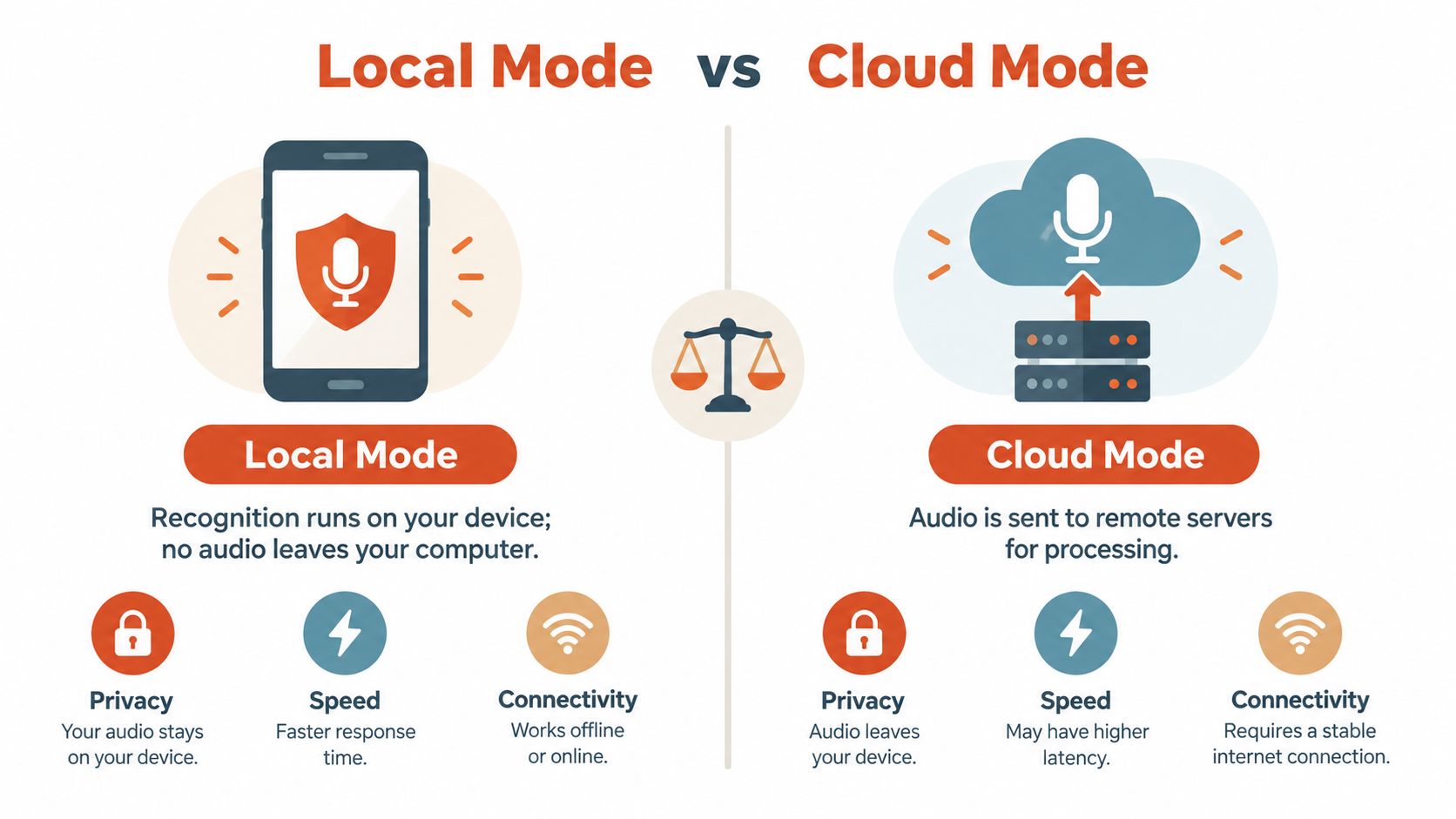
| Dimension | Local Mode | Cloud Mode |
|---|---|---|
| Where recognition runs | On your device | On remote servers |
| Internet connection | Can work without a connection, depending on the tool | Requires a connection for cloud processing |
| Audio transmission | Audio can stay on the device | Audio is sent to a service |
| Processing options | Depends on the model installed locally | May include additional remote recognition or cleanup |
| Privacy questions | Check whether any other features transmit data | Ask about transmission, retention, and model training |
Match the mode to the message
Local processing is a sensible priority when the content is sensitive and the tool's behavior is clear. Cloud processing can support additional cleanup or remote models, but it introduces questions about transmission and retention that the vendor should answer plainly. Don't assume a mode is more accurate in every situation: test both with the same script, microphone, and speaking conditions.
AIDictation is one example of a dual-mode design. Its Local Mode runs Parakeet v3 on Apple Silicon, and its cloud processing can add cleanup for fillers, self-corrections, and formatting when a connection is available. You can read more about the trade-offs in this guide to offline speech recognition.
Use the same four questions for any tool: How sensitive is the content? How reliable is the internet connection? How much editing can you tolerate? How important is an immediate response while you're speaking? Those answers will help narrow the configuration before you compare individual features.
Privacy, HIPAA, and the Real Audio Lifecycle
A “HIPAA-compliant” label doesn't explain what happens to a dictated email's audio. Privacy depends on the full path from microphone to final message, including any stages that happen before text appears on screen.
Follow the audio from capture to deletion
Start at the microphone. Does the app record only while you're dictating, or can it capture sound in the background? Does it buffer audio on the device before processing? If recognition happens in the cloud, what is transmitted, and is the audio stored after transcription?
Then ask what happens after the service returns text. Does the vendor retain audio or transcripts? Does it use either to improve its models? Can your organization audit access and request deletion? How does the system handle corrections, medication names, negations, and patient identifiers before a message is sent?
HIPAA and GDPR don't specifically settle every question about raw-audio retention, model training, real-time capture, or automated summarization. That's why buyers should ask vendors to describe their actual data practices rather than treating a compliance label as a substitute for a lifecycle review. For a broader introduction to compliance questions, you can browse Guiding Growth's compliance guide.
For clinical teams, the review process matters as much as the transcription stage. A smooth-sounding sentence can still contain a consequential substitution. The clinical AI literature included in the evidence for this article notes that speech-recognition errors can be more frequent with medical jargon and accents, and that error disparities have been documented for African American speakers (the 2025 review). That source also emphasizes that faster documentation doesn't automatically make documentation safer.
Before a team adopts a tool, ask the vendor to answer these questions in writing:
- Audio location: Does any audio leave the device?
- Retention: Is audio stored, and for how long?
- Model training: Is audio or corrected text used to train or improve models?
- Audit and deletion: Can users review and delete recordings?
- Clinical review: How are names, medication terms, and negations checked before sending?
AIDictation's Local Mode and SOC 2 pending status are part of its privacy posture, but they don't remove the need to verify the settings and data handling relevant to your role. Red flags include vague privacy language, deletion controls that are difficult to find, or a default training policy that the vendor won't explain.
Accuracy, Word Error Rate, and Testing on Your Own Voice
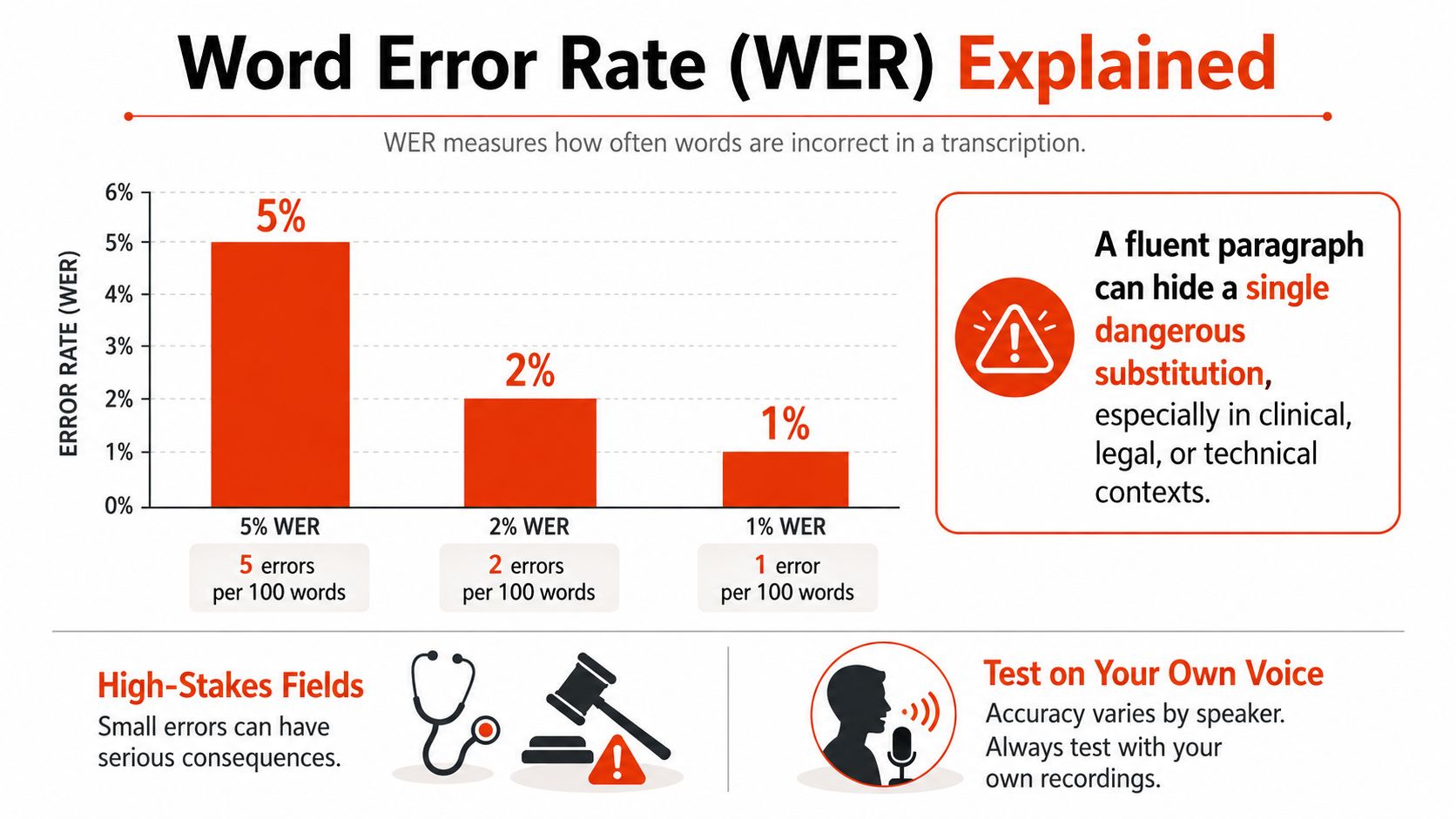
A paragraph can sound polished and still contain an important error. In a clinical, legal, or engineering email, a missed negation or incorrect name can change the meaning. That's why subjective fluency alone isn't a reliable way to judge recognition quality.
Word-error rate (WER) is a technical measure of the words that differ between a transcription and its reference text. It helps compare recognition results, but only when you know the speech, microphone, vocabulary, noise conditions, and evaluation method behind the number. A systematic review of clinical speech-recognition studies reported WER ranging from 7.4% to 38.7%, while the share of documents containing errors ranged from 4.8% to 71% (the review in the Journal of the American Medical Informatics Association). Those wide ranges show why one headline accuracy claim can't predict how a tool will handle your voice.
Run a personal test, not a demo
Use the same short script for each candidate tool. Include names, dates, numbers, technical terms, one correction made while speaking, and a phrase you commonly use in email. Record it in your normal working environment, then repeat the test with realistic background noise and any accent or second-language wording that matters to your work.
Compare each transcription with the original speech. Note substitutions, omitted words, punctuation problems, and how long it takes to make the draft sendable. If a tool offers a custom dictionary, add a few difficult names or terms and repeat the same test. This tells you whether the feature helps with your vocabulary rather than only sounding useful in a product description.
| Test condition | What to include | What to check |
|---|---|---|
| Everyday speech | A typical email in your own voice | Common words, punctuation, paragraph breaks |
| Accent or code-switching | A familiar name or phrase from another language | Names, language switching, plausible but incorrect wording |
| Noisy setting | Speech recorded where you usually work | Missed words and correction time |
| Specialized vocabulary | Your actual technical or clinical terms | Whether a dictionary or context setting improves results |
AIDictation provides a custom dictionary and context rules for personal vocabulary, but the useful test is whether they improve your own result. For a different kind of speech-to-text workflow, this guide to audio-to-notes transcription offers a point of comparison. Whatever the tool, listen back to the original when a word could change the meaning.
A Practical Buyer's Checklist for Email Dictation Software
You don't need a long procurement exercise to catch obvious mismatches. Take a real email, dictate it with your usual microphone, and use the questions below to evaluate the workflow from speech to sendable draft.
- Test your voice: Use a fixed script with your accent, names, numbers, and specialist words. Compare the result with what you said.
- Get privacy answers: Ask whether audio is transmitted, retained, or used for training, and how deletion works.
- Check formatting: Dictate a greeting, a paragraph break, and a short list. See whether the result fits your email app.
- Try custom vocabulary: Add a colleague's name, a product name, or a technical term, then repeat the test.
- Judge latency: Dictate and edit at your normal pace. A delay that interrupts your train of thought may matter more than a feature list.
- Compare costs: Review what's included in free, monthly, annual, or lifetime options, and check which processing modes require a paid plan.
- Confirm platform fit: Make sure the tool works with your operating system, email client, and microphone.
- Check language handling: Test mixed-language wording, regional pronunciation, and names that don't follow the dominant language.
- Inspect error review: Find out whether uncertain words are flagged or left to look confident in the finished draft.
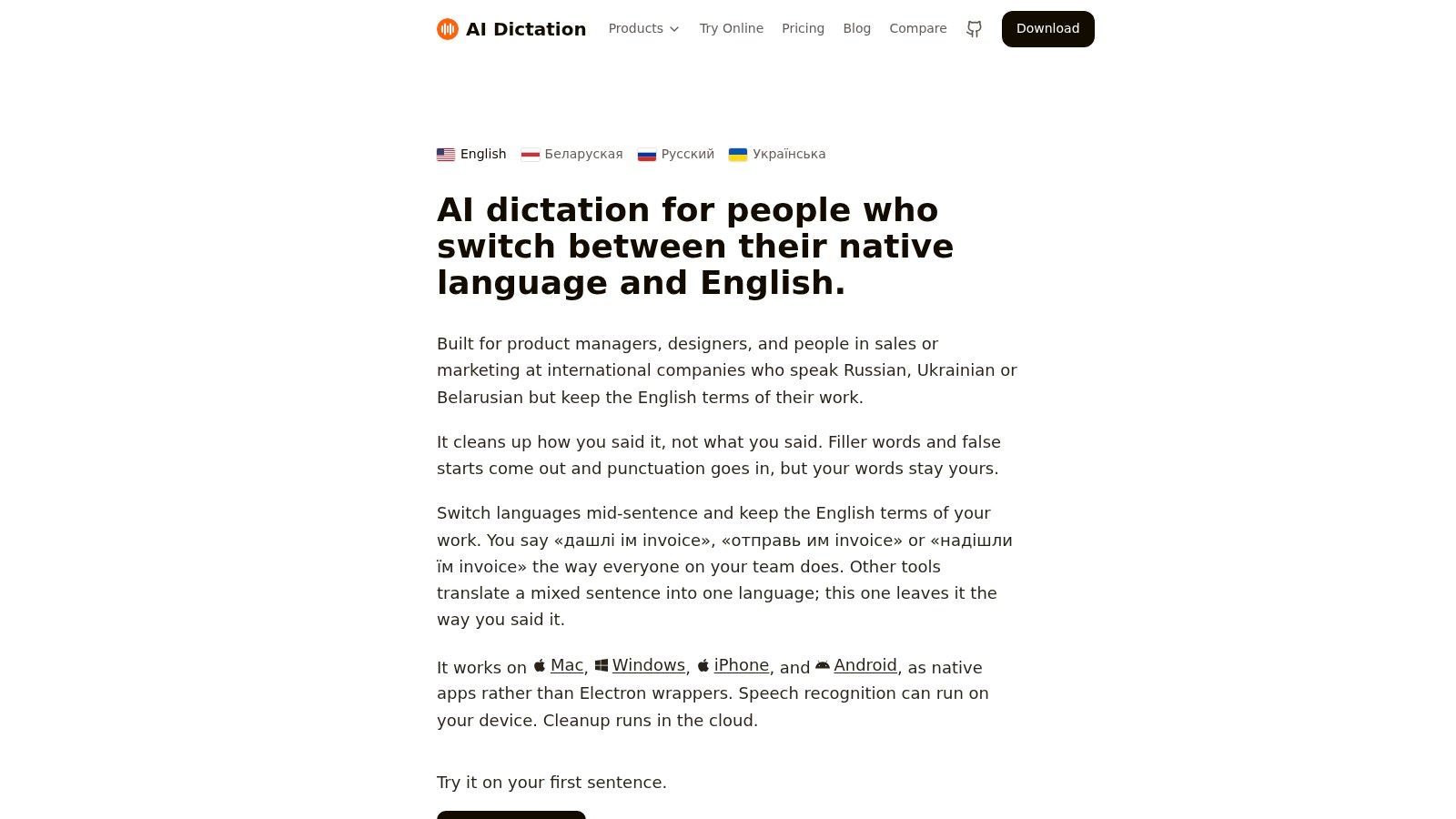
AIDictation is one example to assess against those criteria: the publisher lists a 2,000-words-per-month free tier with no account, Local Mode, and Pro options for unlimited cloud and local models. Those details describe its offer, not a guarantee that its transcription will suit your voice or a regulated workflow. Verify current terms and test its email formatting in the apps you use.
The product's stated workflow includes context rules and cleanup features for dictation. To see how a tool handles its interface, look at the screenshot above, then compare the result with your own draft rather than relying on a demonstration alone.
The video below can provide another look at the product experience. Treat it as an orientation, then use the same test script and privacy questions you'd use for any candidate.
The right choice is the tool that passes your personal accuracy test, answers privacy questions clearly, and fits your platform and budget. A feature list can help you decide what to test, but your own voice and workflow should decide whether it stays installed.
Choosing the Right Setup for Your Workflow
Use your work to narrow the choice. If you dictate messages containing sensitive or regulated information, prioritize clear answers about local processing, transmission, retention, and deletion. If your messages include multiple languages, unfamiliar names, or a strong regional accent, run a personal accuracy test with those exact conditions and check whether custom vocabulary helps.
For people who write long, structured messages, focus on the cost of editing. Filler-word removal, handling of spoken corrections, and formatting that fits the email client can make a draft easier to use. Raw recognition speed won't help much if every paragraph needs rebuilding.
AIDictation's Auto Mode is one example of a setup that can switch between local and cloud processing. Its free tier can be used to assess the tool against a personal test before deciding whether a paid plan fits. For practical guidance on using voice input in Gmail, see this guide to dictating in Gmail.
You now have a way to compare processing modes, test recognition on your own speech, and check how a vendor handles audio. Use that framework to choose the setup that fits your inbox, your privacy requirements, and the amount of correction you're willing to do.
AIDictation offers local and cloud dictation options, custom vocabulary, and formatting features for turning speech into editable writing. Try its free tier with your own email test, then visit AIDictation to review whether its workflow fits your platform and privacy needs.
Frequently Asked Questions
What does Email Dictation Software: What It Is and How to Choose cover?
You've dictated a complicated email into your phone while walking between meetings. Now it's sitting in a notes file as one long paragraph, so you copy it into Gmail and fix the punctuation, names, and formatting by hand.
Who should read Email Dictation Software: What It Is and How to Choose?
Email Dictation Software: What It Is and How to Choose is most useful for readers who want clear, practical guidance and a faster path to the main takeaways without guessing what matters most.
What are the main takeaways from Email Dictation Software: What It Is and How to Choose?
Key topics include Table of Contents, What Email Dictation Software Actually Does, How Voice Becomes an Email Behind the Scenes.
Ready to try AI Dictation?
Experience fast voice-to-text on your device. Free to download.
Download FreeRelated Posts
Choosing a Medical Dictation App for Clinical Work
Compare medical dictation apps on HIPAA compliance, on-device vs cloud, medical vocabulary accuracy, EHR integration, and pricing to find the right fit.
Free Audio to Text Tools: 10 Options Compared for 2026
Compare 10 free audio to text tools: built-in recorders, free apps, offline models, and cloud APIs, with privacy and accuracy trade-offs.
Verbal Ink Transcription Workflows Today
Explore verbal ink transcription workflows, accuracy benchmarks, and how modern AI dictation tools compare to traditional human transcription services.