10 Technical Writing Best Practices for 2026
A developer is preparing a release, a clinician is checking a workflow, or a product specialist is answering a customer question. Each person needs a trustworthy answer quickly, but the documentation contains vague headings, inconsistent terms, dense paragraphs, or steps that no longer match the product. Polished grammar won't rescue information that's hard to find or unsafe to follow.
Strong technical writing is a system of decisions. You decide who needs the information, what they already know, which terms to use, how to structure the task, how to test examples, and who will maintain the page after publication. Technical writing best practices also extend beyond prose into accessibility, localization, review gates, version control, and measurement.
Dictation can support that workflow without replacing judgment. On macOS, AIDictation can capture an outline, clean spoken drafts, format lists, and adapt output to contexts such as email, chat, or code comments. The writer still has to verify technical facts, sensitive content, links, and formatting. The following practices connect audience analysis to a repeatable production process.
Table of Contents
- 1. Know Your Audience and Adapt Tone
- 2. Provide Context Before Instructions
- 3. Structure Information Hierarchically with Clear Headings
- 4. Write Clear, Concise, and Direct Instructions
- 5. Use Consistent Terminology and Maintain a Style Guide
- 6. Include Examples, Scenarios, and Use Cases
- 7. Document Visually with Diagrams, Screenshots, and Flowcharts
- 8. Optimize for Scanability and Quick Reference
- 9. Make Code Samples and Comments Explain Intent
- 10. Maintain Accuracy with Review Gates and Version Control
- 11. Design for Accessibility and Localization from the Start
- 11-Point Technical Writing Best Practices Comparison
- Turn the Practices into a Repeatable Documentation System
1. Know Your Audience and Adapt Tone
A useful document starts with a specific reader, not an imaginary “user.” A physician reviewing a clinical workflow, a junior developer following a setup guide, and an infrastructure engineer checking an API reference may use the same product, but they need different explanations, terminology, and levels of detail.
Write down the reader's role, task, expertise, environment, and risk if the instruction is misunderstood. A beginner tutorial should define prerequisites and explain decisions. An advanced reference should prioritize exact parameters, constraints, and failure behavior. Patient-facing material should avoid unexplained clinical language even when the internal medical documentation uses it precisely.
A practical audience profile might include:
- Primary task: What must the reader complete or decide?
- Existing knowledge: Which concepts can you assume, and which need a definition?
- Working conditions: Is the reader scanning during an incident, consulting a protocol, or learning at a desk?
- Preferred format: Does a table, procedure, example, or conceptual explanation reduce effort?
AIDictation can help when the same subject needs multiple versions. Its context rules can shape output differently for a formal email, a casual Slack message, or a technical editor. Its custom dictionary can also preserve audience-specific names and terms during dictation. Cloud Mode can refine a rough draft's tone, but it shouldn't decide whether a clinical phrase or product term is appropriate.
Practical rule: Document your assumptions at the top of the draft, then test the finished page with someone who matches the intended audience.
2. Provide Context Before Instructions
Readers often fail a procedure before the first step because the document never explains what the procedure accomplishes. A sequence such as “Open the diagnostic module and enter the result” gives an action, but not the reason, prerequisites, expected outcome, or consequences of choosing the wrong option.
Use a short context layer before the procedure. For software, explain authentication, request and response behavior, or required permissions before presenting an API call. For a clinical workflow, explain what a test measures and how its result affects the next decision. For an EHR task, a brief rationale can help staff understand why a field matters instead of treating the workflow as arbitrary data entry.
A compact opening can include:
- Before you start: List accounts, permissions, equipment, files, or prerequisite knowledge.
- Why this matters: State the operational, clinical, or business reason for the task.
- Expected result: Describe what the reader should see or be able to do afterward.
- Related foundation: Link to a glossary, primer, or introductory guide for readers who need it.
Progressive disclosure keeps this balance manageable. Put essential context first, then move advanced configuration, edge cases, and implementation detail into later sections. Don't force an expert through a long lesson, but don't make a novice infer the mental model from isolated commands.
When dictating, speak the rationale before the steps. AIDictation can turn that spoken explanation into a clean paragraph, but the writer should still remove assumptions that aren't true for every reader and confirm that links lead to the right foundational material.
3. Structure Information Hierarchically with Clear Headings
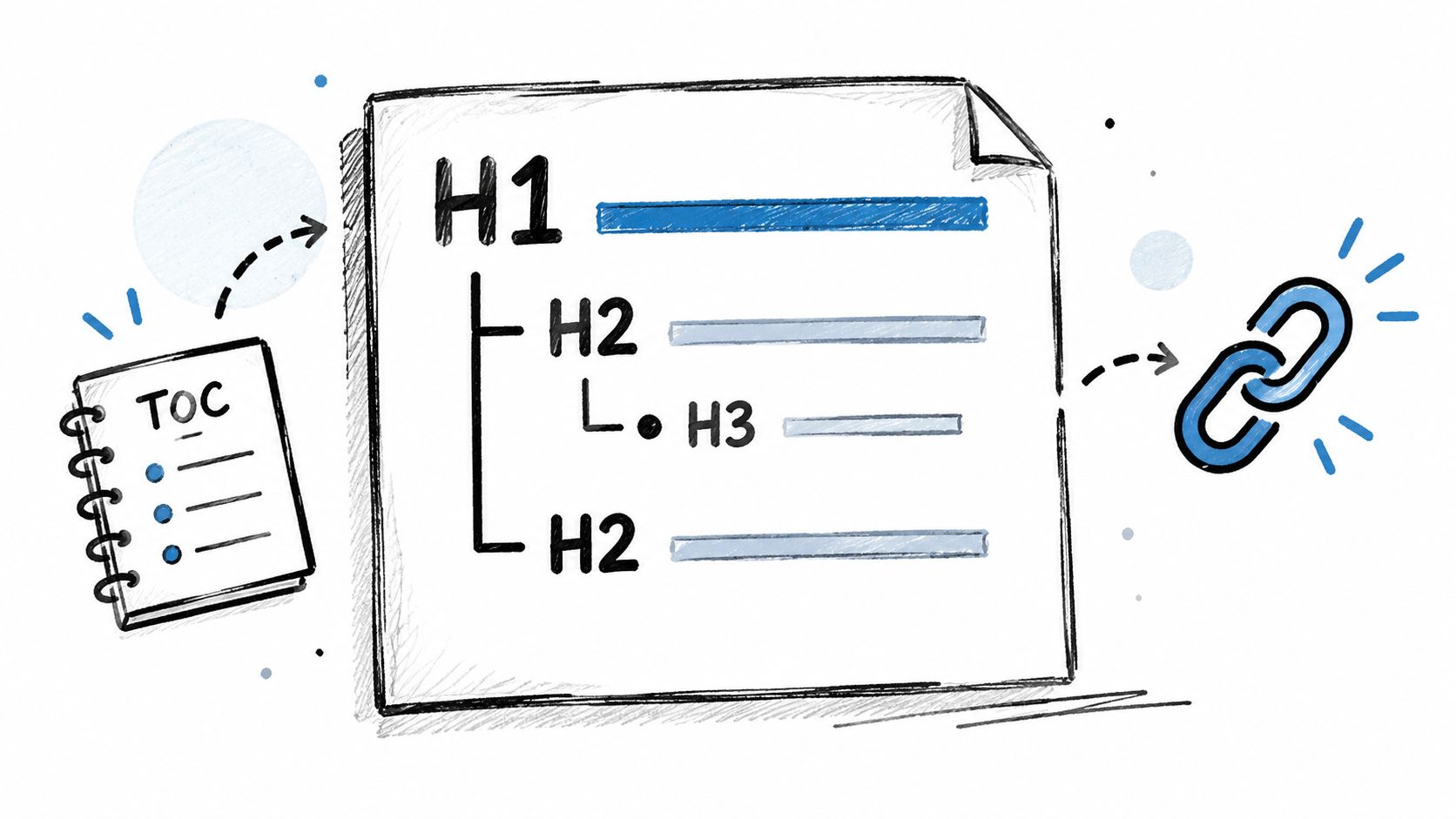
A page should reveal its logic through its headings before anyone reads the body copy. A medical protocol might move from Patient Assessment to Vital Signs to Blood Pressure Measurement. An API guide might progress from Authentication to OAuth 2.0 to Authorization Code Flow. Each level narrows the reader's question.
Use descriptive headings that name the information beneath them. “Overview” and “Details” tell readers little. “Configure OAuth redirect URLs” tells them what they'll find and helps search tools, screen readers, and people skimming the page.
Draft the hierarchy before writing full paragraphs. Keep the structure shallow enough to remember, and use parallel grammar across related headings. If one heading begins with a verb, nearby task headings should usually do the same. If you can read only the headings and still understand the sequence, the outline is doing useful work.
AIDictation's context rules can help format dictated headings consistently, but automatic formatting doesn't replace information architecture. Review heading levels manually, make sure they aren't skipped for visual effect, and check that every heading contains material that earns its place.
For a practical guide to planning and arranging documentation, see AIDictation's content structure guide. Use it as a planning reference, then adapt the hierarchy to the reader's task rather than copying a template mechanically.
4. Write Clear, Concise, and Direct Instructions
Technical instructions should tell readers what to do, in the order they need to do it, using terms they can recognize in the interface. “The system allows access to records” describes a capability. “Open the EHR, select Patient Records, enter the patient ID, and review vital signs” gives the reader a procedure.
Prefer active voice, concrete verbs, and one meaningful action per step when the task is error-prone. Use numbered steps for sequence and bullets for alternatives, requirements, or non-sequential facts. Put the expected result and recovery path close to the action that produces them.
Technical writing has long connected clarity with measurable readability. The Automated Readability Index, derived for technical materials in a paper published by Edgar A. Smith and J. Peter Kincaid in 1970, helped formalize evaluation based on sentence length and word complexity rather than relying only on subjective judgment, as described in the historical readability research. The practical lesson remains simple: shorten overloaded sentences, control vocabulary, and remove nominalizations when a direct verb works.
Dictation can produce natural spoken phrasing, but speech also brings filler words and hedging. AIDictation's filler-word removal and Cloud Mode cleanup can create a cleaner first pass. Read the final procedure aloud anyway. If you need to reread a step to determine who acts, what they select, or what success looks like, rewrite it.

5. Use Consistent Terminology and Maintain a Style Guide
Inconsistent terminology makes readers wonder whether two words describe the same thing. A developer shouldn't have to decide whether “API endpoint,” “endpoint,” and “API” are interchangeable. A medical team shouldn't alternate between a formal diagnosis, an acronym, and a colloquial phrase without explaining the distinction.
Create a terminology record before a large documentation set grows. Include the preferred term, prohibited alternatives, definition, capitalization, plural form, and any audience-specific exception. Add product names, API objects, clinical abbreviations, team names, and interface labels. A short rationale helps reviewers defend a decision later.
A style guide can cover voice, sentence structure, UI capitalization, code formatting, links, warnings, dates, and localization rules. You can adopt an established guide from Microsoft, Apple, Google, or the Chicago Manual of Style, then document the exceptions that fit your product.
For teams dictating across healthcare, engineering, and product work, AIDictation's custom dictionary can preserve names, acronyms, and technical terms during recognition. Context rules can also apply different formatting by application. That support is useful, but it's not a substitute for a shared editorial decision.
Keep the guide easy to find and review it when terminology changes. AIDictation's technical writing tools overview can help teams evaluate where dictation, custom vocabulary, and document workflows fit into the broader toolset. The important control is ownership. Someone must decide which term wins when authors disagree.
6. Include Examples, Scenarios, and Use Cases
Abstract instructions become useful when readers can see a realistic input, action, and result. An API page that says “make an authenticated request” leaves too much unsaid. A focused example can show the request shape, the required header, the expected response, and what happens when authentication fails.
Use examples to answer what, why, when, and what could go wrong. A healthcare training page might describe a patient with chest pain, then show how staff enter vital signs, record the chief complaint, and select the relevant diagnosis code. A product guide might show the path from Settings to Users to Add User, then explain which role to choose and when the invitation is sent.
Good examples have boundaries. Label placeholders clearly. Don't use credentials that resemble real secrets. Use representative data without exposing personal information. For code, run the sample in a clean environment and test the exact version or configuration described on the page.
A layered pattern works well:
- Basic example: The shortest successful path for a new reader.
- Annotated example: Comments explain important decisions and assumptions.
- Failure example: A common error, its cause, and the corrective action.
- Advanced example: A realistic variation linked to configuration or reference material.
Dictation is useful for explaining why an example works. Speak the walkthrough separately from the code, then place the explanation beside the relevant block. AIDictation can clean the prose, while a human verifies every value, command, label, and output.
7. Document Visually with Diagrams, Screenshots, and Flowcharts
Some information is easier to understand as a relationship than as a paragraph. A sequence diagram can show a client request, authentication step, server process, and response. A clinical flowchart can make the path from intake to assessment and treatment decision visible. A screenshot can locate a control that would be difficult to identify from words alone.
Choose the visual based on the information type:
- Flowcharts: Use for decisions, branching procedures, and escalation paths.
- Sequence diagrams: Use for interactions among services, users, or systems.
- Screenshots: Use to identify interface controls, but update them when the interface changes.
- Tables: Use for comparisons, parameters, permissions, and quick reference.
- Architecture diagrams: Use to show components, dependencies, and data movement.
A visual should support the text, not replace it. Explain the main takeaway in surrounding prose, provide useful alternative text, and avoid relying on color alone. Add version information to screenshots and diagrams when a changed interface could make them misleading.
AIDictation can help you describe a workflow while it's fresh. Dictate the actors, decisions, and outcomes first, then turn that description into a diagram with the appropriate tool. Test the visual with someone unfamiliar with the process. If they can't identify where to begin or what a symbol means, the diagram needs revision.

A short demonstration can reinforce the role of visual structure in a documentation workflow.
8. Optimize for Scanability and Quick Reference
Most readers don't approach documentation as a book. They arrive with a question, search for a term, scan headings, and look for the smallest reliable answer. A page that makes the answer easy to locate respects the reader's time and reduces the chance that they'll skip a warning hidden inside a paragraph.
Put the primary action near the top. Use short paragraphs, meaningful subheadings, bullets, bold terms, and whitespace. A quick-reference section can summarize endpoint methods and required parameters. A release note can group changes under Fixed, Added, and Changed. A clinical reference can separate findings, contraindications, and escalation criteria.
Purdue OWL recommends using graphics and tables to make statistics easier to interpret, giving readers enough information to understand results, and including variability measures such as standard deviation when applicable, as explained in its guidance on writing with statistics. The U.S. Government Analysis Function also emphasizes plain language, concise main messages, and context about limitations and trends in its statistical communication guidance. The broader principle applies beyond statistics: structure information so readers don't have to reconstruct meaning from dense prose.
Test scanability with a real task. Ask someone to find a parameter, warning, or recovery step under time pressure. Watch where they pause. If the page makes them search through paragraphs for a fact that could be labeled, promote that fact into a heading, list, callout, or table.
9. Make Code Samples and Comments Explain Intent
A code sample earns trust when readers can copy it, understand its assumptions, and predict its behavior. Keep the first example focused. Show the smallest working request or function, then link to advanced configuration, error handling, and security considerations instead of burying the beginner in every option.
Comments should explain decisions, constraints, and surprising behavior. A comment that says “increment retry count” repeats the syntax. A comment that explains why retries stop after a limit, or why a request isn't retried for a particular error, preserves the reasoning future maintainers need.
Use this review sequence for every copyable example:
- Run it: Test the exact snippet in a clean environment.
- Label it: Mark placeholders such as
YOUR_API_TOKENclearly. - Explain it: Describe inputs, outputs, permissions, and expected failure conditions.
- Check versions: Confirm that the library, endpoint, and syntax match the surrounding text.
- Revisit it: Review the sample when the product or API changes.
Dictate the explanation separately from the code. Spoken explanations often reveal the intent, but voice recognition can mishear API names, flags, and identifiers. A custom dictionary can reduce terminology errors, while human technical review must catch anything that changes behavior.
Don't comment every line. Dense commentary makes a simple example harder to scan. Explain the parts a reader couldn't infer safely from the syntax.
10. Maintain Accuracy with Review Gates and Version Control
A documentation page is ready only after its instructions, examples, links, terminology, and warnings pass defined checks. Assign ownership before publication so someone remains responsible for the page afterward.
Use review gates that separate responsibilities:
- Draft: Record the task, rationale, assumptions, and open questions.
- Subject matter review: Have the relevant clinician, engineer, product specialist, or domain owner verify the meaning.
- Editorial review: Check structure, clarity, terminology, and consistency.
- Technical validation: Run procedures and code samples, test links, and verify interface details.
- Publication: Record the version, effective date, owner, and change summary.
- Maintenance: Recheck the page when the product, policy, API, or workflow changes.
Treat documentation as part of product quality. An empirical study of user documentation and information-system satisfaction connects documentation quality with user satisfaction. Incorrect steps generate support requests and weaken trust, even when the prose is polished. See this documentation quality guide for review checklists and versioning practices.
Dictation introduces another verification risk. AIDictation's Cloud Mode cleanup can provide a first pass for grammar, punctuation, and structure, but it cannot replace technical review. Compare dictated terms with the source system, run procedures and code, verify sensitive details, and record what changed and who approved it.
Use version control for documentation as you do for code. Mark deprecated content, preserve relevant historical versions, and publish documentation changes with product releases. Assign an owner to every important page, then schedule review when its dependencies change.
Maintenance is where teams often lose control. A recent State of Docs synthesis identifies upkeep as a major API-team challenge and describes recurring problems including duplication, missing ownership, absent review processes, and inconsistent terminology. Accurate documentation reflects the current product and can be removed when it no longer does.
11. Design for Accessibility and Localization from the Start
Accessibility isn't a final formatting pass. It affects the words you choose, the order of headings, the structure of links, the information carried by images, and the assumptions embedded in examples.
Write descriptive link text. “Open the authentication reference” tells readers what the destination contains, while “click here” provides no useful meaning out of context. Use headings in order, expand unfamiliar acronyms, and describe the purpose of a diagram in both surrounding text and alternative text. Don't make color, position, or visual emphasis the only way to understand a warning or decision.
Localization adds another layer of discipline. Avoid idioms, jokes, ambiguous pronouns, culturally specific examples, and sentence structures that translators must interpret. Use controlled terminology and a glossary so the same product concept receives the same translation. Flag screenshots, embedded text, dates, measurements, and examples that may need adaptation.
Research on accessibility in technical writing highlights plain language, consistent terminology, logical information architecture, descriptive headings, navigation aids, and culturally sensitive language, as discussed in this accessibility research for technical writing. These choices support screen-reader navigation and multilingual comprehension, but they also make pages easier for busy experts to scan.
Use AIDictation to capture a plain-language draft, then inspect the rendered document manually. Ask an accessibility reviewer and a native-language reviewer to test representative pages. If an instruction depends on a visual cue or an English idiom, revise the source content before translation rather than asking another team to repair it later.
11-Point Technical Writing Best Practices Comparison
| Practice | Implementation Complexity 🔄 | Resource Requirements ⚡ | Expected Outcomes 📊 | Ideal Use Cases ⭐ | Key Advantages 💡 |
|---|---|---|---|---|---|
| Know Your Audience and Adapt Tone | Medium, requires audience research and persona setup | Medium, time for profiling and context rules | Higher comprehension & engagement, ⭐⭐⭐⭐ | Multi-audience docs (healthcare vs. devs, user-facing content) | Tailors language, reduces misinterpretation |
| Provide Context Before Instructions | Medium, balance depth for novices and experts | Low–Medium, link curation, glossaries | Fewer support queries; better learning, ⭐⭐⭐⭐ | Tutorials, onboarding, clinical procedures | Explains rationale, supports self-service learning |
| Structure Information Hierarchically with Clear Headings | Low–Medium, planning and consistent hierarchy | Low, templates and outline time | Improved navigation and discoverability, ⭐⭐⭐⭐ | Long docs, API references, protocols | Enhances scannability; enables TOCs and anchors |
| Write Clear, Concise, and Direct Instructions | Medium, requires editing discipline | Low–Medium, editing and AI cleanup | Faster task completion; fewer errors, ⭐⭐⭐⭐⭐ | Safety‑critical steps, step‑by‑step procedures | Reduces ambiguity; critical for safety and speed |
| Use Consistent Terminology and Maintain a Style Guide | Medium–High, create & govern style rules | Medium, glossary tooling and reviews | Consistency across authors; easier localization, ⭐⭐⭐⭐ | Large teams, regulated domains, cross‑product docs | Improves credibility; enforces uniform language |
| Include Examples, Scenarios, and Use Cases | Medium, authoring and testing examples | Medium, sample creation and validation | Practical understanding; faster adoption, ⭐⭐⭐⭐ | Developer guides, clinical scenarios, tutorials | Demonstrates application; supports multiple learners |
| Document Visually with Diagrams, Screenshots, and Flowcharts | High, design and integration effort | High, design tools, skills, maintenance | Faster comprehension of complex relationships, ⭐⭐⭐⭐ | System architecture, workflows, UI procedures | Visual clarity; transcends long textual descriptions |
| Optimize for Scanability and Quick Reference | Low, formatting discipline and patterns | Low, style rules and templates | Faster lookup; mobile and time‑press friendly, ⭐⭐⭐⭐ | Release notes, quick guides, checklists | Speeds information retrieval; reduces cognitive load |
| Make Code Samples and Comments Explain Intent | Medium, testing and focused commentary | Medium, test environments and reviews | Easier implementation; fewer misuse errors, ⭐⭐⭐⭐ | API docs, SDKs, code tutorials | Clarifies assumptions and trade‑offs; aids maintenance |
| Maintain Accuracy with Review Gates and Version Control | High, process and coordination heavy | High, SME time, versioning tools, audits | Reduced risk; auditability and compliance, ⭐⭐⭐⭐⭐ | Healthcare, regulated docs, release‑sensitive content | Prevents costly errors; supports rollback and audits |
| Design for Accessibility and Localization from the Start | Medium–High, requires accessibility/localization knowledge | Medium, testing, localization workflows | Broader reach; fewer translation issues, ⭐⭐⭐⭐ | Global product docs, public health materials | Inclusive content; translation‑ready and screen‑reader friendly |
Turn the Practices into a Repeatable Documentation System
The practices work best as one production workflow, not as isolated writing tips. Start by profiling the reader and the task. Record what the reader knows, what they need to accomplish, what could go wrong, and what evidence will show that the task succeeded. Those decisions determine tone, depth, examples, warnings, and format.
Then outline the page before drafting. Put prerequisites, rationale, and expected results near the beginning. Define the terminology that will appear in the page, code, screenshots, and related content. Use a style guide and glossary to keep multiple contributors aligned. A recent study of tool adoption also indicates that documentation teams choose tools according to context, with simpler tools favored by smaller teams and early-career writers, so the workflow should match team maturity and documentation scale rather than imitate a complex stack without a clear need, as described in this study of technical writing tool adoption.
Draft the explanation and procedure in direct language. Add a basic example, a realistic scenario, and the likely failure path. Use a diagram, screenshot, flowchart, or table when the relationship is easier to see than describe. Make the page scannable with descriptive headings, short paragraphs, lists, and clearly labeled warnings. Then review accessibility and localization readiness before the content becomes expensive to change.
A practical macOS dictation loop looks like this:
- Speak the outline: State the reader, task, assumptions, rationale, and major steps.
- Capture the draft: Dictate the explanation, examples, warnings, and open questions.
- Clean the structure: Use AIDictation to remove filler, correct punctuation, and format paragraphs or lists.
- Verify the content: Check facts, terminology, code, links, screenshots, permissions, and sensitive information.
- Run the task: Ask a fresh user to follow the instructions without coaching.
- Publish with ownership: Record the version, change summary, reviewer, effective date, and responsible owner.
- Measure success: Watch search behavior, support questions, task completion, feedback, and reports of stale content.
Documentation quality is measurable in more than one way. Readability formulas can help compare drafts, structured statistics can help readers interpret evidence, and user feedback can expose unclear or incomplete procedures. Don't confuse a polished page with a successful page. The useful question is whether the intended reader can find the answer, understand it, act safely, and know what to do when reality differs from the happy path.
AIDictation fits the drafting portion of this system as a macOS voice-to-text option with context-aware formatting, custom vocabulary, and cleanup features. Its value depends on disciplined review. Speed is useful only when the final documentation remains trustworthy, findable, accessible, and maintainable. For broader guidance, see Zemith documentation best practices.
AIDictation helps you dictate technical outlines, procedures, code explanations, and product notes on macOS, then turn spoken drafts into cleaner, structured writing with context rules and custom terminology. Visit AIDictation to test a dictation workflow that supports faster drafting while keeping human verification at the center.
Frequently Asked Questions
What does 10 Technical Writing Best Practices for 2026 cover?
A developer is preparing a release, a clinician is checking a workflow, or a product specialist is answering a customer question. Each person needs a trustworthy answer quickly, but the documentation contains vague headings, inconsistent terms, dense paragraphs, or steps that no longer match the product.
Who should read 10 Technical Writing Best Practices for 2026?
10 Technical Writing Best Practices for 2026 is most useful for readers who want clear, practical guidance and a faster path to the main takeaways without guessing what matters most.
What are the main takeaways from 10 Technical Writing Best Practices for 2026?
Key topics include Table of Contents, 1. Know Your Audience and Adapt Tone, 2. Provide Context Before Instructions.
Ready to try AI Dictation?
Experience fast voice-to-text on your device. Free to download.
Download FreeRelated Posts
Email Dictation Software: What It Is and How to Choose
Learn what email dictation software is, how it works, and how to pick the right one. Covers accuracy, privacy, HIPAA, accents, and real buyer checklists.
Verbal Ink Transcription Workflows Today
Explore verbal ink transcription workflows, accuracy benchmarks, and how modern AI dictation tools compare to traditional human transcription services.
Apple Voice Recognition Software: Key Pros and Cons
Learn how Apple voice recognition software turns speech into text on your device, where it excels, and what tasks still challenge it in 2026.