Technical Documentation Design: Principles That Work
It's late, the install has failed, and a developer opens your documentation with a missing dependency error still on screen. The homepage offers a polished product overview. It doesn't mention the error, the dependency, or how to check what's installed.
The developer doesn't need a better introduction. They need a reliable next step.
Table of Contents
- Why Readers Arrive Blocked and What Design Must Fix
- Four Page Types and the Reader Goal Each Serves
- Navigation and Page Layout Readers Can Scan
- Audience Depth, Versions and Page Templates
- Accuracy Defects That Stop Readers Cold
- Tone, Plain Language and Accessibility Checks
- Rebuilding One Feature Page
- Run Your Next Doc Release Through This Checklist
Why Readers Arrive Blocked and What Design Must Fix
A reader who arrives after a failure is already carrying context: a command, an error message, an operating system, and a task they couldn't finish. Good technical documentation design helps them connect that context to a solution without starting over.

An enterprise-application documentation usability study, whose first survey included 41 participants, found that users typically started work without documentation and consulted it after encountering a roadblock; respondents' preferences also differed, with 49% preferring online documentation, 31% paper, and 12% CD-ROM.
That historical, small-sample enterprise study isn't a forecast of today's format preferences. Its useful lesson is behavioral: readers often arrive looking for recovery, not orientation.
Design the landing experience for the person who's stuck, not only for the person who's curious.
Translate that into concrete requirements:
- Task-based organization. Name pages after what readers want to accomplish and what can go wrong.
- Navigation from anywhere. A search result may land readers deep inside the site, so every page needs a route to related tasks.
- Standalone procedures. Include enough context to complete the task without reconstructing instructions from scattered pages.
When implementation knowledge hasn't reached the documentation, even a searchable page can mislead. SpecStory, Inc.’s guidance on how to reduce context lag in technical docs is a useful companion for keeping engineering context connected to published instructions.
The central design question isn't whether the homepage looks finished. It's whether someone who arrives with a problem can recognize the right page and trust what it asks them to do.
Four Page Types and the Reader Goal Each Serves
| Page type | Reader goal | Optimize for | Example page for AIDictation | Publishing test |
|---|---|---|---|---|
| Tutorial | Learn by doing a first success | Guided order and a safe first win | Dictate your first document | Can a new user finish it in one sitting? |
| How-to guide | Complete one specific task | Goal completion with few detours | Set up a technical vocabulary | Does the title name the task the reader came for? |
| Reference | Look up an exact value | Precision, completeness and stable terms | Custom dictionary settings | Can every field be found by its exact name? |
| Explanation | Understand why it works this way | Mental models and design rationale | Local versus cloud processing | Does it state what it does not cover? |
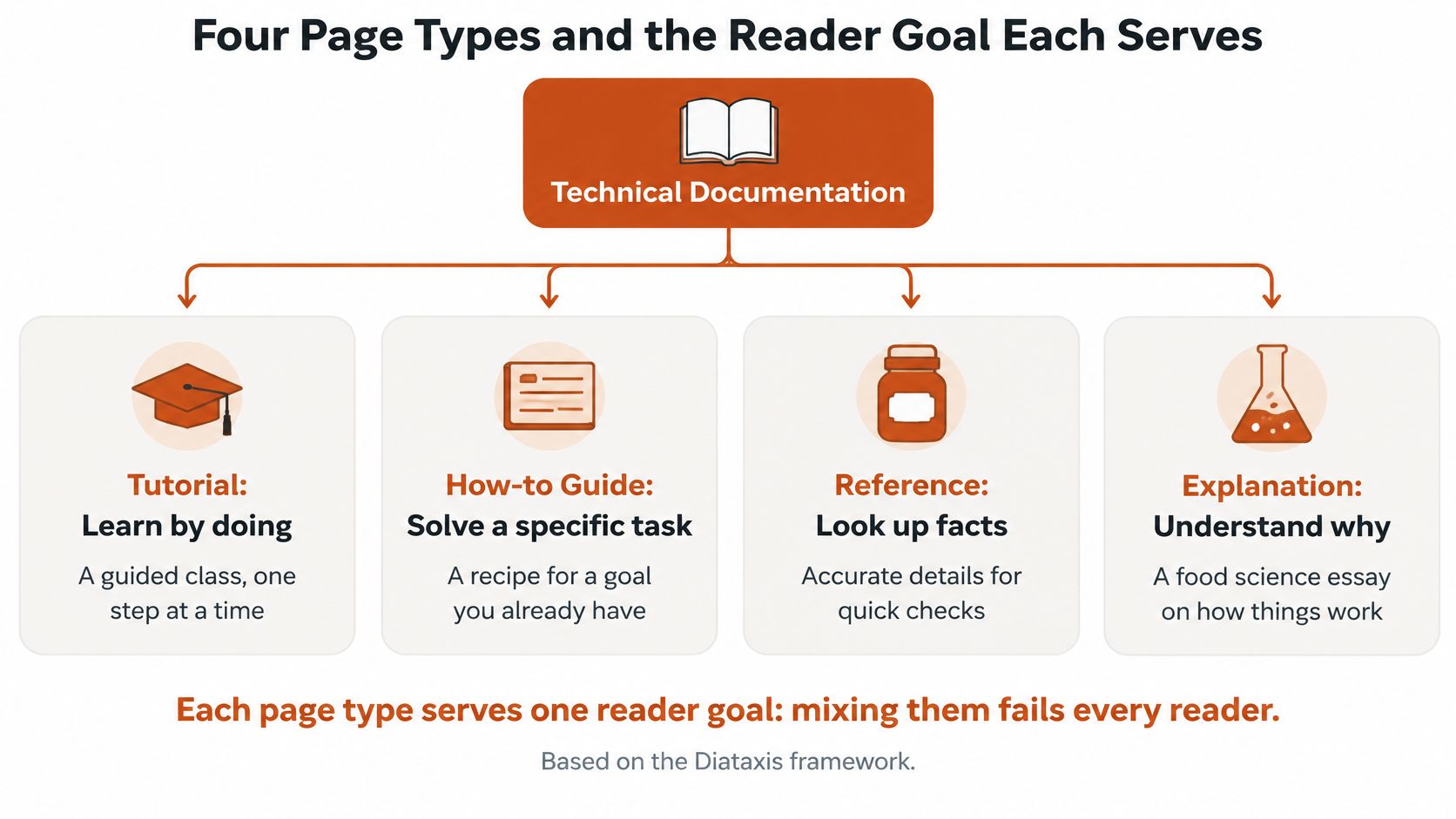
The Diátaxis framework separates documentation into tutorials, how-to guides, reference, and explanation according to the reader's goal. Think of a cooking school: a guided class, recipe card, pantry label, and food science essay all help, but they aren't interchangeable.
Give each page a clear job
A tutorial resembles the guided class. The writer chooses a safe route, supplies the ingredients, and avoids unnecessary decisions. A newcomer should finish with something working, not a survey of every possible configuration.
A how-to guide resembles the recipe card. The reader already knows the desired outcome and needs instructions. Put optional background behind a descriptive link rather than interrupting the procedure.
A reference page resembles the pantry label. Readers need exact names, accepted values, defaults, and restrictions. Consistent structure matters more than conversational flow because readers compare entries and scan for specific fields.
An explanation resembles the food science essay. It helps readers understand trade-offs and reasons behind a design. A page about processing choices should explain those choices without becoming a setup procedure.
Separate modes without isolating knowledge
Mixing these forms makes readers inspect every paragraph to discover whether it contains an instruction, a definition, or background. Keep those purposes distinct, then connect them with useful links.
For example, a procedure can link to system design documentation when readers need architectural context. It shouldn't require them to read the architecture discussion before completing an ordinary task.
Support content needs equally clear boundaries between answering a question and teaching a workflow. AgentStack's help center guidance for support teams offers a complementary perspective for teams organizing that material.
Use a compact header to declare the user goal, prerequisites, expected result, and next action. Then sort your existing pages by purpose and mark mixed pages for revision. Split conflicting purposes, not every subsection.
Navigation and Page Layout Readers Can Scan
Passengers at an airport scan for their gate, not the airline's organizational chart. Documentation readers behave similarly: they look for Set up, Dictate, or Fix problems, not the names of your internal feature teams.
Start with a task-based sidebar. Keep labels recognizable outside your company, and make the current location visible. A reader shouldn't need to understand your release organization to find microphone setup.
Build routes from the reader's vocabulary
Search should connect everyday words with product terminology. Someone searching for mic should find microphone guidance; someone searching for vocabulary should reach dictionary-related pages.
Give search results enough context to distinguish a setup guide from a reference entry. A title, audience label, and relevant excerpt help readers choose without opening every result.
- Breadcrumbs show location. Readers entering through search need to know which product area they've reached.
- In-page navigation shows scope. Longer pages benefit from a linked outline that exposes troubleshooting and verification sections.
- Related links support decisions. Use descriptive labels such as Troubleshoot microphone access instead of Learn more.
Keep these mechanisms consistent. A sidebar that changes unpredictably between neighboring pages makes readers relearn the site while trying to complete their work.
Make the procedure easy to inspect
Below the header, arrange information in the order someone needs it: preparation, action, verification, and recovery. If the task takes meaningful preparation, describe that effort plainly rather than inventing a completion-time estimate.
Use numbered steps for ordered actions. Keep commands in code blocks, provide accessible copy buttons, and distinguish placeholders from text readers can paste unchanged. Place the explanation of a command before it, not after a reader has already run it.
Reserve callouts for information that changes a decision or prevents harm. When every paragraph sits inside a colored box, readers can't tell which warning deserves attention.
Layout test: Can someone identify the starting condition, next action, and success condition without reading every sentence?
Don't turn a complete procedure into a chain of tiny pages connected by Next buttons. Keep the task together, even when background explanations live elsewhere. The practical trade-off is between a longer, coherent procedure and a shorter page that forces readers to hold missing context in memory.
Treat content structure as part of task design, not decoration. During an audit, ask a newcomer to find the path to successful first dictation from the homepage. Watch the labels they hesitate over, not just whether they eventually arrive.
Audience Depth, Versions and Page Templates
In JetBrains' survey of plugin developers, 78% of newer developers reported difficulty navigating a large codebase, compared with 49% of experienced developers. Those groups need different routes into the same system, not merely different amounts of introductory prose.
A newcomer needs orientation: where the feature belongs, what must already work, and which path to follow. An experienced reader may arrive knowing the workflow and need the exact API behavior or an edge case.
Layer depth around a complete task
Use Beginner, Admin, and Developer labels where they clarify who can perform an action or which knowledge the page assumes. Avoid turning them into separate, drifting copies of the same instructions.
Keep the main path complete, then provide:
- Orientation beside the starting point. Explain unfamiliar concepts before readers must act on them.
- Detailed reference beside decisions. Link exact settings and API behavior where readers choose values.
- Version context beside changed behavior. State applicable releases and explain migration differences without silently replacing old instructions.
A version selector should preserve context where possible. Switching releases shouldn't drop someone onto a homepage and make them search again.
Copy a useful header, not empty boilerplate
| Header field | What the writer supplies |
|---|---|
| Page type | Tutorial, how-to, reference, or explanation |
| Goal | The reader's intended outcome |
| Prerequisites | Access, setup, and knowledge required |
| Expected result | Observable evidence of success |
| Versions covered | Releases and environment tested |
| Next step | The most relevant follow-on action |
The survey concerned plugin developers, so test these distinctions with your own audience. Ask a newcomer and an experienced user to use the same draft; notice where either person has to leave it to continue.
Accuracy Defects That Stop Readers Cold
A clean layout can make incorrect instructions easier to follow. That's not an improvement.
An API documentation study involving 323 IBM software professionals identified ambiguity, incompleteness, and incorrectness as the most severe documentation defects, with content quality rather than visual presentation dominating the failures.
| Defect | What the reader hits | Design fix |
|---|---|---|
| Ambiguity | A timeout instruction with no unit, default, or range | State the unit, default value, and valid range |
| Incompleteness | A step assumes microphone permission the reader lacks | List prerequisites at the top with a check |
| Incorrectness | An example fails after a renamed setting | Run examples in CI and label the version |
| Missing error behavior | The reader cannot distinguish success from failure | Show an expected output and a common error with its fix |
| Stale visuals | A screenshot shows a menu that no longer exists | Assign an owner and a review date to each page |
Replace interpretation with observable facts
Ambiguity appears when the author knows something the page doesn't say. A timeout instruction needs the unit, supported range, default, and relevant behavior. Don't invent a plausible value to make the example look complete; get it from the implementation or specification.
Incompleteness often hides in the starting conditions. An author who already granted microphone permission may never encounter the permission prompt. Give readers a way to verify prerequisites, such as checking that the application appears in the operating system's microphone-access settings.
Incorrectness can survive careful copyediting. A renamed configuration field may look perfectly reasonable while failing immediately. Store executable examples where continuous integration, or CI, can test them against the intended release.
These are different defects, so they need different checks. A spellchecker won't detect a missing permission, and a passing command won't prove that the surrounding explanation identifies the right environment.
Verify outcomes and maintenance details
Document what readers should observe after an action. For a dictation task, that might be text appearing in the intended application rather than merely a recording indicator turning on.
Then cover a likely failure and its recovery path. If no text appears, readers need to distinguish an input problem from an application-focus problem before changing unrelated settings.
Screenshots require maintenance too. Capture the relevant interface state, remove unnecessary surrounding detail, and associate the image with the release it represents.
Release gate: An instruction isn't ready because an engineer recognizes it. It's ready when someone can execute it from the stated starting conditions and confirm the result.
Test every example, require an expected outcome for each procedure, and assign a named page owner. Ownership should include a trigger for review, such as a related configuration or interface change, rather than depending on someone remembering that the page exists.
Tone, Plain Language and Accessibility Checks
An instruction like “Open the settings and configure the vocabulary” sounds friendly until the reader can't find the setting. A better hypothetical instruction is: “Open Settings, then Vocabulary. Add each term on its own line.”
The revision names the destination and the action. It also removes just, which tells a struggling reader that the task should be easy without helping them perform it.
Write for action without sounding impatient
Use second person, present tense, and imperative steps: select, enter, open, check. Prefer a concrete object over an abstract verb such as configure when you can name the actual action.
Define unfamiliar terms when readers first need them. Explain the consequence of a destructive action before the confirmation step, not in a note beneath it.
- Keep actions distinct. Separate steps when readers must verify a result before continuing.
- Name interface elements consistently. Match visible labels, including capitalization.
- Remove blame. Describe the system state and recovery action rather than suggesting the reader made an obvious mistake.
Check access, not just appearance
Use the following as a practical accessibility audit, not a substitute for a formal conformance assessment. Numerical compliance thresholds need to come from the applicable accessibility standard and your team's approved testing criteria.
| Requirement | Acceptance check | How to check |
|---|---|---|
| Body text contrast | Text remains distinguishable from its background | Use a contrast checker on prose, code blocks, and callouts |
| Large text contrast | Titles and headings remain readable | Test their actual foreground and background colors |
| Icons and control borders | Essential controls are visually distinguishable | Inspect buttons, form fields, and interactive states |
| Interactive target size | Controls can be selected without precise pointing | Test copy buttons, tabs, and close icons at different zoom levels |
| Visible focus | Keyboard users can identify the active control | Tab through the page without a mouse |
| Heading structure | Headings describe a logical hierarchy | Inspect the page outline and screen-reader navigation |
| Image text | Informative images have meaningful alternatives | Ask whether the image's point survives without seeing it |
Color must never be the only way to identify a warning. Pair visual styling with a clear label and text that explains the consequence.
Screenshot alternatives should communicate why the image is present. If the screenshot locates a control, name that control and its location rather than describing the window's colors.
Audit a heavily used page against every row. Automated checks help, but keyboard testing and reading the page without its images expose problems a visual review can miss.
Rebuilding One Feature Page
Say a product manager hands you sparse notes for an Add domain terms feature: custom dictionary, term limit unconfirmed, sync unconfirmed, duplicates edge case. The notes capture questions, not publishable instructions.
AIDictation can expand those sparse bullets into readable documentation that teammates can review and comment on. The useful output is a reviewable draft, with unresolved claims still visible, rather than a polished page that conceals uncertainty.
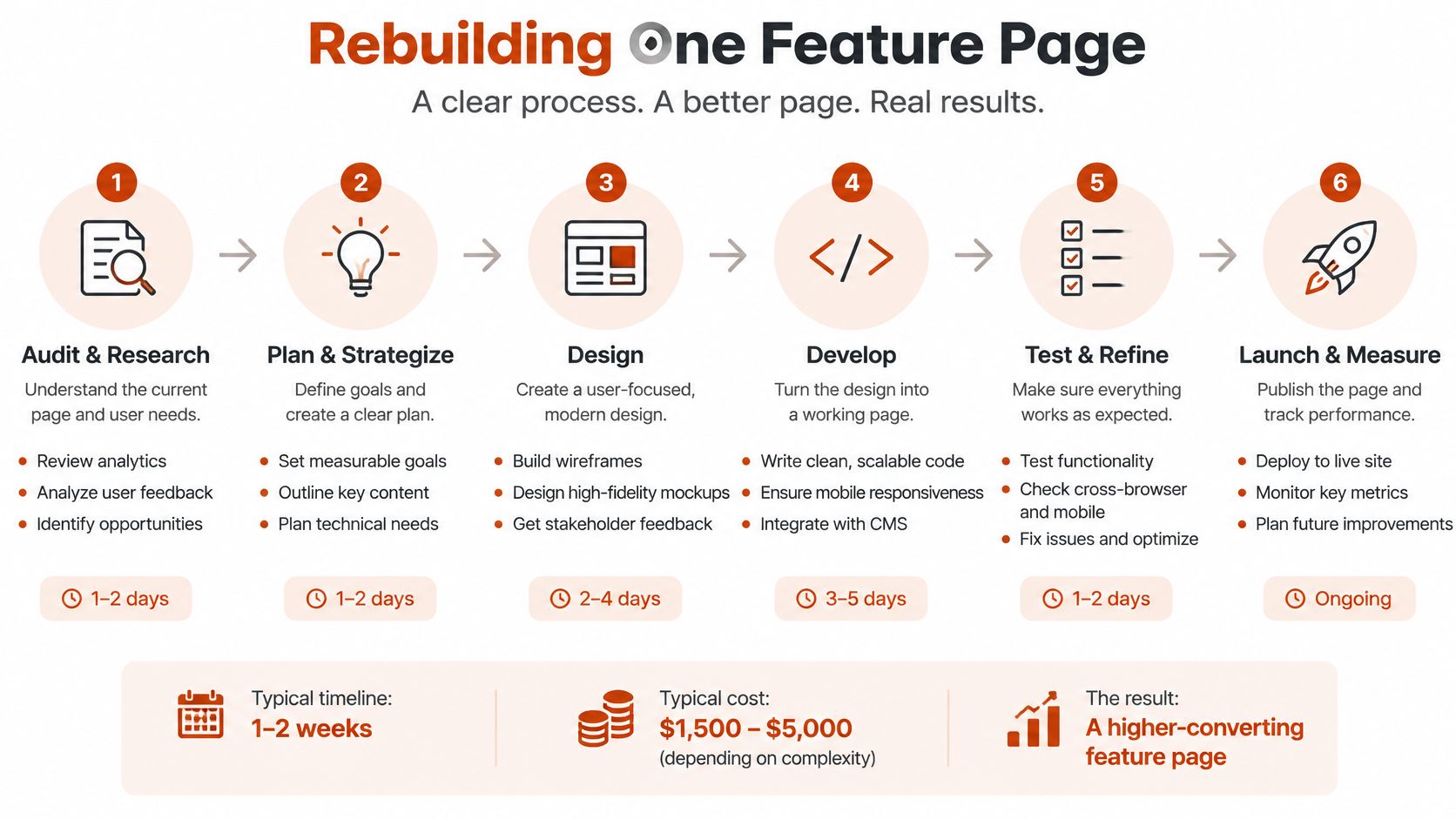
Treat the process as a series of evidence checks, not a race from notes to publication.
Turn the draft into something testable
The writer dictates the intended outcome, the reader's starting state, and the known actions. Any uncertainty about limits or synchronization stays in an editorial question attached to the relevant sentence.
Next, a teammate runs the procedure on a clean install or clean test profile. They follow the written instructions exactly, without using remembered shortcuts. If they need to ask where a setting lives, the draft needs another edit.
Then the team checks claims against the current release. A simple claim ledger can connect assertions to evidence:
| Draft claim | Evidence needed | Publishing decision |
|---|---|---|
| Terms are saved successfully | Reproducible application test | Publish after verification |
| Terms synchronize elsewhere | Current implementation or approved specification | Hold until confirmed |
| Duplicate entries receive specific treatment | Test of the duplicate-entry case | Describe the observed behavior |
| Local Mode has a stated privacy property | Security-reviewed description of the relevant processing path | Require human sign-off |
A privacy statement about Local Mode needs particular care when readers include regulated professionals. Reviewers must confirm the exact feature and processing path, not infer a broad compliance promise from a mode name.
Record approval, then watch the page in use
In Stack Overflow's 2025 Developer Survey, 46% of developers distrusted AI-tool accuracy, while 66% identified AI output that was “almost right, but not quite” as their biggest frustration. A fluent draft is therefore a starting point for verification, not evidence that verification happened.
Label AI-assisted sections in the editorial record and published content according to your policy. Record the reviewer, approval date, release tested, and any security-sensitive sign-off. Unresolved claims block publication rather than becoming vague assurances.
For teams comparing spoken explanation with structured written instructions, this video can accompany the drafting discussion.
After publication, track search exits and support tickets associated with the page. An exit alone doesn't prove failure: someone may have found the answer. Combine it with search reformulations, reported errors, and task testing before deciding what to change.
Factual correctness and operational usefulness are separate checks. The feature description may be true while the procedure still omits permissions, environment assumptions, or a way to undo an unwanted change.
For this example, the final review should include removing a test term and checking the resulting behavior. Readers need a controlled way back, not just a successful path forward.
Run Your Next Doc Release Through This Checklist
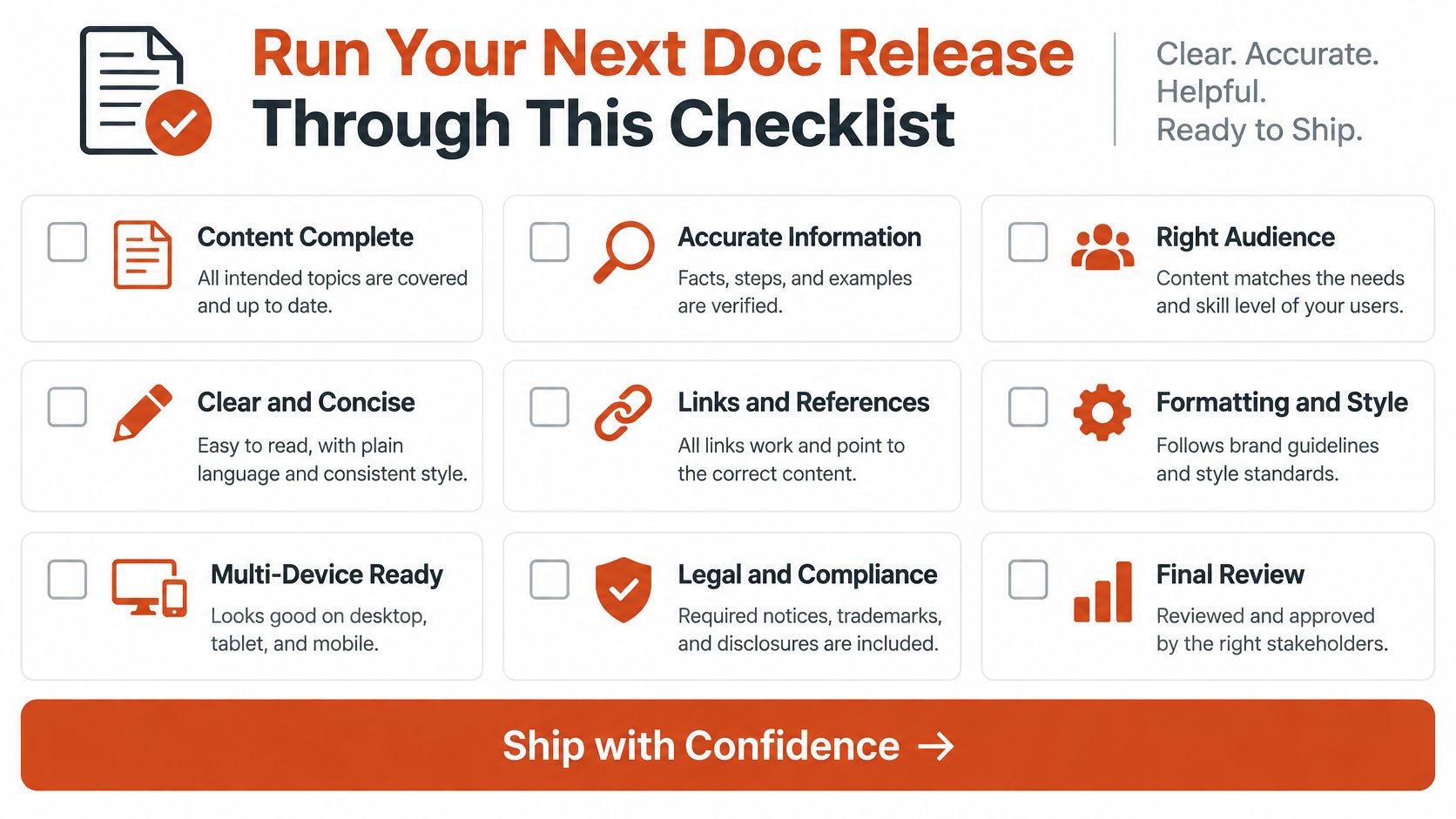
A documentation release needs evidence of readiness, not just an approved layout. Use this checklist on an actual page and keep the resulting test notes with its revision history.
Check the page before approving it
- Purpose is explicit. The page declares its type, and its content serves that reader goal.
- Starting conditions are visible. The header identifies the goal, prerequisites, expected result, applicable versions, and next step.
- The task stays intact. Readers can complete the procedure without reconstructing it across disconnected pages.
- Execution is recorded. Examples pass against the intended release, with the tested version captured.
- Defects have been challenged. Reviewers checked units, defaults, valid ranges, missing access requirements, and implementation changes.
- Access has been tested. Heading order, image alternatives, keyboard operation, and contrast have been checked on the published page.
- Assisted content is accountable. AI-assisted material has a label, named reviewer, and review date; sensitive instructions have human approval.
- Follow-up is assigned. Someone will inspect relevant search behavior and support tickets after release.
Use a shared documentation quality review to make these checks repeatable across writers. The point isn't to collect ticks. It's to expose a missing test, unresolved claim, or reader assumption before publication.
Choose the next improvement deliberately
Start with your busiest pages or those associated with repeated support requests. Fixing a broken setup procedure can help readers sooner than reorganizing an entire documentation site.
Tool fit belongs in that decision too. For teams dictating API explanations, PRDs, technical notes, and tickets, domain vocabulary is a relevant requirement. But our workflow isn't built for teams that need admin controls or for work that cannot send text to the cloud.
Keep drafting convenience separate from publishing authority. A writer can capture an explanation quickly while the team still requires evidence before treating it as an instruction.
Run the checklist on a page this week. Choose something readers already struggle with, execute it from the stated starting conditions, and fix the first point where a newcomer would have to guess.
AIDictation helps turn spoken technical explanations and sparse notes into structured drafts that teammates can review. Visit AIDictation if your team needs vocabulary-aware dictation for documentation, then put each draft through the same verification checks you'd apply to any release.
Frequently Asked Questions
What does Technical Documentation Design: Principles That Work cover?
It's late, the install has failed, and a developer opens your documentation with a missing dependency error still on screen. The homepage offers a polished product overview.
Who should read Technical Documentation Design: Principles That Work?
Technical Documentation Design: Principles That Work is most useful for readers who want clear, practical guidance and a faster path to the main takeaways without guessing what matters most.
What are the main takeaways from Technical Documentation Design: Principles That Work?
Key topics include Table of Contents, Why Readers Arrive Blocked and What Design Must Fix, Four Page Types and the Reader Goal Each Serves.
Ready to try AI Dictation?
Experience fast voice-to-text on your device. Free to download.
Download FreeRelated Posts
Software Code Documentation: The Practical Developer Guide
Master software code documentation with expert best practices for API docs, inline comments, and READMEs. Boost team velocity with proven workflows.
Onboarding Documentation: Types, Examples, and Tools
Learn what effective onboarding documentation looks like with real examples, types, and tools to streamline employee training and retention.
10 Technical Writing Best Practices for 2026
Master technical writing best practices with actionable guidance on clarity, structure, code, reviews, accessibility, localization, metrics, and dictation.