How to Dictate in Gmail (2026 Hands-Free Guide)
You're probably reading this with Gmail open in another tab, half a drafted reply sitting in the compose box, and a backlog that keeps growing faster than you can clear it. That's the exact moment when dictation stops being a novelty and starts becoming useful.
If you need to dictate in Gmail, there isn't one perfect method for everyone. Some people want a free workaround they can use in two minutes. Others need direct voice input inside Gmail. And some need something more dependable for stakeholder updates, technical notes, or sensitive email drafts where cleanup and privacy matter.
Table of Contents
- Why You Should Dictate Your Emails in Gmail
- Dictating in Gmail on Your Computer
- Using Voice Input on the Gmail Mobile App
- Unlocking Professional Dictation with AIDictation
- Essential Tips for Accurate Email Dictation
- Troubleshooting Common Gmail Dictation Problems
Why You Should Dictate Your Emails in Gmail
It's 8:47 a.m., your inbox already has twelve messages that need real replies, and none of them are hard. They just need words on the screen. That is exactly the kind of email work dictation handles well.
Typing slows down messages you already know how to answer. Speaking lets you get the draft out while the point is still clear in your head. For short replies, status updates, handoffs, and routine follow-ups, that usually means less friction and fewer half-finished drafts sitting in Gmail.
The gain is not just speed. It is also mental continuity. If you answer email between meetings or while switching between Slack, docs, and your calendar, dictation reduces the stop-start feeling that comes with constant keyboard work.
One practical rule helps: use dictation when the answer is already formed and the keyboard is the bottleneck.
That does not mean every voice method is equal. Free tools are fine for occasional use, but they often leave you doing cleanup work afterward. Punctuation can be inconsistent. Formatting can flatten into one long block. Privacy can also be a real consideration if you handle client details, internal discussions, or anything sensitive. If email is a major part of your day, it is worth comparing the basic options with a more professional speech-to-text workflow for Gmail before you settle on a setup.
The usual choices break down like this:
- Built-in OS dictation works well if you want something free and immediate.
- Google Docs voice typing is useful if you prefer drafting outside your inbox, then pasting the result into Gmail.
- Gmail browser extensions give you direct input in the compose window, but quality varies a lot between tools.
- A dedicated macOS dictation app such as AIDictation makes more sense for heavier email volume, especially when accuracy, privacy, and context-aware formatting matter.
That last category is the one generic Gmail dictation guides often miss. For occasional emails, the built-in routes are enough. For client work, sales outreach, support queues, or founder-level inbox volume, the better question is not “Can Gmail take dictation?” It is “How much editing do I want to do after I speak?”
If you want another practitioner-style walkthrough before choosing a setup, Meowtxt's 2026 Gmail dictation guide is a useful companion because it focuses on practical day-to-day usage instead of treating voice typing like a novelty feature.
Dictating in Gmail on Your Computer
Desktop is where users often find the most value from dictation. Longer replies, clearer microphones, better editing, and less thumb typing all help. The good news is that you can start free.
The fastest free routes on desktop
The first method is OS dictation. On macOS, enable Dictation in keyboard settings, click into a Gmail compose field, then trigger dictation with your keyboard shortcut. On Windows, use the built-in voice typing tool in any text field, including Gmail in a browser. This is the simplest route because it works anywhere you can place a cursor.
The second method is Google Docs voice typing, then copy the finished draft into Gmail. It adds one extra step, but many people like it because the drafting environment is calmer. If you tend to compose longer messages or think better in a blank document than inside your inbox, this workaround is still very practical.
The third method is a Chrome extension built for Gmail. This is the most direct path for people who specifically want to dictate in Gmail without moving between apps. Extensions typically add a microphone button inside the compose experience, so you can speak directly into the email body.
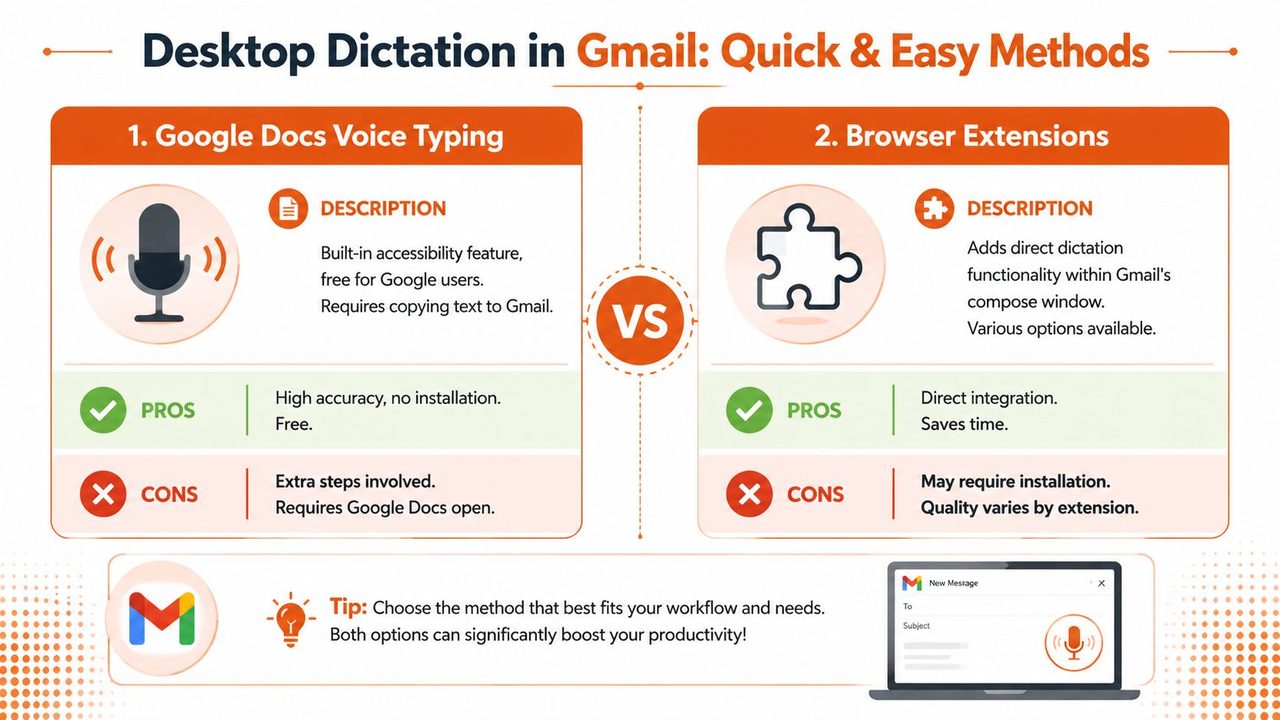
One trade-off matters more than most generic guides admit. The dominant approach for Gmail dictation uses Chrome extensions built on the Web Speech API, but that can create a privacy trade-off because audio may stream to extension servers, which is very different from local offline dictation on macOS, as explained in Notta's analysis of Gmail dictation methods.
That doesn't make extensions bad. It just means you should match the tool to the job. For casual internal updates, convenience often wins. For sensitive drafts, you should pause and think about where your audio goes.
A deeper walkthrough of Gmail speech workflows is also available in AIDictation's guide to speech to text in Gmail, which is useful if you want examples of how these options behave in real work.
Which desktop option fits your workflow
Here's the quick decision view:
| Method | Best for | What works well | Main downside |
|---|---|---|---|
| OS dictation | Fast replies and everyday drafting | Built in, no extra app hunting | Limited formatting control |
| Google Docs voice typing | Longer drafts and calmer composition | Good for thinking out loud before sending | Copy and paste adds friction |
| Browser extension | Direct Gmail use | Mic access inside compose window | Privacy and quality vary by tool |
If your emails are short and routine, built-in dictation is usually enough. If your inbox is heavy and your wording needs to be cleaner on first pass, the free tools start to show their limits.
A simple test works well. Dictate three real emails you already need to send: one short reply, one medium update, and one message with names or technical terms. The method that creates the fewest corrections is usually the right baseline for you.
Using Voice Input on the Gmail Mobile App
On mobile, dictation shines when you need speed more than polish. Think quick replies from a hallway, a parked car, or between meetings. It's not always the best place to draft a sensitive or highly structured email, but it's excellent for keeping the inbox moving.
How to dictate a message on Android and iPhone
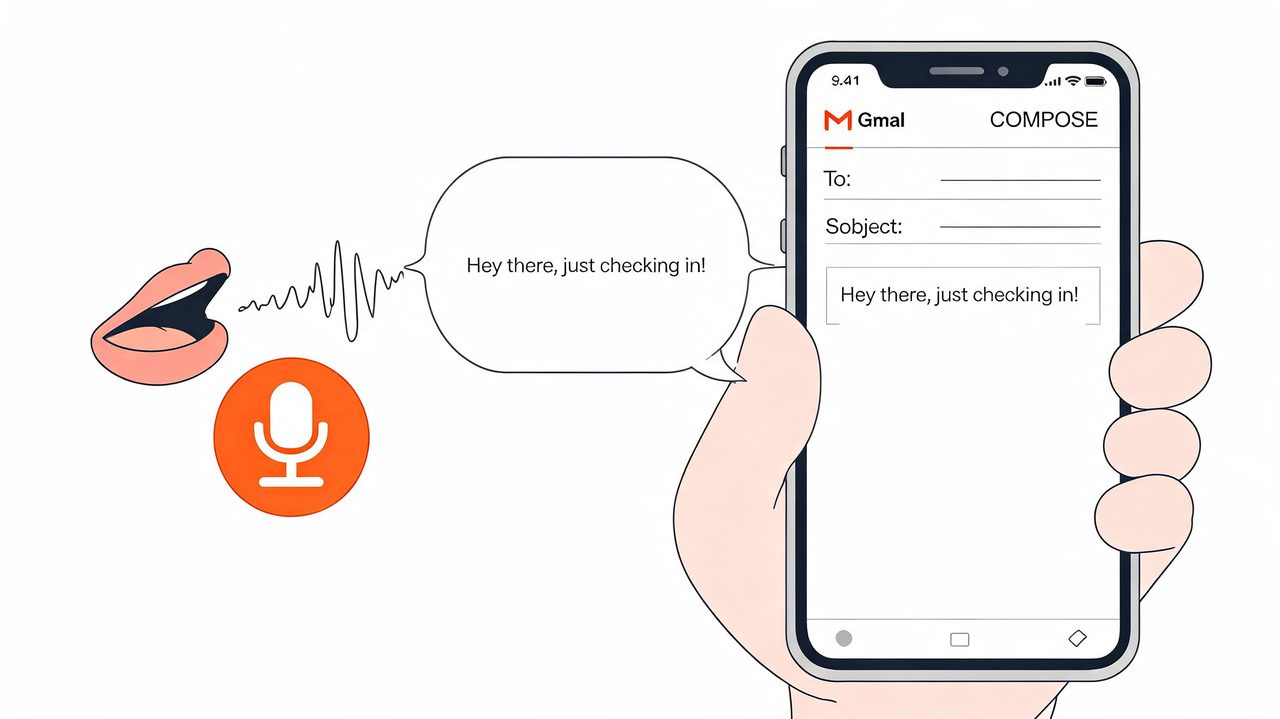
On Android, open Gmail, start a new message or reply, tap into the message field, then tap the Gboard microphone on the keyboard. Speak your message naturally. Say punctuation out loud if you need structure, such as “comma,” “period,” or “new paragraph.”
On iPhone, the process is similar. Open Gmail, place the cursor in the message area, then use the microphone on the iOS keyboard. Dictate in one thought at a time instead of mumbling through a whole paragraph. Short chunks are easier to review before sending.
Mobile dictation can be surprisingly effective for quick email work. According to Willow Voice's Gmail voice dictation guide, Gboard can make users 3x faster for short emails, but it's also 2x more error-prone than AI-polished tools for professional use, and native dictation can drop to 65% accuracy with technical terms. That lines up with real-world experience. Mobile is great for “Running 10 minutes late” and much less great for “Here's the revised implementation plan for the API migration.”
A short visual walkthrough can help if you haven't used keyboard dictation much yet:
Where mobile dictation works best
Use it when the message has a narrow goal:
- Confirming logistics like timing, location, or availability.
- Sending a fast acknowledgment so the other person isn't waiting.
- Capturing a thought immediately before it disappears.
Skip it when the email needs tight wording, dense terminology, or careful formatting. Mobile keyboards and small screens make cleanup slower, and that can erase the speed advantage.
Mobile dictation is strongest when the email could have been a voice note, but still needs to be sent as text.
Unlocking Professional Dictation with AIDictation
Free Gmail dictation is fine until email becomes part of the work itself. A quick reply can tolerate rough transcription. A client update, hiring note, support response, or technical summary usually cannot.
That is the point where basic speech-to-text starts costing time instead of saving it. You dictate fast, then spend the next few minutes fixing filler, punctuation, names, and phrasing that still sounds spoken instead of written.
Why basic Gmail dictation tops out
The common Gmail methods are built for input. Professional email needs drafting.
That gap shows up in predictable places:
- Raw transcription instead of usable prose. Spoken habits like repetition, mid-sentence corrections, and filler often come through untouched.
- Weak handling of specialized terms. Product names, acronyms, client names, and technical vocabulary still need frequent cleanup.
- Little awareness of context. An internal project update, a sales follow-up, and a support reply need different formatting and tone.
- Privacy trade-offs. Some drafts should stay local, especially if they include customer details, internal planning, or sensitive operational information.
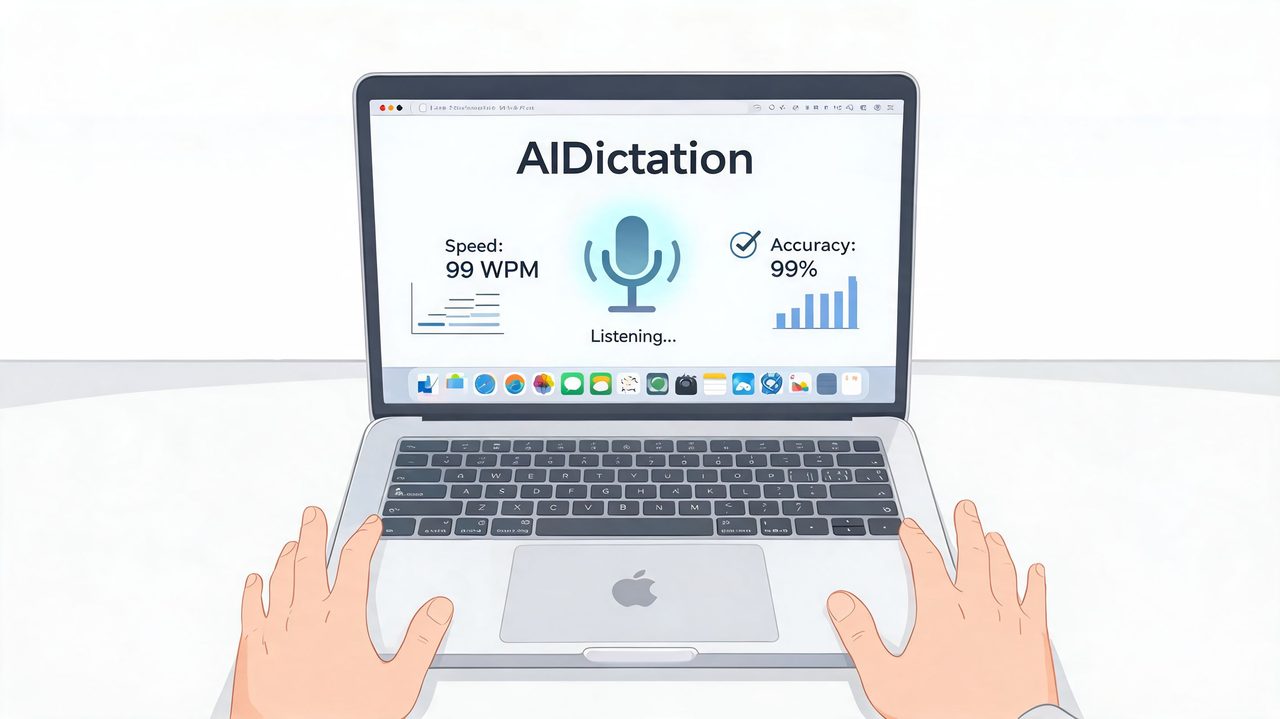
On macOS, AIDictation is built for that second stage. It does not just capture words. It helps turn speech into an email draft you can send, with local processing for sensitive work, cloud processing when you want stronger rewriting, custom vocabulary, and formatting that matches the job.
What changes with a professional setup
The practical difference is simple. You stop treating dictation as a transcript and start using it as draft creation.
Here is how that changes the workflow on a Mac:
| Need | Basic tools | Professional setup |
|---|---|---|
| Privacy | Depends on browser or service path | Local-first option for sensitive drafts |
| Cleanup | Manual editing after dictation | Automatic polishing and formatting |
| Terms and names | Repeated corrections | Custom dictionary support |
| Tone | Similar output across every message | Output can adapt to app and context |
In day-to-day use, this matters more than feature lists suggest. A product manager can speak rough notes for a stakeholder update and get something that already reads like email. A developer can dictate a handoff message without stopping every few seconds to fix punctuation. In healthcare-adjacent or compliance-heavy work, local processing can be the deciding factor because sensitive details often appear in drafts before they appear anywhere formal.
Privacy is one of the big reasons to move past generic browser dictation. Many guides skip that part. They focus on whether voice typing works at all, not where the audio goes or how much control you have over processing. A local-first tool is easier to justify when the message includes customer data, internal roadmaps, or staffing details.
The other big difference is formatting with context. Generic dictation tools hear words. Better systems can also shape them. That means cleaning up false starts, preserving the actual point, adding sensible punctuation, and producing text that sounds like written communication instead of a transcript pasted into Gmail.
If you want the product overview, AIDictation for macOS shows how the app handles local mode, cloud mode, and automatic switching. That flexibility is what makes it useful for serious email work. Privacy, polish, and speed do not always point in the same direction, so having more than one processing mode is a practical advantage.
If you're comparing dictation with broader Gmail workflow tools, Donely's Gmail plugin uses is a helpful reference because it shows a different side of email productivity. Input is only one part of the stack. Writing, formatting, follow-up, and automation all affect how efficient Gmail feels.
Once email quality affects how you sell, support, manage, or document work, "good enough" transcription stops being good enough.
Essential Tips for Accurate Email Dictation
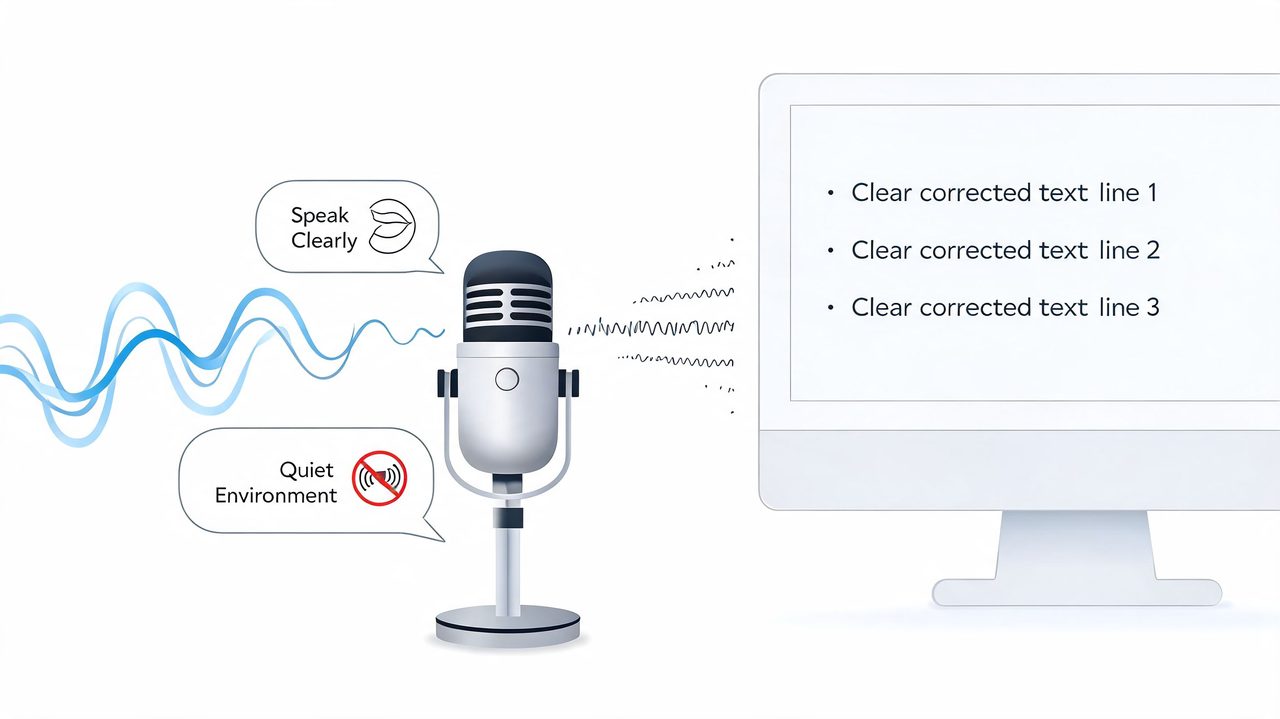
Accurate email dictation starts before you speak. The mic position, the room, and the way you phrase a sentence have more impact than another round of settings tweaks inside Gmail.
Speak for transcription, not conversation
Email dictation works best when you sound a little more deliberate than you do in a meeting. Short, complete thoughts are easier to transcribe and easier to read after the fact.
These habits usually clean up results fast:
- Use full sentences: “Thanks for the update period I'll send the revised deck by 3 PM” is easier for a dictation tool to process than a string of fragments.
- Say punctuation in longer drafts: “Comma,” “period,” and “new paragraph” help the message read like an email instead of a transcript.
- Slow down for names, acronyms, and numbers: Those are the parts that create expensive mistakes.
- Keep the room quiet: Turn off nearby audio, close the door, and stay in one place while dictating if possible.
The microphone matters too. A headset or dedicated mic placed close to your mouth usually beats a laptop mic across the desk, especially if you work in a shared space or have HVAC noise in the background.
One more practical fix. If the same product names, client names, or industry terms keep getting mangled, add them to a custom dictionary instead of correcting them by hand every day. AIDictation's custom dictionary setup guide is a good starting point for that, especially if your team uses repeated terminology.
Speak like you're drafting an email for a client, not leaving a rushed voice note.
Build a proofreading loop that takes seconds
The best dictation workflow is not “dictate perfectly.” It is “dictate once, review fast, send with confidence.”
Use this review order:
- Check names and numbers first. They cause the biggest downstream problems.
- Read the first sentence. If the opening is clean, the rest of the email usually holds up.
- Fix punctuation and paragraph breaks. That changes how polished the message feels.
- Read the last line out of context. Dictation tools often stumble when you stop speaking abruptly.
Keep the edits tight. If the message says what you meant, fix the obvious errors and move on. The goal is faster, cleaner email, not turning every dictated draft into a full rewrite.
For higher-stakes messages, the trade-off changes a bit. Browser and phone dictation are fine for quick replies. Longer client emails, sensitive internal notes, and messages with repeated terminology benefit from a tool that handles formatting and vocabulary more intelligently. That is where a professional setup earns its keep.
Troubleshooting Common Gmail Dictation Problems
When dictation fails, the cause is usually boring. Permissions, browser behavior, microphone selection, or noisy input account for most problems.
The mic button doesn't appear or won't start
If you're using a browser extension, first check that it's installed in the browser you're using. Gmail dictation extensions are often Chrome-specific, so people run into trouble when they assume the same setup will appear in Safari or another browser.
Then check microphone permissions at the browser and system level. If the tool has a visible mic icon but nothing happens when you click it, permissions are the first thing to verify. If you're using OS dictation, confirm the right input device is selected before testing inside Gmail again.
The transcript is messy or stops mid email
Bad transcription usually comes from one of three things:
- The mic is too far away
- Background sound is competing with your voice
- You're dictating in long, tangled sentences
Fix the input first. Move closer to the microphone, speak in shorter chunks, and retry with one clean sentence. If dictation keeps stopping, your network connection may be unstable, especially with browser-based or cloud-assisted tools.
Privacy deserves a separate mention. Browser extensions can be convenient, but some workflows route audio through external services. For low-stakes email, that may be acceptable. For confidential work, local-first dictation is the safer option because the audio handling is easier to reason about.
If Gmail is a daily writing surface for you, a better dictation setup pays back quickly. AIDictation is worth a look for Mac users who want local-first privacy, cleaner transcripts, custom dictionaries, and email-ready formatting instead of raw voice capture.
Frequently Asked Questions
What does How to Dictate in Gmail (2026 Hands-Free Guide) cover?
You're probably reading this with Gmail open in another tab, half a drafted reply sitting in the compose box, and a backlog that keeps growing faster than you can clear it. That's the exact moment when dictation stops being a novelty and starts becoming useful.
Who should read How to Dictate in Gmail (2026 Hands-Free Guide)?
How to Dictate in Gmail (2026 Hands-Free Guide) is most useful for readers who want clear, practical guidance and a faster path to the main takeaways without guessing what matters most.
What are the main takeaways from How to Dictate in Gmail (2026 Hands-Free Guide)?
Key topics include Table of Contents, Why You Should Dictate Your Emails in Gmail, Dictating in Gmail on Your Computer.
Ready to try AI Dictation?
Experience fast voice-to-text on your device. Free to download.
Download FreeRelated Posts
How to Use Voice Dictation on Mac
Use Voice Dictation on Mac. Master voice dictation on your Mac — from built-in Apple features to third-party tools like AIDictation
10 Best Dictate Software for Mac in 2026
Compare the best dictate software for mac in 2026 by accuracy, privacy, pricing, features, and use case—from Apple Dictation to AIDictation.
10 Technical Writing Best Practices for 2026
Master technical writing best practices with actionable guidance on clarity, structure, code, reviews, accessibility, localization, metrics, and dictation.