The 10 Best Dictation Software for Writers in 2026
You're staring at a blinking cursor, already halfway through the paragraph in your head. The phrasing is there. The structure is there. But your hands are slower than your thinking, and by the time you type the third sentence, the sharper version has vanished. That gap is where dictation becomes useful.
Good dictation software for writers doesn't just dump speech onto a page. The right tool lets you catch ideas while they're hot, draft faster than you type, and keep momentum when outlining, journaling, scripting, or roughing out a chapter. Some tools are better for raw capture. Some are better for polished output. Some are really transcription tools wearing a writer-friendly label.
The practical difference comes down to workflow fit. A novelist needs long-form stamina and custom vocabulary. A product manager needs clean bullets, action items, and fast switching between docs, chat, and email. A technical writer needs reliable terminology and less cleanup. A healthcare writer or clinician documenting notes has an extra concern: whether audio stays on-device or gets sent somewhere else.
That's why this guide sorts the field by actual use, not marketing categories. It focuses on what these tools feel like in real writing sessions, where they help, where they get annoying, and which trade-offs are worth accepting.
If you also want to improve writing grammar, pair dictation with a cleanup step. The strongest workflows usually combine fast spoken drafting with deliberate revision.
Table of Contents
- 1. AIDictation
- 2. Nuance Dragon Professional v16
- 3. Dragon Anywhere
- 4. Apple Dictation
- 5. Microsoft 365 Dictation
- 6. Google Docs Voice Typing
- 7. Windows 11 Voice Access
- 8. Otter.ai
- 9. Descript
- 10. MacWhisper
- Top 10 Dictation Tools for Writers: Feature Comparison
- Start Writing with Your Voice Today
1. AIDictation
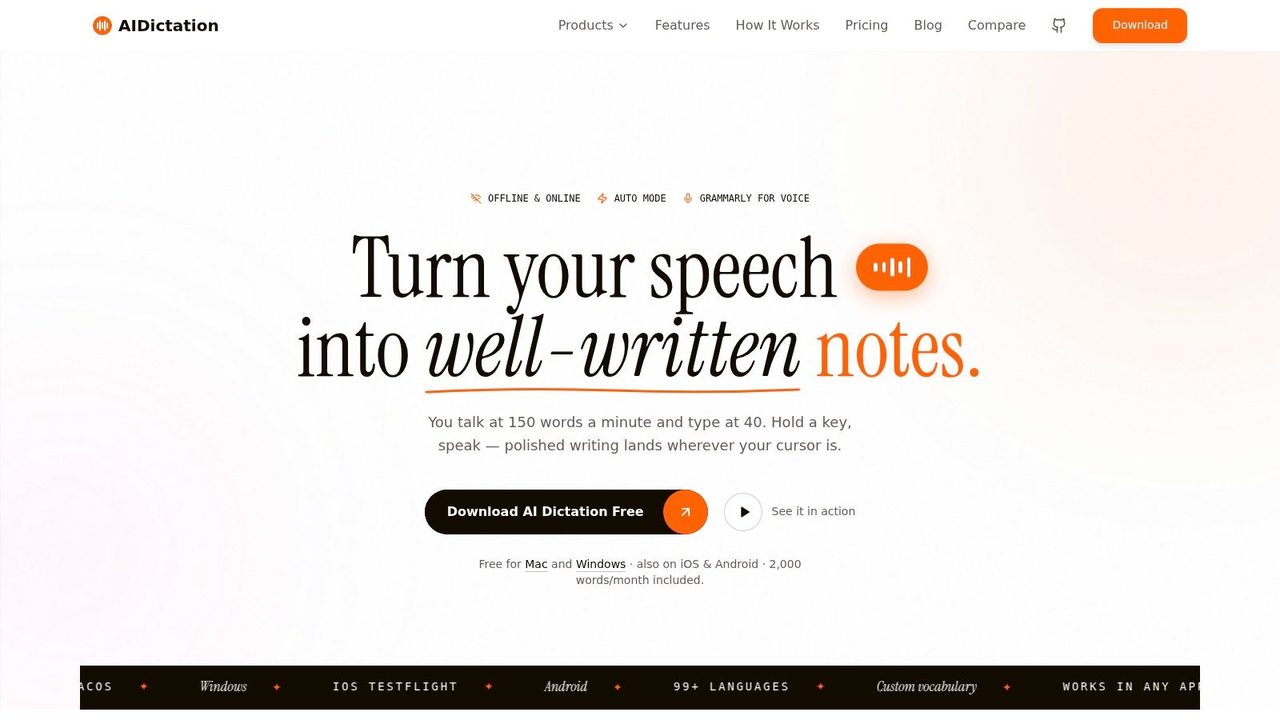
You dictate a rough paragraph for a spec, stop halfway through, change the sentence shape, then paste the result into Slack. That is where a lot of dictation tools start to feel brittle. AIDictation handles that kind of mixed, messy workflow better than tools that only focus on raw transcription.
What stands out in use is its editor mindset. It is built to help writers turn spoken drafts into usable copy while they are still composing, not just after the transcript is done. That distinction matters for people who do real work across apps all day. Product managers, technical writers, founders, and marketers rarely dictate one clean block from start to finish. They interrupt themselves, revise while speaking, and switch between informal and polished writing constantly.
For Mac users, the deciding factor is often Local Mode. On Apple Silicon, it can keep processing on-device, which gives privacy-conscious writers a clear reason to test it first. Cloud Mode is the other half of the product. That is where cleanup, formatting, and grammar support become more useful for outward-facing drafts.
Why it feels different in practice
Auto Mode is the feature that changes the day-to-day experience. It shifts between local and cloud processing based on the task, which makes more sense than forcing one setting for every job. A PM dictating meeting follow-ups into email needs different output than a novelist capturing scene notes or a developer speaking a bug summary into a ticket.
AIDictation also supports a wide range of languages, custom vocabulary, and app-aware formatting rules. Those details sound minor on a feature grid. In practice, they cut a surprising amount of cleanup, especially if you write names, product terms, or technical phrasing that generic dictation systems tend to mangle.
Practical rule: If you dictate into three or more apps in a normal day, formatting behavior matters almost as much as transcription accuracy.
My macOS advice is simple. Start in Local Mode if the material is sensitive, if you work offline often, or if privacy review is part of your buying process. Switch to Cloud Mode for blog posts, emails, and client-facing drafts where cleaner output saves editing time. That split works well because it maps to how writers work, not just how the software is marketed.
Best fit by writer archetype
AIDictation fits the writer who lives in short and medium bursts across multiple apps. That makes it a strong option for product managers, startup operators, support leads, technical teams, and anyone dictating notes in one window and polished copy in another. It is less specialized for one narrow environment than Dragon, but more adaptable for mixed workflows on a Mac.
The trade-offs are clear. The strongest local privacy story depends on Apple Silicon. Cloud cleanup means some work leaves the device, so teams in healthcare, legal, or regulated environments still need to review their data handling requirements carefully. Security signals are encouraging, but procurement-heavy teams will notice that the formal audit posture is still developing.
There is a free tier with no account required, plus paid plans and a lifetime option. That low-friction trial path is one of its strengths. It makes sense to test it beside your current setup for a week and see whether the editing time drops. If you want a second opinion on the broader category, Dunia's roundup of AI writing tools for modern workflows gives useful context.
2. Nuance Dragon Professional v16
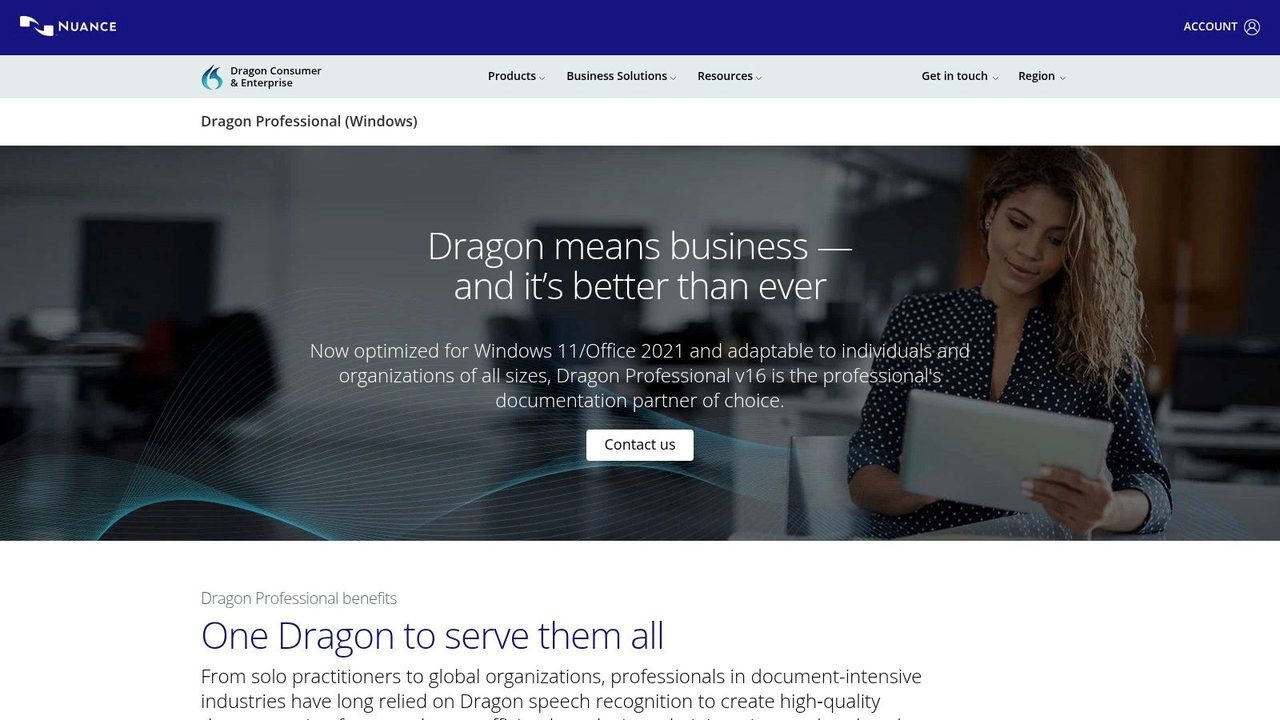
If you're a Windows writer who wants maximum command and control, Dragon Professional v16 is still the benchmark. It isn't the prettiest tool, and it doesn't pretend to be effortless. But once it's trained and tuned, it gives power users a level of voice control that lightweight dictation apps don't touch.
The clearest reason to buy Dragon is precision plus customization. A widely cited market benchmark puts Dragon Professional v16 at about $699 one-time with roughly 99% accuracy, offline use, custom vocabulary, and voice commands. That combination still matters for novelists, legal writers, technical writers, and anyone with a dense personal vocabulary.
Where Dragon still wins
Dragon works best for writers who are willing to invest in setup. If you just want to tap a microphone and free-associate into a draft, it can feel heavy. If you want to create custom commands, teach uncommon terms, and control documents by voice, it earns its reputation.
I wouldn't recommend it to casual users. I would recommend it to the person writing a manuscript, a compliance document, or a pile of structured reports every week on Windows.
- Best for long-form control: It's strong when you need more than transcription and want editing, correction, and navigation by voice.
- Best for specialized vocabulary: Character names, product names, medical terms, and technical phrasing are where custom dictionaries pay off.
- Less friendly for dabblers: The setup curve is real, and the price is easier to justify when dictation is part of your daily work.
If cost is the sticking point, this breakdown of Dragon dictation cost and buying options is worth reading before you commit.
3. Dragon Anywhere
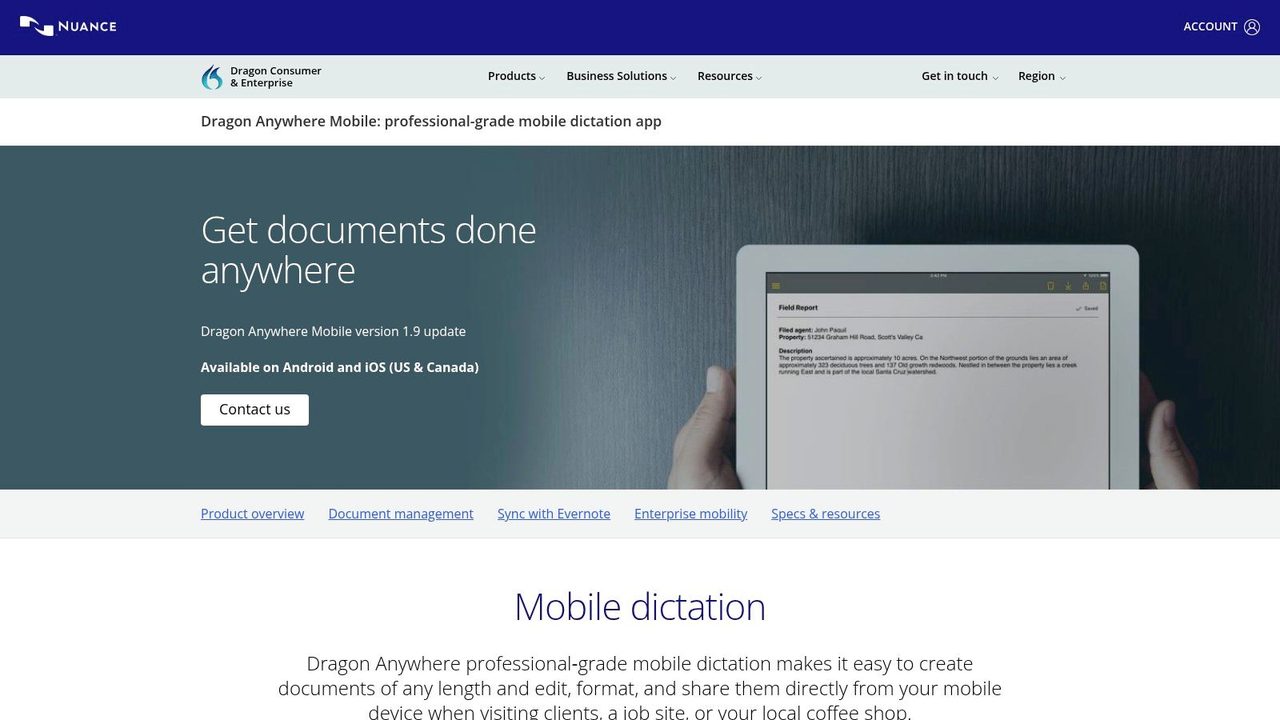
Dragon Anywhere makes sense when your best thinking happens away from your desk. It's a mobile-first dictation app, and that framing matters. This isn't your main writing studio. It's your drafting companion when you're pacing, commuting, or grabbing a chapter outline before it disappears.
Its strength is continuity. On phones and tablets, many dictation tools still feel like they were built for short commands or quick messages. Dragon Anywhere is better suited to sustained speaking. If you draft by walking, that difference is obvious fast.
Who should actually use it
This is a better pick for authors and field-heavy professionals than for desk-bound editors. It's useful when you want to capture long thought sequences on mobile and export them later into a fuller writing environment.
Use Dragon Anywhere when your phone is your notebook, not when you want your phone to become your desktop.
There are trade-offs. It's subscription-based, internet-dependent, and still mobile-centric. If your workflow lives mostly in Scrivener, Word, or a desktop editor, you may end up treating it as a capture tool rather than a complete writing environment.
A few practical fits stand out:
- Novelists on the move: Good for chapter rough drafts, scene fragments, and dialogue passes.
- Consultants and PMs: Useful for dictated notes after meetings, before the memory cools.
- Writers who hate tiny keyboards: Better to speak a rough page and edit later than thumb-type half an idea.
You can check the product directly on Dragon Anywhere.
4. Apple Dictation
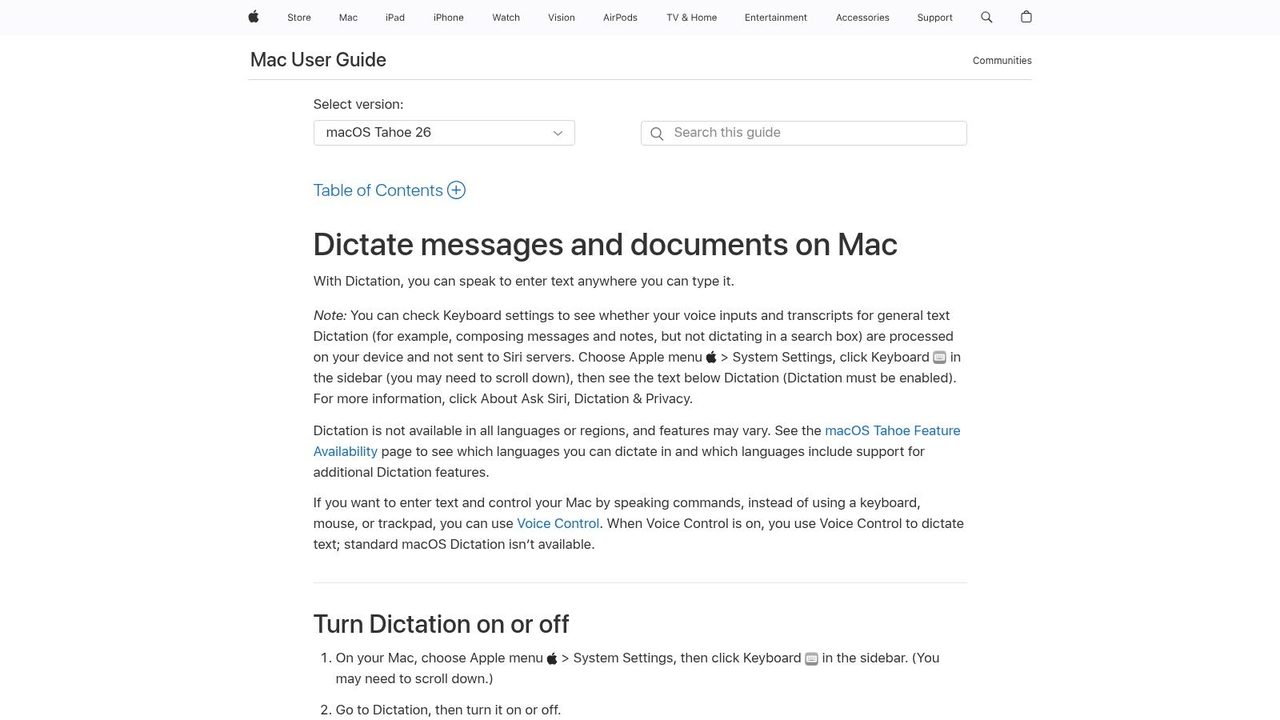
Apple Dictation is the default recommendation for Mac users because it removes the usual first barrier. There's nothing to buy, almost nothing to configure, and it works across the system. For quick notes, emails, and rough paragraph drafting, that convenience is the whole point.
A useful milestone in the category is that Apple's built-in dictation supports more than 60 languages, while the standard internet-connected mode is limited to 40 seconds of continuous dictation and Enhanced Dictation removes that short limit while working offline. That tells you exactly where Apple fits. It started as a quick-entry tool and gradually became more viable for actual writing.
The best zero-friction Mac option
On macOS, Apple Dictation is strongest when you want immediate access and acceptable results without adopting a new app. For many writers, that means inbox triage, note capture, and first-pass brainstorming.
It's weaker once you need more control. There's no serious custom vocabulary management, and cleanup is mostly your job. If you dictate proper nouns, technical terms, or repeated formatting structures, you'll feel those limits quickly.
For Mac optimization, keep it simple:
- Use a keyboard shortcut you'll remember: Fast activation matters more than hidden capability.
- Dictate in shorter thought units: Apple Dictation is less forgiving when you sprawl.
- Treat it as capture, not polish: You'll get more value if you expect a rough draft, not a finished paragraph.
Writers who want privacy without installing anything else should still try it. You can learn more from Apple's Dictation support page.
5. Microsoft 365 Dictation
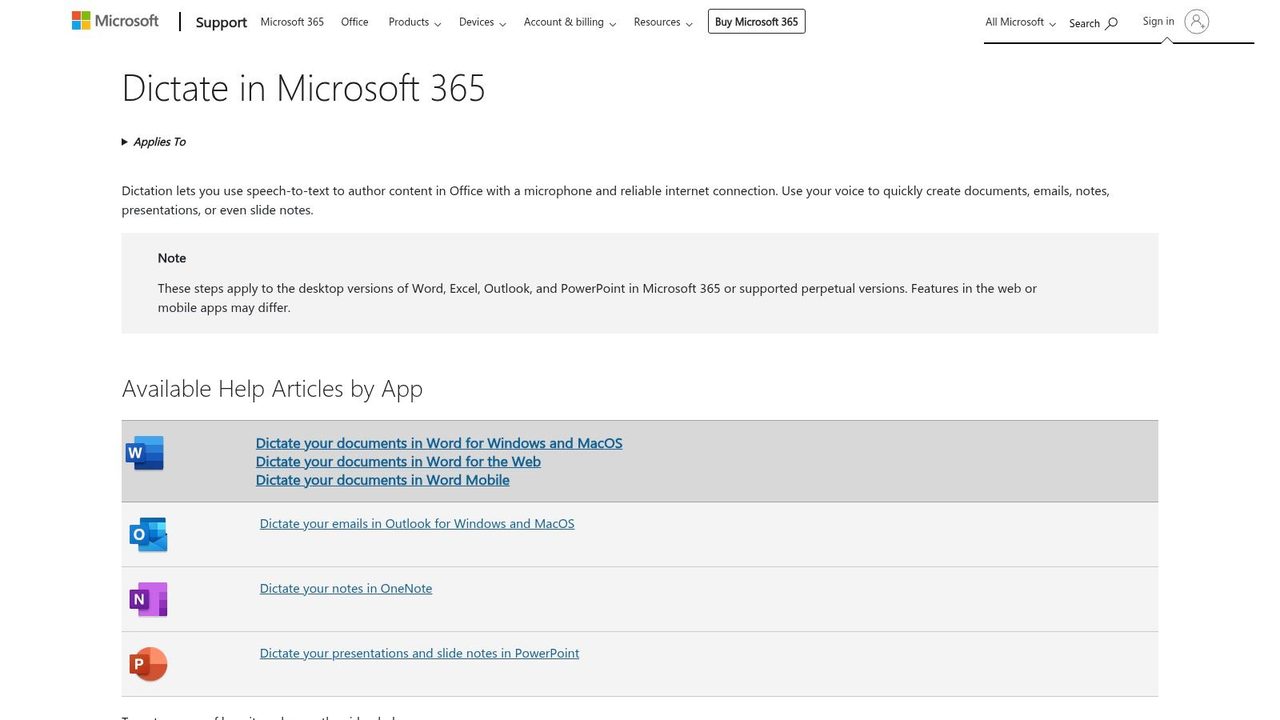
If Word is where you already write, Microsoft 365 Dictation is one of the easiest wins on this list. You don't need to build a new habit around a separate app. You just open the document and start talking.
That built-in placement matters more than people admit. A lot of dictation tools fail because they ask you to change where you write, not just how you write. Microsoft avoids that problem inside Word and Outlook.
Best when Word is already your desk
For project briefs, reports, memos, and email drafts, Microsoft 365 Dictation is practical because it stays close to the document tools you already use. It doesn't feel specialized, but that's also why many teams stick with it.
It's not the strongest choice for writer-specific cleanup, and it's not ideal if your workflow hops constantly across apps. But if your main concern is reducing keyboard time in Word, it's a clean fit.
One practical note for office-heavy teams: if people are already asking how to talk to text in Word, that usually means adoption will be easier than bringing in a standalone system.
- Best for Word-first writers: Reports, proposals, documentation, and structured office writing.
- Best for low-friction adoption: Especially inside organizations that already live in Microsoft 365.
- Not best for cross-app dictation: Its advantage shrinks when your real workflow happens outside Microsoft tools.
You can access the official product guidance on Dictate in Microsoft 365.
6. Google Docs Voice Typing
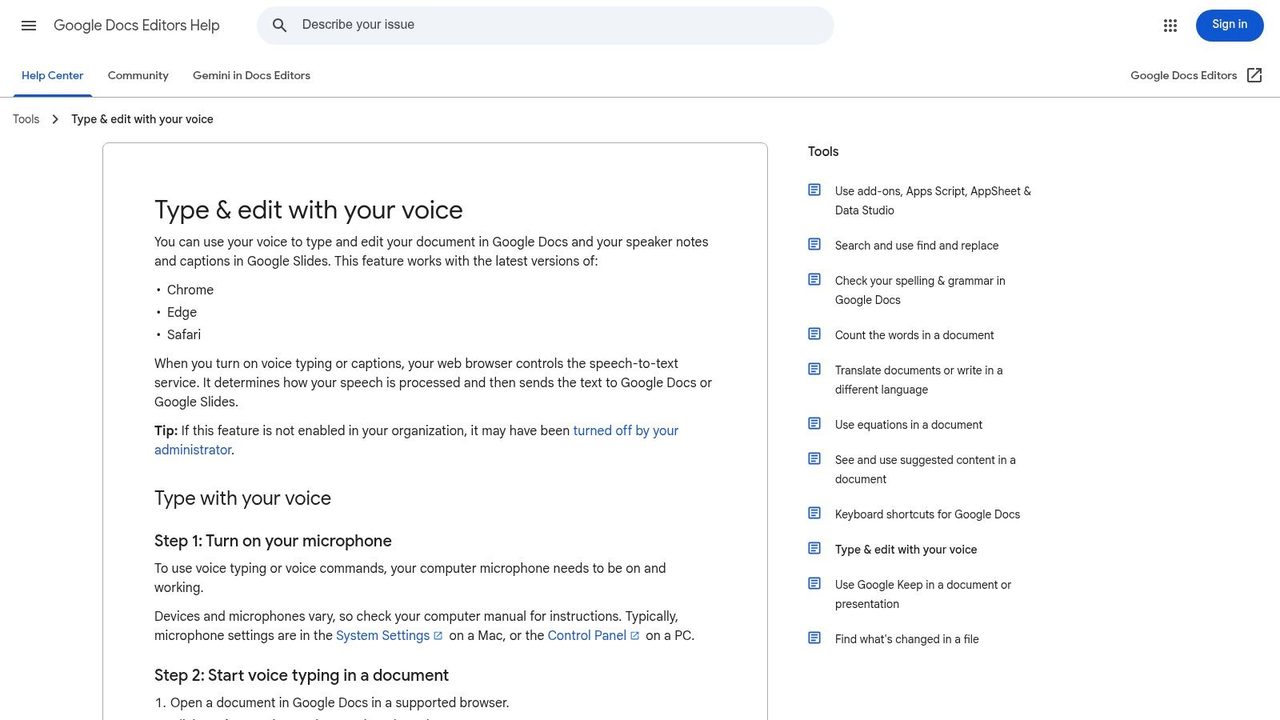
Google Docs Voice Typing remains one of the best free starting points because it gets out of your way. Open a doc in Chrome, click the microphone, and you're drafting. For bloggers, students, and web-native teams, that simplicity is enough.
It's also better than many people remember. Voice commands for editing and formatting make it more than a toy, especially if your writing already happens in Docs.
Still one of the easiest places to start
Google Docs Voice Typing is ideal for light-to-medium drafting, collaborative notes, and browser-based writing. It's less ideal if you want system-wide capture or pro-level customization.
The biggest limitation is scope. It works well inside Google Docs, but it doesn't become a universal writing layer for your machine. That's fine for many writers. It's frustrating for anyone who wants one dictation habit across every app.
Most writers don't need the “best” dictation tool first. They need the one they'll actually turn on tomorrow morning.
If your team is already asking how to use voice recognition in Google Docs, this is probably the fastest tool to pilot.
A few notes on workflow fit:
- Great for collaborative drafting: Shared docs, live notes, and content teams already inside Google Workspace.
- Good for budget-conscious writers: No extra purchase, no serious setup.
- Weak for private offline work: It's a browser workflow, not an offline-first privacy tool.
Google covers the feature on its Voice typing help page for Docs and Slides.
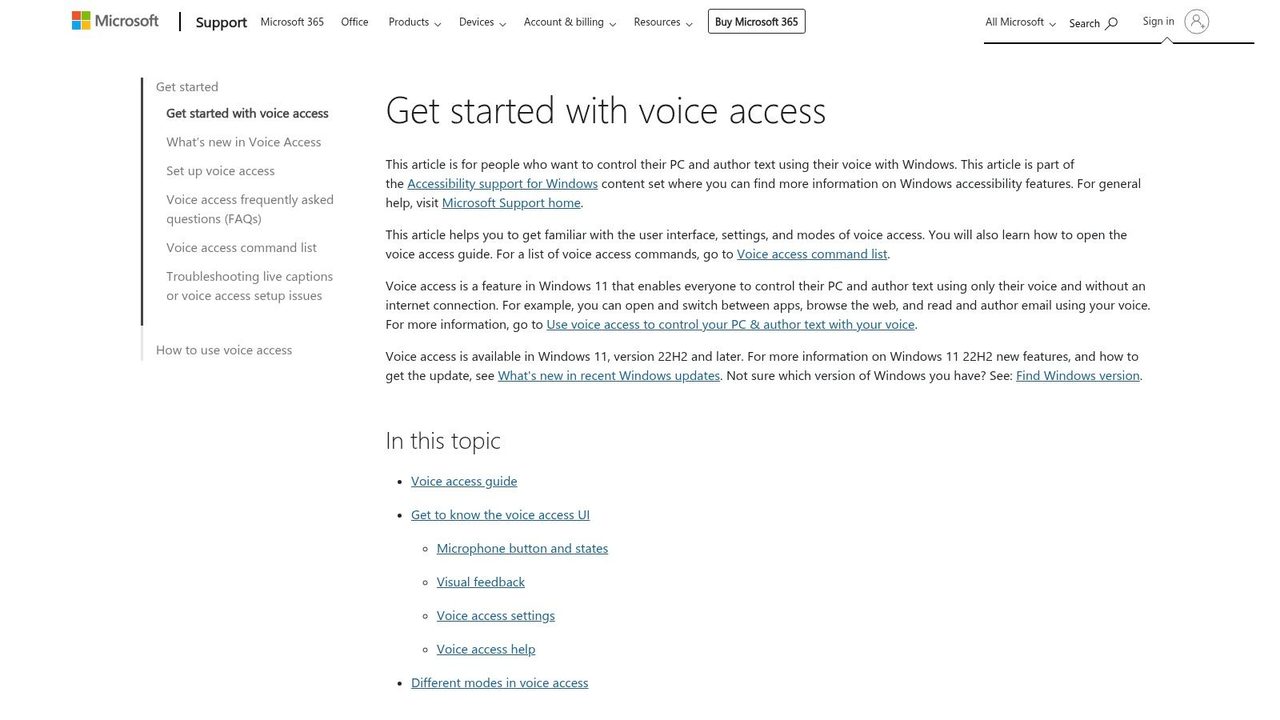
7. Windows 11 Voice Access
Windows 11 Voice Access is one of those tools that matters more in practice than in marketing. It's built as an accessibility feature, but writers can benefit from it too, especially if they want system-wide voice control without buying premium software.
Its biggest advantage isn't polish. It's reach. You can move around Windows, control interface elements, and dictate across apps with one built-in feature set.
Best for hands-free control, not polished prose
This is the right choice when your problem is physical interaction with the computer, not just transcription speed. If you need to operate the PC and write with less keyboard dependence, Voice Access is much more interesting than standard voice typing.
That said, the output still needs work. It doesn't compete with dedicated writing-focused tools on cleanup, formatting intelligence, or app-specific behavior.
- Best for accessibility-heavy workflows: Strong when voice navigation matters as much as text entry.
- Good fallback on Windows: Especially if you want to test system-wide dictation before paying for anything.
- Not ideal for polished first drafts: Expect to edit.
You can set it up from Microsoft's Voice Access guide for Windows 11.
8. Otter.ai
You finish an interview, open the transcript, search for the one line that matters, and start drafting from there. That is the Otter.ai workflow at its best.
Otter works well for writers whose raw material starts as conversation. Journalists, researchers, founders documenting meetings, and nonfiction writers usually get more value from it than novelists trying to compose scene-by-scene in real time. I would class it as a transcript-first tool, not a dictation tool for polished prose.
Best for transcript-driven writing
Otter earns its place with searchable transcripts, speaker labels, and meeting summaries. Those features save time once you have hours of interviews, calls, or voice notes to sort through. The trade-off is that the product keeps steering you back to the transcript view, so it feels less natural for drafting directly into a manuscript, article, or outline.
That distinction matters by writer type. A PM capturing stakeholder meetings can turn Otter transcripts into specs and follow-ups quickly. A technical writer can use it to document SME interviews, then pull exact wording later. A novelist usually wants cleaner live dictation inside the writing app itself, and Otter is not the strongest fit for that job.
Privacy needs a blunt read. Otter is a cloud service, so I would not use it for sensitive material unless the team has already approved that workflow and understood where recordings and transcripts are stored. For macOS users especially, that changes the setup advice. Use Otter for interviews, meetings, and verbal brainstorming that benefit from search and summaries. Use a local-first tool instead if client confidentiality or source protection is the priority.
For the product itself, visit Otter.ai.
9. Descript
Descript is what I recommend to writers who think by talking, recording, and then cutting text on the page. It's not the fastest tool for quick inline dictation. It is one of the most satisfying tools for turning a rambled spoken draft into something readable.
That workflow is different from standard dictation software for writers. You record, transcribe, then edit the transcript almost like you're editing the audio and the writing at once. For podcasters, video creators, interview-based writers, and essayists who draft aloud, that can feel natural.
Best for writers who think in recordings
Descript shines when your raw material already exists as audio. It's especially good for people who brainstorm verbally, dump ideas into a mic, and shape structure afterward. Filler-word removal and audio cleanup support that style nicely.
It's less appealing if you want a lightweight “press hotkey, speak into any app” workflow. Descript is heavier than that. It has more moving parts, and you feel them.
Speak into Descript if you want to revise by reading. Speak into a live dictation tool if you want to compose in place.
The tool is available on Descript.
10. MacWhisper
You finish an interview, drag the audio file onto your Mac, and want a transcript without sending sensitive material to another company's servers. That is the MacWhisper use case.
For Mac users, especially those on Apple Silicon, MacWhisper is one of the clearest privacy-first choices in this list. It handles recorded audio locally and fits writers who treat dictation as a transcription step inside a larger workflow, not as live text entry into every app. That distinction matters more than the feature list.
Best for offline transcription on macOS
MacWhisper fits three writer archetypes particularly well. Novelists can use it to dump spoken scene ideas into clean text before moving into Scrivener or Ulysses. Technical writers can transcribe stakeholder calls or screen-recording narration privately, then extract the usable parts. PMs and researchers can process meeting notes or interviews without defaulting to a cloud service for every recording.
The trade-off is speed inside the moment. MacWhisper feels better as a transcription workstation than as a live writing tool. If your ideal setup is “hit a shortcut and dictate directly into whatever app is open,” Apple Dictation or a dedicated live dictation product is usually a better fit.
For macOS users, setup affects the experience more than people expect. On Apple Silicon, local transcription is where MacWhisper makes the strongest case for itself. Clean mic input helps, but file handling matters too. Shorter recordings, clear speaker separation, and a quick pass to label or split files will save more time than chasing tiny accuracy gains in the app itself.
Academic and citation-heavy writing is still a weak spot. MacWhisper can transcribe your spoken draft accurately, but it does not solve the awkward part where spoken prose collides with footnotes, parenthetical references, and style-guide formatting. Writers dealing with citations should treat it as a draft capture tool, then clean references manually in their editor.
A few practical recommendations:
- Best for privacy-minded Mac users: Good fit when local processing is preferred or required.
- Best for recorded material: Strong choice for interviews, lectures, meeting audio, and spoken brainstorms.
- Best for writers with a two-step workflow: Speak first, organize and revise after transcription.
- Less suited to inline drafting: Weak fit for writers who want fast, system-wide composition inside every app.
You can explore it on MacWhisper.
Top 10 Dictation Tools for Writers: Feature Comparison
A feature table matters most when it helps you choose by workflow, not by marketing copy. A novelist dictating chapters on a Windows desktop needs something very different from a PM capturing specs between meetings, or a technical writer cleaning up interview transcripts on a Mac.
Use the table that way. Start with your writing environment, then your tolerance for setup, then your privacy requirements.
| Product | Core features | Quality (★) | Value / Price (💰) | Target (👥) | Unique selling point (✨) |
|---|---|---|---|---|---|
| 🏆 AIDictation | Auto Mode (on‑device ↔ cloud), Local Parakeet v3, AI cleanup, per‑app context rules, meeting transcription | ★★★★☆ | 💰 Free 2k words/mo; Pro from $8.49/mo; lifetime $199 | 👥 PMs, developers, healthcare, knowledge workers | ✨ Hybrid on‑device + cloud with AI polishing and app-aware formatting |
| Nuance Dragon Professional v16 | Adaptive recognition, custom vocab & voice commands, deep voice editing, Office integration | ★★★★★ | 💰 Premium one‑time (enterprise pricing) | 👥 Authors, legal, enterprise power users | ✨ Market‑leading Windows accuracy and granular command control |
| Dragon Anywhere | Unlimited mobile dictation, custom words, auto‑texts, exports | ★★★★ | 💰 Subscription (mobile) | 👥 Mobile professionals, reporters, clinicians | ✨ Unlimited long-form mobile dictation with sustained formatting support |
| Apple Dictation (macOS) | System-wide voice typing, basic commands, on‑device option | ★★★ | 💰 Free (built into macOS) | 👥 Casual users, quick notes, privacy‑minded Mac users | ✨ Zero‑cost, easy setup with on‑device privacy on supported Macs |
| Microsoft 365 Dictation | Dictation in Word/Outlook/PPT, auto punctuation, multi‑platform | ★★★★ | 💰 Included with Microsoft 365 subscription | 👥 Office-centric writers and business users | ✨ Well-integrated dictation inside Word and Outlook workflows |
| Google Docs Voice Typing (Chrome) | One‑click mic in Docs, voice edit/format commands, Chrome‑based | ★★★ | 💰 Free with Google account | 👥 Google Docs users, students, web writers | ✨ Fast in‑browser voice typing with basic editing commands |
| Windows 11 Voice Access | System-wide dictation & navigation, offline speech packs, accessibility commands | ★★★ | 💰 Free (Windows 11) | 👥 Accessibility users, hands‑free power users | ✨ Voice control across Windows apps with offline support |
| Otter.ai | Live transcription, speaker diarization, AI summaries, collaboration | ★★★★ | 💰 Free tier; paid plans for higher quotas | 👥 Meeting note takers, researchers, teams | ✨ Real‑time transcripts with speaker labeling and summaries |
| Descript | Auto transcription, text‑based audio/video editing, filler removal, Studio Sound | ★★★★ | 💰 Free tier; subscription for higher limits | 👥 Podcasters, video creators, editors | ✨ Edit media by editing text, fast revise‑as‑you‑read workflow |
| MacWhisper (macOS) | On‑device Whisper models, 100+ languages, Apple Silicon optimized | ★★★★ | 💰 Free + one‑time Pro option | 👥 Privacy‑focused writers, offline transcription users | ✨ Fully on‑device transcription optimized for Apple Silicon |
A few practical reads on this chart:
Dragon Professional v16 still suits writers who dictate for hours and are willing to train commands, build vocabulary lists, and stay mostly on Windows. For novelists and technical writers producing dense, domain-specific copy, that extra setup usually pays back.
AIDictation fits mixed-workflow writers better. It works well for people who jump between docs, chat, tickets, email, and notes, and who want cleaner text without spending as much time on spoken punctuation.
Apple Dictation and Microsoft 365 Dictation win on convenience. They are the options I recommend first to writers who will abandon dictation the moment setup gets annoying.
For macOS users, privacy changes the recommendation fast. If spoken drafts cannot leave the device, MacWhisper and Apple Dictation belong at the top of the shortlist. If speed inside live apps matters more than local-only processing, that shortlist changes.
Otter.ai and Descript are less about direct composition and more about turning speech into usable raw material. They are strongest for researchers, interview-heavy writers, podcasters, and anyone with a record-first, write-second process.
Start Writing with Your Voice Today
You sit down to draft a scene, a spec, or a client memo. Ten minutes later, you are still fixing commas, backspacing through a clumsy sentence, and losing the thread you meant to follow. That is the moment dictation starts to make sense.
The right dictation tool depends less on features and more on writing shape. Novelists usually need long-session comfort and tolerance for messy exploratory drafts. Product managers need speed inside docs, tickets, and chat. Technical writers need vocabulary control, repeatable formatting, and fewer transcription surprises when terminology gets dense.
Dragon Professional v16 still earns its place for writers who dictate for long stretches on Windows and are willing to train the system. The setup takes time. So does command building. For authors, analysts, and technical writers who use specialized language every day, that effort can pay back in cleaner drafts and less correction. For someone dictating a few notes a week, it is too much tool.
Writers who live in Google Docs or Word should not underestimate the built-in options. Adoption usually fails at the workflow level, not because one engine missed a few more words than another. If dictation interrupts where you already write, you will stop using it.
Mac users need to choose more carefully because the trade-offs are sharper. Apple Dictation is the fastest baseline test. MacWhisper makes sense for privacy-sensitive work, especially if a record-then-transcribe flow is acceptable. AIDictation fits the writer whose day jumps between email, notes, docs, and chat and who wants fewer cleanup passes after speaking. On macOS, that setup question matters as much as raw transcription quality. A tool can be accurate and still be wrong for the way you work.
Privacy deserves more weight than it usually gets. If client material, source interviews, legal drafts, or internal product documents cannot leave your machine, that rules out part of the field immediately. For many Mac writers, the shortlist starts with local processing and only expands to cloud tools when convenience or live in-app dictation matters more.
The better question is not, "Which tool is best?" It is, "Which tool creates the least editing for my kind of writing?"
Writers who benefit fastest from dictation tend to fall into three camps: people who think faster than they type, people who draft more freely out loud, and people trying to reduce strain from a full day at the keyboard. Each group should test differently. A novelist should try a rough scene. A PM should dictate a spec outline and a few Jira-style bullets. A technical writer should test headings, terminology, and spoken punctuation inside a real document.
Start with low-stakes work. Dictate an email. Draft the opening of a post. Speak bullet points for tomorrow's brief. Do not begin with the chapter or report you care most about. Early dictation is mostly rhythm training. You are learning where the tool fits, where it mishears you, and how much editing the transcript creates.
On macOS, test Apple Dictation first to set the baseline. Then compare it with the tool that matches your constraint. Choose MacWhisper if local processing is required. Choose AIDictation if live drafting across apps matters more. On Windows, built-in options are fine for a first pass, but frequent dictation usually justifies moving to Dragon sooner.
Pick the tool that fits your writing day, your tolerance for setup, and your privacy requirements. Good dictation software should remove friction from drafting, not add another system to manage.
Frequently Asked Questions
What does The 10 Best Dictation Software for Writers in 2026 cover?
You're staring at a blinking cursor, already halfway through the paragraph in your head. The phrasing is there.
Who should read The 10 Best Dictation Software for Writers in 2026?
The 10 Best Dictation Software for Writers in 2026 is most useful for readers who want clear, practical guidance and a faster path to the main takeaways without guessing what matters most.
What are the main takeaways from The 10 Best Dictation Software for Writers in 2026?
Key topics include Table of Contents, 1. AIDictation, Why it feels different in practice.
Ready to try AI Dictation?
Experience fast voice-to-text on your device. Free to download.
Download FreeRelated Posts
Voice to Text on Mac: Built-in Dictation vs the Best Apps (2026)
How to use voice to text on a Mac or MacBook: turn on built-in dictation, see where it falls short, and compare the best Mac voice to text apps for 2026.
AI Grammar Correction Explained from Rules to LLMs
Learn how AI grammar correction works, from rule-based engines to large language models, and what it means for privacy, accuracy, and real-world workflows.
Audio to Text Converter on macOS: Complete Guide
Master the audio to text converter on macOS with AIDictation. Explore local and cloud modes, custom dictionaries, and privacy-first workflows.