Audio to Text Converter on macOS: Complete Guide
You're in the middle of a real workday, headphones on, trying to turn a messy recording into something you can send. The audio has crosstalk, someone mutters a product name wrong, and the transcript app keeps turning a clean update into a wall of odd punctuation and guesswork. That's the point where an audio to text converter either saves the hour or creates a new cleanup job.
For a lot of people, the problem isn't getting speech into text. It's getting usable text out of speech without sending sensitive audio places it shouldn't go. That matters in healthcare, legal work, finance, and any team that handles confidential meetings, so the practical question isn't just accuracy, it's where the audio runs, how the transcript is cleaned up, and what happens to the data afterward. The market reflects that shift, since the speech-to-text API category was valued at $1,321.5 million in 2019 and is projected to reach $3,036.5 million by 2027, with an 11.0% CAGR over the forecast period, which shows how far this has moved beyond a niche feature into infrastructure for business software speech-to-text conversion statistics.
Table of Contents
- Why Most Audio to Text Converters Fall Short for Professionals
- Choosing Between Local, Cloud, and Auto Modes
- Preparing Audio for Maximum Transcription Accuracy
- Custom Dictionaries and Context Rules for Polished Output
- Real-World Workflows for Different Professional Use Cases
- Troubleshooting Common Issues and Exporting Transcripts
- Getting Started with AIDictation Today
Why Most Audio to Text Converters Fall Short for Professionals
A product manager finishes a stakeholder call, uploads the recording, and gets back a transcript that looks tidy until they read it. Half the product names are wrong, a few action items are missing, and the list formatting is gone. A clinician dictating notes runs into the same problem, except the consequences are more serious because the transcript cannot drift from the source.
Most generic tools are built for convenience, not for work that is messy, regulated, or full of domain terms. They handle clean speech well enough, then start to wobble when the audio has background noise, overlap, accents, or technical vocabulary, which is exactly where professionals need the most help. Google Cloud's speech accuracy guidance recommends checking Word Error Rate on a representative test set, using 30 minutes to 3 hours of audio and human-prepared ground truth if you want a meaningful read on quality, and it also notes that 5–10% WER is often high quality while anything above 30% is usually poor enough to require substantial manual correction Google Cloud speech accuracy guidance.
Why generic tools create more editing than they save
The practical failure mode is simple, they save time up front and spend it back in cleanup. That is why a transcript that looks “mostly right” can still be too rough for a client email, a clinical chart, or a legal memo.
AIDictation takes a different route on macOS. It is built around three modes, Auto, Local, and Cloud, so the tool can match the situation instead of forcing every workflow through the same web upload path. That matters for teams that need a clean transcript fast, but also need to know whether the audio stayed on device or went to a server. For a closer look at the privacy side of that design, the team's guide on on-device speech recognition explains the trade-off plainly instead of hiding it behind marketing language.
Practical rule: if the transcript will be read by someone else, not just skimmed by you, the tool has to do more than “hear words.” It needs to preserve names, formatting, and context.
That is also why writing workflows matter. Many independent writers already judge tools that way when they compare writing apps for independent authors, because the right app is not the one with the flashiest demo, it is the one that fits the actual draft-and-edit loop.
Choosing Between Local, Cloud, and Auto Modes
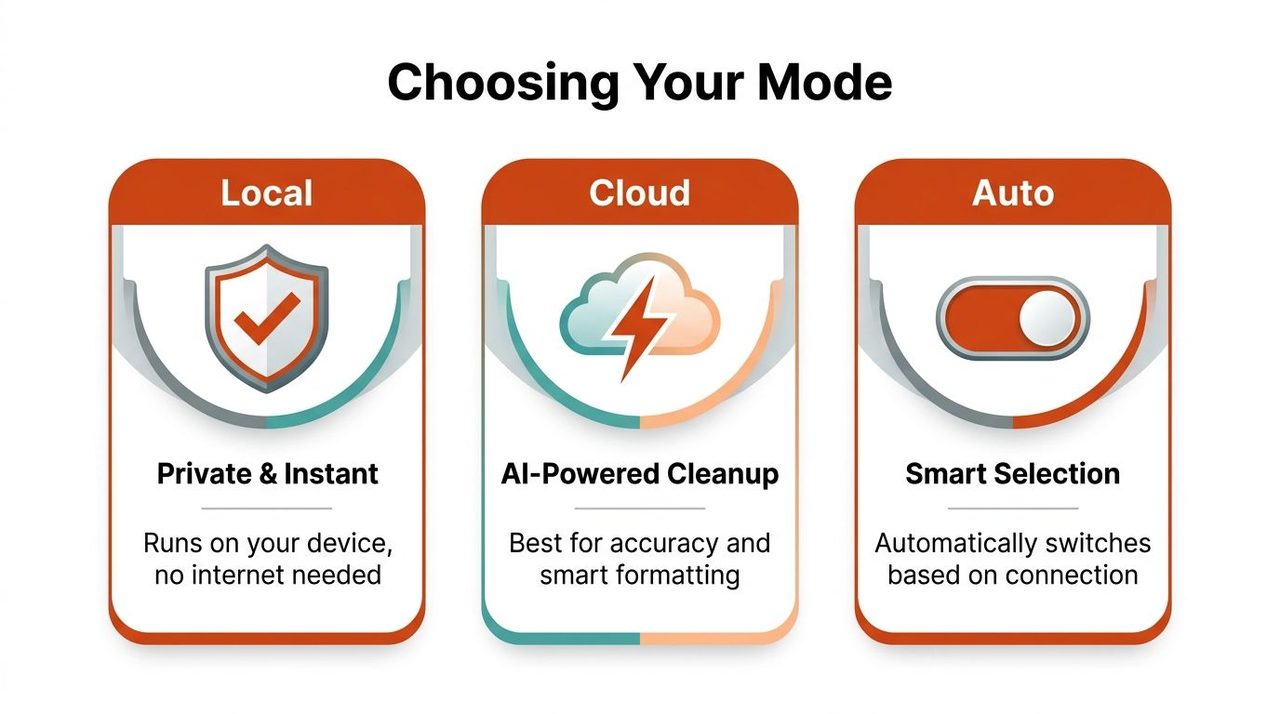
AIDictation's mode choice is really a choice between privacy, polish, and friction. Local Mode keeps recognition on your Mac, Cloud Mode adds cleanup and formatting, and Auto Mode switches between them depending on the situation. That sounds simple, but the right default changes a lot across regulated work, travel, and high-volume dictation.
Local Mode for private, immediate dictation
Local Mode runs Parakeet v3 on Apple Silicon, so the transcript stays on-device and doesn't require internet access. For clinical notes, legal drafts, or any workflow where the audio can't leave the laptop, that's the cleanest option because it removes a whole category of handling concerns. It's also the mode that feels most predictable when you're somewhere with weak connectivity, since the recognition doesn't depend on a live cloud round trip.
Cloud Mode for the cleanest final draft
Cloud Mode is the mode to use when the priority is polished output. It adds AI cleanup, context-aware formatting, filler-word removal, and smarter handling of self-corrections, which makes it a better fit for emails, stakeholder updates, lists, and anything that needs to read like it was written instead of spoken. The trade-off is obvious, you're getting more refinement, but the workflow depends on connectivity and on whether you're comfortable sending the audio to a server.
Auto Mode when the day keeps changing
Auto Mode is the one I'd hand to people who move between meeting rooms, trains, home offices, and client sites. It automatically picks the best engine and switches between on-device recognition and cloud processing based on connection and task complexity. That makes it the least fussy option for everyday dictation, because you don't have to think about the mode until you need a specific privacy or polish outcome.
| AIDictation Mode Comparison | Local Mode | Cloud Mode | Auto Mode |
|---|---|---|---|
| Privacy posture | Runs on your device | Audio is handled through cloud processing | Switches based on situation |
| Internet needed | No | Yes | Not always |
| Output style | Fast raw dictation | Cleaned and formatted text | Balanced default |
| Best fit | Confidential notes | Final drafts and polished writing | Mixed daily workflows |
| Main trade-off | Less cleanup | More data handling dependence | Less manual control |
For a strict privacy-first workflow, the internal guide on offline speech recognition is the right reference. For a practical decision, use this rule: if the audio is sensitive, choose Local. If the transcript needs to read like finished prose, choose Cloud. If you don't want to babysit the tool, choose Auto.
Preparing Audio for Maximum Transcription Accuracy
A strong audio to text converter can clean up rough audio, but it cannot make poor capture habits disappear. In practice, the transcript quality depends on what happens before the file ever reaches the engine. In regulated teams, that matters even more, because the right setup lets you keep sensitive audio local while still producing a transcript people can use.
What to do before you hit record
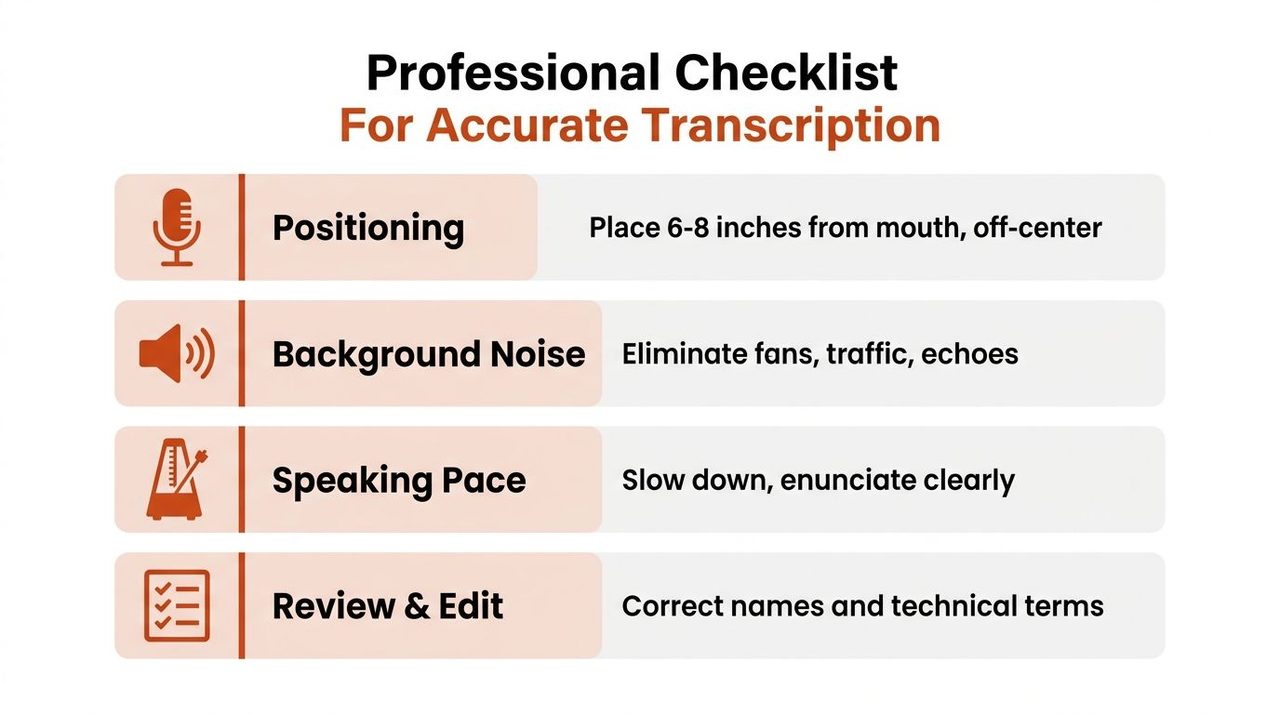
Start with mic placement. Keep the microphone close enough to capture the full voice, but not so close that plosives and breathing take over the waveform. In a meeting room, that usually means one device per speaker cluster or a central recorder placed near the table, not a laptop mic sitting across the room.
Rule of thumb: clean capture beats clever cleanup.
That holds up in dictation sessions for developer docs or clinical notes. For solo work, speaking a bit slower than normal conversation and pausing between thoughts gives the engine cleaner sentence boundaries, which helps punctuation and formatting land correctly. For multiple speakers, avoid talking over each other if transcript quality matters, because overlap is where even strong systems start losing names and turn-taking.
If your office has fans, open windows, or the steady hum of conference room HVAC, the guidance in background noise reduction is worth following before you blame the converter. Human ears filter that kind of sound quickly. Transcription systems do not.
Match the workflow to the audio type
Different settings call for different habits. A conference room meeting benefits from short, named turn-taking. A developer dictating documentation benefits from clear pauses before code terms or product names. In a clinical environment, speed still matters, but a deliberate rhythm helps keep abbreviations and medication names from turning into cleanup work later.
The Outrank guide on voice search SEO strategies is a useful adjacent read if you care about how spoken phrasing differs from written phrasing. Spoken language is loose, while transcripts work better when the speaker gives the system a little structure to hold onto. That matters whether you are keeping the audio local for privacy or sending it to the cloud for a polished pass.
After the first pass, review names, technical terms, and anything that would look wrong if it were sent as-is. A smart dictation workflow does not treat review as a failure. It treats review as the last mile between speech and a deliverable.
Custom Dictionaries and Context Rules for Polished Output
The feature gap between a basic converter and a professional dictation setup shows up in the words the system should never get wrong. Names, acronyms, product labels, customer references, and internal jargon are exactly what generic transcription systems miss first. A custom dictionary solves that by teaching the tool what your workflow sounds like.
Build the dictionary around the words that cost you time
If a product manager keeps dictating the same roadmap terms, those terms belong in the dictionary. If a developer keeps naming framework functions, packages, or code comments that the model keeps mangling, those belong there too. The payoff is small on any one transcript, but huge over a week of daily dictation because each corrected term stops becoming a repeated edit.
A support team can use the same idea for customer names and escalation terms. A clinician can add department labels, medication names, and abbreviations that need to survive every note without manual cleanup. This is the kind of setup work that feels boring once and pays off constantly.
Let context rules change the shape of the output
Context rules matter just as much as the dictionary because the same voice memo shouldn't read like a Slack reply, a ticket comment, and an executive email. In AIDictation, those rules let the output adapt to the app or the task, so professional email stays professional, chat stays casual, and technical writing keeps the right structure. That's the difference between a transcript that is merely accurate and one that is immediately reusable.
One useful way to think about this is by destination, not by speaker. If the text is going into a client email, choose a polished tone and let the system clean up the filler words. If it's going into a code editor or documentation file, choose a technical context that preserves terminology and avoids over-polishing the syntax.
The screenshot below shows the voice typing workflow in practice.
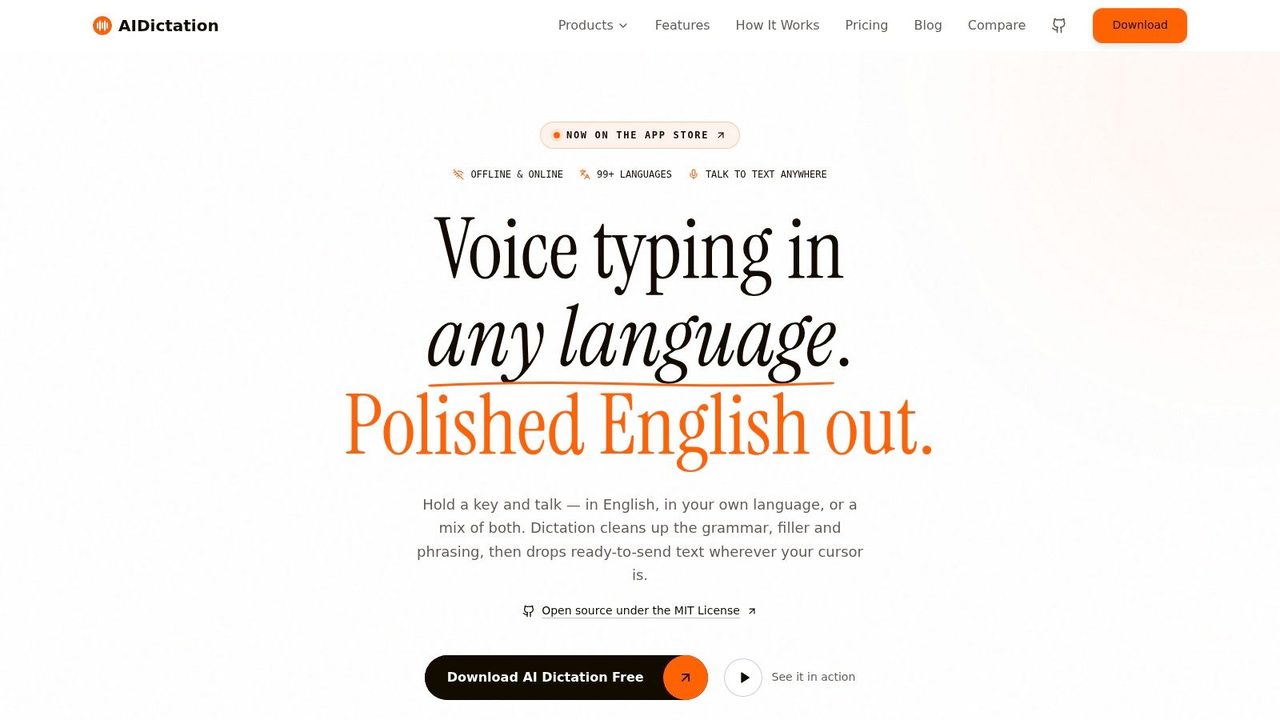
A product manager dictating a stakeholder update might start with a rough sentence and end up with a clean recap, proper headings, and no filler words. A developer dictating code comments gets the right technical terms instead of something generic. A support agent gets an email response that sounds consistent, not robotic.
That's the value of these power features, they make the transcript fit the job instead of forcing you to reshape it by hand.
Real-World Workflows for Different Professional Use Cases
Different roles need different defaults, and the fastest way to waste time is to use the same transcription setup for every kind of work. A product manager needs polished meeting notes. A developer wants private documentation. A healthcare professional wants on-device handling. A customer-facing team wants consistency. The right mode and rule set changes with each one.
Product managers and stakeholders
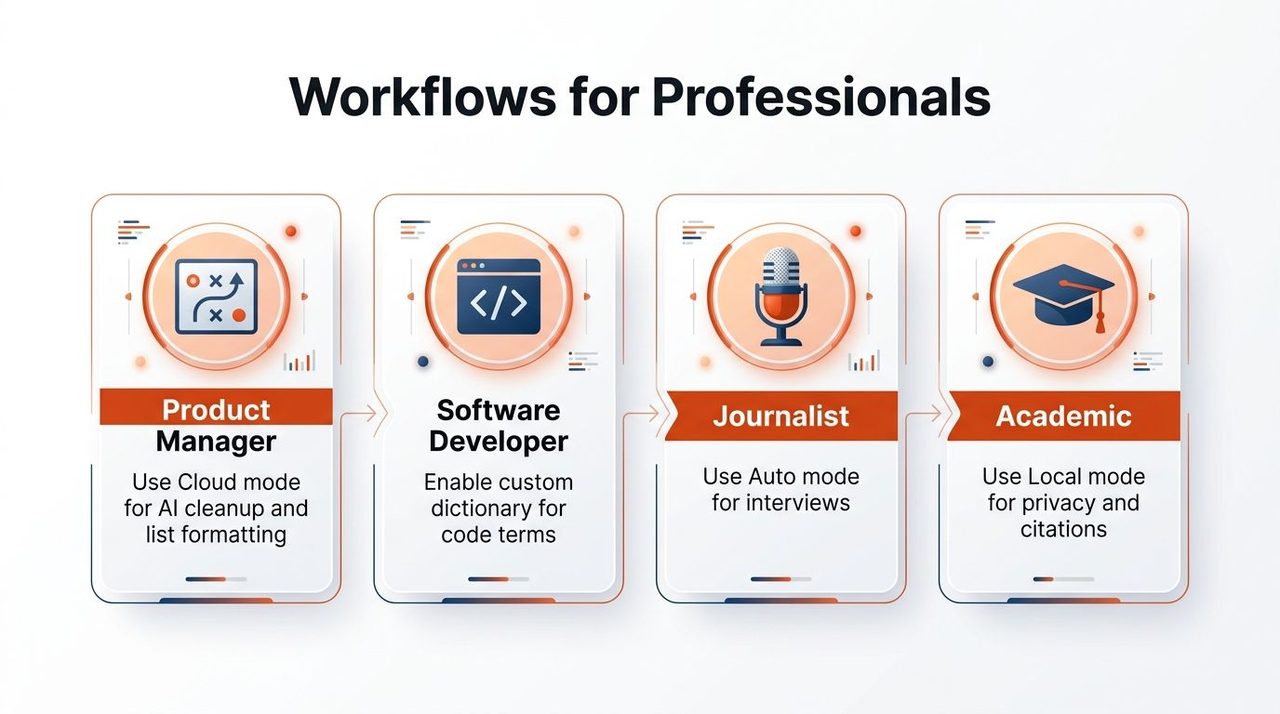
For product managers, Cloud Mode is usually the cleanest choice because the output often needs to become readable notes, specs, or follow-up email. The AI cleanup and formatting save time when a meeting turns into a list of decisions, owners, and next steps. Add roadmap terms and product names to the dictionary, then use a professional context rule so the draft sounds ready for internal circulation.
Software developers and technical writers
Developers usually care more about precision and privacy than about fancy formatting. Local Mode fits that well because code terms, internal libraries, and technical notes often shouldn't leave the machine. Add the project's names, functions, and acronyms to the dictionary, then keep the context rule technical so the output stays aligned with docs or comments instead of reading like marketing copy.
Healthcare, support, and daily knowledge work
Healthcare professionals benefit from the same Local Mode setup because it keeps patient audio on the Mac, which is the right fit when the transcript must stay tight to the source. Customer support and marketing teams often lean the other way, since they want consistent tone across large volumes of messages, so a professional context rule helps the responses stay on-brand. Knowledge workers and students usually land on Auto Mode, because it gives them a sensible default without making them choose modes all day.
One practical detail matters across all of these workflows, the best setup is the one that removes the most edits from the most common task. If you're not sure where to start, begin with the mode you'll use most often, then add dictionary entries and context rules only after you see the repeated mistakes.
Troubleshooting Common Issues and Exporting Transcripts
Most transcript problems have boring causes, and boring fixes. If the system keeps missing a technical term, add it to the dictionary. If formatting looks different from app to app, check the context rule tied to that destination. If cloud processing isn't available, switch to Auto or Local instead of trying to force the same workflow through a weak connection.
Fix the output before you assume the model failed
Recognition errors are usually vocabulary issues, not total failures. That's why custom dictionaries matter so much for product names, medical terms, or code identifiers. Inconsistent formatting usually comes from sending the same dictation into different destinations without telling the tool how each one should look, so the fix is to align the context rule with the app.
Connectivity problems are simpler. Cloud Mode depends on a working connection, so if the network is unstable, the practical move is to switch modes rather than wait for retries. Auto Mode helps here because it can move between engines without making you stop and reconfigure the workflow every time the environment changes.
Export, translation, and privacy basics
AIDictation's free tier includes 2,000 words per month with no account required, which is enough to test real tasks before committing. Pro options include monthly, annual, or lifetime plans, and they provide unlimited cloud and local models, plus translation to English and audio/video transcription for recorded meetings. Those details matter if you're trying to standardize a team workflow instead of using the app only for occasional notes.
The privacy posture is also straightforward. The product is described with SOC 2 pending and 256-bit SSL encryption, which is the kind of language regulated teams should ask to see before they rely on any transcription workflow. Treat that as a baseline, then still review your own retention and sharing rules before you export anything that contains sensitive material.
Export the transcript in the format your audience can use. A raw transcript helps with verification, while a cleaned version is better for sending to a client, editor, or manager. If the transcript includes sensitive sections, export only the parts that need to leave the private workspace and keep the full record where access is controlled.
Getting Started with AIDictation Today
The simplest rollout is also the one teams stick with. Start in Auto Mode so the app can handle everyday dictation without extra decisions, switch to Local Mode when privacy matters most, and move to Cloud Mode when you need the cleanest final draft. That sequence works well because it lets you learn the tool on real work instead of guessing from a feature list.
The free tier is enough to pressure-test the workflow across meetings, notes, and drafts before you pay for anything. Because there's no account required to start, you can evaluate the dictation flow quickly and decide whether the value comes from on-device privacy, cloud cleanup, or both. Built by the WritingMate.ai team, the product reflects the same practical bias toward writing workflow rather than raw transcription for its own sake.
Set up the custom dictionary and context rules on day one. Those two features compound over time, because every repeated name, term, and tone choice that gets encoded once is one less edit you repeat later.
If your current audio to text converter keeps giving you half-finished drafts, AIDictation is built to turn speech into cleaner writing on macOS without forcing every recording through the same path. Try it with one real meeting, one private note, and one polished email, then see which mode fits your work best at AIDictation.
Frequently Asked Questions
What does Audio to Text Converter on macOS: Complete Guide cover?
You're in the middle of a real workday, headphones on, trying to turn a messy recording into something you can send. The audio has crosstalk, someone mutters a product name wrong, and the transcript app keeps turning a clean update into a wall of odd punctuation and guesswork.
Who should read Audio to Text Converter on macOS: Complete Guide?
Audio to Text Converter on macOS: Complete Guide is most useful for readers who want clear, practical guidance and a faster path to the main takeaways without guessing what matters most.
What are the main takeaways from Audio to Text Converter on macOS: Complete Guide?
Key topics include Table of Contents, Why Most Audio to Text Converters Fall Short for Professionals, Why generic tools create more editing than they save.
Ready to try AI Dictation?
Experience fast voice-to-text on your device. Free to download.
Download FreeRelated Posts
Custom Dictionary for Word: Set Up AIDictation Vocabulary
Learn how to build a custom dictionary for word in AIDictation: add names, technical terms and acronyms, import in bulk and fix errors.
MacBook Air Speech Recognition: How to Set Up and Fix It
Set up MacBook Air speech recognition in minutes, compare built-in Dictation with third-party apps, check privacy settings and fix common errors.
Email Dictation Software: What It Is and How to Choose
Learn what email dictation software is, how it works, and how to pick the right one. Covers accuracy, privacy, HIPAA, accents, and real buyer checklists.