Talk to Text in Word: A Complete 2026 Guide
You're probably in Word right now with a half-finished email, meeting summary, or report open on screen. Your hands are tired, your thoughts are faster than your typing, and the blinking cursor is turning a simple draft into a chore.
That's where talk to text in Word starts to make sense. Not as a novelty feature, and not only as an accessibility tool, but as a practical way to get a first draft out of your head and onto the page while your momentum is still there. For quick notes, rough outlines, and routine business writing, Word's built-in dictation is good enough to be of practical value.
It also fits a wider reality. A lot of people turn to dictation because typing all day hurts, or because switching between keyboard, mouse, and note-taking drains focus. If that sounds familiar, this piece on managing dictation accessibility fatigue is worth reading alongside the setup advice below.
Table of Contents
- From Typing Fatigue to Fluent Dictation
- Enabling Dictation in Word on Your Platform
- Essential Voice Commands for Hands-Free Writing
- Tips for Improving Dictation Accuracy
- Troubleshooting Common Word Dictation Problems
- When Word Dictation Is Not Enough A Pro Alternative
From Typing Fatigue to Fluent Dictation
Individuals often first try talk to text in Word when they're behind. They have notes to clean up, a stakeholder update to send, or a document draft that should already exist. In that moment, dictation stops feeling experimental and starts feeling practical.
Word earns a place here because the feature is already inside a tool people use every day. You don't need to change your document workflow. You open the file you were already working in, start speaking, and watch text appear in real time. That small detail matters. It lowers the friction enough that more people do use it.
There's also a mindset shift that makes dictation work better. If you expect Word to produce a final, polished page from messy speech, you'll get frustrated. If you use it to create a fast draft, capture notes, or build an outline you can tighten afterward, it becomes a strong productivity feature.
Practical rule: Dictation is usually best for getting to draft one quickly, not for replacing every part of writing.
I see the biggest gains in a few predictable situations:
- Routine communication: Status updates, internal emails, and recap notes are often easier to say than type.
- Early drafting: Outlines, rough introductions, and brainstorming paragraphs come out faster when you speak in full thoughts.
- Note capture: After a meeting, dictating key points into Word is often quicker than trying to reconstruct everything later.
Word's built-in speech workflow has matured enough that it no longer feels like a niche ribbon button nobody clicks. It's part of how many people can write faster, reduce repetitive typing, and stay in flow longer. For light and medium-duty work, that's often enough.
Enabling Dictation in Word on Your Platform
Microsoft says Word's speech-to-text feature is built around Dictate, and it requires a microphone and a reliable internet connection on a supported Microsoft 365 setup. To begin, you open Word, go to Home > Dictate, and wait for the button to turn on. Microsoft's guidance also notes support for multiple languages including English, Spanish, and French, and availability across Windows 10/11 and Microsoft 365 in its Word dictation support documentation.
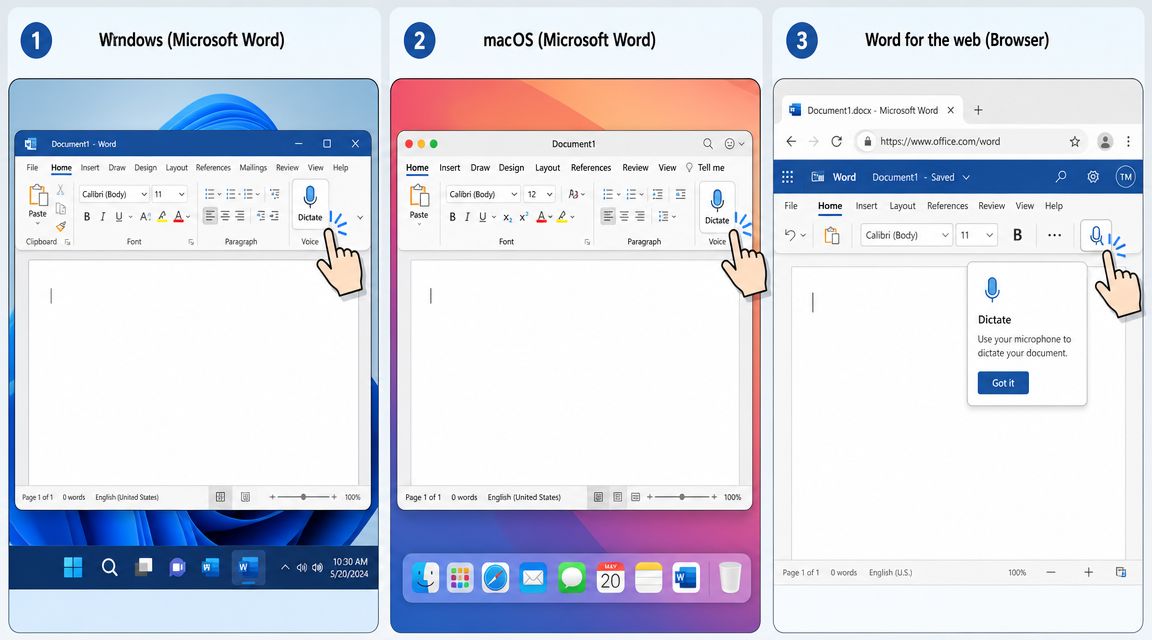
The setup is straightforward, but people still get stuck on the same points: the microphone isn't selected, permission wasn't granted, or they expect dictation to work offline. If you're on a Mac and want a platform-specific walkthrough, this guide on how to use dictation on Mac fills in the operating-system side clearly.
Using Dictation on Windows
On Windows, open Word and click into the document where text should appear. Then go to the Home tab and select Dictate. Wait for the control to activate before you start talking.
If Word doesn't respond, check the basics first:
- Confirm your microphone is connected and chosen as the input device.
- Allow microphone access in your system privacy settings.
- Stay online, because Word's Dictate feature depends on an internet connection.
- Speak after activation, not while the button is still waking up.
Windows users also have an extra convenience. Educational guidance around Word's speech features notes that you can launch dictation with Win+H, and that voice commands can support editing and formatting as part of a more hands-free workflow in this overview of Word speech tools.
When dictation works well, the friction disappears. You stop thinking about the button and start thinking in sentences.
Using Dictation on macOS
The Word interface is familiar on Mac, but expectations should be different. Word dictation there is useful for light drafting, short messages, and note capture. It is less satisfying when you need highly polished copy directly from speech.
Start the same way: open a document, place the cursor, choose Home, then click Dictate. If nothing happens, macOS privacy settings are the first place to look. Word needs permission to use the microphone. Without that, the button may appear available while input still fails.
A few practical notes matter more on Mac than users expect:
- Use a headset or external mic if possible. Laptop mics can be fine in a quiet room, but they're less forgiving.
- Close noisy apps and tabs. Fan noise, video playback, and room echo all make cleanup worse.
- Test with a short paragraph first. Don't start with a long document until the input is stable.
Later in this guide, I'll cover why many Mac professionals eventually outgrow Word's built-in option for serious writing.
Using Dictation in Word for the Web
Word for the web is often the fastest place to test talk to text in Word because there's less local configuration to second-guess. Open your document in the browser version, sign in to your Microsoft account, and look for Dictate in the ribbon.
Browser permissions matter here more than app settings. If the browser blocks microphone access, Word can't hear you. The fix is usually simple: allow microphone access for the site, refresh, and try again.
A quick visual walkthrough helps if you want to see the controls in action before trying them yourself.
The web version is convenient for occasional use, shared workstations, and lightweight document drafting. It's less ideal if you need a finely tuned audio setup or rely on app-specific writing habits.
Essential Voice Commands for Hands-Free Writing
The jump from basic dictation to real hands-free writing happens when you stop treating speech input like a microphone for raw text and start using commands intentionally.
Punctuation That Keeps Drafts Readable
The first upgrade is punctuation. If you don't dictate punctuation, your draft usually turns into one long block that's harder to edit than something you typed manually.
Use commands like these as you speak:
- Period: Ends the sentence cleanly.
- Comma: Helps pace long spoken sentences.
- Question mark: Useful for FAQs, emails, and interview notes.
- New paragraph: Separates ideas before the draft becomes a wall of text.
IBM describes speech-to-text as a process that turns audio into formatted text with punctuation and capitalization in the background material cited earlier, which is why these commands matter. They move your output closer to usable prose instead of a transcript-like blob.
Editing and Formatting by Voice
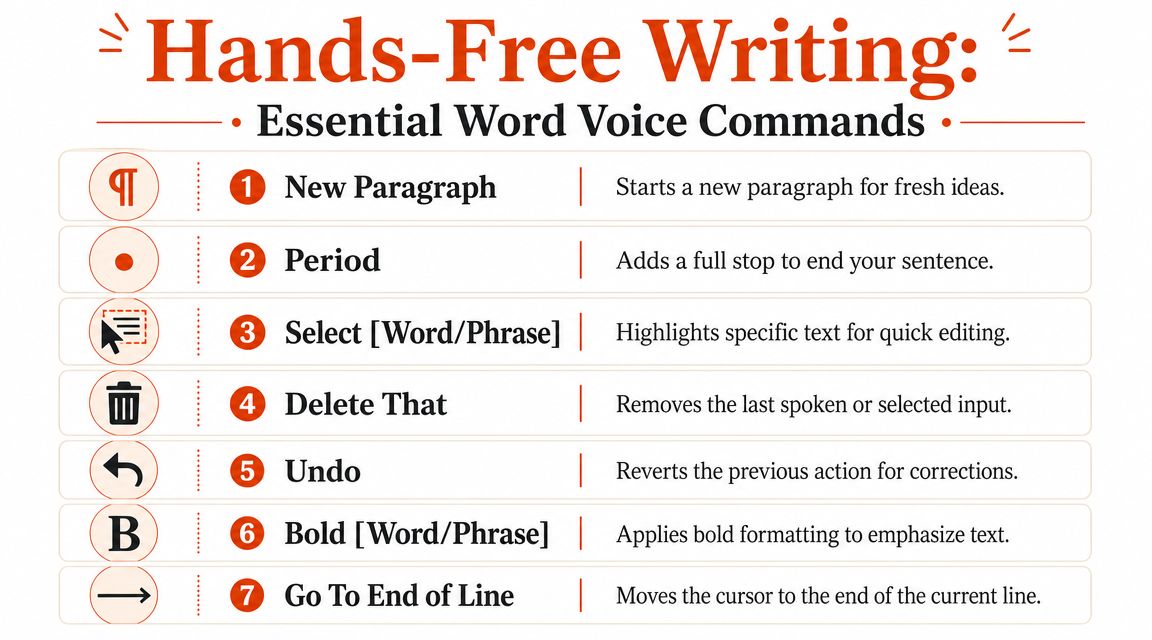
Word's speech workflow now goes beyond simple text entry. Guidance around the feature notes voice controls for editing and formatting, which is one reason dictation has become more useful for productivity and accessibility rather than staying a basic input trick.
The commands worth practicing first are the boring ones:
- Select [word or phrase]
- Delete that
- Undo
- Bold [word or phrase]
These don't sound exciting, but they save the most interruptions. If you can fix a phrase, remove a mistake, and emphasize a heading without touching the keyboard, your pace holds up much better.
Useful habit: Learn three correction commands before you learn any advanced formatting command. Cleanup speed matters more than fancy control.
Navigation That Preserves Flow
Navigation commands matter most during longer drafts. They help you stay in speaking mode instead of breaking concentration to reach for the mouse.
Try using:
- New line
- Go to end of line
- Go to the end of the paragraph
A simple workflow works well here. Dictate in chunks, pause, move, then continue. Don't try to control every part of the page with voice alone on day one. The goal is not perfect hands-free operation. The goal is to remove enough keyboard dependence that drafting gets easier.
Tips for Improving Dictation Accuracy
Accuracy in Word dictation depends less on hidden settings than on habits. The system can only work with the audio you give it, and small changes in setup usually matter more than people expect.
Set Up the Audio Before You Start
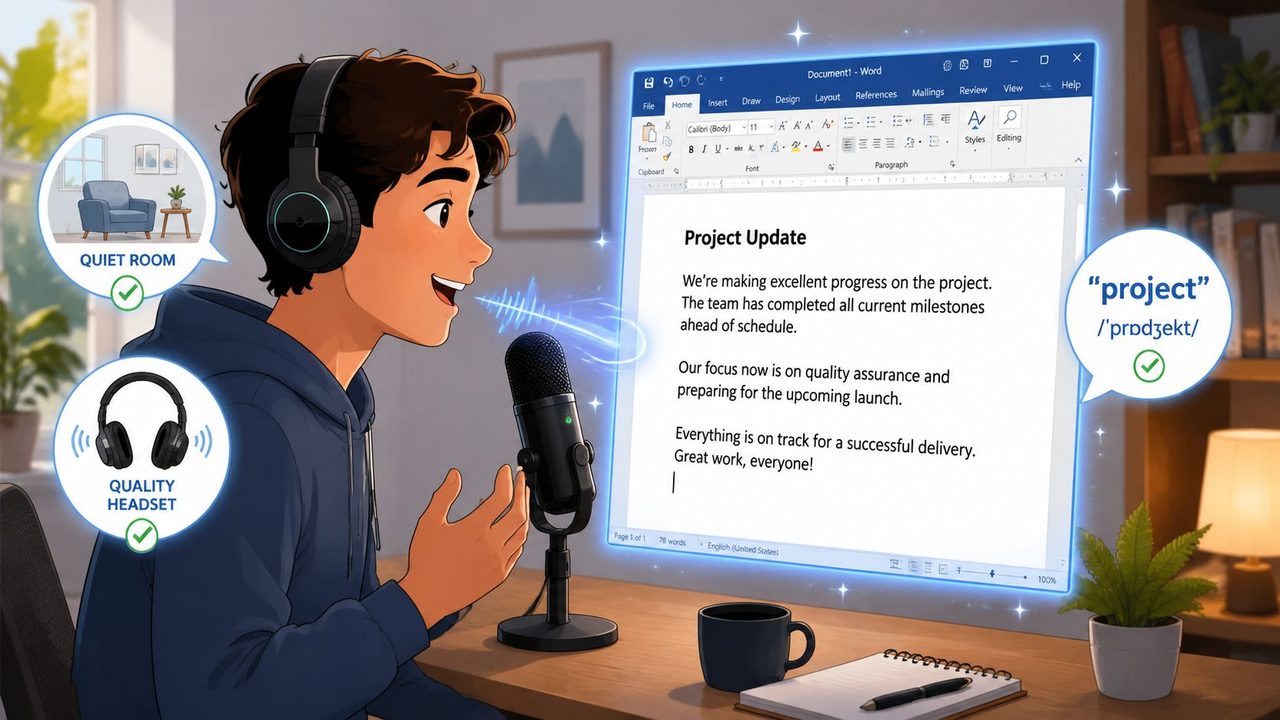
The fastest accuracy improvement is usually a better microphone position. A headset mic or a solid external microphone gives Word a cleaner signal than a laptop mic across a noisy room.
Then control the room:
- Reduce background noise: Turn off nearby audio and avoid open-office chatter if you can.
- Keep your distance consistent: Don't lean in and out while speaking.
- Start with a short test: Dictate a few sentences and inspect the output before doing ten minutes of notes.
If Word is actively listening, the dictation interface turns blue. One tutorial also points out a common interruption: if you click away or trigger another command, dictation may stop and you have to restart it in this Word dictation walkthrough.
Dictate Like You Want Clean Copy
People often speak into Word the way they talk casually, then blame the software for producing messy text. Professional dictation works better when your speech is slightly more deliberate than conversation.
Use these habits:
- Speak in phrases, not in rushed bursts: A steady pace gives the system cleaner boundaries.
- Say the punctuation: Don't assume the draft will organize itself.
- Pause before corrections: If you misspeak, stop briefly, then fix it clearly.
- Use your own vocabulary list elsewhere when needed: If you routinely dictate names, product terms, or technical language, a custom word approach helps. This guide on setting up a dictation dictionary is useful if recurring terminology keeps getting mangled.
Clean dictation starts before the first word. Good mic placement, a quiet room, and slightly more intentional speech do more than endless editing later.
The point isn't to sound robotic. It's to speak in a way that produces a draft worth keeping.
Troubleshooting Common Word Dictation Problems
Most Word dictation problems are ordinary. They feel mysterious in the moment, but they usually come down to connection, permissions, language choice, or workflow interruptions.
The Dictate Button Won't Turn On
If the button is visible but inactive, check the two things Word depends on most: your microphone and your internet connection. Since Dictate isn't a standalone local transcription engine in the Word workflow described earlier, offline use can break the experience fast.
Also verify that Word has permission to access the microphone through your operating system settings. If it still won't behave, restarting Word is often faster than poking around the ribbon.
Word Hears You but the Text Is Wrong
When transcription is consistently off, the problem is often not the button. It's the input conditions. Wrong language settings, room noise, and poor mic quality all make errors pile up.
A practical sequence helps:
- Confirm the dictation language matches how you're speaking.
- Move closer to the microphone.
- Try a quieter room.
- Speak one test paragraph with punctuation.
If you want a broader checklist for voice-input issues beyond Word alone, the Voibe troubleshooting guide for speech tools is a useful reference.
Dictation Keeps Stopping Mid-Thought
This is one of the most annoying issues because it breaks your rhythm. In Word, dictation is tied closely to the active control state. If you click somewhere else, interact with another command, or shift focus, the session may end.
The simplest fix is behavioral. Dictate first, edit second. Long note-taking sessions go more smoothly when you avoid touching the interface until you've finished the passage you want on the page.
When Word Dictation Is Not Enough A Pro Alternative
Word dictation is good for what it is. It's built in, fast to access, and useful for short drafts, rough notes, and simple business writing. If your standard is “get words on the page quickly,” it does that well.

Where Word Dictation Works Well
For many users, Word is enough when the job is straightforward.
- Meeting recap drafts
- Outline creation
- Internal notes
- Short email drafting
That's the lane where built-in dictation feels efficient instead of frustrating.
Where Professionals Hit the Ceiling
The friction shows up when the output needs to be clean on the first pass. One underserved issue in mainstream guidance is that users often struggle with self-corrections, filler words, accents, background noise, and long-form formatting, even though those factors decide whether dictation saves time, as noted in this discussion of Word dictation quality limits.
That's where many Mac users especially start looking beyond Word. They don't just need text capture. They need cleanup, formatting, terminology handling, and more reliable output when speech is imperfect.
A broader market view can help here too. This writing-into-text app comparison from HumanizeAIText is useful if you want to compare how different tools approach voice drafting.
Word Dictation vs. AIDictation
For professionals on macOS, a dedicated option can make more sense than pushing Word beyond its comfort zone. AIDictation is one example. It's a macOS voice-to-text app that can use on-device recognition locally and add cloud-based cleanup when connected, along with features like a custom dictionary, context-aware formatting, and transcription for audio or video. If you're comparing broader options, this roundup of voice-to-text software in 2026 is a practical place to start.
| Feature | Microsoft Word Dictation | AIDictation (macOS) |
|---|---|---|
| Built into Word documents | Yes | No, works as a separate dictation app |
| Real-time dictation in a document | Yes | Yes |
| Requires internet for Word Dictate workflow | Yes | Can work on-device in local mode |
| Basic voice commands for editing and formatting | Yes | Not the core pitch |
| Handles rough drafts well | Yes | Yes |
| Custom dictionary for names and terms | Not emphasized in Word guidance | Yes |
| AI cleanup for filler words and self-corrections | Not emphasized in Word guidance | Yes |
| Designed specifically for Mac power users | No | Yes |
The trade-off is simple. Word dictation is convenient because it's already there. A dedicated Mac dictation tool is often the better fit when the work needs to be cleaner before you ever touch the keyboard.
If you use Word dictation for quick drafts but keep running into cleanup limits on Mac, AIDictation is worth evaluating. It's designed for turning spoken input into cleaner writing with options for local dictation, cloud cleanup, custom terminology, and app-aware formatting.
Frequently Asked Questions
What does Talk to Text in Word: A Complete 2026 Guide cover?
You're probably in Word right now with a half-finished email, meeting summary, or report open on screen. Your hands are tired, your thoughts are faster than your typing, and the blinking cursor is turning a simple draft into a chore.
Who should read Talk to Text in Word: A Complete 2026 Guide?
Talk to Text in Word: A Complete 2026 Guide is most useful for readers who want clear, practical guidance and a faster path to the main takeaways without guessing what matters most.
What are the main takeaways from Talk to Text in Word: A Complete 2026 Guide?
Key topics include Table of Contents, From Typing Fatigue to Fluent Dictation, Enabling Dictation in Word on Your Platform.
Ready to try AI Dictation?
Experience fast voice-to-text on your device. Free to download.
Download FreeRelated Posts
How to Dictate to Word on Mac and Windows
Learn how to dictate to Word on Mac and Windows with clear setup steps, microphone tips, voice commands, and fixes for common dictation problems.
Voice to Text on Mac: Built-in Dictation vs the Best Apps (2026)
How to use voice to text on a Mac or MacBook: turn on built-in dictation, see where it falls short, and compare the best Mac voice to text apps for 2026.
AI Grammar Correction Explained from Rules to LLMs
Learn how AI grammar correction works, from rule-based engines to large language models, and what it means for privacy, accuracy, and real-world workflows.