How to Use Voice Recognition in Google Docs
You open a blank Google Doc, the cursor blinks, and your hands already feel slower than your thoughts. That’s when voice typing starts to make sense. It isn’t magic, and it isn’t perfect, but it can help you get a rough draft out fast, capture meeting notes before they disappear from memory, and keep you moving when typing starts to feel like friction.
Google Docs voice typing is much more useful than basic dictation. In February 2015, Google added voice command capabilities, which turned it from a simple speech-to-text feature into a hands-free writing tool that could also handle editing and formatting tasks like selecting text and applying bold. That change is documented in Georgia Southern’s overview of Google Docs voice commands.
Table of Contents
- Unleash Your Voice A Practical Guide to Google Docs Voice Typing
- Getting Started with Voice Typing in Seconds
- Essential Voice Commands for Hands-Free Writing
- From Garbled to Great Tips for Better Accuracy
- Troubleshooting Common Voice Typing Glitches
- When Google Docs Falls Short The Case for a Pro Tool
Unleash Your Voice A Practical Guide to Google Docs Voice Typing
Google Docs voice typing works best when you treat it like a drafting tool first and an editing tool second. If you expect it to read your mind, punctuate everything perfectly, and format a polished document from a rambling stream of speech, you’ll get annoyed fast. If you use it to capture clear thoughts quickly, it becomes effective.
The sweet spot is familiar work. Meeting recaps. blog drafts. outlines. first-pass documentation. study notes. status updates. Those are all tasks where speed matters more than perfect phrasing on the first pass.
What makes it worth learning
Typing and dictating are different skills. With typing, many edit while they compose. With dictation, that habit becomes a problem because every interruption breaks your rhythm and often hurts recognition quality too.
Practical rule: Speak the draft out loud as if you’re explaining it to a colleague, not reading from a script one word at a time.
Google Docs voice typing also matters because it goes beyond dumping words onto the page. You can add formatting, move around the document, and make lightweight edits by voice. That’s the part many casual users miss.
Where it works well and where it does not
It works well when:
- You already know what you want to say. Outlines, summaries, and replies come out quickly.
- Your environment is controlled. A quiet room and a decent mic make a visible difference.
- You can tolerate a cleanup pass. Voice typing is excellent for draft generation, less ideal for final polish.
It struggles when:
- You need precise formatting from the start. Complex layouts slow things down.
- You work with sensitive material. Privacy constraints matter because audio is processed online.
- You’re dictating in a noisy space. The tool gets much less forgiving.
Used well, this is one of the easiest ways to learn how to use voice recognition in Google Docs without adding another app to your stack.
Getting Started with Voice Typing in Seconds
Open the document first. Then set up voice typing before you say a single word. Most beginner frustration comes from rushing through the first minute.
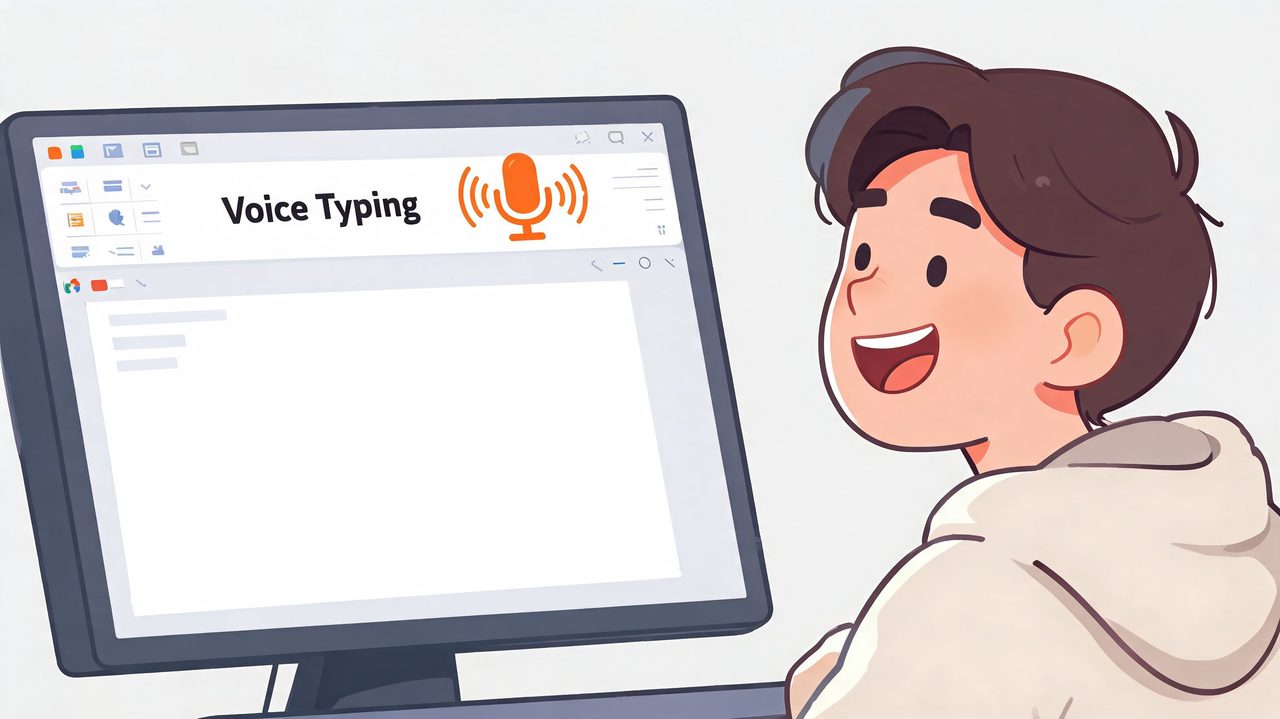
Google Docs voice typing is available in supported desktop browsers, including Chrome, Edge, and Safari in current guidance. The fastest path is still the same: open a doc, then go to Tools > Voice typing.
The setup steps that actually matter
Use this order:
- Open Google Docs in a supported browser. Start on desktop web, not a mobile app.
- Go to Tools, then Voice typing. A microphone panel appears.
- Grant microphone permission when prompted. If you block it accidentally, voice typing won’t work until you reset browser permissions.
- Choose the correct language or dialect. This is one of the biggest accuracy levers.
- Click the microphone icon and wait for it to activate. When the icon turns red, Google Docs is listening.
- Start with one clean sentence. Don’t begin with jargon or a fast monologue.
If you want a broader primer on dictation habits before using Google Docs, this getting started with voice dictation guide is a useful companion.
Two mistakes that waste the first session
The first is skipping the language menu. If the wrong dialect is selected, recognition can fall apart even when your mic is fine.
The second is assuming the browser permission prompt is a minor detail. It isn’t. If the browser doesn’t have mic access, nothing else matters.
If the microphone icon appears but won’t capture speech, check the lock icon in the address bar before changing system settings. Browser permissions are often the real blocker.
A quick walkthrough helps if you’d rather see the interface before trying it yourself:
Once it’s active, resist the urge to test it with isolated fragments. Say a full sentence. Voice recognition usually performs better with context than with chopped-up speech.
Essential Voice Commands for Hands-Free Writing
The first real productivity jump happens when you stop treating voice typing like a fancy keyboard and start treating it like a command system. If you have to reach for the mouse every time you want a new paragraph, a heading, or a quick deletion, dictation stays slow.
Google Docs can handle a solid set of spoken commands, but it works best if you learn the small group you will use under pressure. Start with punctuation, structure, and a few editing commands. Build from there.
Build your command set in three groups
Use commands in layers instead of trying to memorize the full list at once:
- Punctuation and structure. Say the marks and breaks out loud so the draft stays readable as it lands on the page.
- Formatting. Apply bold, italics, and headings without breaking your speaking rhythm.
- Navigation and editing. Move around the document, select text, and remove mistakes without touching the keyboard.
For repeated terms, specialized wording, or workflow shortcuts Google Docs does not handle well, this guide to custom voice commands and vocabulary is a useful next step. It also points to a larger reality. Google Docs is fine for general drafting, but teams that need tighter privacy, offline dictation, or more advanced formatting usually outgrow it and move to tools like AIDictation for those specific jobs.
Google Docs Voice Command Cheat Sheet
| Command Category | What to Say | Example |
|---|---|---|
| Punctuation | period | “We shipped the update period” |
| Punctuation | comma | “First comma gather the notes” |
| Punctuation | question mark | “Is this the final version question mark” |
| Structure | new line | “Action items new line follow up with design” |
| Structure | new paragraph | “That finishes the summary new paragraph Next steps” |
| Formatting | bold | “Select roadmap bold” |
| Formatting | italicize | “Select draft italicize” |
| Formatting | underline | “Select deadline underline” |
| Formatting | heading 1 | “Select Project Plan heading 1” |
| Formatting | heading 2 | “Select Risks heading 2” |
| Formatting | increase font size | “Select title increase font size” |
| Editing | select word or phrase | “Select quarterly review” |
| Editing | delete | “Select last sentence delete” |
| Editing | undo | “Undo” |
| Navigation | go to end of line | “Go to end of line” |
| Navigation | go to end of document | “Go to end of document” |
| Lists | create bulleted list | “Create bulleted list” |
| Lists | create numbered list | “Create numbered list” |
A practical rule: learn five commands until they are automatic, then add two more. That approach beats scanning a giant list and forgetting every phrase the moment you start dictating.
Keep the cheat sheet visible during your first few sessions. A second monitor helps. A pinned note works too. In a shared office, classroom, or TV-connected setup, a device like a 4K Wifi6 smart media player can make reference material easier to keep on a larger display while you speak.
One trade-off is worth remembering. Google Docs supports useful voice commands, but formatting control is still narrower than what heavy dictation users often want. If your workflow depends on structured notes, private transcripts, or reliable use away from the web, that is usually the point where a dedicated dictation tool starts saving time instead of adding work.
From Garbled to Great Tips for Better Accuracy
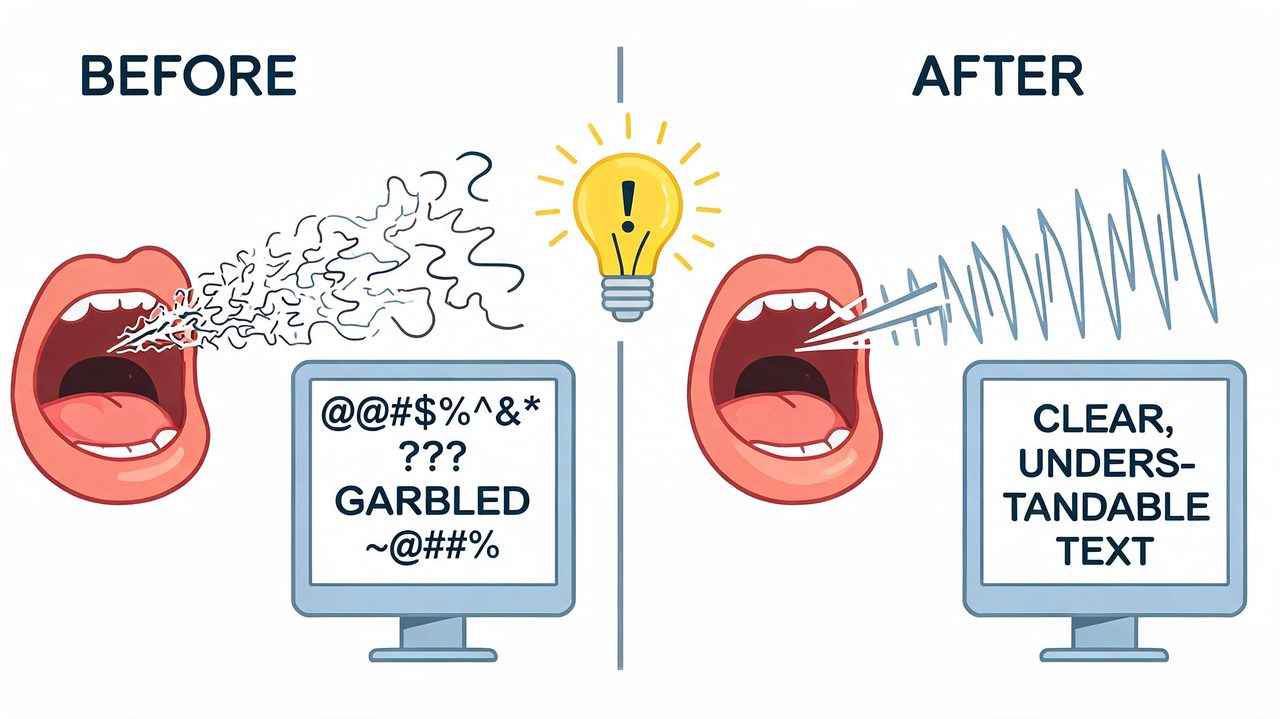
You hit the mic, speak a clean sentence, and Google Docs turns it into nonsense. In practice, that usually points to setup and workflow, not a failed tool.
Google Docs also shows its confidence level. Gray underlines mark words or phrases it is not sure about, so review starts with the risky spots instead of a full reread.
Fix the environment before you blame the tool
Start with the microphone and the room. Built-in laptop mics are convenient, but they also catch fan noise, echo, keyboard taps, and the slight hollow sound that hurts recognition. A headset or external mic usually gives Google cleaner audio to work with, which matters more than speaking louder.
If you’re shopping for audio gear, this guide to the best earbuds for calls is useful because call-focused hardware often overlaps with what dictation needs most: clear speech capture and less background noise.
A few setup habits improve accuracy fast:
- Reduce competing noise. Close windows, mute notifications, and avoid dictating near HVAC vents or busy hallways.
- Keep mic distance stable. Recognition drops when your voice gets louder and softer from constant movement.
- Speak naturally, but cleanly. Over-enunciating can sound unnatural to the model. Rushed speech can blur words together.
Use a draft first, edit second workflow
The biggest gain comes from separating composition from cleanup.
People who struggle with voice typing often make the same mistake. They dictate five words, stop, fix one error, test a command, restart, then lose their train of thought. That workflow makes even good recognition feel clumsy.
A better method is simpler:
- Dictate a full sentence or paragraph first.
- Leave small errors alone during the first pass.
- Review gray underlines and obvious mistakes in batches.
- Switch to the keyboard for dense cleanup or precise formatting.
That last point matters. Voice is excellent for getting ideas onto the page. It is less efficient for fine-grained editing once the document gets messy.
Workflow note: Dictation works best when you stay in writing mode long enough to finish a thought.
Speak for recognition
Good dictation sounds closer to clear explanation than performance speaking. Use complete sentences. Pause briefly between thoughts. Say punctuation only when it helps structure the draft.
Special terms need extra care. Product names, acronyms, unusual surnames, and technical jargon are more likely to break on the first mention, so introduce them slowly and consistently. If a term appears throughout the document, I usually say it carefully once, confirm Google captured it correctly, then continue at a normal pace.
Accent and language settings also matter. Google Docs can handle a lot, but it performs better when the spoken language matches the document setting and the audio is clean. If your work depends on private recordings, offline dictation, or more advanced formatting than Google handles well, this is often the point where a dedicated tool earns its place. AIDictation is the stronger fit for those cases because it addresses three common limits directly: privacy concerns, no-internet use, and more controlled output.
Troubleshooting Common Voice Typing Glitches
You click Voice typing, start talking, and nothing happens. Or the words appear, but commands refuse to fire and the draft fills with uncertain text. Google Docs usually fails in a few predictable ways, which makes troubleshooting faster once you know the order.
The microphone won’t work
Start with the shortest path to a fix. In Chrome, the browser permission is often the main blocker, not the operating system.
Check these in order:
- Browser permission. Click the lock icon in the address bar and confirm microphone access is allowed for Google Docs.
- Selected input device. Open your system sound settings and verify the correct microphone is active.
- Other apps using the mic. Meeting software, recording tools, and browser tabs can grab the input or switch devices behind the scenes.
I treat this as a three-minute test. If the mic meter moves in system settings but Docs still hears nothing, the browser is usually the problem.
Commands are ignored
This glitch is different. The microphone is working, but Google is hearing your words as dictation instead of instructions.
A few fixes work reliably:
- Pause before the command. A brief break helps Google separate narration from control.
- Use the standard command wording. “Undo,” “new paragraph,” and “heading 2” tend to work better than improvised phrasing.
- Test one simple command at a time. If “new line” works and “select previous word” does not, the issue is command complexity, not the microphone.
If command support keeps feeling inconsistent, that is often a sign you have reached the practical limit of browser dictation for your workflow. Tools in this best AI dictation apps guide are worth comparing if you need tighter control over formatting or more reliable behavior.
Gray underlines keep appearing
Gray underlines mean Google is unsure about what it captured. Treat them as a triage system, not a failure report.
Use a tighter cleanup loop:
- Check uncertain text after each paragraph. Fixing small batches is faster than sorting out a messy page later.
- Correct repeated terms once you spot the pattern. Names, acronyms, and product terms usually need a manual correction.
- Change the recording conditions if uncertainty spreads. Move closer to the mic, reduce fan noise, or switch headsets before continuing.
This is also the point where trade-offs become obvious. Google Docs is good at fast browser dictation, but less flexible if you need stronger privacy controls, offline use, or cleaner output from the start. If those issues matter, finding the right transcription solution helps clarify whether basic voice typing is still the right fit or whether a tool like AIDictation makes more sense for the job.
Judge the session by draft quality after cleanup, not by whether the first paragraph was perfect.
When Google Docs Falls Short The Case for a Pro Tool
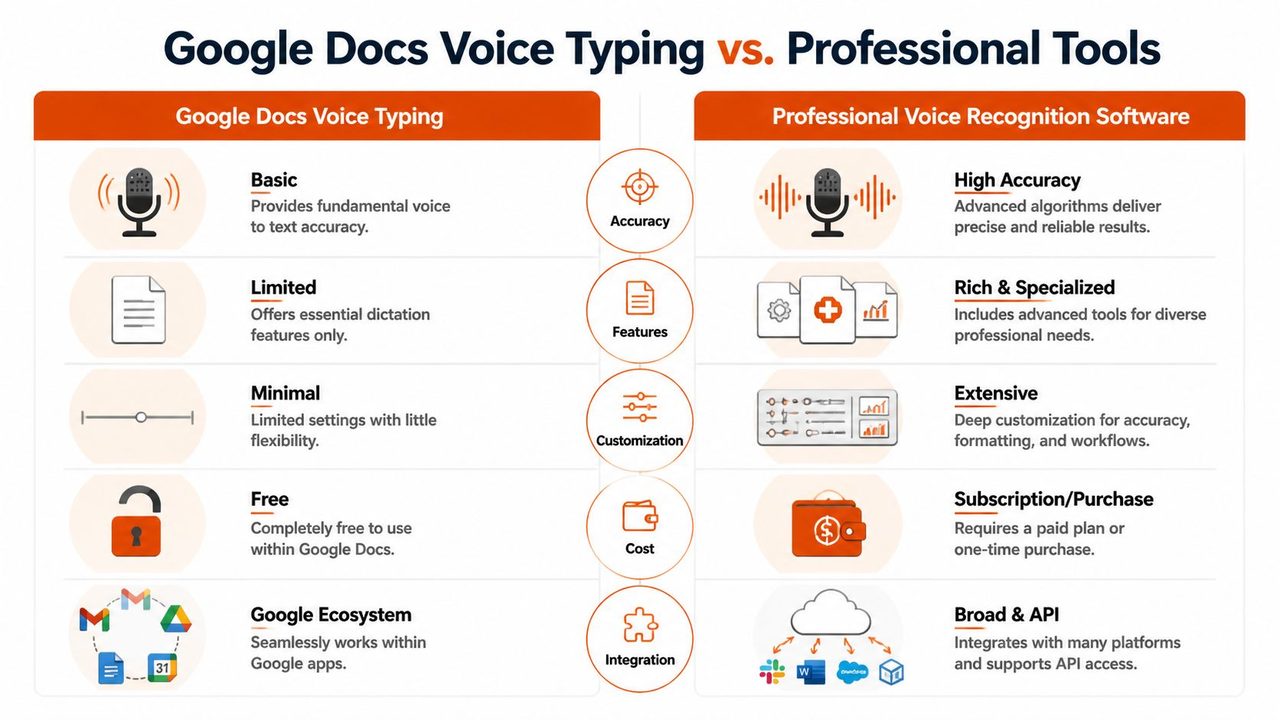
Google Docs voice typing is a strong free option, but it has clear boundaries. The biggest ones are privacy, offline work, and advanced cleanup.
Google Docs voice typing requires an active internet connection and runs only in a browser, with no native offline mode, according to Google Docs help guidance. For casual drafting, that’s fine. For travel, unstable networks, or sensitive notes, it becomes a real limitation.
Where the built-in tool starts to strain
These are the usual breaking points:
- Sensitive material. If your workflow includes confidential notes, browser-based cloud processing may not fit your requirements.
- Offline work. On a plane, in a clinic, or on weak hotel Wi-Fi, browser-only dictation becomes fragile.
- Messy spoken drafts. Google Docs captures words, but it won’t do much cleanup beyond the basics.
- Formatting-heavy output. If you want speech to become polished emails, structured notes, or cleaned-up technical text, the built-in tool runs out of room quickly.
People in that position usually start comparing alternatives. This finding the right transcription solution guide is a practical place to think through the trade-offs between simple dictation and more advanced transcription workflows.
What professional tools add
Professional dictation tools usually focus on one or more of these upgrades:
| Need | Google Docs voice typing | Professional tools |
|---|---|---|
| Privacy | Browser-based and online | May offer local processing |
| Offline use | No native offline mode | Some tools support on-device dictation |
| Cleanup | Basic transcription and commands | Some tools rewrite, format, and remove filler |
| App flexibility | Tied to browser workflow | Often designed for broader system use |
If you’re evaluating what to use beyond Google Docs, this best AI dictation apps roundup helps survey the field.
One option in that category is AIDictation, a macOS dictation app built for private local dictation and cloud-assisted cleanup. Its Local Mode runs on-device on Apple Silicon for offline use, while Cloud Mode adds formatting and transcript cleanup for rough spoken drafts. That makes it relevant when Google Docs is good enough for drafting but not enough for privacy-sensitive or formatting-heavy work.
If Google Docs gets you part of the way there but you need offline dictation, more privacy, or cleaner output with less manual editing, AIDictation is worth a look. It’s designed for macOS users who want speech-to-text that can stay local when needed and produce more polished writing when cloud cleanup is available.
Frequently Asked Questions
What does How to Use Voice Recognition in Google Docs cover?
You open a blank Google Doc, the cursor blinks, and your hands already feel slower than your thoughts. That’s when voice typing starts to make sense.
Who should read How to Use Voice Recognition in Google Docs?
How to Use Voice Recognition in Google Docs is most useful for readers who want clear, practical guidance and a faster path to the main takeaways without guessing what matters most.
What are the main takeaways from How to Use Voice Recognition in Google Docs?
Key topics include Table of Contents, Unleash Your Voice A Practical Guide to Google Docs Voice Typing, What makes it worth learning.
Ready to try AI Dictation?
Experience fast voice-to-text on your device. Free to download.
Download FreeRelated Posts
Voice to Text on Mac: Built-in Dictation vs the Best Apps (2026)
How to use voice to text on a Mac or MacBook: turn on built-in dictation, see where it falls short, and compare the best Mac voice to text apps for 2026.
AI Grammar Correction Explained from Rules to LLMs
Learn how AI grammar correction works, from rule-based engines to large language models, and what it means for privacy, accuracy, and real-world workflows.
How Does Voice Recognition Software Work?
Learn how does voice recognition software work. Explore sound waves to text, AI, acoustic models, & on-device vs. cloud tech. Get the 2026 guide!