Custom Dictionary for Word: Set Up AIDictation Vocabulary

You're dictating an email, and your client's surname turns into an ordinary word again. You fix it, finish the message, then make the same correction in the next draft. A carefully chosen dictionary entry may save that repeated edit, but only if it changes the name without damaging the rest of the sentence.
If you're looking for a custom dictionary for Word, distinguish spelling from speech recognition. Word's spelling dictionary and your dictation app's vocabulary serve different jobs: accepting a spelling doesn't necessarily teach a speech engine to recognize it. For dictated documents, start with the vocabulary settings in the app that turns your voice into text.
Table of Contents
- Which Words Earn a Place and Your First Session
- How to Add a Term Step by Step
- Pronunciation and Alias Tuning That Holds Up
- How to Import a Term List in Bulk
- Fixing Terms the Engine Keeps Missing
- Testing and Pruning Your Dictionary Over Time
Which Words Earn a Place and Your First Session
Say a client named Priyanka Raghavan appears throughout your correspondence, but dictation keeps guessing another surname. That's a useful candidate for a custom entry. A common word that already comes out correctly isn't.
Use an error-cost filter: add a term when it fails repeatedly or when a wrong version could cause meaningful harm. A misspelled client name can undermine an email. A mistaken medication name needs a much stricter review than an awkward word in an internal brainstorming note.
Choose terms by consequence
Review a representative slice of your recent documents. Look for repeated corrections, names that matter to recipients, and technical terms whose spelling gives little clue to their pronunciation. Don't copy an entire industry glossary just because it's available.
The medical vocabulary evaluation published in Proceedings of the AMIA Symposium found that an inexpensive vocabulary omitted roughly 400 terms, about 10% of the terms needed for 50 discharge summaries. That finding supports checking coverage against actual work, not assuming a domain-labelled dictionary contains everything you need.
| Term type | Example | What to enter | Why it matters |
|---|---|---|---|
| Person or client name | Priyanka Raghavan | Exact spelling and capitalization | Helps prevent surname guesses in emails |
| Product or tool name | Kubernetes, Jira | The brand's own casing | Keeps tickets and documentation consistent |
| Spoken acronym | HIPAA, SQL | Written form plus how you say it | Helps distinguish spoken letters from word-like pronunciations |
| Code identifier | useState, getUserById | Exact casing and any underscores | Gives you a precise target for identifiers that get split or recased |
| Clinical abbreviation | bid, tid, qid | Written form, checked by a clinician | Dosing shorthand needs deliberate verification |
More entries aren't automatically better. Every added spoken mapping needs checking for collisions with legitimate language. I'd choose a small, maintained working vocabulary over a long list nobody tests.
Word choice also matters before recognition enters the picture. Lumi Humanizer's explanation of how writers use word choice is useful for distinguishing deliberate terminology from unnecessary jargon. Save the dictionary for language you intend to use, not every specialist expression you encounter.
Run a baseline before adding entries
Dictate a real paragraph at your normal pace and save the uncorrected result. Mark the wrong terms, then rank them by consequence rather than counting how often they appear. Our guide to specialized vocabulary provides additional context for choosing domain-specific language.
With AIDictation, install the app, choose a hotkey, then hold it while speaking in any text field; punctuated text appears at the cursor. Use that routine to capture your baseline and repeat it after saving your highest-priority entries.
Compare the actual output, not your impression of whether dictation felt smoother.
Starting rule: A custom dictionary targets the vocabulary you specify. It isn't a general accuracy switch, so begin with the errors that cost you most.
How to Add a Term Step by Step
Keep the intended written form beside you before opening settings. Don't build an entry from memory when capitalization, punctuation, or a person's preferred spelling matters.
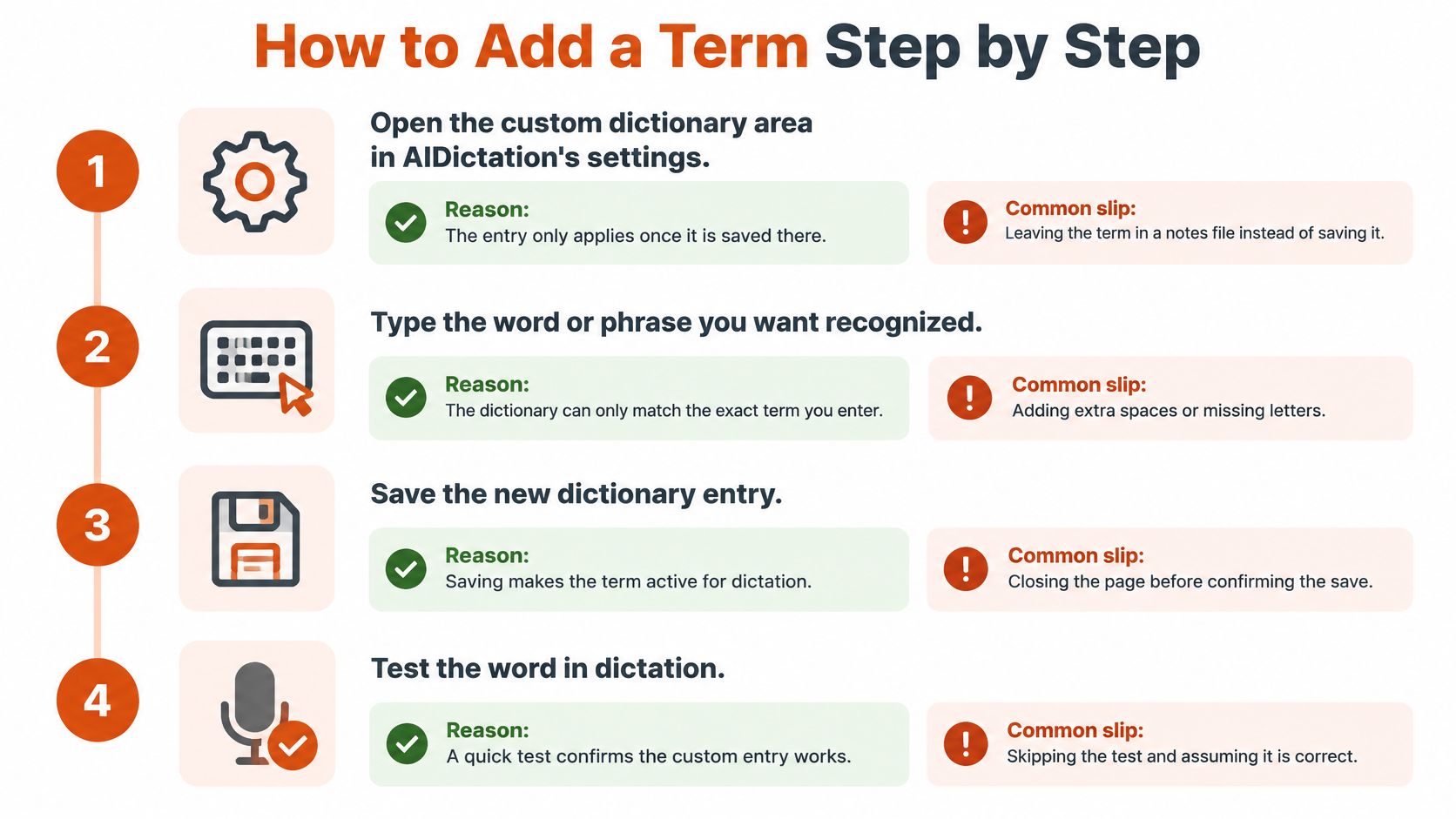
This visual summarizes the basic save-and-test workflow.
-
Open the custom dictionary area in AIDictation's settings. The term must be saved there to become part of your configured vocabulary. Leaving a correction in a notes file doesn't register it.
-
Enter the exact written form. Preserve capitalization, punctuation, and identifier characters because that's the output you'll evaluate. A common slip is entering a convenient lowercase version and expecting the application to reconstruct the intended casing.
-
Add a spoken form only when needed. If your version exposes a pronunciation or alias field, use it for a genuine mismatch between spelling and sound. Don't populate it automatically for every entry, or you'll create more mappings to maintain.
-
Save, then dictate a natural sentence. Saving commits the change; speaking normally tests whether it helps during actual work. Over-enunciating the target word can hide the problem you're trying to solve.
-
Inspect the text at the cursor. Check the term character by character and read the surrounding words. The common mistake is noticing the corrected name while overlooking a new substitution nearby.
-
Remove or narrow an entry that causes collateral changes. A correct target word doesn't justify corrupting its neighbours. Don't add more entries while an existing mapping remains suspect.
Check the destination document
For document-specific setup, use the guide to talk-to-text in Word. Check the inserted text in the document itself, including punctuation next to the term, rather than relying solely on a vocabulary preview.
The accompanying video provides another view of the workflow.
Success is narrow and observable: the intended term, correct casing, and no unintended changes. Treat anything less as an unfinished entry.
Pronunciation and Alias Tuning That Holds Up
Nginx creates an obvious spelling-to-sound mismatch when you say it as engine-x. You might say kubectl as cube control, while a colleague uses another pronunciation. A name such as Liza presents a different problem: its sound may be indistinguishable from Lisa in your speech.
An alias helps represent how you speak, but it can't reliably resolve every ambiguity. The speech-recognition adaptation paper hosted on arXiv describes a domain lexicon combining transcript-derived vocabulary with specialist names and generated pronunciations. That's a useful distinction: the written form and the spoken form are separate information.
- Map a real mismatch. Add a spoken form when the normal spelling doesn't adequately represent what you say. Don't create aliases merely because a word looks technical.
- Keep phonetic hints readable. Use a simple approximation you can understand later. An elaborate collection of near-identical variants makes troubleshooting harder.
- Ignore visual resemblance. A similarly spelled word isn't a useful pronunciation hint unless its sound matches your speech. Otherwise, you're adding a competing spelling without solving the recognition problem.
- Test your own delivery. Use your usual accent, speed, and sentence structure. If you mix English technical terms into Russian or Ukrainian speech, test that mixed sentence rather than an isolated English noun.
- Check ambiguous names in context. Try the name in the kinds of requests you dictate. If the alias also changes an ordinary word, remove it instead of accepting the collateral correction.
Separate pronunciation practice from configuration
If you're unsure how a written word relates to its sound, Intonetic's material to practice words with silent letters can help you identify the mismatch. Use that understanding to choose a practical spoken form, not to fill the dictionary with every pronunciation exercise.
An alias won't repair a clipped recording, persistent microphone noise, or speech that doesn't contain enough information to distinguish alternatives. Address the recording conditions before multiplying vocabulary entries.
Use an alias for a specific spoken confusion, and keep it only when it survives a realistic sentence test.
How to Import a Term List in Bulk
A team glossary is a starting file, not an import-ready dictionary. It may contain obsolete products, internal abbreviations, alternate spellings, and explanatory notes that don't belong in recognition vocabulary.
First check whether your installed version offers bulk import. Don't assume a file layout or alias separator: if the settings don't document an import option, use the supported entry workflow instead.
Prepare a reversible batch
-
Create a plain-text source list. Put each canonical term on its own line. Keep definitions, ownership notes, and pronunciation explanations outside the import payload unless the documented format explicitly supports them.
-
Save as UTF-8. This preserves accented names and non-Latin characters during file handling. Reopen the saved file before importing to catch encoding damage early.
-
Match the documented layout. Use only the separator and field order accepted by your version. A guessed comma or tab can turn an intended alias into part of the written term.
-
Choose a pilot batch. Start with related, high-value terms rather than the whole glossary. A group of product names is easier to diagnose than an unrelated mixture of names, drugs, and identifiers.
-
Dictate representative sentences. Include the imported terms in ordinary requests, explanations, and updates. Check that each entry survives its surrounding grammar.
-
Probe for collisions. Test ordinary words that resemble short names and abbreviations. A glossary entry that works in isolation may be too broad for everyday prose.
-
Expand only after the pilot behaves. Keep later batches small enough that you can identify and undo the source of a regression.
Keep the source file accountable
Store the maintained glossary in version control, with the owner, change date, and reason for each edit recorded alongside it. Keep sensitive names out of broadly accessible repositories.
The practical payoff is rollback. When a batch introduces bad substitutions, restore the last working version instead of trying to reconstruct deleted entries from memory.
Fixing Terms the Engine Keeps Missing
You've saved the term, but the same similar-sounding word still appears. Don't immediately add several alternate spellings. First determine whether you're dealing with pronunciation, formatting, an overbroad mapping, or application-specific processing.
Use the symptom to choose the smallest useful intervention.
| Symptom | Likely cause | Fix |
|---|---|---|
| Term never appears | Spelling is far from the sound | Add a supported phonetic spelling or pronunciation hint, then retest the full paragraph |
| Right word, wrong casing | Canonical form saved in lowercase | Make a casing edit, then verify sentence-initial and mid-sentence output |
| Common word replaced | Entry too broad, such as a short name matching an ordinary word | Use a full phrase if supported, or delete the entry; retest the full paragraph |
| Acronym read as a word | The engine treats the letters as a spoken word | Add a spaced-letters spoken variant if supported, then test it in context |
| Works in one app only | An app context rule changes wording or formatting | Check that app's context rule, then repeat the test in the affected destination |
Identify which stage changes the text
A vocabulary hint used during recognition isn't the same as a replacement applied after transcription. Contextual cleanup can introduce another decision about wording or formatting. Before editing the dictionary, check which stage appears responsible for the unwanted output.
The medical speech-recognition article in Scientific Reports describes the limitations of dictionary-only correction and the use of context-enhanced methods. Don't assume that saving an accepted spelling guarantees correct recognition, or that the same configuration behaves identically across engines.
Test the destinations you use, including Word, email, and your editor. If you switch between local and cloud processing or change privacy settings, verify the vocabulary behaviour rather than assuming synchronization or identical handling.
Troubleshooting discipline: Change a single entry, repeat the same paragraph, and compare the result before making another edit.
If repeated edits don't help, remove the entry and reconsider its value. A manual correction may be safer than a mapping that unpredictably alters ordinary language.
For problems extending beyond specialist vocabulary, use the dictation accuracy guide to separate input-quality issues from dictionary issues. Don't make a vocabulary list compensate for a poorly positioned microphone or an app rule that's changing otherwise correct text.
Testing and Pruning Your Dictionary Over Time
Keep a fixed test paragraph and run it after each batch of changes. Check the target terms, the surrounding words, and any new unintended replacements separately. Record the actual failure, not just a pass-or-fail impression.
Make maintenance routine
- Review active use. Set a monthly reminder to remove obsolete project vocabulary and investigate entries you no longer need.
- Retire sensitive names. Remove former project participants' names when there's no continuing reason to retain them, and check any shared source list too.
- Roll back regressions. Use the recorded owner and change date to identify the responsible edit. Don't leave a harmful replacement active while adding workarounds.
- Question growth. Count active entries at review time, but judge them by usefulness rather than treating a larger total as progress.
A controlled medical speech-recognition comparison reported vocabulary-recognition error rates of 7.0–9.1% for the best evaluated system. That result isn't a guarantee for your setup; critical terminology still needs direct inspection.
In healthcare, check medication names and dosage expressions by hand. In legal work, verify names and case citations against the intended reference. Keep those checks inside realistic sentences, because a correctly recognized isolated term doesn't establish that the finished document is safe.
AIDictation offers Mac voice-to-text with a custom dictionary for names and technical terms, plus a free trial with 5,000 words and no credit card required. Visit AIDictation, test a paragraph from your own work, and build your vocabulary around the corrections that matter most.
Frequently Asked Questions
What does Custom Dictionary for Word: Set Up AIDictation Vocabulary cover?
You're dictating an email, and your client's surname turns into an ordinary word again. You fix it, finish the message, then make the same correction in the next draft.
Who should read Custom Dictionary for Word: Set Up AIDictation Vocabulary?
Custom Dictionary for Word: Set Up AIDictation Vocabulary is most useful for readers who want clear, practical guidance and a faster path to the main takeaways without guessing what matters most.
What are the main takeaways from Custom Dictionary for Word: Set Up AIDictation Vocabulary?
Key topics include Table of Contents, Which Words Earn a Place and Your First Session, Choose terms by consequence.
Ready to try AI Dictation?
Experience fast voice-to-text on your device. Free to download.
Download FreeRelated Posts
Email Dictation Software: What It Is and How to Choose
Learn what email dictation software is, how it works, and how to pick the right one. Covers accuracy, privacy, HIPAA, accents, and real buyer checklists.
Free Audio to Text Tools: 10 Options Compared for 2026
Compare 10 free audio to text tools: built-in recorders, free apps, offline models, and cloud APIs, with privacy and accuracy trade-offs.
Verbal Ink Transcription Workflows Today
Explore verbal ink transcription workflows, accuracy benchmarks, and how modern AI dictation tools compare to traditional human transcription services.