MacBook Air Speech Recognition: How to Set Up and Fix It
You're staring at a blank Notes page on your MacBook Air, wrists tired, half a paragraph already formed in your head, and you hit the dictation shortcut. Nothing happens. Or text appears, but the names are wrong, the punctuation is missing, and fixing it takes longer than typing would have. That gap is the central subject here. MacBook Air speech recognition is good at getting words onto the screen. Getting words you can confidently send, file, or publish takes setup, a room that cooperates, and a clear view of what's private and what isn't.
Table of Contents
- How to Turn On Dictation on Your MacBook Air
- Tune Speed and Accuracy by Chip and Room
- Privacy Settings to Check Before Sensitive Dictation
- Test Whether Raw Dictation Is Good Enough
- Fix Dictation That Does Nothing or Types Wrong
- Choose Your Dictation Setup Before Sensitive Work
How to Turn On Dictation on Your MacBook Air
Start with one short test in Notes before relying on dictation for a message or document. These settings apply across macOS, so you can speak into Notes, Mail, and most other text fields without configuring each app separately.
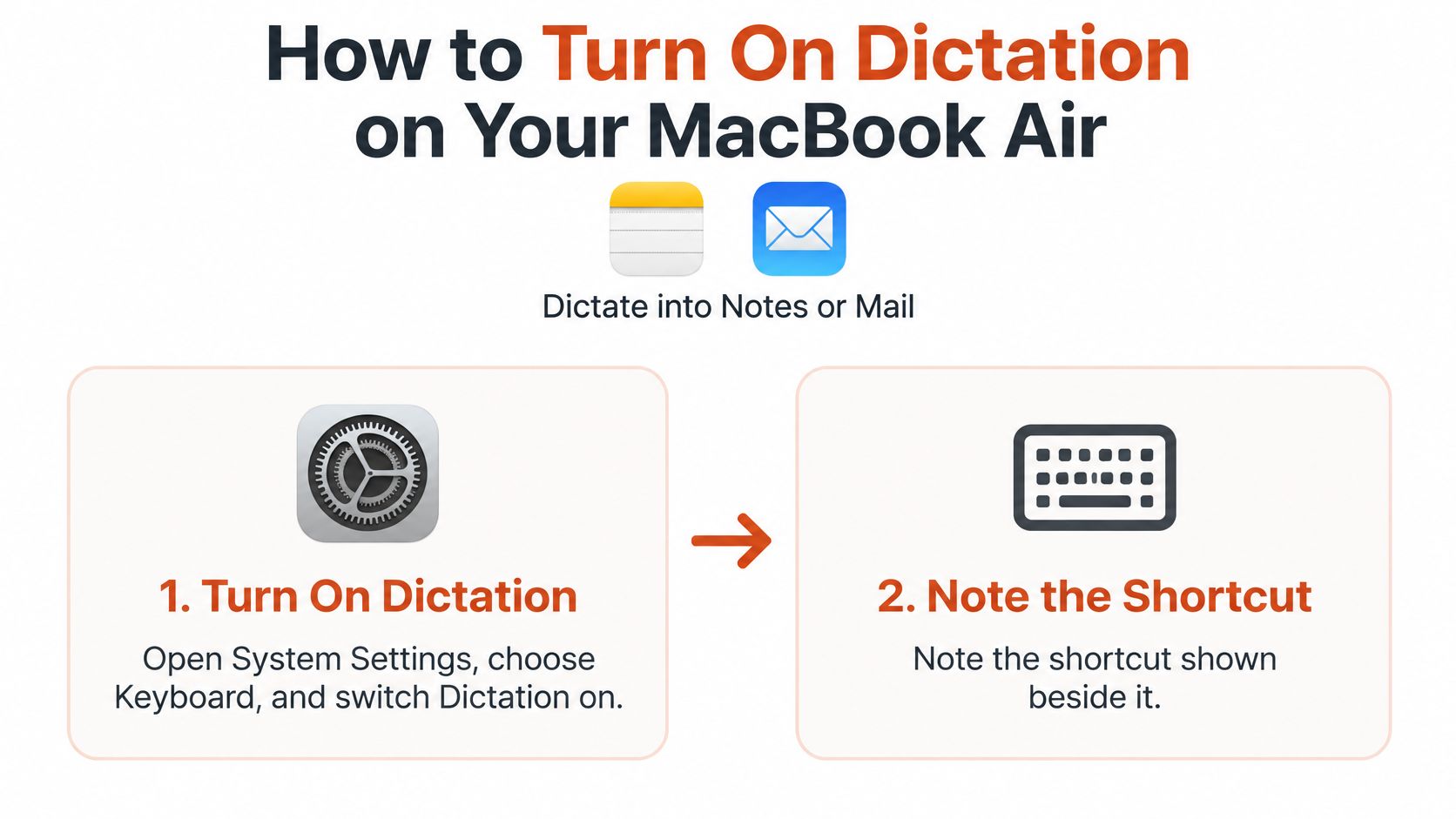
- Open System Settings, choose Keyboard, and switch Dictation on. This enables system-wide dictation.
- Check the shortcut shown beside Dictation. Many Macs use the Fn or Globe key twice by default. If the shortcut conflicts with another command, dictation may not start.
- Choose the language and dialect you speak, such as English (United States) or English (UK). A mismatch can cause words to be recognized incorrectly. Apple's guide to fixing dictation that doesn't work as expected also covers language and dialect settings.
- Open System Settings, select Sound, then Input, and choose the built-in microphone or your headset. Check that macOS has not selected an idle Bluetooth device.
- Speak at a normal volume and watch the input meter. Adjust the slider so the level reaches around the middle without hitting the top. A weak signal can lose words, while an overly strong one can distort them.
- Download the language if macOS prompts you. That lets recognition run on the Mac for that language, including when you are offline.
- Test in Notes. Dictate a sentence with a comma, say “new paragraph,” then dictate a second sentence. You can check recognition, punctuation, and a basic voice command in one pass.
Dictation stays active while you keep typing, so you can correct a misheard word with the keyboard without stopping and restarting. Keep your usual seated position and speak at a steady, moderate volume. If the test fails, work through the settings before changing your delivery: check that Dictation is enabled, verify the listed shortcut, confirm the selected language, and make sure the chosen microphone is receiving input. These are configuration checks you can resolve in the steps above. Background noise and room echo are different; address them after confirming the settings, since they depend on the recording environment.
Practical rule: Check settings in order: Dictation first, language second, microphone third, room last.
Tune Speed and Accuracy by Chip and Room
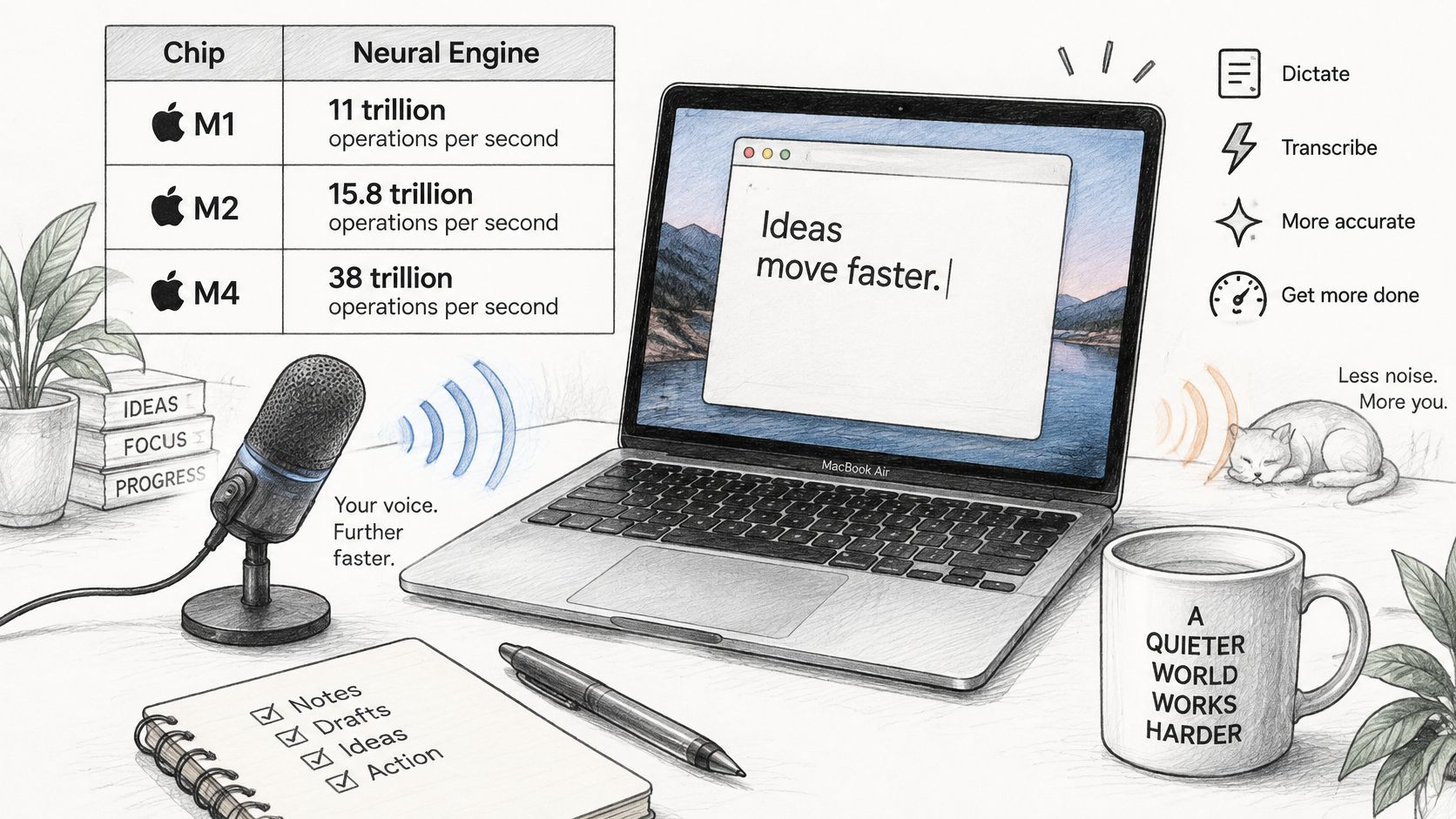
Your chip sets the ceiling for how fast on-device recognition can run. The table below shows Neural Engine throughput figures reported for Apple's M-series processors, and that dedicated machine-learning capacity is what makes local dictation on a thin, fanless laptop practical at all.
| Chip | Neural Engine (trillion ops/sec) | MacBook Air generation | What it means for dictation |
|---|---|---|---|
| M1 | About 11 | MacBook Air (2020) | Proved on-device speech is practical on a fanless laptop; test long sessions |
| M2 | About 15.8 | Later MacBook Air generation | More headroom for local recognition and faster response |
| M4 | About 38 | MacBook Air (2025) | Most room for local models; best fit for long, dense dictation |
The M1 MacBook Air from 2020 matters because it brought this architecture to a fanless ultraportable, so inference could happen on the machine instead of depending continuously on a remote server. Newer chips add headroom, but they don't fix a bad room. If you're weighing an older Air against a newer one for this kind of work, budget MacBook advice for UK buyers is worth reading before you assume you need the latest model.
Match the Microphone to the Room
- Quiet room: Use the built-in microphone at your normal seated distance. It's the fastest setup and usually adequate for short notes.
- Open office or cafe: Switch to a headset microphone placed close to your mouth. Proximity does more for accuracy than any setting.
- Echoing room with bare walls: Use a headset, or move somewhere with soft furnishings that absorb reflections.
- Heavy accent or mixed languages: Confirm the exact dialect is selected, then test names and product terms out loud before a real session.
- Any room: Speak at a steady, moderate volume with a short pause between sentences so the recognizer can place boundaries.
The short video below walks through dictation behavior so you can compare it against your own setup.
Local processing isn't always the better choice. Cloud systems may keep an edge with heavy background noise, strong accents, or several speakers, while local models can run faster than real time for many single-speaker tasks and keep audio off the network. Test one sentence in a quiet room, then again where you work, and compare. For a deeper look at that problem, read our guide to speech recognition in noisy environments before buying new hardware.
Privacy Settings to Check Before Sensitive Dictation
| Setting or mode | Where it lives | What it controls | For confidential work |
|---|---|---|---|
| Dictation on or off | Keyboard settings | Turns system dictation on | On, after checking the language |
| Improve Siri & Dictation | Privacy & Security settings | Whether Dictation audio may be shared with Apple | Off |
| Downloaded dictation language | Keyboard, Dictation languages | Whether recognition runs offline for that language | Download before working offline |
| Microphone access | Privacy & Security, Microphone | Which apps can use the microphone | Allow only dictation apps you use |
| AIDictation Local Mode | Inside the app | Speech recognition runs on your device | Consider for sensitive text, subject to your compliance rules |
| AIDictation Cloud Mode | Inside the app | Speech recognition can stay on your device; only transcribed text is sent to the cloud for AI cleanup | Check your policy before using cloud cleanup for confidential text |
Privacy depends on the settings in each part of your workflow, not one switch. Improve Siri & Dictation is one setting to review. Apple's Mac User Guide on dictating text and controlling audio sharing explains that you can enable or disable sharing of Siri and Dictation audio recordings. Stored interactions are associated with a random identifier and may be retained for less than six months. For confidential sessions, turn audio sharing off in Privacy & Security settings.
What Local Actually Means
On supported Apple silicon Macs, system dictation can run on the computer for languages you have downloaded. Check the language download before relying on dictation without internet. Our guide to offline speech recognition and how local modes work explains how local processing differs from cloud processing.
AIDictation's speech recognition can run on your device, while AI cleanup runs in the cloud. That means the audio and the finished text have different paths: check whether your policy permits sending transcribed text for cleanup. The app uses microphone access only when you choose to dictate, record, or transcribe, and limits access to audio and transcript data to what is needed to provide the requested feature. Review Microphone access as well, and grant it only to the dictation apps you use.
These checks help clarify which parts of your workflow stay on the Mac, but they do not establish compliance by themselves. For broader device and data hygiene, see Steel City IT's data security guide. In a clinic, law firm, or other regulated setting, confirm your employer's or regulator's requirements before dictating patient or client information into any tool, including ours.
Test Whether Raw Dictation Is Good Enough
Don't judge dictation on a friendly test sentence. Run these five prompts, each three times, in your usual room with your usual microphone.
- A clinical note with drug names and dosages, scored on whether every term and figure matches what you said with nothing added.
- A code comment with function names and camelCase identifiers, scored on whether each identifier matches your codebase exactly.
- A product requirement with acronyms such as SSO and OKR and a few figures, scored on whether acronyms keep their correct case.
- An email with names and one sentence mixing English and Spanish, scored on whether names are spelled right and English terms stay as spoken.
- A self-correction, such as "Tuesday, no, Wednesday, meeting at 3," scored on whether only the corrected word survives.
A pass means every term is spelled correctly, no words are invented, and the self-correction is applied. Anything less means your output is a draft, not finished writing, and you should plan editing time accordingly.
Why Your Own Test Is the Only Evidence
Apple's documentation doesn't publish accuracy benchmarks for technical vocabulary, medical terminology, developer identifiers, or heavily accented speech, as Apple's Mac User Guide entry on dictation features and language support makes clear by describing capabilities rather than error rates. It notes automatic-accuracy improvements for major language variants including English, Mandarin, Cantonese, Japanese, Spanish, French, and German, without explaining how performance compares across them. So your five prompts are the benchmark that matters.
System-wide availability is not the same as context-aware formatting. Being able to dictate everywhere doesn't mean the text arrives ready to send.
The workflow that holds up in practice is two-stage. Dictate a rough version while the thought is fresh, then run a cleanup pass for punctuation, structure, and terms. That second pass is where professional output comes from, whether you do it by hand or with a tool. Your test results tell you how much of that pass you need.
Fix Dictation That Does Nothing or Types Wrong
| Symptom | Likely cause | Fix |
|---|---|---|
| Shortcut does nothing | Dictation is off or the shortcut conflicts with another command | Re-enable Dictation in Keyboard settings and choose a different shortcut |
| Text appears in the wrong language | Language or dialect mismatch | Select the correct dialect and test a sentence |
| Meter stays flat, nothing typed | Wrong input device or muted input | In Sound settings, choose the built-in mic or headset under Input |
| Words are missing or cut off | Input is too quiet or speech is too fast | Raise the input level and pause briefly between phrases |
| Garbled text in a noisy room | Background noise or echo | Try a headset microphone |
| Works online, fails offline | Language is not downloaded or supported in your region | Download the language and check regional support |
| Punctuation is missing | Language lacks automatic punctuation | Say punctuation names, such as “period” or “comma” |
| Dictation is blocked in one app | The app lacks microphone permission | In Privacy & Security, open Microphone and enable access for the app |
Use the table from top to bottom. A shortcut that does nothing usually points to setup, not recognition: Dictation may be off, or another feature may use the same keys. Check the settings before changing your speaking style. A language or input-device mismatch can make accurate recognition seem unreliable.
Two limits are easy to confuse. First, Dictation's availability and features vary by language and region. A setting that works for English may not apply to another locale, so a successful English test does not confirm support for every language. Second, offline Dictation requires the language to be downloaded. If it stops working on a flight, check whether that language is installed.
Names and technical terms need a different fix from a missing shortcut or microphone. If Dictation repeatedly misspells a name or jargon, adjust your vocabulary rather than changing device settings. The guide to building a custom dictionary on Mac explains how to do that.
If the table does not resolve the problem, run a five-minute reset: switch Dictation off and on, verify the input device, then quit and reopen the app. If the shortcut still fails, restart the Mac. After each step, test in Notes before moving on. That helps identify which change fixed the issue, rather than leaving you with several untested adjustments.
Choose Your Dictation Setup Before Sensitive Work
| Option | Works offline | Cleanup and formatting | Setup effort |
|---|---|---|---|
| Apple Dictation (built-in) | Yes, for downloaded languages on supported Macs | Basic punctuation and commands like "new paragraph" | None beyond Keyboard settings |
| Voice Control | Yes, audio processed on the Mac | Limited for prose; built for device control | System Settings, Accessibility |
| Browser speech-to-text | Usually no, depends on the browser | Little or none | Browser extension or built-in setting |
| AIDictation Local Mode | Yes, speech recognition runs on your device | Rougher transcript, without cloud cleanup | Install app, pick hotkey |
| AIDictation Cloud Mode | No, needs a connection | AI cleanup of punctuation and structure | Install app, pick hotkey |
| AIDictation Auto Mode | Chooses an engine for offline or online use | Selects the speech recognition engine for the situation | Install app, pick hotkey |
Choose based on where speech recognition runs, whether spoken text needs cleanup, and which apps you use. Those are separate questions: keeping recognition on the Mac does not mean a workflow also includes cloud cleanup, and polished text may require sending it for processing. Check each step before dictating sensitive material.
Apple Dictation is a practical default for short messages and notes when the five-prompt test showed good results and you need little editing. It supports automatic punctuation in supported languages and spoken commands such as "all caps" and "new paragraph." Voice Control serves a different purpose: it lets you control the Mac hands-free, but learning its commands may be unnecessary if your only goal is writing. Browser speech-to-text varies by browser and provider, so check its data-handling policy before dictating confidential content into a tab.
How the Three AIDictation Modes Differ
Auto mode chooses a speech recognition engine for the situation, whether you're online or offline. Local mode runs speech recognition on your device without an internet connection. Its results can be rougher, and mixed languages may be less reliable. Cloud mode sends text to the cloud for AI cleanup of punctuation and structure. That distinction matters when your rough spoken draft needs to become finished writing: recognition captures the words, while cleanup organizes the text.
Match Your Work to a Setup
- Short personal notes and chat: Built-in Dictation with spoken punctuation commands may be enough. If the output needs only light edits, adding another tool adds setup without solving a problem.
- Specs, changelogs, and developer documentation: Start with a rough spoken draft, then use cleanup for punctuation and structure if the raw text needs work. AIDictation is a voice-to-text app for Mac with a free version you can download. Install it, choose a hotkey, and hold the key while speaking in a text field. Punctuated text appears at the cursor.
- Clinical, legal, or other confidential work: Check where recognition runs and whether text is sent for cloud cleanup before the first session. Use on-device recognition when keeping that step on the Mac matters, and confirm your workplace's rules before dictating. Processing location is one part of the privacy check, not a complete compliance decision.
- Multilingual writing: Test each language and dialect separately with the five prompts. A successful test in one language does not confirm results in another. For mixed-language dictation, check whether the tool preserves the languages you speak as intended.
Deciding question: Did your test output need light touch-ups or a rewrite? The amount of editing you do is a better guide than the feature list.
Run the five-prompt test on your MacBook Air and record whether each prompt passes. Repeat it after a major macOS update or a microphone change, since either can affect results. Keep your notes so you can compare a new setup with your previous one. Once you know how much editing raw recognition needs, choose separately whether you want on-device capture, cloud cleanup, or both.
If raw dictation needs a substantial cleanup pass, AIDictation offers Auto, Local, and Cloud modes for Mac. Local mode keeps speech recognition on your device, while Cloud mode sends text for AI cleanup of punctuation and structure. Download the free version and compare the editing effort with your current setup.
Frequently Asked Questions
What does MacBook Air Speech Recognition: How to Set Up and Fix It cover?
You're staring at a blank Notes page on your MacBook Air, wrists tired, half a paragraph already formed in your head, and you hit the dictation shortcut. Nothing happens.
Who should read MacBook Air Speech Recognition: How to Set Up and Fix It?
MacBook Air Speech Recognition: How to Set Up and Fix It is most useful for readers who want clear, practical guidance and a faster path to the main takeaways without guessing what matters most.
What are the main takeaways from MacBook Air Speech Recognition: How to Set Up and Fix It?
Key topics include Table of Contents, How to Turn On Dictation on Your MacBook Air, Tune Speed and Accuracy by Chip and Room.
Ready to try AI Dictation?
Experience fast voice-to-text on your device. Free to download.
Download FreeRelated Posts
Dictation on macOS: Setup, Apps, and Pro Tips
Master dictation on macOS with clear setup steps, app comparisons, privacy settings, and accuracy tips to turn your voice into clean text fast.
Is There a Speech to Text App for Mac? a Practical Guide
Is There a Speech to Text App for Mac. Wondering if there is a speech to text app for Mac? Compare built-in Dictation, on-device engines, and AI tools like
Voice to Text on Mac: Built-in Dictation vs the Best Apps (2026)
How to use voice to text on a Mac or MacBook: turn on built-in dictation, see where it falls short, and compare the best Mac voice to text apps for 2026.