Transcribe App for iPhone: Top Picks & Guide 2026
You've probably got the recording already. It's sitting in Voice Memos, Files, WhatsApp, Zoom, or a recording app you opened in a hurry because the meeting started before you were ready. Now you need text you can actually use. Not a rough blob of words, but something you can search, quote, edit, and share.
That's where many users hit a significant problem. Getting audio onto an iPhone is easy. Turning it into reliable text is where the trade-offs start. A quick note to yourself needs one approach. A lecture, interview, or client call needs another. Sensitive material changes the rules again.
A good transcribe app for iPhone isn't just about whether it “works.” It's about where the audio is processed, how much cleanup you'll need afterward, and whether the result is good enough for the job. If you're dealing with interviews, legal notes, research calls, or medical language, the wrong choice creates more editing than it saves. If you need help with generating accurate transcripts for more demanding recordings, it helps to think in terms of workflow, not just app features.
Table of Contents
- From Audio File to Usable Text
- Your iPhone's Built-In Transcription Tools
- Comparing Top Third-Party Transcribe Apps
- The Core Tradeoff Accuracy Versus Privacy
- The Pro Workflow Unlocking Quality with Your Mac
- Frequently Asked Questions About iPhone Transcription
- What's the best way to improve transcription accuracy on iPhone
- Which app type handles multiple speakers best
- Are iPhone transcription apps good enough for healthcare or legal work
- Do free iPhone transcription tools work for students
- What about accessibility and live captions
- Should I choose an iPhone-only app or an iPhone-to-Mac workflow
From Audio File to Usable Text
You finish a meeting, lock your phone, and move on. An hour later, the hard part starts. You need the key decisions from a product review, a quote from an interview, or clean notes from a lecture. The recording is there, but it's trapped in audio form until you run it through the right tool.
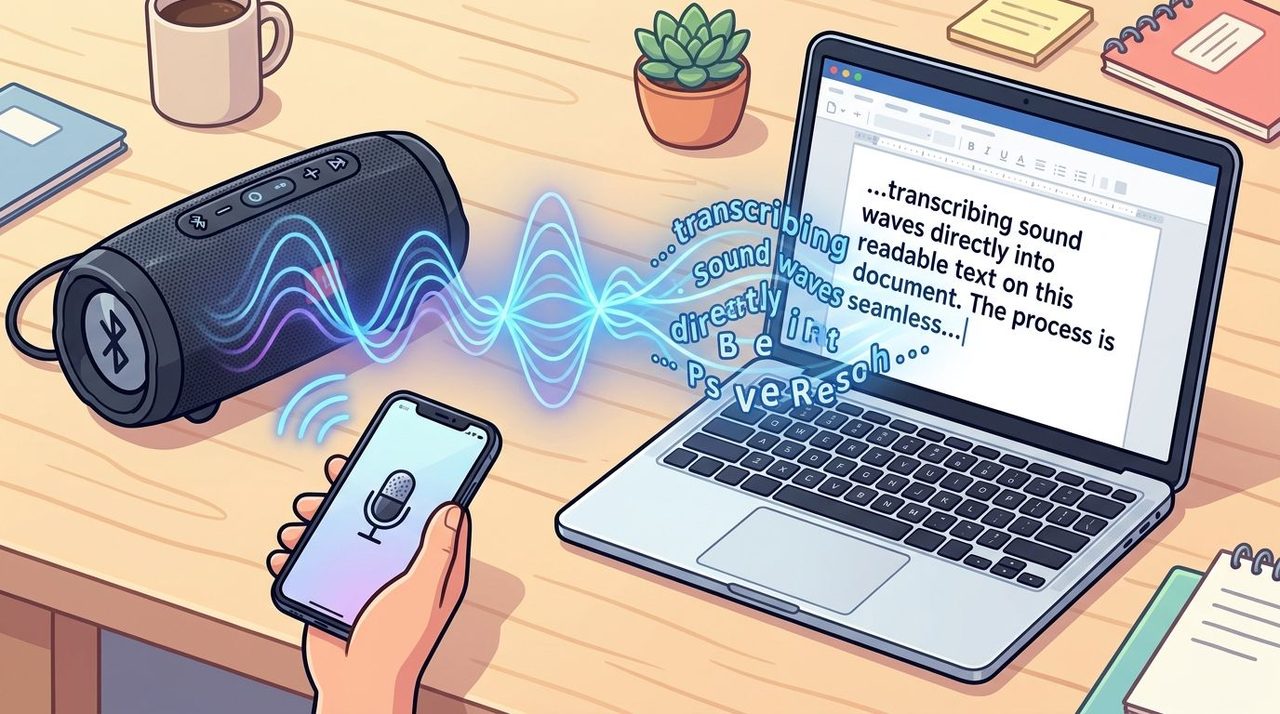
Many find themselves ending up choosing between three paths.
- Built-in iPhone tools work when speed matters more than polish. They're good for short dictation, rough notes, and simple recordings.
- Third-party apps add stronger transcription engines, speaker labels, summaries, exports, and broader language support.
- An iPhone-to-Mac workflow makes more sense when the recording matters enough that privacy, cleanup, and final quality all matter.
Those aren't interchangeable. A student trying to turn a lecture into study notes can tolerate some cleanup. A journalist quoting a source can't be casual about wording. A clinician or legal professional has to care where the audio goes before caring about fancy features.
Practical rule: Choose the workflow based on the cost of a bad transcript, not the appeal of the app store listing.
That one shift makes the decision easier. If the transcript is disposable, free tools are often enough. If the transcript becomes a document people rely on, you need a more deliberate setup.
Your iPhone's Built-In Transcription Tools
The fastest transcribe app for iPhone is often the one you already have. Apple gives you two useful starting points: keyboard dictation and Voice Memos transcription. They're free, immediate, and worth trying before you pay for anything.
Siri Dictation for short-form input
Keyboard dictation is best when you're creating text in the moment. Tap the microphone on the iPhone keyboard and speak into Notes, Mail, Messages, or any app that accepts text. It's the right tool for quick capture, not post-production.
Use it for things like:
- Short notes: Brain dumps, reminders, shopping lists, and rough outlines.
- Messages and email drafts: Fast replies when typing is slower than speaking.
- Single-speaker text creation: Personal writing where you can immediately correct mistakes.
Its biggest strength is convenience. You don't have to import a file, wait for processing, or manage a transcript library. You just talk.
Apple's newer speech stack also pushes latency down. Apps built on Apple's native SpeechAnalyzer API can process speech locally with real-time latency under 100ms, returning both interim and finalized text as audio continues, according to Apple API demo coverage from SpeechAnalyzer on-device transcription behavior. In practice, that's why live dictation on iPhone can feel immediate.
Voice Memos for existing recordings
Voice Memos is the more relevant built-in option if you've already recorded audio. It's useful when the conversation happened first and the transcript comes later. Apple has made this workflow easier, especially for casual note review.
If you want the step-by-step flow, this guide to transcribing Voice Memos on iPhone walks through the mechanics clearly.
Here's where Voice Memos helps:
- You already recorded on iPhone and don't want to move the file elsewhere.
- You need a rough transcript to search for a phrase or review a discussion.
- You're working with one main speaker in a relatively clean recording.
Where built-in tools fall short
The limits show up fast once audio gets messy. Built-in tools don't give you much help with speaker separation, advanced formatting, or transcript cleanup. They also aren't ideal when recordings include crosstalk, accents, technical jargon, or inconsistent microphone distance.
Apple's own on-device approach is attractive because audio can stay local to the device, but local processing still depends on the model available on the phone and the device's compute limits. That matters most in noisy or complicated recordings.
Built-in iPhone transcription is good at capturing speech. It's much less reliable at producing finished text.
That distinction matters. If your goal is “get the gist,” the built-ins are solid. If your goal is “publishable quote” or “clean meeting record,” you'll usually outgrow them quickly.
Comparing Top Third-Party Transcribe Apps
Once you move beyond Apple's defaults, the category splits into several camps. Some apps are built for meetings. Some are better at uploaded files. Some emphasize accessibility. Others chase multilingual transcription. Picking the right one is less about finding “the best” app and more about matching the app to the recording you have.
What the better apps do differently
Cloud-heavy transcription services usually outperform purely local mobile tools on difficult audio. Independent benchmarking summarized by Whisper-based iPhone app comparisons reports 98 to 99% accuracy across 100+ languages for cloud-based models, while on-device implementations using Apple's Speech framework typically top out around 95% accuracy for complex accents or background noise. That's why some apps now offer dual processing, keeping simple dictation local and routing harder audio to the cloud.
That split explains why the App Store feels confusing. Two apps may both promise transcription, but one is really a live meeting assistant while another is better as an upload-and-convert tool.
If you're improving your source audio before transcription, a basic recording kit matters more than people think. Good microphones and room treatment do more for transcripts than most settings menus. This roundup of essential gear for content production is useful if you record interviews, podcasts, or remote calls regularly.
iPhone transcription app comparison
| App | Best For | Accuracy Model | Pricing |
|---|---|---|---|
| Apple Dictation | Quick live input in any text field | On-device iPhone speech recognition | Free |
| Voice Memos transcription | Reviewing recordings already made on iPhone | On-device processing with basic transcript support | Free |
| Otter.ai | Meetings, team notes, and live session capture | Cloud-based AI transcription | Subscription model |
| Rev | Interviews, legal-style accuracy needs, polished deliverables | Human-verified transcription and AI options | Per-minute or service-based pricing |
| Ava | Real-time conversation captions for accessibility use cases | Live captioning focused workflow | App-based subscription model |
| Notta | Multilingual meeting and file transcription | Cloud-based AI transcription | Subscription model |
| Transkriptor-style Whisper apps | Broad language coverage and uploaded file transcription | Cloud AI with optional hybrid behavior in some tools | Usually subscription-based |
A broader set of tools is covered in this best AI transcriber guide, especially if you're comparing file transcription against live dictation.
Matching the app to the job
A few practical patterns show up repeatedly:
- Students usually benefit from apps with searchable transcript history and easy exports into notes apps.
- Journalists need timestamps, speaker separation, and an easy way to verify wording against the original audio.
- Teams in recurring meetings care about live notes, summaries, and sharing.
- Accessibility users need low-latency captions that work in real conversations, not just post-call uploads.
- High-risk professional work needs a much harder look at privacy, retention, and whether cloud upload is acceptable at all.
The best app for one-hour weekly meetings can be the wrong app for one sensitive interview.
That's why generic “top 10” lists are only half useful. The key question isn't what has the longest feature list. It's what creates the least rework for your specific kind of audio.
The Core Tradeoff Accuracy Versus Privacy
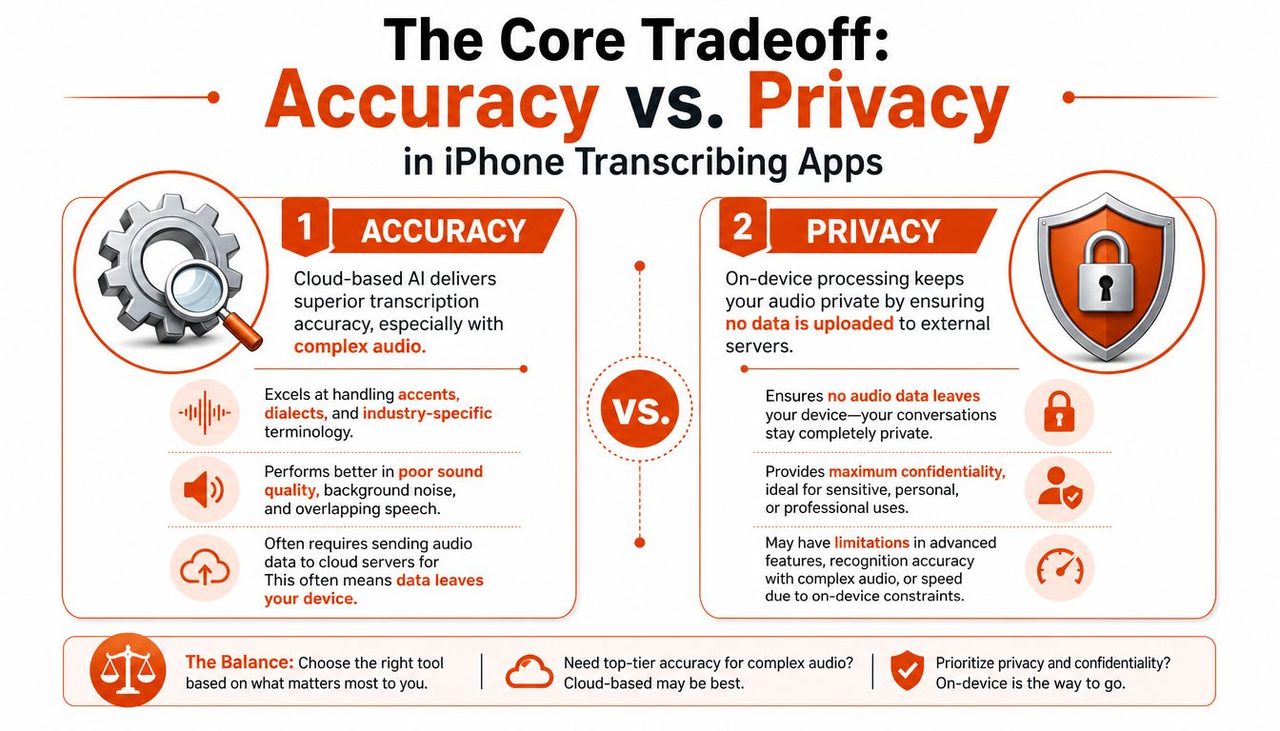
Most transcription decisions come down to one uncomfortable choice. Do you want the highest possible recognition quality, or do you want to keep the audio under tighter control? On iPhone, you usually don't get both from the same mobile-only setup.
Why cloud apps often win on difficult audio
Cloud transcription services have more room to use larger models and heavier processing. That shows up in the cases users care about most: overlapping speakers, poor microphone placement, accents, jargon, and background noise. You're effectively handing the audio to a more capable system than the one running entirely on your phone.
That's why cloud apps usually offer the nicer extras too. Speaker labels, summaries, sentiment analysis, and better handling of messy audio tend to travel together.
This quick video gives useful context on how that choice plays out in practice.
Why privacy-first users can't treat that as a small detail
For healthcare, legal work, internal HR conversations, or confidential reporting, “pretty accurate” isn't the only standard. You also have to ask whether the audio leaves the device, where it's processed, and what that means for compliance or client trust.
That concern is more common than many reviews admit. Analysis cited by privacy-focused iPhone transcription search behavior says 40% of “transcribe app iphone” queries include terms like “private,” “offline,” or “no cloud.” The same analysis notes that many app roundups still focus on cloud accuracy while barely distinguishing between apps that upload audio and those using on-device Apple speech recognition.
A simple way to decide
Consider it this way:
- On-device transcription is best when confidentiality rules the decision.
- Cloud transcription is best when transcript quality on hard audio matters most.
- Hybrid workflows make sense when some files are sensitive and others aren't.
If you wouldn't email the raw audio to a vendor without checking policy first, don't casually upload it to a transcription app either.
A lot of “best transcribe app for iPhone” advice skips that question. For regulated industries and sensitive client work, it should be the first one.
The Pro Workflow Unlocking Quality with Your Mac
For professional work, the most effective setup often isn't an iPhone-only app. It's a two-step workflow. Record on the iPhone, then process on the Mac. That sounds less elegant than “one app does everything,” but it solves several real problems at once.
Why the phone should capture and the Mac should finish
The iPhone is an excellent recorder because it's always with you. It starts fast, its microphones are good enough for many real situations, and it fits naturally into interviews, hallway conversations, lectures, and quick voice capture. But transcription and cleanup are a different job.
Desktop workflows give you more room to review the waveform, replay unclear sections, compare transcript against audio, organize exports, and decide when to keep processing local versus when to use a stronger remote model. That's especially useful when the transcript becomes part of a deliverable rather than a personal note.
The market trend points in the same direction. The global AI transcription market is projected to reach USD 19.2 billion by 2034, growing from USD 4.5 billion in 2024 at a 15.6% CAGR, and the U.S. market is valued at USD 1.34 billion with 12.6% CAGR, according to AI transcription market projections and real-world accuracy data. The same source says current AI platforms average only 61.92% accuracy in real-world conditions, while human transcription services maintain 99% accuracy. That gap is exactly why serious users tend to build more deliberate workflows instead of relying on one-tap mobile convenience.
What the workflow looks like in practice
A practical version is simple:
- Record on iPhone using Voice Memos or your preferred recording app.
- AirDrop the file to your Mac as soon as you're back at your desk.
- Choose the processing mode based on the recording. Sensitive files stay local. Harder audio can use a stronger cloud engine if policy allows.
- Review and clean the transcript on desktop, where editing is faster and comparing text against audio is easier.
- Export the finished text into Docs, Notes, your CMS, a case file, or your project system.
Here, Mac-based tools become more than just “another transcription app.” They let you separate capture from processing. That means your iPhone stays the intake device, while your Mac becomes the quality-control station.
Why this workflow holds up better over time
The hidden cost in mobile-only transcription isn't the subscription. It's editing time. If the transcript needs heavy cleanup, if names are wrong, if speaker turns are muddled, or if you're nervous about where the file was processed, the app didn't save much.
A Mac workflow is slower by one step, but faster where it counts. You can work with more context, make better decisions about privacy, and end with text that's closer to final.
If you want to compare desktop-first options, this overview of macOS speech to text workflows is a useful reference point.
Professionals rarely need “transcription.” They need reliable text they can use without second-guessing it.
That's the difference. An iPhone captures the moment. A Mac is where you turn that moment into a usable document.
Frequently Asked Questions About iPhone Transcription
What's the best way to improve transcription accuracy on iPhone
Start with the recording, not the app. Put the phone closer to the speaker, reduce room echo, and avoid letting the microphone sit on a vibrating table. If you're recording an interview, ask people not to talk over each other. Every transcription engine performs better when the source audio is cleaner.
For planned recordings, external microphones help. Even a simple lav mic or a better USB mic used during remote calls can make the transcript easier to trust later.
Which app type handles multiple speakers best
Apps built for meetings and interviews usually do better than simple dictation tools because they're designed around speaker changes, timestamps, and longer recordings. That doesn't mean speaker identification will always be perfect. Crosstalk still causes problems, especially when people interrupt each other or the audio is recorded from too far away.
If the transcript needs to become a formal record, review the speaker labels manually before sharing it.
Are iPhone transcription apps good enough for healthcare or legal work
They can be useful, but the workflow has to match the sensitivity of the material. Healthcare is the leading AI transcription sector with a 34.7% market share, according to iPhone transcription app adoption and language support data. The same source notes that top-tier apps support over 150 languages and dialects, while some tools handle 145+ languages. That's impressive reach, but the source also notes that for complex audio, AI tools still fall short of human-verified services that guarantee 99% accuracy.
So the practical answer is this:
- Routine internal notes: A strong AI workflow may be enough if privacy requirements are satisfied.
- Published interviews, legal records, or critical documentation: Human verification is still the safer option.
- Highly sensitive conversations: Prefer workflows that keep audio local whenever possible.
Do free iPhone transcription tools work for students
Yes, often. Students usually need searchable notes, rough lecture transcripts, and a way to revisit ideas without replaying the full recording. Built-in tools can be enough for solo lecture capture in a quiet room. Once the class gets noisy, the teacher moves around, or several students speak, paid tools become more attractive.
The right threshold is simple. If you spend more time fixing the transcript than using it, move up to a stronger workflow.
What about accessibility and live captions
This is an area many app roundups underserve. People who are deaf or hard of hearing often need real-time captions for live conversation, not just file transcription after the event. That means low latency, consistent microphone pickup, and readable display matter as much as raw transcript quality.
Consumer apps can help, but they aren't all designed for accessibility-first use. If live conversation support is the goal, test the app in the exact environment where it'll be used, such as one-to-one discussion, small groups, or workplace settings.
Don't judge an accessibility transcription app by how it handles meeting summaries. Judge it by whether it helps during an actual conversation.
Should I choose an iPhone-only app or an iPhone-to-Mac workflow
Choose the iPhone-only route when convenience matters most and the transcript is disposable or lightly edited. Choose the iPhone-to-Mac route when the transcript becomes part of your work product.
That's the cleaner dividing line. Casual capture belongs on the phone. Serious transcription usually benefits from desktop review, better editing, and more control over privacy.
If you regularly record on iPhone and need cleaner, more usable text on your Mac, AIDictation is worth a look. It's built for the workflow professionals use: capture audio anywhere, then turn it into polished writing with local or cloud processing depending on the sensitivity of the file.
Frequently Asked Questions
What does Transcribe App for iPhone: Top Picks & Guide 2026 cover?
You've probably got the recording already. It's sitting in Voice Memos, Files, WhatsApp, Zoom, or a recording app you opened in a hurry because the meeting started before you were ready.
Who should read Transcribe App for iPhone: Top Picks & Guide 2026?
Transcribe App for iPhone: Top Picks & Guide 2026 is most useful for readers who want clear, practical guidance and a faster path to the main takeaways without guessing what matters most.
What are the main takeaways from Transcribe App for iPhone: Top Picks & Guide 2026?
Key topics include Table of Contents, From Audio File to Usable Text, Your iPhone's Built-In Transcription Tools.
Ready to try AI Dictation?
Experience fast voice-to-text on your device. Free to download.
Download FreeRelated Posts
Verbal Ink Transcription Workflows Today
Explore verbal ink transcription workflows, accuracy benchmarks, and how modern AI dictation tools compare to traditional human transcription services.
Apple Voice Recognition Software: Key Pros and Cons
Learn how Apple voice recognition software turns speech into text on your device, where it excels, and what tasks still challenge it in 2026.
Dictation on macOS: Setup, Apps, and Pro Tips
Master dictation on macOS with clear setup steps, app comparisons, privacy settings, and accuracy tips to turn your voice into clean text fast.