How to Transcribe Voice Memos iPhone: 3 Best Ways
You've got a voice memo on your iPhone that matters. Maybe it's a client call you need to quote from, a meeting you need to summarize, or a long brain dump you'd rather edit as text than replay three times.
That's usually the main problem. The recording exists, but it isn't usable yet.
Looking to transcribe how to transcribe voice memos iphone often means seeking one of three things: a fast built-in option, a more feature-rich app workflow, or a cleaner desktop process that gives them more control. The right answer depends less on the memo itself and more on what you need the text for afterward.
Table of Contents
- From Audio to Text Your Complete Guide
- Quick On-Device Transcription Methods
- Using Third-Party Apps and Services
- Pro Workflow with a Mac and AIDictation
- Best Practices for Clear Voice Recordings
- Common Questions About iPhone Transcription
From Audio to Text Your Complete Guide
The easiest way to think about iPhone transcription is by tier.
If you just need rough text from a memo you recorded five minutes ago, use Apple's built-in tools. If you need timestamps, speaker labels, or a file you can hand off to someone else, export the memo into a dedicated service. If the transcript is headed into a report, spec, clinical note, or polished write-up, move to a Mac and do the editing there.
That split matters more now because Apple changed the baseline workflow. A current guide notes that with iOS 18, Apple integrated transcription directly into the Voice Memos app, so a recording can be transcribed automatically right after you stop recording in this Voice Memos transcription overview. Before that, a lot of people relied on Notes or outside services.
Here's the practical breakdown:
- Fast and free: Stay on the iPhone. Open Voice Memos, view the transcript, then copy the text elsewhere for cleanup.
- More features: Share the audio to a transcription app or service when you need extras Apple doesn't provide cleanly.
- Higher control: Export the file to your Mac and run it through a desktop workflow. That's the route I'd use for anything client-facing or archival.
Practical rule: Don't pick your method based on the recording app. Pick it based on the output you need. Rough notes, searchable text, or publication-ready copy are three different jobs.
If you want a browser-based option for turning audio into text after export, a simple audio transcription tool can fit between the iPhone and desktop-heavy paths. A key advantage is flexibility. You're not locked into doing everything on the phone.
Quick On-Device Transcription Methods
You finish a voice memo in the parking lot before your next meeting and need the text now, not after a desktop editing session. That is where the iPhone's built-in options make sense. They are fast, free, and good enough for solo notes, reminders, rough interview pulls, and any memo where searchable text matters more than polished wording.
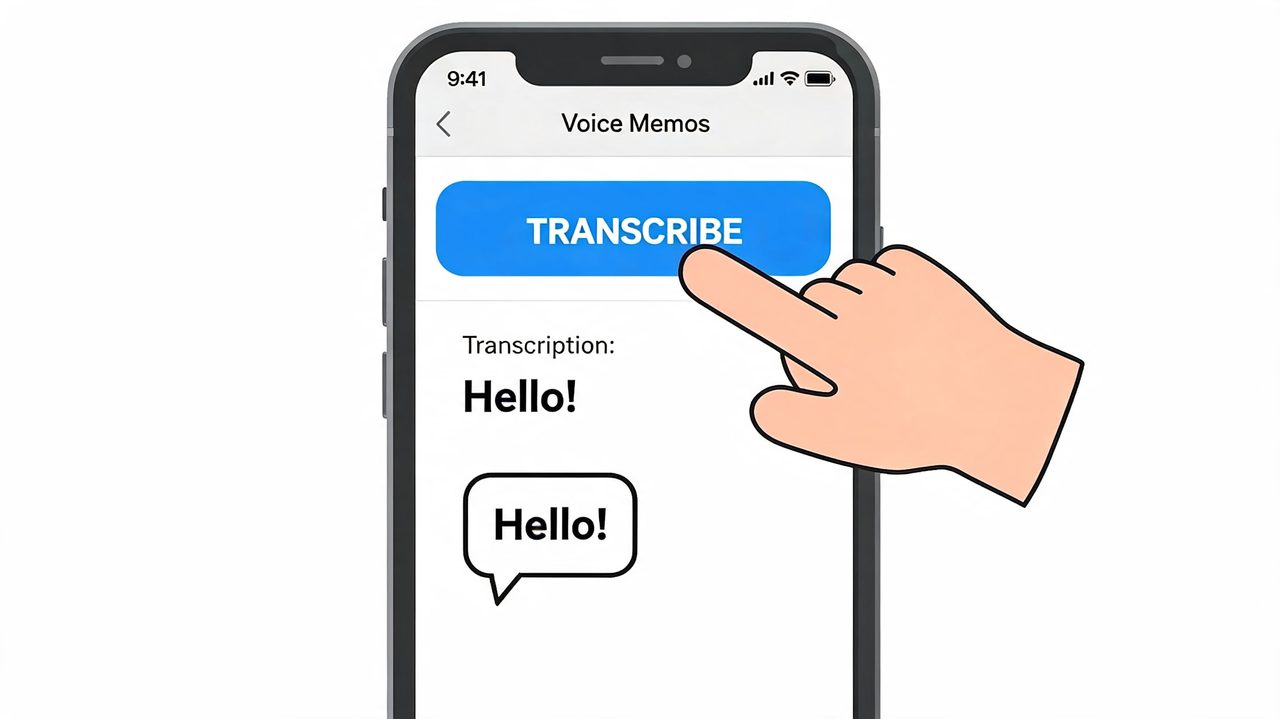
Voice Memos on iPhone
For the quickest result, start in Voice Memos.
Open the memo, tap into its details, and look for View Transcript or the transcript icon. If you want to see the taps before trying it yourself, this walkthrough video on iPhone voice memo transcription shows the flow clearly.
The transcript is useful right on the phone, but I treat it as a first draft. Apple's transcription usually gets the structure right for clean speech, yet names, product terms, abbreviations, and numbers still need manual correction. That trade-off is fine for quick capture. It is less fine if the text is headed into a report or anything another person will read closely.
A practical on-phone workflow looks like this:
- Record in Voice Memos. For a personal memo, normal recording is usually enough.
- Stop and reopen the memo. Give the phone a moment to generate the transcript.
- Search the transcript if the recording is long. It is faster than scrubbing through the waveform.
- Copy the text into Notes, Pages, or another editor. Cleanup is easier there.
One useful rule: review on the phone, edit somewhere else.
If you already know the memo will need heavier cleanup, speaker labeling, or better formatting, skip the extra phone work and compare a few voice-to-text apps for different workflows before you invest time in fixing a rough draft by hand.
Notes for live capture
Notes fits a different job. Use it when you want the recording and transcript in the same note while you are talking.
On iPhone 12 and later, audio transcription in Notes is available when the device language is set to one of the supported languages. Apple says you can review the transcript later, tap text to jump to that point in playback, search within it, and copy the text.
That setup is handy for planning sessions, class notes, and interviews where typed comments belong beside the audio. In practice, Notes feels better than Voice Memos when the transcript is part of a working note, not just something you plan to export later.
A short visual demo helps if you haven't seen the menu layout before.
Why the option may be missing
This is usually a compatibility issue, not a broken app.
Apple states that Voice Memos transcription is available only on iPhone 12 or later, works in specific languages, and is not available in all countries or regions in its Voice Memos transcription support page. If the feature does not appear, check the device model, language, and region before you start reinstalling apps or changing unrelated settings.
Use this table to narrow it down fast:
| Problem | Likely cause | What to check |
|---|---|---|
| No transcript option in Voice Memos | Device or availability limit | Confirm your iPhone model and regional support |
| Transcript appears but isn't useful | Audio quality issue | Background noise, overlapping voices, mumbling |
| You need live text while recording | Wrong app choice | Use Notes instead of Voice Memos |
Using Third-Party Apps and Services
Apple's tools are fine for quick capture. They're not always the right fit for meetings, interviews, or deliverables where formatting matters.
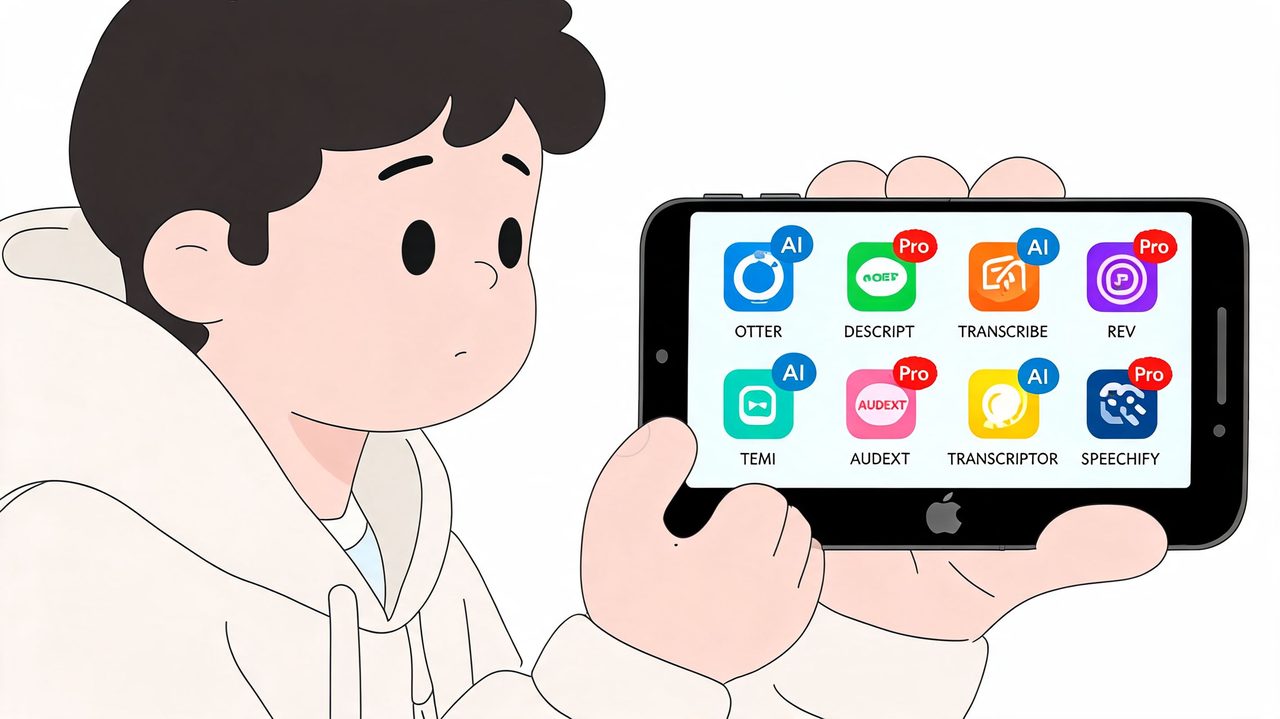
When built-in tools stop being enough
The moment you need speaker names, timestamps, or a workflow someone else can review, built-in transcription starts to feel cramped. That's where dedicated apps and services make sense.
In practice, I'd separate them like this:
- Otter.ai: Better when you want app-centric meeting capture and searchable transcripts.
- Rev: Better when the file itself is the starting point and you want service-style processing options.
- AIDictation: Better when the memo is headed into Mac-based writing and you want local or cloud processing modes instead of a phone-first workflow. If you're comparing options, this roundup of voice to text apps for different workflows is useful.
Those aren't interchangeable. Otter.ai is often about collaboration inside its own environment. Rev is more of a submit-a-file workflow. A Mac tool is different again because the transcript becomes part of your writing process, not just a transcript artifact.
If you're transcribing for publication, compliance, or deliverables, don't judge tools by how fast they create text. Judge them by how easy they make correction.
The share-and-send workflow
The universal move is simple. In Voice Memos, tap the three dots, then choose Share or Save to Files. From there, send the audio into the app or service you want to use.
That export path matters because file-based workflows are how you step up from basic text to richer output. A guide describing this process notes that you can export a memo through Share or Save to Files and submit it to a service like Rev when you need more control, including options such as timestamps or speaker names, in this explanation of exporting iPhone voice memos for transcription.
A few trade-offs are worth knowing before you upload anything:
- Built-in Apple route: Fastest, least friction, good for solo use.
- Third-party app route: More features, but usually more setup and review.
- Service route: Better when transcript structure matters, but slower and less private than keeping work on your own devices.
The biggest mistake is sending the wrong recording. If you capture lots of memos, rename the file before export or at least confirm the audio preview first.
Pro Workflow with a Mac and AIDictation
Phone transcription is great when you're standing in a hallway trying to pull one quote from a memo. It's less pleasant when you need to turn a long recording into something polished.
For product specs, interview summaries, research notes, or clinical-style documentation, I'd move the audio to a Mac and finish there. The desktop gives you a bigger editing surface, better file handling, and fewer compromises when the transcript needs cleanup.
Move the memo off the phone first
The fastest transfer method is usually AirDrop. Open the memo on iPhone, tap Share, send it to your Mac, and save it somewhere obvious like Downloads or a dedicated Transcripts folder.
If you don't want to interrupt your flow, Save to Files into iCloud Drive also works well. The point is to get the memo into a location where you can version it, rename it properly, and keep the transcript beside the source audio.
My preference is simple:
- AirDrop when I need the file right now
- iCloud Drive when I want it to land in an existing project folder
- Local folder structure when the recording belongs to a larger archive
That file discipline matters. “New Recording 27” is manageable on a phone. It becomes a mess on a desktop after a week.
Choose the right transcription mode
Once the file is on the Mac, the useful question isn't just “how do I transcribe this?” It's “what constraints matter most?”
For a tool like AIDictation's Mac voice typing workflow, the mode you pick should match the job:
| Mode | Best use | Why it helps |
|---|---|---|
| Auto | Everyday mixed work | Lets the app choose the most suitable engine |
| Local | Sensitive or offline work | Keeps processing on the Mac when you need privacy or no internet |
| Cloud | Drafts that need cleanup | Better suited to formatting, filler removal, and polished output |
That's the main advantage of doing this on desktop. You can separate recognition from editing intent.
If I'm handling something sensitive or I'm on an unreliable connection, local processing is the obvious choice. If I'm converting an interview into a readable summary, cloud cleanup is often more useful because the transcript needs shaping, not just raw speech recognition.
A transcript and a document are different outputs. The Mac workflow works better when you need the second one.
Clean up for final use
Here's the desktop sequence that tends to waste the least time:
- Transfer the memo to the Mac. Name it immediately.
- Run transcription. Pick local or cloud processing based on privacy and cleanup needs.
- Review obvious errors first. Proper names, acronyms, product terms, dates.
- Restructure the text. Turn long spoken paragraphs into bullets, sections, or action items.
- Export or paste into the intended destination. Notes, Pages, Google Docs, Jira, email, whatever the work will reside in.
The improvement over a phone-only flow isn't just comfort. It's that your transcript can become usable writing in the same sitting.
For technical teams, that means turning a rambling architecture memo into a spec outline. For healthcare workers, it can mean converting spoken observations into cleaner note drafts. For support and marketing teams, it often means lifting quotes and decisions into emails or updates without manually replaying the recording over and over.
A few practical habits make this smoother:
- Keep the audio file next to the transcript draft. You'll need spot checks.
- Create a custom folder per project or client. Desktop search works much better when filenames are sane.
- Fix vocabulary once, not repeatedly. Names and technical terms are where most cleanup time goes.
- Don't over-edit the first pass. Correct meaning first, style second.
The phone is where the memo starts. The Mac is where the transcript becomes work product.
Best Practices for Clear Voice Recordings
Transcription quality starts before you ever tap “View Transcript.” If the recording is muddy, every method gets worse.
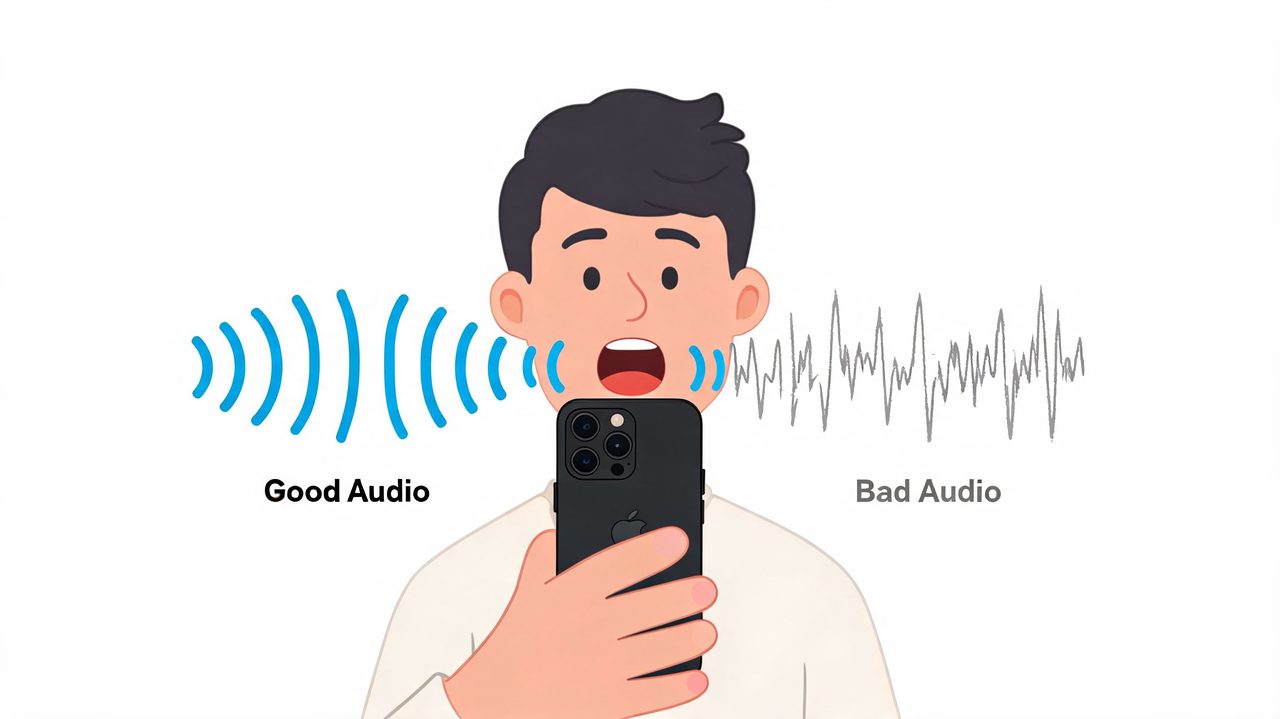
Recording habits that help transcripts
A few small habits improve results more than any post-processing trick.
- Get closer to the speaker. The iPhone mic does much better when it captures direct voice instead of room sound.
- Pick a quiet room. HVAC hum, keyboard clatter, and café noise all create cleanup work later.
- Speak in complete thoughts. Short pauses help the transcript separate ideas more cleanly.
- Have one person speak at a time. Overlap is where transcripts fall apart fastest.
If you regularly record in imperfect spaces, it's worth learning more about solving mic background noise issues. The advice there applies even if you're only using an iPhone. Better input saves editing time no matter which transcription route you choose.
What ruins accuracy fast
These are the common transcript killers I see most often:
- Phone on the table across the room: You'll get more echo and less voice.
- Two people interrupting each other: Even good systems struggle to separate that cleanly.
- Mumbled endings: The start of the sentence lands, the useful noun at the end disappears.
- Street noise or fan noise: Constant background sound masks consonants.
Clean audio beats fancy software. If the source is bad, the transcript is just a cleaner version of bad.
For important recordings, do a five-second test first. Play it back once. If you can't hear every word comfortably, the transcript won't magically solve that.
Common Questions About iPhone Transcription
Can older recordings be transcribed
Often, yes.
If you have a backlog of voice memos, test a few before writing them off. Older recordings can still be transcribed in Apple's supported workflows if the file contains clear speech, and that includes audio created before the newest transcription features showed up. The limiting factor is usually not the recording date. It's the device, language support, and how clean the audio is.
That matters in practice. A messy memo from last year may fail, while a clean interview from three years ago may come through surprisingly well.
How accurate are built-in transcripts
Built-in transcription is fine for quick notes, reminders, and rough first drafts. It is less reliable for anything you need to quote, file, or send out as a polished document.
The pattern is predictable. Apple's transcript tends to do well with one speaker, plain language, and quiet recordings. Accuracy drops once you add technical terms, names, overlapping speech, accents, or room noise. For personal capture, that trade-off is usually acceptable. For client notes, meeting summaries, research interviews, or formal reports, plan on editing or use a desktop workflow that gives you more control.
This is the part many people miss. Built-in tools are convenient, but convenience and final-document accuracy are not the same thing.
What works offline
Some transcription options stay local. Others depend on an upload.
On-device Apple features are the fastest starting point when your iPhone supports them and the result only needs light cleanup. A Mac-based process makes more sense when privacy matters, you want to keep audio on your own machine, or you need a cleaner handoff into an editable document. Export-based apps and web services can be convenient, but they usually trade local control for speed or extra features.
That is why I treat transcription as a tiered choice. Use the phone for quick capture and rough text. Move to the Mac when the transcript needs to hold up under review.
If you want local processing after exporting a memo from iPhone, AIDictation fits that desktop step well. It gives you a practical Mac workflow for transcription and dictation, especially when you need more cleanup control than the built-in phone tools provide.
Frequently Asked Questions
What does How to Transcribe Voice Memos iPhone: 3 Best Ways cover?
You've got a voice memo on your iPhone that matters. Maybe it's a client call you need to quote from, a meeting you need to summarize, or a long brain dump you'd rather edit as text than replay three times.
Who should read How to Transcribe Voice Memos iPhone: 3 Best Ways?
How to Transcribe Voice Memos iPhone: 3 Best Ways is most useful for readers who want clear, practical guidance and a faster path to the main takeaways without guessing what matters most.
What are the main takeaways from How to Transcribe Voice Memos iPhone: 3 Best Ways?
Key topics include Table of Contents, From Audio to Text Your Complete Guide, Quick On-Device Transcription Methods.
Ready to try AI Dictation?
Experience fast voice-to-text on your device. Free to download.
Download FreeRelated Posts
Dictation Software for Medical Professionals Compared
Compare dictation software for medical professionals. Evaluate accuracy, HIPAA privacy, ambient AI tradeoffs, and on-device tools like AIDictation.
How to Use Voice Dictation on Mac
Use Voice Dictation on Mac. Master voice dictation on your Mac — from built-in Apple features to third-party tools like AIDictation
10 Best Dictate Software for Mac in 2026
Compare the best dictate software for mac in 2026 by accuracy, privacy, pricing, features, and use case—from Apple Dictation to AIDictation.