Best Dictation App for Students: Boost Your Study in 2026
You're probably here because typing has become the bottleneck.
You've got lecture notes scattered across tabs, an essay draft that still starts with a blinking cursor, and a to-do list full of reading responses, emails, and revision sheets. On macOS, the usual advice isn't that helpful. Most guides point students toward browser-only tools or basic built-in dictation, then overlook the two things that matter once coursework gets serious: privacy and working across every app you use.
That gap matters more than people admit. Students don't just write in one document. You jump between Google Docs, Word, Notes, email, chat apps, PDF annotations, flashcard tools, and AI prompts. A dictation setup that only works in one browser tab isn't a real writing system. It's a demo.
Table of Contents
- Introduction Write 4x Faster and Ace Your Classes
- Choosing Your Dictation App What Students Must Prioritize
- Getting Started with AIDictation on Your Mac
- Effective Dictation Workflows for Academic Success
- From Raw Speech to Polished Text Editing and Formatting
- Conclusion The Smart Students Advantage
Introduction Write 4x Faster and Ace Your Classes
You are staring at a half-finished essay at 11:40 p.m., your notes are scattered across three apps, and the argument is clear in your head but painfully slow on the keyboard. That is the point where dictation starts to feel less like a convenience feature and more like a practical writing tool.
Used well, dictation lets students get ideas onto the page while their thinking is still warm. Willow's breakdown of student voice note apps highlights the core advantage clearly: students can often produce spoken words much faster than they can type. In practice, that changes the first-draft stage completely. Instead of building an argument sentence by sentence, you can speak a rough paragraph, keep your train of thought, and edit for precision later.
That matters most during the parts of academic writing that create friction. Brain-dumping a reading response. Explaining a thesis before you forget the phrasing. Turning bullet points into a draft for a discussion post, lab reflection, or personal statement.
The catch is that many guides push cloud-first tools that work only inside one app or send everything online. That setup is fine for casual notes. It is a weak fit for serious student work, especially if you move between Word, Google Docs, your notes app, your browser, and email, or if you care where your voice data goes.
A native Mac tool like AIDictation solves a different set of problems. You get cross-app dictation, local privacy options, and AI cleanup that turns rough speech into usable text instead of a messy transcript. For students handling sensitive drafts, scholarship materials, research notes, or accommodation-related needs, that trade-off is hard to ignore. Speed matters, but privacy and cleanup time matter too.
My rule is simple. Use dictation for drafting, not for the final pass.
That approach is what saves time. Speak to capture ideas quickly. Then edit with the keyboard where precision counts. If you already use timed writing sessions or structured outlines, dictation fits neatly into that system. Pairing it with practical process advice like Kohru tips for faster writing helps even more, because faster input only helps if your workflow stays organized. For another practical angle, AIDictation's guide on how to write faster and neater is worth reading.
Students do not need another tool that creates cleanup work or privacy doubts. They need one that works across their real study setup, handles natural speech well, and helps them turn spoken ideas into polished academic writing. That is where AIDictation stands out.
Choosing Your Dictation App What Students Must Prioritize
Most students pick a dictation tool the wrong way. They try whatever is free, test it for five minutes in Google Docs, and assume that's the category.
That's not enough. A student-friendly tool has to survive real academic use: switching between apps, handling course vocabulary, protecting sensitive writing, and producing text that doesn't create more cleanup work than typing would have.
What actually matters in daily student use
The biggest trap is choosing a tool that works only in one place. That's fine for a quick note. It's weak for a full semester.
The gap is especially obvious on Mac. As Wirecutter's dictation software guide points out, the lack of native, privacy-focused, cross-app dictation on macOS is a critical gap, and major options like Dragon exclude Mac in the serious offline sense students often need. That leaves many students relying on cloud-dependent browser tools that send voice data online and don't move well between Word, browsers, notes, and email.
If you write journal reflections, personal statements, research notes, or anything sensitive, privacy matters. So does reliability when your Wi-Fi is bad or you're working in a library with patchy connectivity. For a helpful broader read on how software teams think about protecting user data, these File Studio data privacy insights give useful context.
Browser dictation feels good right up until you need the same workflow in three other apps.
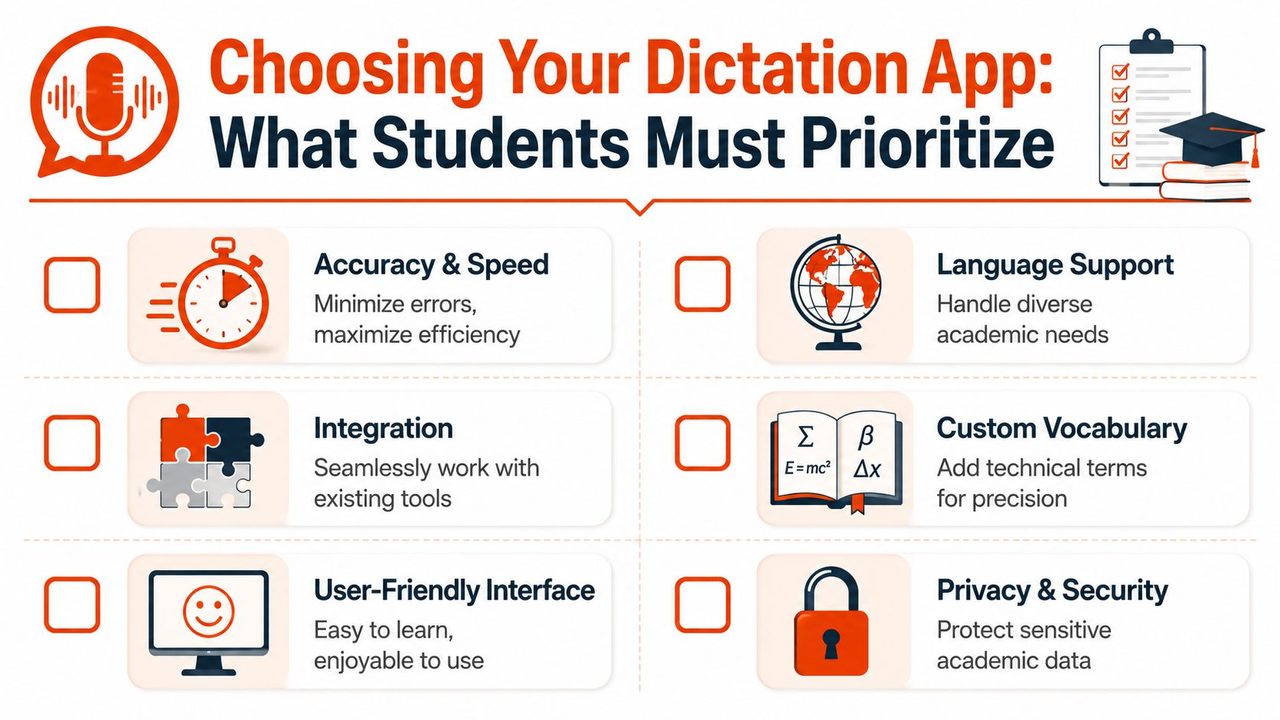
A serious dictation app for students should cover six areas:
- Cross-app input: You should be able to dictate into documents, notes, forms, email, and chat without changing your whole workflow.
- Offline or local processing: This matters for privacy, stability, and working anywhere.
- Cleanup after transcription: Raw transcripts are only half the job.
- Custom vocabulary: Course names, lecturer names, citations, and subject terms need to land correctly.
- Context awareness: Email text shouldn't sound like a discussion board post, and lab notes shouldn't format like casual chat.
- Low-friction setup: If the tool demands too much ceremony, most students won't keep using it.
A practical feature checklist
Here's the easiest way to evaluate your options.
| Feature | Why It Matters | AIDictation's Solution |
|---|---|---|
| Cross-app dictation | Students write in many apps, not one document | Native macOS dictation that works across apps |
| Offline privacy | Sensitive notes and weak internet make local processing valuable | Local Mode keeps speech on your Mac |
| AI cleanup | Raw transcripts often need too much manual fixing | Cloud Mode refines filler words, punctuation, and self-corrections |
| Custom vocabulary | Academic terms often break generic dictation | Add names and technical terminology to a custom dictionary |
| Context rules | Different apps require different tone and formatting | Adapts output based on where you're writing |
| Flexible processing | Students need privacy sometimes and cleanup at other times | Auto Mode switches between local and cloud options |
That combination is why many generic recommendations fall short. Free tools can still be useful, especially for occasional voice input, but they often stop at transcription. They don't give Mac students a complete writing workflow. If you want a deeper look at current options, this roundup of best AI dictation apps helps clarify which tools are built for occasional use and which ones can carry daily study work.
A good student setup doesn't just hear your words. It has to fit your actual academic life.
Getting Started with AIDictation on Your Mac
The first bad dictation session usually looks the same. A student opens the app five minutes before class, uses the built in mic in a noisy room, dictates a full paragraph of course jargon, then decides voice input is inaccurate. The app often is not the actual problem. The setup is.
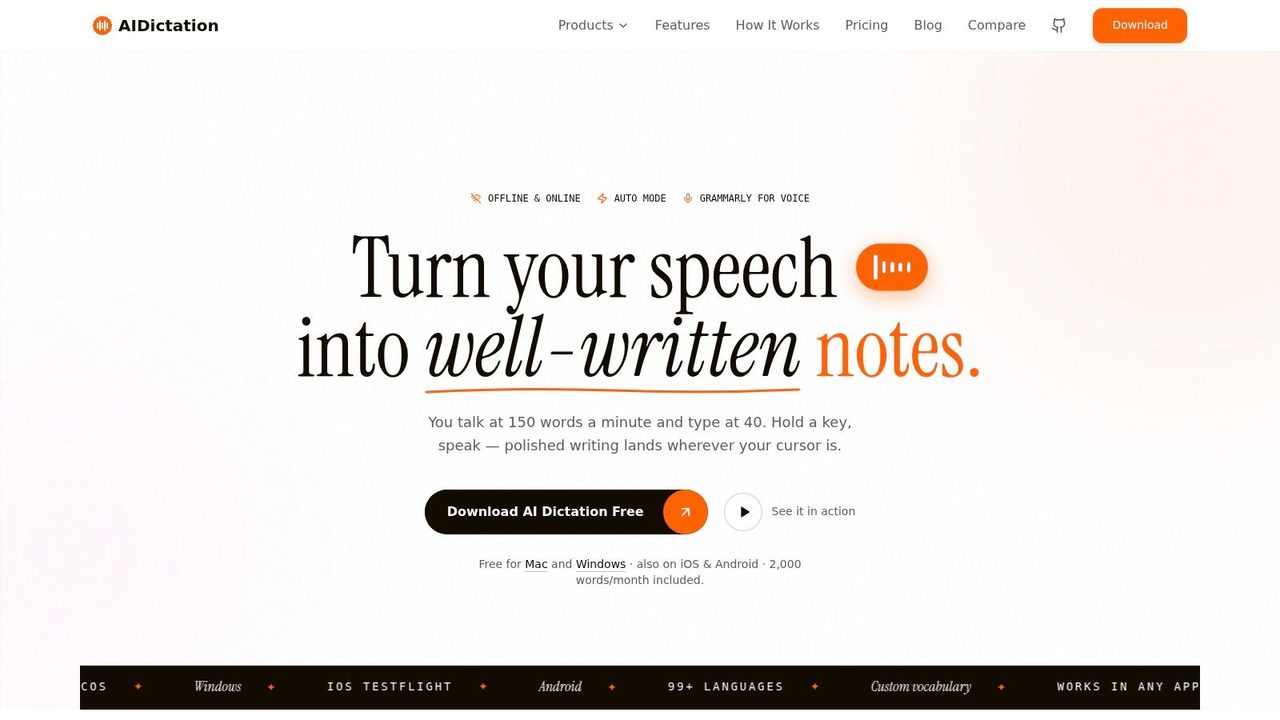
AIDictation works best when you configure it around actual student work on macOS. That means three things from the start: clean audio, the right processing mode, and a short test inside the apps you already use for classes. Cloud tools often look fine in demos, but they break down for students who need privacy, weak Wi-Fi tolerance, or dictation across more than one writing app. A native Mac setup avoids a lot of that friction.
Set up the app for your real coursework
Audio quality comes first.
According to Voicy's guide to talk-to-text apps, modern talk-to-text apps can reach 95 to 99 percent accuracy in optimal conditions. If your first attempt is rough, fix the conditions before you judge the software.
Use this order:
- Install and grant permissions. Allow microphone access and confirm AIDictation can insert text in the apps where you write notes, drafts, and messages.
- Pick the processing mode on purpose. Use Local Mode for private material, unreliable internet, or library work where you do not want your speech sent to the cloud. Use Cloud Mode when you want stronger cleanup, punctuation, and formatting. Auto Mode is the practical default for students who switch tasks all day.
- Test in two apps you already use. Try one notes app and one writing app. Cross-app behavior matters more than a demo text box because spacing, punctuation, and formatting can differ.
- Dictate in short passes. Start with a paragraph or a heading plus bullet points. Short passes make it easier to spot whether the problem is your mic, your phrasing, or your vocabulary list.
Students with accents or discipline-specific terminology should expect a short training period. Accuracy usually improves after a few sessions once the app has cleaner audio samples and a better custom vocabulary. Generic web tools rarely give you much control here. AIDictation does.
Teach the app your academic vocabulary
This step saves time every week.
Add course names, lecturer names, recurring terms, abbreviations, and citation language before you start using dictation for serious work. In biology, that may be assay names or anatomical terms. In law, it may be case names and Latin phrases. In computer science, it may be library names, acronyms, and command line terms.
Custom vocabulary matters even more if you switch between subjects. A generic model may guess common everyday words. It will often miss “photosynthesis,” “Rylands v Fletcher,” or “PostgreSQL” unless you give it some help first.
Context rules are the second half of the setup. Notes can stay rough. Emails to a professor need cleaner phrasing. Assignment drafts need punctuation and paragraphs that are close to usable. That is one reason AIDictation stands out on macOS. It works across apps, so you can keep the same voice workflow in Apple Notes, Google Docs, Word, or Mail instead of being trapped inside one cloud editor. If you want more examples of cross-app Mac workflows, this guide to a voice type app for Mac students is a useful companion.
A good setup does not take long. Ten careful minutes at the start usually saves hours of cleanup later.
Effective Dictation Workflows for Academic Success
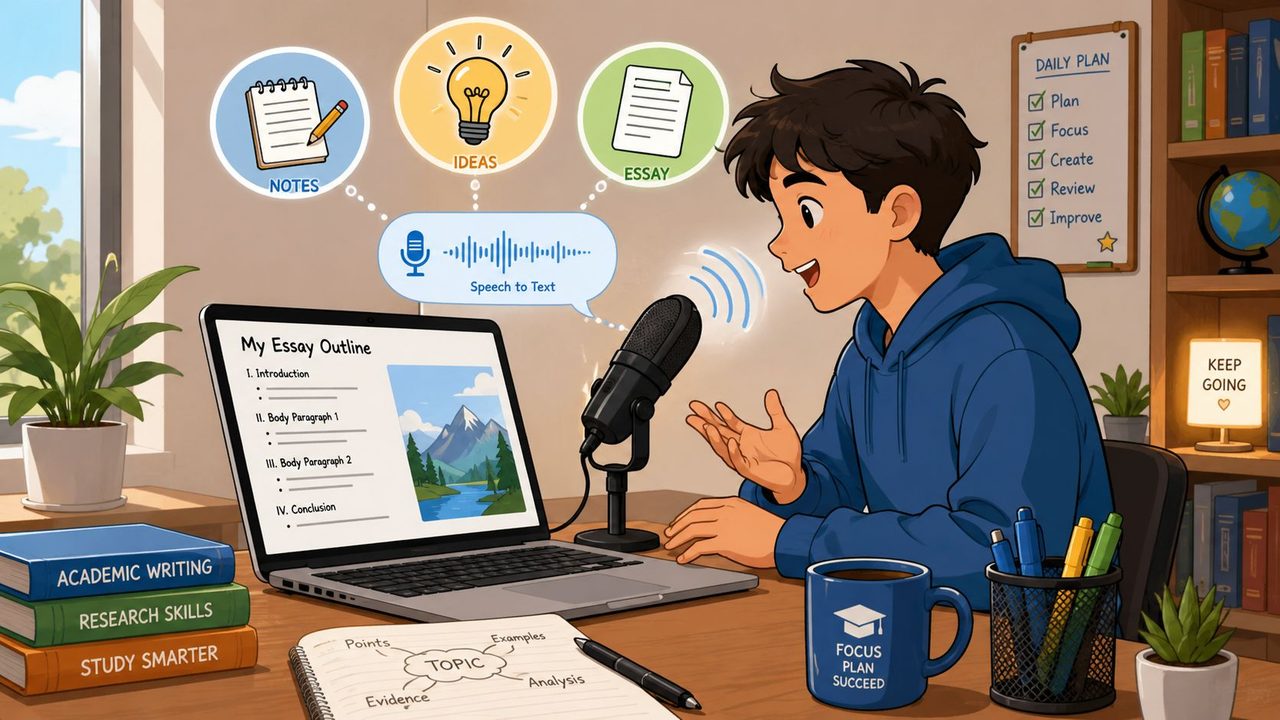
A good dictation workflow starts in the middle of a normal student week: rushing from a lecture to the library, trying to capture ideas before they disappear, and not wanting those ideas sent to yet another cloud tool. That is where a native Mac app earns its place. AIDictation lets students dictate into the apps they already use, keep sensitive material offline when privacy matters, and clean up rough speech after the fact instead of forcing perfect phrasing on the first pass.
Lecture capture without chaos
Lectures punish students who try to record every word. The result is usually a transcript too long to revise from and too messy to trust.
A better method is selective dictation. Listen for a complete idea, then dictate a short summary in your own words. Mark it clearly with labels such as “main argument,” “definition,” “example,” or “likely exam point.” Those verbal tags make later review much faster, especially when searching across notes in different apps on macOS.
The practical setup is straightforward. Use a decent external microphone if you have one, speak at a steady pace, reduce background noise, and separate capture from cleanup. The PMC paper on AI-based speech recognition supports that basic pattern: get the first version down quickly, then correct and format later. In real student use, that trade-off matters because trying to dictate polished notes during class usually means missing the next explanation.
I recommend one extra rule. If a lecturer is moving fast, dictate summaries during pauses or immediately after class, not while they are halfway through the next concept. AIDictation works well here because it is not locked to one browser tab or one note editor. You can drop quick summaries into Apple Notes after class, then expand them in Word or Google Docs later.
Essay drafting with less friction
Dictation is strongest at the ugly early stage of essay writing, when you know the material but cannot get a clean opening paragraph onto the page.
Start by explaining your answer out loud as if you were talking to a capable classmate. Say the claim, the evidence you plan to use, the reading that matters, and the objection you need to handle. Keep moving. If you stop every twenty seconds to repair wording, the workflow collapses.
This sequence works well for most assignments:
- Speak the argument first: Get the thesis and supporting points out in plain language.
- Draft body sections before the introduction: Evidence is easier to say than a polished opening.
- Use placeholders for sources: Say “add quote from seminar reading” and keep going.
- Run cleanup after the draft exists: Let AIDictation fix punctuation and obvious speech clutter once the ideas are there.
Students who get strong results from dictation treat it as a drafting tool, not a magic final-draft button. That distinction saves time.
If you want to see one example of voice-driven drafting in action, this short demo from YouTube is worth watching before your next writing session.
Study notes from readings and textbooks
Reading-based dictation works best after you stop looking at the source.
Finish a chapter, close the PDF or book, and explain it from memory. Summarize the author's claim, the evidence, and the point most likely to matter in class or on the exam. That exposes weak understanding quickly. If you can say it clearly, you usually understand it well enough to revise from it.
Source quality affects this more than students expect. Clean text is easier to process, quote, and summarize than messy scans or badly structured PDFs. For that reason, this guide to digital textbook conversion for students is useful if your course materials are hard to work with.
Three formats usually pay off:
- Reading summaries: Dictate a short recap after each section.
- Flashcard prompts: Speak question and answer pairs into your notes app.
- Revision sheets: Dictate plain-English topic summaries, then trim them into exam-ready notes.
The common pattern is simple. Capture understanding while it is fresh. Edit only after the thinking is already on the page.
From Raw Speech to Polished Text Editing and Formatting
Students usually hit the same wall after the first burst of progress. The dictation itself feels fast, then the transcript opens as a dense block of spoken language that still needs real work before it belongs in an essay, lab report, or seminar notes.
Raw transcription gets words onto the page. Coursework requires readable structure, clean sentences, and accurate meaning. Free cloud tools often stop at the first part, then leave students to do the slow cleanup by hand. AIDictation is more useful for serious study because it handles dictation across Mac apps, keeps privacy options local, and helps turn rough speech into text you can revise.
Why raw transcripts slow students down
A recent 2025-2026 discussion of AI cleanup and formatting improvements points to the shift students should care about: cleanup and context-aware formatting now matter as much as recognition accuracy. If the transcript arrives full of verbal clutter, the time you saved while speaking often disappears during editing.
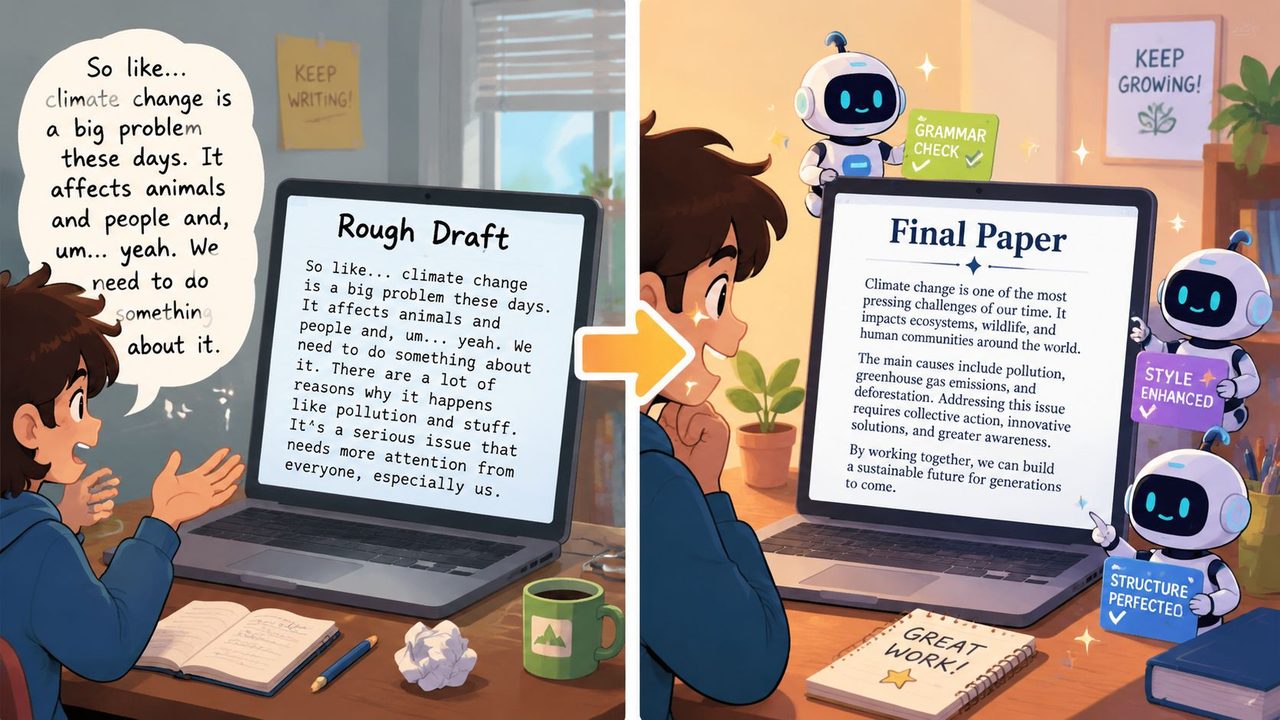
Spoken drafts usually contain predictable problems:
- Filler language: “Um,” “like,” “you know,” and restart phrases
- Self-corrections: “The author argues, no, suggests...”
- Weak punctuation: ideas run together because speech arrives faster than sentence structure
- Repetition: useful for thinking aloud, awkward in finished writing
Cleanup features become important at this stage. Good dictation software should do more than capture audio. It should reduce the editing load enough that dictation still saves time after the transcript appears.
Clean transcripts save more time than fast transcripts.
How to format spoken drafts into submission-ready work
The best results come from editing in passes instead of fixing everything at once.
Start with structure. Split long blocks into paragraphs, move ideas into a stronger order, and turn half-formed spoken openings into topic sentences. After that, tighten style. Replace vague conversational wording with precise academic language. Leave citations, quotations, and references for the final pass, because those need manual checking anyway.
This is the checklist I recommend to students who rely on dictation for real assignments:
- Read for argument first. Check whether each paragraph earns its place before fixing small grammar issues.
- Cut spoken clutter. Remove fillers, repeats, and obvious verbal detours.
- Use formatting commands consistently. Saying “new paragraph,” “comma,” or “bullet list” during dictation reduces cleanup later.
- Add citations manually. Dictation can leave placeholders, but students should verify every source, quote, and page number themselves.
- Review meaning against source material. This matters even more for lecture notes, interviews, or reading summaries, where a small wording change can distort the original point.
There is a real trade-off here. More aggressive cleanup can save time, but students still need to watch for softened claims, altered quotations, or phrasing that sounds polished but drifts from the source. For academic work, accuracy beats convenience every time.
A practical workflow on macOS is simple. Dictate the rough draft inside the app you already use, let AIDictation clean obvious speech artifacts, then do a focused human edit for argument, evidence, and citation accuracy. That combination is much stronger than relying on a cloud transcript pasted in from a separate tool.
The goal is not perfection on the first pass. The goal is to get from spoken thinking to a usable draft quickly, without creating privacy problems or adding another hour of repair work later.
Conclusion The Smart Students Advantage
Students don't need another fragile productivity trick. They need a writing system that holds up during deadlines, note-heavy weeks, and long drafting sessions.
That's why the best dictation app for students isn't just the one with decent speech recognition. It's the one that fits the whole workflow. It needs to work across apps, respect privacy, support Mac users properly, and reduce the amount of cleanup standing between a spoken idea and a finished assignment.
Used well, dictation gives you several advantages at once. You write faster. You lower the friction of starting. You reduce hand strain from constant typing. You capture ideas while they're still clear. And when the software can clean up rough speech into readable text, you spend more energy on thinking and less on mechanical input.
For serious students on macOS, that combination matters. Casual tools can help with occasional voice notes. They usually don't solve the bigger problem of building a reliable, private, cross-app workflow for academic writing.
The students who benefit most from dictation aren't necessarily the ones who talk the fastest. They're the ones who use it strategically. They know when to brainstorm aloud, when to summarize from memory, when to draft by voice, and when to switch back to careful editing. That habit becomes an edge.
If you want a Mac-first dictation tool built for real writing rather than one-off transcripts, try AIDictation. It gives students a practical mix of local privacy, cross-app dictation, and AI cleanup that turns rough speech into cleaner coursework with less friction.
Frequently Asked Questions
What does Best Dictation App for Students: Boost Your Study in 2026 cover?
You're probably here because typing has become the bottleneck. You've got lecture notes scattered across tabs, an essay draft that still starts with a blinking cursor, and a to-do list full of reading responses, emails, and revision sheets.
Who should read Best Dictation App for Students: Boost Your Study in 2026?
Best Dictation App for Students: Boost Your Study in 2026 is most useful for readers who want clear, practical guidance and a faster path to the main takeaways without guessing what matters most.
What are the main takeaways from Best Dictation App for Students: Boost Your Study in 2026?
Key topics include Table of Contents, Introduction Write 4x Faster and Ace Your Classes, Choosing Your Dictation App What Students Must Prioritize.
Ready to try AI Dictation?
Experience fast voice-to-text on your device. Free to download.
Download FreeRelated Posts
Is There a Speech to Text App for Mac? a Practical Guide
Is There a Speech to Text App for Mac. Wondering if there is a speech to text app for Mac? Compare built-in Dictation, on-device engines, and AI tools like
Dictation Software for Medical Professionals Compared
Compare dictation software for medical professionals. Evaluate accuracy, HIPAA privacy, ambient AI tradeoffs, and on-device tools like AIDictation.
How to Use Voice Dictation on Mac
Use Voice Dictation on Mac. Master voice dictation on your Mac — from built-in Apple features to third-party tools like AIDictation