Repetitive Strain Prevention: Ergonomics & Habits
You notice it at the end of a normal workday. Your wrist feels tired when you reach for the mouse. Your forearm has that dense, overworked ache. Maybe two fingers tingle when you wake up, then feel fine after coffee, so you tell yourself it was nothing.
That's how repetitive strain problems usually enter the picture. Not with a dramatic injury, but with a whisper you can work around until you can't.
Most desk workers get told some version of the same advice: sit up straight, stretch, take breaks. That advice isn't wrong. It's incomplete. Repetitive strain prevention works best when you stop treating pain like a posture problem alone and start treating it like a system problem. Your chair matters. Your monitor matters. Your break habits matter. But your workflow matters too. If your job demands thousands of forceful clicks, frantic trackpad movements, and long typing sessions, better ergonomics can only do so much.
Table of Contents
- Your Body Is Sending Signals Are You Listening
- Recognizing the Early Warning Signs of RSI
- Building Your Ergonomic Fortress
- Redesign Your Digital Workflow to Reduce Strain
- Integrate Movement and Mindful Breaks
- Creating Lasting Habits for Prevention
- When to Seek Professional Guidance
Your Body Is Sending Signals Are You Listening
The body rarely starts with a crisis. It starts with patterns. A shoulder that tightens every afternoon. A thumb that feels irritated after messaging. A neck that seems to recover on weekends, then flares again by Tuesday.
Those signals are easy to dismiss because they come and go. Work still gets done. You can still type. You can still lift a mug, hold a phone, open a laptop. That false sense of “still functional” is where many people lose months.
The scale of the issue is larger than most office workers assume. In 2021, 9.0% of U.S. adults experienced a repetitive strain injury within the prior three months, and 44.2% of those affected had to limit daily activities for at least 24 hours. Over half of that group consulted a medical professional according to CDC data on repetitive strain injury among U.S. adults. These aren't just fleeting aches.
Practical rule: If discomfort keeps showing up in the same place during the same tasks, treat that pattern as useful information, not background noise.
Good prevention doesn't depend on one heroic fix. It depends on four layers working together: a supportive setup, lower-friction tools, better movement during the day, and habits that catch problems early. That's the difference between reacting to symptoms and building a way of working your body can tolerate.
Recognizing the Early Warning Signs of RSI
Some people wait for sharp pain before they take action. That's late. Early RSI often feels vague, inconsistent, and easy to rationalize away. The better skill is learning to spot the quieter signs while they're still reversible.
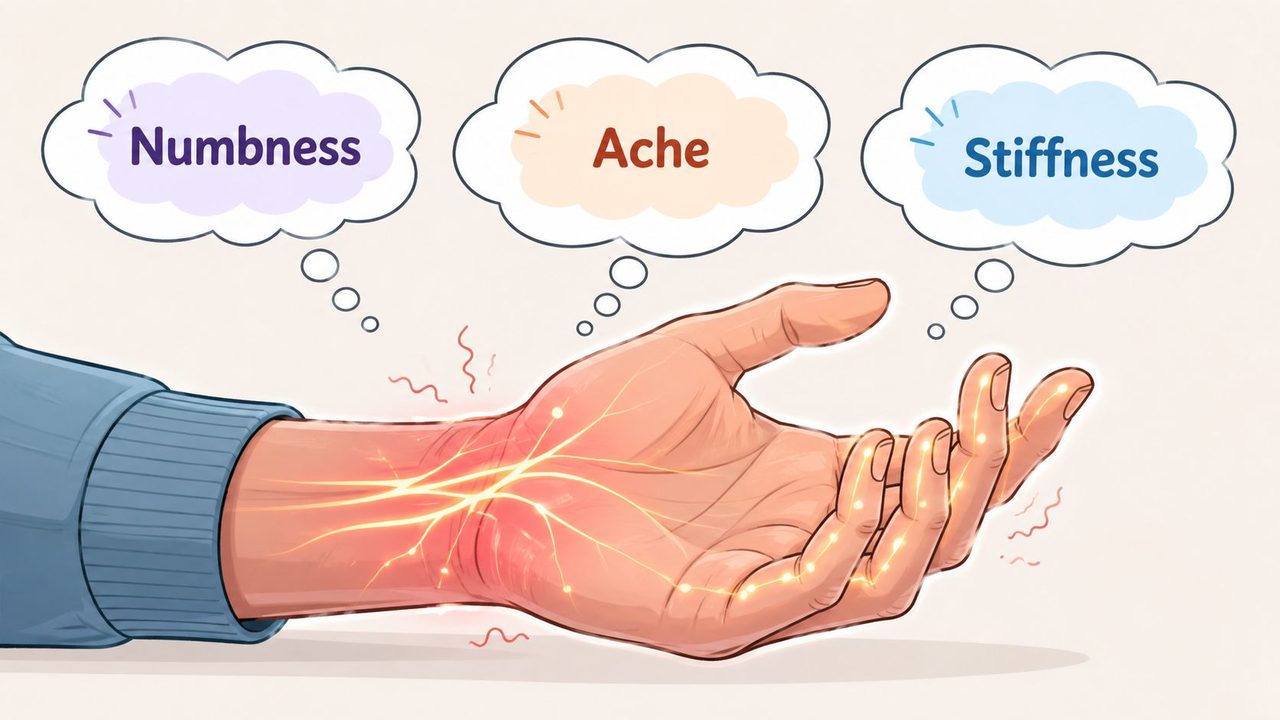
Repetitive strain injuries affect approximately 15% of Canadian workers and are the most frequent type of lost-time injury. The main causes include continual repetition, awkward postures, fixed body positions, and insufficient recovery time according to Unifor's RSI awareness overview. That pattern maps closely onto desk work, especially when long screen sessions come with poor visual habits too. If your eyes feel strained by midafternoon, these tips to protect eye health can help reduce one more source of tension that pulls the head and neck forward.
What early RSI often feels like
A true early-warning list isn't just “pain in the wrist.” It's broader than that.
- End-of-day ache: Symptoms appear late in the shift, then settle after rest.
- Morning stiffness: Hands, forearms, or shoulders feel sticky or slow when you first start moving.
- Tingling or buzzing: Fingers feel electrically “off,” especially after long mouse or keyboard sessions.
- Grip changes: Opening jars, holding a mug, or carrying a bag feels less secure than usual.
- Fast symptom return: You feel better after a night or a weekend, but the discomfort comes back earlier the next time.
A lot of people also notice a creeping change in how they work. They shake out a hand between emails. They switch mouse hands for a few minutes. They brace their shoulder while typing. They avoid one shortcut because it irritates the thumb. Those workarounds matter. They're often the first visible clue that load is exceeding capacity.
A simple self-check during the workday
Use this quick scan once in the morning and once in the afternoon.
| Area | Ask yourself | Why it matters |
|---|---|---|
| Hand and wrist | Do I feel tingling, stiffness, or pressure when typing or scrolling? | Small symptoms often show up here first |
| Forearm and elbow | Am I gripping tightly or hovering the mouse arm? | Sustained tension travels upward |
| Shoulder and neck | Am I lifting one shoulder or leaning toward the screen? | Protective postures create new strain |
| Recovery | Do symptoms disappear fully, or just fade a little? | Incomplete recovery is a warning sign |
Pain that improves with rest but returns faster under the same workload is not random. It's a load-management problem asking for attention.
Building Your Ergonomic Fortress
A desk can push your body in the wrong direction for eight or ten hours a day. Good ergonomics lowers that background load so your hands, shoulders, and neck are not spending the whole workday compensating.
That matters because repetitive strain prevention works best as a system. Furniture, device placement, work habits, and input volume all interact. A perfect chair will not protect someone who still spends the day reaching, gripping hard, and typing far more than the job requires.
Start with a visual checklist.
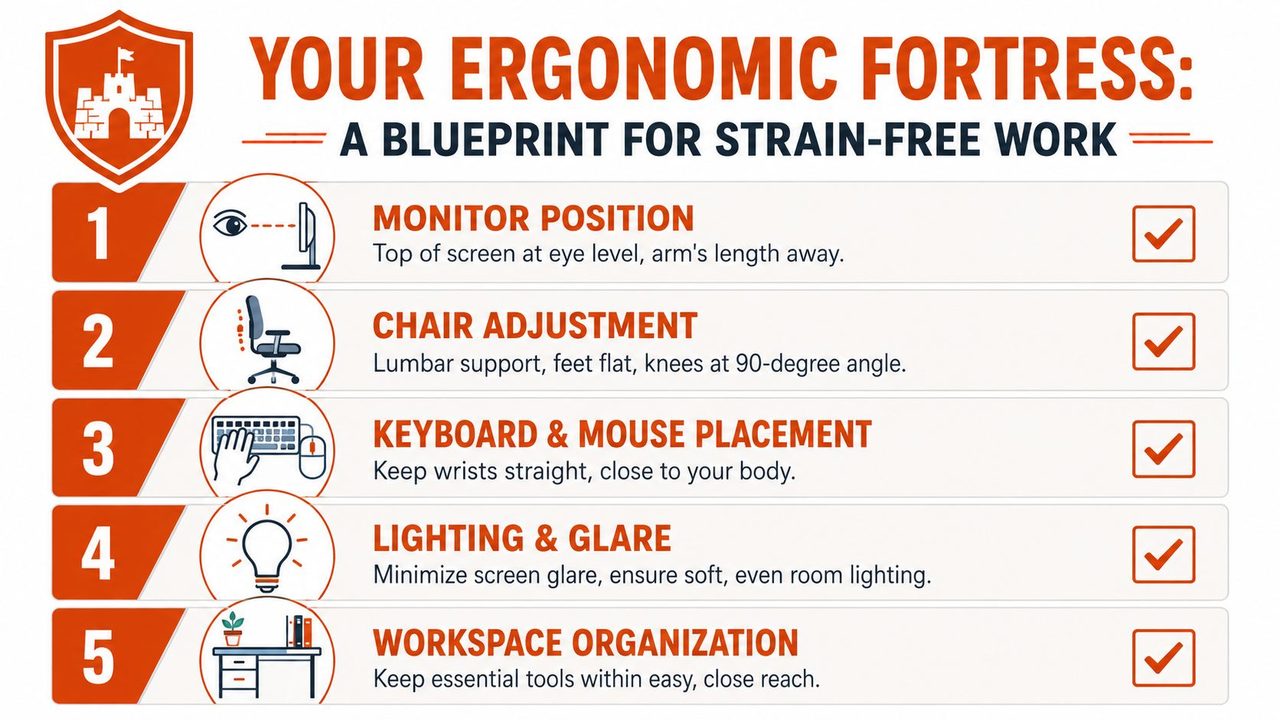
Start with the chair and screen
Set the chair first. Sit all the way back so the backrest, or a rolled towel if needed, supports the low back. Feet should rest flat on the floor or on a footrest, with thighs supported and no hard pressure at the back of the knees. If you have to point your toes down to reach the floor, the chair is too high. If the knees are sharply higher than the hips and you feel folded up, it is too low.
Then set the screen to match your body, not the other way around. The top of the monitor should be around eye level, and the screen should sit far enough away that you can read without jutting your chin forward. Laptop-only setups are a common problem here. Raising the laptop and adding an external keyboard and mouse usually improves neck and shoulder position right away.
For a deeper setup walkthrough, this practical guide to workplace ergonomics is useful because it translates abstract rules into desk-level decisions.
A quick visual demo helps many people spot what text alone misses.
Fix the small points of contact
Many otherwise decent setups prove insufficient. The desk and chair look fine, but the hands are still working in awkward positions for hours.
- Keyboard position: Keep it close enough that your elbows stay near your sides. Reaching forward turns a hand task into a shoulder task.
- Wrist posture: Aim for neutral wrists instead of bending them up, down, or out to the side. Some people do better with a split keyboard, but it is only useful if it allows the forearms to relax.
- Mouse placement: Keep it close to the keyboard. A mouse parked far to the side keeps the arm slightly lifted all day, which often shows up later as upper trap or forearm tension.
- Mouse grip: Use a light grip. If you notice your index finger hovering rigidly over the button, the mouse may be too small, too sensitive, or positioned badly.
- Frequently used items: Put your phone, notebook, water, and charger in the easy-reach zone. Small repeated reaches add up.
One trade-off is worth being honest about. Ergonomic gear can help, but it is not automatically better. A vertical mouse, split keyboard, or desk tray is useful only if it reduces tension and can be used consistently. If a device slows you down enough that you avoid it, the theoretical benefit does not matter much in practice.
Run a five-minute desk audit
Use this quick check at the start of the week or after any change in equipment.
- Look straight ahead. If your gaze lands too low on the screen, raise it.
- Let the shoulders drop. If they stay braced, bring the keyboard and mouse closer.
- Watch the wrists while typing. If they angle up or sideways, adjust input height or try a different keyboard.
- Check chair height. Feet planted, thighs supported, and no seat edge digging into the legs.
- Test your reach zone. Move high-use items closer so you are not repeatedly twisting or extending.
I usually tell desk workers to stop chasing the Instagram version of ergonomics. The goal is not a photogenic setup. The goal is a setup that reduces effort enough that the body stays calmer through a real workday.
That is also why workstation changes should be paired with workflow changes. If your tools are comfortable but your job still requires thousands of unnecessary inputs, strain risk stays high. Reducing physical input through shortcuts, templates, and voice dictation workflows that cut typing volume addresses the root load, not just the posture around it.
Redesign Your Digital Workflow to Reduce Strain
Many people try to solve repetitive strain by making the same workload more comfortable. That helps, but it misses the root problem. If your job asks for constant inputs, the smarter move is to reduce the inputs themselves.
That means changing how you produce text, interact with software, and handle routine communication. If you only focus on chair height and wrist angle, you're still asking the body to absorb the full cost of your workflow.
Level one remove avoidable input
Start with what repeats.
- Keyboard shortcuts: Learn the commands you use every hour, not the obscure ones you'll forget. Copy, paste, search, tab switching, app switching, screenshot capture, comment toggles, and formatting commands give immediate relief.
- Text expanders: If you write the same greeting, meeting summary, code review phrase, or support response repeatedly, turn it into a short trigger.
- Templates: Build reusable outlines for specs, notes, follow-ups, and weekly updates.
- Autocomplete settings: Let the software help. Smart replacements and predictive text can reduce mechanical repetition.
This isn't just an efficiency trick. It's tissue management. Fewer keystrokes and fewer corrections mean less cumulative loading on fingers, wrists, and forearms.
Level two reduce pointer dependence
Mouse-heavy work is often harder on the body than people expect. Long-distance cursor travel, precision dragging, and frequent context switching create a lot of low-grade effort.
Try these changes:
| Friction point | Better approach |
|---|---|
| Constant clicking through menus | Use command palettes, hotkeys, and search-first navigation |
| Trackpad overuse | Alternate with a mouse or other pointer device if one setup irritates you |
| Reaching for the mouse after every sentence | Keep hands on the keyboard by learning editor and browser shortcuts |
| Endless tab hunting | Use tab search, pinning, and workspace organization |
There's also a mental load angle here. Busy, fragmented app switching tends to increase physical fidgeting and rushed input. This piece on preventing burnout with balanced app usage is worth reading because digital overload often shows up in the body as much as in attention.
Level three offload typing entirely
The most impactful change is simple: stop typing every word by hand.
Voice dictation used to feel clumsy. That's changed. For many knowledge workers, it now works best for first drafts, meeting notes, status updates, summaries, brainstorming, and long-form writing. You talk through the content while standing, walking slowly, or sitting in a more relaxed posture, then do light cleanup instead of full manual entry.
This is especially helpful for workers whose roles generate language all day: product managers writing specs, engineers documenting decisions, clinicians writing notes, marketers drafting copy, support teams sending high volumes of replies.
A good voice workflow doesn't mean dictating every single thing. It means reserving your hands for what requires precision and offloading what doesn't. If you want examples of where dictation fits best in daily work, this voice dictation workflow guide gives useful patterns for integrating speech into real tasks.
The goal isn't to type more efficiently forever. It's to ask whether the typing needs to happen at all.
That shift is what makes workflow redesign different from generic ergonomics advice. It goes after the source of the strain, not just the posture of the person enduring it.
Integrate Movement and Mindful Breaks
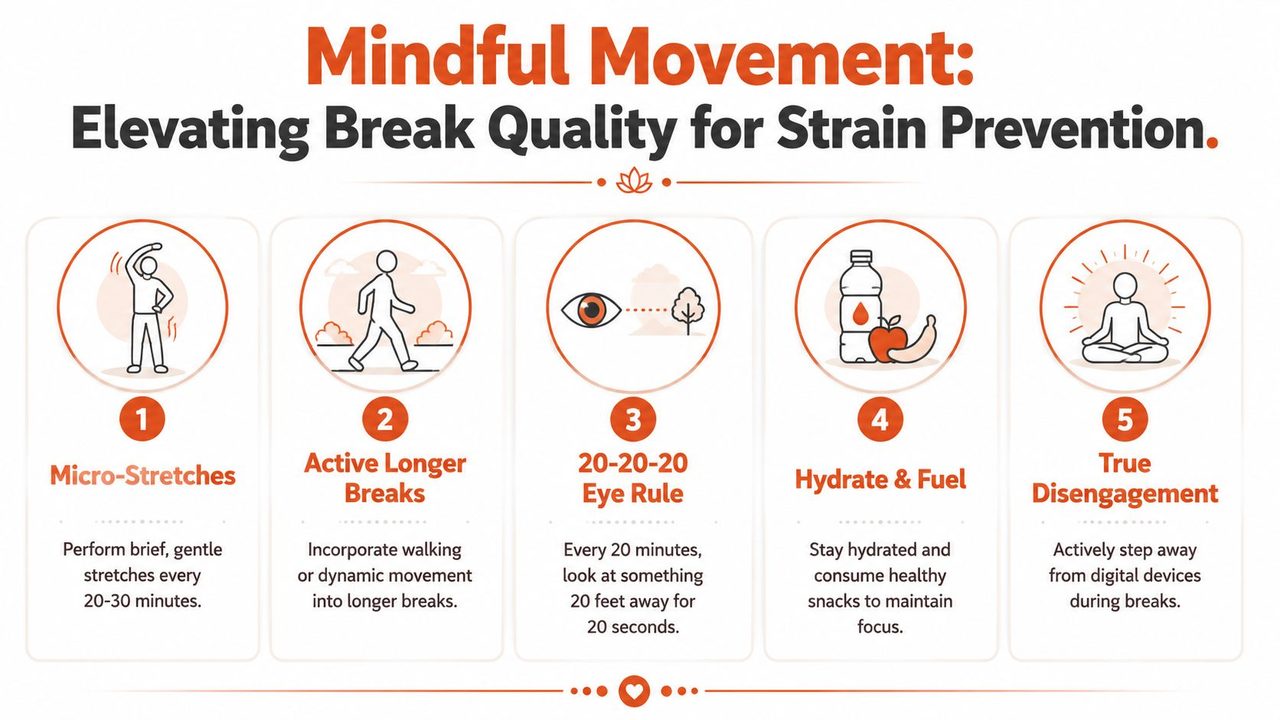
Many workers proudly say they take breaks, but their break is checking messages on a different screen. That's not recovery. That's task switching with the same posture and the same tissues still under load.
The more useful question isn't “Did you take a break?” It's “What changed during the break?” Emerging evidence suggests dynamic movement and varied postures are more effective for preventing upper limb RSI than static stretching or isolated breaks alone according to this discussion of movement quality in RSI prevention.
Break quality matters more than break theater
A low-quality break looks restful but changes very little. You stay seated, keep the elbows bent, stare at another device, and move only your thumbs. A high-quality break interrupts the exact positions and motions that built the strain.
The review cited earlier also notes practical implementation details such as microbreaks every 30 to 45 minutes as part of effective prevention protocols. That timing matters, but the content of the break matters just as much.
Try this distinction:
- Low quality: scrolling, slumping in the chair, reading on the phone, static wrist stretching while still tense
- High quality: standing up, opening the chest, changing visual distance, moving the spine, rotating the shoulders, walking to refill water
For people juggling deadlines, it helps to reframe breaks as maintenance, not interruption. The same mindset used in project work applies here. Short resets prevent downstream problems. That's part of why this article on managing multiple projects without constant overload resonates with desk workers. Sustainable output depends on deliberate resets.
A better menu of desk-side movement
Static stretching has a place, but it shouldn't be your whole plan. Use brief dynamic sequences that reverse your desk posture.
-
Neck glide and turn
Gently draw the chin back, then rotate your head side to side. Slow and easy. No forcing. -
Shoulder rolls with reach
Roll the shoulders back several times, then reach the arms overhead and slightly out to the sides. -
Thoracic extension over the chair
Sit tall, place hands behind the head or on the armrests, and lift the chest upward. -
Wrist circles and tendon glides
Open and close the hands, then move the wrists through comfortable circles. -
Sit-to-stand repeats
Stand up and sit down a few times with control. This wakes up the hips and changes spinal loading. -
Short walk break
Walk to another room, outside if possible, without your phone in hand.
Don't use movement breaks to chase intensity. Use them to restore variety.
If one area gets irritated consistently, make the movement specific. A tense upper trapezius needs shoulder and neck unloading. A sore forearm needs less gripping and more hand-opening, not just a hamstring stretch because an app told you to do it.
Creating Lasting Habits for Prevention
A prevention plan has to hold up on a deadline-heavy Tuesday, not just on a calm Sunday night when you are setting intentions. If it depends on willpower, it usually falls apart right when keyboard time, mouse use, and stress all climb together.
The durable approach is a system. Ergonomics matter. Movement matters. The missing piece for many desk workers is input reduction. If your job demands hours of typing, clicking, and trackpad use, habit-building should include redesigning the workflow so your hands do less repetitive work in the first place. That is how prevention starts addressing cause, not just flare-ups.
Make prevention automatic
Use clear triggers that already exist in your day.
- After meetings: stand up, change position, and do one brief reset
- After a long writing block: open the hands, drop shoulder tension, and switch tasks for a few minutes
- Before starting focused work: choose the lowest-strain input method for the task, such as shortcuts, templates, or dictation
- At lunch and before logging off: do a quick symptom check so you catch patterns early
I often recommend tying prevention to transitions, not clock time alone. Meetings end. Documents get submitted. Builds finish. Those moments are easier to use than relying on memory every 30 minutes.
If writing is a major part of your workload, this guide on how to write faster and neater without adding unnecessary hand strain can help. Faster output is only useful if the method does not increase the physical load.
Build a low-friction system
The best habit is the one that still happens during a busy week. Keep the setup simple enough that you will make use of it.
| Problem | Better system |
|---|---|
| You forget to move | Use recurring desktop or phone reminders |
| You wait for pain before adjusting | Do a short symptom check at lunch and before logging off |
| You only change habits when symptoms flare | Tie resets to events like meetings, calls, or completed tasks |
| You do all high-input work the same way | Alternate typing with dictation, shortcuts, copy blocks, and templated responses |
| You work through fatigue | Protect one mid-shift reset in your calendar |
There is a trade-off here. Workflow redesign can feel slower at first. Dictation needs training. Shortcuts take setup time. Templates can feel rigid until they are tuned to your work. But those changes reduce total physical input, which is often more valuable than asking irritated tissues to tolerate the same load with better posture.
Earlier research discussed in this article supports a multi-part approach that combines physical setup, behavior change, and early response to symptoms. In practice, that means small actions done consistently beat a perfect routine you abandon after three days.
Aim for repeatable, boring, effective habits. Those are the ones that protect your hands, wrists, shoulders, and neck over months of real work.
When to Seek Professional Guidance
Self-management is appropriate for mild, early symptoms. It's not the right plan for every case. If pain is intensifying, spreading, or affecting sleep, work performance, grip, or sensation, it's time to get skilled help.
Red flags that deserve attention
Pay attention if any of these are happening:
- Night pain: symptoms wake you up or make it hard to sleep
- Persistent numbness: tingling or numbness doesn't fully resolve
- Weakness: you're dropping objects, losing grip, or struggling with ordinary tasks
- Symptom persistence: you've made meaningful changes and the problem still isn't settling
- Expanding pain: discomfort moves from one area into a chain, such as wrist to elbow to shoulder
Early support is usually easier than late rescue. The longer you work through worsening symptoms, the harder it can be to untangle the drivers.
Who to talk to
A primary care clinician is a good starting point when you need medical evaluation, imaging decisions, medication guidance, or referral support.
A physiotherapist can help with pain reduction, graded loading, mobility, and strengthening. An occupational therapist is especially helpful when the problem is tightly connected to work setup, hand function, daily task design, and tool adaptation. For many desk workers, that combination of clinical care and practical work redesign is what finally changes the trajectory.
If you're unsure whether your issue is “serious enough,” use a simple rule: if symptoms are affecting function, not just comfort, don't wait.
If you want to reduce manual typing without sacrificing writing quality, AIDictation is worth a look. It helps turn speech into clean draft text on macOS, which can be a practical way to lower keyboard load during notes, emails, documentation, and first drafts. For people building a serious repetitive strain prevention system, that kind of workflow redesign can be as important as chair height or stretch breaks.
Frequently Asked Questions
What does Repetitive Strain Prevention: Ergonomics & Habits cover?
You notice it at the end of a normal workday. Your wrist feels tired when you reach for the mouse.
Who should read Repetitive Strain Prevention: Ergonomics & Habits?
Repetitive Strain Prevention: Ergonomics & Habits is most useful for readers who want clear, practical guidance and a faster path to the main takeaways without guessing what matters most.
What are the main takeaways from Repetitive Strain Prevention: Ergonomics & Habits?
Key topics include Table of Contents, Your Body Is Sending Signals Are You Listening, Recognizing the Early Warning Signs of RSI.
Ready to try AI Dictation?
Experience fast voice-to-text on your device. Free to download.
Download FreeRelated Posts
Voice to Text on Mac: Built-in Dictation vs the Best Apps (2026)
How to use voice to text on a Mac or MacBook: turn on built-in dictation, see where it falls short, and compare the best Mac voice to text apps for 2026.
AI Grammar Correction Explained from Rules to LLMs
Learn how AI grammar correction works, from rule-based engines to large language models, and what it means for privacy, accuracy, and real-world workflows.
Typing and Carpal Tunnel: Beat Wrist Pain Now
Discover the real link between typing and carpal tunnel. Get expert ergonomic tips, exercises, and workflow changes to find lasting relief from wrist pain.