Unlock Your Potential: How to Write Faster and Neater
You’re probably dealing with one of two frustrations right now. Your thoughts are moving faster than your hands, so the draft comes out rushed, messy, or incomplete. Or you’re slowing yourself down to keep things clean, which means simple writing tasks eat far more time than they should.
That tension shows up everywhere. Product managers feel it in specs and meeting notes. Developers feel it when documenting decisions they already understand in their heads. Healthcare professionals feel it in notes that need to be fast, accurate, and ready for a digital system. Students and knowledge workers feel it every time they try to turn a rough idea into polished text before the next interruption lands.
Most advice on how to write faster and neater still treats writing like a penmanship problem. For modern work, it’s usually a workflow problem. The people who write quickly and clearly don’t rely on one trick. They reduce physical friction, make input methods automatic, structure thoughts before drafting, and use tools that match the job.
Table of Contents
- Unlock Your Writing Potential Speed and Clarity Combined
- Build Your Foundation for Effortless Writing
- Master Your Keyboard with Touch Typing and Shortcuts
- Supercharge Your Output with Voice Dictation Workflows
- Structure Your Thoughts with Outlines and Templates
- Create Your Personal System for Fast and Neat Writing
Unlock Your Writing Potential Speed and Clarity Combined
The usual assumption is that fast writing gets sloppy and neat writing gets slow. In controlled practice, people can improve both. In real work, that trade-off comes back hard because professionals rarely write under ideal conditions.
You’re writing while switching tabs, answering messages, joining calls, or trying to capture technical terms before they disappear from memory. Existing handwriting guides often assume stable desks, quiet rooms, and uninterrupted focus. They don’t deal well with multitasking or cognitive load, and they don’t solve the consistency problem that shows up under pressure, as noted in this discussion of neat handwriting under real-world pressure.
That matters because neatness isn’t just about how letters look. In daily work, neatness means the output is easy to read, correctly structured, and usable right away. A clean paragraph in an email draft is neater than a page of handwritten notes that still needs to be decoded and typed up later.
What actually changes results
Three shifts make the biggest difference:
- Stop treating speed and neatness as handwriting traits. They’re output traits. If the final text is clear and ready to use, the method matters less than the result.
- Reduce cognitive overhead while drafting. The more attention you spend on mechanics, the less you have left for clarity.
- Use different tools for different writing modes. Short edits, long drafts, notes, and polished communication don’t all belong on the same input method.
Practical rule: If a method makes you choose between getting ideas down fast and keeping them clean, the method is too narrow for modern work.
A lot of people don’t have a writing discipline problem. They have a systems problem. They’re trying to force one channel, usually handwriting or standard typing, to do every job.
The better approach is integrated. Build a setup that reduces strain. Make the keyboard automatic. Use dictation when thought speed outruns finger speed. Add lightweight structure before drafting so you’re not composing and organizing at the same time. That’s how to write faster and neater without living in a constant cycle of rough drafts and cleanup.
Build Your Foundation for Effortless Writing
The fastest improvement often has nothing to do with writing skill. It comes from making the act of writing less physically annoying.
Handwriting research is useful here for one reason. It shows the limit of relying on pure manual speed. Even skilled adults average under 20 words per minute, and handwriting speed improves over time while legibility plateaus early, which creates a built-in speed versus neatness conflict, as summarized in this review of handwriting speed and legibility benchmarks. For busy professionals, that’s a reminder to optimize the whole environment instead of trying to outwork a bottleneck.
Remove physical friction first
If your shoulders tighten after twenty minutes or your wrists start compensating for bad positioning, your writing speed drops before you notice it.
A simple writing setup usually works better than an expensive one:
- Keep the keyboard close. Reaching forward all day creates low-grade tension that makes long drafting sessions feel heavier than they need to.
- Raise the screen to a comfortable viewing height. Looking down constantly encourages a collapsed posture, and that fatigue leaks into focus.
- Support your feet and lower back. Stable posture helps you stay in the task longer without fidgeting or resetting every few minutes.
- Use one primary input zone. If you keep switching between notebook, keyboard, trackpad, and phone, you create friction before the writing even starts.
For handwritten notes, the same principle applies. Use the easiest surface, the simplest page layout, and a pen that doesn’t make you press hard. But for work that must end up digital, don’t mistake a comfortable note-taking setup for a complete writing system.
Build a writing-friendly screen environment
A cluttered desktop steals attention in small bites. Writing speed doesn’t only depend on hand movement. It depends on whether your mind stays attached to the sentence long enough to finish it cleanly.
Use a stripped-down writing environment:
- Close every tab that isn’t part of the current task.
- Pause notifications during drafting blocks.
- Keep reference material in one side-by-side window, not five scattered ones.
- Choose one default capture app for notes, drafts, and fragments.
The cleaner the environment, the less editing you need later. A lot of messy writing is really interrupted writing.
This setup won’t make anyone instantly elegant on the page. It does something more useful. It removes the hidden drag that turns a normal writing task into a stop-start struggle. Once the environment stops fighting you, the input method can start working.
Master Your Keyboard with Touch Typing and Shortcuts
For most professionals, the keyboard is still the default writing tool. That’s fine. The problem is that many people type just well enough to get by, but not automatically enough to write with real flow.
If you have to think about keys, your brain is splitting effort between language and mechanics. Clean writing gets harder because every revision, phrase change, and structural tweak feels slightly expensive. The solution isn’t heroic practice. It’s targeted repetition until typing becomes background.
Turn typing into a background skill
Touch typing matters because it protects attention. When your hands know what to do, you can stay with the sentence.
A practical training loop looks like this:
- Practice in short bursts. Ten focused minutes beats an hour of distracted pecking.
- Train accuracy before speed. Fast error production just creates more editing.
- Use real phrases from your work. Product language, technical terms, and names are better drills than random word lists.
- Repeat weak patterns. Numbers, symbols, and capitalization often slow professionals more than plain text.
If you want a focused path, this guide on how to type faster is a useful companion to daily drills.
Essential Time-Saving Keyboard Shortcuts
Shortcuts matter because they keep your hands on the keyboard during drafting and cleanup. That makes first drafts neater in a practical sense. You can fix structure, delete clutter, and move through text without breaking rhythm.
| Action | macOS Shortcut | Windows Shortcut |
|---|---|---|
| Copy | Command + C | Ctrl + C |
| Paste | Command + V | Ctrl + V |
| Cut | Command + X | Ctrl + X |
| Undo | Command + Z | Ctrl + Z |
| Redo | Shift + Command + Z | Ctrl + Y |
| Save | Command + S | Ctrl + S |
| Find | Command + F | Ctrl + F |
| Select all | Command + A | Ctrl + A |
| Move one word left or right | Option + Arrow | Ctrl + Arrow |
| Delete previous word | Option + Delete | Ctrl + Backspace |
Two habits make these shortcuts pay off fast.
First, use word-level movement instead of arrowing through text character by character. That makes line edits dramatically less tedious. Second, learn deletion by word. It’s one of the fastest ways to remove clutter while preserving momentum.
You don’t need dozens of shortcuts. You need the small set you’ll use every day without thinking.
A keyboard won’t always be the fastest way to draft. It is still the best tool for precise cleanup, restructuring, and final polish. That’s why strong writers don’t abandon typing. They stop making it do every job.
Supercharge Your Output with Voice Dictation Workflows
Typing is efficient once it becomes automatic. Speaking is still faster for many kinds of drafting.
That’s the reason dictation changes the equation for people who need speed without losing polish. According to this overview of writing faster with speech-to-text, speech-to-text can reach up to 160 words per minute, compared with average typing speeds of 40 to 60 words per minute. The same source notes that using an AI engine with a custom dictionary and auto-formatting can reduce domain-specific error rates by 30 to 50%, cut note-taking time by 40 to 60%, and achieve over 95% first-pass accuracy even in noisy environments.
Why dictation changes the speed equation
Old dictation workflows failed because they produced too much cleanup. You’d gain speed on input and lose it again during editing.
Modern dictation works better when it includes four things:
- A strong recognition engine
- A custom dictionary for names and technical terms
- Automatic punctuation and formatting
- Cleanup that can handle filler words and self-corrections
That’s why dictation now fits work that used to feel too messy for voice. Product updates, technical notes, email drafts, and clinical documentation all benefit when spoken input turns into readable text instead of a rough transcript.
For readers working on a Mac, getting started with voice dictation is mostly about setup and habit, not raw enthusiasm. One example is AIDictation, which uses local or cloud processing, applies app-specific context rules, and supports custom vocabulary so spoken drafts land closer to ready-to-send text.
A short walkthrough helps if you’ve never built a dictation habit:
A practical dictation workflow
Dictation works best when you stop trying to “perform” and start talking through thought units.
Try this sequence:
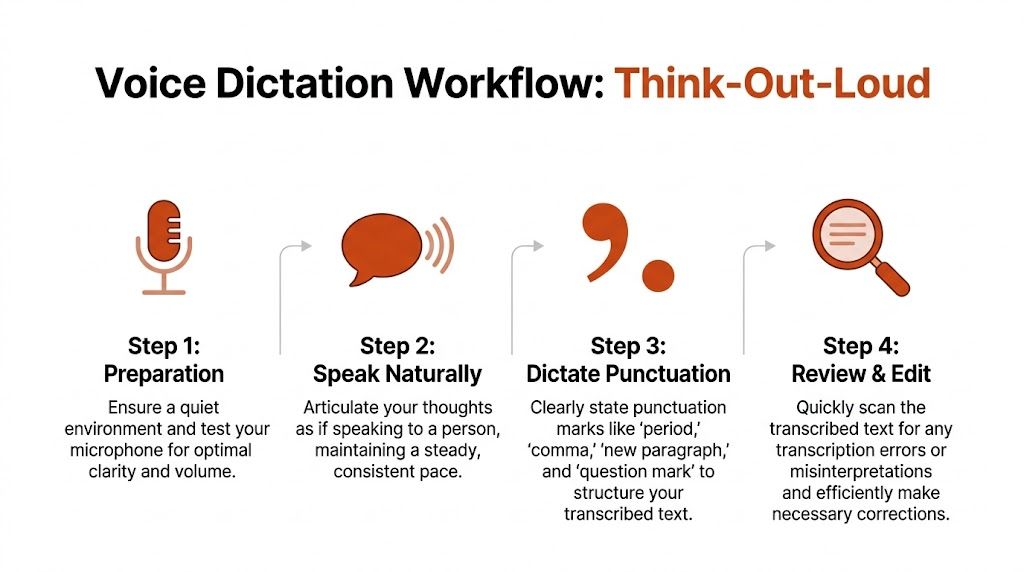
- Prepare the frame. Open the destination app, add a working title, and decide what you’re dictating: email, notes, summary, or long-form draft.
- Speak in chunks. One idea per sentence or short paragraph. Natural speech works better than rushed bursts.
- Say structure out loud. Include “new paragraph,” “comma,” or “bullet point” when needed.
- Do one cleanup pass. Fix meaning first, wording second.
Speak like you’re explaining the point to one smart colleague. That tone usually produces cleaner text than either rambling or over-formal dictation.
Dictation isn’t ideal for every task. It’s excellent for generating volume, capturing nuance quickly, and drafting while your thoughts are hot. The keyboard still wins for precision edits. Used together, they solve the old trade-off better than either one alone.
Structure Your Thoughts with Outlines and Templates
Messy writing often starts before the first sentence. The draft feels slow because the writer is inventing the structure while trying to phrase it.
That’s why a small amount of planning can make writing both faster and cleaner. According to this piece on how expert writers use outlines and sprints, expert writers who combine timed writing sprints with pre-outlining can produce 2,000 to 5,000 words per day, a 3x improvement over continuous sessions. The same source says thesis writers using this method doubled daily output within two weeks.
Use a simple outline before every substantial draft
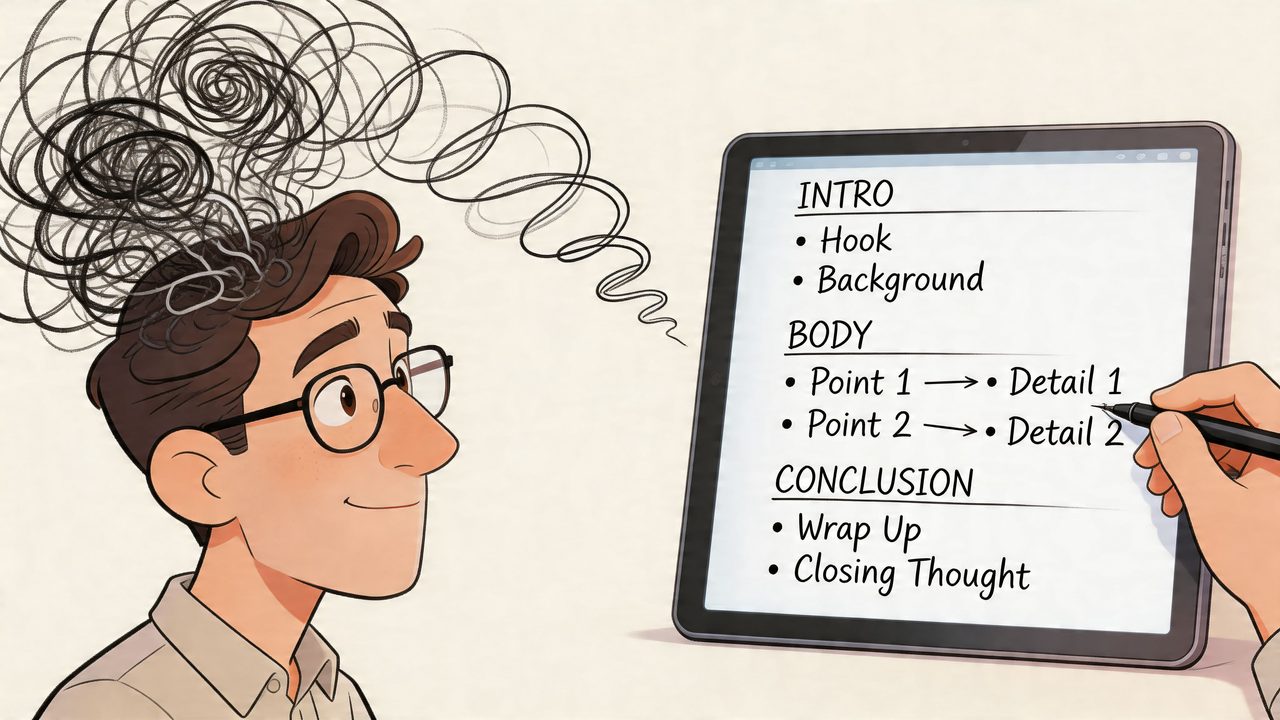
A useful outline is short enough to make quickly and specific enough to remove hesitation.
For most professional writing, five points are enough:
- Opening point
- Core argument or update
- Supporting details
- Decision, action, or implication
- Close
If you’re writing a meeting summary, those same slots become context, decisions, blockers, owners, and next steps. If you’re drafting a spec, they become problem, constraints, solution, edge cases, and open questions.
Structure creates neatness before language does, making a draft with plain wording and clean logic easier to improve than a stylish draft with no shape.
Pair templates with timed sprints
Templates remove repeat decisions. Sprints remove drift. Together they solve the blank page problem without requiring inspiration.
A practical setup:
- Create templates for recurring tasks. Weekly updates, handoff notes, support replies, and retrospectives all benefit from a default format.
- Use short drafting windows. Write hard for one block, then stop.
- Separate drafting from trimming. Don’t chase perfect wording while generating material.
- Leave placeholders instead of stalling. If a name, citation, or detail is missing, mark it and keep moving.
Working principle: Clarity improves when organization happens before drafting and editing happens after drafting.
This approach is especially effective for professionals who write in volume. When the structure is already decided, the writing task becomes much smaller. You’re no longer asking, “What am I writing?” You’re answering a series of contained prompts. That’s a faster path to neat output than relying on momentum alone.
Create Your Personal System for Fast and Neat Writing
Most writing advice breaks because it assumes one method should solve every writing problem. It won’t.
The better model is hybrid. Different tasks deserve different inputs. Quick corrections belong on the keyboard. Long exploratory drafts often belong in dictation. Repeated work needs templates. Higher-quality final output starts before drafting, not after it.
One major gap in traditional advice is the jump from physical notes to digital output. Optimizing handwritten speed has limited value if you still have to transcribe everything later. That creates delay and introduces errors, which is exactly why the physical-to-digital transition problem in writing workflows matters so much for modern professionals.
Match the method to the task
A simple decision rule works well:
- Use typing for short, exact work. Editing, formatting, and sentence-level revision are still keyboard territory.
- Use dictation for idea-heavy drafting. If your brain is outrunning your fingers, speak first.
- Use templates for recurring documents. They keep writing neat by default.
- Use outlines for anything with stakes. If the reader needs clarity, don’t improvise the structure live.
That’s how to write faster and neater without turning the process into a personal efficiency contest. You’re not trying to become a machine. You’re trying to remove the bottlenecks that force sloppy drafting or endless cleanup.
Build your version of the system
Start with one week of deliberate testing.
Choose one recurring writing task and improve the environment around it. Choose one task where you’ll rely on keyboard shortcuts instead of the mouse. Choose one longer draft where you’ll outline first and dictate the rough version before editing.
If your work includes specialized terms, names, or repeated formatting patterns, build them into your tools instead of correcting the same mistakes forever. Custom vocabulary matters most where accuracy matters most, and this guide to custom voice commands and vocabulary is useful if you want cleaner dictated output in technical or professional contexts.
A personal system usually settles into something simple. You prepare the space, choose the right input method, give yourself a structure, draft quickly, and edit with precision. Once that system is in place, speed stops fighting neatness. Each one starts reinforcing the other.
AIDictation is a practical option if you want to turn spoken drafts into cleaner digital text on macOS. It combines on-device and cloud dictation modes, supports custom vocabulary for names and technical terms, and applies formatting and cleanup so voice input fits real work such as emails, notes, documentation, and reports. You can explore it at AIDictation.
Frequently Asked Questions
What does Unlock Your Potential: How to Write Faster and Neater cover?
You’re probably dealing with one of two frustrations right now. Your thoughts are moving faster than your hands, so the draft comes out rushed, messy, or incomplete.
Who should read Unlock Your Potential: How to Write Faster and Neater?
Unlock Your Potential: How to Write Faster and Neater is most useful for readers who want clear, practical guidance and a faster path to the main takeaways without guessing what matters most.
What are the main takeaways from Unlock Your Potential: How to Write Faster and Neater?
Key topics include Table of Contents, Unlock Your Writing Potential Speed and Clarity Combined, What actually changes results.
Ready to try AI Dictation?
Experience fast voice-to-text on your device. Free to download.
Download FreeRelated Posts
Understanding Paragraph Structure That Actually Works
A practical guide to understanding paragraph structure, with components, examples, editing steps, and dictation tips for cleaner writing.
Voice to Text on Mac: Built-in Dictation vs the Best Apps (2026)
How to use voice to text on a Mac or MacBook: turn on built-in dictation, see where it falls short, and compare the best Mac voice to text apps for 2026.
AI Grammar Correction Explained from Rules to LLMs
Learn how AI grammar correction works, from rule-based engines to large language models, and what it means for privacy, accuracy, and real-world workflows.