How to Read the Emails Using Voice on macOS
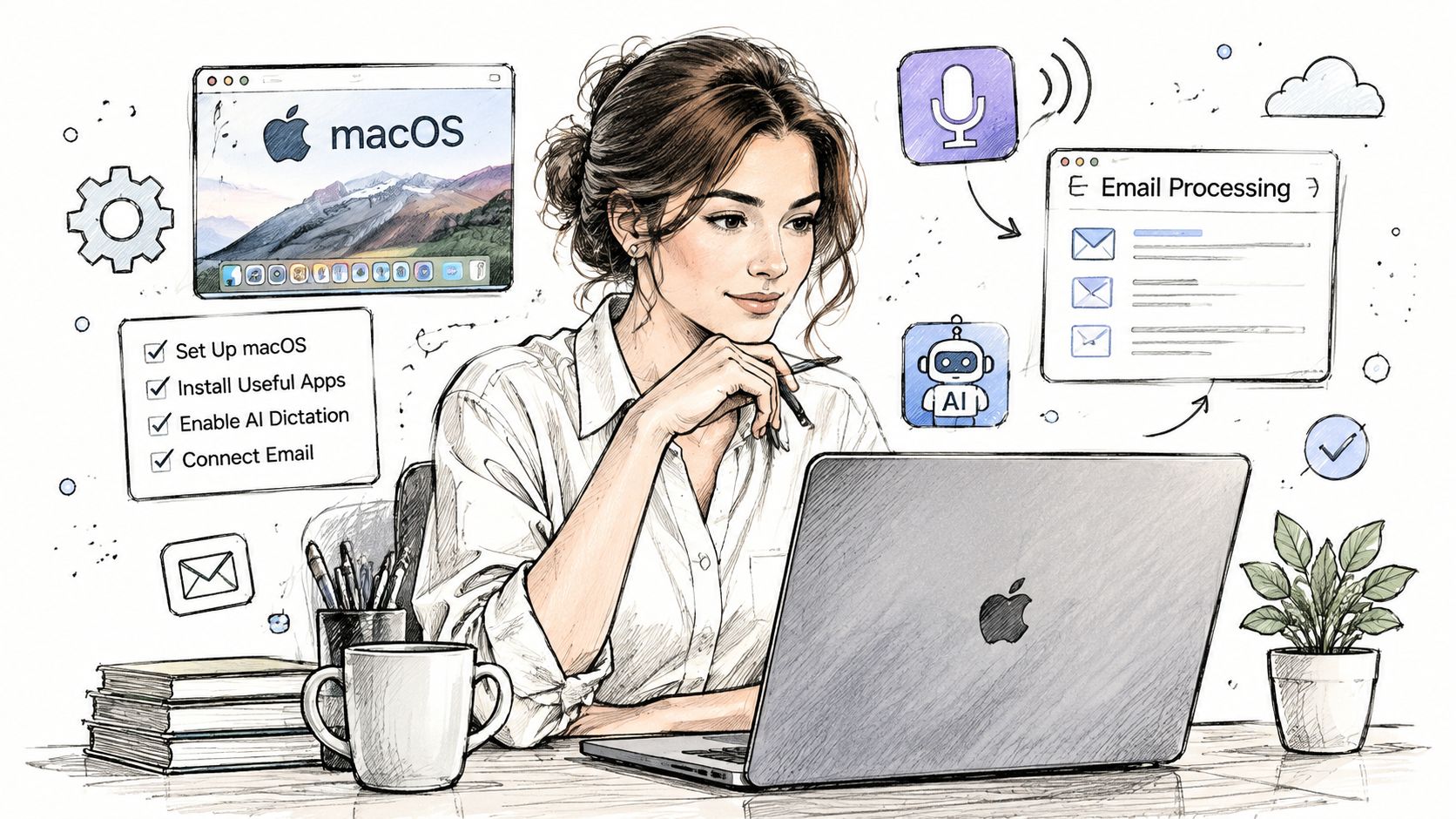
Your inbox is already moving before your coffee is cold. Messages from clients, internal threads, calendar nudges, and status pings all want the same thing at once, and the usual response is to stare at the screen longer than you planned, then type half-distracted replies that create more cleanup later.
Voice changes that pattern. On macOS, read the emails can become a hands-free routine, where you listen to messages, summarize what matters, and draft replies while your eyes stay off the inbox. That matters because email is still operating at enormous scale, with 4.59 billion users worldwide in 2025 and about 376.4 billion messages per day in one 2026 industry report, while another 2026 source puts users even higher at 4.83 billion and daily volume at 422 billion in 2025. Email isn't fading, it's just asking for better handling. (clean.email email industry report 2026)
Table of Contents
- Why Voice Workflows Change How You Handle Email
- Setting Up macOS and AIDictation for Email Processing
- Voice Commands and Workflows for Reading and Drafting Emails
- Privacy and Access Controls You Must Configure First
- Choosing Between Local and Cloud Dictation Modes
- Building a Repeatable Daily Voice Email Routine
Why Voice Workflows Change How You Handle Email
A voice workflow changes the unit of work. Instead of opening every message, scrolling, and typing under time pressure, you can move through your inbox in short listening bursts, which fits the reality that people now spend only about 9 seconds with a single email on average, down from 13.4 seconds in 2018, and that 30% of emails get under 2 seconds of attention, 41% get 2 to 8 seconds, and only 29% get more than 8 seconds. Those numbers make a simple point, your subject line, first line, and structure have to do the heavy lifting fast. (MarketingProfs on Litmus email attention data)
Listening beats constant checking
The biggest practical win is not speed, it's reducing interruption. Microsoft's email triage research ties reading time to workload context, which lines up with what most people feel in practice, checking email between meetings is worse than reviewing it in a focused window. When you listen instead of stare, you can batch decisions, sort urgency, and keep moving without getting pulled into every thread. (Microsoft Research email triage paper)
Practical rule: don't treat every message as a writing task. Some emails only need to be heard, categorized, and filed for later.
That mindset pairs well with a broader deep-work approach. If inbox pressure keeps breaking your attention, the article on GRIT Virtual Assistants on deep work is a useful companion read, especially if you're trying to protect focus time while still staying responsive.
Voice also changes tone. When you're speaking your reply instead of racing through it with a keyboard, you're more likely to answer the actual question, include the missing context, and stop over-editing small phrases that don't matter.
Setting Up macOS and AIDictation for Email Processing
Start with the macOS settings that determine whether dictation feels fast or frustrating. In System Settings > Keyboard > Dictation, turn on the built-in dictation feature and use the shortcut that's easiest to trigger with one hand, often a double-press of the Fn key. Then check System Settings > Accessibility > Spoken Content so the voices you want are downloaded and ready, because read-aloud email depends on a usable system voice, not just transcription.

Permissions are the real setup work
The app layer matters just as much. Any tool that reads email aloud or drafts replies needs the right permissions to interact with Mail.app or your chosen client, and the cleanest place to review that is System Settings > Privacy & Security. Give the app only the access it needs, test microphone input, and confirm it can inject text where you reply, because a workflow that fails in the middle of a long thread is worse than no workflow at all. The macOS dictation basics are also covered in the practical guide at how to use dictation on Mac.
AIDictation fits into that setup as a voice layer on top of macOS. It can work with local or cloud processing, read selected email text, and format spoken replies into clean writing, which makes it easier to move from listening to responding without switching tools repeatedly. If you want a Mail-specific walkthrough, the dedicated page on Apple Mail use cases shows how that workflow maps to the inbox you already use.
Keep the first test simple. Select one short email, trigger read aloud, then speak a one-sentence reply before you try to automate anything more complex.
A video demo helps here because dictation setup is easier to trust once you've seen it move through a real workflow.
Once the foundation is in place, save your settings and verify the output device. If you can't hear the read-out, the issue is usually routing, not the email content itself.
Voice Commands and Workflows for Reading and Drafting Emails
The most useful commands are the ones you can repeat without thinking. For reading, select the message in Mail.app and trigger your read-aloud shortcut, then let the app speak the sender, subject, and body so you can decide whether the email needs action, a quick reply, or nothing at all. For long threads, a summary command is better than line-by-line listening, because it strips the thread down to the actual decision points.
Read, summarize, respond

When you switch into drafting, keep the workflow simple. Place the cursor in the reply field, activate dictation, and speak like you'd brief a colleague. Short commands such as new paragraph, period, comma, and send are enough for most routine responses, and they matter because you don't want to break flow every time you need punctuation. The practical goal is to finish the reply while the message is still in working memory.
AIDictation is one example of a tool that can sit in that loop, with voice dictation for Gmail, Outlook, and Apple Mail, but the method matters more than the app. In healthcare-heavy environments, the Simbie AI dictation for doctors page is a relevant reference point because it shows how dictation thinking changes when accuracy, speed, and documentation quality all have to coexist.
The workflow that actually sticks
A good hands-free routine usually looks like this:
- Listen first: have the message read aloud before you decide whether it needs action.
- Summarize second: use a summary command on long threads so you don't re-read noise.
- Draft third: dictate the reply directly into the response field.
- Review last: scan the output for names, dates, and any line that sounded awkward when spoken.
A walking commute is a practical place to do this. With AirPods in, you can hear the email, decide on the reply, dictate a response, and arrive at your desk with fewer inbox decisions left to make.
Privacy and Access Controls You Must Configure First
The privacy question is not whether AI can read email. The question is how much access you're granting, where the text is processed, and what happens after the content leaves the mailbox view. Independent guides warn that mailbox-level permissions can expose far more than the single message you meant to process, including attachments, labels, contacts, and metadata, so the minimum-access principle should be the default, not an afterthought. (Onyri on AI email access and privacy controls)
Narrow the scope before you automate
If your workflow only needs selected text, configure it that way. If it only needs the current message, don't hand over the whole inbox. That distinction matters most in healthcare, legal, and finance work, where overbroad permissions create risk even when the app never permanently stores the content.
The sender-consent issue is separate from your own access. Reuters' reporting on privacy and AI notes that regulators are increasingly treating autonomous processing of personal information as potentially regulated, and that concern is sharper when someone else's private email is being analyzed by a tool they never agreed to. In practice, that means shared inboxes and customer communications deserve more caution than personal mail. (Reuters on AI reading personal emails and privacy law)
A clean policy is simpler than an emergency review. Define which mailboxes are voice-enabled, which categories stay manual, and which messages never go through summarization.
A dedicated processing profile helps. Keep sensitive mailboxes out of cloud sync when possible, review app permissions individually, and prefer the narrowest setting that still lets you read and draft efficiently. If the tool offers both local and cloud handling, treat that as a privacy decision, not just a performance toggle.
Choosing Between Local and Cloud Dictation Modes
Local dictation and cloud dictation solve different problems. Local processing keeps audio on your Mac and is the right fit when the email is sensitive, routine, or short enough that a fast transcription is good enough. Cloud processing is more useful when the text needs stronger cleanup, better handling of names, or more reliable formatting for a client-facing reply.
| Email Scenario | Recommended Mode | Key Reason |
|---|---|---|
| Internal acknowledgments | Local | Faster handling with less data exposure |
| Sensitive personal or client mail | Local | Keeps processing on device when possible |
| Long, polished responses | Cloud | Better cleanup and formatting when accuracy matters |
| Technical or specialized terminology | Cloud | Better odds of handling uncommon wording |
| Quick inbox triage | Local | Low-friction read aloud and short replies |
A practical hybrid works well. Draft locally when you just need speed, then switch to cloud processing only for the messages where wording, tone, or formatting matters. That keeps the privacy trade-off bounded instead of making every email a full cloud event.
If you want a deeper look at the privacy side of that decision, the discussion on offline speech recognition is worth reading before you lock in a setup. The core idea is simple, local is safer by default, cloud is better when you consciously accept the trade-off.
Building a Repeatable Daily Voice Email Routine
A voice workflow only helps if it becomes routine. The most reliable pattern is to separate email into three passes, morning triage, focused reply time, and a final review, so you're not trying to read, think, and compose in one continuous blur.

Keep the routine small at first
Start with listening only. On day one, have new mail read aloud and sort it into simple buckets, urgent, later, ignore. On day three, add voice drafting for short replies. By day five, use summaries on long threads so you stop rereading the same chain of messages by hand.
That incremental ramp matters because dictation accuracy improves when your commands are boringly consistent. Say the same punctuation cues, use the same mailbox conventions, and don't try to force every message through voice. Attachments, complex formatting, and highly sensitive material still deserve manual handling when the keyboard is the cleaner tool.
Useful habit: end the day by checking sent items out loud, because the last thing you want is to discover a bad transcription after the message is already gone.
If recognition fails, fall back fast. Re-dictate the sentence, switch the engine if your tool allows it, or finish the reply manually and keep moving. The point is not to make email ceremonial, it's to make reading and replying less draining so you can spend your attention where it matters.
If you want a Mac voice workflow that makes inbox triage lighter without turning privacy into an afterthought, try AIDictation. It gives you local and cloud dictation options, so you can choose the right level of access for reading, summarizing, and drafting email hands-free.
Frequently Asked Questions
What does How to Read the Emails Using Voice on macOS cover?
Your inbox is already moving before your coffee is cold. Messages from clients, internal threads, calendar nudges, and status pings all want the same thing at once, and the usual response is to stare at the screen longer than you planned, then type half-distracted replies that create more cleanup later.
Who should read How to Read the Emails Using Voice on macOS?
How to Read the Emails Using Voice on macOS is most useful for readers who want clear, practical guidance and a faster path to the main takeaways without guessing what matters most.
What are the main takeaways from How to Read the Emails Using Voice on macOS?
Key topics include Table of Contents, Why Voice Workflows Change How You Handle Email, Listening beats constant checking.
Ready to try AI Dictation?
Experience fast voice-to-text on your device. Free to download.
Download FreeRelated Posts
Email Response Time: A Practical Guide to Faster Replies
Master email response time with proven benchmarks, SLA templates, and practical tactics. Discover actionable steps to reduce reply latency and improve customer
Verbal Ink Transcription Workflows Today
Explore verbal ink transcription workflows, accuracy benchmarks, and how modern AI dictation tools compare to traditional human transcription services.
Apple Voice Recognition Software: Key Pros and Cons
Learn how Apple voice recognition software turns speech into text on your device, where it excels, and what tasks still challenge it in 2026.