Mac Speech 2 Text: How to Turn on and Use Dictation
You've got a reply to send, your hands are busy, and speaking the message would be easier than typing it. Then your Mac misses the first words, mangles a colleague's name, or leaves you wondering whether that confidential sentence just went to a server.
Getting Mac speech 2 text working well takes more than finding the microphone button. You need the right shortcut, a reliable input device, and a clear distinction between speech recognition and the cleanup that turns a transcript into readable writing.
Table of Contents
- Mac Speech-to-Text Options Compared
- How to Turn On Dictation and Dictate Your First Note
- Privacy Settings and What Stays on Your Mac
- Improve Accuracy for Accents, Names and Technical Terms
- Fix Common Dictation Problems on Your Mac
- Pick Your Setup and Start Dictating Today
Mac Speech-to-Text Options Compared
| Option | Where audio is processed | Works offline | Cleanup and formatting | Best for |
|---|---|---|---|---|
| Built-in Dictation, standard | On supported configurations, locally; audio may otherwise be sent to Apple | With supported on-device configurations | Basic punctuation, including automatic punctuation where supported | Short messages in Apple apps |
| Built-in Enhanced Dictation, legacy macOS option | On the Mac after language download | Yes, after download | Basic punctuation and spoken formatting commands | Offline drafts and private notes on older systems |
| Browser speech-to-text | Usually sent to a cloud service | Not for cloud-backed recognition | Spoken punctuation or service-specific cleanup | Quick tests in one browser tab |
| AIDictation Local Mode | On device, on compatible Apple Silicon Macs | Yes | Local transcription without cloud cleanup | Sensitive text that must stay on the Mac |
| AIDictation Cloud Mode | Recognition can run on device, with cleanup in the cloud | No, for cloud cleanup | AI cleanup, filler removal, formatting | Polished emails, documents and reports |
Read the processing and cleanup columns separately. A tool can recognize speech locally but still send the resulting text elsewhere for editing. Offline support means the selected workflow works without a connection after any required downloads, not merely that the app opens.
Standard Dictation is the simplest starting point for occasional voice typing. Enhanced Dictation is a legacy setting, not a switch you should expect to find on every current Mac. Browser tools are convenient for experiments but tie your workflow to the browser and its service. AIDictation's two modes separate on-device transcription from optional cloud cleanup.
Choose by the work you actually do
- Short notes and replies: Start with built-in Dictation if its processing arrangement meets your requirements and you don't mind reviewing the result.
- Offline drafts: Use supported on-device Dictation, legacy Enhanced Dictation where available, or a dedicated local workflow.
- Finished correspondence: Choose cloud cleanup when removing fillers, resolving self-corrections, and formatting paragraphs matters more than keeping every processing step local.
Cleanup is often the more useful distinction than basic recognition. Capturing your words and producing an email you'd send are different jobs. Likewise, video captions involve additional editing and presentation decisions; Revid.ai's caption tool comparison is useful if your intended output is captions rather than text at the cursor.
Match your most common task to a row before installing anything. Don't choose a document-writing workflow just because it performs impressively in a short browser demonstration.
How to Turn On Dictation and Dictate Your First Note
Enable the right feature
-
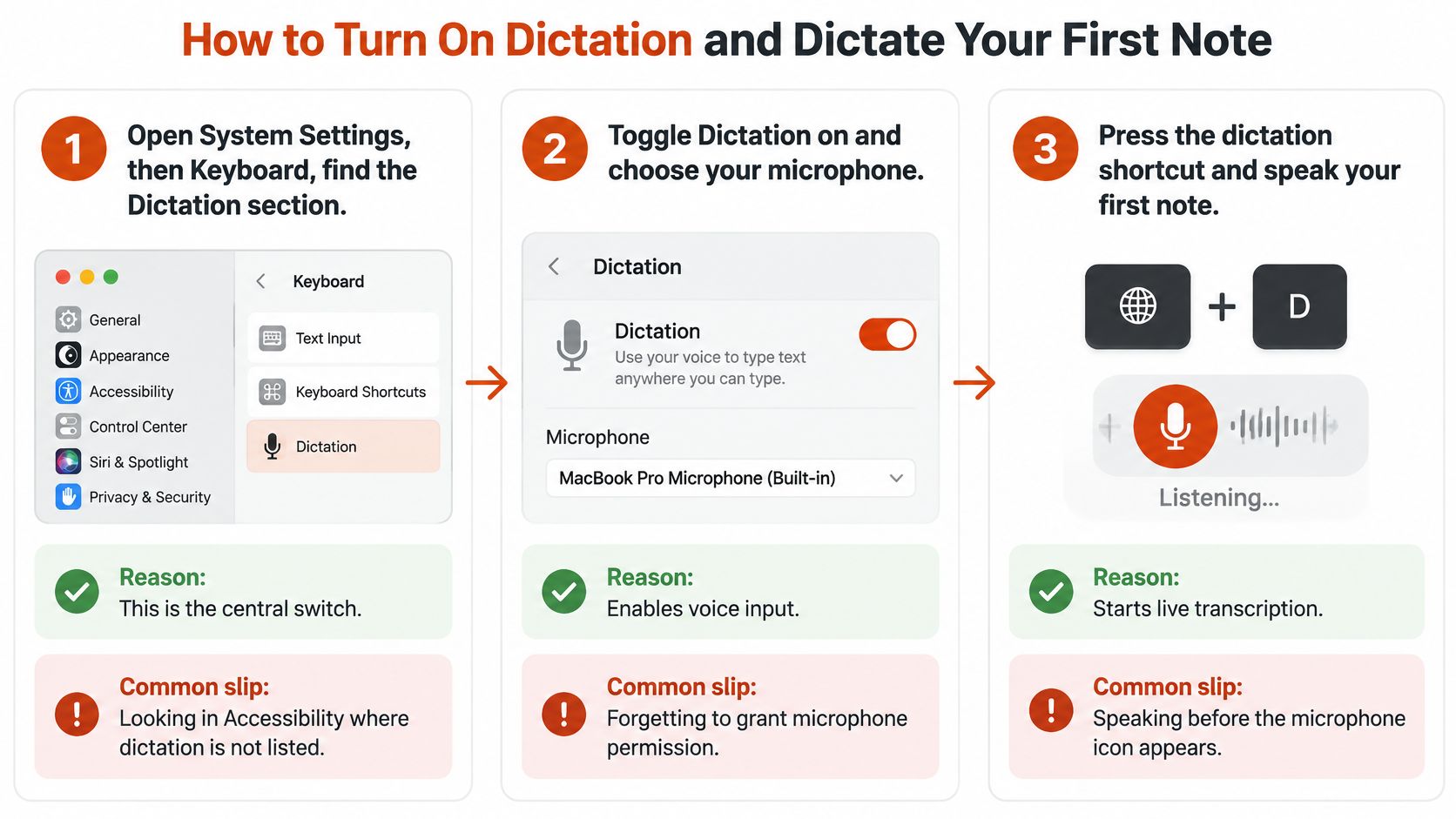
Open System Settings, then Keyboard, and find Dictation. This is the control for ordinary voice typing into text fields. Looking in Accessibility takes you toward Voice Control, which serves a different purpose.
-
Turn Dictation on and confirm the prompt. Allow any required language assets to finish downloading before testing offline behavior. Don't assume that enabling the switch means every component is ready.
-
Choose your language and inspect the Shortcut menu. Select the language and regional variant you speak, then choose a shortcut you can remember. Depending on your keyboard and configuration, you may use a dedicated microphone key or an Fn/Globe shortcut; don't assume a double press is universally configured.
-
Check the local-recognition options your macOS version offers. Older releases may show Use Enhanced Dictation and require a download. On current systems, don't search endlessly for that legacy checkbox; inspect the Dictation information shown for your selected language and configuration instead.
The basic setup is straightforward once you're in the correct settings pane.
Test the whole input path
-
Open Notes and click inside a new note. Press your configured shortcut, wait for the listening indicator, then speak a short sentence followed by the spoken command period or new line. Stop using the microphone key, your configured control, or Escape, as supported.
-
Confirm that the sentence appears at the cursor. If nothing appears, open System Settings → Sound → Input, select the intended microphone, and check whether its input level responds when you speak. A headset can remain selected after you've stopped using it, so inspect the device rather than repeatedly pressing the shortcut.
For the first test, use an ordinary sentence without names or specialist vocabulary. You're checking whether the shortcut, microphone, recognition, and text insertion work together, not testing the recognizer's limits yet.
Practical rule: Wait for the listening indicator before speaking. A shortcut press and an active microphone aren't always the same moment.
Voice Control isn't another location for the Dictation switch. Apple's Voice Control technical brief describes transcription alongside desktop navigation, interaction with onscreen controls, and text editing by voice. Choose it when you need broader hands-free operation, rather than enabling it just to write a note.
Success looks simple: your sentence lands in Notes with the intended punctuation. Then test the actual app you use for work, because a successful note doesn't establish that every editor or custom text field behaves identically.
Privacy Settings and What Stays on Your Mac
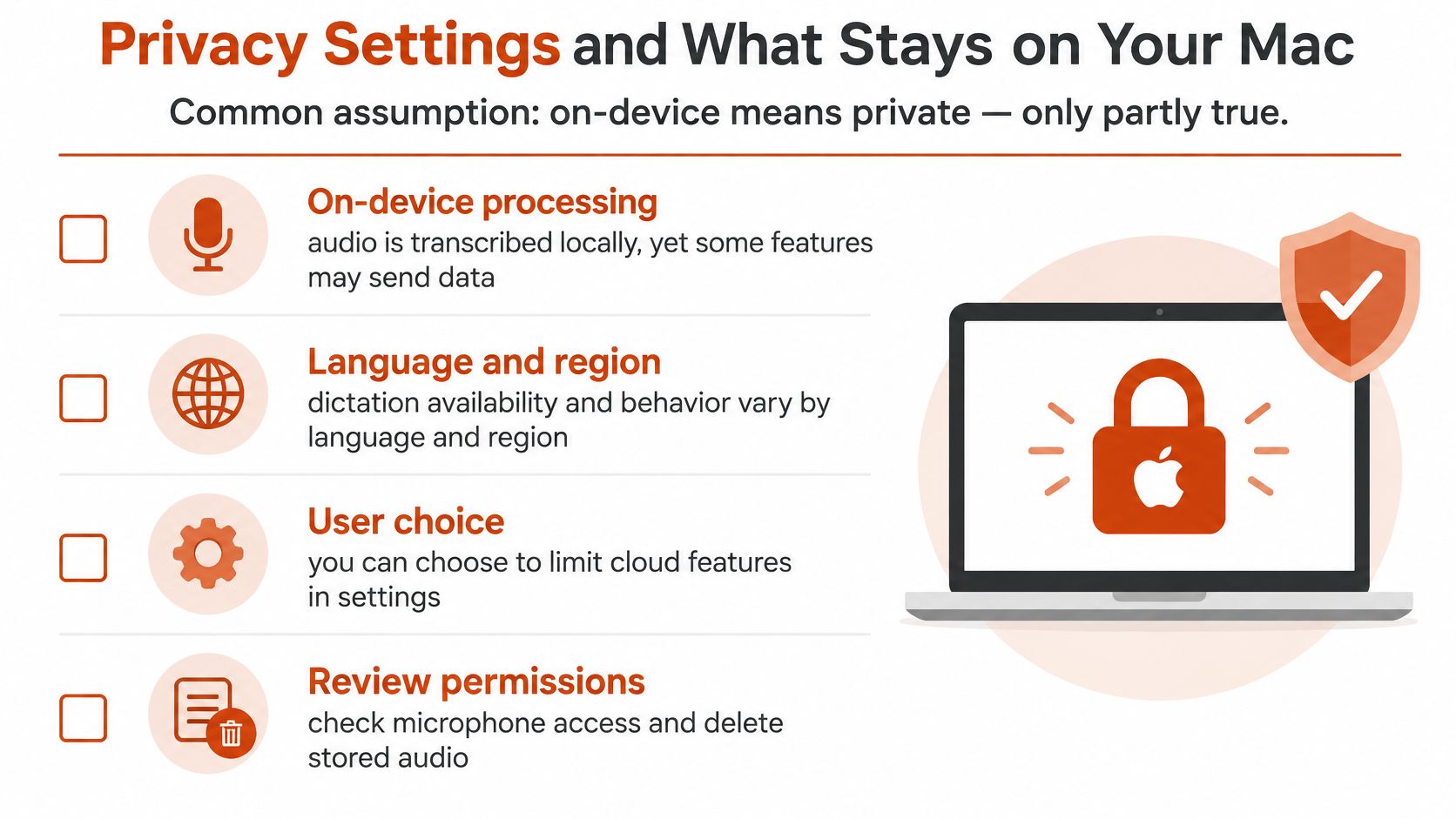
On-device recognition isn't a complete privacy guarantee for the workflow. It tells you where one processing step happens, not whether later cleanup, diagnostics, synchronization, or storage sends information elsewhere.
Apple's Dictation guide explains that availability and behavior depend on language and region, and that users can optionally share Siri and Dictation audio recordings with Apple, which may review a sample of stored audio. Treat recognition location and optional sharing as separate decisions.
Use the checklist as a starting point, then verify your selected workflow.
Audit the path your words take
- Confirm the active configuration: Open Keyboard → Dictation and inspect the language and processing information. On a managed work Mac, ask your administrator about restrictions you can't change.
- Review optional sharing: Check Privacy & Security → Analytics & Improvements → Improve Siri & Dictation. Turn it off if you don't want to participate in audio sharing.
- Finish local setup: Complete required model downloads before testing. On legacy systems with Enhanced Dictation, confirm that its download has finished.
- Separate recognition from cleanup: In our local workflow, transcription runs on-device, allowing offline dictation while keeping sensitive audio on your machine. Our cloud cleanup requires sending the material needed for that feature; we limit access to audio and transcript data to what's needed to provide the requested feature.
- Verify rather than infer: Disconnect Wi-Fi and any other network connection, then dictate nonconfidential sample text. A successful test demonstrates offline functionality, but doesn't prove the app never communicates when you reconnect.
For mode selection, use our cloud-versus-local workflow guide. For the surrounding device controls, Nerds 2 You Edmonton's guide can help you configure your Mac's security settings, which is a separate task from choosing a recognition engine.
Judge privacy by what leaves the Mac, where it goes, and what happens when the connection fails, not by an offline badge alone.
Before clinical or legal use, establish retention, deletion, access controls, and any required contractual protections. Encryption doesn't answer those questions. If cloud cleanup loses its connection, the app might return raw text, queue the request, or fail to insert anything; test the behavior with harmless content before trusting it with confidential material.
Improve Accuracy for Accents, Names and Technical Terms
Drug names, dosages, product names, code identifiers, and acronyms deserve their own review. A transcript can read smoothly while containing an error in the only word that matters.
This is the kind of output worth inspecting before you judge a tool by its fluency.
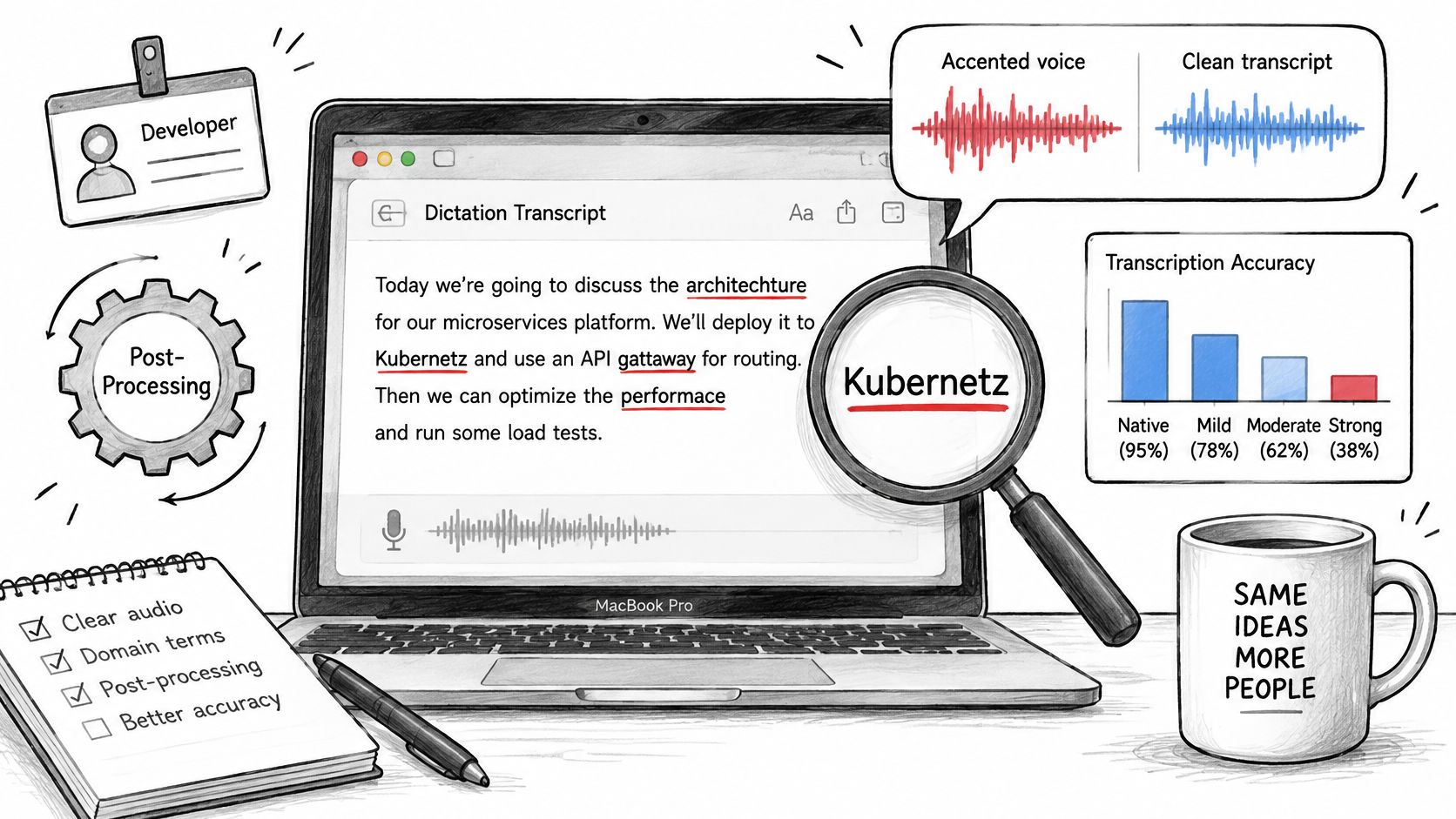
The clinical speech-recognition study available through PubMed Central found significantly higher error rates for non-native English speakers across the tested models and found that language-model post-processing recovered some lost accuracy. That finding supports testing the whole recognition-and-review workflow, not assuming a headline accuracy score applies to your accent or specialty.
Fix recurring errors before changing engines
Use a custom dictionary where your dictation tool supports one. Add the exact spelling of recurring names, medications, internal products, and abbreviations, then test them in full sentences. Our Mac custom-dictionary guide explains the vocabulary workflow; built-in Dictation shouldn't be assumed to offer the same controls.
Move the microphone closer to your mouth and keep its position consistent. A headset is useful when you turn your head while talking, but test its actual input quality rather than assuming any headset beats the built-in microphone. In background noise, inspect names and numbers explicitly instead of relying on whether the paragraph sounds plausible.
For drafting, speak the rough version while the thought is fresh and let cleanup handle punctuation and structure. Still compare the result with your intended meaning, especially after a self-correction involving a date, dose, or negation. Vight's guide to verifying AI-generated call notes is a useful companion for reviewing summaries rather than accepting fluent output at face value.
For a visual walkthrough, use the accompanying video alongside your own test paragraph.
Run a task-specific comparison
- Prepare representative text: Include your real vocabulary, abbreviations, names, and numbers, using fictional sensitive details.
- Change the conditions: Dictate the same passage in a quiet room and with your usual background noise.
- Score meaningful errors: Count terminology and numerical mistakes separately from punctuation, then compare available processing modes.
Choose the workflow that needs the least consequential correction, not merely the one that produces the prettiest paragraph. Clinically or legally important text requires human verification.
Fix Common Dictation Problems on Your Mac
| Symptom | Likely cause | Fix |
|---|---|---|
| Shortcut does nothing | Dictation is off or the shortcut conflicts with another function | Set an unambiguous Dictation shortcut in Keyboard settings |
| Text appears in the wrong language | Wrong language selected or unsupported mixed-language input | Select the intended language in Keyboard settings |
| Dictation stops mid-sentence | A pause ended the session or the microphone changed | Select a stable input device in Sound settings before restarting |
| Delayed or missing text offline | Required assets are missing or the configuration needs a connection | Complete the language download while connected |
| Wrong input device used | Built-in microphone remains selected instead of the headset | Choose the intended microphone in Sound settings |
| No cloud cleanup in AIDictation | No connection or the local workflow is active | Select the cloud workflow with an active internet connection |
Diagnose one layer at a time
Start with the shortcut, not a reinstall. Click into Notes and test the configured key combination there; if the listening indicator never appears, changing microphones won't fix the trigger.
Next, inspect Sound → Input while speaking. If the input meter doesn't respond, resolve the device selection, headset connection, or physical mute before changing recognition settings. For third-party apps, also inspect microphone permission under Privacy & Security → Microphone.
Then test the selected language while connected. If recognition works online but fails disconnected, investigate local support and model readiness rather than repeatedly changing the shortcut. On older macOS releases, that may involve Enhanced Dictation; on newer releases, there may be no checkbox with that name.
Troubleshooting order: Shortcut, microphone, language assets, then restart. Change one thing and repeat the same short sentence.
If Notes works but your work app doesn't, focus on text-field compatibility or the app's required permissions. Don't reset a functioning microphone to solve an insertion problem. Our dictation-not-working-on-Mac checklist provides a focused route through the remaining checks.
Before restarting, copy any visible draft you need to keep. A restart is a reasonable final basic check, but it shouldn't replace identifying whether the failure occurs before listening, during recognition, or when text is inserted.
Pick Your Setup and Start Dictating Today
Choose a workflow for the task you'll do today, not every possible future use. If you're using our app, install it, choose a hotkey in settings, then hold that key while speaking in a text field. Release it to insert punctuated text at the cursor.
A free version is available to download. Auto mode selects the speech-recognition engine for offline or online conditions, but for confidential work, deliberately select and verify the local workflow rather than relying on automatic selection.
Make the first session useful
- Enable local recognition where supported. On legacy systems, this may mean Enhanced Dictation; on current systems, use the available on-device configuration and complete its downloads.
- Test your real vocabulary. Compare quiet and noisy conditions, recording mistakes in names, numbers, and specialist terms separately.
- Confirm the privacy boundary. Inspect sharing settings and verify offline operation with nonconfidential sample text before dictating protected material.
Keep the first task modest: a note, a draft reply, or a documentation paragraph that you'll review before sending.
Match the mode to the data, verify the setting, then dictate.
AIDictation offers Mac voice typing with a hotkey, local offline transcription, and cloud-assisted cleanup for readable drafts. Download the free version, test a paragraph from your daily work, and choose the processing mode that fits both your vocabulary and your privacy requirements.
Frequently Asked Questions
What does Mac Speech 2 Text: How to Turn on and Use Dictation cover?
You've got a reply to send, your hands are busy, and speaking the message would be easier than typing it. Then your Mac misses the first words, mangles a colleague's name, or leaves you wondering whether that confidential sentence just went to a server.
Who should read Mac Speech 2 Text: How to Turn on and Use Dictation?
Mac Speech 2 Text: How to Turn on and Use Dictation is most useful for readers who want clear, practical guidance and a faster path to the main takeaways without guessing what matters most.
What are the main takeaways from Mac Speech 2 Text: How to Turn on and Use Dictation?
Key topics include Table of Contents, Mac Speech-to-Text Options Compared, Choose by the work you actually do.
Ready to try AI Dictation?
Experience fast voice-to-text on your device. Free to download.
Download FreeRelated Posts
MacBook Air Speech Recognition: How to Set Up and Fix It
Set up MacBook Air speech recognition in minutes, compare built-in Dictation with third-party apps, check privacy settings and fix common errors.
Dictation on macOS: Setup, Apps, and Pro Tips
Master dictation on macOS with clear setup steps, app comparisons, privacy settings, and accuracy tips to turn your voice into clean text fast.
Audio to Text Converter on macOS: Complete Guide
Master the audio to text converter on macOS with AIDictation. Explore local and cloud modes, custom dictionaries, and privacy-first workflows.