Fix Dictation Not Working On Mac: A 2026 Guide
You hit the dictation shortcut, see the microphone icon, start talking, and nothing appears. Or it catches the first few words, then stops mid-sentence. Or it worked yesterday and failed right after a macOS update.
That pattern is common enough that I treat it as a normal Mac support issue, not a rare glitch. When people search for dictation not working on mac, they usually don't need another generic checklist. They need to know what breaks, what fixes it, and when it's smarter to stop repairing the built-in tool and switch to something built for daily voice work.
Table of Contents
- Why Your Mac Dictation Suddenly Stopped Working
- Quick Fixes to Get Dictation Working in 2 Minutes
- The Real Reasons Apple's Dictation is Unreliable
- Advanced Troubleshooting for Stubborn Dictation Bugs
- Beyond Fixing A Permanent Solution with AIDictation
- Keeping Your Dictation Running Smoothly
Why Your Mac Dictation Suddenly Stopped Working
If Dictation suddenly stopped responding, the first thing to know is that this usually isn't user error. Apple's built-in Dictation has had reliability problems since its introduction in 2012, with failures often showing up after macOS updates, and the standard version depends on remote server processing while the offline version can fail to activate properly, as described in this review of recurring Mac dictation failures.
What makes this issue so frustrating is how inconsistent it looks from the outside. Sometimes the blue mic appears but captures nothing. Sometimes the shortcut works in one app and not another. Sometimes a reboot brings it back for a few hours and then it fails again. That inconsistency makes people chase the wrong cause.
A problem with history, not just settings
macOS Dictation sits on top of several moving parts: microphone input, privacy permissions, language selection, a background speech process, and in many cases a network path to Apple. If any one of those pieces gets stuck, Dictation can fail without a clear error message.
Practical rule: If the mic icon appears but text doesn't, assume the speech service is stuck before you assume your microphone is broken.
That's why so many users feel like they "did nothing" and the feature still broke. In a lot of cases, that's accurate. A system update, a reset preference, or a background process crash is enough to knock Dictation offline.
Why basic advice often disappoints
Most generic support pages tell you to check that Dictation is turned on, verify the microphone, and restart the Mac. Those steps aren't wrong. They're just incomplete. They don't explain why the problem keeps coming back, and they don't help you distinguish a temporary glitch from a structural limitation in Apple's setup.
If your dictation not working on mac problem showed up out of nowhere, that's the right mental model: this is often a brittle service failure, not a simple toggle you forgot to enable.
Quick Fixes to Get Dictation Working in 2 Minutes
When Dictation is broken, don't start with deep system surgery. Start with the fixes that clear the most common failure states fast. A three-step method resolves 80 to 90 percent of native Dictation failures in under two minutes, using a toggle reset, a killall corespeechd command, and then a cache and preferences purge, according to this Mac dictation troubleshooting guide.
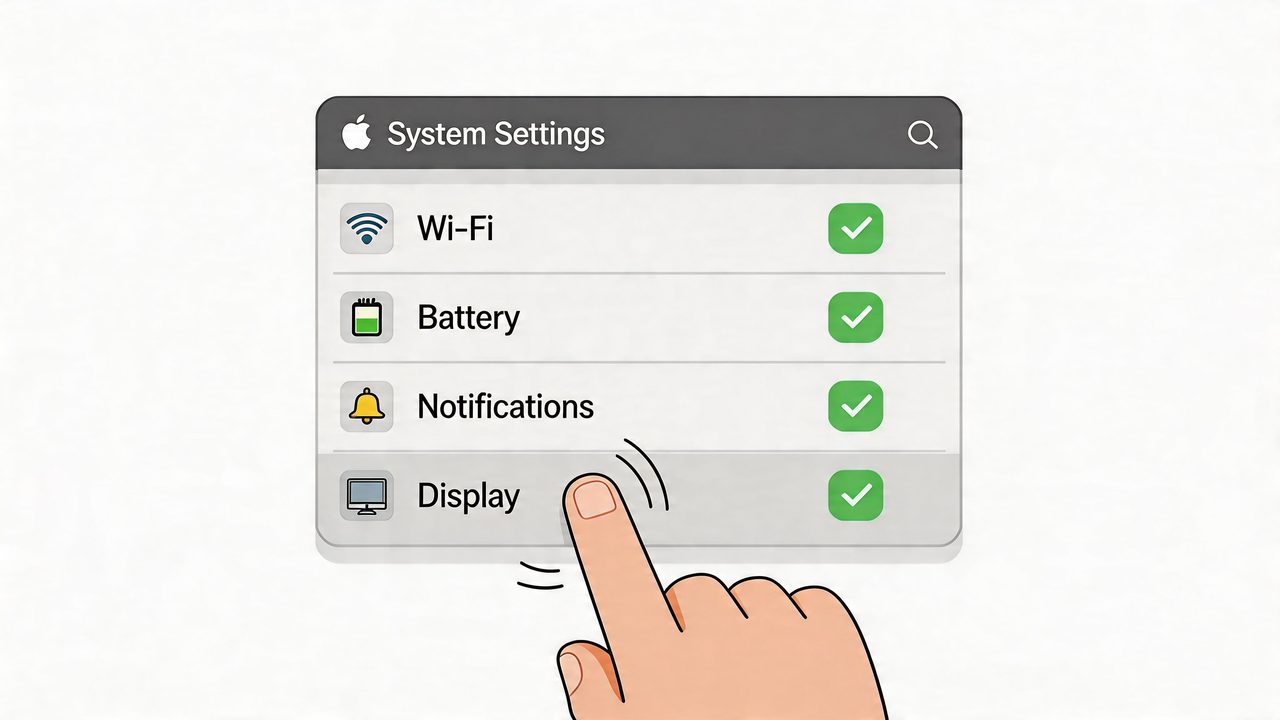
Start with the reset that fixes the most cases
This is the first move I use because it's quick and often enough.
- Open System Settings
- Go to Keyboard
- Find Dictation
- Turn Dictation Off
- Wait about 10 seconds
- Turn it On again
That basic toggle reset has the highest payoff in the shortest time. It forces macOS to reinitialize the speech service instead of continuing to use a stuck process.
If Dictation was hanging in the background, this often restores it immediately.
Check the inputs that macOS gets wrong
The next failures are less dramatic but very common. Dictation can be enabled and still fail because the wrong audio input or language is selected.
Use this checklist:
- Confirm the microphone source: Open System Settings > Sound > Input and make sure your actual microphone is selected. If you're using an external mic, don't assume macOS picked it correctly.
- Watch the input meter: Speak at normal volume and verify that the meter moves. If it doesn't, Dictation has nothing usable to transcribe.
- Verify language and region: In System Settings > Keyboard > Dictation, check that the language variant matches what you're speaking.
- Check app microphone access: In System Settings > Privacy > Microphone, make sure the app you're dictating into is allowed to listen.
A lot of "Dictation is broken" reports turn out to be a mic-routing issue after connecting headphones, docks, or USB microphones.
After you've done the basic reset and input checks, this walkthrough can help if you want to see the process visually:
Restart the speech service without rebooting
If the mic icon appears but words still don't land on screen, restart the speech daemon directly.
Open Terminal and run:
killall corespeechd
This tells macOS to terminate the stuck speech recognition process. The system usually relaunches it automatically. It's one of the most effective fixes when Dictation looks alive but doesn't respond.
If a normal toggle doesn't clear the issue,
killall corespeechdis the next step. It's faster than rebooting and more targeted.
If that still doesn't work, use the full cleanup:
- Delete
~/Library/Preferences/com.apple.assistant.plist - Delete
~/Library/Caches/com.apple.SpeechRecognitionCore - Restart the Mac
That cleanup is the right move after an update, especially when Dictation worked before and failed right after Ventura, Sequoia, or another macOS change.
The Real Reasons Apple's Dictation is Unreliable
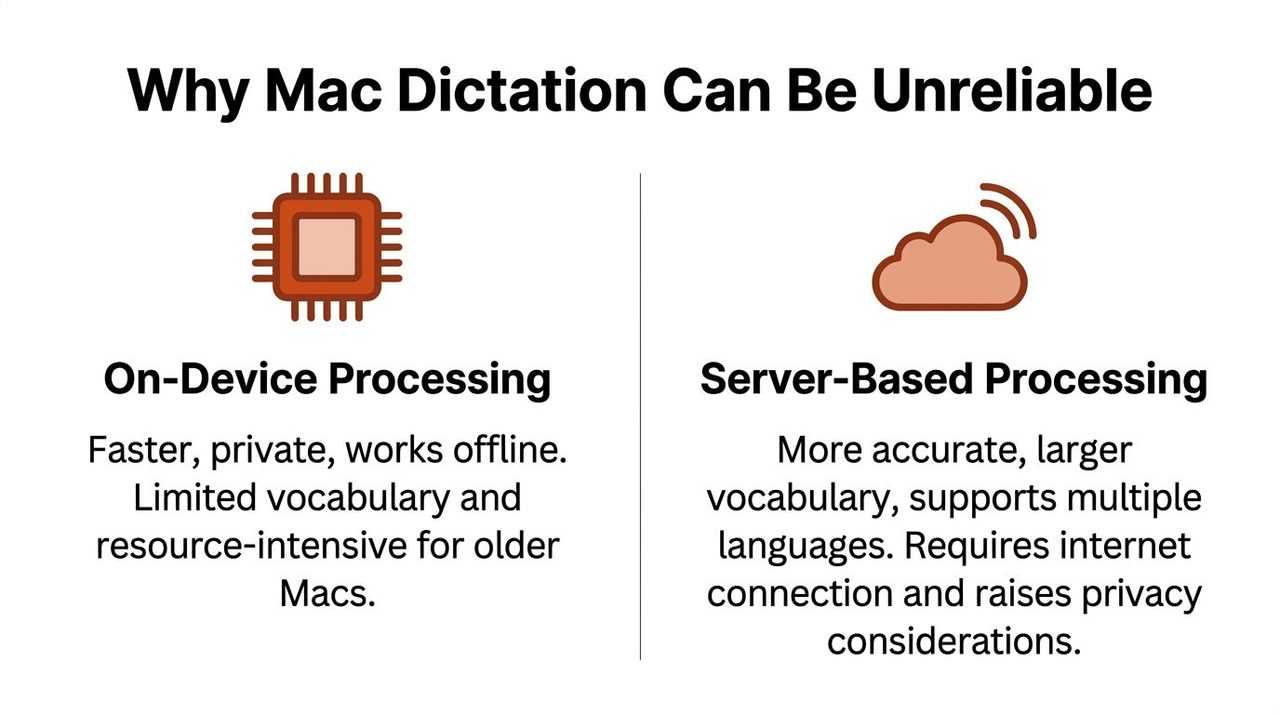
The biggest reason people struggle with dictation not working on mac is that Apple's system doesn't behave like a fully local tool in every situation. A lot of failures make sense once you stop thinking of Dictation as one feature and start thinking of it as a chain of services.
A primary cause of failure is its dependency on network and server processing. Standard Dictation requires a connection to Apple's servers, which can be blocked by VPNs or fail on weak connections, and the offline option resolves only about 70 percent of these connectivity-related issues, based on Apple-focused Dictation guidance.
Cloud processing fails quietly
When Dictation relies on remote processing, failure often looks silent. You don't always get an error dialog. You just get no text.
That's why the same Mac can behave differently across environments:
| Situation | What often happens |
|---|---|
| Stable home Wi-Fi | Dictation may appear normal |
| Weak network | The mic starts, then stalls |
| VPN enabled | Requests may fail or never complete |
| Privacy-heavy browser mode | Dictation can become inconsistent |
This also explains why users see bizarre patterns. Dictation may work in one room, fail on a hotel network, break on a corporate VPN, and then return after disconnecting from that VPN. The system is sensitive to network conditions in a way many users don't expect from a built-in Mac feature.
Offline mode helps but doesn't remove the fragility
Apple's offline path improves privacy and reduces dependency on servers, but it doesn't eliminate the underlying brittleness. Language packs can fail to activate. Settings can reset after updates. Background processes still freeze.
For users who want a deeper look at alternatives designed specifically for Mac voice workflows, this guide to speech to text for Mac is useful context.
Native Dictation isn't failing for one reason. It fails because several weak points stack together, and macOS doesn't always tell you which one broke.
Why this matters in real work
This isn't just an annoyance for occasional voice typing. It matters when Dictation is part of your daily job.
If you're drafting release notes, documenting a patient interaction, writing support replies, or capturing meeting notes, the worst outcome isn't an obvious crash. It's unreliable partial success. A system that works sometimes trains you to second-guess every session.
That's why the built-in tool feels fine for a quick sentence and fragile for anything that matters. The trade-off is real. Server processing can help capability, but it introduces another failure path. Local processing improves independence, but Apple's implementation still leaves enough edge cases that many users never fully trust it.
Advanced Troubleshooting for Stubborn Dictation Bugs
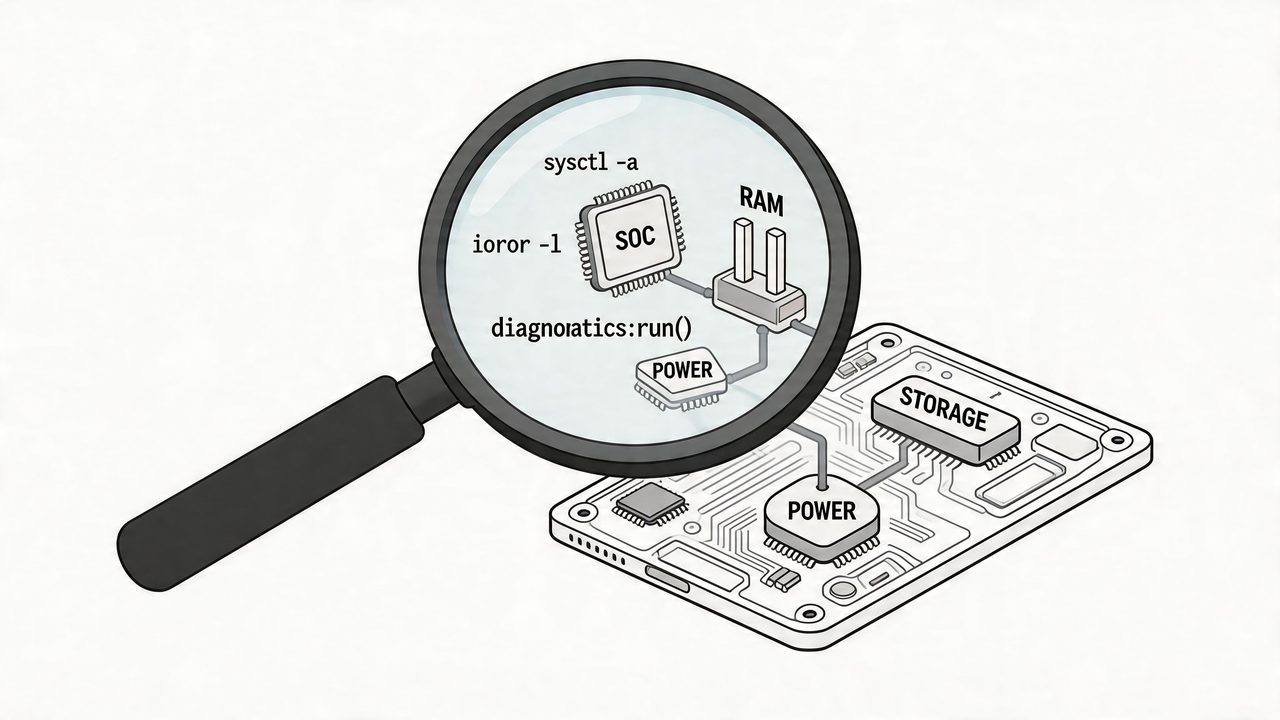
If the fast fixes didn't solve it, move to system-level troubleshooting. There, persistent Dictation failures usually get sorted out. For tougher cases, especially on M-series Macs after updates, combining an NVRAM reset with a daemon flush and checking Sound > Input can achieve an 85 percent success rate in post-update scenarios, based on this advanced troubleshooting walkthrough.
Check for shortcut and audio pipeline conflicts
Start with the parts users rarely inspect.
Remap the Dictation shortcut
The default key trigger can conflict with external keyboards or function key settings. If pressing Fn or the usual shortcut does nothing, change it to a custom shortcut in System Settings > Keyboard > Dictation.
Try a different trigger and test in a simple app like TextEdit before blaming the whole feature.
Verify the audio path in Sound settings
Open System Settings > Sound > Input and deliberately choose the internal mic or the external mic you want. Then speak and watch the level meter.
If the meter barely moves, raise the input volume and test again. Dictation can't recover from a weak or misrouted input signal.
Disable Voice Control if it's enabled
Voice Control and Dictation can compete for speech resources. If Voice Control is on, turn it off temporarily and test Dictation again.
That conflict shows up more often than many people expect, especially on machines that have had accessibility features enabled for testing or prior workflows.
Reset deeper system settings
When Dictation breaks after a macOS update, I stop treating it like an app problem and start treating it like a system state problem.
Use this sequence:
-
Flush the daemon forcefully
Open Terminal and runkillall -9 corespeechd -
Clear speech-related caches
Remove the speech cache files in your user Library. This is useful when updates leave corrupted recognition data behind. -
Reset NVRAM or PRAM
On supported systems, resetting firmware-related settings can clear odd hardware and shortcut state corruption that survives normal restarts. -
Restart and retest in TextEdit
Always test in a plain text field before assuming a browser or document app is the problem.
If you prefer a tool built around local reliability instead of repeated repair, this overview of offline dictation software explains what to look for.
Field note: If Dictation fails in Notes, Google Docs, and TextEdit the same way, stop chasing app-specific settings first. That's usually a system-layer issue.
Use isolation tests when the bug follows only your account
This is the part many guides skip, but it's one of the cleanest diagnostic moves.
Create a temporary new macOS user account and test Dictation there. If it works in the new account, the failure is likely tied to your user profile, preferences, or cached speech files. If it fails there too, the issue is more likely system-wide.
A second good isolation test is Safe Mode. Boot into Safe Mode, sign in, and test Dictation in a basic app. If it works in Safe Mode, a login item, extension, or third-party utility may be interfering during a normal startup.
Use those tests to answer one question: is the problem attached to your account, or to the whole Mac? Once you know that, the next step gets much clearer.
Beyond Fixing A Permanent Solution with AIDictation
At some point, repeated troubleshooting stops being a productivity strategy. It becomes maintenance work. That's the ceiling with Apple's built-in Dictation for many professionals.
A key weakness of native dictation is what happens during longer sessions. Users can lose 20 to 30 percent of words in noisy or technical dictation sessions, and dictation's productivity promise is often framed as 150 WPM speech versus 40 WPM typing, as discussed in this analysis of long-form Mac dictation limits.
Why built-in dictation hits a ceiling
Short bursts are one thing. Long-form drafting is another.
When you're writing an email, a product spec, a technical note, or a clinical report, you pause to think. You self-correct mid-sentence. You use names, jargon, and app-specific phrasing. Native Dictation tends to struggle exactly there. It times out, drops continuity, and turns natural speech into cleanup work.
That changes the economics of voice input. If you spend the next several minutes fixing cutoffs, punctuation, and missed terms, the speed advantage starts to disappear.
What a dedicated dictation app changes
A dedicated tool isn't just another way to trigger speech-to-text. It's a different design philosophy.
The AIDictation app is built around the problems that frustrate Mac users most:
- Local Mode: Keeps recognition on the Mac, which avoids the network and VPN-related failures that make cloud-dependent dictation unpredictable.
- Cloud Mode: Adds cleanup after transcription, including grammar, punctuation, and more natural formatting.
- Custom vocabulary support: Helps with names, product terms, and technical language that built-in dictation often mishandles.
- Context-aware behavior: Lets output fit the app and task better, whether you're drafting email, writing notes, or working in an editor.
That combination matters because the main goal isn't just to make words appear. It's to get usable text on the first pass.
Who benefits most from switching
The users who gain the most are the ones who depend on Dictation repeatedly across the day.
- Product managers: They need fast note capture, stakeholder updates, and clean drafts without constant correction.
- Developers: They often speak symbols, code-adjacent terms, and internal names that generic dictation mangles.
- Healthcare professionals: They need privacy, consistency, and fewer interruptions when documenting notes.
- Support and operations teams: They work in high volume, where even small interruptions add up quickly.
The permanent fix isn't always another reset. Sometimes it's replacing a fragile default tool with one that's designed for sustained, professional use.
If Apple's Dictation only needs to work once in a while, repairing it may be enough. If voice is part of your workflow every day, reliability matters more than the fact that the built-in option is already installed.
Keeping Your Dictation Running Smoothly
The best way to handle dictation not working on mac is to think in layers. First check the quick reset. Then verify the mic, language, and permissions. After that, move into daemon restarts and cache cleanup. If the issue survives those steps, isolate it with Safe Mode or a fresh user account and treat it as a deeper system problem.
One commonly missed factor is how Dictation behaves with privacy tools. Apple users have reported that VPNs and privacy modes can block cloud processing without warning, leaving toggle-off and toggle-on as a tedious workaround, which is why Apple Communities discussions about VPN and private mode conflicts keep surfacing around this issue.
A simple prevention routine
You can't make native Dictation perfect, but you can make it less fragile.
- Watch network changes: If Dictation suddenly fails, note whether you just enabled a VPN, switched Wi-Fi, or moved into a browser privacy mode.
- Keep input devices simple: When troubleshooting, disconnect extra audio gear and test with the Mac's internal mic first.
- Retest after macOS updates: Updates often reset or disrupt speech settings, so check Dictation before you need it for work.
- Use plain-text apps for diagnosis: TextEdit is better than troubleshooting inside a browser tab with extensions and web permissions involved.
- Clear stuck states early: If the mic appears but nothing transcribes, reset Dictation or restart the speech daemon before wasting time on random settings.
When to stop troubleshooting
Built-in Dictation is acceptable for light use if it behaves on your Mac. But if you rely on it for notes, reports, or continuous writing, repeated fixes are a warning sign.
A stable dictation setup should feel boring. You trigger it, speak, and keep moving. If you're constantly thinking about whether your microphone will connect, whether your VPN will break it, or whether the next pause will cut off your sentence, the tool is costing more than it saves.
For casual use, repair may be enough. For professional use, the long-term answer is usually a dedicated dictation app with dependable local processing and better text cleanup.
If you're tired of debugging Mac Dictation every time you need to write, try AIDictation. It gives you a more reliable voice workflow on macOS, with local dictation for privacy and offline use, plus cloud features for cleaner final text when you want them.
Frequently Asked Questions
What does Fix Dictation Not Working On Mac: A 2026 Guide cover?
You hit the dictation shortcut, see the microphone icon, start talking, and nothing appears. Or it catches the first few words, then stops mid-sentence.
Who should read Fix Dictation Not Working On Mac: A 2026 Guide?
Fix Dictation Not Working On Mac: A 2026 Guide is most useful for readers who want clear, practical guidance and a faster path to the main takeaways without guessing what matters most.
What are the main takeaways from Fix Dictation Not Working On Mac: A 2026 Guide?
Key topics include Table of Contents, Why Your Mac Dictation Suddenly Stopped Working, A problem with history, not just settings.
Ready to try AI Dictation?
Experience fast voice-to-text on your device. Free to download.
Download FreeRelated Posts
Email Dictation Software: What It Is and How to Choose
Learn what email dictation software is, how it works, and how to pick the right one. Covers accuracy, privacy, HIPAA, accents, and real buyer checklists.
Verbal Ink Transcription Workflows Today
Explore verbal ink transcription workflows, accuracy benchmarks, and how modern AI dictation tools compare to traditional human transcription services.
Apple Voice Recognition Software: Key Pros and Cons
Learn how Apple voice recognition software turns speech into text on your device, where it excels, and what tasks still challenge it in 2026.