How To Use Speech To Text On Mac Effectively In 2026
You're probably here because Mac dictation feels like it should be easy, but your actual experience has been uneven. You turn it on, press the shortcut, say a few lines, and either it stops too soon, misses key words, or produces text that still needs too much cleanup to feel useful.
That gap matters most when you're doing real work. A product manager trying to capture a project update, a developer dictating code comments, or a clinician writing notes between appointments doesn't just need words on screen. They need reliable, low-friction speech-to-text that fits the way work is done on a Mac.
New here? Start with our complete guide to voice to text on Mac. It covers turning on built-in Dictation with screenshots, where it falls short, and the best Mac voice to text apps for 2026.
If you want to learn how to use speech to text on Mac properly, start with the built-in feature. Then improve the setup, fix the common failure points, and adopt a workflow that matches the kind of writing you do every day.
Table of Contents
- Why Typing Is Holding You Back
- Your First Steps with macOS Dictation
- When Basic Dictation Is Not Enough
- Using Professional Speech to Text with AIDictation
- Putting Advanced Speech to Text into Practice
- Best Practices for Flawless Dictation
Why Typing Is Holding You Back
A product manager is in a fast meeting. Engineering has just raised a dependency risk, design wants scope clarified, and leadership needs a cleaner summary by the afternoon. The PM can either type notes while half-listening, or stay in the conversation and trust memory later. Neither option is great.
That's where speech-to-text stops being a convenience feature and becomes a practical input method. Speaking is often the faster way to capture explanation, nuance, and structure, especially when you're drafting updates, replies, summaries, and first-pass documents. The keyboard is still useful, but it shouldn't be the only way ideas enter your Mac.
The same bottleneck shows up in quieter work too. You open Mail with a dozen replies to send. You know what each response should say, but typing every sentence feels slow and mentally expensive. Voice input removes that friction, especially for people who think in paragraphs instead of fragments.
Practical rule: If you can explain it clearly out loud, you can usually draft it faster by speaking first and editing second.
A lot of Mac users discover this only after they've already optimized everything else. They've upgraded displays, keyboards, and trackpads, or even spent time comparing hardware buying options such as how to choose a refurbished MacBook, but they're still feeding text into the machine one keystroke at a time. That's often the main slowdown.
Speech-to-text also pairs well with other writing habits. If you're trying to reduce friction across your workday, this guide on how to write faster and neater is useful because the core principle is the same. Lower the effort required to get a decent first draft onto the screen.
The missing piece for most users
Built-in Mac dictation is good enough to prove the concept. It lets you feel what voice input can do. But many people stop there, hit the usual annoyances, and assume dictation itself is the problem.
It usually isn't. The problem is using a basic text-entry tool for work that needs better cleanup, more context, and less interruption.
Your First Steps with macOS Dictation
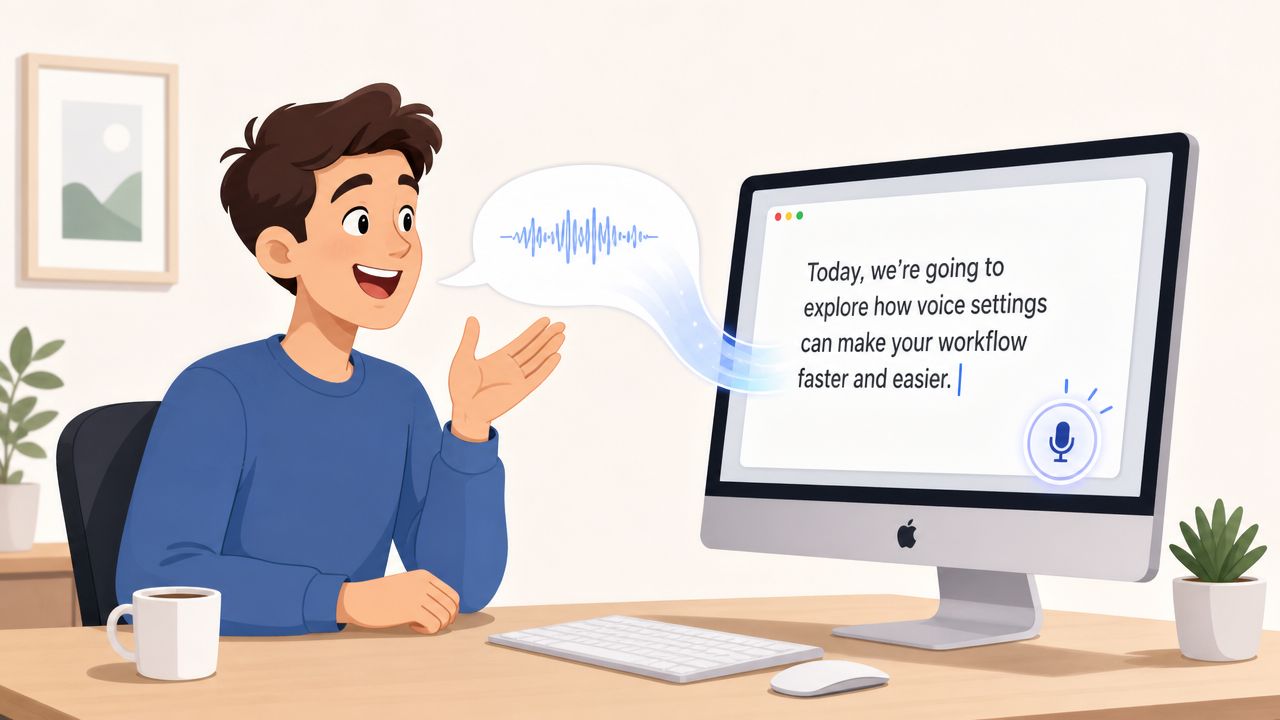
Apple's built-in Dictation is the fastest way to start using speech-to-text on a Mac. You don't need a separate app just to test the workflow. On macOS, you can enable Dictation in System Settings > Keyboard > Dictation, then use it in text fields across apps. Expert setup guidance also notes that the default trigger is typically pressing the Function (fn) key twice, and that dictation quality depends heavily on the selected microphone and whether its input level is moving in settings. If the mic level isn't registering, recognition reliability drops sharply, and the system often works in shorter bursts of about 30 to 40 seconds rather than long continuous drafting sessions, as described in this Mac speech-to-text setup guide.
Turn Dictation on the right way
Open System Settings, go to Keyboard, and find Dictation. Turn it on, choose the language you want, and pay attention to the microphone source. Don't leave this on the wrong input by accident, especially if you use AirPods, a USB mic, or a monitor with its own audio device.
Once enabled, put your cursor in any text field and trigger dictation with the shortcut you've chosen. On many Macs, that's the fn key twice. If you prefer, you can also customize the shortcut inside the same settings area.
A lot of guides stop here. That's enough to make the feature work, but not enough to make it dependable.
Use it inside real Mac apps
Apple's own Pages help makes this clearer than most general tutorials. In a Pages document, you can start dictation from Edit > Start Dictation, and if Dictation is already set up, you can also press the Function (fn) key twice to begin. Apple also says you can speak punctuation such as “comma” or “apostrophe”, and change the shortcut key or language in Keyboard settings, as shown in Apple's Pages dictation instructions.
That matters because it confirms Dictation isn't some isolated utility. It's a system-level feature that works across common text-entry contexts on Mac.
Try it first in places where short-form writing is normal:
- Notes: Good for capture, rough outlines, and reminders.
- Mail: Useful for short replies when you already know the message.
- Messages: A low-risk place to get comfortable with pacing and punctuation commands.
- Pages or Safari text boxes: Better for testing how it behaves with longer sentences.
Say the punctuation you want instead of hoping the system guesses correctly. That one habit improves readability immediately.
What usually goes wrong first
The first failure point is almost always the microphone. If dictation feels inaccurate, check the input source before blaming the engine. Built-in Mac dictation gets much worse when the selected mic is distant, noisy, or barely picking up your voice.
The second issue is session length. Apple's built-in approach is fine for short-to-medium text entry, but it's clunky for long drafting. If you pause too long, or if you're thinking through a complex idea live, you'll feel the stop-start rhythm.
The third issue is workflow. Dictation may be active, but that doesn't mean it's convenient yet. If you're running into activation problems, shortcut conflicts, or microphone glitches, this troubleshooting guide for dictation not working on Mac covers the practical fixes people usually miss.
A good beginner method is simple:
- Start in a quiet place: Reduce background noise before testing accuracy.
- Speak at a natural pace: Don't rush to outrun the timeout.
- Validate the first paragraph: Check names, product terms, and any word the system could mishear.
- Work in chunks: Dictate a thought, stop, review, then continue.
That's enough to get real value out of the built-in tool. It's also the point where many professionals realize they need more than activation.
When Basic Dictation Is Not Enough
Built-in Mac dictation is useful. It's quick to enable, works inside familiar apps, and handles simple voice entry without extra setup. For text messages, quick notes, and short email replies, that may be all you need.
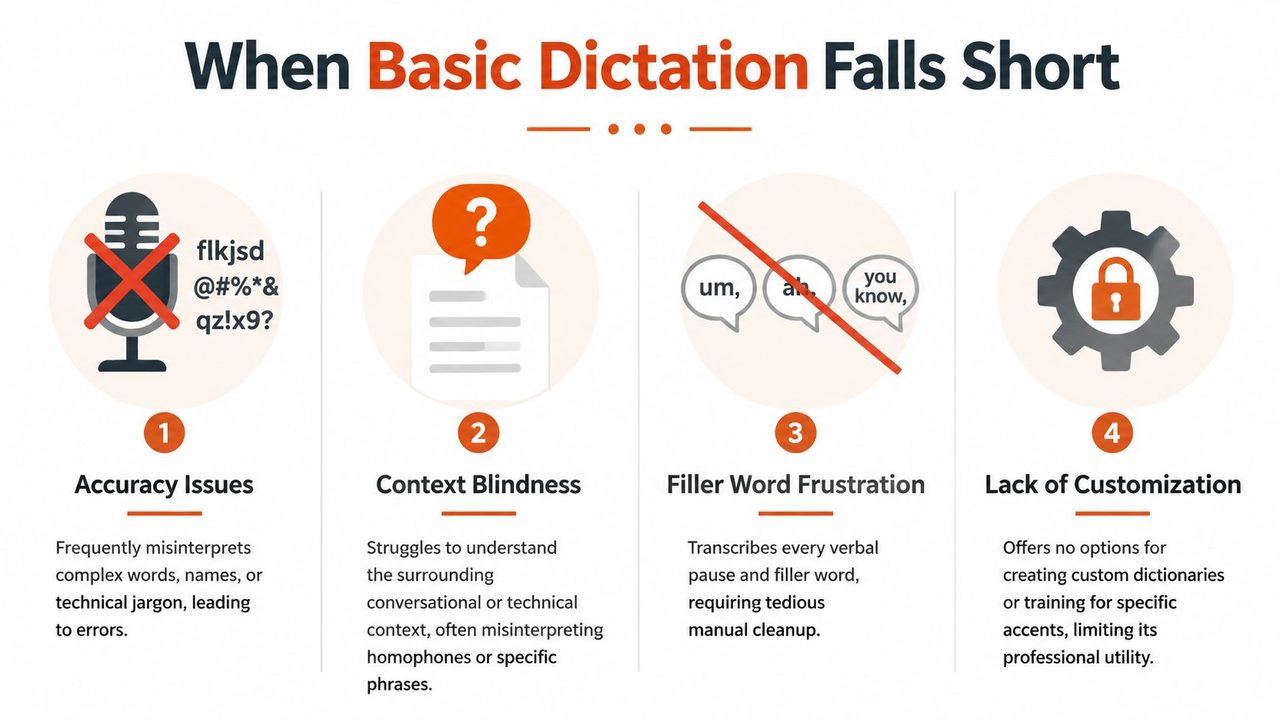
The frustration starts when you try to turn it into a daily writing system. Most guides on Mac speech-to-text focus on turning Dictation on, but they don't deal with the usability problems people hit in actual work. Apple's official Mac help confirms Dictation can be used broadly, yet the experience still depends on things like ending after 30 seconds of silence and adapting to app-specific behavior, which creates a reliability gap for people trying to use it seriously, as reflected in Apple's Mac Dictation guidance.
Where built-in dictation still helps
It's worth keeping the free tool in your workflow for lightweight tasks.
- Short replies: Good when you already know exactly what you want to say.
- Idea capture: Useful for quick notes before a thought disappears.
- Low-stakes writing: Fine when a few cleanup edits won't bother you.
That's a solid use case. The problem is expecting the same tool to handle naming accuracy, formatting intent, filler removal, and app-specific writing styles.
Why professional work exposes the limits
Professional writing has different standards. A support lead can't send a messy reply filled with awkward punctuation. A developer can't tolerate repeated mistakes on function names or product terms. A healthcare worker can't guess whether a sensitive note should stay local or move through a cloud service.
That's why many users start looking at curated roundups like Satura AI's software recommendations. Not because built-in dictation is broken, but because serious workflows need different features.
Here's the practical comparison:
| Feature | macOS Built-in Dictation | AIDictation |
|---|---|---|
| Activation | Built into macOS keyboard settings | Separate Mac app |
| Best use case | Short text entry in common apps | Ongoing professional drafting and cleanup |
| On-device option | Available through macOS dictation setup | Available through Local Mode on Mac |
| Handling filler words | Transcribes what you say more literally | Can clean up rough spoken drafts |
| Specialized terms | Limited support through user workarounds | Includes custom dictionary support |
| Formatting help | Basic voice-driven text entry | Context-aware formatting by app and mode |
| Long-form workflow | Feels stop-start for many users | Better suited to extended work sessions |
Built-in dictation helps you enter text. Professional dictation tools help you finish writing.
That distinction matters more than feature lists. If your job depends on sending polished text all day, accuracy isn't the only requirement. The output has to be usable without turning every dictated paragraph into an editing project.
Using Professional Speech to Text with AIDictation
Built-in dictation helps with short text entry. Professional dictation software has to do more. It has to fit how people write on a Mac all day, across email, notes, docs, chat, and specialized tools.
Apple's newer speech APIs make that possible. In its WWDC session on SpeechAnalyzer and live transcription, Apple shows how developers can process audio in real time, handle interim and final results separately, and keep speech models on device when needed. For Mac users, the practical result is simple. Third-party apps can feel faster, handle live transcription more cleanly, and offer stronger privacy options than older dictation workflows.
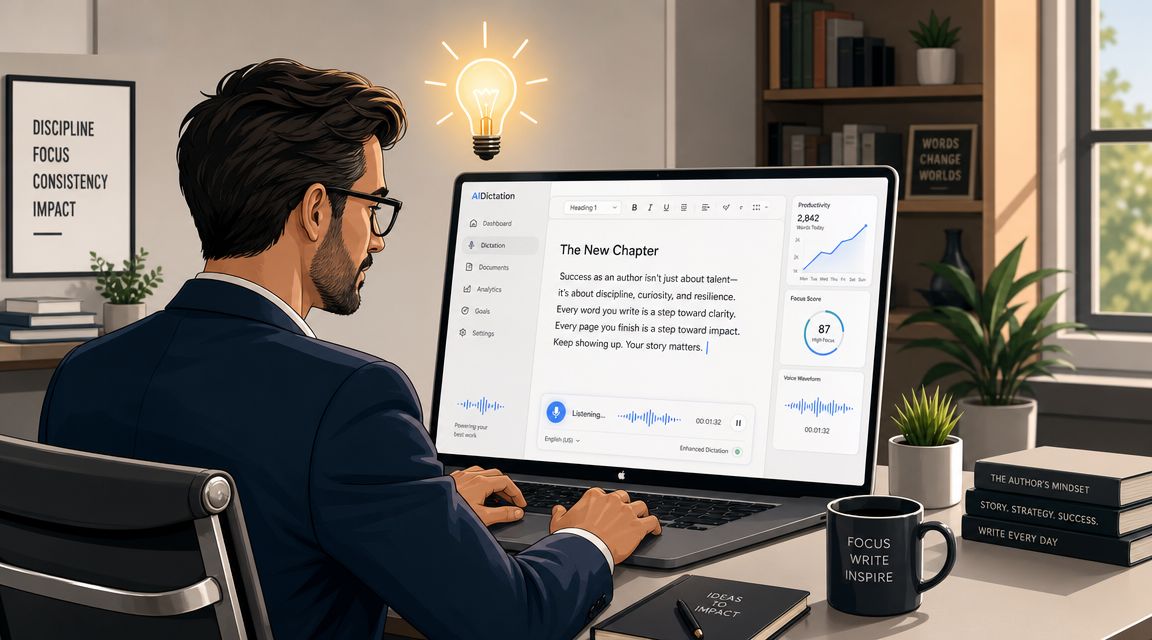
AIDictation is a good example of that shift. It is a Mac voice-to-text app built around three processing modes, which matters more in practice than a single dictation button with one default behavior.
Why on-device transcription matters now
On-device transcription changes how usable dictation feels for real work.
If you handle client notes, internal planning docs, hiring feedback, or medical and legal drafts, privacy is not an abstract feature. It affects whether you can use voice at all. Local processing also helps with responsiveness, especially when you want speech-to-text to keep up during a fast drafting session without depending on a stable connection.
That creates a real trade-off. Local processing gives you more control and often lower latency. Cloud processing can do more cleanup and restructuring. A professional tool should let you choose instead of forcing one path for every task.
Choosing between Local, Cloud, and Auto modes
AIDictation uses three modes because Mac users do not have one kind of writing day.
Local Mode is the right fit when text should stay on the Mac, or when you want dependable performance without relying on the internet. For private notes, sensitive material, or quick capture, this is usually the safest choice.
Cloud Mode is better when the spoken draft is rough and the final text needs editing help. That can include punctuation, grammar correction, filler-word removal, and cleaner formatting. The difference is noticeable in longer dictation sessions where spoken language tends to wander.
Auto Mode suits mixed workflows. It switches based on the situation, which saves time if you move between private note-taking and polished outward-facing writing during the same day.
What actually improves in daily work
The value is not just recognition accuracy. It is whether the text arrives in a usable form.
A sales manager dictating an email needs a clean message with natural punctuation. A founder sending a quick chat reply needs brevity, not a formal paragraph. A consultant working with industry terms needs product names and abbreviations preserved. A writer capturing ideas may want fast raw input first, then cleanup after.
That is where custom dictionaries and app-aware behavior matter. They cut down the worst part of Mac dictation for professionals, repeated correction of the same terms, names, and formatting patterns. Over a week of real use, that matters more than a small accuracy gain in a demo.
The same principle shows up when teams transcribe video for content repurposing. Getting words onto the page is only the first step. The true value comes from turning that raw text into something publishable, sendable, or searchable.
A quick walkthrough helps if you want to see that type of workflow in action:
Raw transcription reduces typing. Clean transcription reduces editing time.
For professionals, that is the standard that matters. If speech to text on Mac is part of your writing workflow, not just a shortcut, a tool like AIDictation makes more sense than basic dictation alone.
Putting Advanced Speech to Text into Practice
Features sound abstract until they solve a specific bottleneck. The easiest way to judge advanced dictation on Mac is to look at what different kinds of workers need from it.
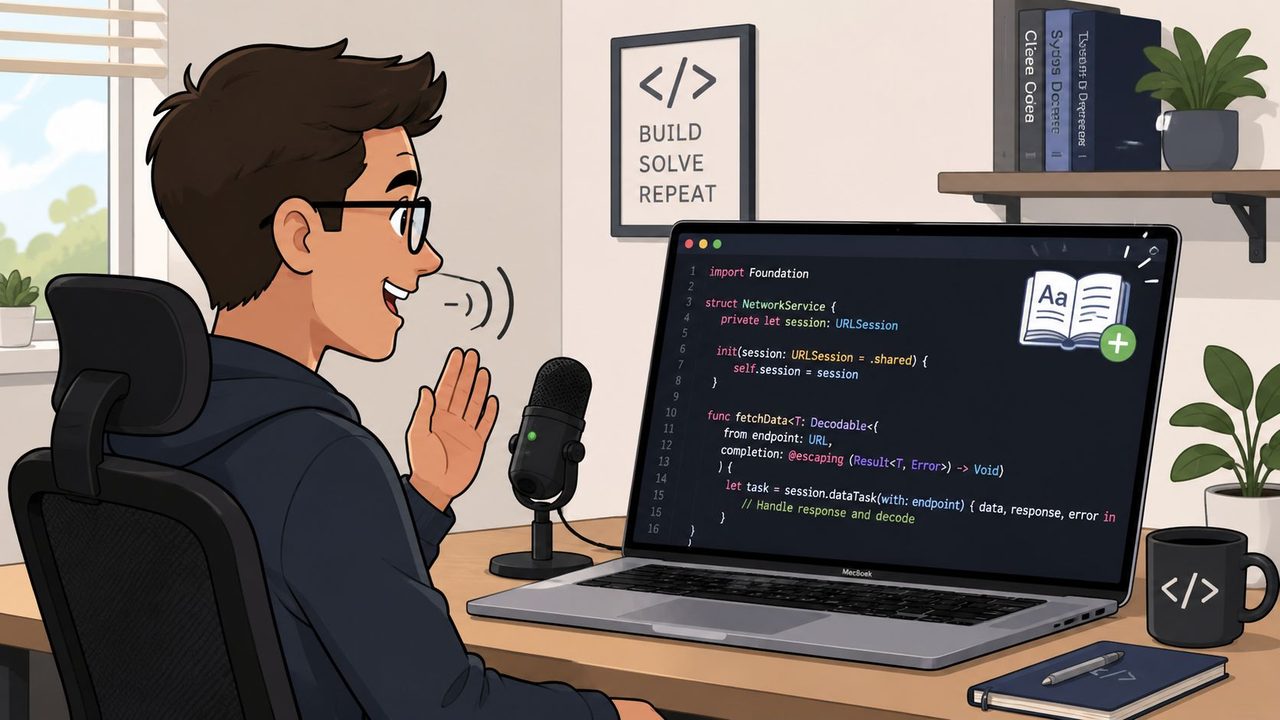
A developer dictating technical writing
A developer doesn't usually need dictation for writing code character by character. They need it for the surrounding work. Pull request notes, commit explanations, architecture comments, issue summaries, onboarding docs.
Basic dictation often stumbles here because technical language is unforgiving. One product name gets split incorrectly, a class name turns into normal English, or a spoken explanation comes out with too much cleanup required to be worth it.
A better workflow is to dictate the explanation, not the syntax. Speak the purpose of the function, the risk in the change, or the expected behavior. Then use a custom dictionary for internal names and repeated terminology so the transcript stops fighting your vocabulary.
A clinician protecting privacy while saving time
Healthcare work makes the trade-off sharper. The goal isn't just speed. It's speed without creating unnecessary exposure for sensitive information.
That's where local transcription becomes useful in a practical sense. A clinician can dictate between visits, keep processing on the Mac, and produce a usable first draft of notes without making privacy an afterthought. The final review still matters, especially for clinical wording and names, but the keyboard no longer has to carry the full load.
For sensitive workflows, the first question isn't “Is it accurate enough?” It's “Where is this audio going?”
That single decision changes which dictation mode makes sense.
A product manager turning rough speech into usable drafts
Product managers often think out loud in messy but valuable chunks. A roadmap update might start as half-formed reasoning, meeting fragments, stakeholder concerns, and action items mixed together. That's normal speech. It just isn't good prose yet.
This is where cleanup-aware dictation earns its place. The PM can talk through the problem, capture the logic while it's fresh, and let the software turn that rough speech into a more structured draft. Instead of typing from a blank page, they edit from a usable starting point.
That matters for:
- Spec drafts: Speak the requirements first, then refine.
- Meeting summaries: Capture context while memory is still warm.
- Status updates: Dictate the narrative, then trim for clarity.
Each of these examples points to the same lesson. The value of advanced speech-to-text on Mac isn't that it replaces typing entirely. It handles the parts of writing where speech is naturally faster, then reduces the cleanup cost enough that using your voice feels practical every day.
Best Practices for Flawless Dictation
Flawless dictation on a Mac usually comes down to three things: clean audio, realistic expectations, and a workflow that fits the job. People often blame recognition first. In practice, the bigger problems are background noise, inconsistent mic position, and trying to force one dictation mode to handle every kind of writing.
Fix the environment before blaming the software
Start with the microphone. A headset or external mic placed the same way every time will usually produce cleaner transcripts than the built-in laptop mic, especially in rooms with fan noise, keyboard clatter, or hard surfaces that create echo.
Then adjust how you speak. Steady, natural pacing works better than rushed bursts or over-pronounced words. Short pauses between sentences also help, especially when you are dictating notes, instructions, or anything with unusual terminology.
Small setup changes matter more than people expect.
Treat dictation like a drafting system
Speech-to-text is fastest when you use it for first drafts, not final polish. Dictate the idea while it is still clear, then do a quick pass to correct obvious mistakes, punctuation, and wording that reads fine aloud but looks clumsy on screen.
A practical routine looks like this:
- Draft by voice in one pass
- Review the opening lines first
- Correct names, acronyms, and product terms
- Cut repetition with the keyboard
- Send or refine only after that cleanup pass
If your work includes repeated terminology, a custom word list pays off quickly. This guide on setting up a custom dictionary for dictation is useful for client names, technical vocabulary, medical terms, and internal shorthand.
Match the tool to the sensitivity of the work
Privacy and output quality are separate decisions. Some tasks need local capture because the content is sensitive. Others benefit from stronger cleanup because the goal is a polished draft you can send, paste into a spec, or turn into meeting notes with minimal editing.
That is the trade-off professionals need to manage. Built-in Mac dictation is fine for quick input and lightweight drafting. For longer-form writing, repeated terminology, or workflows where transcript cleanup affects how fast you can publish, tools like AIDictation make more sense because they fit between raw speech capture and usable written output.
The keyboard still has a role. It just stops being the slowest part of getting ideas into words.
Frequently Asked Questions
What does How To Use Speech To Text On Mac Effectively In 2026 cover?
You're probably here because Mac dictation feels like it should be easy, but your actual experience has been uneven. You turn it on, press the shortcut, say a few lines, and either it stops too soon, misses key words, or produces text that still needs too much cleanup to feel useful.
Who should read How To Use Speech To Text On Mac Effectively In 2026?
How To Use Speech To Text On Mac Effectively In 2026 is most useful for readers who want clear, practical guidance and a faster path to the main takeaways without guessing what matters most.
What are the main takeaways from How To Use Speech To Text On Mac Effectively In 2026?
Key topics include Table of Contents, Why Typing Is Holding You Back, The missing piece for most users.
Ready to try AI Dictation?
Experience fast voice-to-text on your device. Free to download.
Download FreeRelated Posts
Is There a Speech to Text App for Mac? a Practical Guide
Is There a Speech to Text App for Mac. Wondering if there is a speech to text app for Mac? Compare built-in Dictation, on-device engines, and AI tools like
Dictation Software for Medical Professionals Compared
Compare dictation software for medical professionals. Evaluate accuracy, HIPAA privacy, ambient AI tradeoffs, and on-device tools like AIDictation.
How to Use Voice Dictation on Mac
Use Voice Dictation on Mac. Master voice dictation on your Mac — from built-in Apple features to third-party tools like AIDictation