Speech to Text Not Working? Your macOS & AI Fix Guide
You hit the dictation shortcut, see the little microphone indicator, start speaking, and then nothing lands on the page. Or the text appears, but it's nonsense. Or it works in one app and fails in another. That's the moment you go from mildly annoyed to fully stuck.
I've seen this pattern over and over on Macs. The good news is that speech to text not working usually has a small number of causes. The bad news is that the failure doesn't always look like the actual problem. A microphone issue can look like a language bug. A Bluetooth routing conflict can look like broken dictation. A stale speech service can make the entire feature feel dead even when the settings look correct.
This is fixable if you stay methodical. Start with the Mac itself. Then isolate whether the issue is the app, the engine, or the audio route. Only after that should you reach for Terminal commands or deeper resets.
Table of Contents
- The Sound of Silence Your Mac Dictation Just Failed
- First Response Common macOS Dictation Fixes
- Isolate the Engine Troubleshooting AIDictation Modes
- Advanced Troubleshooting for Persistent Failures
- Best Practices for Crystal-Clear Transcription
- When and How to Contact Support
The Sound of Silence Your Mac Dictation Just Failed
You press the dictation shortcut, the mic indicator appears, and nothing lands in the text field. Or a few words appear, then stop. Or the words show up in the wrong language. On a Mac, those symptoms can come from several different places at once, which is why this problem wastes so much time.
The reason this feels more disruptive than a minor bug is simple. Dictation changes how people work. Once you rely on speaking for notes, email, or drafting, a silent transcription window breaks your flow immediately.
What I see most often is a routing problem, not a total failure. macOS may be listening to the wrong microphone. A Bluetooth headset may have taken over input without making it obvious. The app may be accepting keyboard input but not speech input correctly. Or the speech engine itself may be the part that failed while the interface still looks normal.
That distinction is the key to fixing this efficiently. Generic advice treats all speech-to-text failures as one problem. In practice, there are two layers to separate first: the system layer, where macOS handles microphone access, audio input, and dictation services, and the app layer, where the receiving app or speech engine decides what to do with that audio.
AIDictation is useful as a diagnostic tool, not just an app. Its Local and Cloud modes help expose whether the issue is tied to a specific engine path or to the Mac's broader audio and permissions stack. If one mode works and the other fails, you have already narrowed the fault far faster than random setting changes ever will. If you need a refresher on the Mac setup itself, this guide on how to use dictation on Mac covers the normal workflow.
I also see two mistakes repeatedly. People reinstall apps before confirming what input device the Mac is using. They also trust the presence of a microphone icon too much. A live icon only proves something was triggered. It does not prove the correct mic is active, the correct engine is processing audio, or the target app is receiving dictated text properly.
Frustrating, yes. Usually fixable, also yes.
The fastest path is to isolate the failure instead of guessing. Start with the common macOS checks, then test whether the problem follows the engine, the app, or the audio route. That order solves this much more often than starting over from scratch.
First Response Common macOS Dictation Fixes
The fastest wins usually live in System Settings. Apple's own diagnostic order is worth following because it keeps you from skipping the basic checks that solve a surprising number of failures.
Start with Apple's four checks
Apple says the right order is to verify that Dictation is enabled, the correct language or region is selected, the keyboard shortcut is correct, and the microphone with sufficient input level is selected in Sound settings, according to Apple's Mac dictation troubleshooting guidance.
Start there. Don't multitask it. Open one pane at a time and confirm what's set.
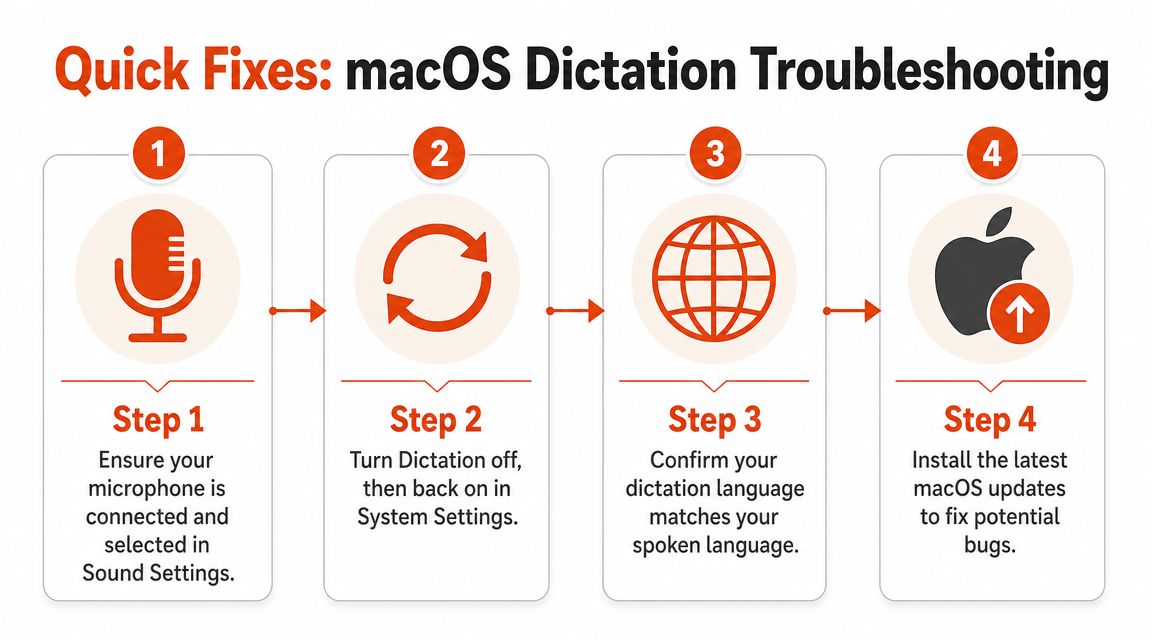
Here's the practical order I use:
- Confirm Dictation is on: Go to Keyboard settings and make sure the feature is enabled. Toggle it off, wait a moment, then turn it back on.
- Verify the language: If you speak English but the active dictation language shifted to another region or language profile, recognition can fail or become wildly inaccurate.
- Test the shortcut: If the shortcut was changed, the mic prompt may not trigger the way you expect in every app.
- Check Sound input: Make sure the selected input is the mic you think it is, and watch the input meter while speaking.
If you want the plain setup path for comparison, this walkthrough on how to use dictation on Mac is useful because it shows the expected baseline before you start chasing faults.
A quick visual walkthrough can also help if you want to compare your settings against a working configuration.
Check what your Mac is actually hearing
This often marks a turning point in many support sessions. The issue isn't that the microphone is absent. It's that macOS is listening to the wrong one.
Look at the full list of input devices. Macs often have more than users realize: built-in mic, monitor mic, USB webcam mic, docking station audio, Bluetooth earbuds, conference speakerphone. Select each one deliberately and watch the input level move while you speak.
Practical rule: If the input meter doesn't react, dictation won't either.
Also check app permissions. If dictation works in one app but not another, the receiving app may not have microphone permission, accessibility permission, or text input focus. That's no longer a system-wide dictation failure. It's an app-level block.
Don't ignore network and environment
Some dictation workflows depend on network access. If your setup uses cloud processing and your connection is unstable, you may see a microphone animation with delayed or failed transcription. Apple also notes that background noise and microphone obstruction can break recognition, which is why testing in a quieter room or with a headset is more useful than randomly flipping settings.
A short test gives you signal fast:
| Test | What it tells you |
|---|---|
| Speak into Voice Memos or another recorder | Confirms whether the mic captures clean audio at all |
| Try dictation in Notes | Helps separate a system issue from an app-specific issue |
| Move to a quiet room | Rules out fan noise, traffic, or nearby voices |
| Disconnect external audio gear | Helps catch hidden input hijacking |
If those checks don't restore service, stop tweaking random settings. The next question is whether the recognizer itself is the problem.
Isolate the Engine Troubleshooting AIDictation Modes
A lot of speech to text not working cases aren't simple “mic off” problems. They come from engine routing. After an app update, keyboard change, or OS change, audio may still be captured, but it's being sent to the wrong recognizer or a stale engine state.
That's a known pattern in recent troubleshooting guidance, which notes that updates can inadvertently switch the default dictation engine and make it look like the microphone failed when the recognizer path is incorrect, as described in this analysis of voice typing engine and routing issues after updates.
Use mode switching as a diagnostic test
A tool with separate recognition paths is particularly useful for diagnostic purposes, not merely functional ones. In AIDictation, you can test Local Mode, Cloud Mode, and Auto Mode as distinct failure paths instead of treating dictation like one black box.
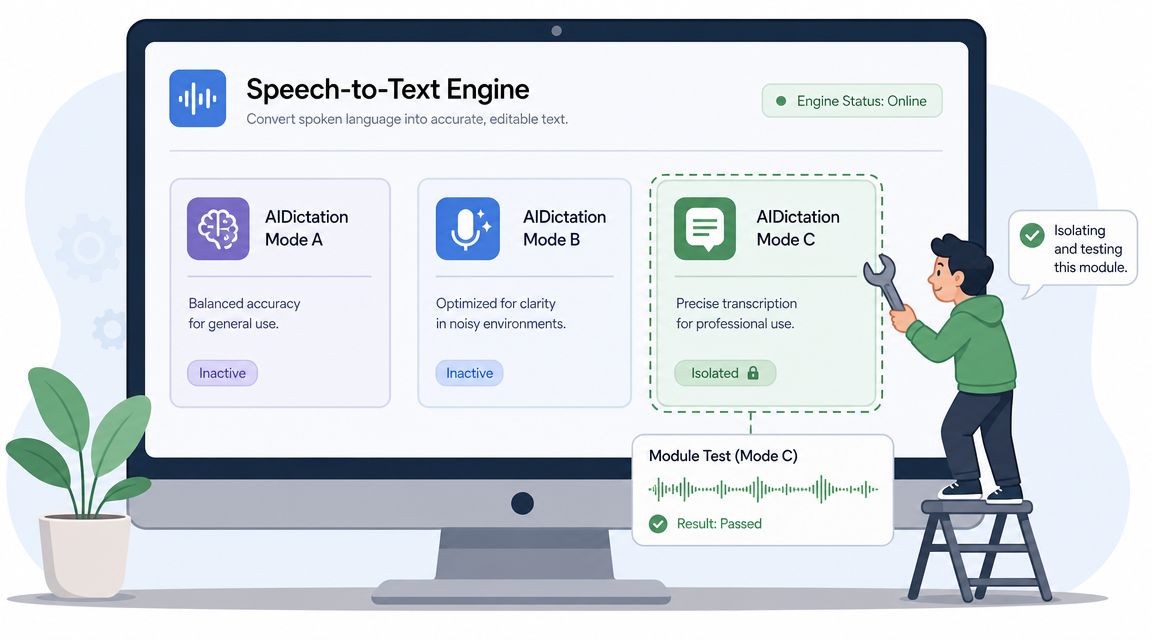
Use the modes like this:
- Local Mode: Good for testing on-device recognition without relying on the network.
- Cloud Mode: Useful if you want to see whether the app can send audio to a remote engine and return text properly.
- Auto Mode: Helpful for normal use, but less helpful during diagnosis because it can switch paths behind the scenes.
If you build or test apps that depend on speech capture, it also helps to understand how developers wire recognition into apps. This guide on add speech recognition to Capacitor projects is useful background because it shows how speech features depend on permissions, platform handling, and the engine path you choose.
What each result usually means
You don't need a complicated matrix. Three simple outcomes usually tell the story.
| Result | Likely conclusion |
|---|---|
| Local works, Cloud fails | Network issue, cloud service issue, or remote engine/auth path problem |
| Cloud works, Local fails | On-device engine issue, local model issue, or local permissions/input routing problem |
| Both fail | Microphone source, app focus, or deeper system audio problem |
If one engine works and another doesn't, the microphone probably isn't your main problem.
The biggest mistake here is leaving Auto Mode on during troubleshooting and assuming the app is broken. Manual mode switching gives you a controlled test. That's far more useful than reinstalling first.
Advanced Troubleshooting for Persistent Failures
When the usual fixes don't stick, I stop looking at the menu bar and start looking at the speech backend and audio routing. That's where the stubborn cases usually live.
Restart the speech backend
On macOS, a common deeper failure is that the speech service gets stuck even though the visible Dictation toggle looks fine. Community troubleshooting frequently points to restarting the corespeechd process, with users reporting that killall corespeechd can restore dictation when the backend itself is wedged, as discussed in this Apple Support Community thread about restarting corespeechd.
Open Terminal and run:
killall corespeechd
Then wait a few seconds and test dictation again.
This doesn't erase your files. It forces the speech daemon to restart. If dictation suddenly comes back, you've learned something important. The problem was backend state, not your keyboard shortcut or your app.
There's a related lesson here for people with more complex device setups. I see similar troubleshooting logic in other fields too. For example, when audio, control systems, and room hardware interact badly, the fix often starts with routing and service state, not with replacing equipment. If your workspace includes integrated audio gear, conference hardware, or built-in wall controls, a directory for finding smart home installation experts can help you identify local pros who understand device interaction problems that spill into day-to-day Mac use.
Hunt down audio routing conflicts
Bluetooth and external audio conflicts cause a lot of false leads. The Mac may happily send dictation input to earbuds in a bag, a display microphone, or a headset still paired from yesterday.
Try this in order:
- Turn Bluetooth off briefly: Then test dictation with only the built-in microphone active.
- Unplug docks and displays: External monitors and hubs sometimes expose their own audio input devices.
- Reselect the internal microphone: Don't assume macOS stayed on it after a reboot or update.
- Close meeting apps: Zoom, Teams, and similar apps can hold or alter audio routing in ways users don't notice.
If you want another local speech workflow reference point while comparing behavior, this guide to Whisper for Mac is useful because it helps separate macOS-level problems from app-specific recognition behavior.
A dictation failure that appears only when a headset is nearby is usually an audio route problem until proven otherwise.
Last-resort cleanup
If restarting the daemon and cleaning up audio routing doesn't solve it, you're in last-resort territory. At that point I usually test in a fresh user account before touching deeper preferences. That tells you whether the issue is user-specific or system-wide.
You can also remove stale app state by quitting the affected app completely, reopening it, and retesting in a plain text field. If the failure only appears inside one app, stop treating it like a macOS dictation problem. It's almost certainly an app integration, permission, or input-focus issue.
Best Practices for Crystal-Clear Transcription
Once dictation is working again, the goal shifts from "it responds" to "it stays accurate under normal use." After years of troubleshooting this on Macs, the same pattern keeps showing up. Users blame speech recognition first, but the actual cause is often simpler: inconsistent audio, poor mic technique, or terms the recognizer has never learned.
Good transcription starts before the first word. If macOS dictation is stable but one app still struggles, treat that as an app or engine path issue. If AIDictation performs well in Local mode but misses terms in Cloud mode, or the reverse, that usually points to model behavior rather than a broken microphone. That distinction saves a lot of wasted tweaking.
Fix the input conditions first
Recognition improves when the audio is predictable. Quiet room. Steady microphone position. Natural pace. Clear phrasing.
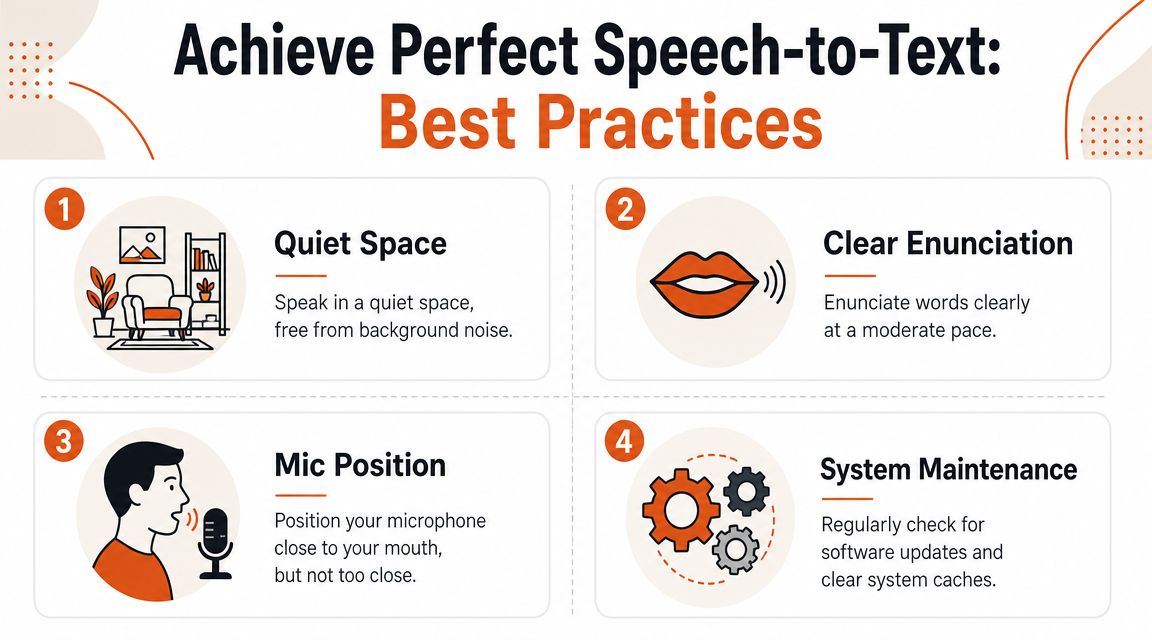
These habits produce better transcripts in real work:
- Reduce background noise: Fans, TV audio, HVAC hum, keyboard noise, and nearby voices all lower accuracy.
- Keep microphone distance steady: Shifting closer and farther changes volume and tone, which creates uneven input.
- Speak in complete phrases: Short pauses are fine. Mid-sentence restarts and constant corrections usually create worse output.
- Stick with one known-good mic: Switching between AirPods, a webcam mic, a dock, and the built-in mic introduces avoidable variables.
- Watch for Bluetooth drift: A paired headset across the room can still grab input and make transcription sound muffled or distant.
Train the recognizer on your vocabulary
General speech models handle everyday language well enough. They often struggle with names, acronyms, client terms, product names, and technical shorthand. Repeating the same correction ten times does not teach every tool equally, especially when you move between macOS dictation and app-level engines.
A custom dictionary is the practical fix. If you dictate domain-specific language every day, add those terms once and stop paying the correction tax. This guide on setting up a dictation dictionary is a useful place to start.
| Context | What helps |
|---|---|
| Product specs | Add product names, abbreviations, and internal feature terms |
| Clinical notes | Add medication names, specialties, and repeated phrases |
| Developer docs | Add package names, APIs, and common technical vocabulary |
| Client communication | Add company names and people's names |
One more best practice gets missed. Test in the app where you work. Notes may transcribe cleanly while a browser editor, CRM, or chat app drops words because of focus handling, formatting rules, or a different speech engine path. If you need a clear escalation route after documenting that behavior, the Throughwire support team page is a useful example of how to present the issue clearly.
Clean transcription starts with stable audio, predictable routing, and a recognizer that knows your words.
When and How to Contact Support
If you've checked macOS settings, tested the mic, isolated the engine path, restarted the speech daemon, and cleaned up external audio routing, then it's time to escalate with a useful report instead of a vague “dictation is broken.”
What to collect before you open a ticket
Support moves faster when you provide the facts that change diagnosis.
Gather these before you contact anyone:
- Your macOS version: Exact version matters when failures started after an update.
- The affected app name: Notes, Mail, Chrome, Slack, a browser text area, or a dedicated dictation app.
- What works and what doesn't: For example, “mic records in Voice Memos, but dictation fails in Notes.”
- What you already tried: Toggle dictation, language check, input device change, reboot, Bluetooth off, daemon restart.
- Whether the issue is system-wide or app-specific: That single detail saves a lot of time.
If you're reaching out to an app vendor or technical service team and want a simple contact point structure to model, the Throughwire support team page is a decent example of how to present a clear path for escalation.
One final check before escalation
Before you create the ticket, do one last Bluetooth test. Apple Support Community users have reported dictation returning after disconnecting nearby wireless audio devices or turning off Bluetooth, which points to unintended input routing rather than a broken recognizer, as described in this Apple Support Community discussion about Bluetooth hijacking dictation input.
That's an easy miss. People often file support requests after changing languages, reinstalling apps, and rebooting, while the Mac is still listening to the wrong headset.
A strong support request is short and specific. State the Mac model, macOS version, the app involved, whether the microphone records normally elsewhere, whether external audio was disconnected, and the exact point where the workflow fails.
If you want a cleaner daily dictation workflow on Mac, AIDictation is built for that split between local and cloud recognition, which makes it useful both for writing and for diagnosing where speech input is failing.
Frequently Asked Questions
What does Speech to Text Not Working? Your macOS & AI Fix Guide cover?
You hit the dictation shortcut, see the little microphone indicator, start speaking, and then nothing lands on the page. Or the text appears, but it's nonsense.
Who should read Speech to Text Not Working? Your macOS & AI Fix Guide?
Speech to Text Not Working? Your macOS & AI Fix Guide is most useful for readers who want clear, practical guidance and a faster path to the main takeaways without guessing what matters most.
What are the main takeaways from Speech to Text Not Working? Your macOS & AI Fix Guide?
Key topics include Table of Contents, The Sound of Silence Your Mac Dictation Just Failed, First Response Common macOS Dictation Fixes.
Ready to try AI Dictation?
Experience fast voice-to-text on your device. Free to download.
Download FreeRelated Posts
Is There a Speech to Text App for Mac? a Practical Guide
Is There a Speech to Text App for Mac. Wondering if there is a speech to text app for Mac? Compare built-in Dictation, on-device engines, and AI tools like
Dictation Software for Medical Professionals Compared
Compare dictation software for medical professionals. Evaluate accuracy, HIPAA privacy, ambient AI tradeoffs, and on-device tools like AIDictation.
How to Use Voice Dictation on Mac
Use Voice Dictation on Mac. Master voice dictation on your Mac — from built-in Apple features to third-party tools like AIDictation