Unlock Speech to Text in Spanish on Your Mac
You're on your Mac, halfway through a client reply in Spanish, and the friction starts piling up. You stop to add an accent. You backtrack for an ñ. You decide whether the sentence needs ¿ at the beginning. Then someone asks a question in Slack, the meeting moves on, and your train of thought is gone.
That's the reason speech to text in spanish matters for professionals. It's not novelty. It's not a demo feature. It's a way to remove the tiny typing interruptions that break momentum when you're drafting emails, writing notes, or documenting decisions across apps all day on macOS.
For Spanish, that matters even more than it does in English. A dictation tool isn't just converting sounds into words. It's handling dialect, punctuation, accents, and often mixed-language speech in one pass. If it gets those details right, your Mac becomes a serious writing tool. If it gets them wrong, you've only traded typing for cleanup.
Table of Contents
- Why Manual Spanish Typing Is Obsolete
- From Sound Waves to Spanish Text
- On-Device vs Cloud The Privacy and Accuracy Trade-Off
- Beyond Accuracy What Makes a Great Spanish Dictation Tool
- Mastering Spanish Dictation on macOS with AIDictation
- Putting It All Together Use Cases and Commands
Why Manual Spanish Typing Is Obsolete
A product manager takes notes in a bilingual roadmap meeting. The team speaks mostly Spanish, but feature names and tool names come out in English. Every few lines, the note-taker pauses to fix acentos, insert punctuation, or retype a sentence that lost its rhythm. By the end of the meeting, the notes exist, but they're fragmented and slower to clean up than they should be.
That pattern repeats everywhere on macOS. Customer support agents answer the same types of emails with slight variations. Clinicians draft structured notes under time pressure. Developers write internal documentation and code comments in Spanish while referencing English APIs and product names. Manual typing turns all of that into stop-and-go work.
The old assumption was that dictation in Spanish was too unreliable for serious use. That assumption no longer holds in day-to-day professional work. The current question isn't whether speech to text in spanish works. The question is whether your setup fits your privacy requirements, your dialect, and your workflow.
What typing still gets wrong
Typing feels precise, but it often creates a hidden tax:
- Thought interruption: You know what you want to say, but keyboard mechanics slow the sentence down.
- Orthography friction: Spanish requires details that English-heavy keyboard habits often miss.
- Context switching: You're drafting in Mail, then logging something in Notion, then replying in Messages.
- Physical drag: Long documentation sessions are tiring when every paragraph is manual.
Practical rule: If your work involves explaining, summarizing, or documenting in Spanish, speaking is usually the faster input method. Editing should come after capture, not before it.
Where dictation becomes the better default
Dictation isn't best for every task. It's not ideal when you're editing a spreadsheet formula or renaming files one by one. But it is excellent for the kinds of work many Mac professionals do constantly:
- Email drafting: Especially when tone matters more than keyboard speed.
- Meeting notes: Capture first, structure after.
- Documentation: Good for first drafts, summaries, and process notes.
- Clinical or legal text: Better when the tool supports privacy-conscious workflows.
Manual Spanish typing isn't disappearing because keyboards are bad. It's becoming obsolete because voice input now handles enough of the language correctly that the bottleneck has moved. The bottleneck is no longer input. It's choosing a setup that produces text you can use.
From Sound Waves to Spanish Text
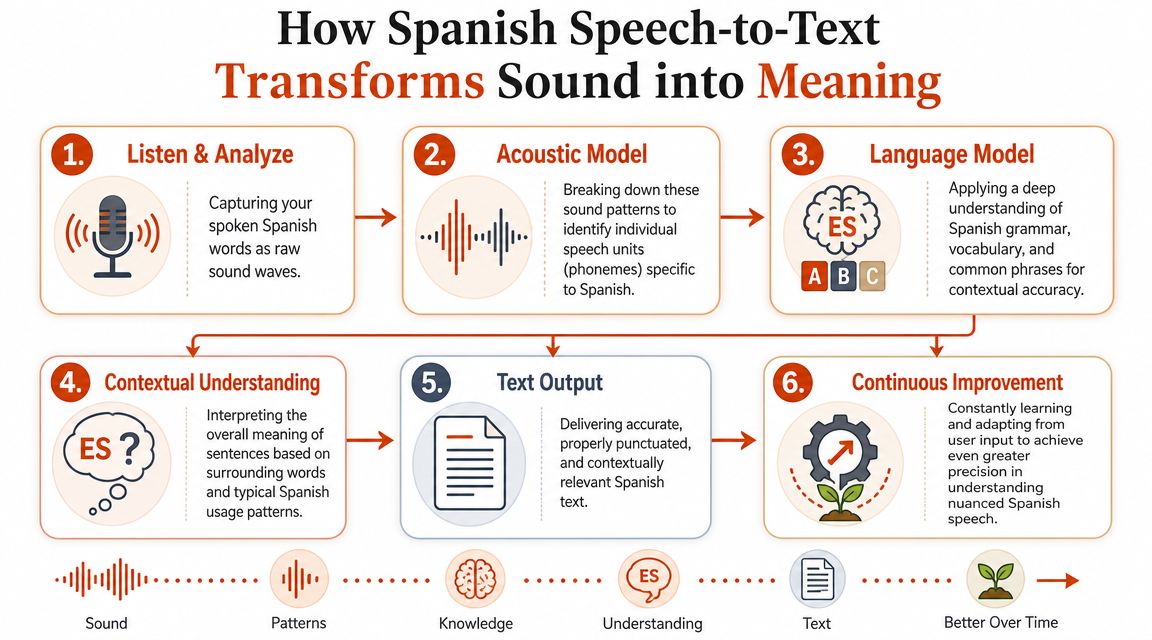
Speech recognition looks magical until you break it into stages. The simplest way to think about it is this. The system first listens, then guesses the sounds, then uses language context to decide what those sounds most likely mean as text.
What the system hears first
Start with the microphone. Your Mac captures raw audio, not words. The software has to deal with room noise, distance from the mic, speed of speech, and whether you swallow syllables at the end of a sentence.
Then the acoustic layer steps in. This is the part that tries to map sound patterns to the building blocks of spoken Spanish. It's listening for phonetic clues, but not in isolation. Natural speech overlaps. People run words together. They hesitate, restart, and switch emphasis mid-sentence.
A good way to picture it is a multilingual assistant taking dictation in real time. First they hear the sound. Then they decide which speech units are present. Then they use grammar and context to write the sentence the way a literate Spanish speaker would expect to see it.
Why Spanish models improved so fast
The biggest shift came from training scale and diversity. A public Spanish speech recognition dataset on Kaggle describes 488 hours of Spanish telephone dialogues collected from 600 native speakers and reports 98% word accuracy, which shows how much large, varied corpora matter for conversational Spanish. That matters because Spanish is spoken by over 550 million people worldwide, and pronunciation varies widely across major dialect groups.
That training diversity is what lets modern systems cope better with real usage instead of only studio-clean speech. They're not just hearing textbook pronunciation. They're handling telephone audio, regional accents, and spontaneous speech patterns.
If you work in meetings, the productivity gain begins to make sense. Good live transcription doesn't just help with records. It changes how teams capture decisions and follow-ups in the moment. This overview of the impact of voice recognition on modern meetings is useful if your dictation needs overlap with meeting workflows.
For hands-on testing, it also helps to compare output with a dedicated Spanish transcription tool so you can hear a sample and inspect how the engine handles punctuation and sentence boundaries.
Better Spanish ASR doesn't come from one clever trick. It comes from hearing enough real Spanish, in enough forms, that the model stops treating variation like an error.
On-Device vs Cloud The Privacy and Accuracy Trade-Off
This is the decision that matters most on a Mac. Do you want speech processed locally on your device, or do you want it sent to a cloud service for heavier processing and cleanup?
For professionals, the answer usually depends on what's inside the sentence. If you're dictating a harmless brainstorming note, cloud tools are easy to justify. If you're drafting a clinical observation, internal legal summary, or sensitive HR note, the calculus changes fast.
Where on-device wins
On-device dictation keeps the audio and processing local to your Mac. That's the main advantage. You reduce exposure, you're not relying on a connection, and you can dictate in places where internet access is weak or intentionally disabled.
This model fits people who care about control as much as convenience:
- Healthcare users: Sensitive notes shouldn't move around unless there's a clear reason.
- Legal professionals: Drafts often include names, facts, and phrasing that need tighter handling.
- Executives and founders: Strategy notes often contain information you wouldn't upload casually.
- Anyone who travels: Offline dictation matters on trains, flights, and unstable Wi-Fi.
If privacy is part of your buying criteria, it helps to read a plain-language explanation of how vendors frame handling and retention. Diffio's page on AI data protection and privacy practices is a useful example of the kinds of safeguards professionals should look for.
Where cloud wins
Cloud systems usually have more room to apply advanced language processing after transcription. That can mean better formatting, stronger handling of messy speech, and features like speaker diarization or timestamps.
Speechmatics says its Spanish model achieves up to 96% word accuracy and supports real-time transcription, batch processing, speaker diarization, timestamps, and audio-event tagging on its Spanish speech-to-text platform. That's the practical reason cloud dictation became credible for professional Spanish workflows. It's no longer just transcript generation. It can feed live notes, draft emails, or structure documentation with less cleanup.
A simple way to choose
The trade-off becomes clearer when you lay it out side by side.
| Feature | On-Device Processing | Cloud Processing |
|---|---|---|
| Privacy | Stronger control because processing stays on the Mac | Depends on vendor handling and account settings |
| Offline use | Works without internet if the model is local | Usually limited or unavailable without connectivity |
| Latency feel | Often immediate for short dictation bursts | Can feel smooth, but depends on connection quality |
| Advanced cleanup | More limited unless paired with local post-processing | Usually stronger for formatting and rewrite-quality output |
| Meeting features | Often basic | Better fit for timestamps, diarization, and uploads |
| Best use case | Sensitive notes, private drafting, travel | Rich transcription, collaboration, polished output |
Use on-device when confidentiality is the constraint. Use cloud when formatting quality and transcription features matter more than local control.
A lot of professionals end up with a mixed approach. They dictate sensitive material locally, then use cloud tools for lower-risk tasks that benefit from cleanup and structure. That hybrid model is often the most realistic answer, especially on macOS where the same user may move from Notes to Mail to a meeting transcript in the same hour.
Beyond Accuracy What Makes a Great Spanish Dictation Tool
Accuracy is the metric vendors put on landing pages. It's not the metric that decides whether you'll keep using the tool after a week.
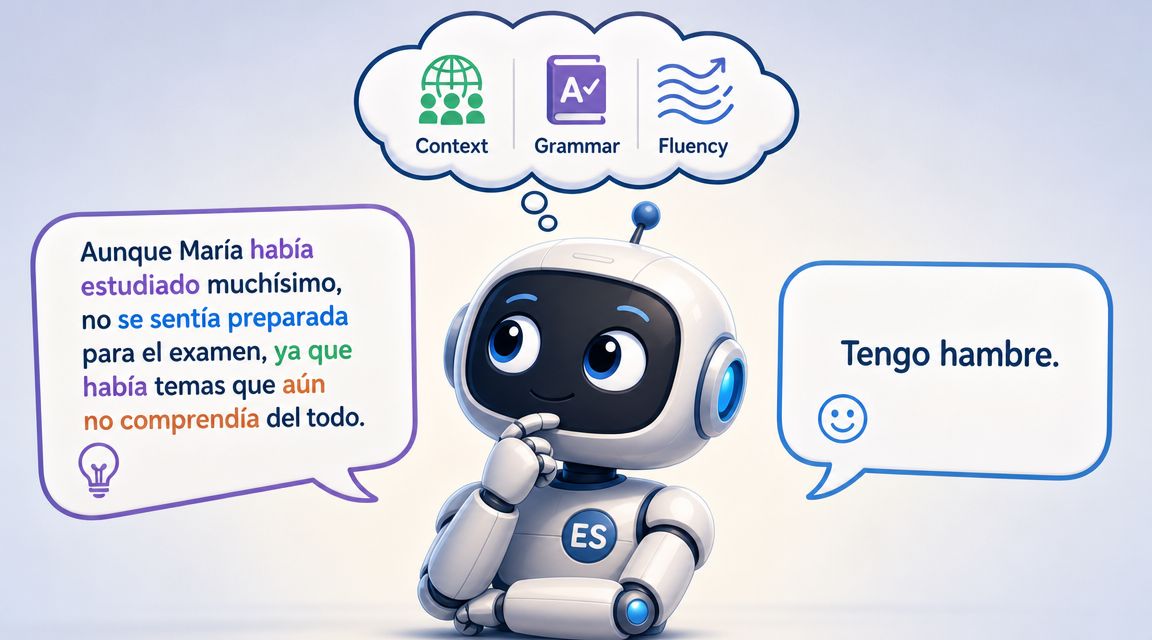
A great Spanish dictation tool has to do more than recognize words. It has to produce text that already looks like Spanish written by a competent professional, not a rough machine draft waiting for rescue.
Orthography is part of accuracy
AssemblyAI notes in its discussion of audio transcription and language-specific output that quality Spanish transcription needs to preserve characters such as á, é, í, ó, ú, ñ, along with ¿ and ¡. That sounds small until you use dictation all day. If the engine gets the words mostly right but drops the script conventions, the cleanup burden lands back on you.
For professional text, that's not a minor flaw. It changes whether the output is ready for use in:
- Client-facing email
- Clinical notes
- Internal documentation
- Formal letters and summaries
Dialect support changes the buying decision
A lot of tools still say “supports Spanish” as if that answers the essential question. It doesn't. Buyers need to know whether the tool handles the Spanish they truly hear.
Soniox explicitly highlights language-change detection inside a sentence and support for mixed phrases, which matters for bilingual teams and Spanish-English code-switching on its Spanish speech-to-text page. Narakeet also says it supports 22 Spanish dialects according to that same Soniox-linked market context in the verified material. That's the kind of detail professionals should care about, especially if their team includes Latin American, U.S. bilingual, and Spain-based speakers in the same workflow.
If your team says “Spanish” but actually means Mexican Spanish, Argentine Spanish, Castilian Spanish, and half-English product terminology, generic support won't be enough.
Workflow features matter more than marketing copy
The strongest tools usually share a small set of practical features:
- Custom vocabulary: Names, acronyms, client terms, and technical nouns need a place to live.
- App-aware formatting: Email should sound different from a quick chat message.
- Mixed-language resilience: Product names and English terms shouldn't break the sentence.
- Clean output by default: You want writing, not just a transcript.
If accessibility and spoken content workflows are part of your evaluation, it's worth looking at how adjacent products frame the problem. For example, you can discover MEDIAL's captioning solutions to see how context, readability, and language handling matter beyond raw recognition.
The best Spanish dictation tools don't feel like ASR systems. They feel like writing tools that happen to start with your voice.
Mastering Spanish Dictation on macOS with AIDictation
Most Mac users should start with the built-in option, not because it's the best end state, but because it gives you a baseline. Turn on macOS dictation, test it in Notes, Mail, and a document editor, and pay attention to what breaks. Usually the weak points show up quickly. Output may be usable for simple phrases, but long-form writing, specialized vocabulary, and cross-app consistency are where people outgrow the default.
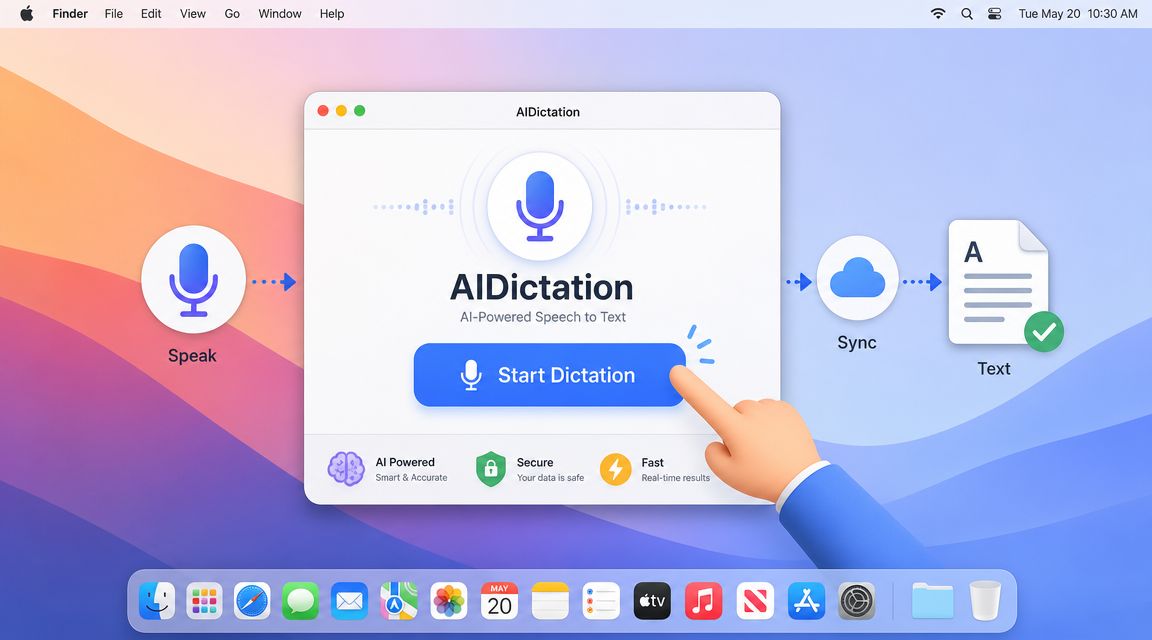
That's where a dedicated tool becomes practical. The goal isn't just transcription. The goal is to get clean Spanish text into whichever macOS app you're already using, without changing the rest of your workflow.
Start with the macOS baseline
Built-in dictation is useful for three things. It helps you learn whether speaking your drafts feels natural, whether your microphone setup is good enough, and whether your work style benefits from voice input in the first place.
Use it for a few short tasks:
- Draft one email in Spanish instead of typing it.
- Capture meeting notes during a live call.
- Summarize a document into a short paragraph.
If those tests feel faster than typing, you're a good candidate for a more capable setup. If they feel chaotic, the issue usually isn't dictation itself. It's punctuation habits, microphone position, or the limits of generic system dictation.
For a broader look at desktop voice workflows, this guide to macOS speech-to-text workflows gives helpful context on where system tools stop and dedicated apps start.
Set up a professional Spanish workflow
A dedicated app should be configured around your actual tasks, not around features you may never use. On macOS, the most effective setup usually follows this pattern:
- Choose your primary microphone first: AirPods can work for convenience, but a stable desk mic often gives cleaner results for long sessions.
- Pick a trigger you'll consistently use: Keyboard shortcut, menu bar control, or push-to-talk. The fastest setup is the one you don't hesitate to start.
- Test in your real apps: Mail, Slack, Notion, Word, your EHR, or whatever you live in daily.
- Create one repeatable workflow: Don't optimize five workflows at once. Get one right.
A common example is the “inbox pass.” Open Mail, dictate replies in Spanish for fifteen minutes, and notice where you still touch the keyboard. Those friction points tell you what to tune next.
When to switch modes
For many professionals, especially in healthcare or legal fields, privacy and workflow matter as much as accuracy. The market gap has been the lack of tools that offer private, offline desktop dictation while also producing polished, ready-to-use text across apps, as noted in ElevenLabs' framing of Spanish speech-to-text use cases.
That makes mode switching a real working habit, not a technical detail.
Use local processing when:
- You're dictating sensitive notes
- You're offline
- You want immediate capture without uploading audio
Use cloud processing when:
- You want cleaner paragraphs
- You need formatting help
- You're working on less sensitive material
- You want the system to smooth hesitations or self-corrections
A good macOS setup doesn't force one ideology. It lets you choose privacy or polish based on the document in front of you.
Here's a useful walkthrough before you test your own setup:
Tune the output for real work
The difference between “I tried dictation” and “I use dictation every day” usually comes down to customization.
Start with vocabulary. Add names, company terms, medical phrases, project titles, and any repeated proper nouns. Spanish dictation gets dramatically more usable when it stops stumbling over the words your work uses constantly.
Then tune output style by app:
- Mail or Outlook: More formal phrasing, complete punctuation, cleaner paragraph breaks.
- Messages or Slack: Shorter sentences and lighter formatting.
- Word or Google Docs: Full sentence structure, headings, and longer paragraph handling.
- Notes apps: Fast capture first, cleanup later.
Finally, change how you speak. Users often improve dictation quality by making only a few adjustments:
- Pause slightly at sentence boundaries
- Say punctuation consistently
- Keep the microphone distance stable
- Finish the thought before editing it aloud
Don't try to speak like a robot. Speak clearly, but naturally. The best tools are built for conversational Spanish, not theatrical enunciation.
Putting It All Together Use Cases and Commands
Once your setup is right, speech to text in spanish stops being a special mode and becomes a normal way to work on your Mac. You stop asking “Should I dictate this?” and start reserving typing for the tasks that truly need keystrokes.
Three workflows that benefit immediately
A product manager can dictate a stakeholder update right after a meeting:
“Resumen de la reunión de hoy, punto. El equipo acordó mover el lanzamiento al próximo sprint, coma, priorizar el flujo de onboarding y revisar los comentarios de soporte antes del viernes, punto.”
A developer can use dictation for documentation and comments without forcing every word through the keyboard:
- Code comments: Explain logic in Spanish while leaving function names in English.
- Pull request summaries: Dictate what changed, why it changed, and what reviewers should check.
- Technical notes: Capture implementation decisions before context fades.
A healthcare professional can draft a note while preserving flow and detail:
“Paciente refiere dolor lumbar intermitente desde hace tres días, punto. Niega fiebre, coma, trauma reciente, coma, o pérdida de fuerza, punto. Se recomienda seguimiento y control de síntomas, punto.”
For audio already recorded, a dedicated Spanish audio to text workflow is often the fastest path for turning spoken content into something editable.
Useful Spanish dictation commands
You don't need a huge command vocabulary to become effective. Start with the basics you'll use every day:
- Punto for a period
- Coma for a comma
- Nueva línea for a line break
- Nuevo párrafo for a paragraph break
- Abrir comillas and cerrar comillas
- Signo de interrogación when your tool supports explicit punctuation control
- Signo de exclamación for emphasis where needed
Two habits make the biggest difference. First, dictate complete thoughts instead of fragmented clauses. Second, edit after capture instead of correcting every word mid-sentence.
That's the shift. You move from slow, interruption-heavy typing to fluent spoken drafting. On macOS, that can change how you handle email, notes, and documentation every single day.
If you want a Mac-first tool built for clean writing instead of raw transcripts, AIDictation is worth trying. Start from the AIDictation download page when you are ready to test it. It's designed for professionals who need private local dictation, cloud cleanup when appropriate, and Spanish output that fits real work across apps.
Frequently Asked Questions
What does Unlock Speech to Text in Spanish on Your Mac cover?
You're on your Mac, halfway through a client reply in Spanish, and the friction starts piling up. You stop to add an accent.
Who should read Unlock Speech to Text in Spanish on Your Mac?
Unlock Speech to Text in Spanish on Your Mac is most useful for readers who want clear, practical guidance and a faster path to the main takeaways without guessing what matters most.
What are the main takeaways from Unlock Speech to Text in Spanish on Your Mac?
Key topics include Table of Contents, Why Manual Spanish Typing Is Obsolete, What typing still gets wrong.
Ready to try AI Dictation?
Experience fast voice-to-text on your device. Free to download.
Download FreeRelated Posts
Is There a Speech to Text App for Mac? a Practical Guide
Is There a Speech to Text App for Mac. Wondering if there is a speech to text app for Mac? Compare built-in Dictation, on-device engines, and AI tools like
Dictation Software for Medical Professionals Compared
Compare dictation software for medical professionals. Evaluate accuracy, HIPAA privacy, ambient AI tradeoffs, and on-device tools like AIDictation.
How to Use Voice Dictation on Mac
Use Voice Dictation on Mac. Master voice dictation on your Mac — from built-in Apple features to third-party tools like AIDictation