Best Microphone for Speech: macOS Guide 2026
You bought a better dictation app, opened your Mac, clicked the mic button, and started talking the way you naturally would. Then the transcript came back with missing words, wrong terms, and punctuation that made your notes look rushed. That usually feels like a software problem, but a lot of the time it starts earlier. The app can only work with the audio it receives.
For speech-to-text on macOS, the microphone is the first filter between your voice and your words on screen. If that filter adds hiss, room echo, keyboard noise, or a hollow laptop tone, your dictation engine has to guess. If it gets a clean, stable voice signal, it has far less guessing to do. That's why choosing the right microphone for speech matters so much for product managers drafting updates, developers dictating comments, clinicians recording notes, and anyone using voice as a daily input method.
Table of Contents
- Why Your Dictation App Needs a Better Microphone
- The Main Microphone Types for Speech Explained
- Decoding Key Microphone Specifications for Dictation
- Mastering Mic Placement and Room Acoustics
- Connecting and Configuring Your Mic on macOS
- Which Microphone Setup is Right for Your Workflow
- Troubleshooting Common Speech Audio Problems
- Microphone Security and Privacy on macOS
Why Your Dictation App Needs a Better Microphone
A dictation app doesn't hear language first. It hears audio first. If the audio is smeared by room reflections or buried under fan noise, transcription errors often follow. That's the practical version of “garbage in, garbage out.”
The core job of a microphone hasn't changed much, even though the software behind dictation has changed dramatically. The microphone became historically important to speech technology in the 1870s, when David Edward Hughes developed the carbon microphone, the first technology capable of turning speech into a reliable electrical signal for telephone transmission, which helped establish the foundation for modern voice capture according to the microphone history overview on Wikipedia. Modern macOS dictation still depends on that same basic idea. Turn a moving voice into a reliable signal.
Practical rule: If your transcription feels inconsistent, test the audio path before blaming the language model.
A lot of busy professionals skip that step because the built-in mic is already there. It's convenient, and for casual calls it may be good enough. But dictation is less forgiving than conversation. A colleague can infer what you meant from context. A speech engine has to decode exactly what it heard.
Think of your microphone for speech like the lens on a document scanner. If the lens is dusty, even excellent OCR will make mistakes. You can upgrade software all day, but if the input stays muddy, the output stays shaky.
That's why a microphone upgrade often feels larger than it looks on paper. You're not buying “better sound” in the abstract. You're reducing ambiguity so your Mac can turn spoken words into cleaner text the first time.
The Main Microphone Types for Speech Explained
Different microphones exist because speech happens in different environments. A quiet office, a shared workspace, a clinic hallway, and a home desk with a mechanical keyboard all ask for different tradeoffs.
A simple analogy helps. Think of microphone types like different desk lamps. One is rugged and focused. Another is brighter and more revealing. A third is built into the furniture and works, but not especially well for detailed tasks.
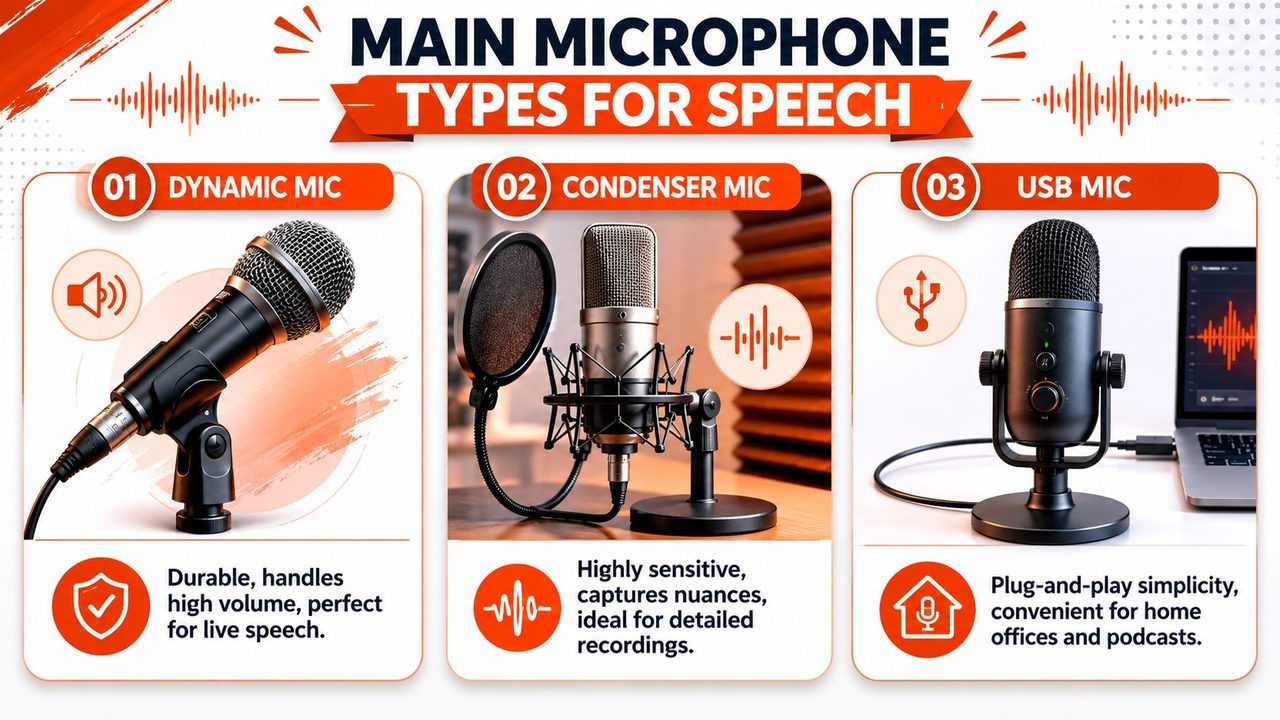
Dynamic microphones
A dynamic microphone is the sturdy workhorse. It usually picks up less room detail than a very sensitive studio mic, which can be a real advantage for speech in untreated rooms. If your desk is near a fan, hard wall, or noisy keyboard, a dynamic mic can help keep the focus on your voice.
For dictation, that means fewer distracting sounds entering the signal in the first place. The tradeoff is that many dynamic mics work best when you speak fairly close to them. They reward disciplined positioning.
Condenser microphones
A condenser microphone is more sensitive. It tends to capture nuance well, including soft speech and subtle consonants. In a quiet room, that can be excellent for dictation because speech engines often benefit from clear articulation and stable detail.
The downside is that condensers also hear more of the room. If your office is reflective or noisy, that sensitivity can work against you. A condenser doesn't know the difference between your voice, your desk tap, and the air conditioner. It just captures all of it.
Electret and built-in microphones
Many laptops, webcams, earbuds, and lightweight headsets use electret microphones. They're common because they're compact and practical. Some are surprisingly decent. Many are merely convenient.
Controlled testing found that built-in computer microphones can have a higher noise floor and an unbalanced frequency response compared with dedicated external microphones, which means an external mic often gives speech-to-text systems a cleaner signal to analyze, as described in this speech recording comparison study. That matters during pauses, low-volume speech, and moments when you turn your head slightly away from the screen.
| Mic Type | Best For | Pros | Cons |
|---|---|---|---|
| Dynamic | Noisy rooms, keyboard-heavy desks, close-talk dictation | Rugged, less room pickup, often good rejection of background sound | Usually wants closer placement, can sound dull if positioned poorly |
| Condenser | Quiet offices, clear spoken notes, detailed voice capture | Sensitive, articulate, good for natural speech detail | Picks up more room sound, less forgiving in echoey spaces |
| Electret or built-in | Casual use, quick calls, ultra-light setups | Convenient, already available, simple | More background hiss, less controlled pickup, weaker dictation consistency |
USB or XLR
For most Mac users, USB is the easier choice. You plug it in, select it in macOS, and start dictating. The microphone, preamp, and digital conversion are built into one device. That's why USB mics fit busy workflows so well.
XLR is more modular. It gives you more flexibility, but it also adds an interface, more cables, and more setup points. If you already work with pro audio gear, XLR may suit you. If your goal is clean speech input with minimal friction, USB is usually the sensible default.
If you've ever worked with meeting rooms or event rigs, the broader category of audio visual equipment for events shows the same pattern. Hardware choices only make sense when they match the environment and the job. Dictation is no different.
A good microphone for speech isn't the one with the fanciest reputation. It's the one that gives your software the clearest version of your voice in your real workspace.
Decoding Key Microphone Specifications for Dictation
Spec sheets confuse people because audio brands often present them like marketing trophies. For dictation, only a few specs really deserve your attention. The question isn't “What sounds impressive?” The question is “What helps the software hear words correctly?”
Polar pattern
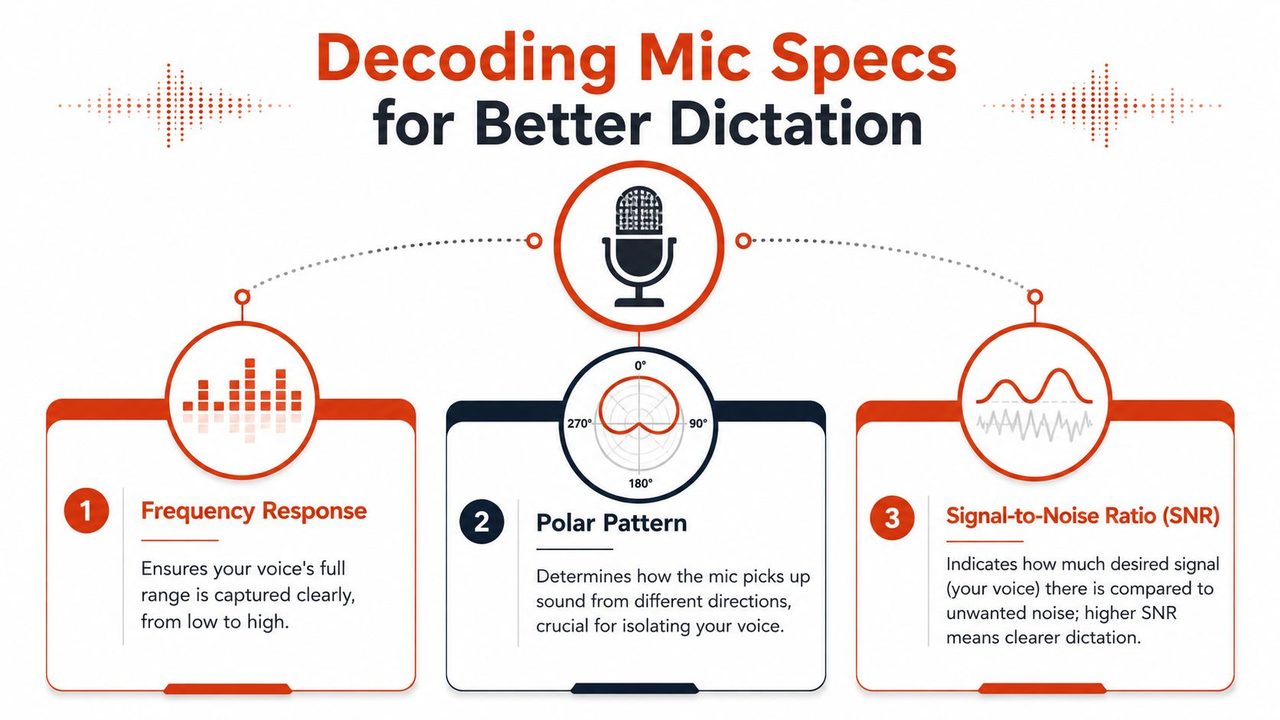
A polar pattern tells you where a microphone hears best. The easiest way to picture it is as a flashlight beam.
A cardioid mic points its attention mostly forward and reduces sound from the rear. That makes it useful for desks with keyboard noise, office chatter, or a fan behind the mic. An omnidirectional mic listens more evenly in all directions. It's often more forgiving when your head moves or when you don't stay in one precise spot.
For speech-to-text, neither is automatically “better.” Cardioid usually wins in noisy spaces. Omni often wins when your position changes a lot and you need consistent tone.
Frequency response
Frequency response describes how evenly the mic captures low, middle, and high parts of your voice. For dictation, a flatter response is usually better than a hyped one. You don't want a microphone that makes your voice sound exciting. You want one that represents it faithfully.
Guidance in the American Journal of Speech-Language Pathology recommends a flat frequency response with less than 2 dB variation across the relevant vocal range, plus an equivalent noise level at least 15 dB below the softest phonations for accurate voice capture, as summarized in this clinical microphone tutorial). That's clinical guidance, but the lesson applies neatly to dictation. Accuracy comes from honesty, not coloration.
Noise floor and signal clarity
People often look for “sensitivity” and ignore noise floor. That's a mistake for dictation. A mic can sound detailed and still be a poor tool if it adds hiss or captures too much low-level room noise.
When your voice is clearly above the microphone's self-noise and the room's background noise, the speech engine has cleaner edges to work with. Consonants separate better. Pauses stay quiet. Soft words don't disappear into static.
A quick checklist helps when you read a spec page or product listing:
- Look for pattern first: If your room is noisy, a directional pattern usually matters more than fancy marketing terms.
- Favor neutral capture: A mic that flatters a singing voice may not be the best fit for accurate dictation.
- Watch for quiet hardware: If the mic adds hiss, your transcripts often suffer before you even start speaking.
Mastering Mic Placement and Room Acoustics
Placement changes results faster than shopping does. Many dictation problems come from where the mic sits, not what it cost.
The physical setup matters because speech is quiet compared with nearby desk sounds. A keyboard click, monitor fan, or hard-wall reflection can become surprisingly prominent when the microphone is too far away or aimed badly.
Distance changes everything
The single easiest improvement is usually moving the mic closer to your mouth. When the mic is close, your voice arrives stronger relative to room sound. When the mic is far away, your room becomes part of every sentence.
That doesn't mean “as close as possible.” It means close enough to prioritize your voice without making the sound boomy or awkward. If you lean back a lot, a forgiving setup may beat an ultra-close one that only works when you stay perfectly still.
A practical way to test distance is to record the same sentence at three positions. First where your mic is now, then a bit closer, then slightly off to the side and closer. Listen to the quiet parts between words. The cleanest pauses usually reveal the best position.
Angle fixes plosives and typing noise
A microphone pointed straight at your lips often gets blasted by air from p and b sounds. Those plosives can cause low thumps or overload little bursts of the signal. Shifting the mic a little off-axis often solves that without hurting intelligibility.
Practical guidance also suggests that placement can beat price. A directional mic often improves speech clarity more when you point its rear rejection area toward a noise source, like a mechanical keyboard, than when you purchase a more expensive model, as discussed in this Audio University placement guide on YouTube.
Room fix you can do today: Put the mic where your voice is on-axis and the noisiest object on your desk is toward the mic's weakest pickup area.
This short demo is helpful if you want to hear how placement and room choices affect spoken audio in practice.
Your room is part of the signal chain
Hard surfaces reflect speech. That reflection reaches the microphone a split second after your direct voice and softens word boundaries. Humans adapt to that better than transcription systems do.
You don't need a studio to improve this. Start with simple changes:
- Move away from bare walls: A desk pressed against a hard wall often sounds splashy and thin.
- Add soft surfaces: Curtains, a rug, a couch, or even a thick blanket nearby can reduce reflections.
- Lower desk noise: Put the mic on a stable surface and reduce tapping, cable rub, and stand vibration.
Some users obsess over capsule type and ignore the room entirely. That's backwards for dictation. A modest mic in a controlled spot usually beats a premium mic dropped into a reflective kitchen or a noisy open office.
Connecting and Configuring Your Mic on macOS
A lot of microphone upgrades fail at the last step. The mic is plugged in, but macOS or the app is still listening to the built-in input. Then the new hardware gets blamed for problems it never had a chance to solve.
This setup only takes a minute if you know where to look.
Select the right input device
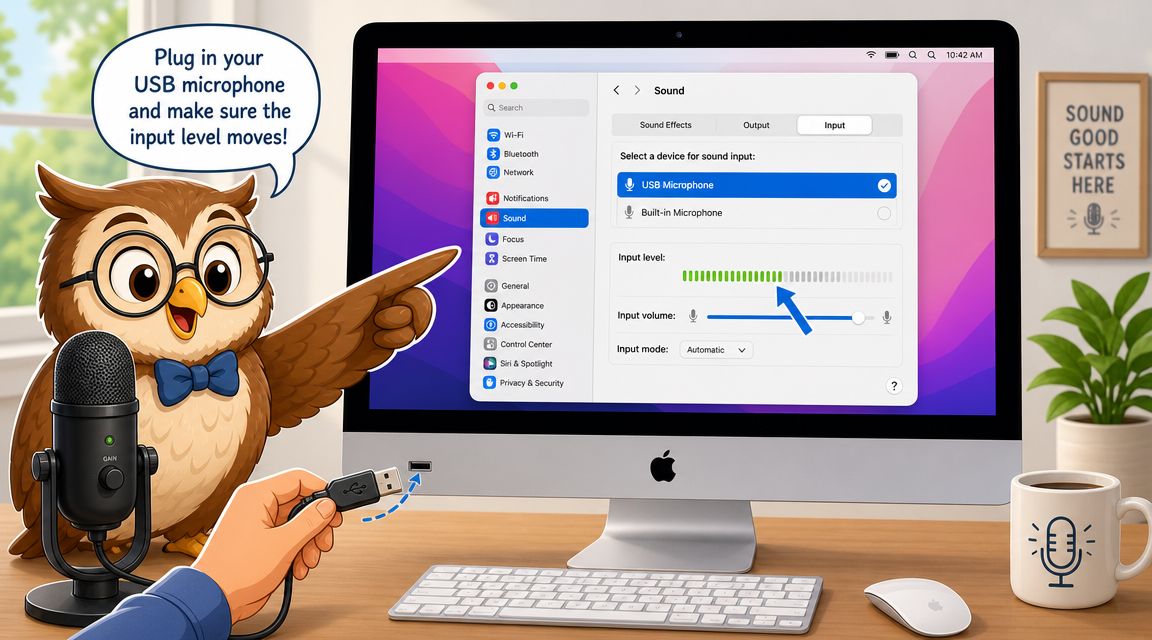
On macOS, open System Settings, then go to Sound and look under Input. You should see your external mic listed by name. Click it to make it the active input.
Say a few words while watching the input meter. If the meter moves when you speak into the external mic, you're on the right device. If it only reacts when you talk near the laptop, your Mac is still using the wrong input.
Set a healthy input level
You want enough level for clear speech, but not so much that loud words distort. Speak at your normal dictation volume, not your presentation voice. Then watch the meter while adjusting input volume if your device allows it.
Use this quick rule of thumb:
- If the meter barely moves, the signal is too weak.
- If it jumps to the top on ordinary speech, the signal is too hot.
- If it responds steadily to normal speech, you're in a usable range.
Some USB microphones also have onboard gain controls or companion apps. If yours does, make adjustments there only after confirming macOS is receiving the correct signal.
Make sure your dictation app uses that mic
Some apps follow the Mac's default input automatically. Others let you choose an input device inside the app. Check both places. If you're using browser-based or app-based dictation, give the app microphone permission and confirm it points to the same external mic you selected in macOS.
If you want a broader walkthrough for Apple voice input settings and speech workflows, this guide to macOS speech to text is a useful reference.
A simple test sentence helps catch setup mistakes fast. Dictate a line with a name, a technical term, and a number you can verify afterward. If those come through clearly, your hardware and input routing are probably correct.
Which Microphone Setup is Right for Your Workflow
The right microphone for speech depends less on “audio quality” as a general concept and more on your daily pattern of movement, noise, and speaking style. The same mic can be brilliant for one person and annoying for another.
The biggest mistake is buying for someone else's use case. A podcast setup may look impressive on YouTube and still be wrong for your work.
The remote professional
If you take meetings, dictate follow-ups, and work from a desk at home, a USB cardioid condenser often makes sense. It's simple to connect to a Mac, gives strong spoken detail, and can reject some room noise if you place it correctly.
This setup works best when you can keep the mic in a consistent spot and speak toward it. If your room is lively or you shift posture all day, you may prefer a less sensitive option. The common advice to move closer is useful, but there's a tradeoff. Very close positioning with directional mics can introduce proximity effect, which adds unnatural bass, while omni mics are often more forgiving when positioning varies, as covered in this spoken-word microphone tutorial on YouTube.
If you're comparing communication-focused setups rather than studio gear, roundups of top microphones for Discord can still be helpful because they often emphasize voice intelligibility, USB convenience, and desk practicality over music production features.
The mobile clinician
A clinician moving between rooms has different needs. The ideal setup is often compact, repeatable, and easy to position the same way every time. A small wired lavalier or a forgiving omnidirectional mic can be a smarter fit than a desk mic that assumes a fixed posture.
The key here is consistency. If your mic distance changes constantly, transcript quality can swing with it. A more forgiving pickup pattern can reduce that variability, even if it rejects less background noise than a cardioid would at a stationary desk.
For people who also record voice notes on lighter Apple hardware, this guide to a voice recorder for MacBook Air is useful because portability changes what “good setup” looks like.
The developer at a noisy desk
Developers often work in one of the hardest dictation environments. Mechanical keyboards, desk fans, laptop cooling noise, and side conversations all compete with speech. In that setup, a close-positioned dynamic mic or a head-worn microphone often outperforms a more sensitive desk condenser.
Convenience and discipline must align. A head-worn mic keeps distance consistent, which is great for reliable speech capture. A dynamic desk mic can also work well if you place it close, slightly off-axis, and away from the keyboard line.
One practical option in this area is AIDictation, a macOS voice-to-text app that can use microphone input for real-time speech capture and supports both on-device and cloud-based processing modes. That matters if your workflow shifts between quick private dictation and longer polished drafts.
Your workflow should choose the mic. If you move a lot, buy forgiveness. If your room is noisy, buy rejection. If you stay put in a quiet office, buy accuracy.
Troubleshooting Common Speech Audio Problems
When speech audio goes wrong, the symptoms are usually easy to recognize. The trick is mapping each symptom to the likely cause.
Voice sounds quiet or far away
If your recordings sound distant, check the simplest cause first. macOS may still be using the built-in microphone instead of your external one.
Then check placement. If the mic is too far from your mouth, the room starts to dominate the signal. Bring it closer, speak across it rather than directly into it, and test again.
Too much background noise
If the transcript includes keyboard chatter, HVAC rumble, or room tone, the issue is often directional control. A cardioid mic pointed poorly can behave almost like the wrong tool, while a modest mic aimed well can clean things up quickly.
For users who also produce meetings or spoken content remotely, this guide to high-quality remote podcast audio is useful because many of the same fixes apply to speech capture. Reduce room reflections, improve placement, and control your environment before chasing upgrades.
Try this short diagnostic list:
- Check the input device: Your Mac may have switched back after a reboot or reconnect.
- Check the angle: Move the mic so your mouth is on-axis and noisy gear sits off to the side or behind the mic's rejection area.
- Check the room: Bare walls and tabletops can make “noise” sound worse even when the room seems quiet.
Audio sounds harsh or distorted
Distortion usually means the signal is too hot. Lower the input gain in macOS or on the microphone itself and repeat the same sentence at your normal volume.
If your dictation app still behaves oddly after the hardware sounds clean, it can help to compare your settings against this troubleshooting guide for dictation not working on Mac. That can help separate audio issues from app permissions or OS configuration problems.
Microphone Security and Privacy on macOS
A microphone for speech is also a live input device. That means privacy matters just as much as accuracy.
macOS gives you visible and practical controls, but many people never check them until something feels off.
Know when your mic is active
When an app is using the microphone, macOS shows an indicator so you can tell the input is live. That's your quick visual check that listening is happening.
Get in the habit of noticing it. If the mic is active when you don't expect it, stop and check which app is using it.
Control which apps can listen
In System Settings, open the privacy controls for the microphone and review which apps have permission. Turn off access for anything that doesn't need it.
This is especially useful if you test lots of meeting, recording, or browser tools. Permissions can accumulate unnoticed over time.
Think about where transcription happens
There are two separate privacy layers. One is microphone access on your Mac. The other is where the speech gets processed after capture.
Some workflows send speech to a cloud service for transcription and cleanup. Others use on-device processing so the audio stays local to the machine. If you handle sensitive notes, internal planning, or protected client information, that distinction matters. Choose software and settings that match your risk level, not just your speed preference.
A good speech setup is complete only when it covers all three layers. Clean capture, correct macOS permissions, and a transcription method you're comfortable using every day.
If you want to turn a cleaner microphone signal into usable writing on your Mac, AIDictation is one option to evaluate. It's a macOS voice-to-text app designed to convert speech into ready-to-send text, with on-device and cloud-based modes depending on your privacy and workflow needs.
Frequently Asked Questions
What does Best Microphone for Speech: macOS Guide 2026 cover?
You bought a better dictation app, opened your Mac, clicked the mic button, and started talking the way you naturally would. Then the transcript came back with missing words, wrong terms, and punctuation that made your notes look rushed.
Who should read Best Microphone for Speech: macOS Guide 2026?
Best Microphone for Speech: macOS Guide 2026 is most useful for readers who want clear, practical guidance and a faster path to the main takeaways without guessing what matters most.
What are the main takeaways from Best Microphone for Speech: macOS Guide 2026?
Key topics include Table of Contents, Why Your Dictation App Needs a Better Microphone, The Main Microphone Types for Speech Explained.
Ready to try AI Dictation?
Experience fast voice-to-text on your device. Free to download.
Download FreeRelated Posts
Is There a Speech to Text App for Mac? a Practical Guide
Is There a Speech to Text App for Mac. Wondering if there is a speech to text app for Mac? Compare built-in Dictation, on-device engines, and AI tools like
Dictation Software for Medical Professionals Compared
Compare dictation software for medical professionals. Evaluate accuracy, HIPAA privacy, ambient AI tradeoffs, and on-device tools like AIDictation.
How to Use Voice Dictation on Mac
Use Voice Dictation on Mac. Master voice dictation on your Mac — from built-in Apple features to third-party tools like AIDictation