How to Organize Digital Files: A Fail-Proof System
Your desktop has loose screenshots, your Downloads folder is a graveyard, and the file you need is always named something like final_v2_REAL_final. That's normal. Often, the issue isn't a file problem but a decision problem. Every save asks the same question: where does this go, what do I call it, and will I ever find it again?
The fix isn't a giant weekend clean-up or a perfect taxonomy. It's a system that's simple enough to use when you're busy. That means a shallow folder structure, strict file naming, modern search habits, and a maintenance routine you can keep. If you create a lot of notes, transcripts, drafts, or documentation, it also means thinking about organization at the moment a file is created, not after the mess piles up.
Table of Contents
- Build Your Foundation with a Simple Folder Hierarchy
- Master File Naming for Flawless Sorting
- Adopt a Search First Mindset for Modern Productivity
- Leverage Tags and Metadata for Flexible Access
- Automate Your Workflow and Maintain Digital Zen
- Role Specific Templates and Final Thoughts
Build Your Foundation with a Simple Folder Hierarchy
A bad folder system usually starts with good intentions. People create more folders every time they feel friction, then bury files inside subfolders they'll never click through again. The result looks organized but behaves like clutter.
A better approach is shallow and obvious. A guide on digital organization recommends keeping folders to a maximum of three levels from general to specific so retrieval stays fast and the system doesn't become overcomplicated, and notes that three levels usually suffice in practice in The ULTIMATE Guide to Organize Your Digital Life in 2025.
Start broad, not clever
Start with categories you can identify instantly. Not categories you have to interpret.
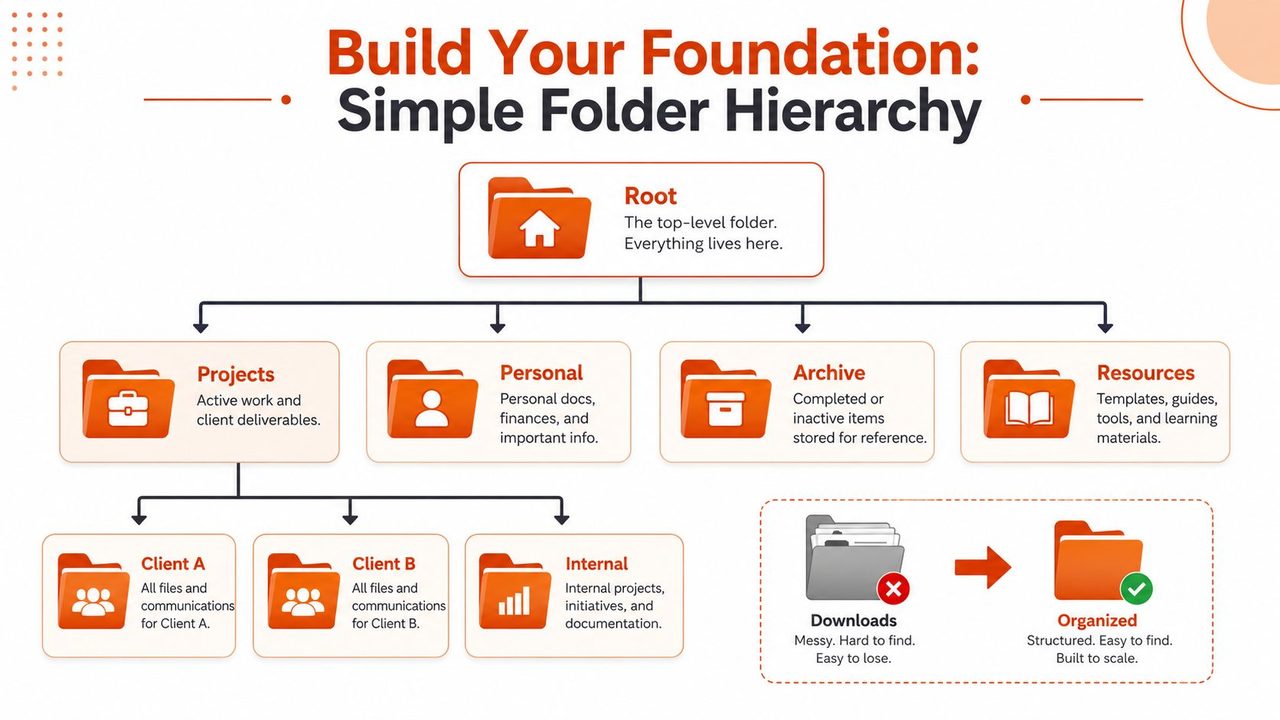
For many, this is enough:
- Projects for active work with an outcome
- Personal for life admin, records, family, home
- Resources for reference material you might reuse
- Archive for inactive material you need to keep
Inside those, create the next level based on real use. Under Projects, that might be client names, product lines, or initiatives. Under Personal, it might be Finance, Health, Travel, or Education.
If you manage client paperwork or accounting records, it helps to review examples of effective folder structures for FreeAgent. Not because you should copy someone else's structure exactly, but because good systems name folders by function, not by mood.
Practical rule: If you have to think about where a file belongs for more than a few seconds, your folder map is too complicated.
Use the three-level rule
Think in this pattern:
- Level 1 is the domain. Example:
Projects - Level 2 is the container. Example:
Client_A - Level 3 is the working context. Example:
Reportsor2026_Q1
That's enough structure for most workflows. You don't need Projects > Client_A > Marketing > Campaigns > Paid > Social > Final Assets. That path looks tidy on paper and fails in real life because no one wants to go through it every time they save a file.
A shallow structure also makes project work easier to review. Teams juggling overlapping deadlines often benefit from seeing folders as operational buckets instead of permanent storage. That same logic shows up in practical advice on managing multiple projects without losing track of the work.
What works and what fails
Here's the trade-off. A rigid hierarchy can feel precise, but it creates filing overhead. A simple hierarchy sacrifices some granularity and gains speed.
| Approach | What happens |
|---|---|
| Broad top-level folders | Easy to maintain, easy to teach, easy to scan |
| Deep nested folders | Precise at first, then slow and brittle |
| Dedicated Archive folder | Keeps active areas clean without forcing deletion |
| Using Downloads as storage | Guarantees drift and duplicate files |
A practical starting layout might look like this:
- Projects
- Client_A
- Deliverables
- Internal
- Planning
- Client_A
- Personal
- Finance
- Taxes
- Finance
- Resources
- Templates
- Docs
- Templates
- Archive
- 2025
- Completed_Projects
- 2025
Before you build anything, purge obvious junk. Old installers, duplicate exports, random screenshots, outdated drafts. Filing trash is still trash, just in a folder.
Master File Naming for Flawless Sorting
Folders tell you the neighborhood. Filenames tell you the exact address. If your names are vague, every search result becomes a guessing game.
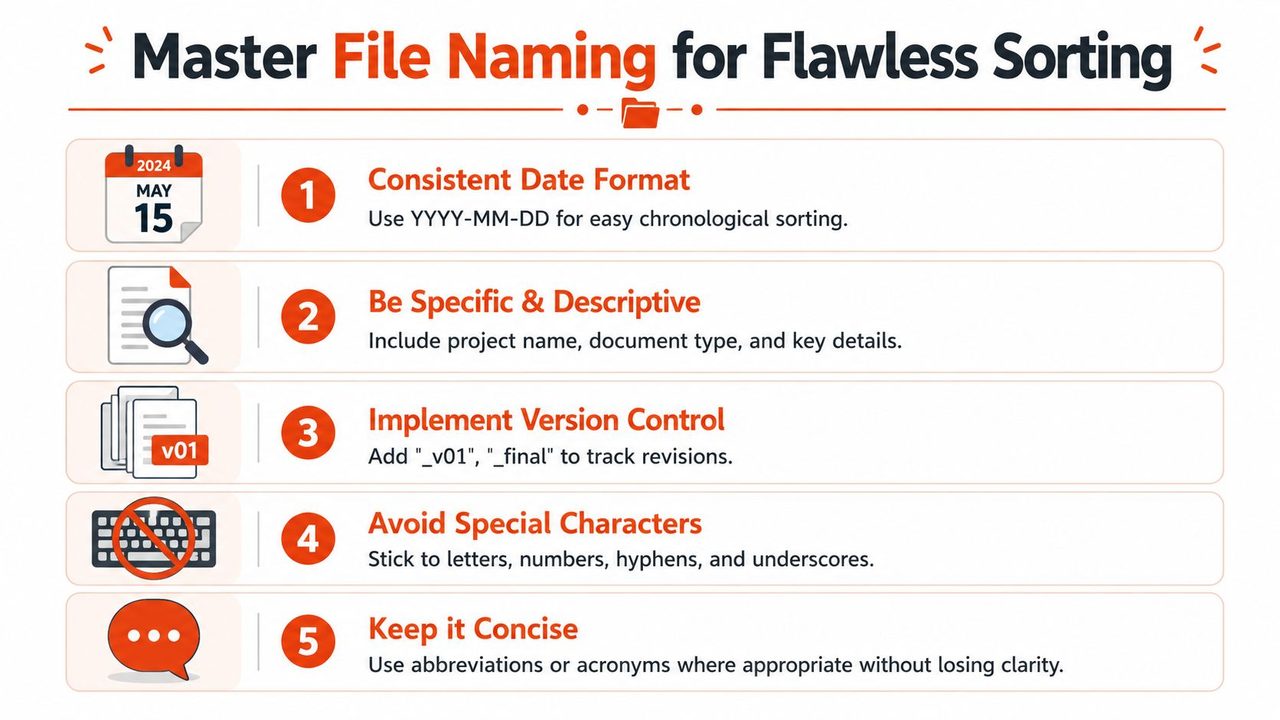
The best naming systems follow rules that both humans and machines handle well. The University of Virginia's research data management guidance recommends using the ISO 8601 date format YYYY-MM-DD, avoiding spaces and special characters, using only letters, numbers, underscores, or dashes, limiting filenames to 32 characters or fewer, and padding numbered files with zeroes so they sort correctly in systems that list files alphabetically. That guidance appears in the university's file management recommendations.
Use one format every time
Date formats break sorting when they start with month or day. 03-12-26 and 12-03-26 are also ambiguous. 2026-03-12 isn't.
That's why this format works so well:
YYYY-MM-DD_topic_type
Examples:
2026-02-14_clientA_invoice2026-03-01_q1_budget_draft2026-03-12_team_notes
Notice what's missing. No spaces. No symbols. No strange capitalization. No “final final revised.”
Filenames should be readable at a glance. If you need to open the file to understand what it is, the filename failed.
A naming pattern that holds up
A durable filename usually contains a few parts in a fixed order:
- Date first so sorting works automatically
- Topic or source second so you know the context
- Document type third so you know what you're opening
- Version only when needed so drafts don't collide
A few good patterns:
- Meeting notes:
2026-04-09_product_review_notes - Proposal draft:
2026-04-10_clientB_proposal_v01 - Transcript:
2026-04-10_user_interview_transcript - Batch files:
image_001,image_002,image_003
Zero-padding matters more than people think. Without it, 10 sorts between 1 and 2 in many file lists. With 001, 002, 003, the sequence stays intact.
Here's what usually doesn't work:
- Too much detail:
2026-04-10-full-and-complete-weekly-marketing-standup-notes-edited - No date:
marketing_notes - Version chaos:
proposal_final_REAL_final_v3
Keep it short, stable, and predictable. Once you pick a pattern, don't improvise. Consistency matters more than cleverness.
Adopt a Search First Mindset for Modern Productivity
The old model of file organization assumes you'll remember the path. That used to be reasonable. It's less reasonable now.
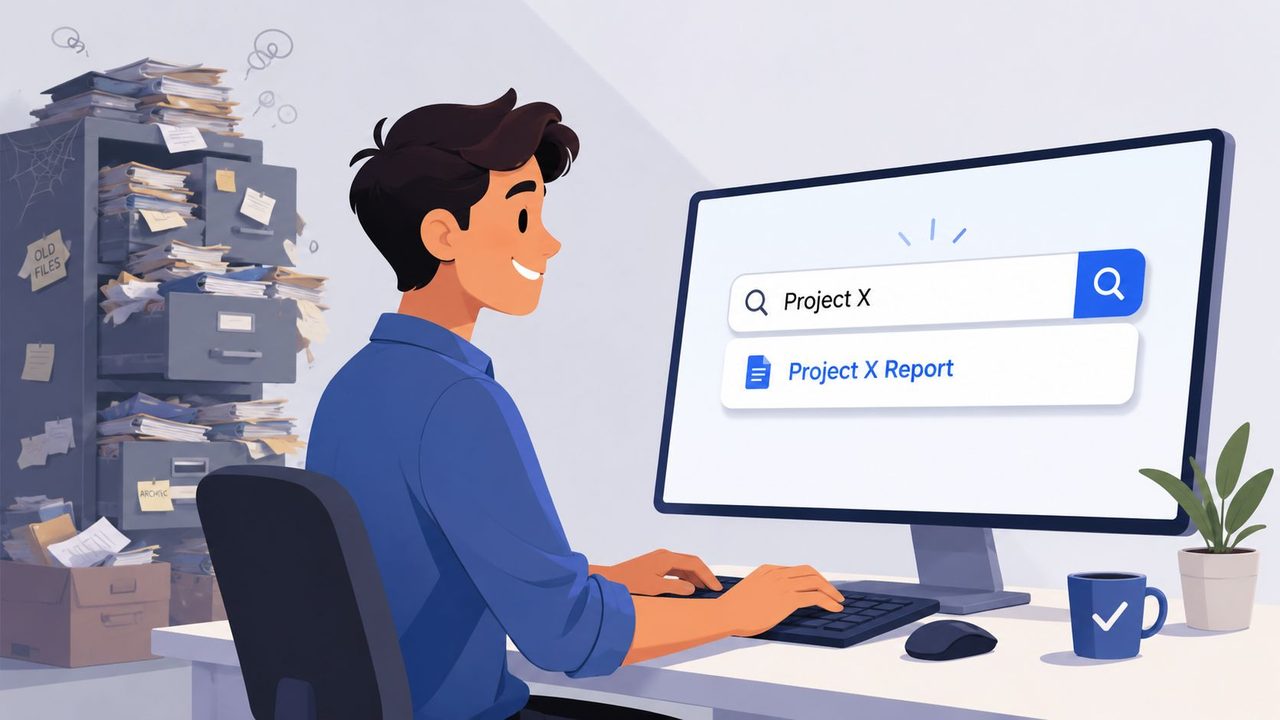
Modern search is strong enough that you don't need to click through a maze to find one PDF, note, or transcript. A more current view is to keep folders topic-based and let search do more of the retrieval work. One source on modern digital workflows states that 80% of users rely on AI-powered search to locate content by name, date, or content rather than folder path, and argues for a search-first model organized by topic in this discussion of AI-powered search behavior.
Deep nesting is an old habit
Many people still organize documents as if they're using a filing cabinet. Year. Month. Event. Sub-event. Final materials. That structure forces you to remember where you once decided something belonged.
Search-first flips that. You create a sensible home, then retrieve by file name, date, keyword, tag, or document content. That works especially well for notes, transcripts, agendas, specifications, briefs, and reference files because the content itself is often searchable.
Clean note capture matters. If your notes are stored with useful names and consistent wording, search becomes dramatically more reliable. Teams that rely heavily on meetings and research will recognize this in strong note-taking workflows that turn rough input into retrievable output.
What search-first looks like in practice
Search-first does not mean “throw everything into one folder.” It means you stop overbuilding subfolders and start trusting good names, searchable text, and broad topic containers.
Compare the two approaches:
| Traditional filing | Search-first filing |
|---|---|
Work > Marketing > 2026 > Q2 > Campaigns > Launch > Notes | Projects > Spring_Launch |
| Retrieval by path memory | Retrieval by keyword, date, or content |
| High filing effort | Low filing effort |
| Often abandoned | Easier to sustain |
Search-first works well when you do three things:
- Name files clearly so search has something useful to match
- Store by topic or project instead of by tiny categories
- Keep content searchable by using standard document formats and clean text
Search is faster when the file already has a good name, useful text inside it, and a predictable home folder.
The trade-off is simple. You give up some visual neatness in exchange for faster retrieval and less filing friction. This often proves to be a good deal.
Leverage Tags and Metadata for Flexible Access
A folder can place a file in one location. Tags can describe it from several angles at once. That's why folders alone break down when one document belongs to multiple contexts.
An invoice for a software vendor might belong to Finance, an annual budget, and a specific product team. A user interview transcript might matter to research, onboarding, and a product launch. Duplication is the usual workaround, and duplication creates confusion fast.
Folders answer where, tags answer what
Use folders for stable placement. Use tags and metadata for flexible meaning.
That distinction matters because retrieval questions are different:
- Where is the file stored?
- What project does it support?
- Which client is it tied to?
- Is it approved, draft, reviewed, or archived?
- Does it contain sensitive material?
If you work in Microsoft 365 or any environment where classification matters, it's worth reading Ollo's insights on AI governance. The piece is useful because it treats metadata and tagging as operational infrastructure, not just cosmetic labels.
A simple tagging model
Keep tags short and functional. Don't build a giant folksonomy that nobody remembers.
A practical setup might include:
- Project tags like
Project_AtlasorClient_B - Document-type tags like
invoice,transcript,brief,spec - Status tags like
draft,approved,sent,paid - Sensitivity tags like
confidentialorinternal
That gives one file multiple access paths without moving it around.
Here's an example:
| File | Folder location | Tags |
|---|---|---|
| Vendor invoice PDF | Personal/Finance/Invoices | vendor, paid, software, Q2 |
| User interview notes | Projects/Product_Research/Interviews | research, customer, transcript, onboarding |
| Team policy doc | Resources/Operations/Policies | internal, approved, HR |
On macOS, Finder tags are enough for many people. On Windows, file properties and document management tools can help. Inside tools like Notion, Evernote, SharePoint, or a DAM system, metadata is often even more useful because it travels with the item inside the app's search and filtering system.
The right tag set makes one file discoverable in several workflows without creating several copies.
The mistake is over-tagging. If every file has ten labels, no label means much. Pick a few categories you'll filter by and ignore the rest.
Automate Your Workflow and Maintain Digital Zen
Most organization systems fail after a week because they ask for too much effort when you're already busy. The system has to survive real workdays, not ideal ones.
That's why maintenance beats marathons. A practical decluttering approach from a discussion on long-term file mess recommends 15-minute timers with single-intention tasks, such as deleting only photos or renaming only documents, as the most effective way to bypass overwhelm in this Time-Boxed Declutter discussion.
Treat cleanup like brushing your teeth
Short sessions work because they remove decision fatigue. You don't sit down to “organize your digital life.” You do one contained task.
Good examples:
- Rename only PDFs in Downloads
- Delete only screenshots
- Move only completed project files into Archive
- Review only meeting recordings
- Consolidate only duplicate exports
This works because each session has one rule. No switching. No side quests. No redesigning your whole system halfway through.
A weekly rhythm can be simple:
- Inbox sweep for Downloads and desktop
- Project reset for active folders
- Archive pass for closed work
- Backup check to confirm sync is working
Automate the boring parts
You should still make a few decisions manually. But repetitive routing should happen automatically wherever possible.
Useful automation examples include:
- Cloud sync so files back up without thought
- Email rules to route receipts, reports, and notifications
- Default save locations for recurring file types
- Template files with prefilled names or folder destinations
- Transcription and dictation workflows that output clean text ready to save
This last point matters more than people realize. If the files you create start messy, you'll keep creating future clutter. Meeting notes with vague titles, raw transcripts with filler text, and copied chat logs all become hard to search and annoying to store. Clean output at the moment of capture reduces cleanup later.
A good maintenance system feels slightly boring. That's a compliment. The more dramatic your organization process feels, the less likely you are to keep doing it.
Role Specific Templates and Final Thoughts
A strong file system should adapt to the work, not force every profession into the same shape. The principles stay stable. The folder names change.
Below are practical examples for common knowledge-heavy roles. Each uses broad categories, a shallow structure, and names that match how people retrieve files.
Sample folder structures by role
| Role | Level 1 Folder | Level 2 Folder | Level 3 Folder (Example) |
|---|---|---|---|
| Product Manager | Projects | Product_Redesign | User_Research |
| Software Developer | Projects | Repo_Name | Docs |
| Healthcare Professional | Personal or Work | Patient_or_Department | Visit_Notes |
| Customer Support Lead | Projects | Escalations | Weekly_Reviews |
| Marketing Manager | Projects | Campaign_Name | Assets |
A product manager usually needs fast access to specs, meeting notes, roadmaps, and research. A practical setup might be Projects > Mobile_App > Specs, Projects > Mobile_App > Research, and Resources > Templates > PM. Filenames work best when they include the date plus artifact type, such as roadmap, notes, or brief.
A software developer tends to retrieve by repository, feature, environment, or documentation type. Good examples include Projects > API_Platform > Docs and Projects > Client_SDK > Release_Notes. Developers often benefit from keeping architecture notes, troubleshooting docs, and handoff material in clearly named markdown files instead of scattered snippets.
A healthcare professional needs consistency and privacy-minded discipline. Folders often map to department, patient grouping, or reporting need, depending on the environment's rules. Clear naming matters because reports, encounter notes, and follow-up documents need to be retrievable without ambiguity.
How the system adapts without breaking
The system works because it doesn't try to solve every edge case with another folder. It handles most retrieval through a combination of predictable placement, good names, and searchable content.
For example:
- A product manager can store stakeholder interviews in one project folder and retrieve by participant name or topic.
- A developer can drop design notes, code review summaries, and API docs into one repo folder without building five sub-branches.
- A healthcare worker can separate active and inactive records cleanly while keeping documentation patterns consistent.
For documentation-heavy work, it also helps to standardize how reference material is created and stored. Teams that produce recurring notes, summaries, and knowledge assets often benefit from a central approach to research documentation that stays usable after the project ends.
One final rule matters most. Don't wait to invent the perfect system. Build one that's easy to use on a rushed Tuesday afternoon. That's the one that lasts.
If you're wondering how to organize digital files without turning it into a part-time job, the answer is simple: use a shallow folder hierarchy, strict filenames, search-first retrieval, light tagging, and short maintenance sessions. That combination is durable because it matches real behavior. It doesn't ask you to be a librarian. It asks you to be consistent.
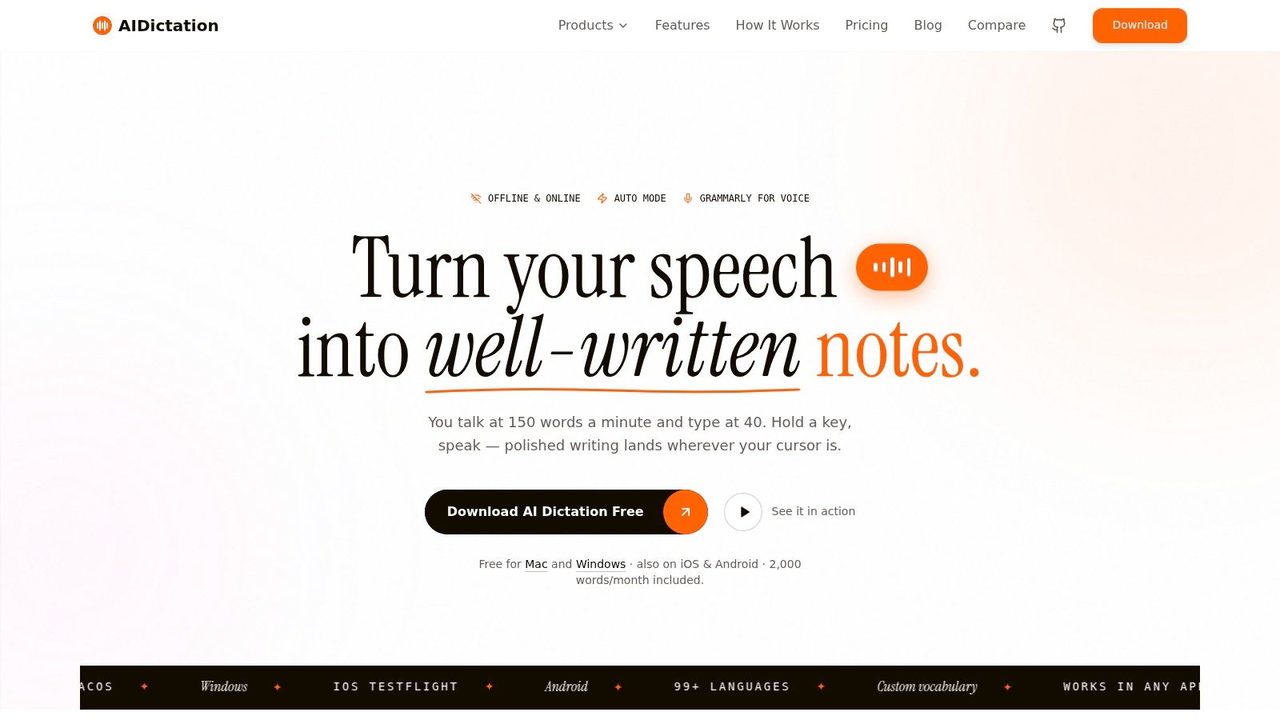
If you want your notes, transcripts, drafts, and documentation to start organized instead of becoming cleanup work later, AIDictation is worth a look. It's a macOS voice-to-text app that turns speech into clean, ready-to-save writing, which fits naturally into a search-first file system where naming, clarity, and retrievability matter from the moment a file is created.
Frequently Asked Questions
What does How to Organize Digital Files: A Fail-Proof System cover?
Your desktop has loose screenshots, your Downloads folder is a graveyard, and the file you need is always named something like . That's normal.
Who should read How to Organize Digital Files: A Fail-Proof System?
How to Organize Digital Files: A Fail-Proof System is most useful for readers who want clear, practical guidance and a faster path to the main takeaways without guessing what matters most.
What are the main takeaways from How to Organize Digital Files: A Fail-Proof System?
Key topics include Table of Contents, Build Your Foundation with a Simple Folder Hierarchy, Start broad, not clever.
Ready to try AI Dictation?
Experience fast voice-to-text on your device. Free to download.
Download FreeRelated Posts
Knowledge Worker Productivity: A Practical Playbook
Boost knowledge worker productivity with a practical playbook covering measurement, frameworks, async workflows, and tools that actually move the needle.
How to Handle Email Overload Without Losing Your Mind
Learn how to handle email overload with a tested system for triage, batching, automation, delegation, and faster replies using voice-to-text tools.
Structured Note Taking: Build a Powerful Knowledge Base
Transform messy notes into a powerful knowledge base with structured note taking. Explore Cornell, Outline, and more for all professions.