Voice Command Mac: Master Hands-Free Control in 2026
You're probably here because the keyboard keeps breaking your flow.
Maybe you're triaging email with one hand on coffee, maybe you're trying to capture meeting notes before the next call starts, or maybe your wrists are telling you that another day of constant typing isn't a great long-term plan. On a modern Mac, voice input is no longer limited to accessibility use cases. It can open apps, click buttons, move around the interface, and dictate text. But the built-in tools also have sharp edges, and those edges show up fast once you try to use voice as part of real work.
The good news is that the path from casual voice use to a serious hands-free workflow is straightforward once you stop treating Apple's features as one thing. They aren't. Mac voice control and Mac dictation solve different problems, and your setup gets much better when you use each one on purpose.
Table of Contents
- Enabling Your Mac's Built-in Voice Superpowers
- Mastering Essential Commands for Everyday Tasks
- Creating Custom Commands with the Shortcuts App
- Supercharging Your Workflow with AIDictation
- Practical Scenarios and Optimization Tips
- From Simple Commands to True Hands-Free Productivity
Enabling Your Mac's Built-in Voice Superpowers
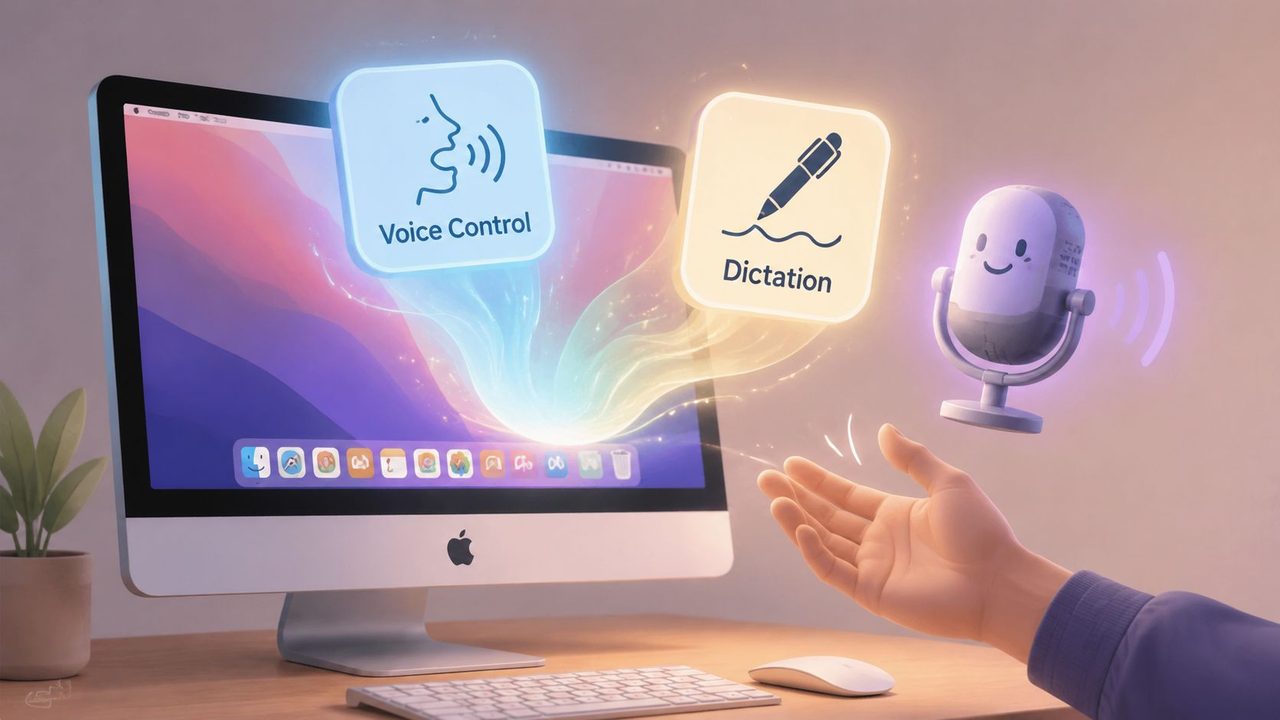
Apple gives you two separate voice systems on macOS. Many users mix them up, then assume the whole voice command Mac experience is worse than it is.
Know the difference first
Voice Control is for operating the Mac itself. Apple introduced modern macOS Voice Control with macOS Catalina (10.15), and Apple's own documentation shows it can handle commands such as “Open Mail,” “Scroll Down,” and “Click Done,” which makes it a full desktop interaction layer rather than just a narrow accessibility toggle (Apple Voice Control commands).
Dictation is for turning speech into text. It's useful when your cursor is already in a text field and you just want words on the page.
That distinction matters:
| Feature | Best use | What it does poorly |
|---|---|---|
| Voice Control | Navigation, clicking, switching apps, editing with commands | Long-form polished writing |
| Dictation | Quick text entry into a field | Full hands-free control of the Mac |
If you want the Mac to open apps, activate buttons, or move around menus, use Voice Control. If you want to dump a sentence into Notes, Messages, or Mail, use Dictation.
Turn on the right feature
Open System Settings and search for both features separately. Don't stop after enabling one.
A clean setup looks like this:
-
Enable Voice Control
- Open System Settings.
- Go to Accessibility.
- Find Voice Control.
- Turn it on.
- Confirm the correct language and microphone.
-
Enable Dictation
- Open System Settings.
- Go to Keyboard.
- Turn Dictation on.
- Choose your language and microphone.
-
Check the microphone input
- If you use AirPods, a USB mic, or a built-in MacBook mic, select the one you want.
- Test in a quiet room first. Bad setup creates fake “accuracy” problems that are really input problems.
Apple's older voice features were much more limited. Before Siri-era macOS voice tooling, Classic Voice Control appeared on the iPhone 3GS in June 2009, and later versions evolved into broader accessibility controls. In practice, Voice Control on Mac also supports Dictation mode and Spelling mode, and you can say “Stop listening” or “Start listening” to control recognition state (Voice Control background and modes).
Practical rule: If you're trying to control the screen, think in verbs. Open, click, scroll, show. If you're trying to write, place the cursor first, then dictate.
One more useful move is learning the underlying speech-to-text behavior before you customize anything. A focused guide to macOS speech to text workflows helps clarify where Apple's native tools work well and where they start to feel cramped.
Mastering Essential Commands for Everyday Tasks
The fastest way to get value from voice on Mac is to stop experimenting randomly and memorize a small command set you can use every day.
The commands worth memorizing first
A typical morning workflow proves the point. You sit down, your hands are still off the keyboard, and you want to get moving fast. Voice Control is good at that first minute.
Start with a handful of commands:
- Open apps: “Open Mail,” “Open Notes,” “Open Safari”
- Move through content: “Scroll Down,” “Scroll Up”
- Target controls: “Click Done,” “Click Cancel”
- Reveal overlays: “Show numbers”
- Select by number: “Click 14”
- Manage listening state: “Wake up” when recognition is idle
Those commands remove friction in a way keyboard shortcuts sometimes don't, especially when you're switching contexts. “Show numbers” is one of the most useful commands on the whole system because it turns vague interface hunting into explicit targets. Once numbers appear, “Click 8” is often faster than visually searching for a small control.
Use Voice Control for navigation, then switch mentally into dictation only when the cursor is in the right field. Mixing those modes on purpose feels much smoother than expecting one feature to do both jobs well.
If you want examples beyond macOS alone, this overview of applications of voice commands is a useful way to think about where command-based interaction works best in practice, especially for repetitive tasks.
Where the native workflow starts to drag
Here's where many people hit the wall. Built-in dictation feels fine for a sentence, then starts interrupting your train of thought during anything longer.
A field test reported that standard macOS dictation has a practical session ceiling of about 40 seconds, which means you often have to restart after a sentence or two. That same testing noted that Voice Control becomes materially more useful for longer workflows because command phrases like “show numbers,” “click,” and “wake up” stay helpful even when straight dictation starts to feel choppy (TidBITS discussion of macOS dictation limits).
That limitation changes how you should use the built-in stack:
- Use Dictation for short bursts. Quick replies, search boxes, note fragments.
- Use Voice Control for system movement. Opening apps, switching panes, clicking controls.
- Don't expect native dictation to carry long drafting sessions comfortably. That's where frustration usually starts.
I've found the native setup works best when the spoken task is obvious and short. “Open Reminders.” Good. “Scroll down.” Good. “Draft a structured project update with clean formatting and minimal cleanup.” That's where the cracks show.
Creating Custom Commands with the Shortcuts App
The jump from voice novelty to voice productivity happens when you stop relying only on Apple's default command list. The Shortcuts app is where your Mac starts responding to your actual work habits.
Build a shortcut you will actually use
Don't begin with an ambitious automation. Start with something you repeat every week.
A solid first shortcut is Prep for meeting. The idea is simple. One spoken phrase sets up the same workspace every time:
- Open Calendar
- Open Notes
- Open your video meeting app
- Create or surface a document where you capture action items
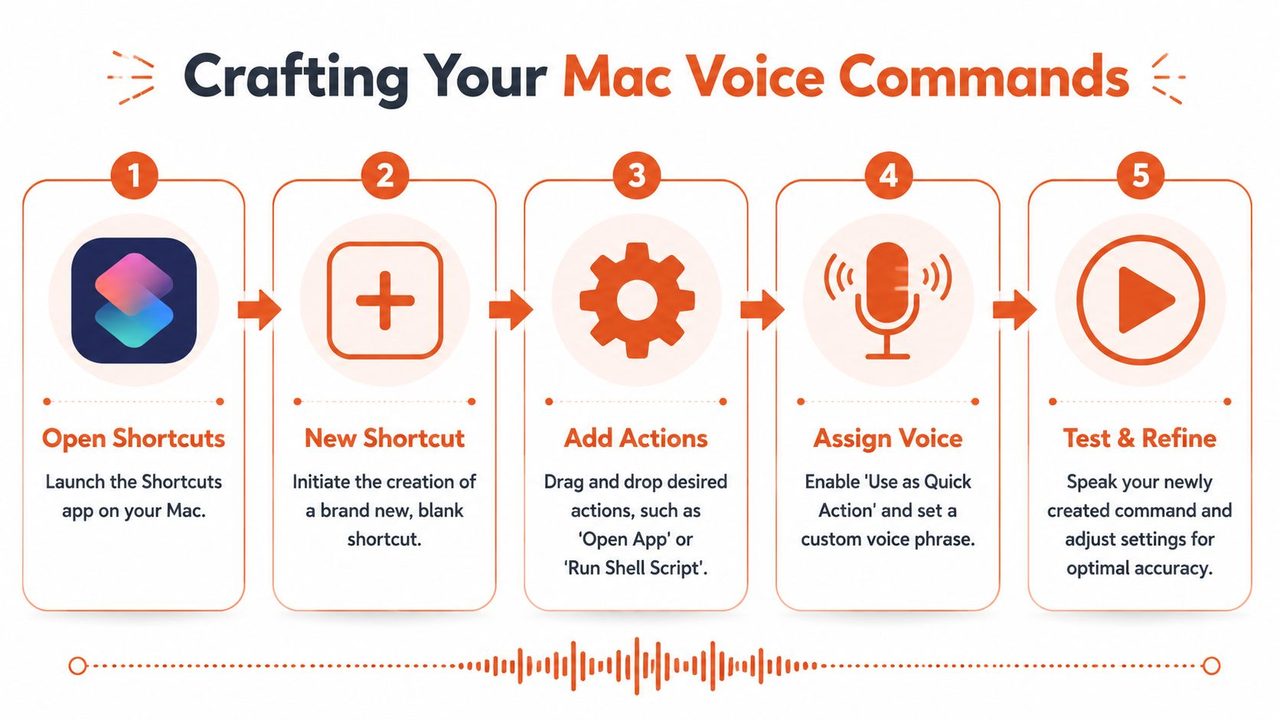
Inside Shortcuts on macOS, create a new shortcut and add actions one by one. The exact apps will vary, but the pattern stays the same.
Try this build order:
-
Open Calendar
- Add the “Open App” action.
- Choose Calendar.
-
Open Notes
- Add another “Open App” action.
- Choose Notes.
-
Open your meeting app
- Add “Open App” again.
- Pick Zoom, Google Chrome, Microsoft Teams, or whatever you use.
-
Create a note shell
- If you work in Notes, add text that looks like:
- Meeting
- Attendees
- Decisions
- Action items
- Then pass that text into a note action.
- If you work in Notes, add text that looks like:
-
Save and name the shortcut clearly
- Choose something you'd naturally say, not something clever.
Your phrase should sound like real speech. “Prep for meeting” is better than “meeting initialization sequence.” Voice systems usually behave better when the phrase is short, distinct, and easy to pronounce.
For a visual walkthrough, this embedded demo is worth watching before you overcomplicate your first setup.
Make it reliable enough for daily use
The first version of a shortcut rarely survives real work unchanged. Reliability comes from trimming ambiguity.
A few rules help:
- Avoid overlapping trigger phrases. Don't create “Open notes” and “Open Note” style variations.
- Keep each shortcut opinionated. One shortcut should do one workflow well.
- Use app-specific outputs. A PM's meeting shortcut should create action items. A developer's version might open a repo, issue tracker, and a scratchpad file.
The best custom voice command is boring. You say it the same way every time, and the Mac does the same thing every time.
This is also where workflow-specific automation gets interesting. For example, teams trying to improve email workflow with AI often combine shortcut triggers with templated drafting, triage, and follow-up steps. That same thinking applies on Mac. Use voice to launch the sequence, not just a single app.
If you want to go deeper on naming commands and training the system around terms you use often, this guide on custom voice commands and vocabulary is a practical next step.
Supercharging Your Workflow with AIDictation
At some point, the native Mac setup stops failing because of your technique and starts failing because of its design. That's the moment to switch from “voice features” to a dedicated dictation workflow.
Why built-in dictation stops short
The built-in stack is good at two things. It can help you control the Mac with explicit commands, and it can capture short bursts of text. What it doesn't do especially well is turn messy spoken thinking into clean, ready-to-use writing.
That gap matters most when you're writing for work. Product updates, stakeholder notes, support replies, technical documentation, and clinical notes all need more than transcription. They need cleanup.
The issue isn't only recognition. It's everything after recognition:
- removing filler words
- handling self-corrections naturally
- producing readable paragraphs instead of raw speech fragments
- adapting tone to the app you're in
- staying useful even when your environment isn't perfect
That's why dedicated tools exist. They aren't replacing Voice Control's role in desktop navigation. They're solving a different problem. They make speech output usable without the usual round of manual repair.
A better workflow for real writing
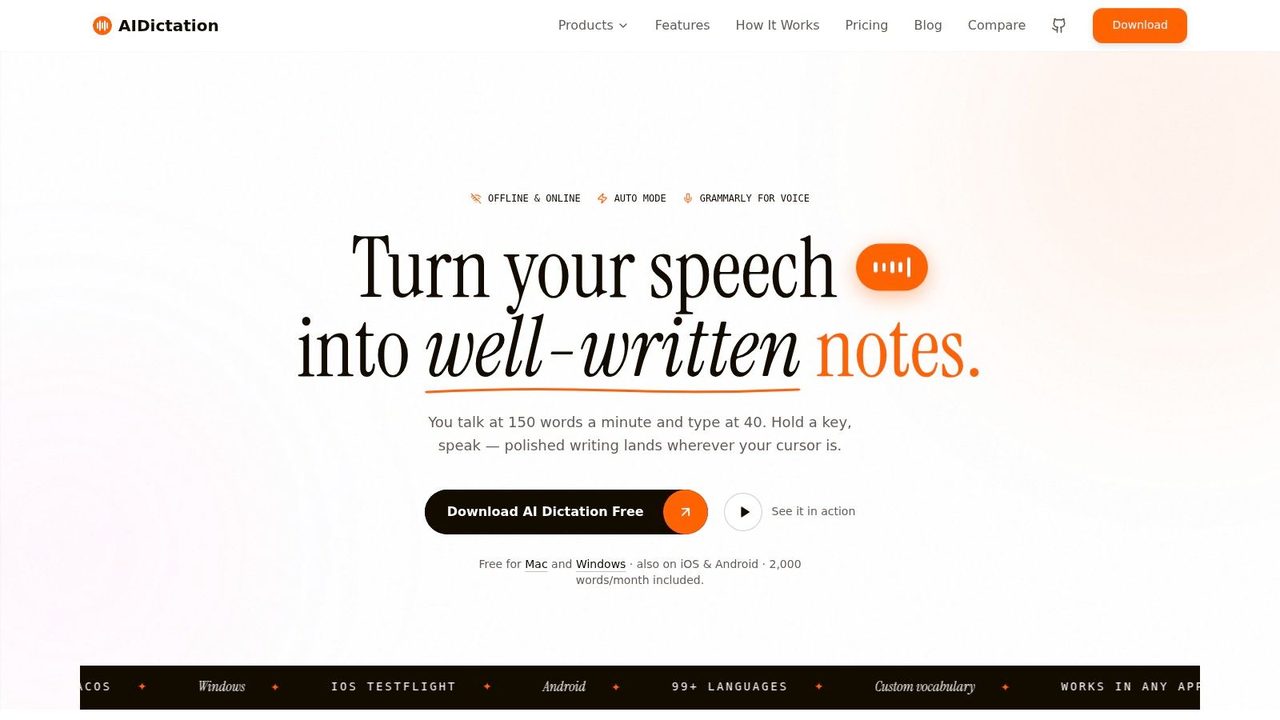
AIDictation is the kind of tool that makes sense after you've already used Apple's native options enough to know where they break.
Its model is straightforward:
- Local Mode keeps dictation on-device on Apple Silicon for private, offline use.
- Cloud Mode adds AI cleanup, formatting, grammar correction, and more polished output.
- Auto Mode chooses the best engine automatically so you don't have to decide every time.
That structure matters because different work needs different behavior. If you're drafting sensitive internal notes on a flight or in a clinic room with no interest in sending audio anywhere, local processing is the right fit. If you're dictating a rough project summary and want polished paragraphs ready for Slack, Notion, or email, cloud cleanup is the better fit.
Here's the practical advantage. With basic dictation, you usually speak, then edit. With a stronger AI dictation workflow, you speak in a more natural way and let the system handle much of the cleanup work that would otherwise drag you back into the keyboard.
A useful way to think about the split:
| Workflow need | Native Mac tools | Dedicated AI dictation |
|---|---|---|
| Open apps and click UI | Strong | Not the main job |
| Short text entry | Fine | Also fine |
| Long drafting sessions | Starts to feel brittle | Better suited |
| Polished output with less cleanup | Limited | Stronger fit |
| Privacy-first offline option | Depends on setup | Better if local mode is available |
For serious voice-first writing, that shift is hard to ignore. You stop dictating “as if the computer is fragile” and start speaking more normally. That alone reduces mental overhead.
A second benefit is consistency. If you bounce between Mail, Slack, your editor, and docs all day, context-aware handling matters. You want a tool that can help produce concise email in one app, more casual text in another, and structured notes somewhere else. Native dictation doesn't really think at that layer.
If you're comparing options in this category, this overview of what makes a strong voice typing app is a useful framework. The right benchmark isn't “does it transcribe.” Plenty of tools transcribe. The benchmark is whether the output is good enough to send without turning dictation into a cleanup chore.
Clean output is the real productivity feature. Recognition alone isn't enough if every paragraph still needs repair.
Practical Scenarios and Optimization Tips
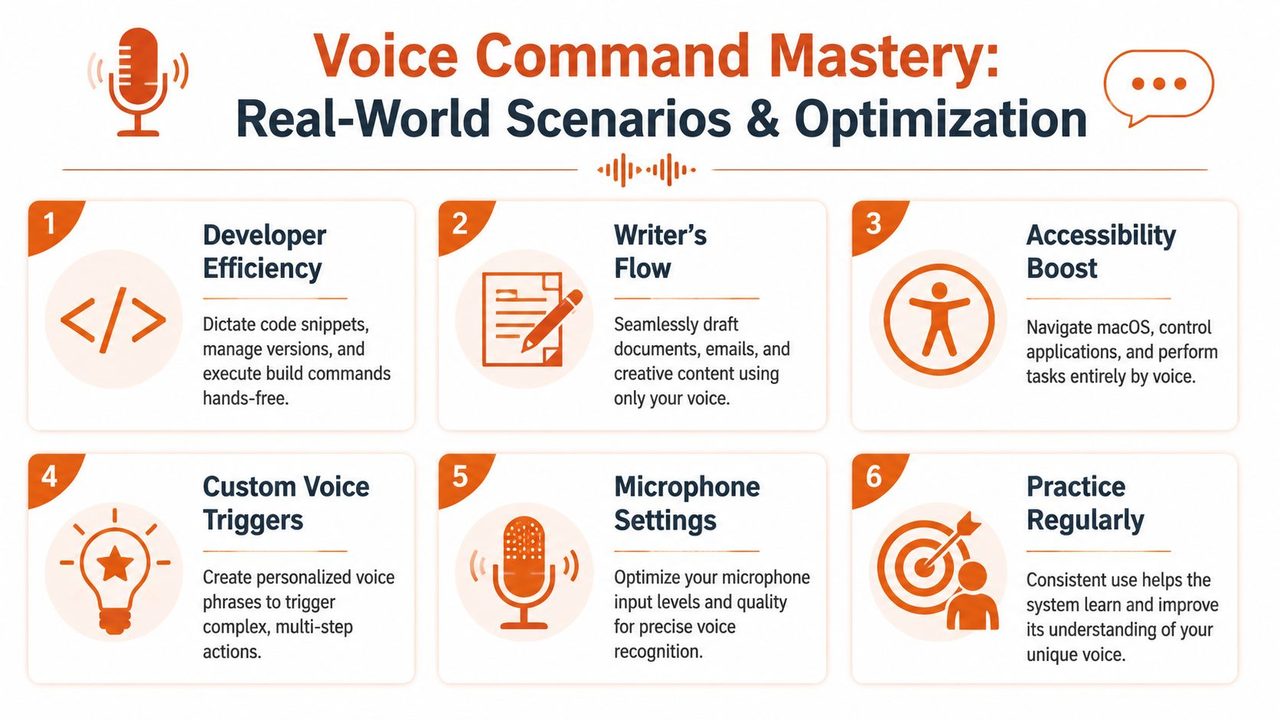
Voice on Mac gets better when you stop treating it as one universal workflow. Developers, product managers, support teams, and clinicians don't need the same setup. The command layer, the dictation layer, and the cleanup layer each matter differently depending on the job.
How different professionals use voice on Mac
For developers, voice works best around the codebase rather than inside raw code entry. Dictating code comments, drafting pull request summaries, opening local tools, and creating documentation are all good fits. Saying a command to open the repo, launch a terminal, and bring up your notes app can save more friction than trying to speak every symbol in a source file.
For product managers, the sweet spot is meetings. Voice can capture rough notes during or right after a call, then turn those notes into decisions, risks, and next actions. A custom shortcut can set up the workspace. A stronger dictation layer can make the output readable enough to paste into a spec or stakeholder update.
For support and marketing teams, speed matters more than novelty. Voice can help draft repetitive replies, summarize customer context, and push through inbox backlogs when typing every response becomes tedious. The best use case is usually first draft generation, not final approval.
How to improve recognition without overthinking it
Recognition quality changes dramatically with your environment and your voice profile. Independent clinical testing found that speakers with voice disorders or strong accents had mean word-recognition scores around 68.6% to 73.0%, compared with 91.9% to 93.8% for speakers without those voice differences across Apple and Google systems (clinical comparison of mainstream voice recognition). That gap is the clearest reminder that “just speak clearly” is not a serious answer for everyone.
A practical setup checklist helps more than constant retraining:
- Choose the right microphone. A consistent USB mic or a reliable headset usually beats bouncing between input devices.
- Reduce room noise. Fans, open-office chatter, and keyboard clatter all create avoidable errors.
- Use custom vocabulary where possible. Names, product terms, and technical language are where generic systems often stumble.
- Separate command phrases from drafting phrases. Short, distinct commands are easier for the system to trigger reliably.
- Match the tool to the privacy requirement. Some work is fine for cloud cleanup. Some isn't. For sensitive notes, local processing matters.
Here's a simple decision table:
| Situation | Best approach |
|---|---|
| Need to click around macOS hands-free | Use Voice Control |
| Need a quick sentence in a text field | Use native Dictation |
| Need long, polished writing with fewer edits | Use a dedicated AI dictation workflow |
| Need stronger privacy controls | Prefer local processing modes |
If recognition keeps failing, check the microphone and environment before blaming your voice. Then choose a tool that handles variability better.
Privacy deserves blunt treatment. If you're dictating sensitive client updates, medical notes, internal planning, or legal-adjacent content, you should know whether processing stays on-device or leaves the Mac. That isn't a niche concern. It's part of tool selection.
The best voice command Mac setup is rarely one feature. It's a stack. Voice Control for navigation. Shortcuts for repeated actions. A stronger dictation system for actual writing. Once you accept that split, the whole workflow gets much less frustrating.
From Simple Commands to True Hands-Free Productivity
A lot of people still treat voice on Mac like a gimmick. That view usually comes from trying one feature once, hitting a limit, and assuming the whole category is shallow.
It isn't.
Apple's built-in tools already give you a useful foundation. Voice Control can move around the desktop effectively. Dictation can handle short text input. Shortcuts can turn repetitive spoken phrases into real automation. The bigger leap happens when you stop expecting one native feature to solve every problem and start building a layered workflow around the job you do.
That's the shift that makes voice command Mac workflows worth taking seriously. Not because you never touch the keyboard again, but because you remove the worst friction from navigation, note capture, drafting, and repetitive setup. For many people, that means faster output. For others, it means less strain and a more sustainable way to work through the day.
If you want hands-free productivity to be more than a demo, start small. Learn a few commands. Build one shortcut you'll use every week. Then upgrade the dictation layer when the native one starts slowing you down.
If you've outgrown the built-in Mac voice tools and want cleaner dictation with less manual correction, try AIDictation. It's built for macOS users who need speech-to-text that feels ready for real work, whether you want private local dictation, AI-polished cloud output, or an automatic mode that picks the best option for the moment.
Frequently Asked Questions
What does Voice Command Mac: Master Hands-Free Control in 2026 cover?
You're probably here because the keyboard keeps breaking your flow. Maybe you're triaging email with one hand on coffee, maybe you're trying to capture meeting notes before the next call starts, or maybe your wrists are telling you that another day of constant typing isn't a great long-term plan.
Who should read Voice Command Mac: Master Hands-Free Control in 2026?
Voice Command Mac: Master Hands-Free Control in 2026 is most useful for readers who want clear, practical guidance and a faster path to the main takeaways without guessing what matters most.
What are the main takeaways from Voice Command Mac: Master Hands-Free Control in 2026?
Key topics include Table of Contents, Enabling Your Mac's Built-in Voice Superpowers, Know the difference first.
Ready to try AI Dictation?
Experience fast voice-to-text on your device. Free to download.
Download FreeRelated Posts
Is There a Speech to Text App for Mac? a Practical Guide
Is There a Speech to Text App for Mac. Wondering if there is a speech to text app for Mac? Compare built-in Dictation, on-device engines, and AI tools like
Dictation Software for Medical Professionals Compared
Compare dictation software for medical professionals. Evaluate accuracy, HIPAA privacy, ambient AI tradeoffs, and on-device tools like AIDictation.
How to Use Voice Dictation on Mac
Use Voice Dictation on Mac. Master voice dictation on your Mac — from built-in Apple features to third-party tools like AIDictation