How to Add Word to Dictionary Across Devices in 2026
You're trying to finish an email, note, spec, or report, and your tools keep insisting that your name, your coworker's name, your product codename, or a basic industry term is wrong. The red squiggle shows up on your Mac. Then again in Word on Windows. Then your phone “fixes” it into something worse. Then a web app flags it all over again.
That isn't a language problem. It's a workflow problem.
Many users treat add word to dictionary as a tiny one-off fix. Right-click, add the word, move on. That helps for the next five minutes, but it doesn't solve the underlying issue if you work across macOS, Windows, mobile, browser tools, and AI writing assistants. The practical fix is to treat your custom dictionary like a small personal knowledge system: curated, synced where possible, and cleaned up when it gets messy.
Table of Contents
- Why Your Dictionary Gets Your Name Wrong and How to Fix It
- Mastering Your Desktop Dictionary on macOS and Windows
- Teaching Your Web Apps and Browser New Words
- How to Add a Word to a Dictionary on iOS and Android
- Advanced Tips for Managing Custom Dictionaries
- Your Custom Dictionary Questions Answered
Why Your Dictionary Gets Your Name Wrong and How to Fix It
Your spell checker isn't trying to rewrite English. It's comparing what you typed against a word list and deciding whether the term looks familiar enough to trust. That's why names, acronyms, client brands, medical terms, legal citations, and internal project labels get flagged so often.
There's also a basic distinction people miss. The dictionary and your dictionary are not the same thing.
Major dictionaries such as the OED don't add a word quickly. They often wait years and require widespread evidence of real use across many sources. One well-known example is that “internet” was first recorded in 1974 and did not receive a full OED entry until 1989, which shows how long formal recognition can take according to the OED example summarized in this reference. If you want your note-taking app to stop underlining “Shivani,” “Kubernetes,” or your company's product name today, waiting for formal lexicography isn't the point.
Practical rule: You're not applying to update the English language. You're teaching your own tools to stop wasting your time.
That's why the most useful mindset is simple: maintain a personal custom dictionary for the words you use repeatedly and want accepted across your work.
A good starting point is to separate words into three buckets:
- Always add: names, product names, client brands, technical acronyms, and recurring industry terminology.
- Usually don't add: random typos, accidental abbreviations, and one-off shorthand you won't want next month.
- Review first: terms with unusual capitalization, punctuation, or multiple valid spellings.
If you want a clean foundation before you start adding entries everywhere, this guide on setting up a custom dictionary for repeated terms is a useful reference point.
Mastering Your Desktop Dictionary on macOS and Windows
Desktop is where this problem is typically felt most sharply. You're drafting longer documents, sending more email, and switching between apps all day. If your desktop dictionary is messy, everything downstream gets slower.

macOS spell check and text tools
On macOS, the fastest fix is usually inside the app where the word is underlined.
- Control-click or right-click the flagged word.
- Choose the option to learn or add the spelling.
- Test it in the same app and then in another app like Notes or Mail.
Apple's text system often shares learned spellings across many native apps, but behavior can vary by app. A browser text field, a native document editor, and a third-party writing tool don't always read from the same place.
A few practical habits help on Mac:
- Add the correctly capitalized version: If a name is “McAllister” or a term is “GraphQL,” add it in the form you want to see.
- Watch for duplicate variants: If you add both “api” and “API,” you may get inconsistent suggestions later.
- Check text replacement separately: Spell acceptance and text replacement are not the same feature.
If dictation is part of your workflow, it's worth learning how your speech tools and system text settings overlap. This walkthrough on macOS speech to text workflows helps connect those pieces.
Windows and Microsoft Word
On Windows, it's common to encounter this issue in Microsoft Word first. The good news is the basic fix is easy.
In Word:
- Right-click the underlined word.
- Select Add to Dictionary.
- Save the document and test the word in a new document.
That solves the immediate interruption. The more important step is remembering that Word also keeps a custom dictionary file, and that file matters if you switch profiles, reinstall Office, or use multiple machines.
Use a short review routine:
| Situation | What to do |
|---|---|
| A client name keeps getting flagged | Add it once in Word, then confirm the exact capitalization |
| A typo stopped being flagged | Open your custom dictionary settings and remove it |
| A word works on one PC but not another | Export or manually copy the custom dictionary file if your setup allows it |
Don't use your custom dictionary as a trash bin for mistakes. If you add misspellings just to make the red line disappear, you teach Word to trust bad input.
When dictation accuracy matters more than spelling
For professionals who dictate clinical notes, technical documentation, or domain-heavy content, custom dictionaries do more than remove red squiggles. They can improve recognition quality when maintained carefully.
In professional dictation workflows, properly maintaining a custom dictionary with domain-specific terms can reduce out-of-vocabulary errors by 30 to 50 percent over a 3 to 6 month period, according to the verified data for clinical custom dictionary maintenance. That matters if your work includes drug names, API terms, model names, legal entities, or internal jargon.
That's where a tool like AIDictation can fit. It includes a custom dictionary for names and technical terms on macOS, which is useful if your issue isn't only spelling but also recognition during voice input.
A practical desktop dictionary for work usually includes:
- Proper nouns: people, companies, places, products.
- Technical terms: frameworks, commands, protocols, medical terminology.
- Approved acronyms: the exact uppercase or mixed-case forms your team uses.
- Terms to avoid adding: obvious misspellings and temporary project slang unless it's become a real repeat-use term.
Teaching Your Web Apps and Browser New Words
Browser-based writing is where custom dictionary behavior gets confusing fast. Chrome may accept a word in one text field while Google Docs still treats it differently. That's normal. Browser spell checking and app-level dictionaries can overlap, but they aren't always identical.
Chrome and browser-level spelling
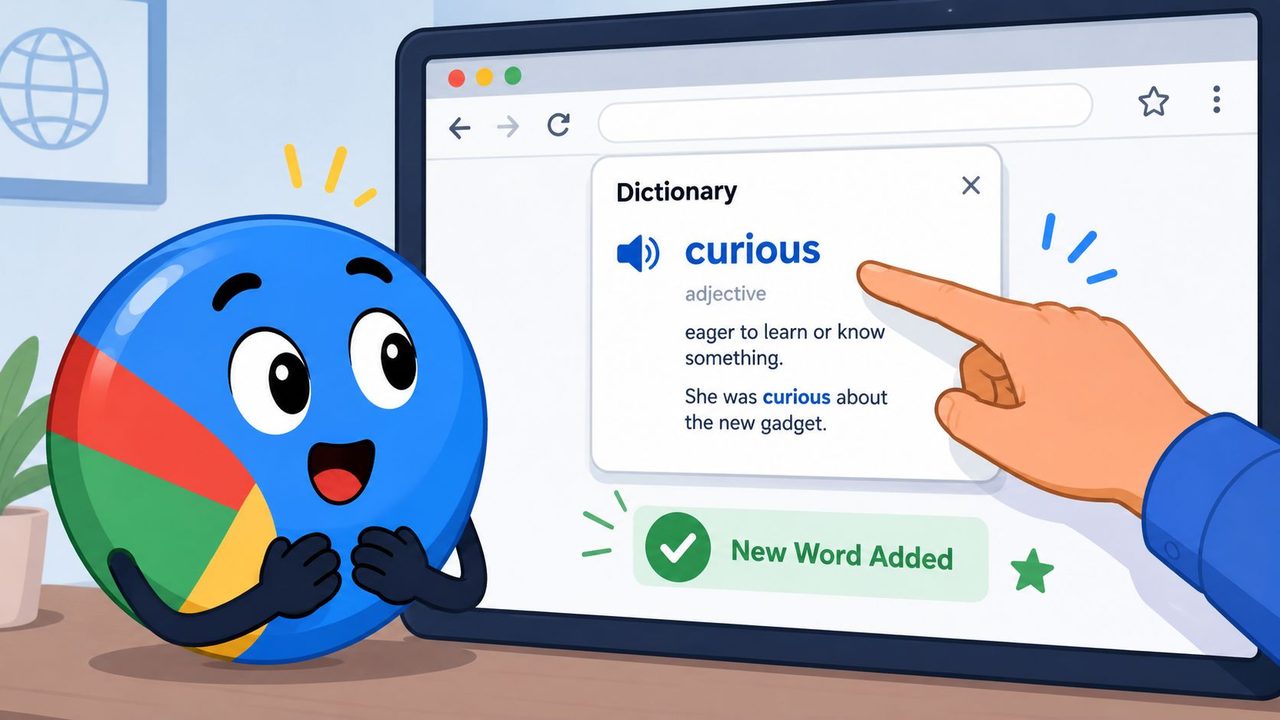
If you're typing in forms, CMS editors, chat tools, or webmail, Chrome's spell checker is often the first line of defense.
When Chrome underlines a word:
- Right-click the word and choose the option to add it to the dictionary.
- If that option doesn't appear, check browser language and spell check settings.
- Test the term in another site field, not just the current page.
This is worth doing for names and recurring terms you use all over the web, especially in Slack-like text boxes, ticket systems, and internal tools.
A good browser rule is to add only terms that appear in many contexts. If a word belongs only to one app, it may be better to teach that app instead of broadening your browser dictionary.
Google Docs personal dictionary
Google Docs has its own logic for personal spelling acceptance. If a word is repeatedly flagged in Docs, fix it there rather than assuming Chrome already handled it.
In practice, the quickest path is usually:
- Right-click the flagged term in Google Docs.
- Choose the option to add the word to your personal dictionary.
- Reopen or continue typing to make sure Docs now accepts the term in context.
Google Docs is especially sensitive when you use voice typing, shared docs, and frequent revisions. If voice input is part of your process, this guide on using voice recognition in Google Docs is a practical companion.
If a word is accepted in the browser but still looks wrong in the document editor, trust the app you're writing in. That's the environment that decides what interrupts your flow.
For web tools, the winning habit is simple: teach the word at the point of friction. Fix it where it breaks.
How to Add a Word to a Dictionary on iOS and Android
Mobile is where a small spelling problem turns into daily irritation. Phones don't just flag words. They replace them. That's why names, brands, and technical terms can get mangled before you even notice.
iPhone and iPad
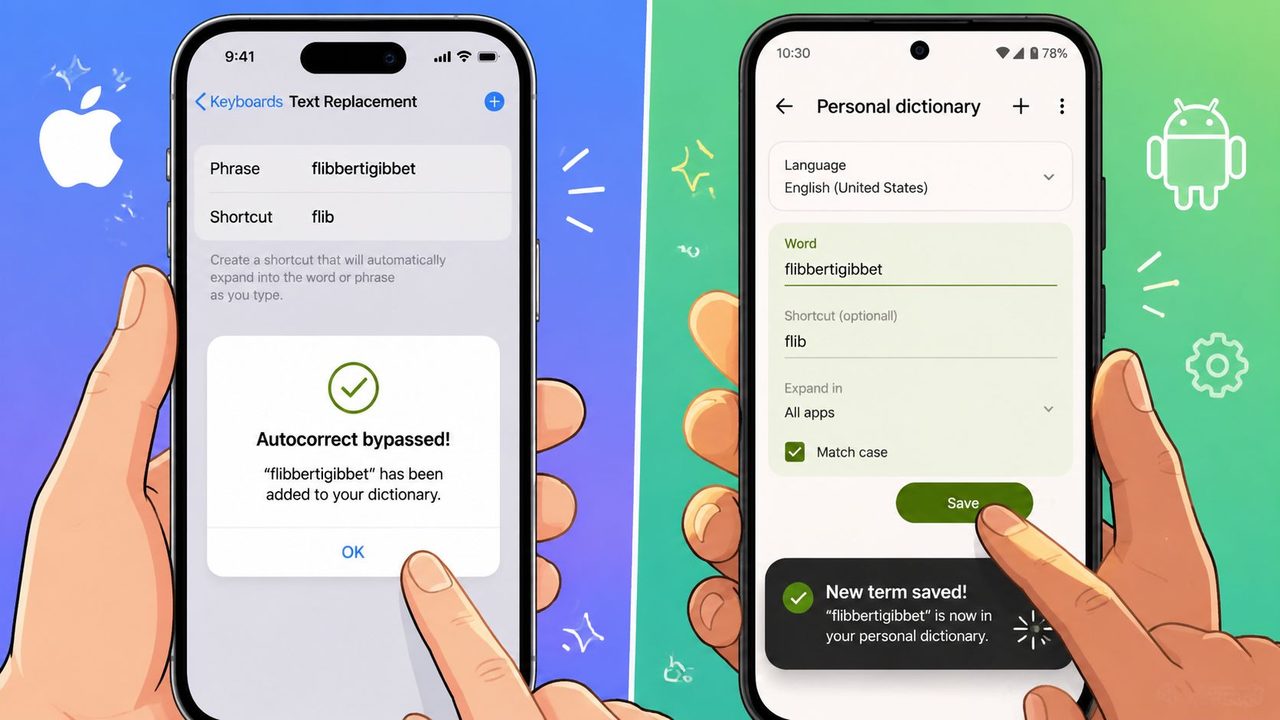
On iOS, the most reliable workaround is often Text Replacement rather than a classic exposed dictionary list. That's especially useful when you care about exact capitalization.
Try this:
- Open Settings.
- Go to General.
- Open Keyboard.
- Choose Text Replacement.
- Add a new entry with the word or phrase in the Phrase field.
- If helpful, create a short trigger in the Shortcut field.
This works well for:
- Names with exact casing: “AIDictation,” “McKinley,” “DeShawn”
- Brands and acronyms: “HIPAA,” “OAuth,” “PostgreSQL”
- Common corrections: replacing a shorthand habit with the full preferred term
The reason this method works is that iOS is often better at honoring explicit replacement behavior than vague spelling memory.
Here's a quick visual walkthrough for mobile users who prefer to see the process in action:
Android and Gboard
Android is usually more direct, especially if you use Gboard.
Open your keyboard settings, then look for Dictionary or Personal Dictionary. From there, add the term you want accepted. Some Android setups also let you tie entries to a language or create shortcuts.
A few mobile rules make a big difference:
- Add the final version you want typed. Don't add a half-correct placeholder.
- Test in messaging and email apps. Different apps can expose keyboard behavior differently.
- Use shortcuts carefully. A shortcut that's too common can trigger when you don't want it.
Mobile dictionaries work best when they're small and intentional. Your phone should know your important words, not every typo you've ever made.
Advanced Tips for Managing Custom Dictionaries
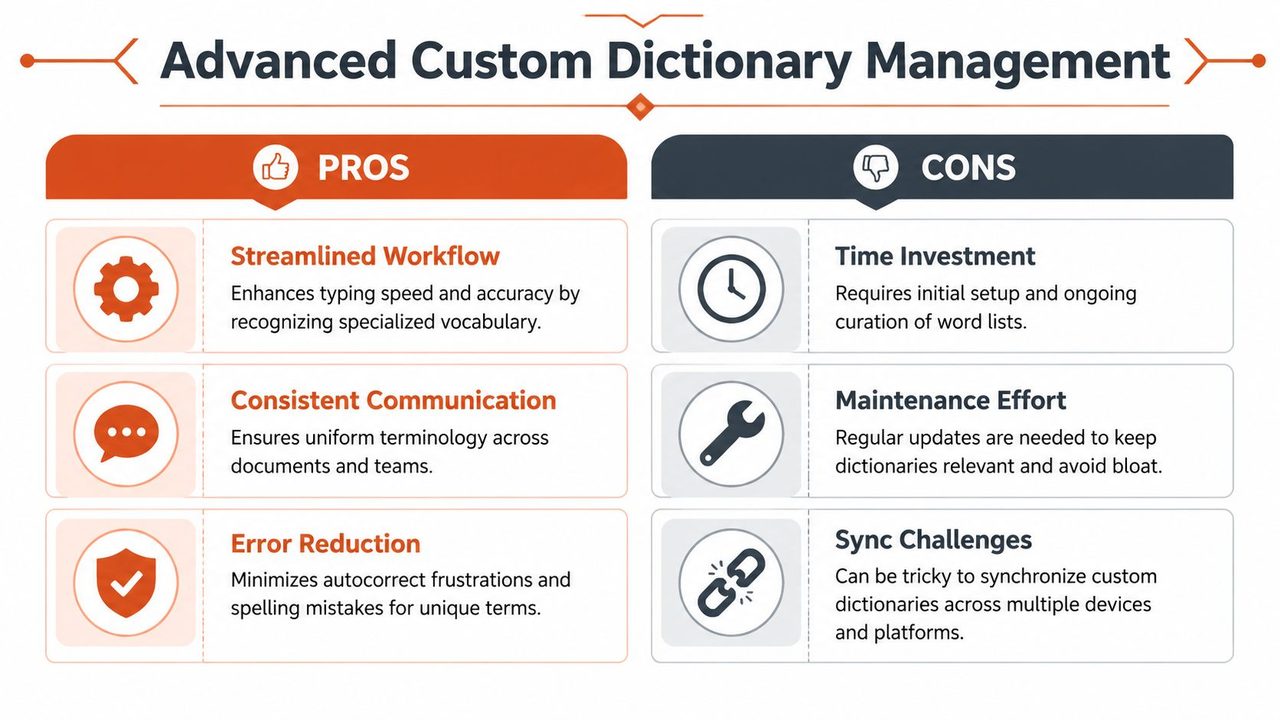
The difference between a helpful custom dictionary and a messy one is governance. That sounds formal, but it's just the discipline of deciding what belongs, who can change it, and how it behaves across tools.
What belongs in a custom dictionary
Start with words that create repeated friction and have a stable meaning in your work.
Good candidates include client names, coworker names, product names, approved abbreviations, recurring foreign-language proper nouns, and technical terms that standard spell checkers won't learn well on their own.
Poor candidates are usually the words people add in frustration:
- Temporary typos: if you misspelled it once, fix the typo.
- Context-specific fragments: shorthand that only made sense in one meeting.
- Unreviewed variants: multiple forms of the same term that create inconsistency.
If you need a structured way to keep terminology portable across systems, it helps to manage terminology in Markdown or JSON so the list can be reviewed and reused instead of trapped inside one app.
Security matters more than most guides admit
This is the part most how-to articles skip.
Most guides on adding words to a dictionary fail to address the security of managing these custom lists in professional settings, which creates a real gap for people in healthcare, legal work, and similar environments where custom dictionaries can encode sensitive information, as noted in the verified summary on underserved guidance for secure dictionary management.
That matters because a custom dictionary can contain:
- patient names
- internal drug references
- matter names
- confidential project labels
- customer account terminology
Treat a professional custom dictionary like work data, not like a harmless preference file.
If you're responsible for a team, use a few basic controls:
| Risk | Better practice |
|---|---|
| Sensitive names stored locally with no review | Keep a documented list of approved entries and review it periodically |
| Multiple staff members editing different copies | Assign ownership and version the master list |
| Terms shared casually over chat or email | Use approved internal storage with access controls |
| Old entries lingering forever | Remove terms that no longer belong in active use |
How custom words interact with AI writing tools
A custom dictionary and an AI writing assistant don't always share the same brain.
When you add a branded term to spell check, that may stop the red underline. It does not guarantee that your grammar tool, smart punctuation tool, or AI rewriter will format the term correctly. Some systems treat your custom word as accepted spelling only. Others may still normalize it, recase it, or misread its role in a sentence.
That's why professionals should test custom terms in three places:
- Spell check
- Dictation or speech recognition
- AI cleanup or rewriting
A term can pass one layer and fail the next. This is especially common with code names, product names that look like ordinary words, and mixed-case technical terms.
Keep the list useful, not bloated
Bigger isn't always better.
In real-time speech systems, custom dictionaries can create performance and ambiguity trade-offs if they're allowed to grow without discipline. Large, unmanaged user lexicons can affect latency and recognition behavior, especially when too many loosely related terms are active at once, according to the verified technical guidance for custom dictionary latency and recognition constraints.
The practical answer is curation.
Use a lightweight maintenance routine:
- Review additions regularly: If you can't explain why a term is there, remove it.
- Standardize formatting: Pick one accepted version for capitalization and spacing.
- Prefer root terms over noisy phrases: Single terms are usually safer than ambiguous multi-word entries.
- Separate personal from team terms: Your nickname for a project doesn't belong in a shared professional list.
A custom dictionary should reduce friction. The minute it starts preserving mistakes, leaking sensitive terminology, or confusing downstream AI tools, it needs cleanup.
Your Custom Dictionary Questions Answered
How do I remove a word I added by mistake
You'll usually need to remove it in the same environment where you added it. Word has custom dictionary management. macOS apps may rely on learned spelling controls. Chrome and Google Docs each have their own settings path. Mobile keyboards often store entries in keyboard or text replacement settings.
If a typo stopped being flagged, don't keep working around it. Remove it immediately before it spreads into autocorrect, templates, and copied text.
Will my custom dictionary sync across devices
Sometimes yes, often partially, and rarely in the clean way people expect.
Apple features may sync some keyboard-related behavior across Apple devices, but that doesn't mean every app on your Mac, iPhone, browser, and office suite will honor the same word list. Google tools may carry over some preferences inside your account, but browser behavior and app behavior can still diverge. Microsoft Word can maintain its own dictionary layer apart from your operating system.
The safe assumption is this: device sync is inconsistent unless you actively manage it.
Can a team share a custom dictionary
Yes, but only if someone owns the list.
For teams, the right setup is usually a reviewed shared terminology source plus app-specific deployment where needed. That matters most for support teams, healthcare documentation, legal drafting, and product organizations with lots of names and internal terms. Shared dictionaries help most when the team agrees on exact capitalization, spacing, abbreviations, and approved variants.
If your work includes regular dictation, technical terminology, or sensitive vocabulary across macOS workflows, AIDictation is worth a look because it supports custom terms in a speech-to-text workflow instead of treating the dictionary as an afterthought.
Frequently Asked Questions
What does How to Add Word to Dictionary Across Devices in 2026 cover?
You're trying to finish an email, note, spec, or report, and your tools keep insisting that your name, your coworker's name, your product codename, or a basic industry term is wrong. The red squiggle shows up on your Mac.
Who should read How to Add Word to Dictionary Across Devices in 2026?
How to Add Word to Dictionary Across Devices in 2026 is most useful for readers who want clear, practical guidance and a faster path to the main takeaways without guessing what matters most.
What are the main takeaways from How to Add Word to Dictionary Across Devices in 2026?
Key topics include Table of Contents, Why Your Dictionary Gets Your Name Wrong and How to Fix It, Mastering Your Desktop Dictionary on macOS and Windows.
Ready to try AI Dictation?
Experience fast voice-to-text on your device. Free to download.
Download FreeRelated Posts
Knowledge Worker Productivity: A Practical Playbook
Boost knowledge worker productivity with a practical playbook covering measurement, frameworks, async workflows, and tools that actually move the needle.
How to Handle Email Overload Without Losing Your Mind
Learn how to handle email overload with a tested system for triage, batching, automation, delegation, and faster replies using voice-to-text tools.
Structured Note Taking: Build a Powerful Knowledge Base
Transform messy notes into a powerful knowledge base with structured note taking. Explore Cornell, Outline, and more for all professions.