Best App That Turns Writing Into Text: 2026 Reviews
Tired of Typing? Turn Your Voice and Notes Into Text
You've got ideas in voice memos, meeting recordings, whiteboard photos, and half-legible notebook pages. The problem isn't capturing them. It's turning that mess into usable text before the next task interrupts you.
That's why the best app that turns writing into text isn't always the one with the most features. On a Mac, the primary question is where the processing happens, how much cleanup you need after capture, and whether the tool fits the way you already work. A coder dictating comments into VS Code needs something different from a product manager summarizing a Zoom call or a student converting handwritten lecture notes.
There's also a real split now between private, on-device tools and cloud tools built for collaboration. Some apps are best when you want instant dictation with no data leaving your machine. Others win when you need summaries, speaker labels, or polished output across a team. If you also publish video, this guide pairs well with how to add captions to YouTube.
Below are the tools I'd shortlist for macOS users, with the trade-offs that matter in real work: speed, accuracy, privacy, and cost.
Table of Contents
- 1. AIDictation
- 2. Apple Dictation
- 3. Microsoft 365 Dictation
- 4. Otter.ai
- 5. Rev
- 6. Sonix
- 7. Descript
- 8. Notta
- 9. MacWhisper
- 10. Nuance Dragon Medical One
- Top 10 Dictation & Transcription App Comparison
- Integrate Your Tool and Reclaim Your Time
1. AIDictation
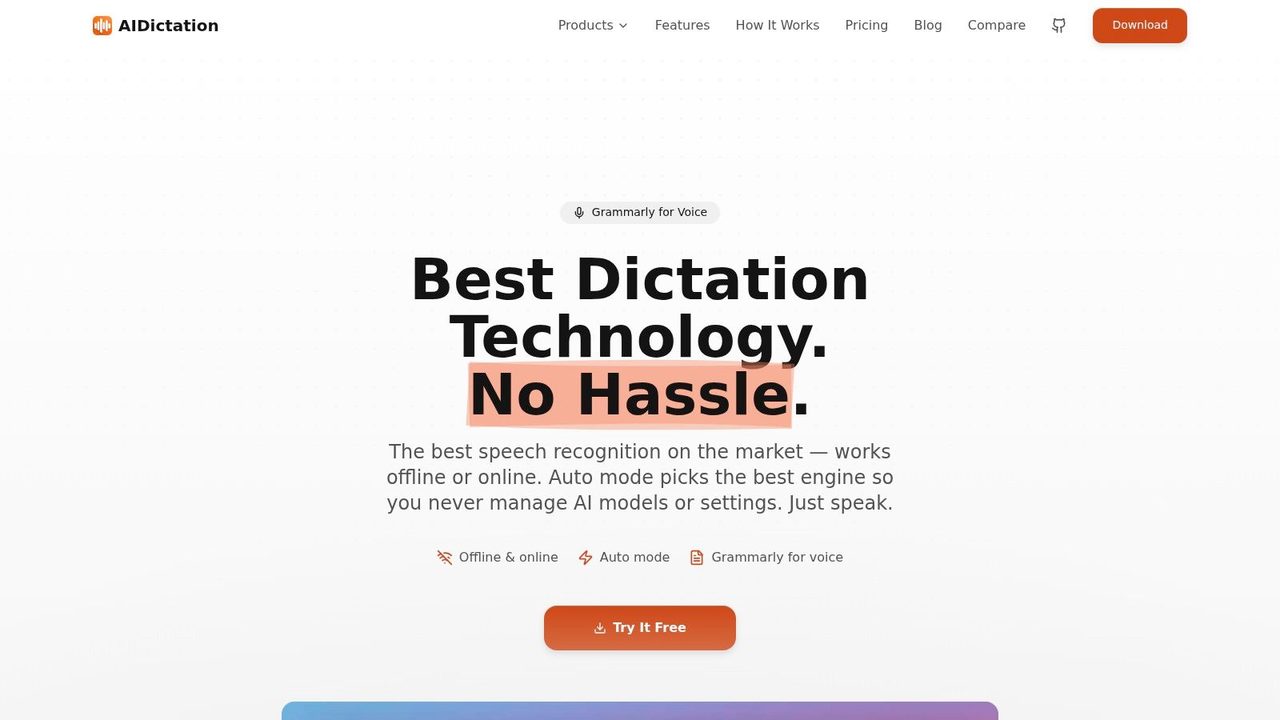
You finish a meeting, open your Mac, and need usable notes in five minutes. That is the test for any app that turns writing into text. AIDictation does well here because it gives Mac users two distinct modes instead of forcing one compromise across every workflow.
On Apple Silicon, Local Mode keeps speech processing on the device, which is the right choice for confidential notes, internal drafts, and anything you would rather not send to a cloud service. Auto Mode shifts toward cleaner output, with grammar correction, filler-word removal, formatting help, and better handling of mid-sentence self-corrections. In practice, that split matters. Raw capture is fast. Clean copy saves editing time. The right mode depends on whether privacy or polish matters more for the task in front of you.
Why it stands out on Mac
AIDictation fits macOS users who switch between different kinds of writing all day. A Slack update needs speed. A client email needs cleaner phrasing. A product spec needs technical terms to come through correctly. Custom vocabulary and app-aware behavior help reduce the usual dictation friction, especially if you work with product names, acronyms, or repeated internal terminology.
The pricing model also makes it easy to test as a daily habit before paying. There is a free tier, and paid plans are simple enough to evaluate without much guesswork. Setup is quick, and if you need a walkthrough for Mac-specific setup, this guide on using dictation on Mac is the one to keep handy.
My rule is simple. Use local dictation for sensitive material and fast first drafts. Use cloud cleanup when the text needs to be readable by someone else right away.
That makes AIDictation more strategic than a basic microphone-to-text tool. It covers live dictation, recorded audio, and rough spoken drafts that need cleanup after capture. For Mac users trying to choose between on-device and cloud workflows, that flexibility is the primary selling point.
For authors building a broader drafting stack, this AI writing tools list from ManuscriptReport.com is a useful companion resource.
Best use cases
- Meeting notes on Mac: Good fit when you need quick capture first, then cleaner summaries or follow-up notes.
- Creative drafting: Useful for getting spoken ideas into text without losing momentum, then tightening the language afterward.
- Coding and technical writing: Better than generic dictation tools when custom vocabulary matters.
- Privacy-sensitive work: Strong option when on-device processing is the deciding factor.
The trade-offs are clear. It is built primarily for macOS, and full local privacy depends on Apple Silicon. Some higher-end features also rely on cloud processing or a paid plan. If your workflow is simple text entry with no need for cleanup, the extra flexibility may be more than you need.
2. Apple Dictation
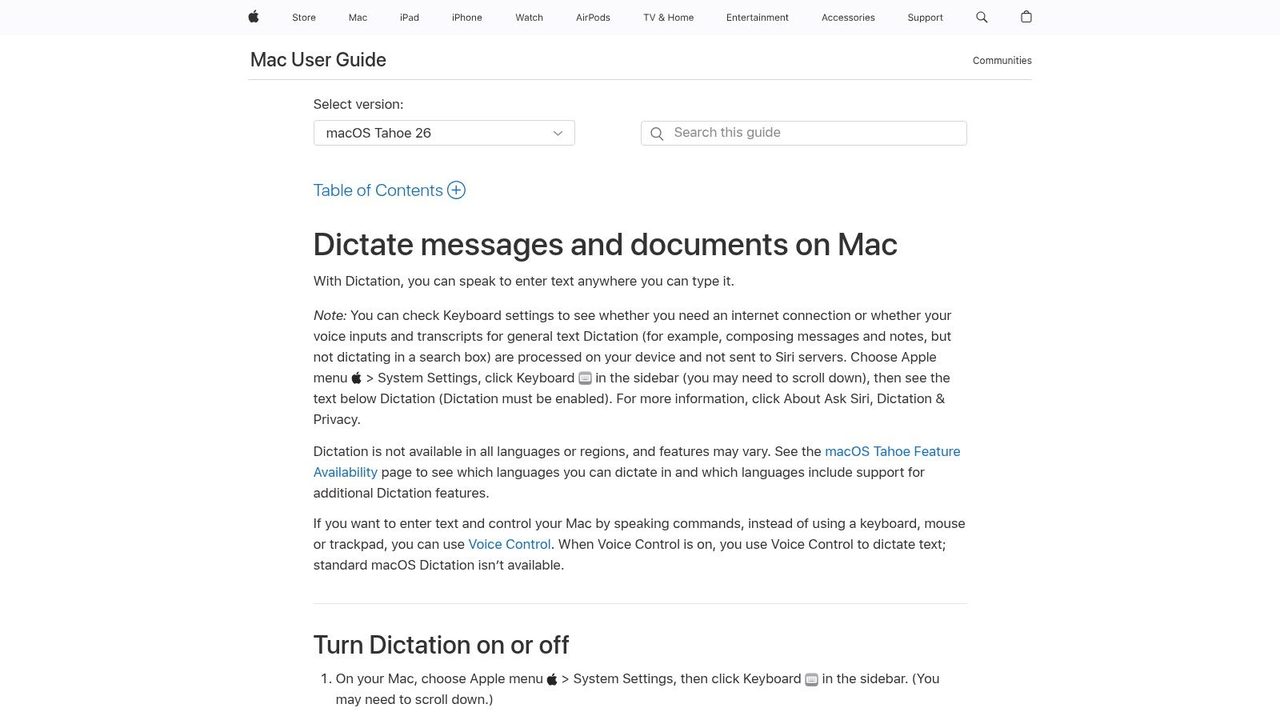
If you want the fastest possible start, Apple Dictation is already on your Mac. Turn it on, place your cursor in a text field, and talk. That simplicity is the whole appeal.
For short bursts, Apple's built-in tool is often enough. It works across macOS apps, supports typing while you speak, and offers on-device processing on Apple Silicon. If your workflow is mostly quick replies, notes, and first-draft paragraphs, there's a real advantage in using the tool that's already one keyboard shortcut away.
When the built-in option is enough
Apple Dictation is strongest when you don't need transcript management or AI cleanup. It's a capture tool, not a full workflow system. It won't do much to structure rambly speech into polished writing, and it doesn't give you the same depth around custom vocabulary, summaries, or file transcription.
That said, zero setup matters. Free matters too.
For Mac users who've never dictated before, Apple Dictation is the best baseline. If you can't make the built-in tool stick, a more advanced one won't fix the habit.
If you want help enabling it properly, this walkthrough on how to use dictation on Mac is worth bookmarking alongside Apple's own macOS Dictation guide.
3. Microsoft 365 Dictation
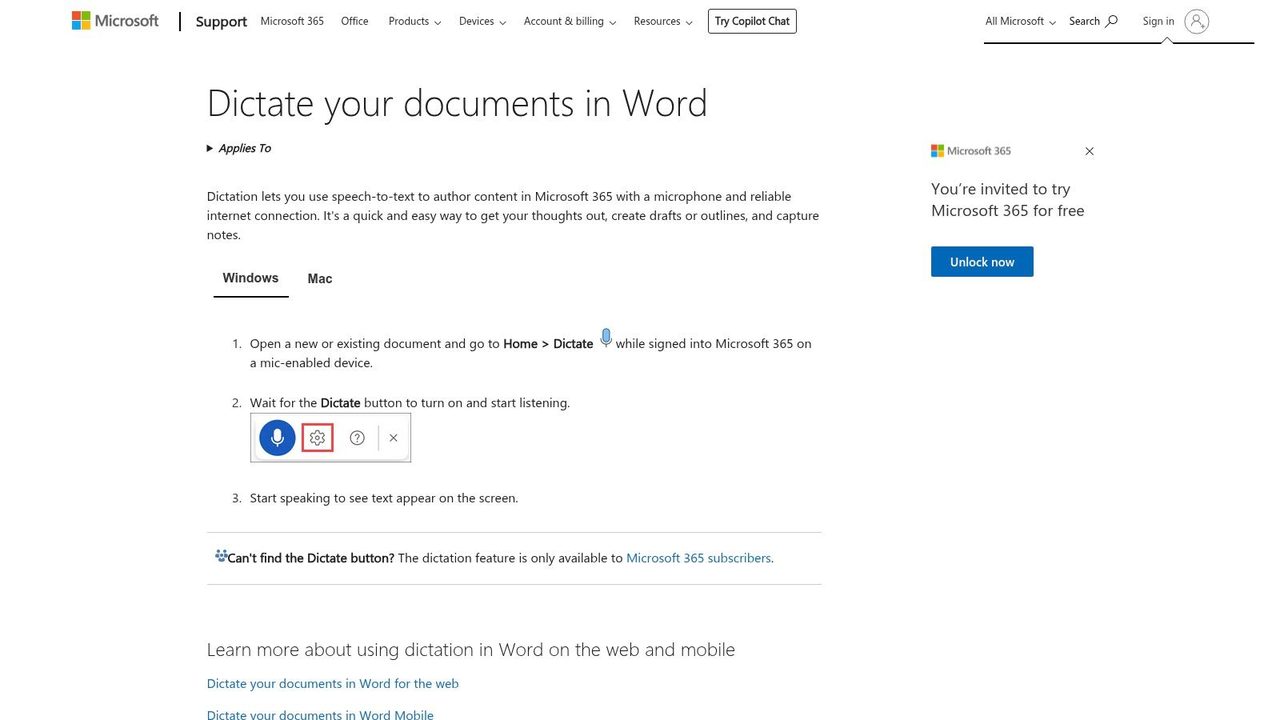
A common Mac workflow looks like this: notes in Word, follow-ups in Outlook, comments in Teams, and revisions back in Word. In that setup, Microsoft 365 Dictation earns its place because it removes the handoff. You speak where the final text already lives.
That matters more than raw feature count. Teams that standardize on Microsoft 365 usually get better adoption from tools built into the suite than from separate apps that require recording, exporting, and pasting. For drafting emails, outlining reports, or turning rough thoughts into first-pass text, Dictation is fast enough and familiar enough to become routine.
Best for Mac users already committed to Microsoft 365
On macOS, Microsoft 365 Dictation makes the most sense for people who spend large parts of the day in Word and Outlook and want voice input without changing their stack. It supports spoken punctuation and basic formatting commands, which saves time during document drafting. For managers and IT teams, there is another practical advantage. The tool sits inside software they already license, deploy, and govern.
The trade-off is clear. This is an in-app dictation feature, not a transcription system built for recordings, interviews, or searchable meeting archives. If the job is writing directly into Office, it works well. If the job is turning long audio files into polished transcripts, a dedicated tool will usually save more time.
Privacy and workflow fit matter here too. Microsoft 365 Dictation is better treated as a cloud-connected productivity layer than a private, on-device capture option for sensitive material on a Mac. That puts it in a different lane from local tools. Apple Dictation is the simpler choice for quick offline-friendly capture, while meeting-focused services are stronger if you need summaries, speaker tracking, and shared records.
Use Microsoft 365 Dictation if your documents already start and finish inside Office. Skip it for private offline capture, long-form media transcription, or any workflow that depends on transcript management after the recording ends. Microsoft's guide to Dictate in Word shows the current setup and command options.
4. Otter.ai
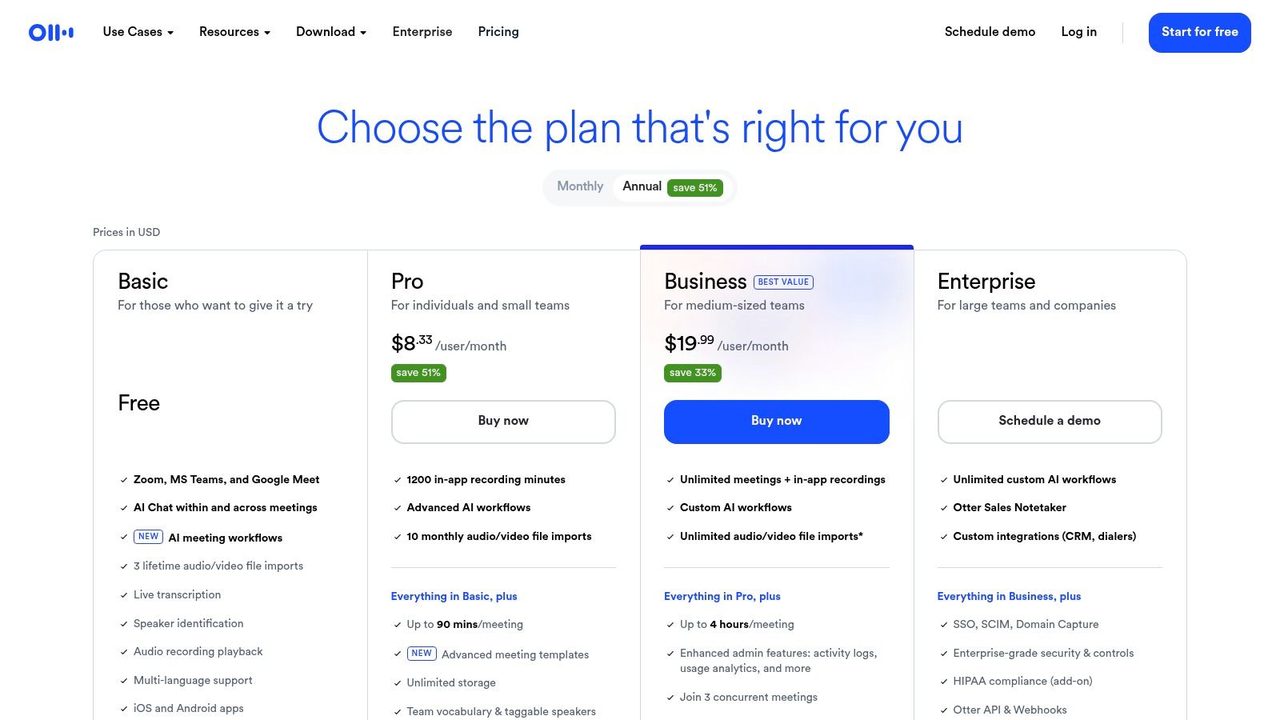
Otter.ai is what I'd call a meeting-first app that turns writing into text. It's less about replacing your keyboard everywhere and more about turning conversations into searchable records your team can reuse.
That makes it a strong fit for product reviews, customer calls, standups, stakeholder meetings, and internal interviews. Otter's value is in the surrounding workflow: live transcription, speaker identification, searchable archives, and AI-generated summaries and action items.
Where it fits best
Otter works best when multiple people need access to the same conversation record. If your team loses decisions in Zoom calls and Slack threads, Otter fixes that better than a pure dictation app.
There are trade-offs. It's cloud-based, so it isn't the right default for highly sensitive discussions. HIPAA support is an Enterprise add-on rather than a standard assumption. Lower-tier plans also have import limits that heavy users need to check carefully.
- Best for recurring meetings: Searchable transcripts are much more useful than isolated voice memos.
- Best for collaboration: Shared notes, summaries, and action items reduce handoff friction.
- Less ideal for private work: Sensitive material may need an on-device option instead.
The product is easy to evaluate from its Otter pricing and plans page.
5. Rev
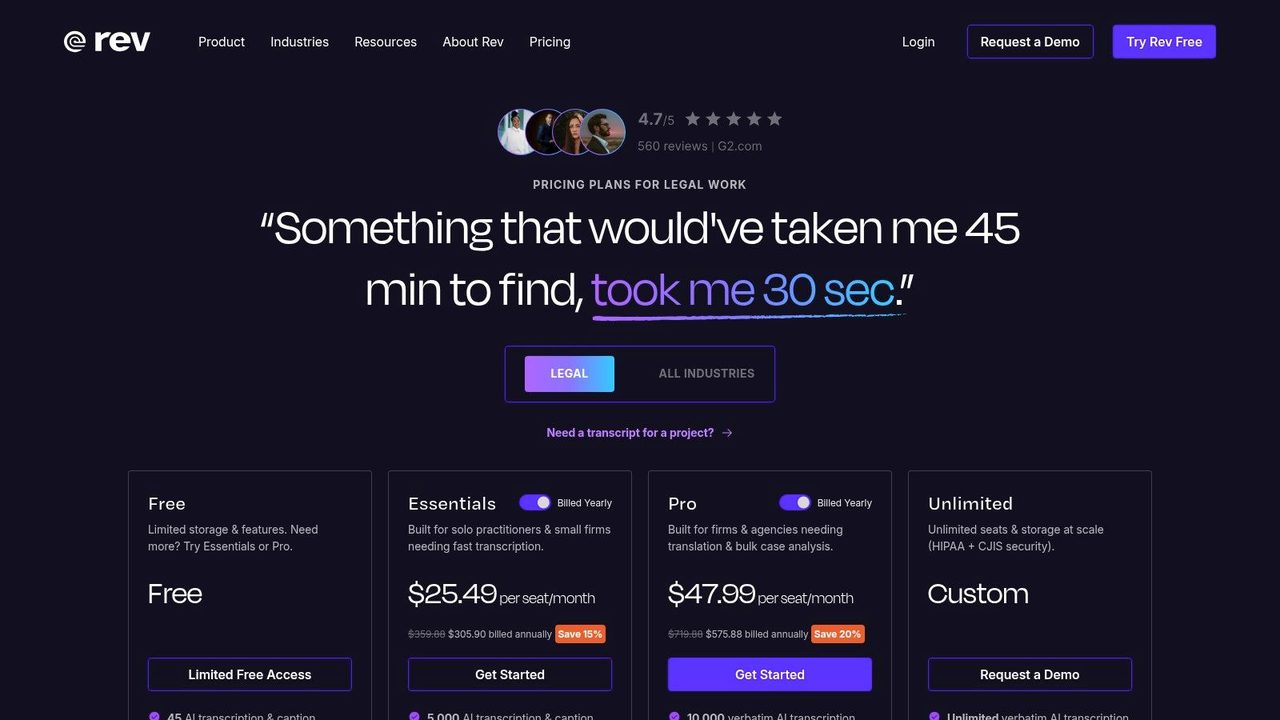
Rev is the tool I'd pick when the transcript is going somewhere consequential. Legal review, published media, board materials, deposition-style recordings, documentary interviews, and accessibility workflows all benefit from having both AI and human options in one place.
Most apps on this list assume speed comes first. Rev gives you a different trade-off. If the output has to be highly dependable, you can pay for human transcription instead of relying only on automation.
When human review still matters
That doesn't mean everyone needs Rev. For quick internal notes, it's overkill. For long recordings that don't justify premium review, the cost can climb quickly.
Still, it's one of the cleanest choices when you don't want to gamble on a rough transcript. It also covers captions, subtitles, translation, and related media workflows, which makes it useful for teams that publish as well as document.
If the transcript will be quoted, submitted, or published, paying for review is often cheaper than having a senior person fix it line by line later.
If your need is specifically meeting capture, this comparison of the best meeting transcription software helps frame where Rev sits relative to meeting-native tools. Rev's own pricing page shows the current AI and human service options.
6. Sonix
A common Mac workflow looks like this. Record a Zoom call, panel interview, or customer research session on one device, then clean up the transcript later on your Mac. Sonix fits that workflow well.
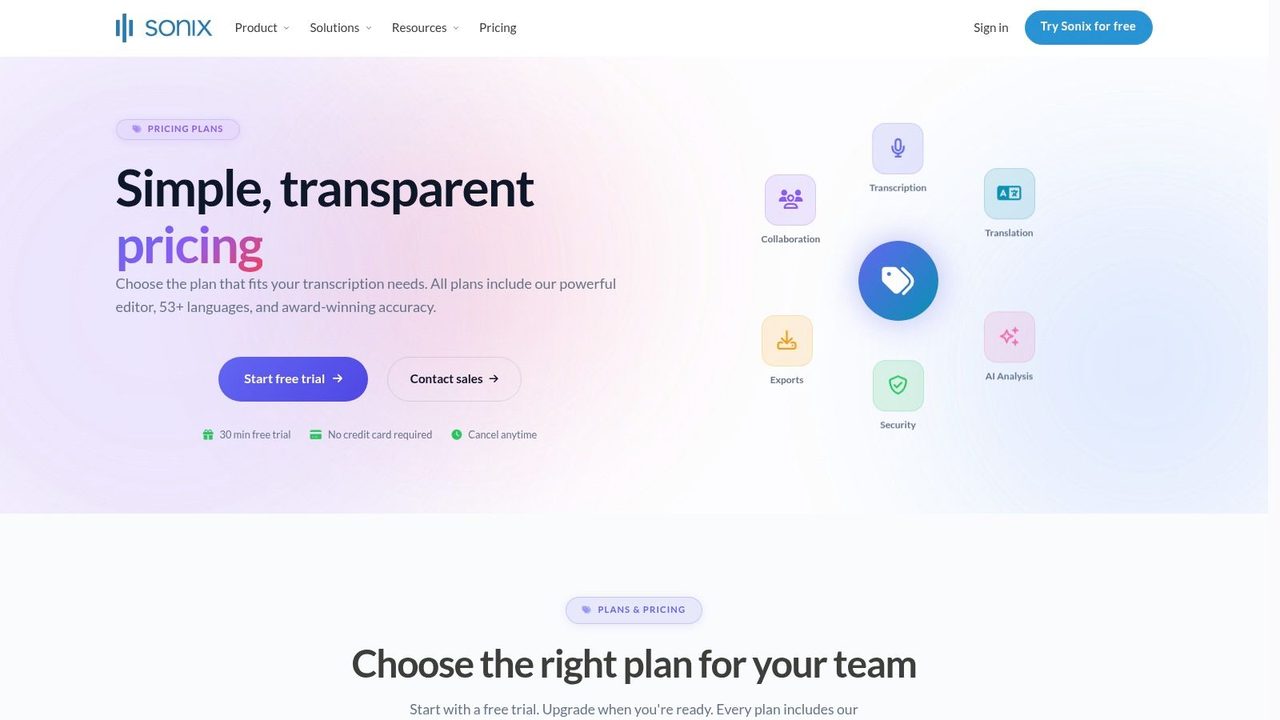
It supports 53+ languages on its pricing page, which matters if your team works across regions or handles interviews in more than one language. For multilingual transcription, translation, and shared review, Sonix is closer to a production tool than a simple dictation app.
That distinction matters on macOS. If the job is live voice input into notes, email, or a draft, on-device tools usually win on speed and privacy. If the job is processing recorded audio with timestamps, speaker separation, search, and collaboration, Sonix is the better fit.
Strong for uploaded media and multilingual review
I would put Sonix in the "cloud transcription workspace" category. It makes sense for agencies, research teams, content operations, and anyone who gets files from other people instead of dictating directly into a cursor. The editing environment is built for review and handoff, not just capture.
Its pricing is also easier to map to real usage than some competitors. You can start with pay-as-you-go if volume is uneven, then move to a subscription when transcription becomes a regular operating cost. That is useful for teams that have busy months, quiet months, and mixed recording lengths.
The trade-off is straightforward. You get better language coverage and a stronger post-recording workflow, but you give up the immediacy and local privacy of Mac-native dictation. Costs can also rise if you rely heavily on translation or AI features instead of plain transcription.
For Mac users, Sonix is a good choice when the source material already exists and several people need to work with it. It is a weaker choice for private journaling, coding notes, or fast solo dictation where on-device tools feel quicker and expose less data to the cloud.
7. Descript
Descript is what you choose when the transcript is the start of an edited asset, not the end product. Podcasts, course videos, tutorials, interviews, and social clips all benefit from its text-based editing model.
The reason people like Descript is simple. You edit the transcript, and that edits the media. For creator teams, that's much faster than hopping between a timeline, notes app, and captions tool.
Best for transcript-first editing
Descript also includes features like filler-word removal, Studio Sound, screen recording, captions, and AI editing assistance. That package makes sense if one recording will become a transcript, clip, article, and publish-ready video.
The downside is complexity. If all you need is a Mac app that turns writing into text from speech, Descript is more workspace than you need. It's not the first recommendation for coding notes, private journaling, or quick meeting dictation.
- Choose Descript if: you regularly publish audio or video based on transcripts.
- Skip it if: you just want fast dictation into everyday apps.
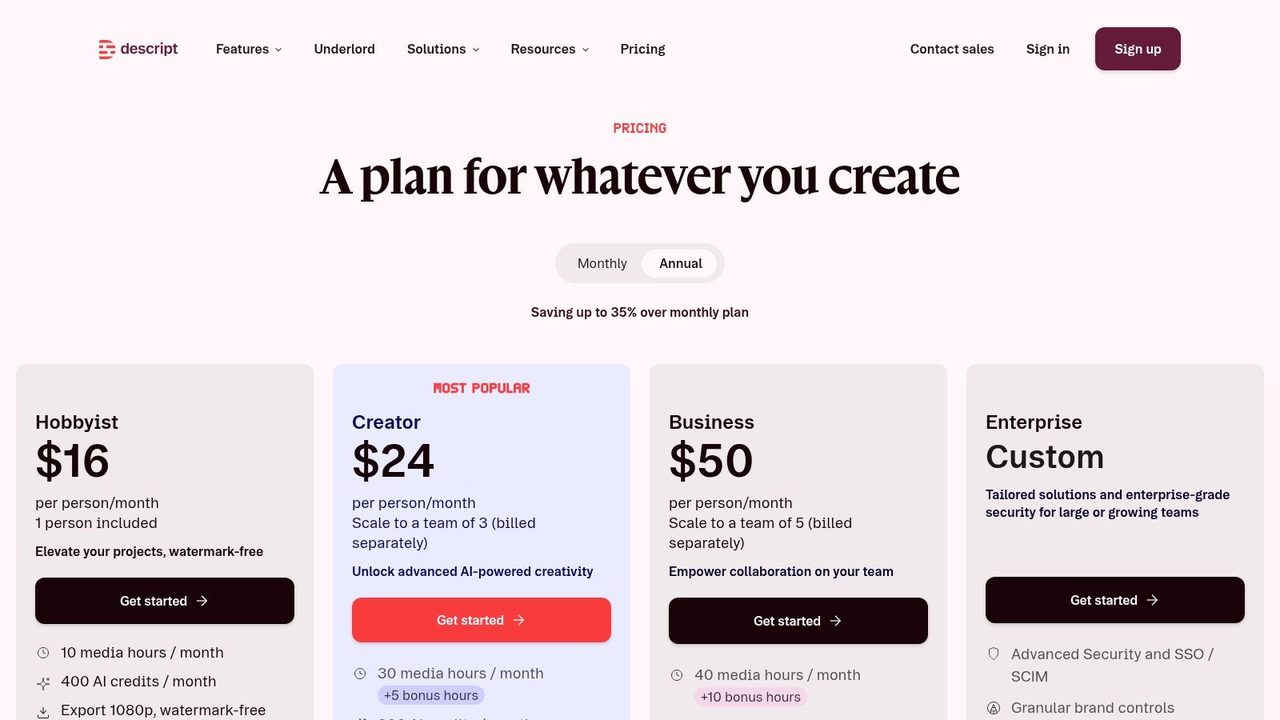
- Watch plan limits: AI credits and media-hour quotas matter more here than in plain dictation tools.
The current feature split is easiest to assess on Descript's pricing page.
8. Notta
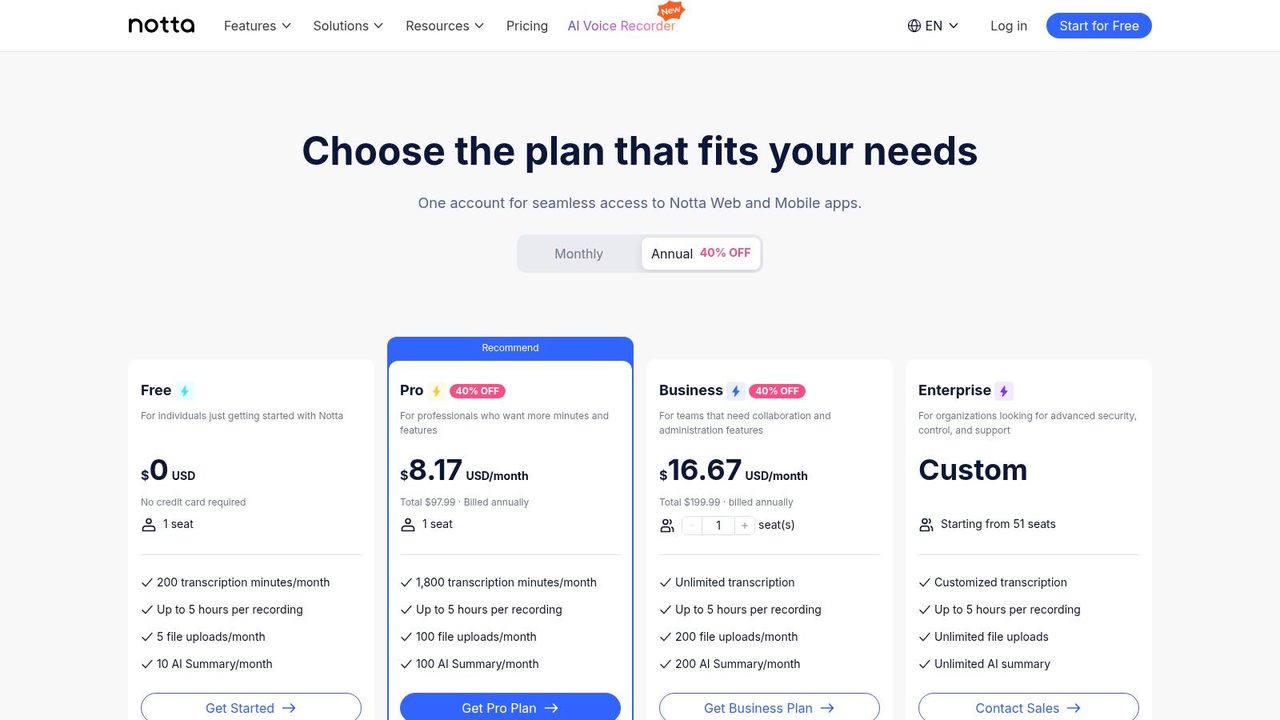
Notta sits in a useful middle ground. It's meeting-focused like Otter, but for some small teams it can feel simpler to manage and easier to justify on price.
It covers real-time meeting transcription for Zoom, Google Meet, Teams, and Webex, plus summaries, translation, a Chrome extension, and desktop and mobile apps. That's a strong package if your main problem is that discussions disappear as soon as the call ends.
A practical meeting notes option
Where Notta gets interesting is custom vocabulary and broader integrations. For sales, support, and operations teams, that can reduce cleanup when every call includes product terms, customer names, or industry jargon.
The caveat is that plan language needs close reading. “Unlimited” labels on business tools often come with session or usage conditions, and some AI features use separate credits. Heavy users should verify fit before rolling it out team-wide.
There's also a broader market shift behind tools like this. Industry analysis says the note-taking app market in 2026 is moving toward cloud sync, semantic search, multimodal input, and AI assistants, driven by hybrid work and the need to capture handwriting, voice, screenshots, and camera input faster (Codewave note-taking market analysis). Notta fits that direction well.
See the current feature tiers on Notta's pricing page.
9. MacWhisper
MacWhisper is one of the best answers if your priority is private transcription on macOS. It runs models locally, supports batch transcription, and handles file-based work very well.
That makes it especially attractive for journalists, researchers, lawyers, consultants, and anyone transcribing sensitive recordings on a Mac. You load files, process them locally, and keep the workflow off the cloud by default.
Best for private file transcription
MacWhisper's strength is not flashy AI polishing. It's control. You can batch files, use watch folders, transcribe YouTube URLs, and keep the entire process on-device. On Apple Silicon, that setup is fast enough to feel practical rather than experimental.
A larger point sits behind tools like this. Modern handwriting recognition and text extraction became much more useful when systems moved from experimental OCR into production-scale AI. Transkribus says its Text Titan I model was trained on more than 30 million words from historical documents across multiple centuries and languages, showing the scale now required to handle difficult scripts and context reliably. That same shift is why private desktop transcription tools now feel viable for everyday work instead of niche experiments.
MacWhisper is less compelling for live dictation into arbitrary apps. Its real-time voice typing is more basic than purpose-built dictation tools. But for recorded audio, local-first Mac users should absolutely shortlist it.
10. Nuance Dragon Medical One

Dragon Medical One is not a casual consumer pick. It's a clinical dictation platform built for healthcare environments, with medical vocabularies, templates, and deployment patterns that fit EHR-heavy workflows.
If you're a clinician, the appeal is obvious. You need terminology support, consistency, and the ability to dictate directly into systems like Epic or Cerner without turning every note into a cleanup project. Consumer speech tools usually fall apart there.
Built for clinical dictation
Dragon Medical One is strongest when an organization can support implementation. It's a healthcare IT purchase as much as a physician productivity tool. Admin controls, support, and deployment are part of the value.
The trade-off for Mac users is platform fit. Dragon's footprint is still more Windows-centric, and Mac support often depends on the surrounding environment. It's worth evaluating carefully before assuming it will slot neatly into a Mac-first setup.
Privacy also matters more here than in general business use. Many professionals looking for an app that turns writing into text need to know whether anything is uploaded, retained, or processed in the cloud. That gap shows up in current coverage too. Frank Buck's Google Lens handwriting workflow is convenient for capture, but it isn't framed as an offline-first workflow. That's one reason local options remain important in healthcare and legal contexts.
If you're comparing clinical options, this guide to Dragon Medical dictation alternatives and setup considerations is a useful companion to the official Dragon Medical One site.
Top 10 Dictation & Transcription App Comparison
| Product | Core features ✨ | Quality ★ | Target 👥 | Pricing 💰 | Why choose / Unique edge |
|---|---|---|---|---|---|
| AIDictation 🏆 | Auto Mode (Parakeet v3 on‑device + cloud), AI cleanup, app‑aware formatting, custom dictionary, meeting transcription | ★★★★★ | PMs, Devs, Clinicians, Students, knowledge workers | 💰 2,000 w/mo free; Pro $8.49/mo · $84.99/yr · Lifetime ~$199–$249 | 🏆 Privacy-first auto switching + paste-ready, context-aware dictation |
| Apple Dictation | System-level on-device dictation, Voice Control, works in any text field | ★★★☆☆ | Casual Mac/iPhone users; quick note takers | 💰 Free (built into macOS/iOS) | Zero setup & system integration; best for instant local use |
| Microsoft 365 Dictation | One-click dictation in Word/Outlook, voice edit commands, cloud STT | ★★★★☆ | Office/enterprise teams using M365 | 💰 Included with Microsoft 365 subscription | Native Office integration and enterprise compliance |
| Otter.ai | Live meeting transcription, speaker ID, summaries, integrations (Zoom, Meet) | ★★★★☆ | Teams, product & customer-facing teams | 💰 Freemium; paid team plans per user | Collaborative meeting notes, searchable archives & summaries |
| Rev | Human + AI transcription, captions, subtitles, translation | ★★★★★ | Media, legal, enterprise needing highest accuracy | 💰 Pay-per-minute; human option costs more | Human transcripts for near‑perfect accuracy and captions |
| Sonix | 50+ languages, web editor, API, translation & subtitles | ★★★★☆ | Global teams, translators, media groups | 💰 Pay-as-you-go or seat plans | Transparent per-hour pricing with enterprise compliance options |
| Descript | Text-based audio/video editing, filler removal, Studio Sound, AI co-editor | ★★★★☆ | Podcasters, creators, editors turning recordings into media | 💰 Freemium; paid plans with media-hour/credit limits | Edit media by editing text, speeds post-production workflows |
| Notta | Real-time meeting transcription, summaries, translation, CRM/Zapier integrations | ★★★★☆ | Small teams and budget-conscious groups | 💰 Generous minute quotas on paid plans | High minute quotas and simple admin for team meetings |
| MacWhisper | On-device Whisper & Parakeet, batch transcription, watch folders, local processing | ★★★★☆ | Mac users prioritizing privacy and local performance | 💰 One-time purchase; Pro upgrade for extras | Local-only transcription with fast Apple Silicon performance |
| Nuance Dragon Medical One | Real-time EHR dictation, medical vocabularies, voice profiles, admin tools | ★★★★★ | Healthcare orgs and clinicians (EHR workflows) | 💰 Enterprise pricing, contact sales | Clinician-tailored vocabularies & mature HIPAA-grade deployments |
Integrate Your Tool and Reclaim Your Time
A good dictation setup changes the shape of a Mac workday. An idea spoken during a commute becomes an email draft by the time the MacBook opens. A meeting recording becomes searchable notes instead of a one-hour replay task. Handwritten pages can join the same system if they convert cleanly into editable text.
For macOS users, the smart choice starts with one question: where should the processing happen? On-device tools fit confidential work, offline use, and anyone who wants predictable costs after the initial purchase. Cloud tools usually win on collaboration, summaries, speaker labeling, and polished formatting. The trade-off is simple. Local processing protects privacy and often lowers long-term cost. Cloud processing usually saves more editing time.
That distinction matters more than brand preference. Apple Dictation makes sense for short input across the system. MacWhisper fits recorded audio that should stay on the Mac. AIDictation is useful for people who switch between private dictation and cloud-based cleanup, depending on the task.
Use case should drive the choice. Meeting-heavy roles benefit from tools built around recordings, timestamps, and team sharing. Creative writing benefits from fast capture and light cleanup, because too much structure too early can slow drafting. Coding is different again. Developers usually need a tool that handles commands, punctuation, and quick corrections without breaking flow inside the editor.
Handwriting conversion adds another layer. On Google Play, Handwriting to Text Converter shows how common camera-based handwriting OCR has become. Users now expect spoken notes, scanned pages, and ink notes to end up as searchable text. That expectation is reasonable, but the workflow still matters. OCR is useful for recovering notes and archives. It is usually slower and less reliable than dictation for generating new text.
A practical test works better than feature comparison. Run one real task through your shortlist this week. Dictate a difficult email. Transcribe a noisy meeting. Convert a page of handwritten notes. Check four things: how much cleanup was required, whether the output stayed private enough for the material, how quickly the text was ready to use, and whether the pricing still makes sense if this becomes a daily habit.
Choose the tool you will keep open, not the one with the longest feature list.
If AIDictation is already on your shortlist, evaluate it on that basis. It covers a common Mac workflow well: local capture for sensitive material, then optional cloud cleanup when readability matters more than raw verbatim output. That balance suits product managers, developers, students, and teams who want less typing without handing every draft to a cloud service by default.
Frequently Asked Questions
What does Best App That Turns Writing Into Text: 2026 Reviews cover?
Tired of Typing? Turn Your Voice and Notes Into Text You've got ideas in voice memos, meeting recordings, whiteboard photos, and half-legible notebook pages.
Who should read Best App That Turns Writing Into Text: 2026 Reviews?
Best App That Turns Writing Into Text: 2026 Reviews is most useful for readers who want clear, practical guidance and a faster path to the main takeaways without guessing what matters most.
What are the main takeaways from Best App That Turns Writing Into Text: 2026 Reviews?
Key topics include Table of Contents, 1. AIDictation, Why it stands out on Mac.
Ready to try AI Dictation?
Experience fast voice-to-text on your device. Free to download.
Download FreeRelated Posts
Voice to Text on Mac: Built-in Dictation vs the Best Apps (2026)
How to use voice to text on a Mac or MacBook: turn on built-in dictation, see where it falls short, and compare the best Mac voice to text apps for 2026.
AI Grammar Correction Explained from Rules to LLMs
Learn how AI grammar correction works, from rule-based engines to large language models, and what it means for privacy, accuracy, and real-world workflows.
Repetitive Strain Prevention: Ergonomics & Habits
Protect your body! Get a step-by-step plan for repetitive strain prevention, including workstation ergonomics, workflow, exercises, & healthy habits.