Convert Voicemail to Text: iPhone, Android, & Mac

You finish a meeting, check your phone, and find a stack of voicemails from clients, coworkers, and unknown numbers. You don't want to stand in a hallway listening to each one at normal speed, rewinding for names and callback numbers, then copying the useful parts into email or notes.
That's why voicemail to text matters. The key advantage isn't novelty. It's turning a slow audio inbox into something you can scan, search, sort, and route in minutes. The difference between an unreliable setup and a dependable one usually comes down to three choices: how you export the audio, how accurate the first transcript is, and whether sensitive messages stay local or get pushed into the cloud.
Table of Contents
- Why You Need a Voicemail to Text System
- Getting Your Voicemail Audio Files
- High-Accuracy Transcription with AIDictation
- Privacy or Power? Choosing Local vs Cloud Mode
- From Raw Transcript to Polished Notes
- Voicemail to Text for Professionals Examples and Fixes
Why You Need a Voicemail to Text System
A voicemail inbox gets messy fast because audio is slow to process. You can't skim it, can't search it easily, and can't forward the useful sentence without replaying the whole message. That friction is why many people let voicemail pile up instead of working through it promptly.
SellCell reported that 80% of calls to smartphones and mobile phones go to voicemail, but only 20% of callers leave a voicemail. It also said that roughly 2.5 billion of 3.1 billion daily U.S. mobile and smartphone calls go to voicemail, and 30% of voicemails are left unattended for up to three days in its voicemail statistics roundup. At that scale, voicemail isn't just a missed-call feature. It's an unstructured work queue.
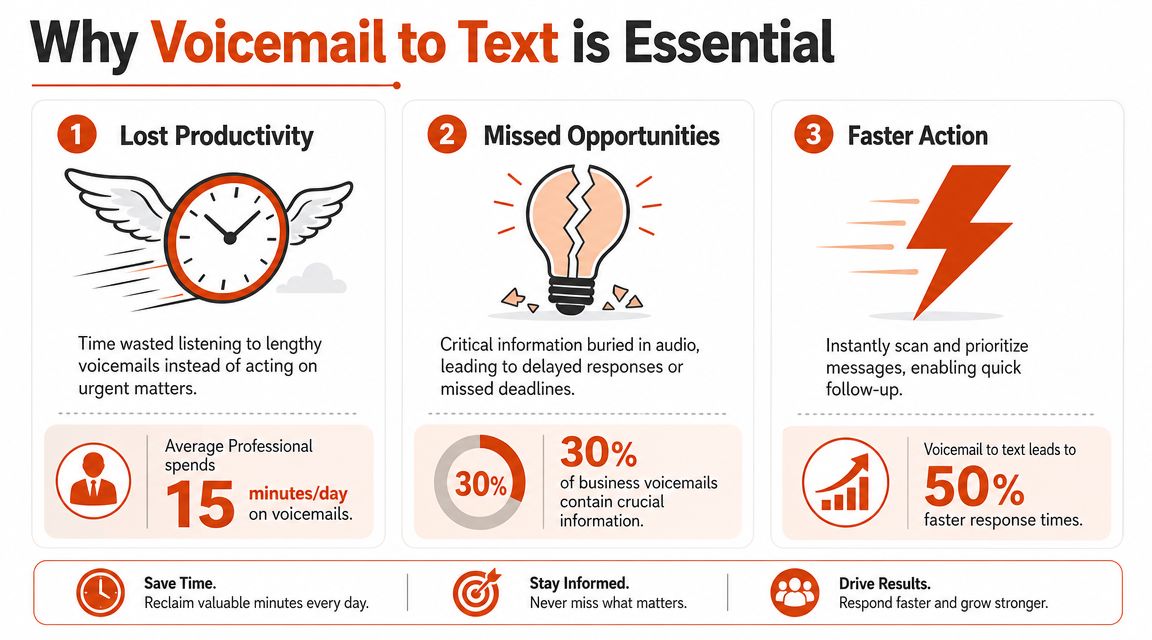
Voicemail is an inbox problem
Once you treat voicemail like inbox management, the fix becomes clearer. Convert the message to text, pull out the action, then move it into the tool where work takes place. That might be your email client, task manager, CRM, or notes app.
A practical system usually does four things well:
- Captures the audio file: You need a real file, not just a play button inside a carrier app.
- Produces readable text: The transcript has to be good enough that you don't spend longer fixing it than listening.
- Preserves context: Caller name, timestamp, callback number, and urgency should stay attached.
- Routes the result: A transcript sitting in isolation isn't useful until it lands in a workflow.
Practical rule: If a voicemail contains a task, deadline, phone number, or decision, text beats audio because you can verify details at a glance.
Text changes how you process messages
Text lets you batch voicemails instead of handling them one by one. You can scan subject matter, search for a client name, copy a callback number, and reply without replaying the message three times. That's where the productivity gain comes from.
If you're trying to transform business communications with voicemail, the missing piece usually isn't voicemail delivery. It's a transcript workflow that turns a recording into a usable record.
The strongest setups also separate urgent from archival use. A short operational voicemail might only need a quick read and reply. A legal, medical, or customer history note may need a cleaner transcript that can be stored, searched, and reviewed later.
Getting Your Voicemail Audio Files
Before any transcript can be accurate, you need the original voicemail audio in a format you can work with. This is the part many guides skip, even though it's where the workflow either starts smoothly or falls apart.
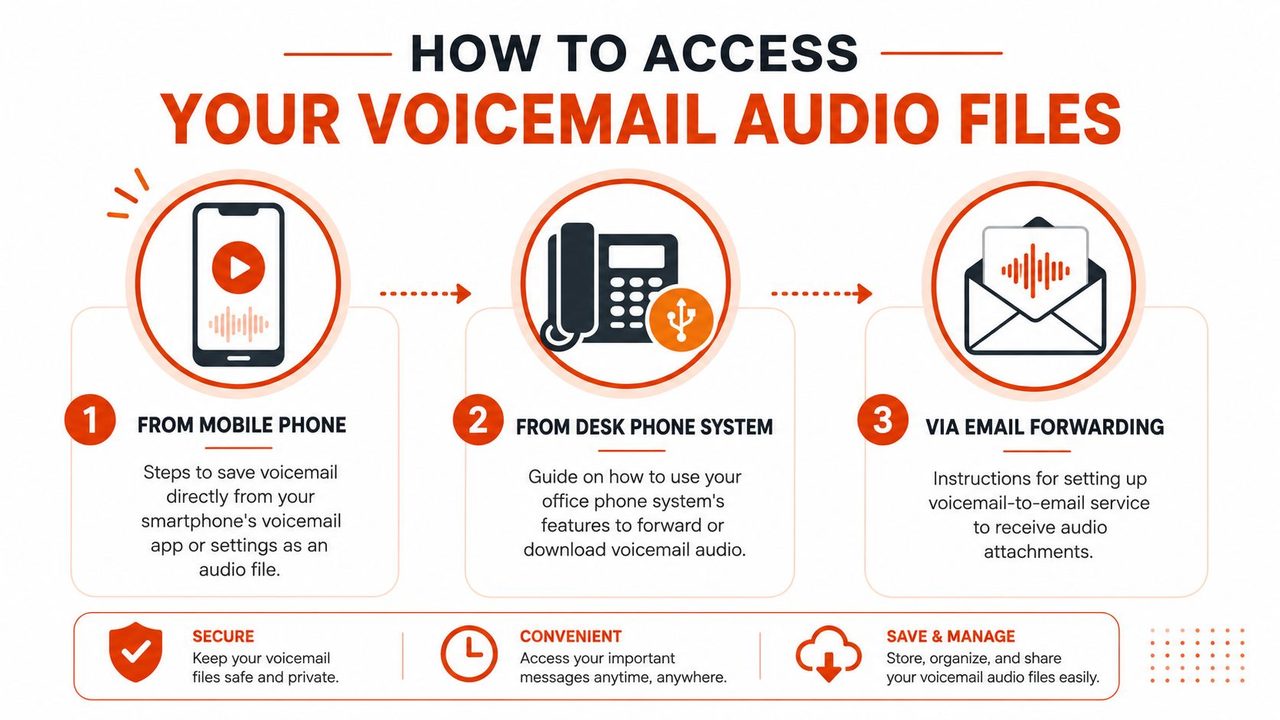
Poor source audio creates downstream cleanup work. Ooma describes its basic computer transcription as about 85% accurate and its human-assisted premium tier as about 98% accurate in its voice to text support documentation. In practice, that gap shows up as misheard names, digits, and jargon. Clean capture matters.
On iPhone
The iPhone is usually the easiest place to start because Visual Voicemail often lets you share the message directly.
Try this path:
- Open the Phone app and tap Voicemail.
- Select the message you want.
- Look for the share option.
- Save it to Files or send it to your Mac with AirDrop.
- Rename the file immediately so it includes the caller and date.
That last step saves time later. "Client-name follow-up Tuesday" is much easier to find than a generic audio filename.
If you're already comfortable moving recorded audio off your phone, this guide on how to transcribe voice memos on iPhone uses a very similar export habit. The principle is the same. Get the audio out of the phone app and into a stable file-based workflow.
On Android
Android is less consistent because voicemail handling depends on the phone maker, the carrier, and whether Visual Voicemail is enabled. Some phones let you save or share voicemail directly from the Phone app. Others hide voicemail inside a carrier app with fewer export options.
Use this order of attack:
- Check the native Phone app first: Open voicemail details and look for share, save, or export.
- Review your carrier app: Verizon, T-Mobile, AT&T, and others often manage voicemail through separate interfaces.
- Test email forwarding if available: Some systems can deliver voicemail audio or transcript output outside the phone app.
- Rename files after export: Especially important when multiple callers leave messages on the same day.
A transcript can only be as clear as the recording you feed into it. If the original message is clipped, speakerphone-recorded, or noisy, accuracy drops before any software touches it.
Later correction is always slower when the source is weak. If you know certain callers mumble, speak quickly, or leave long number strings, prioritize getting the cleanest exported file instead of relying on a rough in-app preview.
A quick visual walkthrough can help if you're setting this up for the first time:
From carrier and phone system portals
Carrier websites and office phone systems are the fallback many people forget. If the mobile app won't export cleanly, sign into the voicemail portal from a browser and look for download, forwarding, or attachment options.
This route is especially useful when:
- You use a desk phone or hosted PBX: Many office systems store messages in a web portal.
- You need a backup copy: Browser download is often more reliable than sharing from a phone app.
- You want to centralize intake: Teams can funnel voicemail audio into a shared folder before transcription.
The goal isn't elegance. It's repeatability. Once you can consistently get voicemail audio files onto your Mac, the rest of the workflow becomes much easier to standardize.
High-Accuracy Transcription with AIDictation
Built-in voicemail transcripts are fine for checking whether a message matters. They aren't reliable enough when the transcript itself becomes the record you act on, forward, or store.
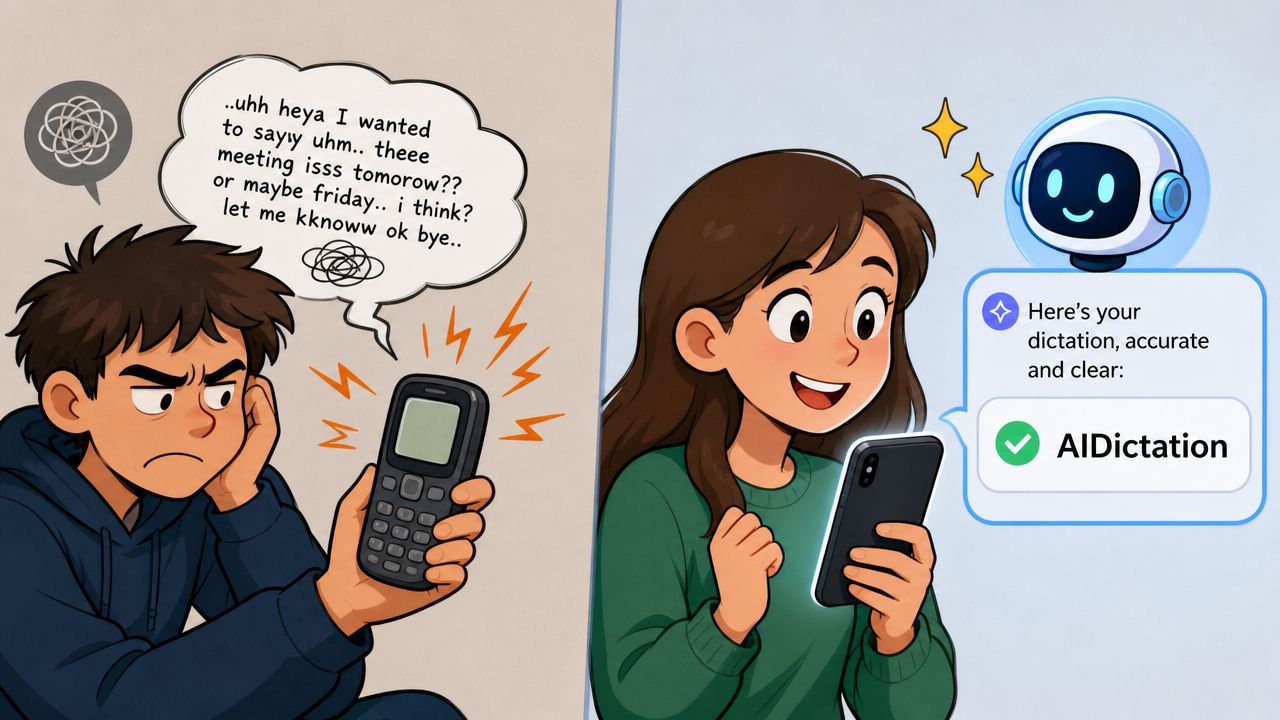
Why built-in transcription falls short
SpeakWrite reported that Apple and Google native voicemail transcription sits at about 80% accuracy, while dedicated transcription workflows can reach 99% accuracy or higher in its guide to voicemail to text. That difference isn't cosmetic. An 85% accurate system produces about 15 errors per 100 words, while a 95% accurate system produces about 5 errors per 100 words, which makes the text far easier to read.
For professional use, that gap changes behavior. At lower accuracy, you still have to replay the audio to verify names, dates, or numbers. At higher accuracy, the transcript becomes something you can trust enough to process first and only spot-check when needed.
If you're also tuning system-level settings around dictation and speech input, this walkthrough on how to configure speech to text is useful background for reducing friction before you import files.
A clean import workflow on Mac
On macOS, the simplest setup is file-based. Export the voicemail audio from your phone, drop it into a dedicated folder, then transcribe from there instead of hunting through messages one at a time.
One practical option is AIDictation for Mac, which supports prerecorded audio transcription as part of a broader dictation workflow. The useful part here is straightforward import. Drag the voicemail file in, let the app create the first-pass text, then review the sections that matter most, usually names, numbers, and action items.
A reliable routine looks like this:
- Create one intake folder: Keep fresh voicemail files in a single place on your Mac.
- Name files before import: Include caller, topic, and date if you can.
- Transcribe first, edit second: Don't interrupt the process by correcting every line live.
- Compare against audio only where risk is high: Callback numbers and proper nouns deserve a second listen.
The fastest workflow isn't the one with the most automation. It's the one that gives you a transcript clean enough that selective review is possible.
If you're handling a batch of messages, don't mix personal and business voicemail in the same folder. Segmentation makes later search and retention cleaner, especially if one class of messages needs stricter privacy handling.
Privacy or Power? Choosing Local vs Cloud Mode
The most important decision in a voicemail to text workflow isn't speed. It's where the data goes after you press transcribe.
Some services process voicemail in the cloud and may forward transcript content through email. AT&T, for example, delivers voicemail transcripts to a designated email address in its voicemail-to-text access material. That might be fine for a routine callback request. It may be unacceptable for patient details, legal strategy, hiring discussions, or anything that shouldn't move beyond your device.
When Local mode is the right call
Local mode fits sensitive voicemail because it keeps transcription on the machine you control. That's the default I prefer for anything involving health information, personnel matters, confidential client details, or internal investigation notes.
Use local processing when:
- The message includes protected information: Medical, legal, HR, or financial details belong here.
- You don't want transcript copies in email: Forwarding introduces another storage layer to manage.
- You need tighter operational control: Fewer systems touching the content means fewer questions later.
For readers evaluating AI for confidential data handling, the same principle applies to voicemail. Privacy isn't a marketing label. It means knowing whether audio or transcript text leaves the device, how long it stays elsewhere, and whether a human might review it.
If you want a deeper look at device-first workflows, this piece on offline dictation software is relevant because the same local-processing logic applies to voicemail transcription.
When Cloud mode earns its keep
Cloud mode makes sense when the transcript needs more cleanup than plain conversion. That's useful for turning a rushed voicemail into something readable enough to paste into email, CRM notes, or a meeting summary.
Cloud features tend to help most with:
- Filler-word removal: Voicemails often include false starts and repetition.
- Formatting cleanup: Paragraphs, punctuation, and list structure matter when sharing notes.
- Self-correction handling: Callers frequently restate numbers, dates, and names mid-message.
Here's a simple way to decide.
| Feature | Local Mode | Cloud Mode |
|---|---|---|
| Data handling | Stays on device | Processed through cloud services |
| Best use | Sensitive or regulated voicemail | Cleanup-heavy operational voicemail |
| Speed to first draft | Fast and direct | Depends on connection and processing |
| Formatting help | Basic transcript output | More polished cleanup and restructuring |
| Risk profile | Lower exposure | Requires policy review |
A strong workflow doesn't pick one mode forever. It chooses per message. Confidential content stays local. Routine operational voicemail can use cloud cleanup when polish saves time.
From Raw Transcript to Polished Notes
A raw transcript is rarely the final artifact. The useful output is a short, accurate note that another person can act on without hearing the audio.
Clean up the transcript fast
Don't edit from top to bottom like you're proofreading an essay. That wastes time. Work in a triage order instead.
Start with the fields most likely to cause problems:
- Caller identity: Fix names, company names, and departments first.
- Numbers and dates: Callback numbers, order numbers, times, and deadlines need verification.
- Single action sentence: Rewrite the core request in plain language.
- Disposition: Mark it as reply, delegate, archive, or follow-up later.
A quick finishing pattern works well:
- Read the transcript once without audio.
- Mark obvious uncertainty.
- Replay only the uncertain segments.
- Rewrite the message into a compact note.
- Save or send the note, then archive the raw audio if needed.
If you're replaying the full voicemail every time, your transcription workflow isn't saving enough effort. The transcript should narrow listening to the risky parts.
Cloud cleanup features can help when you need more readable output. A rambling voicemail can become a short paragraph, a bullet list, or a draft email. That's useful for internal handoff. It's less useful if the original wording matters for compliance or dispute resolution, where you should preserve the raw transcript and audio.
Build a reusable finishing system
The biggest long-term gain comes from consistency. Once you define how finished voicemail notes should look, every transcript becomes easier to process.
A practical template might include:
- Subject line: Caller name plus intent
- Summary: One or two sentences
- Action item: What needs to happen next
- Callback details: Number, extension, preferred time
- Sensitivity flag: Private, internal, or shareable
Custom vocabulary is the overlooked lever here. Add recurring client names, internal product names, medical terms, and acronyms to your dictionary if your tool supports it. That won't fix every bad recording, but it reduces repeated mistakes on the same terms over time.
Before sharing, do one privacy pass. Remove anything the recipient doesn't need, especially account details, health data, or personal identifiers. Polished notes aren't just easier to read. They're safer to circulate.
Voicemail to Text for Professionals Examples and Fixes
The value of voicemail to text changes by role. The workflow stays similar, but the acceptable error rate and review burden don't.

Three workflows that hold up in practice
A healthcare professional handles patient follow-up messages between appointments. The note needs to be readable, but privacy matters even more. AssemblyAI notes that expert reviews recommend targeting at least 95% accuracy for critical healthcare tasks and 90%+ for general operational use, while meeting transcription is typically considered readable at 88%+ in its speech-to-text accuracy guide. For that kind of voicemail, local processing plus focused review of symptoms, medications, and callback instructions is the safer pattern.
A product manager gets stakeholder feedback by voicemail after a launch review. The recording is not highly regulated, but it may be messy and full of self-corrections. In that case, a transcript that can be cleaned into bullets, grouped by issue, and pasted into a project note is more valuable than a literal line-by-line rendering.
A customer support lead receives client voicemails that need quick acknowledgment. The transcript doesn't have to be publication-ready. It does need to identify the issue, the customer, and the next step fast enough for the team to draft a reply without replaying every message.
Common problems and practical fixes
Most transcription failures are predictable. They usually come from the audio, the speaker, or the vocabulary.
- Heavy accent or fast speech: Slow down the review and verify only high-impact segments instead of rewriting everything.
- Technical or domain-specific language: Maintain a custom dictionary for names and specialized terms.
- Background noise: Favor the cleanest exported file and avoid secondary recordings when possible.
- Multiple ideas in one voicemail: Split the final note into separate action items instead of preserving the caller's original order.
- Low-confidence transcript: Escalate to a more accurate workflow or human review for that message only.
What works is selective rigor. Match the review standard to the task. Don't spend healthcare-level effort on a routine delivery update, and don't trust a casual rough draft where a single wrong word could create risk.
If you want a voicemail to text workflow that goes from audio file to usable writing on Mac, AIDictation is built for that kind of handoff. It supports local and cloud transcription modes, handles prerecorded audio, and gives you a path to turn rough voicemail into notes, emails, or task-ready text without rebuilding the process every time.
Frequently Asked Questions
What does Convert Voicemail to Text: iPhone, Android, & Mac cover?
You finish a meeting, check your phone, and find a stack of voicemails from clients, coworkers, and unknown numbers. You don't want to stand in a hallway listening to each one at normal speed, rewinding for names and callback numbers, then copying the useful parts into email or notes.
Who should read Convert Voicemail to Text: iPhone, Android, & Mac?
Convert Voicemail to Text: iPhone, Android, & Mac is most useful for readers who want clear, practical guidance and a faster path to the main takeaways without guessing what matters most.
What are the main takeaways from Convert Voicemail to Text: iPhone, Android, & Mac?
Key topics include Table of Contents, Why You Need a Voicemail to Text System, Voicemail is an inbox problem.
Ready to try AI Dictation?
Experience fast voice-to-text on your device. Free to download.
Download FreeRelated Posts
Verbal Ink Transcription Workflows Today
Explore verbal ink transcription workflows, accuracy benchmarks, and how modern AI dictation tools compare to traditional human transcription services.
Apple Voice Recognition Software: Key Pros and Cons
Learn how Apple voice recognition software turns speech into text on your device, where it excels, and what tasks still challenge it in 2026.
Dictation on macOS: Setup, Apps, and Pro Tips
Master dictation on macOS with clear setup steps, app comparisons, privacy settings, and accuracy tips to turn your voice into clean text fast.