Video Caption Generation Explained from Audio to SRT
You're probably holding a recorded meeting, interview, lecture, or product demo that contains useful information but resists reuse. The audio is clear enough to understand, yet finding one decision means scrubbing through the whole file. A generated transcript helps, but a usable caption file requires more than turning speech into words.
Video caption generation is a production pipeline. It must recognize speech, place words on a timeline, separate speakers, format readable caption blocks, survive export, and pass a human quality check. The difficult failures usually appear at the boundaries: a product name is misheard, two speakers are merged, a sentence appears too early, or a polished caption describes something that never happened.
Table of Contents
- Why Video Caption Generation Matters Beyond Accessibility
- How the Core Pipeline Turns Audio into Usable Captions
- SRT and VTT Formats and What They Actually Cost You
- Measuring Caption Quality Without Fooling Yourself
- On-Device vs Cloud Captioning and the Privacy Tradeoff
- A Practical Editing and Implementation Workflow
- Putting It Together and Choosing Your Next Move
Why Video Caption Generation Matters Beyond Accessibility
A project manager needs the agreed release date from a 45-minute launch meeting. Scrubbing through the recording takes several passes. A searchable transcript can surface the phrase in seconds, but only if the speech was recognized correctly and the timing leads to the right moment.
That example shows why captions serve as more than text beneath a video. They form a searchable layer for spoken content, a navigation aid for reviewers, and a written record people can scan when audio is unavailable or inconvenient. A developer can find a command in a product demonstration. A student can revisit a difficult explanation. A journalist can locate each mention of a source or event.
Caption use extends beyond viewers with hearing loss. An Oregon State University national study published in 2016 found that only 30% of students said captions or transcripts were available for all, most, or many course videos, while more than 70% of students without hearing impairments used captions at least some of the time. Students described captions as a learning aid in 75% of relevant comments. The findings connect captions with comprehension, concentration, language support, and viewing in both noisy and quiet environments.
The gap is not demand
A recent analysis of 650,000 video assets and nearly 12 million ad deliveries across more than 100 countries found that only 10% of global television advertisements included accessibility features such as captions or audio description. It also reported that more than half of adults, along with more than 75% of millennials and Gen Z viewers, regularly enable captions, including for content in their native language. The accessibility analysis identifies a clear production gap: audiences use captions, while teams still treat them as optional.
Caption generation therefore needs a production-grade pipeline, not a one-click upload. The finished asset must support search and review, remain readable on screen, preserve conversational structure, and represent relevant visual information accurately.
Production rule: Treat captions like an edited media track. Generate them automatically, then review the points where an error would change meaning, attribution, timing, or access.
A reliable process starts with audio recognition and continues through timing, speaker structure, formatting, evaluation, and accessibility QA. The goal is a caption file that viewers can read comfortably, players can render correctly, and teams can trust.
How the Core Pipeline Turns Audio into Usable Captions
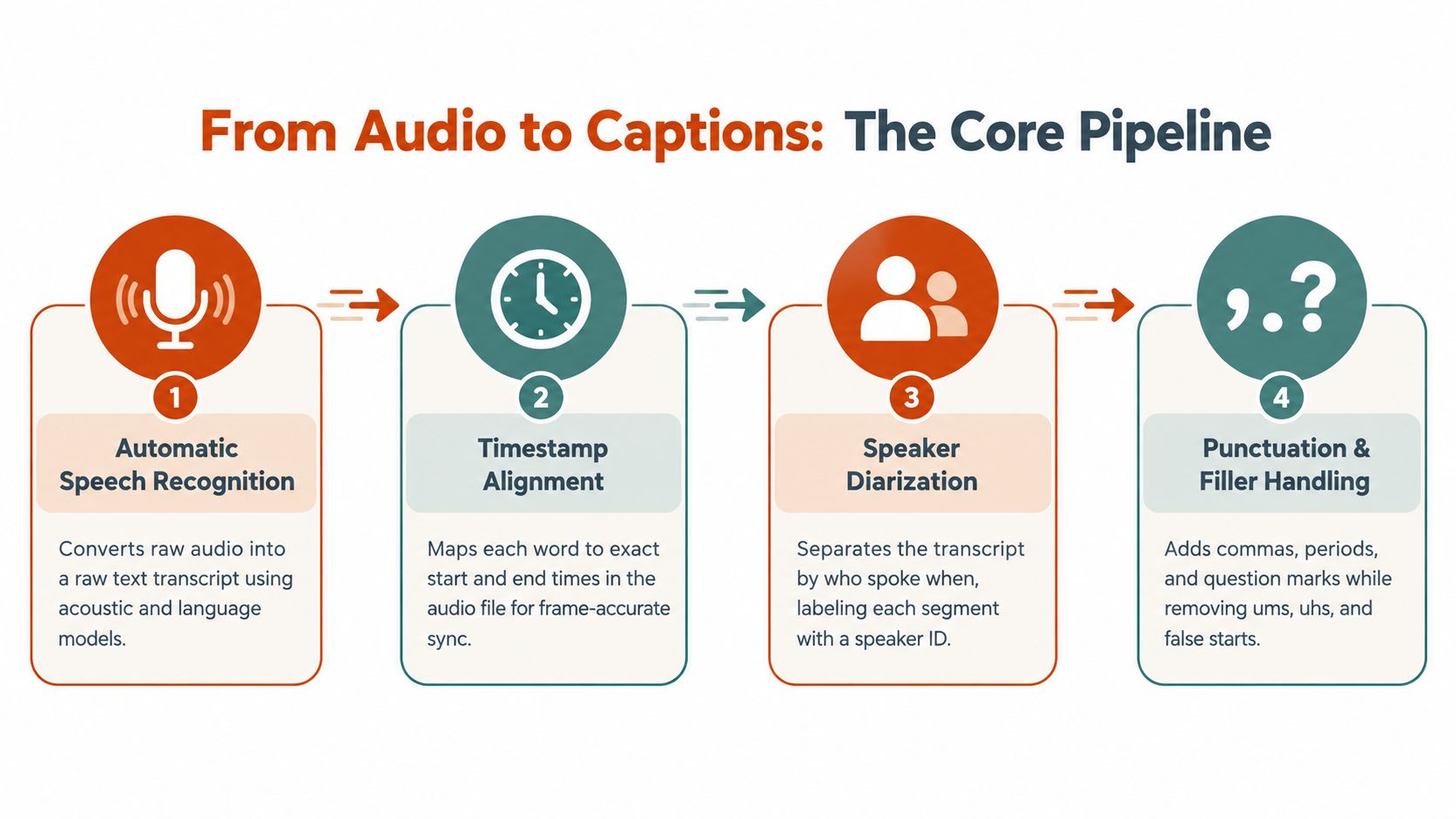
Think of a captioning system as a restaurant kitchen. Automatic speech recognition prepares the rough dish from raw audio. Timestamp alignment decides when each portion reaches the table. Speaker diarization identifies who ordered or delivered each portion. Punctuation and filler handling finish the presentation.
Start with recognition, not formatting
Automatic speech recognition, or ASR, converts the waveform into text. It listens for acoustic patterns and uses language knowledge to decide whether a sound sequence is likely to be “launch plan,” “lunch plan,” or a technical term that isn't common in everyday speech.
The output is a draft, not a finished caption track. Background noise, room echo, overlapping speech, accents, mumbles, microphone distance, and domain vocabulary all affect recognition. A clean microphone signal gives every later stage better material to work with, while no punctuation pass can reliably repair a word the recognizer never heard.
Put every word on the timeline
Timestamp alignment maps words or phrases to start and end positions in the audio. Without it, you have a transcript, not synchronized captions. With it, a player can reveal the right text as the speaker talks and let a viewer jump from a search result to the relevant moment.
Alignment can fail even when the words are correct. A long caption block may begin before the speaker finishes the previous thought. A short phrase may flash briefly and become difficult to read. A sentence can also be split at an unnatural point, forcing the viewer to reconstruct meaning while the video continues.
Separate speakers before the labels become confusing
Speaker diarization estimates who spoke when. In a two-person interview, that might produce “Speaker 1” and “Speaker 2.” In a meeting, the system must detect changes, handle interruptions, and avoid assigning a short interjection to the wrong person.
Google Research reports that group-conversation diarization remains difficult. In one configuration, using four microphones improved diarization error rate by 23% to 35% across signal-to-noise conditions. Separate 2025 multilingual research reported average test-set word error falling from 60.39% to 20.44% across 15 languages with diarization-aware processing. These results don't mean a production file will automatically identify every person correctly. They show why microphone layout, channel separation, language support, and review thresholds matter. The Google Research discussion of group-conversation accessibility is useful background for teams designing recording setups.
For a practical route from a media file to text, teams can also convert video or audio to text with AIDictation. If you're comparing broader voice interfaces and conversational systems, you can see Yellow.ai's voice platform for a different perspective on speech processing.
Make the text readable without erasing meaning
Punctuation models add sentence boundaries, commas, question marks, and capitalization. Cleanup rules may remove “um,” “uh,” repeated starts, or false starts. That can make a training video easier to read, but it can also remove useful evidence in a legal interview, documentary, or research recording.
The order matters because each stage depends on the previous one. If ASR misses a phrase, punctuation may confidently format the wrong phrase. If diarization assigns the phrase to the wrong person, later editing can make the error look authoritative. If cleanup merges separate thoughts, timestamp alignment may no longer match the visible caption blocks.
SRT and VTT Formats and What They Actually Cost You
SRT and WebVTT both store timed text, but they encode different assumptions about how captions will be delivered. The choice isn't just a matter of selecting a file extension. It affects styling, positioning, compatibility, and how much control you have when a player renders the result.
An SRT file is deliberately simple:
1
00:00:02,400 --> 00:00:05,800
The launch review starts with the audio pipeline.

2
00:00:06,100 --> 00:00:09,200
We need to confirm the speaker labels.
Each cue has an index, a start and end time, and the text. The comma in the timestamp is characteristic of SRT. This structure is easy to inspect, edit, and import into many video platforms.
WebVTT uses a WEBVTT header and a period in its timestamp:
WEBVTT

00:00:02.400 --> 00:00:05.800
The launch review starts with the audio pipeline.

00:00:06.100 --> 00:00:09.200
We need to confirm the speaker labels.
VTT can carry additional presentation information, including cue settings and styling. That makes it useful for browser-based players where placement, regions, and display behavior matter. The extra control also creates more opportunities for a player to interpret the file differently than another player.
Choose according to the destination
| Aspect | SRT | WebVTT |
|---|---|---|
| Basic structure | Numbered cues with timestamps and text | Cues with a WEBVTT header and timestamps |
| Timestamp punctuation | Comma between seconds and milliseconds | Period between seconds and milliseconds |
| Styling and placement | Limited and inconsistently supported | Richer cue settings and styling options |
| Compatibility | Broad support across upload tools and editors | Strong fit for web players and browser workflows |
| Main risk | Limited control over presentation | Player differences can affect advanced formatting |
| Practical choice | General uploads, editing, and simple delivery | Web publishing where placement and styling matter |
Use SRT when the recipient wants a straightforward caption file and compatibility matters more than presentation control. Use VTT when the player supports its richer features and the team needs deliberate placement or browser-oriented behavior. In either case, test the exported file in the actual destination player. A file that looks correct in an editor can still wrap lines poorly, ignore styling, or shift cues after upload.
The format also affects editing discipline. SRT's simplicity makes mistakes visible, while VTT's added features can hide a problem inside a cue setting. Keep a clean source file, preserve the original timestamps, and export a delivery copy for each platform rather than repeatedly editing the only version.
Measuring Caption Quality Without Fooling Yourself
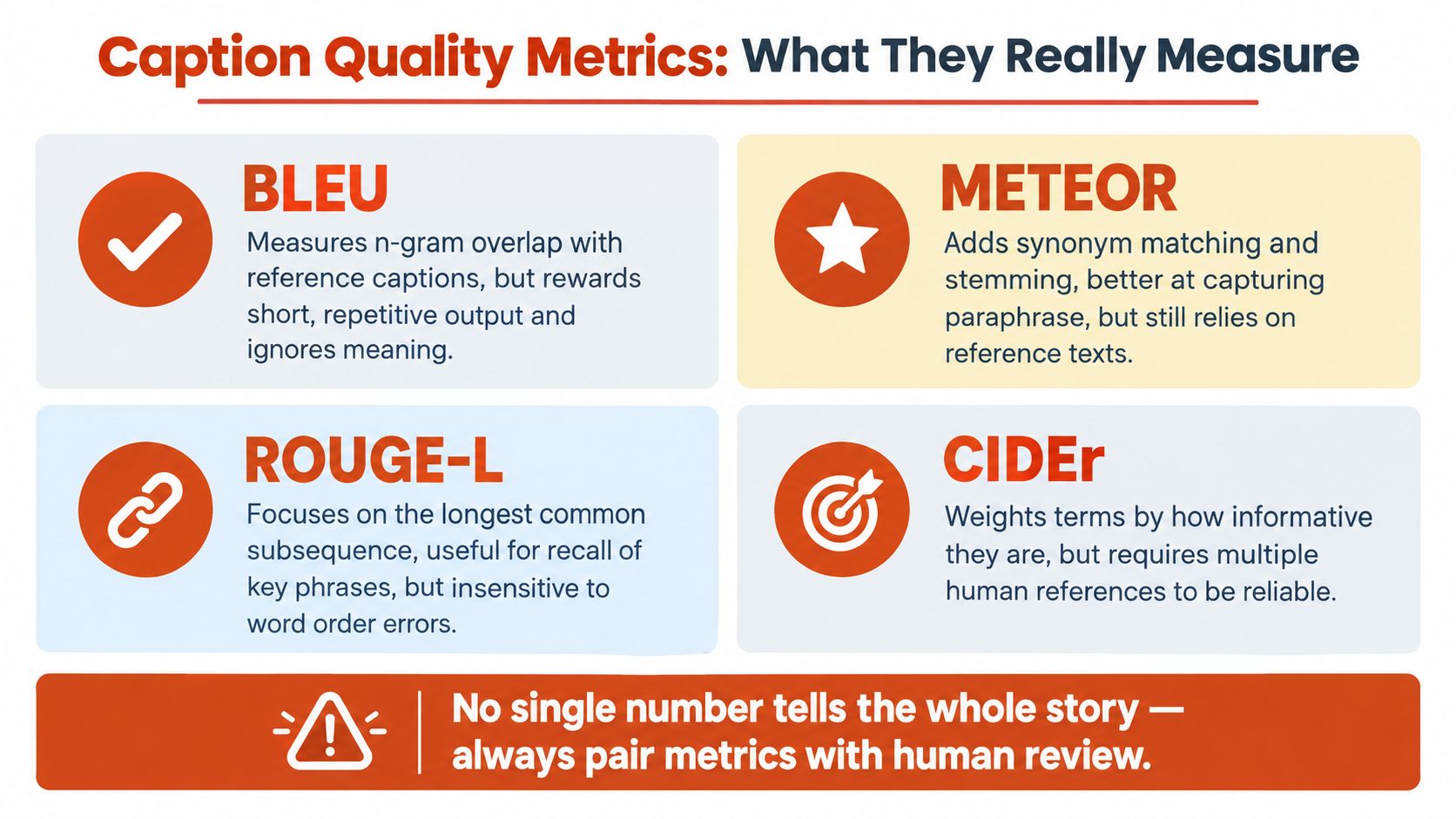
A caption system can produce text that looks polished and still misrepresent the video. This is why a single accuracy percentage isn't enough. Automatic metrics compare generated text with reference captions, but lexical similarity doesn't prove that the words are correctly timed, attributed, or grounded in what the viewer can hear and see.
BLEU measures matching word sequences, often called n-grams. METEOR adds mechanisms such as stemming and synonym matching, so it can give more credit to paraphrases. ROUGE-L focuses on the longest common subsequence, which can help assess whether important phrases were retained. CIDEr weights informative terms and is commonly used when multiple human references are available.
What overlap cannot tell you
Suppose the video shows a presenter holding a red component, but the generated caption says the presenter holds a blue component. The sentence may share most of its words with a reference caption and still fail the viewer. Likewise, a caption can repeat a phrase from the reference while omitting a critical action, confusing two speakers, or placing the sentence over the wrong moment.
A TRECVid Video-to-Text evaluation study identified weaknesses in BLEU and METEOR and introduced scalable human direct assessment. Human evaluators judged how well a caption described the underlying clip. The study also found that CIDEr, SPICE, WMD, and METEOR generally correlated more strongly with human judgments than simpler n-gram measures. That doesn't make any metric sufficient on its own. It means metrics should help teams detect regressions, while people verify meaning.
Build a layered evaluation stack
A useful production review combines automated regression testing with targeted human checks:
- Text comparison: Use CIDEr or METEOR to monitor changes against reference captions, especially when a model or post-processing rule changes.
- Factuality review: Check whether the caption represents the spoken and visible content without invented objects, actions, or claims.
- Temporal review: Play the file against the media and inspect early starts, late endings, long gaps, and captions that merge separate moments.
- Fluency review: Look for punctuation, line breaks, reading comfort, and unnatural segmentation.
- Stress sampling: Separate samples by scene complexity, speech density, accents, background noise, and domain vocabulary instead of relying on one aggregate result.
Human reviewers should pay special attention to proper nouns, numbers, medications, product names, code terms, and safety instructions. These are small strings with disproportionate consequences. A system that performs well on ordinary conversation may still be unsuitable for a clinical lecture or software demonstration.
Evaluation principle: A metric can tell you that output changed. It can't decide whether the change made the caption more trustworthy for the viewer.
Optimizing one metric can also create unwanted behavior. A system may learn repetitive, reference-like wording that scores well while sounding unnatural or omitting temporal detail. Keep the test set matched to the material you publish, and record the failure categories that matter to your audience.
On-Device vs Cloud Captioning and the Privacy Tradeoff
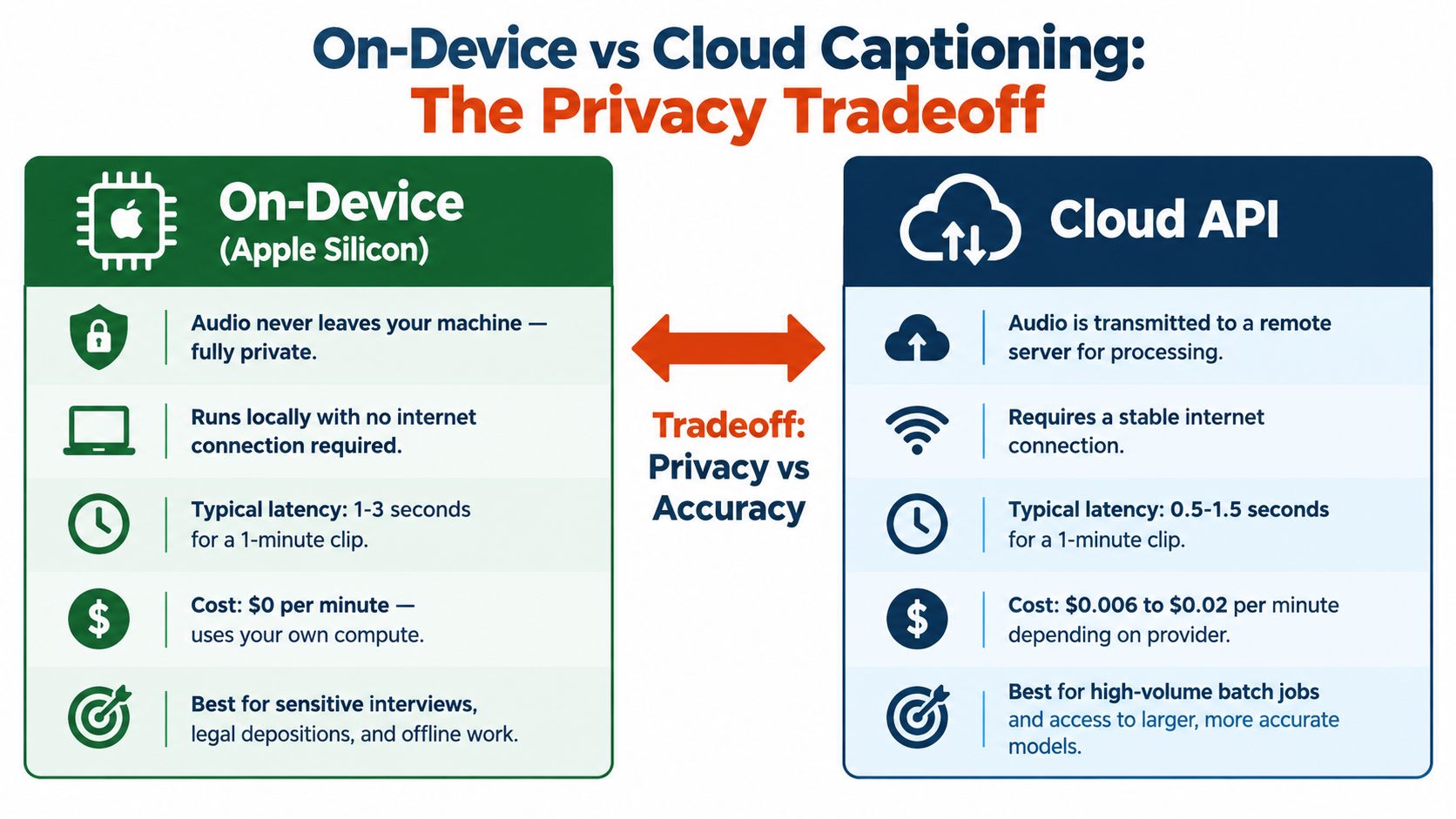
A captioning pipeline can stay inside one machine or send audio to a remote service. That choice affects privacy, latency, cost, and how much control you keep over the raw recording. A clinician handling a sensitive dictation may want the audio to stay local. A media team working through multilingual material may prefer cloud capacity and broader language support.
On-device processing keeps the file within the local environment. It limits upload exposure and can keep working without an internet connection, but it depends on the machine and the software installed on it. Cloud processing sends audio to a remote service, which can offer more specialized models, translation, centralized management, and batch processing. The tradeoff is governance. You need clear answers about retention, deletion, access controls, redaction, encryption, and contractual compliance.
Match the architecture to the failure you fear
A legal deposition, HR investigation, clinical note, or confidential product meeting raises one question first. Does the recording leave the device at all? For a large archive, the main concerns are processing capacity, language coverage, collaboration, and keeping output consistent across a team.
Retention is where privacy risk becomes concrete. A cloud job that keeps audio for 30 days means a confidential deposition can sit on a vendor's servers long after the matter closes. That may be acceptable in one workflow and unacceptable in another. The right answer depends on who can access the files, whether they are used for model training, and how quickly they can be deleted.
A good provider review should cover:
- Retention: Does the service keep uploaded audio, transcripts, or derived data, and for how long?
- Training use: Can the provider use customer content to improve its models?
- Deletion: Can an administrator remove source media and generated text independently?
- Access: Which staff, subprocessors, or integrations can view the material?
- Controls: Does the service support regional processing, encryption, audit records, and organizational policies?
- Fallback: What happens when the network is unavailable or a cloud job fails?
For a Mac-based workflow, offline speech recognition is a useful reference for local processing. A hybrid setup can make sense. Use local recognition for sensitive recordings, then send only an approved transcript for cleanup or translation. That boundary should be explicit, documented, and tested. If it is only assumed, it tends to fail at the worst time.
A Practical Editing and Implementation Workflow
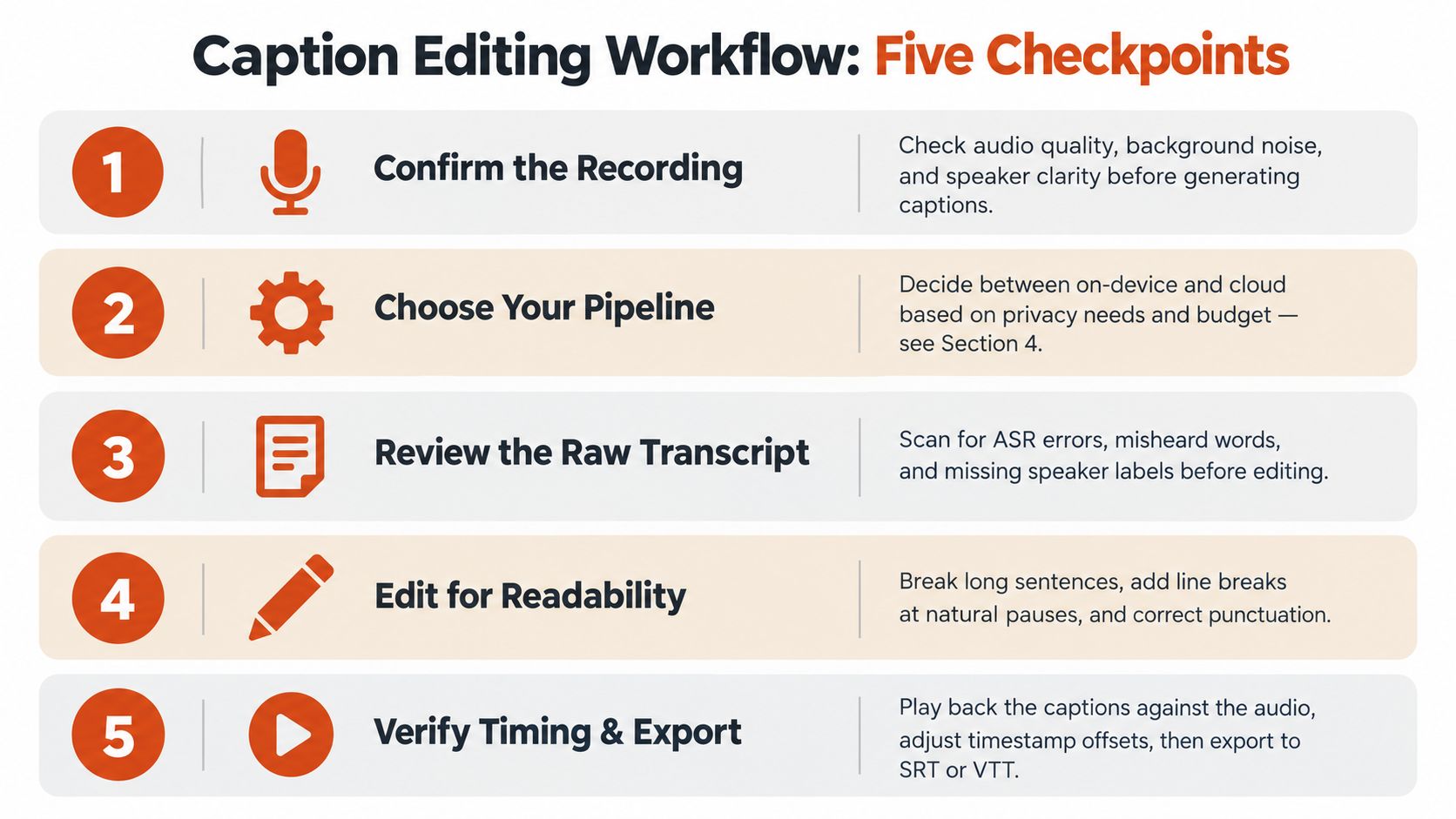
Good caption editing starts before generation. Listen to a short section of the recording and note room noise, echo, microphone distance, speaker overlap, and whether the system has enough information to distinguish voices. A poor input signal doesn't make editing impossible, but it changes the review budget.
Use checkpoints instead of blind cleanup
Generate a first pass, then review the transcript before styling it. Start with names, numbers, dates, product identifiers, medications, commands, and terms that could change meaning. Correcting these early prevents later punctuation or line-breaking tools from disguising the original error.
Next, inspect speaker changes and timing. When someone interrupts another person, don't force both voices into one clean sentence. Use clear labels when identity is known, generic labels when it isn't, and a consistent treatment for uncertain attribution. If overlapping speech cannot be made fully readable, preserve the primary voice and identify the overlap in a way that doesn't imply false certainty.
A separate pass should handle readability:
- Break long thoughts: Split captions at natural pauses and grammatical boundaries.
- Protect timing: Keep text on screen long enough to read, and avoid showing a response before it is spoken.
- Decide on fillers: Retain “um,” repetitions, and false starts when the hesitation is meaningful. Remove them when they distract from instructional or polished content.
- Preserve sound information: Include relevant non-speech sounds when they affect comprehension, such as a warning tone or a door alarm.
- Check line behavior: Look for awkward wraps, isolated short words, and blocks that obscure important on-screen text.
A large student study involving 2,124 participants from 15 public and private colleges and universities found that 71% of students without hearing difficulties used captions at least occasionally, 75% used them as a learning aid, 52% said captions improved comprehension, and 66% of English-as-a-second-language students rated captions very or extremely helpful. These findings from the student caption-use study support a demanding standard for readability. Viewers aren't only checking whether words exist. They're using the text to understand, focus, and retain information.
Verify the actual delivery environment
Export SRT for a broadly compatible delivery workflow or VTT when the destination requires browser-oriented cues. Then test the file on mobile, desktop, and connected-TV players. Check silent viewing, small screens, speaker labels, line breaks, timing around cuts, and interaction with burned-in text.
Tools differ in how they handle transcription, styling, and editing. If you're comparing a lightweight creator workflow with other video editors, see how CapCut performs, but judge any tool with your own difficult recordings rather than a clean demonstration clip.
Putting It Together and Choosing Your Next Move
Choose a caption workflow by answering three questions:
- What kind of video is this? A single-speaker tutorial, a group meeting, and a filmed interview create different diarization and timing problems.
- Who will watch it? A classroom, internal team, public audience, and multilingual community may need different language, formatting, and review decisions.
- What failure would hurt most? Privacy exposure, a wrong medical term, an incorrect speaker label, or a caption that appears too late should change the tool and review plan.
A clinician dictating notes may choose local processing and spend review time on terminology, names, and sensitive content. A developer recording a product demo may prioritize technical vocabulary, command accuracy, and searchable timestamps. A journalist transcribing interviews may need speaker separation, preserved hesitations, and careful handling of overlapping answers. The pipeline stays recognizable, but the quality gates change.
For a broader look at selecting software around transcription tasks, compare video transcription software. Start with a short representative recording, inspect the first ten minutes of generated output, and record every failure category before committing to a long archive. Upgrade only when the workflow's volume, privacy requirements, language needs, or review burden justify it.
AIDictation supports audio and video transcription workflows, including transcript extraction and SRT downloads, with local processing available for private work and cloud processing for additional cleanup and formatting. Test your next recording with AIDictation, then review the output against the actual audio before publishing.
Frequently Asked Questions
What does Video Caption Generation Explained from Audio to SRT cover?
You're probably holding a recorded meeting, interview, lecture, or product demo that contains useful information but resists reuse. The audio is clear enough to understand, yet finding one decision means scrubbing through the whole file.
Who should read Video Caption Generation Explained from Audio to SRT?
Video Caption Generation Explained from Audio to SRT is most useful for readers who want clear, practical guidance and a faster path to the main takeaways without guessing what matters most.
What are the main takeaways from Video Caption Generation Explained from Audio to SRT?
Key topics include Table of Contents, Why Video Caption Generation Matters Beyond Accessibility, The gap is not demand.
Ready to try AI Dictation?
Experience fast voice-to-text on your device. Free to download.
Download FreeRelated Posts
AI Transcription for Meetings: A Practical Guide
Discover how AI transcription for meetings works, from on-device to cloud models. Learn accuracy, privacy tradeoffs, and best practices for adoption.
Podcast Transcription Software: The 2026 Guide
Find the best podcast transcription software for 2026. Compare accuracy, explore workflows, and choose the right tool to elevate your show.
How Does Voice Recognition Software Work?
Learn how does voice recognition software work. Explore sound waves to text, AI, acoustic models, & on-device vs. cloud tech. Get the 2026 guide!