Teams Meeting Transcription: How to Turn It on and Use It
The decision was made at 10:07, four people agreed to it, and by the afternoon nobody can agree on who owns it. Someone suggests turning on transcription next time. The organizer opens More actions at the next meeting and the option isn't there at all.
Teams meeting transcription is one of those features that takes thirty seconds to learn and a year to use well. The button is the simple part. What separates a transcript that survives a compliance review from one that misleads a team is everything around the button: who's allowed to press it, what language the room is speaking, where the file lands, and who checks the numbers before anyone acts on them.
Table of Contents
- How to Start and Stop Transcription in Teams
- Recording Versus Transcription for Your Meeting
- Export, Edit and Verify the Transcript
- Improve Accuracy in Multilingual and Noisy Meetings
- Privacy, Retention and HIPAA Considerations
- Fix Missing, Wrong or Unavailable Transcripts
- Choose Your Transcription Workflow Before Your Next Meeting
How to Start and Stop Transcription in Teams
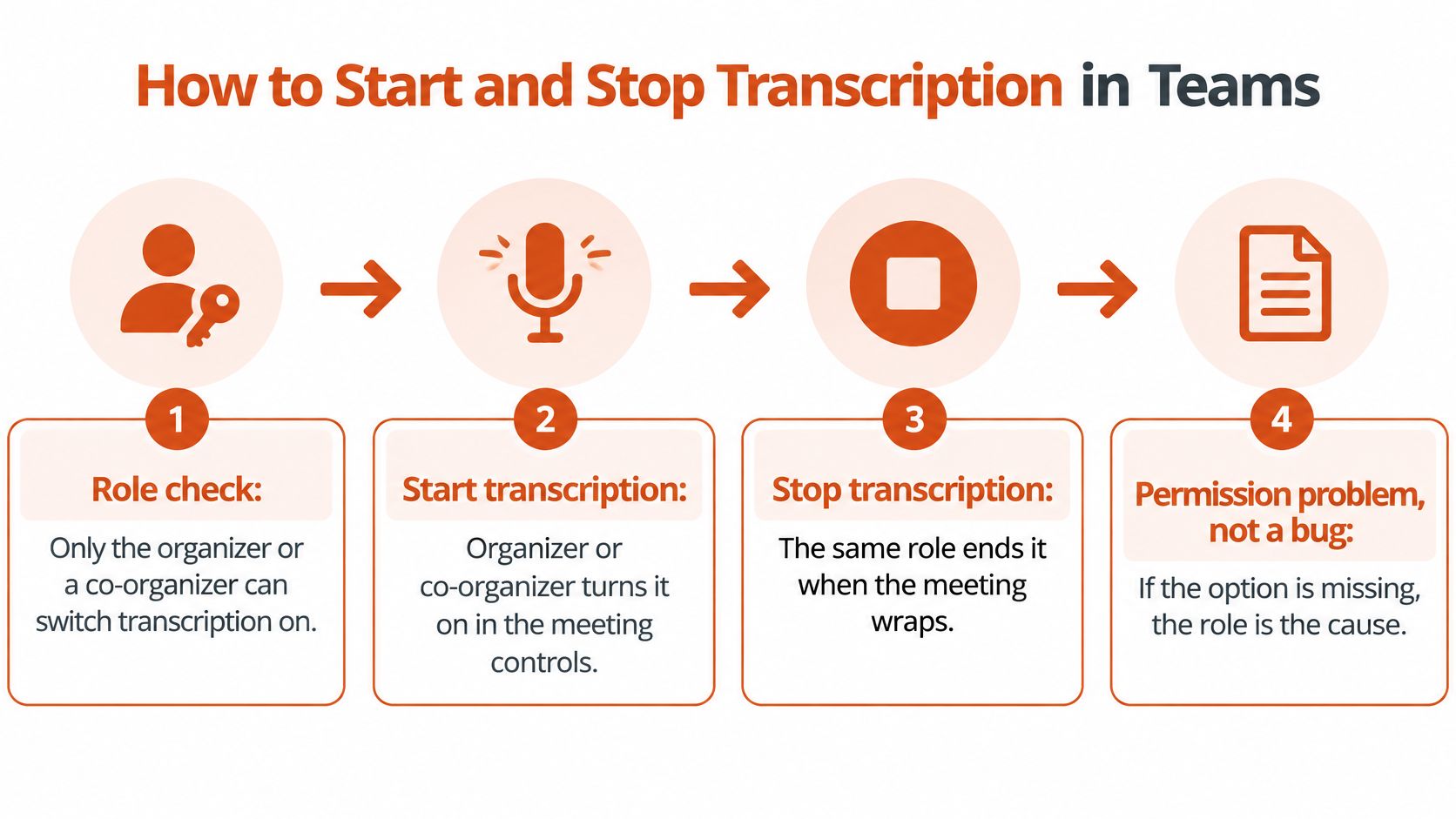
The person who can start transcription is the organizer, or someone the organizer has made a co-organizer. That permission is why the option disappears for everyone else. An attendee cannot switch it on, however senior they are, and a guest from a partner company cannot either. If the control is missing rather than greyed out, the next check is tenant meeting policy. That is a conversation with your admin, not a fix inside the meeting window.
Treat the transcript as a governed working record, not a convenience button. Who may create it, which language it expects, and when it stops decide whether a later reader can trust the text. A bilingual review or a discussion that touches employment, pricing, or customer data will show the breaks fast if those controls are wrong.
The sequence is short. Each step has a job.
- Join as the organizer before anyone speaks. Start the meeting yourself and be there two or three minutes early. If you arrive after the opening decisions, nothing recovers them, because transcription begins when it begins.
- Choose More actions, then Start transcription. Every participant sees a notice that transcription is running. Treat that notice as the consent moment for internal meetings, not an inconvenience. It is the only point where people learn their words are becoming a text record.
- Set the spoken language before the first speaker. A wrong language setting is the most common reason a transcript comes back as nonsense that reads like a different language. In a mixed-language meeting, one unchecked setting can scramble the whole record. Fix it in meeting settings before the first garbled line appears.
- Watch the panel for the first two minutes. Confirm three things: lines appear, names attach to the right people, and timestamps advance. Lines without names usually mean the microphone sits too far from the talker. Moving the mic fixes more than any setting.
- Stop transcription when the agenda ends. Left running, it captures the break, the side conversation about a redundancy consultation, and the argument about parking. Select Stop transcription before people start packing up. I recommend treating that stop as part of closing the meeting, same as ending the call.
- Download from chat or Recap while the link is live. Open the meeting chat, find the transcript, and save it with the date and project in the file name. Do not count on that link outliving the next reshuffle of someone's OneDrive.
Those six steps are the start-and-stop routine, in order.
| Role | Can start or stop | Requirement | Where the transcript is kept |
|---|---|---|---|
| Meeting organizer | Yes | Tenant policy allows transcription | Organizer's OneDrive for Business |
| Co-organizer | Yes, if the organizer grants the role | Tenant policy allows transcription | Organizer's OneDrive for Business |
| Attendee in your organization | No, unless given a role | Organizer or co-organizer enables it | Organizer's OneDrive for Business |
| External guest | No | Must be admitted to the meeting; the organizer or co-organizer runs it | Organizer's OneDrive for Business, shared only if the organizer sends it |
| Tenant admin | Sets policy, not per meeting | Meeting policy in the Teams admin center | Controls tenant-wide access to organizer storage |
A usable transcript has timed lines, names attached to the right people, and no long empty stretches where somebody clearly spoke. Those three signals tell you within two minutes whether the rest of the meeting is worth transcribing at all.
Recording Versus Transcription for Your Meeting
A planning call ends with a disputed decision. If the question is what was agreed, a transcript can help locate the relevant words. If the dispute is about which slide or screen was visible, the recording preserves context that text cannot. Choose the format around what the team may need to verify later.
| Factor | Recording | Transcription |
|---|---|---|
| Output | Audio and video file | Text with timestamps and speaker names |
| Can run alone | Possible, but usually paired with a transcript | Yes, without recording |
| Where it is stored | Organizer's OneDrive for Business | Organizer's OneDrive for Business |
| Default deletion | 120 days unless policy changes it | 120 days unless policy changes it |
| Best for | Tone, slides and screen share | Search, quotes and action items |
A recording preserves tone, screen sharing, and slides, but it takes longer to review and may expose visual information that a text record would not. A transcript is easier to search and use for quotes or action items, but it cannot show what appeared on screen. Neither format guarantees that the record is accurate: speaker names, terminology, and decisions still need review before someone relies on them.
For weekly planning, transcription may be enough to capture decisions and owners for the tracker. A training team may need a recording for replay, with a transcript to support captions. The choice depends on whether the working record must preserve what people said, what they saw, or both.
Treat the transcript as a governed record, not just a convenience. In multilingual meetings, a transcript may flatten a switch between languages or misattribute a speaker, so avoid treating uncertain wording as an agreed decision. For regulated discussions, check whether recording or transcription is permitted and who can access the resulting files before enabling either. Permission to start a feature does not settle whether the captured content is appropriate to retain.
Use transcription to retrieve spoken information, recording to review visuals, and both when the meeting requires a record of each. Before starting, ask your admin which retention policy applies. The listed deletion period is a default, and tenant settings may change it. Keep only the format the meeting's purpose and access rules support.
Export, Edit and Verify the Transcript
Export before you edit. Editing a transcript inside a browser tab is how people lose corrections, because a refresh costs an hour of cleanup. Downloading first also gives you the untouched original you'll need when somebody disputes a figure three weeks later.
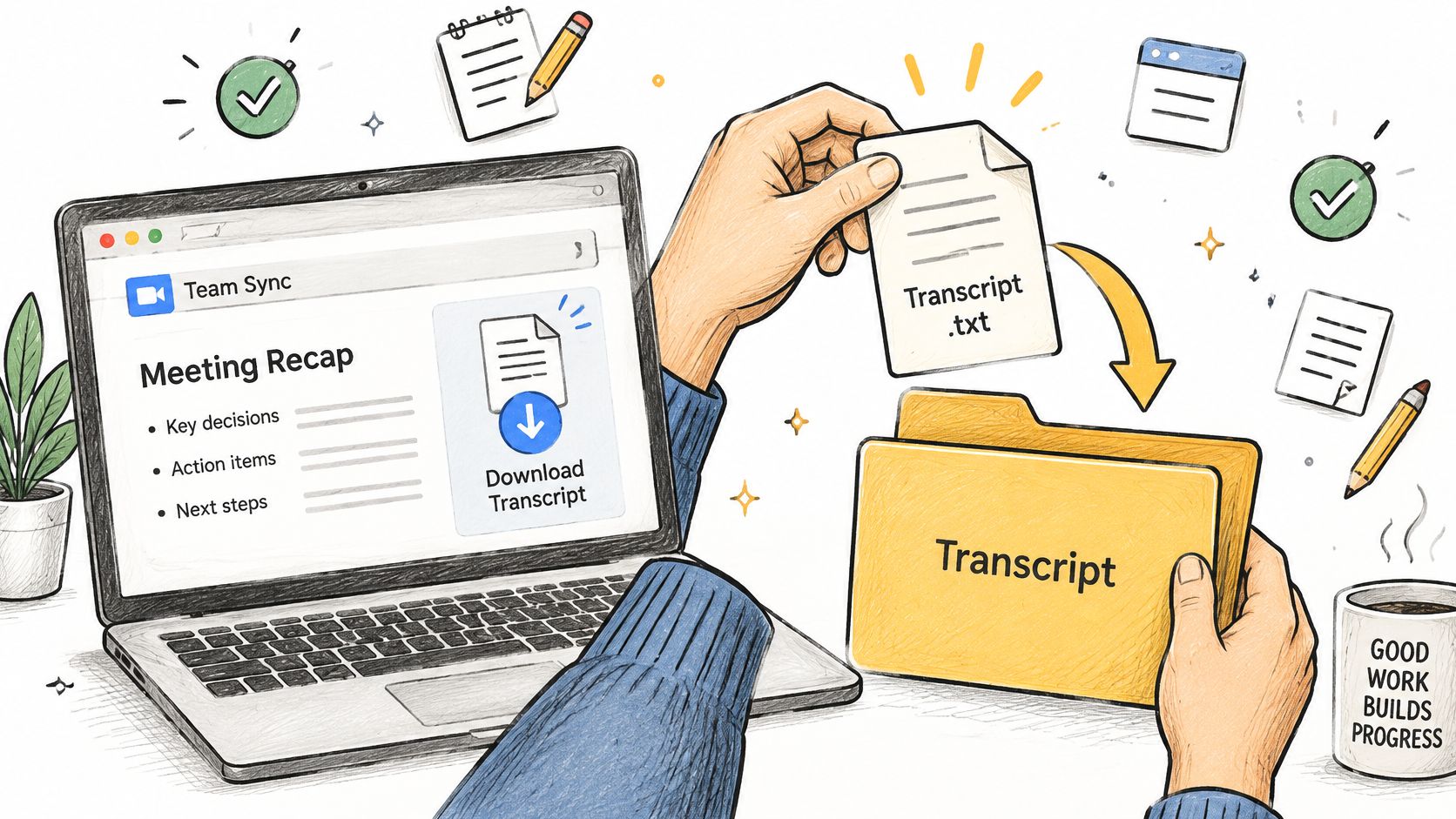
- Open the transcript from chat or Recap and download it while the link works. Save it into the project folder rather than a downloads folder you'll be searching next month.
- Name the file with the date and the project. A file called Transcript.docx is unusable six weeks later.
- Check the first and last five minutes against the audio. Names, dates, numbers and currency amounts cluster at the start, during introductions, and at the end, during next steps. Those are the two places where an error costs the most.
- Run the two-pass review rather than one long correction session. Pass one fixes who said what. Pass two checks low-confidence stretches, crosstalk, rapid turn-taking and domain terminology against the audio. That order matters because a sentence attributed to the wrong person is worse than a typo: it sends the follow-up to the wrong desk.
Why the two-pass review exists
Transcription systems hold up well on clean, sequential turns and falter exactly where meetings get interesting. The NOTSOFAR-1 meeting benchmark, built from 280 English meetings across 30 rooms with four to eight attendees, reported baseline tcpWER of 32.4% under one scoring format and 46.8% under another, with debate sessions full of overlaps rising to 38.0% and 54.9%. The same body of work found a 22-language diarization study at 16.78% duration-weighted DER, where changing utterance-boundary conventions alone moved the score by 1.9 to 4.1 percentage points.
That last detail matters more than it looks. Before you judge a transcript as good or bad, decide how your team treats interruptions, backchannels and short acknowledgments, then apply that rule consistently. Otherwise you're comparing a clean transcript to a messy one and calling it an accuracy problem.
Worked example: a 45-minute vendor call goes out with a summary that says the review lands on Thursday. The audio says Tuesday. The person who checked the first five minutes catches it, and the summary that reaches the vendor uses the date from the recording, not the transcript line.
Turn the raw lines into decisions, owners and dates in a separate summary document, and leave the transcript itself unedited as the record of what was said. If you're rewriting transcript text into something shareable, this guide to the transcription editing workflow covers how to keep the original and the edited copy in step. Dictating that summary is usually faster than retyping it: AIDictation can capture live meeting notes with decisions, action items and follow-up questions in one shared Google Doc, and it expands sparse bullet points into readable documentation your teammates can review and comment on. Whichever route you take, keep the original and the edited version together, labeled with the date and the version number.
Improve Accuracy in Multilingual and Noisy Meetings
Start with the audio path. A headset or microphone close to the speaker usually helps more than changing a meeting option. A shared speakerphone on a noisy desk can blur words and speaker turns, making decisions harder to verify. Ask participants to speak one at a time when they are discussing decisions. For persistent room noise, consider noise reduction for shared workspaces.
Distance from the microphone and overlapping speech both make recognition less reliable. If you cannot improve the room setup, treat the transcript as a draft and verify important decisions against your notes. This guide to speech recognition in noisy environments explains why noisy audio can affect recognition.
Set the language before the first sentence
Set the meeting's spoken language before participants begin. Teams can prompt the organizer to change the setting if it detects a mismatch, according to Microsoft's live transcription documentation. That prompt may arrive after the opening remarks, so do not rely on it to catch the problem before transcription begins.
What the stored record actually contains
For multilingual meetings, distinguish live captions, translated captions, the stored source transcript, and any translated document created separately. Only the original, non-translated transcript is stored; translated text is not retained as its own historical transcript. Live translated transcription also requires qualifying Teams Premium or Microsoft 365 Copilot licensing.
The multilingual trap: Translation can make a meeting easier to follow live, while leaving the team with a stored transcript that some participants cannot read.
Participants may switch languages mid-sentence, especially when discussing technical topics. Code-switching can make product names and acronyms harder to recognize. Keep the source-language transcript as the working record, and prepare a separate English summary if the team needs one. Before the call, build a shared glossary of product names, technical terms, and acronyms, then check those terms against the transcript before sharing it. This gives reviewers a consistent reference when the same term is rendered differently across languages.
Privacy, Retention and HIPAA Considerations
The 120-day default is a housekeeping setting, not a retention policy. Teams transcripts associated with recorded or transcribed meetings are stored in the meeting organizer's OneDrive for Business and stay accessible through meeting chat and Recap until deleted, according to Microsoft's documentation on starting, stopping and downloading transcripts. The same documentation sets a default 120-day deletion period for recordings and transcripts and warns explicitly that expiration does not enforce compliance requirements. Two organizations can run identical settings and end up with completely different evidence.
A retention checklist for regulated meetings
- Tell participants before transcription starts, and log that you told them. A notice in the meeting isn't a record of consent unless somebody keeps it.
- Confirm the organizer's OneDrive for Business is the right home. The transcript follows the organizer account, which is awkward when that person changes team.
- Restrict access to the people who need the record, and review that list on a schedule. Access that nobody revisits becomes access nobody controls.
- Name the meetings that are too sensitive to transcribe. Patient discussions, legal strategy, disciplinary conversations. A written exclusion list beats individual judgement at 4pm on a Friday.
- Apply a retention label or hold where formal policy applies, then verify the deletion happened. A label you never checked is an assumption.
- Document how errors get corrected and how the record gets exported. Someone will ask for a correction, and you want the procedure written before that request arrives.
The risk in one line: automatic deletion lowers exposure and creates an evidence gap in the same move, if your policy said keep.
Clinical teams should confirm with their compliance team whether the organization's Microsoft 365 agreement covers HIPAA-regulated content before transcribing anything patient-related, and treat this as a governed data workflow rather than an accessibility feature. The same logic applies to choosing the tool that handles the audio afterward: AIDictation's local mode runs transcription on-device, so sensitive audio stays on the machine, and access to audio and transcript data is limited to what's needed to provide the requested feature. It's also honest about the boundary: AIDictation isn't built for teams that need admin controls, or for work that can't send text to the cloud. On retention specifically, the Ares guide to HIPAA documentation retention is a sensible starting point when you're mapping meeting records onto a formal schedule, and this piece on what belongs in a data retention policy covers the wider document lifecycle.
Fix Missing, Wrong or Unavailable Transcripts
The symptom that wastes the most time is a missing transcription option. People assume licensing, then a bug, then a broken client. It's almost always the role or the tenant policy, in that order. Work through the causes below before you raise a ticket.
| Symptom | Likely cause | Fix |
|---|---|---|
| Transcription option missing | Role or tenant policy blocks it | Confirm you're the organizer, then ask the admin to check the meeting policy |
| No transcript after the call | Started late or stopped early | Start it at the top of the meeting and check Recap afterward |
| Text in the wrong language | Spoken language not set correctly | Set the meeting language before speaking and restart if it changed |
| Speakers mislabeled | Overlapping speech or poor audio | Fix names in the editor and verify key segments against the audio |
| Transcript no longer available | Retention or deletion policy applied | Check retention settings and export before the deletion date |
The check order is role, language, audio, retention. Resist the urge to jump to audio, because a perfect microphone doesn't help when the option was never available.
Accuracy is where expectations need managing, and one overall score is the worst possible guide. Distant, conversational audio produces far higher error than clean speech: the CHiME-7 distant-meeting evaluation work reports baseline word error rate ranging from 33.7% in the more favourable Mixer 6 condition to 77.4% in the harder CHiME-6 condition, with a Whisper baseline between 35.8% and 74.0%. The same work notes a Microsoft multi-microphone study reaching 22.3% WER with seven asynchronous streams and a 13.6% diarization error rate when about 10% of speech contained overlap.
The practical reading is that errors cluster. Names, numbers, medical terms and decisions are where you verify against the audio rather than trusting a clean-looking page. Where you have the original multichannel recording, keep it, so a disputed passage can be re-checked months later.
Choose Your Transcription Workflow Before Your Next Meeting
Match the workflow to the meeting type, not to the tool. Three patterns cover many teams, and picking one in advance is what stops transcription becoming a folder of unread text files.
- Product and project teams: transcribe every planning and review meeting, move action items with owners into the tracker the same day, and dictate a short summary to stakeholders instead of writing it from scratch.
- Clinical and legal teams: transcribe only the meetings on the approved list, keep the record inside a policy-backed retention path, and dictate separate notes rather than pasting transcript text into a clinical record.
- Multilingual teams: store the source-language transcript as the record, write an English summary as a separate document, and keep both so a reader can check the original wording.
Adoption is not evenly spread across those groups, which changes how much training each one needs. In 2024, 32% of Millennials reported using AI or automated transcription tools for meeting notes, compared with 28% of Gen Z, 22% of Gen X and 18% of Baby Boomers, according to Calendly's State of Meetings report. Assume the person who most needs the transcript is the least likely to have used one.
AIDictation fits as a step after the Teams transcript rather than instead of it, turning rough spoken notes into clean writing, and it offers free tools for voice memo to text, voice message to text, meeting transcription and podcast transcription. The free trial includes meeting recording and transcription, unlimited use of small voice models, custom prompt control, and email support from a person within 24 hours.
The first action this week is small. Pick one recurring meeting, turn on transcription for it, run the export checklist, and write down what you had to fix. Two cycles of that gives you a rollout plan built from your own errors rather than from a vendor's demo.
Teams transcripts often need a second pass before anyone quotes them, and that pass is faster with dictation than with typing. AIDictation records and transcribes meetings, then turns your spoken cleanup notes into a readable summary you can share, with local mode keeping sensitive audio on your Mac when the meeting content can't leave the room. Try the free tools and the trial at AIDictation on your next recurring meeting and see how much of the cleanup you can dictate instead.
Frequently Asked Questions
What does Teams Meeting Transcription: How to Turn It on and Use It cover?
The decision was made at 10:07, four people agreed to it, and by the afternoon nobody can agree on who owns it. Someone suggests turning on transcription next time.
Who should read Teams Meeting Transcription: How to Turn It on and Use It?
Teams Meeting Transcription: How to Turn It on and Use It is most useful for readers who want clear, practical guidance and a faster path to the main takeaways without guessing what matters most.
What are the main takeaways from Teams Meeting Transcription: How to Turn It on and Use It?
Key topics include Table of Contents, How to Start and Stop Transcription in Teams, Recording Versus Transcription for Your Meeting.
Ready to try AI Dictation?
Experience fast voice-to-text on your device. Free to download.
Download Free