What Is a Dictation? a Modern Guide to Voice-to-Text
Dictation is the process of speaking so your words are turned into written text in real time, usually by a device rather than an old-style secretary taking notes. In current consumer systems, Apple says Siri and Dictation transcripts may be retained for up to two years, which shows how established dictation has become as a mainstream way to write.
You're probably already in the kind of moment where dictation matters. You need to answer messages, turn meeting thoughts into notes, draft a status update, or capture an idea before it disappears, and typing feels slower than your brain. That's where people often ask, what is a dictation, really. Is it just voice typing, or is it something bigger?
The better answer is that modern dictation is a writing workflow. You speak. Software captures your voice. A speech system turns that audio into text. Then, depending on the tool, another layer may clean up punctuation, organize sentences, remove filler words, and shape rough speech into something you can send.
That shift matters for daily work. Dictation used to sound like clerical support. Today, it's closer to a flexible input system for busy professionals who think faster out loud than they type.
Table of Contents
- What Dictation Means in 2026
- How Modern Dictation Works On-Device vs Cloud
- Dictation vs Transcription Understanding the Difference
- Who Uses Dictation and Why It Matters
- Getting Started with Dictation on macOS
- Best Practices for Clean and Accurate Dictation
What Dictation Means in 2026
If you ask a busy manager, developer, or clinician what slows writing down, the answer usually isn't a lack of ideas. It's friction. Hands are busy. Meetings run back-to-back. Thoughts arrive faster than fingers move.
That's why what a dictation is has changed in practice. It still means speaking so text gets written down, but in 2026 it also means using voice as a serious input method for getting work done. You're not just capturing speech. You're composing in real time.
In technical workplaces, that difference is easy to feel. Voice can help you draft a follow-up while walking between meetings, outline a spec before opening a doc, or turn scattered ideas into a rough first draft while your hands stay on another task. If you already use AI writing systems, Lumi Humanizer's guide to AI tools is a useful companion because it shows where generation, cleanup, and editing fit around raw input rather than replacing it.
Dictation is now part of a writing pipeline
A simple definition misses the true shift. Modern dictation often sits at the front of a larger workflow:
- Capture first: You speak your ideas before they disappear.
- Convert fast: Speech recognition turns the audio into text as you talk.
- Polish next: Formatting, punctuation, and cleanup make the draft usable.
- Review last: You still edit for meaning, tone, and accuracy.
That's why the phrase “voice typing” feels too small for many current tools. In many workplaces, dictation is the first stage of document production, not the whole job.
Practical rule: If speaking gets your draft started faster than typing, dictation is doing its job even if you still edit afterward.
Professional settings already treat dictation as more than a convenience. In healthcare, ASTM's E2344 guide focuses on improving documentation quality through the dictation process, which shows dictation has become a standardized workflow in major settings rather than an informal shortcut, as described in this overview of dictation and transcription in medical documentation.
If you want a related primer on the broader voice input category, this explanation of speech-to-text workflows helps place dictation inside the wider family of speaking-to-write tools.
How Modern Dictation Works On-Device vs Cloud
Individuals often use dictation before fully grasping its mechanics. That's fine until they hit a problem with privacy, latency, or formatting and don't know why one tool feels instant while another feels smarter.
The core pipeline
At a technical level, dictation is a speech-to-text workflow. Your microphone captures live audio. An automatic speech recognition system converts that speech into text in real time. Many modern tools add punctuation, formatting, and command handling on top of the raw transcript, as explained in this technical overview of dictation systems.
That means the writing you see on screen usually comes from more than one step:
- Audio capture through your mic
- Speech recognition that maps sound to words
- Post-processing that restores capitalization and punctuation
- Command handling for things like “new paragraph” or “send”
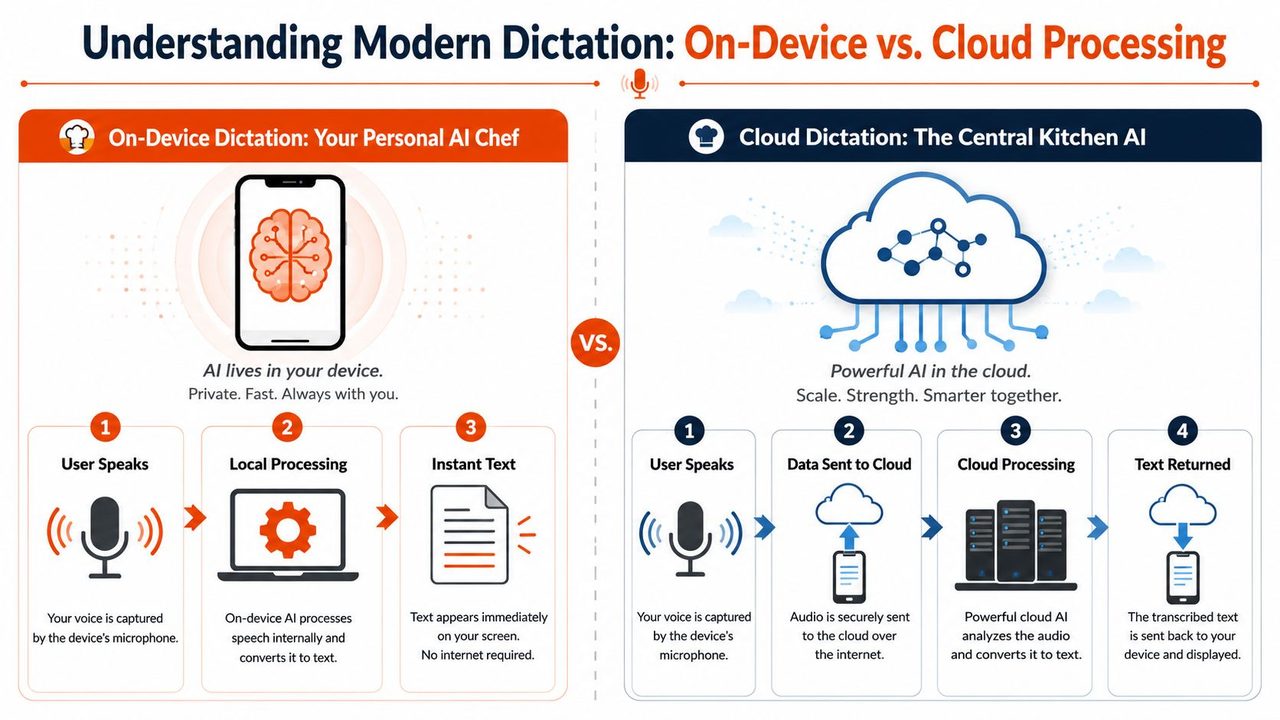
Local chef vs central kitchen
The easiest way to understand the split is this. On-device dictation is like a local chef. The work happens right in your kitchen, quickly, privately, and without waiting on a delivery route. Cloud dictation is like a central kitchen. You send ingredients out, a larger system does more elaborate processing, and the finished result comes back.
Here's what that means in day-to-day use.
- On-device dictation: Audio stays on your computer or phone. This is useful when privacy matters, internet is unreliable, or you want the fastest possible response.
- Cloud dictation: Audio is sent to remote servers for processing. This can support heavier cleanup, richer formatting, and more context-aware output.
The choice isn't just technical. It changes how safe, fast, and polished the experience feels.
What each model is good at
On-device systems usually fit moments like these:
- Sensitive writing: clinical notes, legal drafts, internal reviews
- Offline work: flights, trains, weak Wi-Fi, locked-down offices
- Low-latency input: quick edits, short commands, thought capture
Cloud systems usually fit these cases:
- Messy speech cleanup: false starts, filler, self-corrections
- Formatting help: emails, lists, structured notes
- Context-heavy writing: text that benefits from interpretation, not just transcription
Use on-device when privacy and immediacy matter most. Use cloud when cleanup and document-ready output matter most.
That's why the question “what is a dictation” now has a second layer. It's not only “speech turned into text.” It's also “which processing model fits this task?”
If you're comparing private local workflows specifically, this guide to offline voice-to-text on Mac is useful because it shows when keeping speech on your own machine changes the tradeoff.
Dictation vs Transcription Understanding the Difference
People mix these terms up constantly, and the confusion causes bad tool choices. Someone needs live voice input for drafting and ends up with a meeting transcript product. Someone wants a verbatim record and reaches for a dictation app that tries to clean everything up.
One is for composing, one is for documenting
The cleanest distinction is this. Dictation happens while you're speaking to create text now. Transcription happens after speech has already been recorded. That timing difference changes everything.
A domain-specific explanation from Speechify puts it plainly: dictation is created in real time as someone speaks, while transcription usually converts an existing recording into text afterward. It also notes that real-time dictation must minimize latency and tolerate interruptions, while transcription can spend more compute time on accuracy, which is why the two workflows feel different in practice in this dictation definition and comparison guide.
If you work with recorded video, podcasts, or editing timelines, the workflow looks even more different. A resource like CoffeeTrans' Premiere Pro subtitle tutorial is helpful because subtitle creation is clearly a transcription-style job, not a live dictation one.
Dictation vs. Transcription at a Glance
| Criterion | Dictation | Transcription |
|---|---|---|
| When it happens | While you speak | After audio already exists |
| Primary goal | Compose text quickly | Create a written record |
| Typical use | Emails, notes, drafts, documentation | Meetings, interviews, lectures, subtitles |
| Speed priority | Fast response | Can take longer |
| Tolerance needed | Must handle interruptions and false starts live | Can analyze recorded audio more carefully |
| Output style | Usually readable, cleaned-up text | Often closer to what was actually said |
If you're talking to create a draft, you want dictation. If you're converting a recording into a record, you want transcription.
That one distinction saves a lot of frustration. It also explains why some tools feel “smart” but wrong for your task. They're solving the wrong problem.
Who Uses Dictation and Why It Matters
Dictation becomes easier to understand when you stop treating it as a feature and start treating it as a work habit. Different people use it for different kinds of friction.
Work that benefits from speaking first
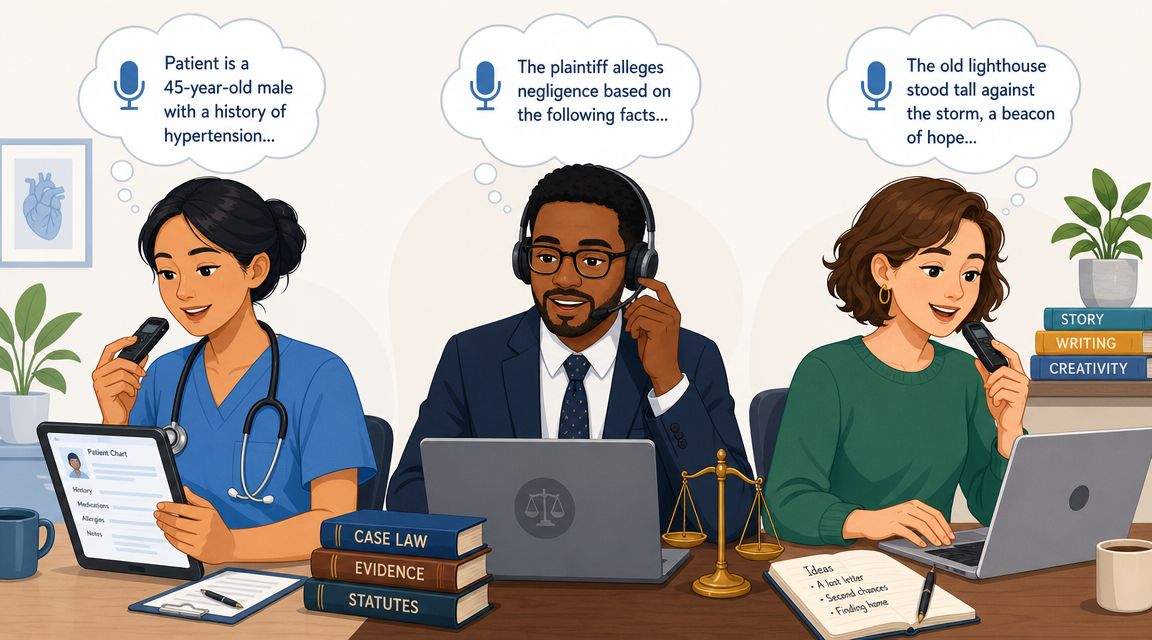
A product manager leaves a planning meeting with five decisions, three risks, and two follow-ups. If they wait until the next free hour, details blur. Dictation lets them talk through user stories and stakeholder notes while the conversation is still fresh.
A developer often knows what needs to be explained before they feel like typing it. Dictation helps with code comments, pull request summaries, architecture notes, and bug reproduction steps. Speaking can preserve flow when stopping to type would break concentration.
A healthcare professional has a different pressure. The note has to be captured quickly, but it also has to be reviewed carefully. That's one reason dictation has remained important in medicine as a real operational skill, not just a convenience.
A customer support or marketing lead may use dictation to clear a message backlog, turn bullet points into rough email drafts, or record campaign ideas without opening a full editor. The value isn't magic. It's reduced friction.
If your work includes recorded conversations, interviews, or media files, teams often pair dictation with transcription in the same stack. RapidNative has a useful look at how to streamline app content workflows when audio, files, and text all need to move through one process.
Why skill matters as much as software
People sometimes assume dictation quality depends only on the tool. In practice, the speaker matters too. A published radiology study found that after a didactic lecture, test scores for PGY-2 to PGY-4 residents significantly increased, which shows dictation can be taught and measured as a professional competency in this PubMed record on resident dictation instruction.
That's an important clue for everyone else. If clinicians can improve dictation through instruction, office workers can too.
A few patterns show up across professions:
- Cognitive offloading: Speaking lets you get ideas out before you refine them.
- Momentum preservation: You stay in the task instead of switching modes constantly.
- Accessibility and ergonomics: Voice can reduce reliance on constant keyboard use.
- Faster first drafts: The rough version appears sooner, which makes editing easier to start.
The biggest payoff often isn't fewer keystrokes. It's fewer lost thoughts.
Getting Started with Dictation on macOS
You sit down to clear your inbox, open a meeting note, and realize the bottleneck is not ideas. It is typing speed, context switching, and the small pauses that break momentum. On a Mac, dictation is often the fastest way to test whether voice can remove that friction from your day.
Start simple with built-in tools
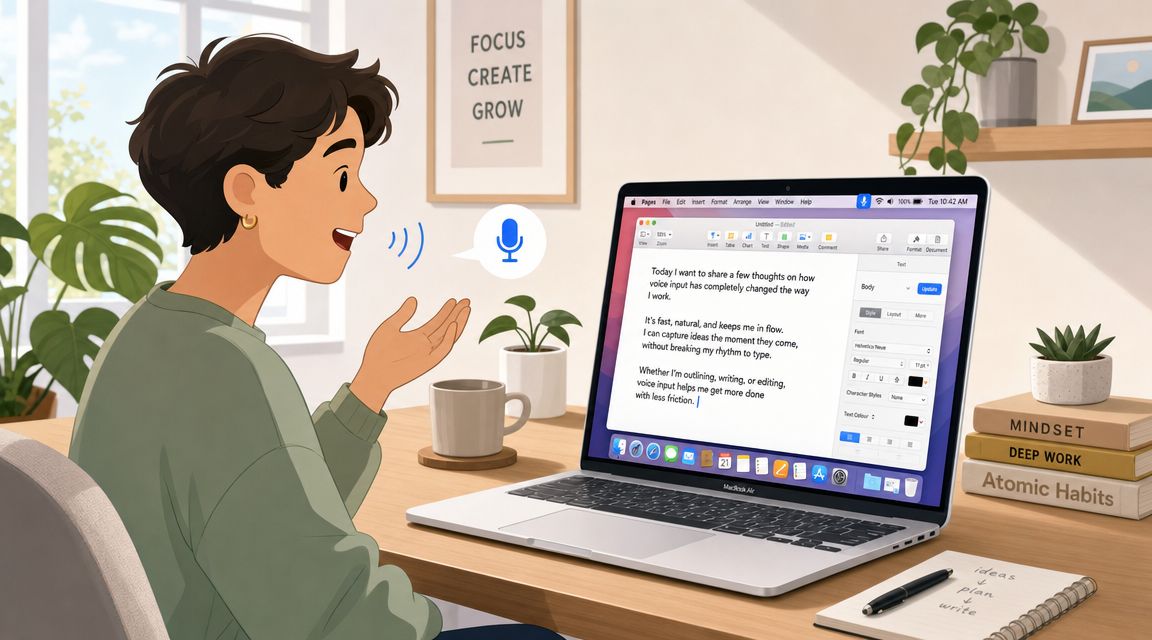
macOS already gives you a low-risk starting point. Open any text field in Notes, Mail, Docs, or the app where you already write. Turn on Dictation in System Settings, then try one small task, such as a short reply, a draft agenda, or a post-meeting recap.
Start with work that can be messy on the first pass. That matters. If your first attempt is a client memo or a polished proposal, every recognition mistake feels expensive. If your first attempt is a rough draft you plan to edit anyway, dictation feels like what it is in 2026: a capture tool first, an editing tool second.
For Mac users, the first useful question is not only "Does this work?" It is "Where should the processing happen?" On-device dictation works like a local chef cooking in your own kitchen. Your words stay close, response time is short, and private material is easier to control. Cloud dictation works more like a central kitchen with a larger staff. It can do more cleanup and language handling, but your audio or text has to travel first. That privacy-versus-intelligence choice shapes your workflow more than many basic setup guides explain.
When you need more control
Built-in dictation is a good training ground. Many professionals outgrow it once they know voice fits their work.
The next step usually depends on the kind of friction you want to remove:
- Private local dictation for sensitive notes, internal planning, or offline work
- Cloud processing for rougher speech that needs better formatting and cleanup
- Flexible switching so you can choose the right mode per task instead of using one default for everything
AIDictation is one example of that kind of setup on macOS. It supports local or cloud processing depending on the job. Local mode is aimed at private, offline dictation on Apple Silicon. Cloud processing can add cleanup, formatting, and better handling for self-corrections. For daily work, the benefit is straightforward. You can treat voice input less like a single feature and more like a system you tune for the document in front of you.
If you want to see the workflow in motion, this short walkthrough helps:
A quick setup path
A simple rollout works better than trying to dictate everything on day one.
-
Choose one repeated task
Pick something you do often, such as email replies, meeting notes, or outline drafts. Repetition helps you judge whether dictation saves time. -
Match the mode to the task
Use local processing for sensitive content. Use cloud processing when readability, formatting, or cleanup matter more than keeping everything on-device. -
Speak first, edit second
Capture the draft in one pass. Then revise with the keyboard. Separating those jobs keeps your thinking clearer. -
Add structure out loud
Say punctuation when needed. Use sentence-sized chunks and commands like “new paragraph” so the draft arrives with a clearer shape. -
Dictate where the text will live
Putting words straight into the final app cuts copy-paste steps and keeps your workflow smoother.
For Mac-specific setup details, this guide on how to use dictation on Mac is a practical next step.
Best Practices for Clean and Accurate Dictation
A good dictation setup works a lot like a good meeting setup. If the room is noisy, the agenda is fuzzy, and everyone talks over each other, the notes come out messy. Voice input behaves the same way. Clear input usually leads to cleaner text, which means less cleanup later.
The practical goal is simple. Treat dictation as a repeatable writing system, not just a microphone button.
Speak for the page, not for the room
Spoken conversation and written language follow different rules. In conversation, fragments, restarts, and side comments are normal. On the page, they create clutter. Dictation works better when you speak in full thought units that a reader could follow without hearing your voice.
A useful mental model is this: speak like you are explaining the point to one colleague who will read it later.
- Use phrase-sized chunks: One idea per burst gives the software clearer boundaries.
- Say punctuation when needed: “Period,” “comma,” and “new paragraph” help shape structured drafts.
- Slow down on names and terms: Client names, product names, and specialized vocabulary need cleaner pronunciation than everyday speech.
Clean dictation starts with sentence design, not software settings.
Build habits that reduce cleanup
The biggest shift is separating drafting from editing. If you try to compose, revise, and correct at the same time, your attention gets split. A better approach is to get the first version out by voice, then switch modes and edit with your keyboard.
That matters even more in 2026, because dictation is no longer one thing. On-device dictation works like a local chef preparing food in your own kitchen. It keeps sensitive material close and private, but it may do less cleanup for you. Cloud dictation works like a central kitchen with more staff and more context. It can often produce cleaner formatting and stronger language handling, but your audio or text may leave the device. The right habit is choosing the mode based on the job in front of you.
A few practices help consistently:
- Use a clear microphone: You do not need studio gear, but better input reduces avoidable errors.
- Add custom vocabulary when available: Acronyms, names, and industry terms are common failure points.
- Choose the right mode for the task: Private notes and client-facing drafts have different requirements.
- Review for meaning, not just typos: A sentence can look polished and still say the wrong thing.
Early attempts often feel awkward. That is normal. Typing has years of muscle memory behind it, while dictating forces you to externalize thoughts in order. Once that becomes familiar, voice input starts to feel less like a novelty and more like a practical productivity system.
If you remember one point, use this one: dictation is a skill you configure and practice. The payoff is faster drafting, less friction, and a clearer choice between private local processing and smarter cloud assistance.
If you want a Mac tool built for that kind of workflow, AIDictation is designed to turn spoken input into cleaner writing with local and cloud modes depending on the task. It is a practical option if you want to move from basic voice input to a more deliberate writing process.
Frequently Asked Questions
What does What Is a Dictation? a Modern Guide to Voice-to-Text cover?
Dictation is the process of speaking so your words are turned into written text in real time, usually by a device rather than an old-style secretary taking notes. In current consumer systems, Apple says Siri and Dictation transcripts may be retained for up to two years, which shows how established dictation has become as a mainstream way to write.
Who should read What Is a Dictation? a Modern Guide to Voice-to-Text?
What Is a Dictation? a Modern Guide to Voice-to-Text is most useful for readers who want clear, practical guidance and a faster path to the main takeaways without guessing what matters most.
What are the main takeaways from What Is a Dictation? a Modern Guide to Voice-to-Text?
Key topics include Table of Contents, What Dictation Means in 2026, Dictation is now part of a writing pipeline.
Ready to try AI Dictation?
Experience fast voice-to-text on your device. Free to download.
Download FreeRelated Posts
10 Custom Dictionary Software Tools for Every Workflow
Compare 10 custom dictionary software tools for terminology, medical dictation, developer workflows, corpus research, and speech recognition.
This May Take Several Minutes: Dictation UX Best Practices
Master user-facing wait messages like "this may take several minutes" for dictation. Explore UX, accessibility, and alternatives
8 Best Bilingual Dictation Apps: 5 Tested + 3 Baselines
We tested five bilingual dictation apps on Russian-English code-switching, plus three common baselines. Compare WER, language recall, script, and workflow.