Find the Best Lecture Recording App: A 2026 Guide
Your professor is halfway through a dense explanation, the slides are changing fast, and your notes have already turned into fragments. You caught the main idea, missed the example, and definitely didn't get the exact wording of the formula. Now you're stuck choosing between listening carefully and typing frantically.
That's the moment when a good lecture recording app stops being a convenience and starts feeling like study insurance. Not because it magically learns for you, but because it lets you stay present in class and build a better review system afterward. If you use one well, you're not just saving audio. You're creating searchable lecture material you can study from.
Table of Contents
- Never Miss a Word Again
- Beyond Audio What Is a Modern Lecture Recording App
- Must Have Features for Accurate Transcription
- How to Choose the Right App for You
- Best Practices for Crystal Clear Recordings
- Start Recording Your First Lecture
Never Miss a Word Again
You know the kind of lecture. The professor speaks fast, turns away from the mic, answers student questions from across the room, and drops a key definition only once. You try to keep up. Your notes become half-sentences like “compare with prior model” and “important for exam??” and “ask about second assumption.”
Later that night, those notes don't help much. You remember that something important happened around the middle of class, but you can't reconstruct it. So you reread slides that were never meant to stand alone and hope your memory fills the gaps.
A lecture recording app fixes that problem best when you treat it as part of your study workflow, not as a panic button. The app captures the lecture. The transcript helps you find exact phrases. The summary gives you a first pass. Then your own notes turn that raw material into understanding.
Practical rule: The app should handle capture, transcription, and retrieval. You should handle judgment, review, and memory.
That distinction matters. Students sometimes expect the app to replace note-taking entirely, then get disappointed when the transcript feels too literal or the summary misses what the professor emphasized. A better approach is simpler. Let the app catch what your hands can't type fast enough, then use your energy on patterns, questions, and connections.
The relief is immediate. You stop writing every sentence. You listen more closely. You mark the moments that matter. And when you review later, you're not staring at a blank spot where the explanation should've been.
Beyond Audio What Is a Modern Lecture Recording App
A basic recorder stores sound. A modern lecture recording app turns that sound into study material.
That's the shift that matters. Older tools behaved like digital tape recorders. Hit record, save the file, and later scrub through a long timeline hoping to find the right part. Newer tools act more like a smart assistant. They record the lecture, transcribe the speech, organize the text, and often generate notes or summaries you can use right away.
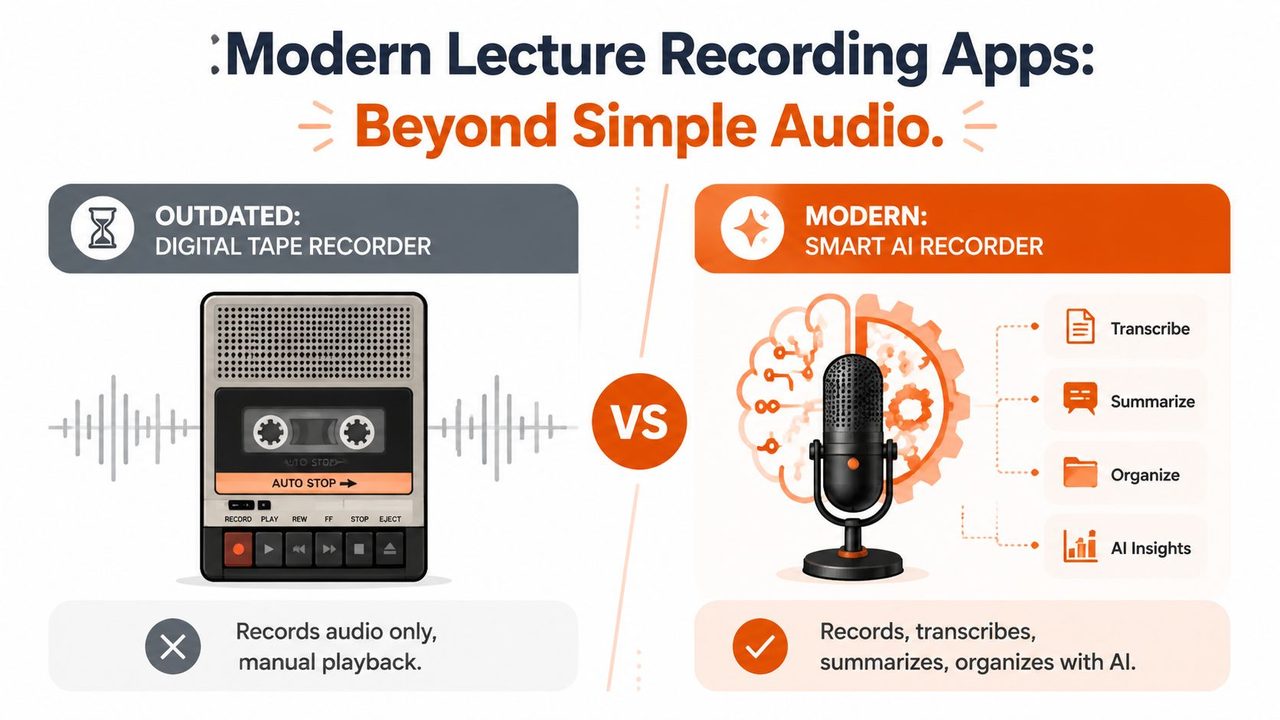
Tape recorder versus smart assistant
Think of a voice memo app as a filing cabinet. It keeps the raw audio safe, but it doesn't help much with understanding. A modern lecture recording app does more practical work after the lecture ends.
Instead of asking, “Did the audio save?” you should ask:
- Can I search the transcript?
- Can I find the exact moment a term was explained?
- Can I turn the recording into notes quickly?
- Can I use it across accents, languages, and messy classroom audio?
That new baseline matches how leading tools are described in this 2026 roundup of lecture recorder apps, which notes a category shift toward real-time, AI-generated study output. The same roundup describes tools that produce transcripts, summaries, and notes within minutes of a lecture or uploaded file, with some supporting 150+ languages and others focusing on live transcription during class.
What that changes for students
This changes your study routine in a very practical way. Before, recording was only useful if you were willing to relisten. Most students aren't. It's too slow.
Now, the primary value comes from outputs you can scan. A transcript lets you search for “mitosis,” “supply shock,” or “case law.” A summary helps you rebuild the lecture structure. Notes, flashcards, or quiz prompts can shorten the jump from attendance to review.
A saved audio file is storage. A transcript plus usable study output is workflow.
That doesn't mean every app with “AI” in the description is worth using. It means your standard should be higher than simple recording. If an app can't help you move from lecture capture to actual review, it isn't doing the hardest part of the job.
Must Have Features for Accurate Transcription
When students compare apps, they often get distracted by nice-looking dashboards and “smart notes” promises. Start with the technical basics instead. If the transcript is weak, every downstream feature gets weaker too.
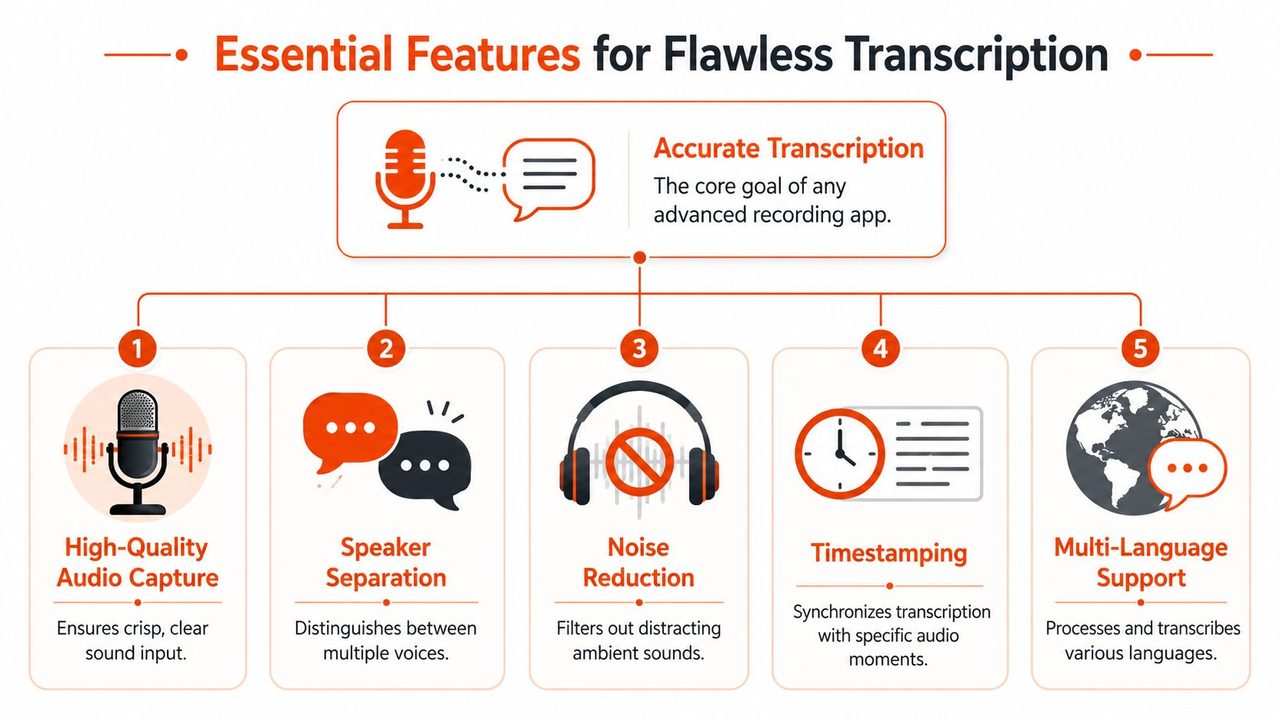
A useful benchmark comes from a 2026 review of nine lecture-recording tools, which evaluated apps using transcription accuracy, latency, and noise resilience. It explicitly defined accuracy with word error rate against human transcripts and tracked the time from the end of recording to the final transcript. In that review, TicNote Cloud handled accents well and stayed strong in noisy conditions, while Otter.ai was fast for live notes but lost accuracy in noisy lecture halls and with heavy accents.
Accuracy Means Usable Text
“Accurate transcription” sounds obvious, but students usually only notice what it means when it fails. One wrong technical term can distort a whole paragraph. If you're studying chemistry, law, anatomy, or programming, small wording mistakes matter.
Accuracy isn't just about individual words. It's also about whether the transcript is useful without heavy cleanup. You want a transcript that preserves enough meaning to support review, quote checking, and note correction.
When you're evaluating tools, look for signs that the app handles:
- Subject-specific vocabulary: Technical classes use terms normal dictation tools often mishear.
- Accents and speaking styles: Professors don't all sound like studio narrators.
- Fast explanation chains: Good tools keep up when the lecturer moves from definition to example without pausing.
If you want to understand how audio quality affects downstream text results, this guide to mastering MP3 transcription in 2026 is a useful companion read because it explains the practical connection between audio files and transcript quality.
Speed Changes Study Habits
Latency matters more than most students think. If a lecture recording app gives you the final transcript quickly, you'll review sooner. If it takes too long, the file gets ignored.
That's why the benchmark above tracked the gap between the end of recording and transcript delivery. For studying, the ideal workflow is simple: class ends, transcript appears, you scan and annotate while the material is still fresh.
A good test is this: could you leave class, sit down in the library, and start revising from the transcript almost immediately? If yes, the app supports real study habits. If not, it becomes another inbox item.
For students who also record seminars, interviews, or project meetings, a browser-based meeting transcription tool can help you compare what lecture-focused outputs should feel like in practice.
Noise Handling Is Not Optional
Lecture rooms are messy audio environments. Chairs scrape. HVAC systems hum. Students whisper. Questions come from the back row. Some professors pace while speaking.
That makes noise resilience a core feature, not a bonus. The best app in a quiet demo can still fail in a real classroom if it can't separate speech from room noise.
Here's a quick buyer's checklist:
| Feature | Why it matters in class |
|---|---|
| Noise reduction | Helps preserve the lecturer's voice when the room isn't quiet |
| Speaker separation | Makes Q&A sessions easier to review |
| Timestamps | Lets you jump from text to the exact audio moment |
| Long recording support | Prevents split files and missing segments in longer classes |
Exports and Search Save Time Later
A transcript only helps if you can do something with it.
You want to search it, copy key parts into your notes, export it into documents, and revisit exact moments without replaying the whole lecture. Many “pretty” apps often falter on these critical functionalities. They capture well enough, then trap your notes in an awkward interface.
The best lecture recording app doesn't just hear the lecture. It helps you retrieve one important idea fast.
That retrieval step is what turns transcription into an academic tool instead of a novelty.
How to Choose the Right App for You
There isn't one best lecture recording app for everyone. The right choice depends on your devices, your privacy comfort level, and the kind of classes you take.
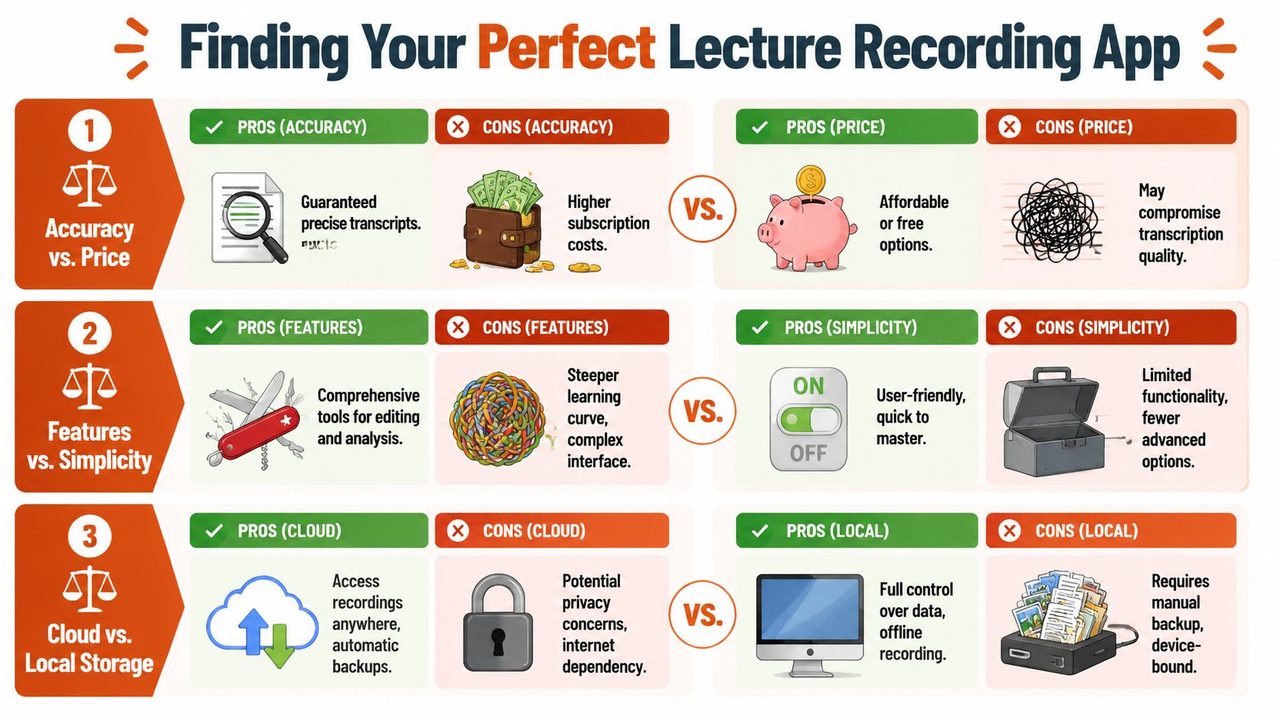
Students often choose too quickly. They install the first app with a clean interface, then discover it doesn't work well on their laptop, doesn't store files the way they expected, or can't handle offline recording when campus Wi-Fi gets spotty. A better approach is to choose based on friction points you already know you have.
Start With Your Real Devices
Don't begin with feature lists. Begin with your actual setup.
If you attend class with only your phone, then laptop-only tools are a bad fit no matter how smart they seem. If you study mainly on a Mac after class, then a tool with strong desktop review may matter more than mobile editing. If you switch between in-person lectures and Zoom recordings, you need an app that handles both cleanly.
Ask yourself three boring but important questions:
- Where will I press record most often?
- Where will I review transcripts later?
- Do I need files to sync automatically across devices?
The most advanced app is still the wrong app if it doesn't fit your routine.
Privacy Changes the Right Choice
Privacy isn't just a legal checkbox. It's part of product fit.
Some students are fine with cloud processing because they want easy syncing and fast access from anywhere. Others want local control, especially if they're recording sensitive discussions, disability accommodation content, or advising sessions. Cloud tools usually make sharing and backup easier. Local-first tools usually give you tighter control over where your recordings live.
This tradeoff shows up outside classrooms too. If you want a broader framework for deciding when cloud convenience is worth it, this piece on webinar audio transcription strategy is useful because the same storage and processing questions apply.
A practical way to compare options is to put them side by side with a broader buyer's guide like this roundup of voice-to-text software for 2026, then filter for your own platform and privacy preferences.
Accessibility Is a Core Buying Factor
Many app roundups treat accessibility like a side note. It isn't. For some students, it's the main reason to use a lecture recording app at all.
University guidance from the University of South Carolina shows that students often evaluate note-taking and recording tools based on very specific accommodation needs, including clear capture when the lecturer is not nearby, offline use, and timestamped notes. That guidance matters because it reflects real classroom use, not just marketing pages.
If an app works only under ideal conditions, it doesn't work well enough for many students.
This is also where many buyers get confused. They think accessibility features are special extras. In practice, features like reliable distance capture, offline operation, and timestamped review improve usability for almost everyone.
A Simple Decision Table
If you're stuck between two or three tools, use this framework:
| Your priority | Better fit |
|---|---|
| Fast review after class | Tools with quick transcript turnaround and searchable notes |
| Tighter data control | Local-first or offline-friendly options |
| Mixed online and in-person classes | Apps that can handle uploaded files and live recording |
| Accommodation needs | Tools with strong distance capture, timestamps, and offline support |
| Low learning curve | Simpler apps with fewer editing layers |
A good choice feels boring in the best way. You hit record, trust the capture, and can find what you need later without wrestling the software.
Best Practices for Crystal Clear Recordings
Even the smartest transcription system can't rescue unusable audio. The quality of your recording still depends on what happens before the lecture starts.
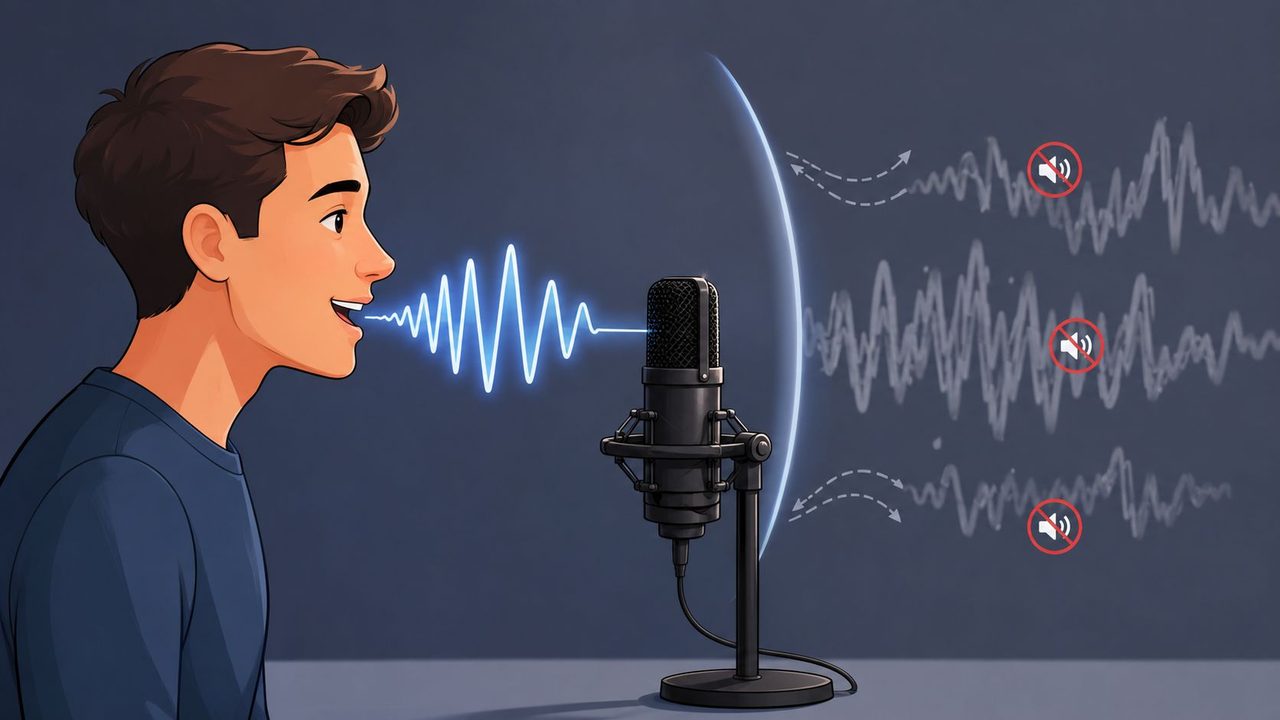
That matters because classroom usability improves when an app supports clean input, long-duration recording, and searchable transcripts, letting you jump from the transcript to the exact audio segment instead of replaying the whole session, as noted in this lecture recording workflow review.
Set Up the Room Before Class Starts
Seat choice changes transcript quality. If you can, sit where the lecturer's voice reaches your device clearly without forcing the microphone to fight side conversations.
A few habits make a big difference:
- Test for ten seconds: Record a short sample before class and play it back with headphones.
- Keep the microphone unobstructed: Don't bury your phone under a notebook or hoodie sleeve.
- Stabilize the device: A phone sliding on a desk creates ugly handling noise.
- Use airplane mode if appropriate: Fewer interruptions, vibrations, and surprise audio alerts.
If you're using an external mic or want to improve your setup beyond the built-in laptop or phone microphone, this guide to choosing a microphone for speech recording gives practical advice without overcomplicating the gear side.
Teach the App Your Vocabulary
General speech models often stumble on names, acronyms, and course-specific terms. That's normal. The fix is to prepare the app when possible.
If your tool supports a custom dictionary or vocabulary list, add:
- Professor and guest speaker names
- Course terms and abbreviations
- Product names, case names, or formulas said aloud
- Words that sound similar but mean different things in your class
This is one of the most effective habits for technical courses. A transcript with the right specialized terms becomes searchable in the way you need.
A lecture recording app gets better results when you stop treating it like magic and start treating it like a tool that needs setup.
Review Fast While the Lecture Is Fresh
The best time to clean up a transcript is right after class, when your memory can still fill in what the software or microphone missed.
Try this short workflow:
- Scan the transcript for obvious errors. Fix names, jargon, and headings first.
- Highlight the key explanation blocks. Look for definitions, examples, and exam hints.
- Add your own margin notes. Write what confused you and what connects to previous material.
- Export or copy useful parts into your main notes. Don't leave your best material trapped in one app.
That final step matters because searchable text is only half the win. The full benefit comes when your recordings become organized study assets instead of a pile of unlabeled sessions.
Start Recording Your First Lecture
A strong lecture recording app does three jobs well. It captures clean audio, turns that audio into usable text, and makes that text easy to search, review, and reuse. If any one of those breaks, the workflow gets weaker.
So keep your checklist simple. Choose an app that fits your devices. Decide how much privacy and local control you want. Make sure the transcript quality is good enough for real classroom conditions, not just quiet demos. Then do your part: sit in a smart spot, test your setup, and review the output while the lecture is still fresh.
You don't need a perfect system on day one. You need a reliable one you'll use next class.
Once you get that rhythm down, recording stops feeling like backup. It becomes part of how you learn, revise, and catch details you would've missed the first time.
If you want a Mac-focused option that balances privacy, speed, and polished voice-to-text output, AIDictation is worth a look. It supports on-device and cloud modes, handles dictation and transcription, and fits well if you want more control over how spoken audio turns into clean, usable text.
Frequently Asked Questions
What does Find the Best Lecture Recording App: A 2026 Guide cover?
Your professor is halfway through a dense explanation, the slides are changing fast, and your notes have already turned into fragments. You caught the main idea, missed the example, and definitely didn't get the exact wording of the formula.
Who should read Find the Best Lecture Recording App: A 2026 Guide?
Find the Best Lecture Recording App: A 2026 Guide is most useful for readers who want clear, practical guidance and a faster path to the main takeaways without guessing what matters most.
What are the main takeaways from Find the Best Lecture Recording App: A 2026 Guide?
Key topics include Table of Contents, Never Miss a Word Again, Beyond Audio What Is a Modern Lecture Recording App.
Ready to try AI Dictation?
Experience fast voice-to-text on your device. Free to download.
Download FreeRelated Posts
Transcription Audio to Text: A Practical Workflow Guide
Learn transcription audio to text with a clean workflow covering tools, recording, cleanup, and accuracy tips that work on macOS and beyond.
What Is Audio Transcription and How It Works in 2026
Learn what is audio transcription, how modern speech-to-text works, why accuracy varies, and where it's used across healthcare, dev, and meetings.
Transcription Editing: A Professional's Workflow Guide
Master transcription editing with our step-by-step guide. Learn to clean up AI transcripts, apply style rules, and perform QA for perfect, professional results.