How to Take Better Lecture Notes with Voice Dictation
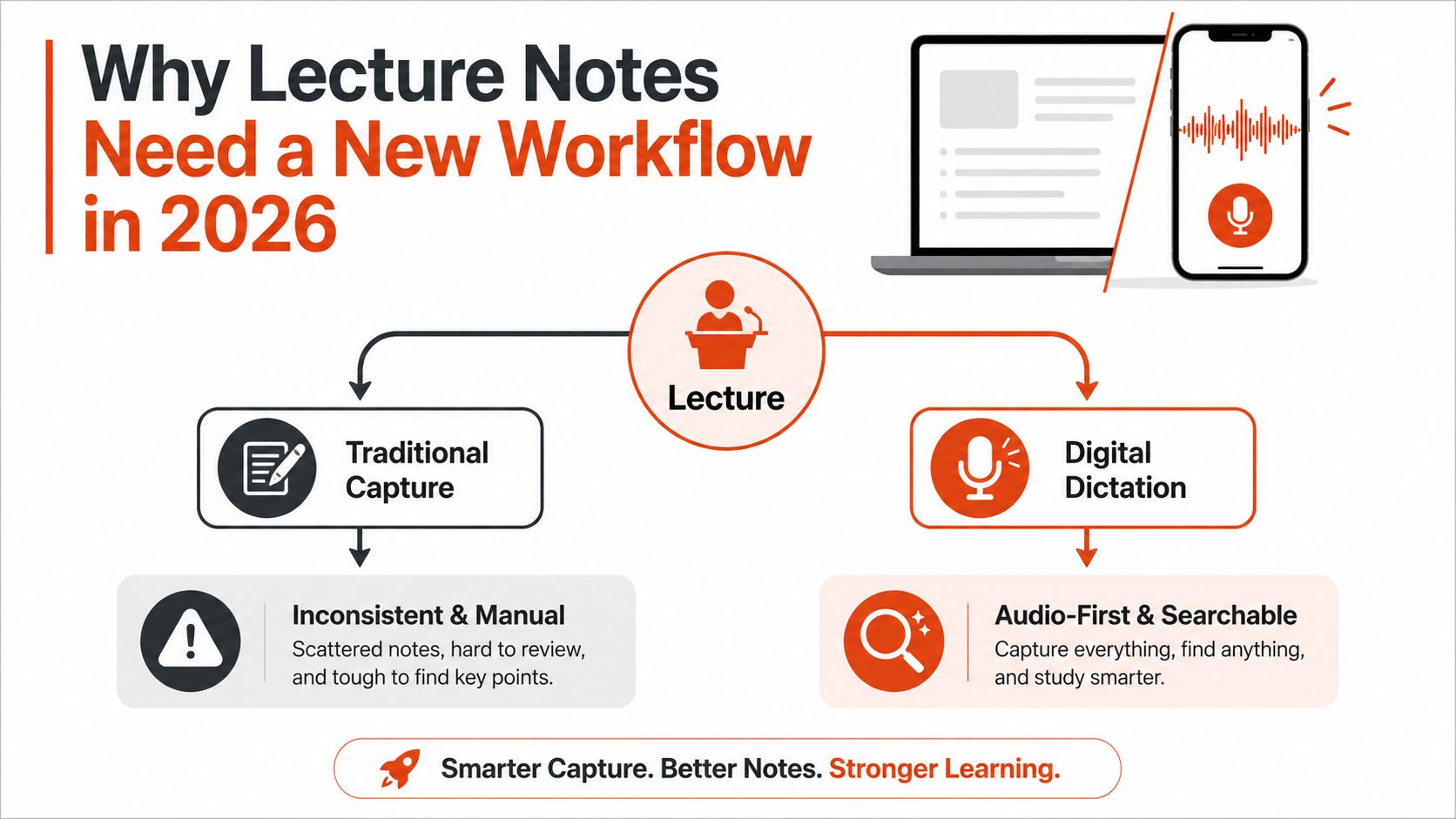
You're three minutes into a 200-seat introductory psychology lecture. Half the room is typing fast enough to make the keyboards sound like rain. The other half is looking at phones, opening slides, or trying to remember what the professor said before the current sentence disappears. Neither group is necessarily producing useful lecture notes.
The problem isn't that students lack capture tools. It's that most workflows stop after capture. A workable system has three stages: capture the lecture, clean the raw transcript, and convert the cleaned material into study assets. Voice dictation can speed up the first stage, but it only becomes useful when it supports the other two.
A large 2024 survey found that 94% of respondents took notes during lectures, and 69% of those note-takers used digital methods rather than pen and paper. The study also found that 73% used one device, while 27% switched among two to four devices, which reflects how lecture notes now move between laptops, tablets, phones, and cloud documents. The survey in Cogent Education provides useful context for treating notes as a digital workflow rather than a single document.

In practice, that means preparing the device before class, dictating ideas instead of every syllable, cleaning the transcript while the lecture is still fresh, and turning it into an outline, summary, and questions. The workflow below is designed for a normal semester, not a fantasy schedule where every lecture gets hours of post-processing.
Table of Contents
- Why Lecture Notes Need a New Workflow in 2026
- Preparing to Record Your Lecture
- Dictating and Listening Actively During Class
- Choosing the Right Dictation Mode for Lectures
- Turning Transcripts into Study-Ready Notes
- Exporting and Sharing Notes That Get Used
- Building a Sustainable Lecture Note Routine
Why Lecture Notes Need a New Workflow in 2026
The familiar choice between handwriting and typing misses the harder question: what happens to the notes after class? Typing can produce a large volume of text, but an untouched transcript in a course folder is only an archive. Handwriting can force selection, yet hurried pages may be difficult to search, reorganize, or connect with later material.
A 2022 meta-analysis synthesized 24 studies across 21 articles and found an achievement advantage for reviewing handwritten notes, with Hedges' g = 0.248, p < 0.001. The same analysis found that typing increased note volume substantially, with Hedges' g = 0.919, p < 0.001. The trade-off is practical: more captured text does not automatically produce better learning, while deliberate review still matters. The meta-analysis PDF provides the research basis for separating capture from review.
The three-stage pipeline
Your lecture notes work like a production line:
- Capture: Record or dictate important ideas, examples, definitions, questions, and visual context during class.
- Clean: Remove false starts, correct technical terms, restore headings, and attach timestamps or slide references.
- Convert: Turn the cleaned transcript into study materials you will revisit.
AI voice dictation fits all three stages, but its role changes at each one. During capture, it reduces typing and lets you speak short conceptual phrases. During cleaning, AI can identify repeated wording, suggest headings, and flag uncertain terms for review. During conversion, it can help produce an outline, summary, flashcards, or practice questions from text you have checked.
Most dictation guides stop after speech recognition. The result is an unedited stream with little hierarchy and no clear route from “the professor said this” to “I can answer an exam question about it.”
Practical rule: Dictation should reduce friction during capture, not eliminate thinking from the workflow.
A transcript remains useful because it is searchable and flexible. You can locate a term, extract a definition, compare explanations, or ask an AI tool to propose questions from material you have already verified. Check formulas, names, citations, and specialized vocabulary yourself. The transcript is a source document, not an authority.
The routine is simple: prepare the device, speak in short concepts, mark visual information aloud, then process the transcript while the lecture is fresh. That sequence gives you speed without creating a pile of unreviewed text.
Preparing to Record Your Lecture
Dictation failures usually begin before the lecture starts. A low battery, an untested microphone, poor network access, or an empty note file can turn a promising setup into a distraction. I'd rather spend a few minutes preparing than troubleshoot audio while the professor introduces the central concept.
Run the technical check before class
Charge the recording device and test the microphone or headset inside the dictation app you'll use. Don't test only at home. Classroom acoustics, desk position, ventilation noise, and distance from the speaker can change recognition quality, so sit in the intended seat and check latency before the lecture if possible.
Use this short checklist:
- Battery: Charge the Mac, phone, or tablet before leaving.
- Microphone: Confirm that the app receives your voice clearly through the selected input.
- Latency: Speak several phrases and check whether words appear quickly enough for your workflow.
- Connection: Test both connected and offline behavior if your app supports multiple modes.
- File setup: Create a fresh note named with the course code and date.
- Backup: Confirm where the audio or transcript will be saved.
If you're comparing transcription platforms for recorded material, a guide to the best video to text tool can help you evaluate workflows beyond live dictation. For a Mac-focused lecture setup, keep the recording app and note-taking window ready before the professor begins, as described in this lecture recording app workflow.

Give the recognizer useful context
Load a custom dictionary with the professor's name, course code, module titles, recurring acronyms, and technical vocabulary. Recognition systems make fewer avoidable mistakes when the terms they hear are already available, and correcting a repeated spelling after every lecture wastes time.
Open the new file with a small header:
- Course and course code
- Lecture number
- Date
- Assigned reading
- Questions carried over from the previous lecture
Select the right speaker context. A solo lecture benefits from a single-speaker profile, while a seminar or discussion needs a multi-speaker setting if your software supports it. Before class begins, scan the previous lecture notes for a couple of minutes. That quick review gives the new transcript somewhere to attach, instead of making every session start from zero.
Dictating and Listening Actively During Class
The biggest live mistake is trying to dictate every word. Verbatim speech capture sounds thorough, but it creates a transcript that mirrors the lecture's speed, including repetitions, digressions, unfinished sentences, and transitions that made sense aloud but won't help during revision.
Speak in short, declarative phrases that preserve the idea. For example:
“Professor Smith argues that Keynesian models fail on two fronts, liquidity traps and wage rigidity.”
That sentence is more useful than attempting to reproduce the professor's entire explanation. It records the claim and the terms you'll need to investigate later.
Use verbal markers as navigation
Create a small set of spoken labels and use them consistently:
- “Note to self” marks something you need to verify or connect later.
- “Definition of” signals a term that can become a flashcard.
- “Example” introduces an application or illustration.
- “Emphasis” marks a point the professor repeated or highlighted.
- “Question” identifies an unresolved issue.
- “Skip” marks administrative material or a digression you don't need in the study version.
Pause briefly between ideas. A gap of about three seconds gives the recognizer cleaner sentence boundaries and gives you time to decide what deserves a place in the notes. It also prevents unrelated concepts from being merged into one long paragraph.
Active listening still matters. Look up regularly to catch slides, board work, diagrams, gestures, and changes in emphasis. Audio alone won't tell you that a supply curve shifted left or that the professor circled a particular term on the board.
Record visual information explicitly
When the slide or board adds meaning, say it aloud:
- “Slide shows the supply curve shifting left.”
- “Board formula, check symbols manually.”
- “Diagram has three stages, input, process, output.”
- “Citation appears in the lower-right corner.”
Switch to typing or handwriting for formulas, dense notation, diagrams, citations, and exact quotations. Mark the switch vocally so cleanup has a clear instruction, such as “insert formula from slide five” or “type citation manually.”
Noisy classrooms require a separate strategy. Microphone placement, speaker distance, and selective dictation matter more than just turning up the volume. These speech recognition tips for noisy environments are useful when the room includes side conversations, HVAC noise, or audience questions.
The aim isn't to produce a perfect live record. It's to create a searchable, structured capture that preserves the ideas you'll need to clean and study later.
Choosing the Right Dictation Mode for Lectures
Dictation modes make different compromises. The right choice depends on whether the lecture is private, technically difficult, noisy, or dependent on a reliable connection.
| Mode | Best For | Accuracy | Privacy | Needs Internet |
|---|---|---|---|---|
| Auto | Ordinary lectures where the device and connection are available | Balances local and cloud recognition | Depends on the engine selected | May use internet |
| Local | Sensitive content, restricted recordings, or unreliable connectivity | Strong for supported speech and vocabulary, but may vary by device | Audio stays on the device | No |
| Cloud | Difficult audio, accents, specialized speech, or noisy halls | Can provide stronger recognition for challenging material | Audio may be processed remotely | Yes |
Match the mode to the room
Auto mode is the practical default when you want the app to choose between on-device and cloud processing. It makes sense for a normal lecture where battery, connectivity, and privacy constraints aren't unusually strict.
Local mode is the safer choice for sensitive lectures, research interviews governed by institutional restrictions, or any setting where audio shouldn't leave your computer. It also avoids the sudden failure that occurs when classroom Wi-Fi becomes unreliable. Privacy isn't an afterthought here. Before recording, confirm that your institution, instructor, participants, and research protocol permit it.
Cloud mode earns its place when audio is difficult. Large server-side models may handle accents, background noise, and specialized speech more effectively, but that convenience comes with an external processing decision. Don't use it automatically for clinical, confidential, or restricted material.
Tune recognition before relying on it
A custom dictionary should include professor names, course codes, recurring jargon, and terms that appear in readings. Context rules can also standardize section headers, expand acronyms, remove filler, and format recurring phrases. The goal isn't to make every sentence sound polished while the lecture is happening. It's to reduce predictable cleanup work afterward.
A simple decision rule works well:
- Choose Local when privacy or connectivity is the primary constraint.
- Choose Cloud when difficult audio is the primary constraint.
- Choose Auto when you need a sensible balance and the material isn't unusually sensitive.
Always review the result. Speech recognition can produce fluent nonsense, especially around formulas, names, abbreviations, and self-corrections. Clean language is not proof that the transcript is accurate.
Turning Transcripts into Study-Ready Notes
A raw transcript is only the capture stage. The useful work begins when you clean it, test its meaning, and convert it into study material. Edit soon after class, while you still remember whether an awkward phrase came from a recognition error, a slide change, or a correction the professor made aloud.
Start with a quick cleanup pass. Remove false starts, correct names and technical terms, restore headings, and mark important moments with slide numbers or timestamps. Keep enough original wording to check the meaning later, but remove clutter that slows revision. A transcript should support learning, not become a polished essay that takes longer to edit than the lecture took to deliver.

Build three different study assets
One cleaned transcript can produce several outputs. Give each one a separate job.
- Hierarchical outline: Organize the lecture by topic, then add subtopics, definitions, examples, and unresolved questions. Bold terms that structure the subject, rather than emphasizing every sentence.
- Short summary: Explain the central argument in your own words. Reconstructing the idea tests understanding better than mechanically shortening every paragraph.
- Flashcards: Build cards around definitions, cause-and-effect relationships, comparisons, formulas, and exam-style prompts. “What is the definition of X?” checks recall. “Why does X produce Y under condition Z?” checks whether you understand the relationship.
Transcript length is a poor learning metric. Typing can produce more notes, while reviewing handwritten notes may support stronger achievement, so a longer transcript does not automatically represent better studying. Use the capture record as evidence to review, not as a score for class performance.
University guidance recommends reviewing notes within 24 hours, identifying gaps, and comparing notes with classmates. The University of Nottingham's lecture note and revision guidance supports making same-day cleanup part of the routine.
Editing test: If you can't turn a paragraph into a question, definition, example, or connection, it probably still needs processing.
Put the flashcards into a spaced-repetition system and answer them without checking the source. For language-heavy courses, supplementary practice can apply lecture terminology in context. The Reach120 TOEFL practice platform may fit material that overlaps with academic English, listening comprehension, or exam vocabulary.
A fixed template prevents every lecture from becoming a blank-page exercise. This structured note-taking approach provides fields for key terms, examples, questions, and a summary, which makes the clean-to-study conversion more consistent.
Finish with a weekly synthesis pass. Connect each new outline to earlier topics, mark repeated concepts, and write comparison questions across weeks. A generated summary can save time, but these connections require judgment. They turn the transcript from stored audio text into a working model of the course.
Exporting and Sharing Notes That Get Used
The right export format depends on what you'll do next. A beautiful document can still fail if it's awkward to search on a phone, inaccessible to a screen reader, or impossible for a group to edit without overwriting someone else's work.
Solo study
For personal revision, export the cleaned notes to Markdown or PDF with timestamps preserved. Embedded time markers let you jump back to the relevant audio when a definition seems uncertain or a diagram needs verification.
Keep a lightweight reading copy in a read-later app for offline phone review. The archive can remain detailed, but the revision version should foreground headings, questions, definitions, and links to the original lecture moment.
Group projects
A collaborative document works better than sending each teammate a separate file. Give contributors clearly marked sections, use a consistent color or label for lecture dates, and pin a short summary at the top so someone joining later can understand the document without reading the entire history.
Use version names that explain what changed, such as PSYC101_lecture-04_cleaned and PSYC101_lecture-04_group-review. Avoid vague names like final-notes-new because they create uncertainty when several files circulate.
Accessibility and archival
Plain text with a logical heading hierarchy works well with screen readers and Braille displays. Add descriptive alternative text to diagrams, and consider generating an audio version from the cleaned transcript for learners who prefer listening during review.
For long-term storage, keep the original transcript, cleaned notes, audio, and exported PDF together in a course-code and date-based folder. Redact classmates' names, private comments, patient information, research identifiers, and any material you don't have permission to distribute before sharing. A clean archive should preserve provenance without exposing information that doesn't belong in the group document.
Building a Sustainable Lecture Note Routine
An elaborate setup is useless if it requires heroic effort every week. The sustainable version is a loop with three modest commitments: prepare before class, clean the transcript immediately afterward, and review the resulting study assets on a fixed weekly schedule.
The weekly loop
Night before class, prepare the capture layer. Charge the device, test the microphone, open the dated file, load the relevant vocabulary, and glance at the previous lecture. Keep the setup boring. Boring systems survive busy weeks.
After class, reserve ten minutes for cleanup. Remove false starts, correct names, add headings, mark slide references, and write down questions while the lecture is still available in memory. Don't attempt a full rewrite. The objective is to prevent the raw transcript from becoming an abandoned file.
On Sunday, review the week's study assets. Resurface the flashcards, answer questions without looking at the notes, and connect recurring concepts across lectures. If a card is vague, rewrite it. If a summary merely repeats the transcript, explain the idea again in your own words.
A large review of note-taking research found that taking notes and reviewing them afterward produced the strongest retention, while listening without review produced the poorest performance. It reported an average effect size of .34 across 25 dependent variables. The ERIC review of note-taking and review supports the practical priority here: same-day cleanup and later review matter more than capturing everything perfectly.

The habit that separates useful lecture notes from forgotten transcripts is not a particular microphone, app, or AI model. It's processing the capture while the lecture is still mentally available, then returning to it through questions and retrieval. Consistency beats intensity, especially when the workflow fits the semester you're living.
AIDictation can support this pipeline by turning spoken ideas into text, switching between Auto, Local, and Cloud modes, and using custom vocabulary for course-specific terms. Try the AIDictation workflow for your next lecture, then spend the saved time cleaning the transcript and converting it into study materials you'll use.
Frequently Asked Questions
What does How to Take Better Lecture Notes with Voice Dictation cover?
You're three minutes into a 200-seat introductory psychology lecture. Half the room is typing fast enough to make the keyboards sound like rain.
Who should read How to Take Better Lecture Notes with Voice Dictation?
How to Take Better Lecture Notes with Voice Dictation is most useful for readers who want clear, practical guidance and a faster path to the main takeaways without guessing what matters most.
What are the main takeaways from How to Take Better Lecture Notes with Voice Dictation?
Key topics include Table of Contents, Why Lecture Notes Need a New Workflow in 2026, The three-stage pipeline.
Ready to try AI Dictation?
Experience fast voice-to-text on your device. Free to download.
Download FreeRelated Posts
8 Best Bilingual Dictation Apps: 5 Tested + 3 Baselines
We tested five bilingual dictation apps on Russian-English code-switching, plus three common baselines. Compare WER, language recall, script, and workflow.
Audio & Video Transcription Powered by AI: A Practical Guide
Learn how audio & video transcription powered by AI works, what affects accuracy, and how to pick the right workflow for interviews, lectures, and meetings.
How to Write Emails Faster: Boost Your Productivity
Discover how to write emails faster with actionable tips for triage, templates, shortcuts, editing, and voice dictation to boost productivity.