Clean Up Spelling: A Guide to Polished Mac Dictation
You hit the dictation shortcut, talk for a minute, and get back something that's close enough to be annoying. A client name is wrong. A product term is split into two words. One sentence sounds like you were thinking out loud because you were. Then you spend more time fixing the transcript than it took to speak it.
That's the point where a lot of Mac users decide dictation isn't ready. The problem usually isn't dictation itself. It's the lack of a workflow for clean up spelling before mistakes pile up into a tedious editing pass.
The better approach is proactive. You set up the environment once, choose the right transcription engine for the job, teach the system your vocabulary, and finish with a quick scan that catches the few errors AI still misses. When that system is in place, dictated text stops feeling rough and starts feeling publishable.
Table of Contents
- From Messy Mumbles to Polished Text
- Building Your Foundation for Flawless Dictation
- Choosing the Right AI Engine for the Job
- Proactive Spelling Cleanup with Custom Rules
- The Final Polish A Quick Proofreading Workflow
- Troubleshooting Common Dictation and Spelling Errors
- Conclusion Your New Era of Effortless Writing
From Messy Mumbles to Polished Text
Most dictation failures look harmless at first. The transcript is readable. It captures the rough meaning. But it still creates cleanup work in exactly the places that slow you down most. Names, terms, punctuation, formatting, and those small word-choice mistakes that spellcheck won't flag because the wrong word is still a real word.
A typical example is saying something like, “Please add cleanup to the release checklist and clean up the old comments in the docs.” If the transcript flattens both into the same spelling, the sentence still looks plausible. It's also wrong. That's where people lose trust in voice input.
The fix isn't to speak like a robot. It's to stop using dictation as a raw capture tool and start treating it like a writing pipeline. Good spoken drafting has stages: clean audio in, the right recognition mode for the task, custom vocabulary for repeated terms, and a short final review for context.
Practical rule: If you're correcting the same dictated mistake more than twice in a week, that error belongs in your setup, not in your editing pass.
That's especially true for people who dictate the same categories of text over and over. Product managers repeat feature names. Developers repeat APIs, variable terms, and internal acronyms. Clinicians repeat medication names, note structures, and specialty language. Customer support teams reuse policy language and customer-facing phrasing.
What works is a system that removes predictable errors upstream.
What doesn't work is “press and pray” dictation, followed by a full manual rewrite.
A strong workflow changes the job. You're no longer transcribing and then cleaning. You're shaping input so the output arrives close to finished. The remaining review becomes a quality check, not a rescue mission.
Building Your Foundation for Flawless Dictation
The best spelling cleanup starts before you say a word. If the input is noisy, inconsistent, or clipped, every later correction step has to work harder. Structure matters here. A remedial spelling program found that a structured, multi-component methodology led to a 28% improvement in accuracy and sustained retention in students with learning disabilities, which is a useful reminder that setup quality shapes later results in any correction workflow, not just classroom instruction (study details).
Start with signal quality
Don't overcomplicate the hardware. Do pay attention to consistency.
Use one microphone as your main dictation device and stick with it. The biggest practical win is not buying something fancy. It's avoiding day-to-day variation in distance, volume, and room tone. If you switch between AirPods, a built-in laptop mic, and a USB mic, recognition quality tends to drift with each session.
A simple baseline works well:
- Choose one primary mic: Use the same input device for most sessions so the recognition model hears a stable voice profile.
- Control your distance: Keep your mouth at a repeatable distance from the mic. Too close causes plosives and clipping. Too far adds room noise.
- Reduce competing noise: Turn off fans nearby, close the loud tab, and avoid dictating beside a mechanical keyboard if you can.
Set up macOS before you dictate
On macOS, the boring settings do more for clean transcripts than most users expect.
Check your input source first. Then speak a short test passage that includes names, punctuation, and one or two terms you use every day. If the transcript struggles on that sample, don't start your real draft yet. Fix the environment first.
A solid setup checklist looks like this:
- Confirm the correct input device in macOS audio settings.
- Test dictation in a quiet app such as Notes before moving into email, docs, or your editor.
- Grant permissions cleanly so the app can access microphone, accessibility features, and any app integrations it needs.
- Add your recurring vocabulary early instead of waiting for the same mistakes to repeat. A good starting point is a dedicated custom dictionary setup guide that helps you pre-load names, product terms, and uncommon spellings.
Clean transcripts usually come from stable conditions, not heroic editing.
Create a repeatable baseline
Treat your first working setup like a template. Once you get one environment producing reliable results, preserve it.
That means dictating in similar conditions for important work, using the same mic, and keeping a short spoken test phrase handy. Mine would include a person's name, a project codename, a command phrase, and a sentence with both “cleanup” and “clean up.” Yours should reflect your own failure points.
A few habits pay off quickly:
| Check | Why it matters |
|---|---|
| Microphone test before important sessions | Catches bad input before a long draft |
| Quiet room for final-form writing | Reduces avoidable misrecognitions |
| Vocabulary loaded in advance | Prevents repeated edits on names and jargon |
| Short sample dictation after updates | Flags changes in behavior early |
That foundation sounds basic. It is. It also does most of the heavy lifting.
Choosing the Right AI Engine for the Job
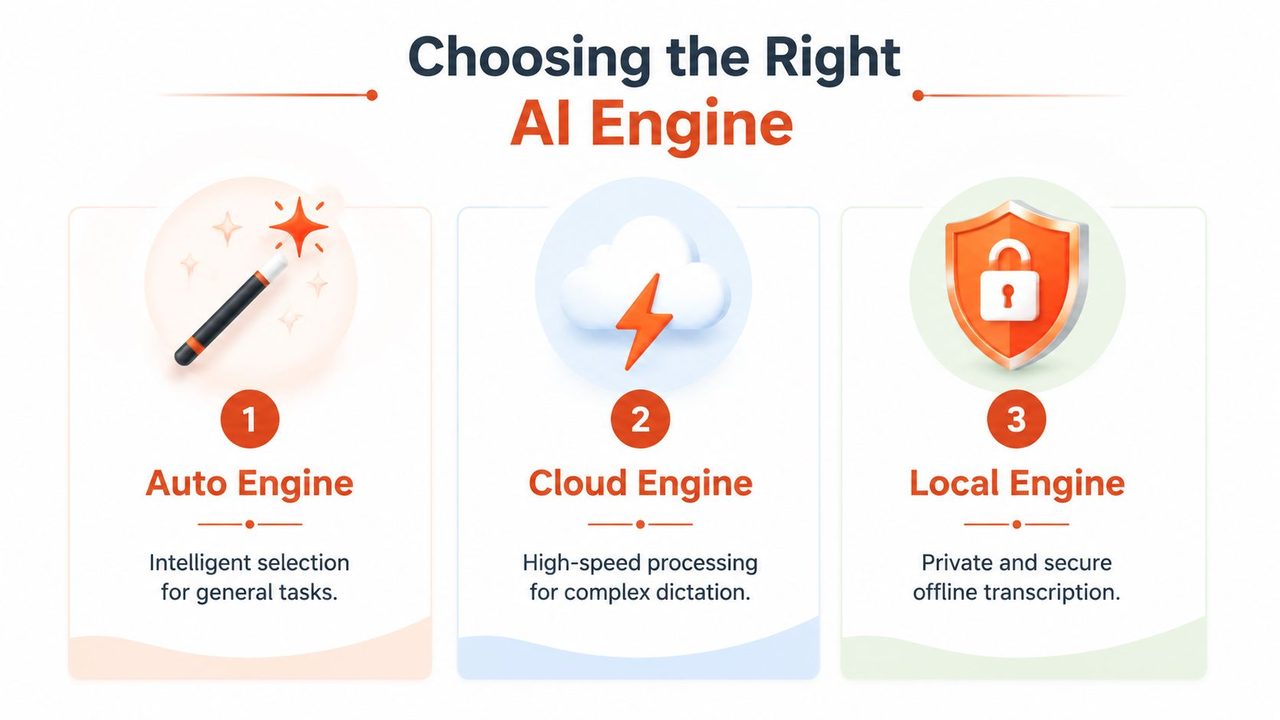
Choosing the engine matters more than is commonly realized. A lot of frustration with dictation comes from using the wrong mode for the task. Privacy-heavy work, rough brainstorming, polished client-facing writing, and technical documentation don't all need the same kind of processing.
There's a useful parallel in spelling instruction research. A meta-analysis found that group interventions had a small overall impact at d = +0.3, while personalized single-case designs reached d = +0.57 (meta-analysis). In practice, that maps well to the difference between generic recognition and modes that adapt more closely to your device, your voice, and your context.
When Local Mode is the right call
Local Mode is the choice for private, self-contained work. If you're drafting sensitive notes, working without reliable internet, or you want all processing to stay on your Mac, this is the mode that fits.
I'd use Local Mode for:
- Clinical or regulated writing: Sensitive notes where minimizing data movement matters.
- Travel or unstable connectivity: Drafting on a plane, train, or in a spotty hotel network.
- Technical work with repeated structure: Code comments, changelogs, commit notes, and internal documentation.
Local transcription also feels steadier for people who want predictable behavior. There's less temptation to expect it to “rewrite” what you said. You speak clearly, it captures faithfully, and you refine through your own rules and vocabulary.
When Cloud Mode earns its keep
Cloud Mode is for polish. This is the mode I'd pick when the transcript needs to arrive closer to final form, not just accurate enough to edit later.
That includes external email, stakeholder updates, presentation notes, and longer paragraphs where filler words, self-corrections, and spoken false starts create drag in the final text. Cloud processing is also the better fit when you want cleanup beyond raw recognition, such as formatting and smarter handling of spoken revisions.
A practical dividing line is this:
| Task type | Better fit |
|---|---|
| Private notes, offline work, local control | Local |
| Polished outbound writing | Cloud |
| Mixed workload across the day | Auto |
If your day includes architecture notes in the morning and polished status updates in the afternoon, one fixed mode becomes awkward. That's why teams who automate engineering documentation workflows usually care about matching the tool to the document stage, not forcing every task through one pipeline.
Use the least powerful mode that meets the requirement. Save heavy cleanup for writing that actually needs presentation polish.
Why Auto Mode is the default for most people
Auto Mode is the sensible default because most real work isn't pure. You may start with rough notes, switch into structured bullets, then finish with a client-ready paragraph. Auto Mode handles that mixed pattern without asking you to babysit the engine choice every time.
It's the best fit if you:
- move between Slack, Mail, Notes, and an editor all day
- want convenience over manual switching
- need good output most of the time without constantly thinking about settings
The trade-off is simple. Auto Mode reduces decisions. Local Mode gives tighter control. Cloud Mode gives more aggressive cleanup.
That trade-off is worth being explicit about, because “best” depends on what you're optimizing for. Privacy, polish, speed, consistency, and offline use don't always point to the same engine.
Proactive Spelling Cleanup with Custom Rules
If you want to clean up spelling without wasting time, stop fixing recurring errors by hand. Train the system instead. The biggest upgrade for most power users isn't better pronunciation. It's better rules.
Build a dictionary that reflects your work
Generic speech recognition handles common language reasonably well. It breaks down on the words that define your actual job.
That includes:
- Proper names: teammates, clients, physicians, patients, products
- Technical language: API names, framework terms, internal project labels
- Preferred spellings: house style, branded capitalization, and approved terminology
A custom vocabulary list should be short and practical at first. Add the words you correct repeatedly, not every term you can think of. Start with the ones that show up in your daily writing and cause visible friction when missed.
If you dictate for multiple domains, split your words mentally into buckets:
| Vocabulary type | Example use |
|---|---|
| People and organizations | client names, teammate surnames, vendor names |
| Technical terms | product modules, API names, compliance terms |
| Style-specific terms | preferred spellings, capitalization, region-specific forms |
A strong custom vocabulary also helps with one of the most common clean up spelling errors: compounds and phrasal verbs. In American English, “cleanup” as a noun or adjective appears 300% more frequently than “clean-up” in modern corpora, while the verb form remains “clean up” (usage guidance). If your writing follows American style, that distinction belongs in your dictionary and rule set.
Use context rules instead of one global style
One global dictation style is too blunt. Email, chat, docs, and code comments don't want the same output.
That's where context rules matter. Set different behavior for different apps and use cases. A mail app can favor complete sentences, standard punctuation, and polished phrasing. A chat app can stay lighter and more conversational. A code editor can preserve technical shorthand and avoid “helpful” over-formatting.
A few examples:
- In Mail, prefer formal punctuation and expanded contractions only when tone requires it.
- In Slack or Messages, allow shorter sentences and less rigid punctuation.
- In VS Code or another editor, preserve exact technical tokens and don't auto-smooth every fragment into prose.
If you're building this seriously, it helps to review examples of custom voice commands and vocabulary workflows so you can define terms, spoken shortcuts, and app-specific behavior in one place instead of improvising each time.
The fastest spelling fix is the one you never have to make twice.
Enforce style choices before errors appear
Power users save the most time. Don't just teach words. Teach preferences.
For example, if your team writes “cleanup script,” “database cleanup,” and “post-release cleanup” in American English, lock that choice in. If you serve UK readers, your noun and adjective form may need to be different in that output context. The point isn't abstract correctness. It's consistency.
What doesn't work is relying on memory during proofreading. You will miss things when moving fast.
What does work is using rules to preempt them:
- Add preferred compounds and branded terms to the dictionary.
- Set app-based formatting behavior.
- Review recurring edits weekly and convert them into rules.
- Remove outdated entries so the dictionary doesn't become cluttered.
Once you think this way, clean up spelling becomes a maintenance task measured in seconds, not a repair job measured in pages.
The Final Polish A Quick Proofreading Workflow
Even strong dictation output deserves a final pass. Not a deep edit. A targeted scan. The goal is to catch contextual mistakes, audience mismatches, and the occasional phrase that looked fine to the model but sounds off to a human reader.
Run a strategic scan not a full reread
I don't reread dictated text like a manuscript unless accuracy is critical. I scan for failure patterns.
That means checking:
- The opening lines: models often stumble when you begin speaking before you're fully settled
- Named entities: people, products, meds, file names, and internal terms
- Sentence boundaries: especially after spoken self-corrections
- Compound words and phrasal verbs: the exact category where “cleanup” and “clean up” can drift
This pass should be fast. Move with keyboard shortcuts, fix obvious issues immediately, and avoid tinkering with every sentence just because you're looking at it.
Review for audience and file format
Regional spelling is one place where a short human review still matters. In major UK publications, British English favors the hyphenated “clean-up” in 65 to 70% of noun and adjective uses, which is a meaningful divergence from American style (British usage comparison). If your draft is headed to an international audience, scan for those variant-sensitive terms before sending.
That review gets more important when the text leaves your normal app. If you're exporting drafts for stakeholders, legal review, or client markup, preserve a review trail. For teams that pass dictated drafts around as PDFs, this guide on how to track changes in PDF is useful because it keeps final corrections visible instead of burying them in email replies.
Read for audience before you read for perfection.
A quick finishing checklist helps:
| Final check | What you're looking for |
|---|---|
| Audience | US or UK spelling, tone, formality |
| Terms | names, jargon, branded language |
| Structure | bullets, numbering, paragraph breaks |
| Meaning | wrong-but-valid words that spellcheck misses |
The best proofreading workflow is narrow on purpose. If dictation did its job and your rules are solid, this last step should feel like inspection, not rewriting.
Troubleshooting Common Dictation and Spelling Errors
The common assumption is that better dictation means speaking more carefully. Sometimes that helps. Often it doesn't fix the underlying issue. Many recurring errors come from ambiguous language, poor input conditions, or missing vocabulary rules.
That's one reason this problem keeps coming up. As of early 2026, queries for “clean up spelling dictation” surged 180% year over year, and beta logs showed a 22% to 35% misrecognition rate for phrasal verbs versus nouns in mumbled speech (trend and ambiguity note). In other words, the frustrating mistakes are not random edge cases.
When the app hears the wrong form
“Cleanup” versus “clean up” is a classic example because both versions are plausible in many sentences. If your transcript keeps choosing the wrong one, the fix is usually contextual.
Try this:
- Pause slightly before the key phrase: not an exaggerated pause, just enough to separate the sentence structure.
- Rewrite the spoken sentence: “add the cleanup task” is easier to classify than “we need to cleanup later.”
- Teach the preferred noun form: especially if your work repeatedly uses one term in headings, tickets, or documentation.
If you still need a fallback review layer for shared drafts, standard editor checks can help catch leftovers. A simple reference on Google Docs spelling corrections is handy when colleagues keep work in Docs after dictation.
When custom words still fail
If a custom word doesn't stick, the issue is often one of these:
- The entry is too isolated. Add the word and then use it in real dictated sentences, not just as a standalone test.
- The spoken form is unstable. If you pronounce a term three different ways, the model has less to anchor to.
- The app context is fighting you. A chat rule, coding rule, or formatting rule may be reshaping the output.
A good test is to dictate five short sentences that use the word in realistic positions. Titles, list items, and mid-sentence uses can behave differently.
When dictation quality suddenly drops
A sudden drop in quality usually points to setup, permissions, or system-level friction, not a mysterious decline in AI.
Check the basics in this order:
- Microphone input changed: macOS may have switched devices after reconnecting headphones.
- Permissions broke after an update: reopen system settings and verify microphone and accessibility access.
- Background noise crept in: fans, calls, and open-office chatter often explain “random” mistakes.
- The app needs troubleshooting: if behavior changes abruptly, a focused Mac-specific guide like dictation not working on Mac saves time because it walks through the likely breakpoints in the right order.
The practical mindset is simple. Don't blame yourself first. Diagnose the pipeline. Most dictation issues are systematic enough to fix once and prevent next time.
Conclusion Your New Era of Effortless Writing
Clean dictation doesn't come from hoping the transcript will be perfect. It comes from building a workflow that catches problems at the right stage.
Start with reliable input. Pick the engine that matches the job. Add custom vocabulary for the words your work uses. Set context rules so different apps produce different kinds of text. Then finish with a short review that checks audience, terminology, and the handful of mistakes AI still makes under pressure.
That approach changes dictation from a novelty into a writing system.
It also changes what “clean up spelling” means in practice. You're no longer reacting to every typo after the fact. You're preventing many of them before they appear, and reducing the rest to a quick final pass. That's the difference between feeling like dictation creates extra work and feeling like it removes it.
For Mac users who write all day, that distinction matters. Product specs, emails, support replies, code comments, meeting notes, and clinical documentation all benefit when spoken drafts arrive close to final form. The more often you dictate, the more valuable that structure becomes.
The result is simple. You speak once, edit lightly, and send with confidence.
If you want a Mac dictation app built for polished output instead of raw transcripts, try AIDictation. It combines local and cloud transcription, supports custom vocabulary and app-specific context rules, and helps turn spoken drafts into clean writing you can effectively use.
Frequently Asked Questions
What does Clean Up Spelling: A Guide to Polished Mac Dictation cover?
You hit the dictation shortcut, talk for a minute, and get back something that's close enough to be annoying. A client name is wrong.
Who should read Clean Up Spelling: A Guide to Polished Mac Dictation?
Clean Up Spelling: A Guide to Polished Mac Dictation is most useful for readers who want clear, practical guidance and a faster path to the main takeaways without guessing what matters most.
What are the main takeaways from Clean Up Spelling: A Guide to Polished Mac Dictation?
Key topics include Table of Contents, From Messy Mumbles to Polished Text, Building Your Foundation for Flawless Dictation.
Ready to try AI Dictation?
Experience fast voice-to-text on your device. Free to download.
Download FreeRelated Posts
8 Best Bilingual Dictation Apps: 5 Tested + 3 Baselines
We tested five bilingual dictation apps on Russian-English code-switching, plus three common baselines. Compare WER, language recall, script, and workflow.
10 Best Dictate Software for Mac in 2026
Compare the best dictate software for mac in 2026 by accuracy, privacy, pricing, features, and use case—from Apple Dictation to AIDictation.
AI Dictation vs Diktuy: Russian-English Accuracy Test
We tested AI Dictation vs Diktuy on the same Russian-English recording. Compare WER, English-word preservation, full transcripts, and errors.