Formatting Rules Explained for Email, Docs and Code
You just dictated a status update, and the same words look wrong in three places. In email they arrive as one dense block. In the doc they sit under a heading that shouts in title case. In the code comment they wrap a file path that got "corrected" into ordinary English. Formatting rules are not taste. They are defaults that tell a reader what to do next, and those defaults change with the place the text lands.
The fix is a small set of context-specific defaults, written down once, then enforced by the tools you already use. A style sheet holds the conventions. A custom dictionary protects names and tokens. App-level context rules pick the tone before you start speaking. What follows is the logic behind each default, and where people usually trip.
Table of Contents
- Formatting Rules by Context at a Glance
- Plain Text Fallback and Structure
- Capitalization, Punctuation and Spacing Conventions
- Lists and Headings That Encode Document Structure
- Email Formatting Rules
- Code Comments, Literal Text and Indentation
- Tone, Readability and High-Stakes Notes
- Build Your Formatting Rulebook and Test It
Formatting Rules by Context at a Glance
Start with the row that matches the thing you are writing. Each row is a starting default. A team style guide wins when the two conflict.
| Context | Heading style | Line length | Lists | Tone |
|---|---|---|---|---|
| Business email | None, or a bold lead-in for multi-part messages | About 72 characters | Bullets for three or more items | Direct and polite |
| Technical documentation | Sentence case, one H1 per page | 80 characters per line | Numbered for procedures, bullets otherwise | Precise and neutral |
| Code comments | No markup, plain sentences | 80 characters | Hyphen bullets only when needed | Short, factual, imperative |
| Product requirements | Sentence case, numbered sections | Wrap for readability in the tool used | Numbered requirements with stable IDs | Specific and testable |
Business email has no heading hierarchy because the subject line already names the topic. A bold lead-in earns its place only when one message holds several parts, so a reader can jump to the part that concerns them. Paragraphs stay plain. Bullets appear once you have three or more parallel items, not because a list looks tidy.
Technical documentation uses sentence case and one top-level heading per page so the outline matches the information, not a font size someone liked. An 80-character line keeps procedures readable beside a code sample. Numbered lists are reserved for steps that must happen in order. Everything else is a bullet, and the tone stays precise rather than friendly.
Code comments carry no markup. Markdown asterisks inside a comment are noise, and a reviewer cannot tell decoration from a literal. Comments stay short, factual, and often imperative ("Return early when the token is empty"). They follow the same line limit as the surrounding code, commonly 80 characters, so a diff does not grow a horizontal scrollbar for a sentence.
Product requirements need numbered sections and stable IDs because testers and engineers cite them for months. "The export finishes in under ten seconds for 10,000 rows" can be tested. "The export should feel fast" cannot. Wrap lines for the tool you write in, not for a printed page.
Before you publish, run three checks. Does the heading style match this context? Does each list exist because the items are parallel or ordered, not because you wanted white space? Does the tone match the reader's next action, whether that is a reply, a procedure, or a test?
Plain Text Fallback and Structure
A recipe can live on a card by the stove or on a page in a printed cookbook. The steps do not change when the page layout does. Formatting works the same way. The instructions have to stay readable after the layout is stripped away.
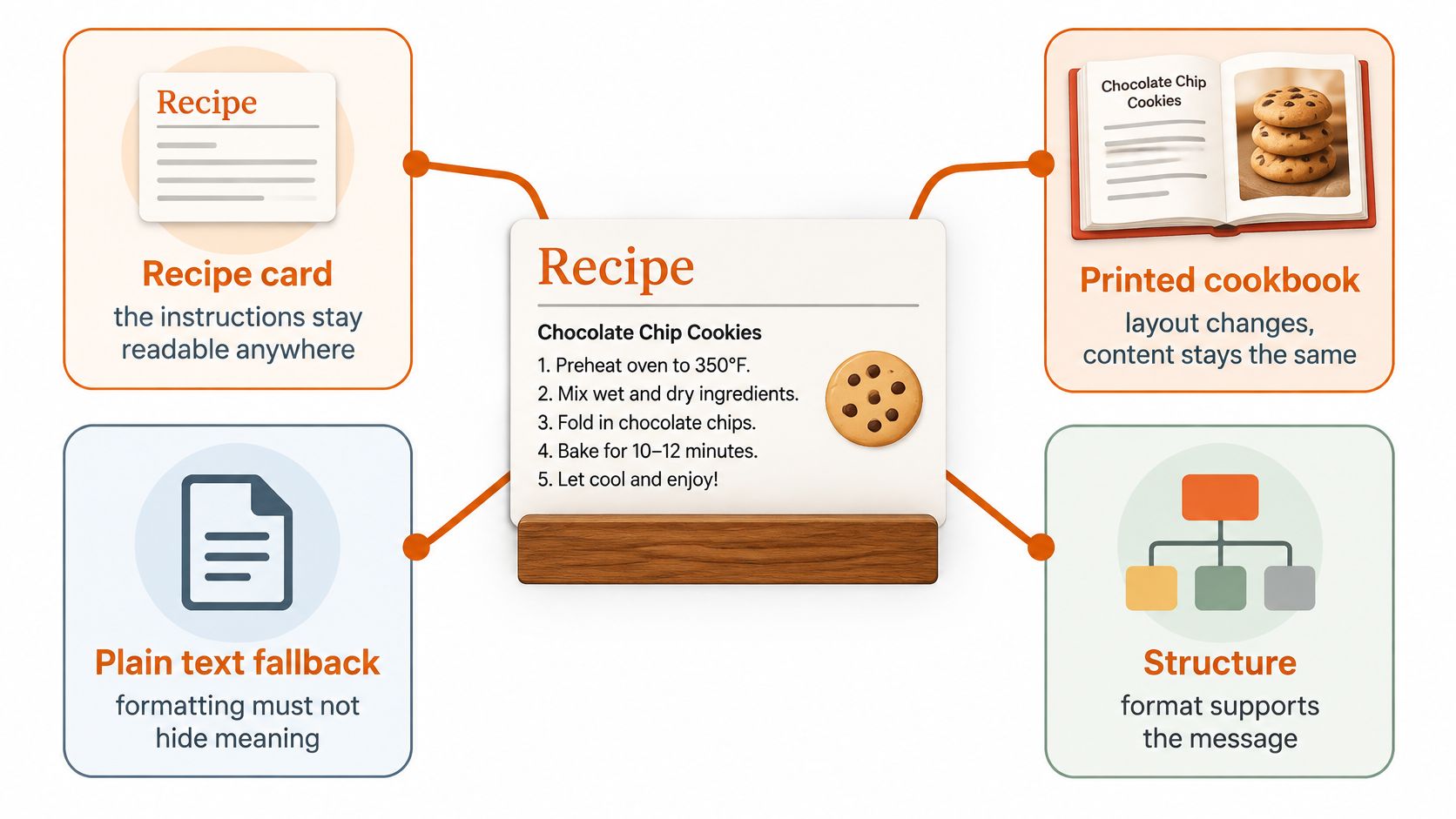
The Journal of eScience Librarianship characterizes plain text as a sequence of characters without embedded instructions for font, style, layout, or positioning. Formatting has to come from a separate markup or presentation layer. That journal article also notes that the first version of Unicode was published in 1991, giving systems one way to agree on what a character means.
Two rules, one message
Exchange stays reliable only when you keep two jobs apart. Character encoding decides what a symbol means. Formatting decides how that symbol is displayed or structured. Punctuation, headings, lists, paragraph breaks, and capitalization are structured output. They are not decoration. A missing comma can merge two steps. A heading that exists only as a larger font disappears the moment the font does.
Say you bold a heading in a doc, then paste it into a ticket field that accepts plain text. The bold becomes stray asterisks, and the recipient's client may show **Setup** as literal characters. The structure did not survive the trip.
Practical rule: Keep structure in a form that still reads after formatting is removed. A short line, then a blank line, marks a heading. Numbers mark steps. Hyphens mark bullets.
Paste the draft into a plain-text field before you send it. If the steps, the names, and the ask are still obvious, the message will survive email, a database, and a code review.
Capitalization, Punctuation and Spacing Conventions
These are the items people argue about in review. Pick them once, write them down, and stop relitigating them in every document.
| Element | Convention | Example |
|---|---|---|
| Headings | Sentence case | Set up the webhook |
| Brand and product names | Official capitalization | iOS, macOS, PostgreSQL |
| Serial comma | Use in lists of three or more | red, green, and blue |
| Em dash | No spaces around it | The build passed, then the deploy failed |
| Sentence spacing | One space after a period | Save the file. Then restart. |
| Page size | Match the regional default | A4 outside the US and Canada, Letter within them |
Sentence case for headings cuts visual noise. A page of Title Case Headings makes every word look equally important, so nothing scans. "Set up the webhook" tells you the task at a glance.
Brand and product names keep their official capitalization even at the start of a sentence. Write "iOS," "macOS," and "PostgreSQL" as the vendors do. "Correcting" PostgreSQL to Postgresql breaks search, and it breaks a custom dictionary you will want later.
The serial comma stops the last two items from merging. "Notify the owner, the on-call engineer and the pager rotation" can be read as two people or three. "red, green, and blue" cannot. If you want a fuller walkthrough of the disputed marks, you can punctuate sentences with confidence using a short reference rather than a house debate.
Spacing, dashes, and the page itself
Set an em dash with no spaces around it, as in "The build passed, then the deploy failed." One space after a period is enough for modern guides. Two spaces are a typewriter habit, and they show up as uneven gaps once the text is justified.
Page size is a formatting rule, not a printer preference. On 18 August 1922, Germany's standards organization published DIN 476, starting the A-series at A0, an area of exactly 1 square meter at 841 × 1,189 millimeters, as the Wikipedia article on international standard paper sizes records. ISO adopted the system as ISO 216 in 1975. By 1977, A-series paper was the standard letter format in 88 of 148 countries in an international-mail study, about 59.5%. Today A4 is 210 × 297 millimeters and dominates office documents, while the United States and Canada primarily use Letter. A file archived in the wrong size reflows tables and breaks page references.
When a case is ambiguous, follow the publication or project style guide. If none exists, choose the convention that is easiest to scan and to copy. Record the choices on one style sheet so the next document does not reopen them.
Lists and Headings That Encode Document Structure
Headings and lists should express structure, not a font size. If you cannot recover the outline from the headings alone, the hierarchy is wrong.
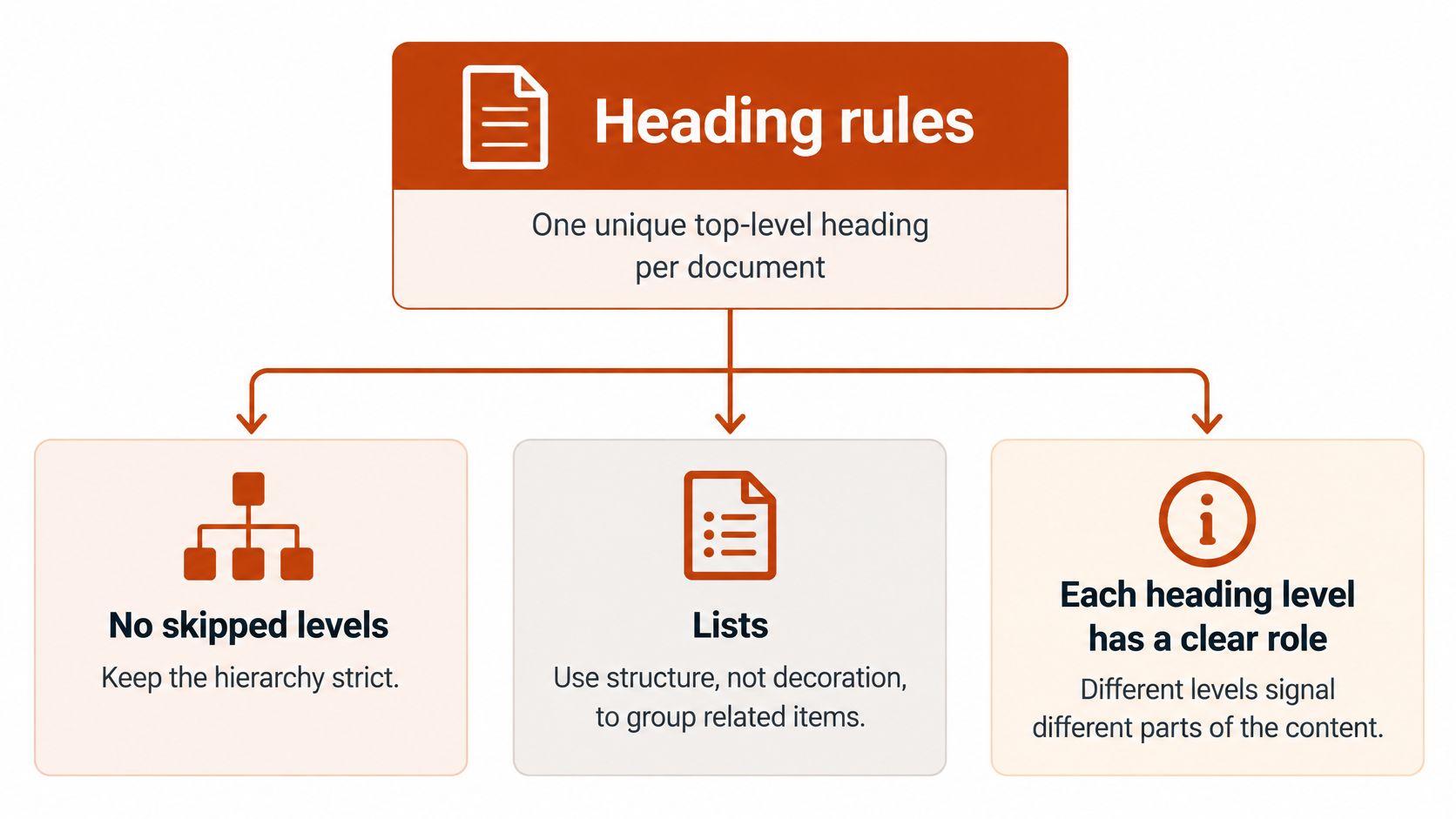
Google's developer documentation style guide treats formatting as information architecture. Use one unique top-level heading per document. Do not skip levels. Name each heading as a task or a concept. Heading level then carries meaning for navigation, screen readers, and an automatic table of contents, independent of typography.
Why you should not number the headings
Numbering headings to imply sequence is discouraged. The document order already shows sequence. "3.2.1 Retry behavior" looks precise until someone inserts a section and every cross-reference shifts. Let the tree do that work.
A clean tree looks like this.
- Configure the client (the only top-level heading on the page)
- Store the token (a child, not a sibling promoted for emphasis)
- Rotate credentials (same level as the previous child, because it is the same kind of task)
Keep code identifiers out of headings unless descriptive text sits beside them. "webhook_secret" is a token. "Store the webhook secret" is a heading.
Lists, and what dictation should become
Use a numbered list for an ordered procedure and bullets for items with no order. Do not mix the two in one block. A mixed block forces the reader to guess which numbers are sequence and which are just decoration.
Spoken cues map onto that tree. "New section," "setup," and "configuration" should become headings at the right depth, in sentence case, without decorative punctuation. A run of short phrases should become bullets, not a paragraph of commas. Our own tool can turn sparse bullets into readable documentation that teammates can review and comment on, and it can build outlines for blog posts, operating procedures, and research summaries before the structure is refined. The bullet point formatting notes cover the list half of that conversion in more detail.
A two-minute clip on readable structure is worth watching before you restyle a long page.
After you dictate, read only the headings. If a teammate could not tell what the page does from that list, fix the tree before you polish sentences.
Email Formatting Rules
Email is a context where people write every day, and its defaults are short. Follow them in order before you send.
- Open with the ask or the key fact. Background belongs after the reader knows why the message arrived. "Please approve the Q3 vendor budget by Friday" beats three sentences of history.
- Write plain paragraphs of one to three sentences. Each paragraph carries one idea. A five-sentence paragraph hides the decision inside the third sentence.
- Add a bold lead-in only for a multi-part message. Budget: and Timeline: let someone jump. A single-topic note does not need them.
- Match the list to the content. Bullets for three or more parallel items. Numbers when order matters. Never both in one block.
- Make the subject specific and sentence case. Name the action, as in "Approve budget for Q3 vendor review." "Quick question" and "Update" do not tell anyone what to do.
- Close with the next action and its deadline. Direct and polite is the tone. "Could you reply by Thursday with a yes or a change?" is enough.
- Write dates so they cannot flip. Use 14 March 2026, not 03/14/26, which a colleague abroad may read as 3 April.
- Wrap plain-text mail near 72 characters. Long lines break awkwardly in some clients. Skip decorative formatting that a recipient's software may turn into stray symbols.
The more detailed habits in our professional email writing tips sit on top of this checklist. They do not replace it.
Paste the finished message into a plain-text field. If the ask, the date, and the list still read cleanly, send it.
A signature is part of the format, not an afterthought. Teams that create branded signatures for staff keep the name, role, and contact line consistent, so the reader is not decoding a different footer on every reply. Keep that block short. A signature that repeats the whole ask pushes the action below the fold on a phone.
Code Comments, Literal Text and Indentation
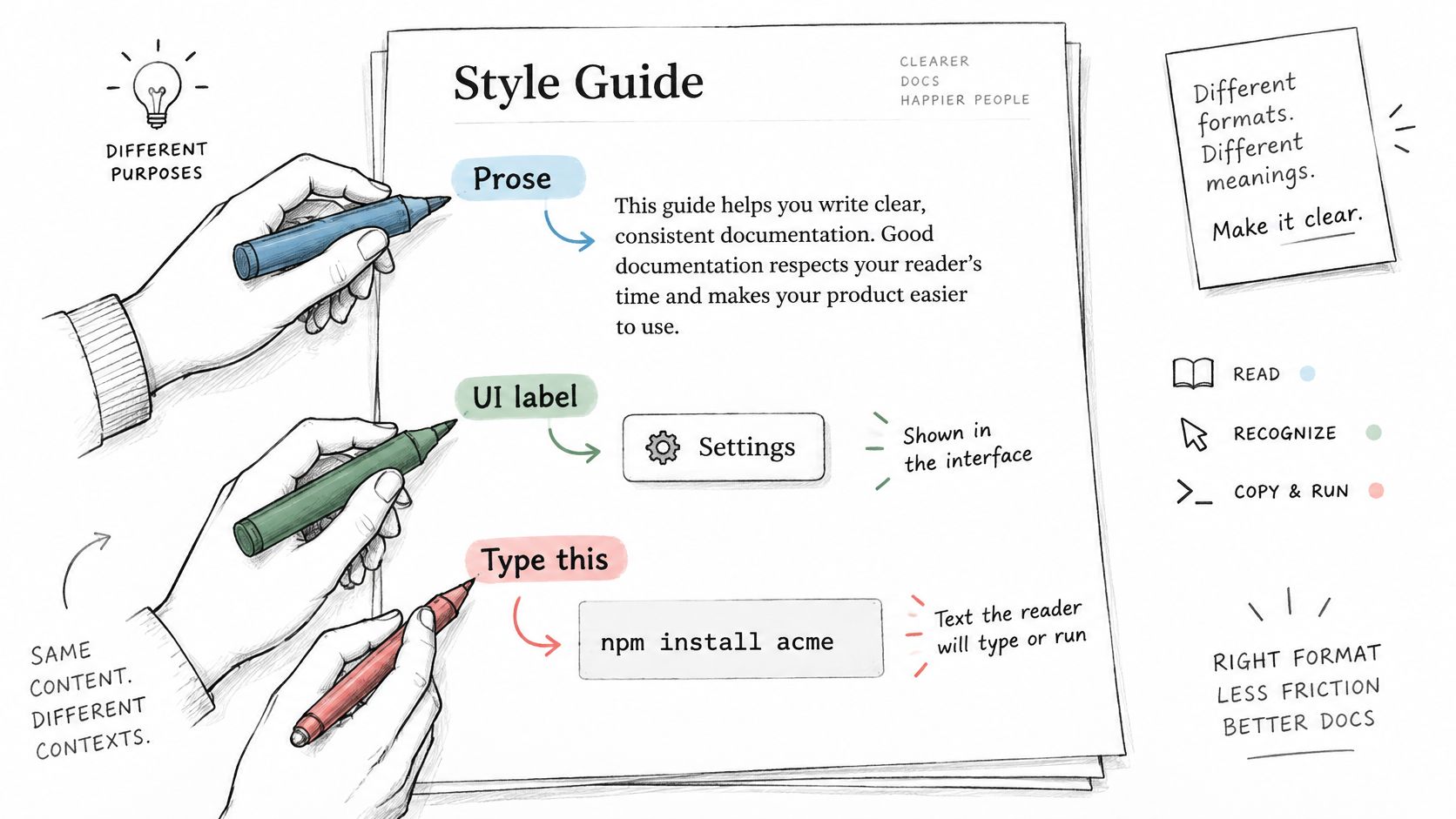
Formatting has to separate three kinds of text, because readers interpret and copy them differently. Prose is explained. An interface label is found on screen. A literal is typed or run, and a single changed character makes it fail.
| Text type | Format | Example | Reason |
|---|---|---|---|
| Identifiers and parameters | Inline code | max_retries | Keeps the exact spelling for copying |
| File paths and commands | Inline code | src/config.yaml | Prevents misreading of separators |
| UI element names | Bold | Save changes | Helps readers find the control |
| User input | Inline code | yes | Separates input from explanation |
Google's HTML formatting guidance recommends code font for code-related text and user input, bold for UI elements, and spaces rather than tabs. For HTML examples it recommends two spaces per indentation level and an 80-character line, with exceptions for URLs and required metadata.
Why the marks exist
Inline code lets someone copy max_retries without guessing underscores. A path in ordinary type invites a line break at the slash, so src/config.yaml gets read as two fragments. Bold on Save changes tells the reader this is a control name, not an instruction to invent their own label. Marking user input as code, as in type yes at the prompt, stops the word "yes" from blending into the sentence around it.
Tabs are the edge case people defend. They render at different widths across editors, so a comment block that looked aligned on one machine shifts on another. Long lines create the same friction in review. A 120-character comment forces horizontal scrolling and makes a side-by-side diff harder to read. Break the prose. Leave a URL or a required metadata field intact even when it passes 80.
Dictated engineering notes follow one extra constraint. Keep literals exactly as spoken or typed. Do not "fix" capitalization inside iOS, NaN, or a flag like --dry-run. Normalize lists only in the prose around them. Our notes on software code documentation show how that split looks once the comment sits next to the function. If a term is uncertain, flag it. Guessing a parameter name is worse than leaving a blank.
Tone, Readability and High-Stakes Notes
Every formatting choice sits on a trade-off between expert precision and plain language. A developer needs the exact flag. An ESL colleague, or someone using a screen reader, needs a sentence they can parse on the first pass. Polished text is not the same thing as comprehensible text.
For ordinary documents and email, the American Chemical Society accessibility guide recommends plain language, active voice, important information first, abbreviations defined on first use, idioms and jargon avoided, and bullets instead of long inline lists. It also recommends consistent typography and at least 12-point text for ordinary documents and email.
What to protect, and what to simplify
Rank the rules. Semantic structure comes first: a stable heading hierarchy, explicit labels, short actionable steps, meaningful descriptions on links and code, and locale-neutral dates and units. Font choice comes last. A beautiful typeface does not rescue a page whose headings skip levels.
For dictated text, split the editing. Preserve exact identifiers, code, measurements, and quoted requirements. Normalize the surrounding prose more aggressively, including filler and self-corrections. Flag an uncertain term instead of guessing. "Patient said 'no chest pain'" must not become "no chest pain" with the speaker erased, and 10 mg must not become 10mg if your house style keeps the space.
Say which languages offline dictation covers before multilingual writers rely on it. Offline mode supports 25 languages: Bulgarian, Croatian, Czech, Danish, Dutch, English, Estonian, Finnish, French, German, Greek, Hungarian, Italian, Latvian, Lithuanian, Maltese, Polish, Portuguese, Romanian, Russian, Slovak, Slovenian, Spanish, Swedish, and Ukrainian. If a speaker's language is not on that list, do not assume local recognition will catch technical terms.
Clinical notes are a validation task
Clinical formatting is not one template. A 2025 study of AI-generated clinical notes found that quality needs more than correct section labels. Notes must be organized, comprehensible, succinct, nonredundant, and appropriate to the specialty. Another 2025 study proposed K-SOAP, adding a keyword section to the traditional Subjective-Objective-Assessment-Plan structure to speed retrieval.
SOAP is not universal. SBAR fits a handoff. A narrative note fits a course that is hard to slice into boxes. A specialty template fits when the service has already agreed on one. Guides rarely say when to switch, and they rarely say how to keep uncertainty, separate a patient's words from a clinician's assessment, or stop tidy formatting from hiding an omission.
Cleaner is not automatically safer. A highly concise note becomes less useful if it drops qualifiers, chronology, or the source of a statement. "No fever" dictated by the patient is not the same finding as "no fever" recorded by the clinician.
Before a formatted note enters a record, read it against the original speech. Did every qualifier, denial, and source survive?
Each section should make four things visible: provenance, uncertainty, who owns the follow-up, and clinically material negatives. Automatic filler removal can help readability and still change meaning. Treat the formatted note as something you validate, not something you only restyle.
Build Your Formatting Rulebook and Test It
A rule that lives only in your head gets renegotiated on every document. Write it down, then test it on real dictation.
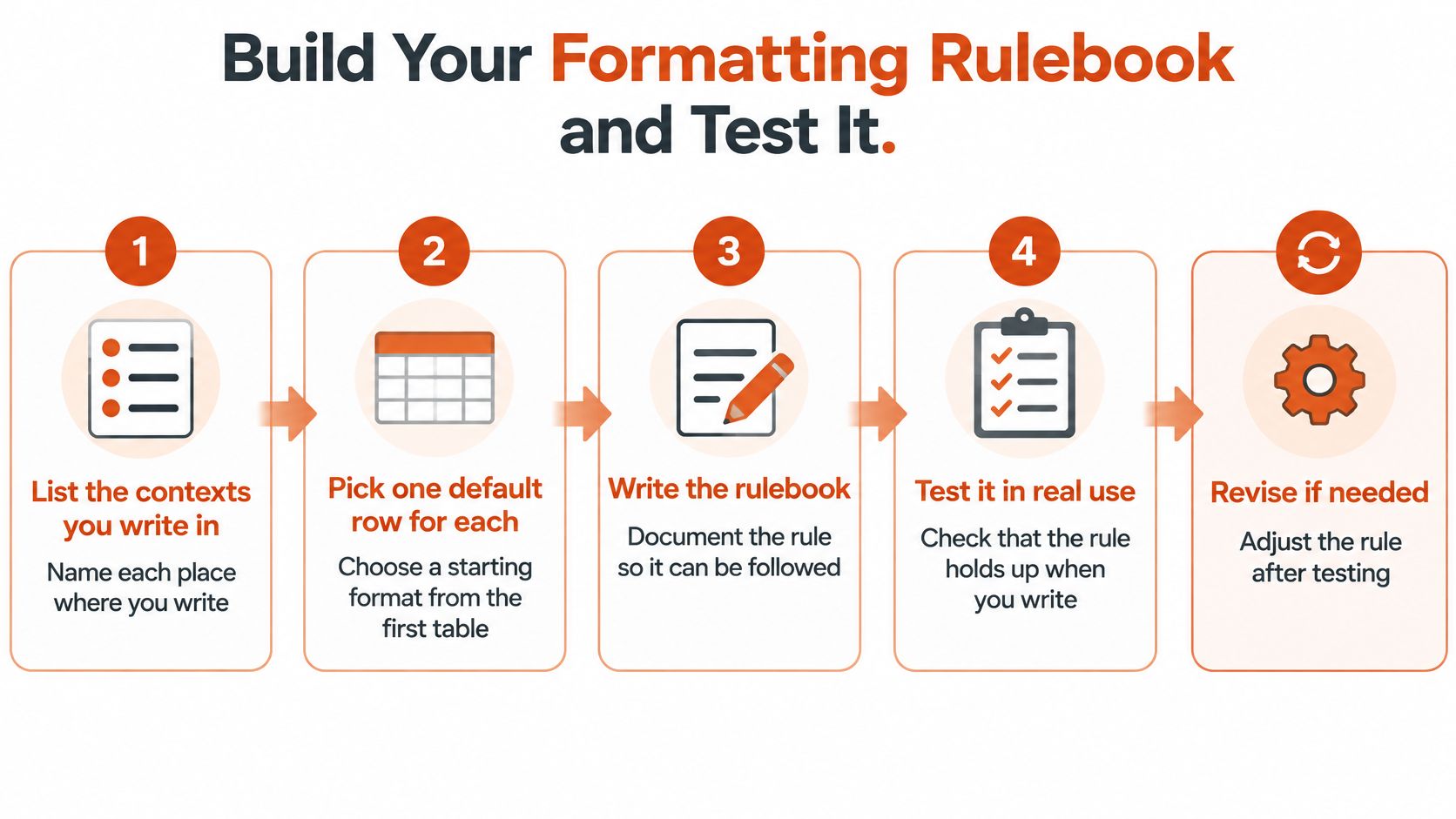
- List the contexts you write in. Name email, docs, code comments, requirements, and clinical notes if those are yours. A context you forget becomes the place the defaults drift.
- Pick one default row for each context. Use the opening table as the start, then let the team style guide override a cell. One row per context stops you from mixing email tone into a procedure.
- Record punctuation, headings, and lists on a single page. Sentence case, the serial comma, list types, and date format belong there. A one-page sheet gets used. A twenty-page guide does not.
- Add names, product terms, and identifiers to a custom dictionary.
PostgreSQL, drug names, and parameter spellings should not be "fixed" mid-sentence. The dictionary is what keeps literals stable while prose is cleaned up. - Set context rules per app. Email gets a professional tone, chat stays casual, and editors get technical output. We use AI-powered document structuring to format dictated text, turning spoken cues such as "new section" into headings and lists. Local mode keeps dictation on the machine, with less network dependence and tighter privacy controls. Cloud mode adds cleanup, formatting, and context-aware help when you want that pass.
- Dictate one sample per context and compare it with the sheet. Check heading style, list type, line length, and whether any token changed. Flag an uncertain word instead of accepting a guess.
- Revise the sheet when a rule keeps failing. If reviewers always unwrap your email lines, the wrap rule is wrong for that client. Change the sheet. Do not add a private exception you will forget next week.
A rulebook is finished when a teammate can apply it without asking you. If they still have to ask, the default is not specific enough yet.
AIDictation turns speech into writing that already follows the context you are in, with app-level rules for email, chat, and technical editors plus a custom dictionary for the names and tokens formatting should never rewrite. Use it when you want dictated notes, procedures, and requirements to land in the right structure instead of a wall of text. Visit AIDictation to try it on your next draft.
Frequently Asked Questions
What does Formatting Rules Explained for Email, Docs and Code cover?
You just dictated a status update, and the same words look wrong in three places. In email they arrive as one dense block.
Who should read Formatting Rules Explained for Email, Docs and Code?
Formatting Rules Explained for Email, Docs and Code is most useful for readers who want clear, practical guidance and a faster path to the main takeaways without guessing what matters most.
What are the main takeaways from Formatting Rules Explained for Email, Docs and Code?
Key topics include Table of Contents, Formatting Rules by Context at a Glance, Plain Text Fallback and Structure.
Ready to try AI Dictation?
Experience fast voice-to-text on your device. Free to download.
Download FreeRelated Posts
Technical Documentation Design: Principles That Work
Technical documentation design principles: match pages to reader goals, build findable navigation, fix accuracy defects and meet WCAG accessibility standards.
Software Code Documentation: The Practical Developer Guide
Master software code documentation with expert best practices for API docs, inline comments, and READMEs. Boost team velocity with proven workflows.
Onboarding Documentation: Types, Examples, and Tools
Learn what effective onboarding documentation looks like with real examples, types, and tools to streamline employee training and retention.